Best Video to GIF Software: 10 Tools Compared (2026)
Compare the best video to GIF software in 2026. 10 free and paid converters ranked on speed, output size, edit tools, and watermark behavior.
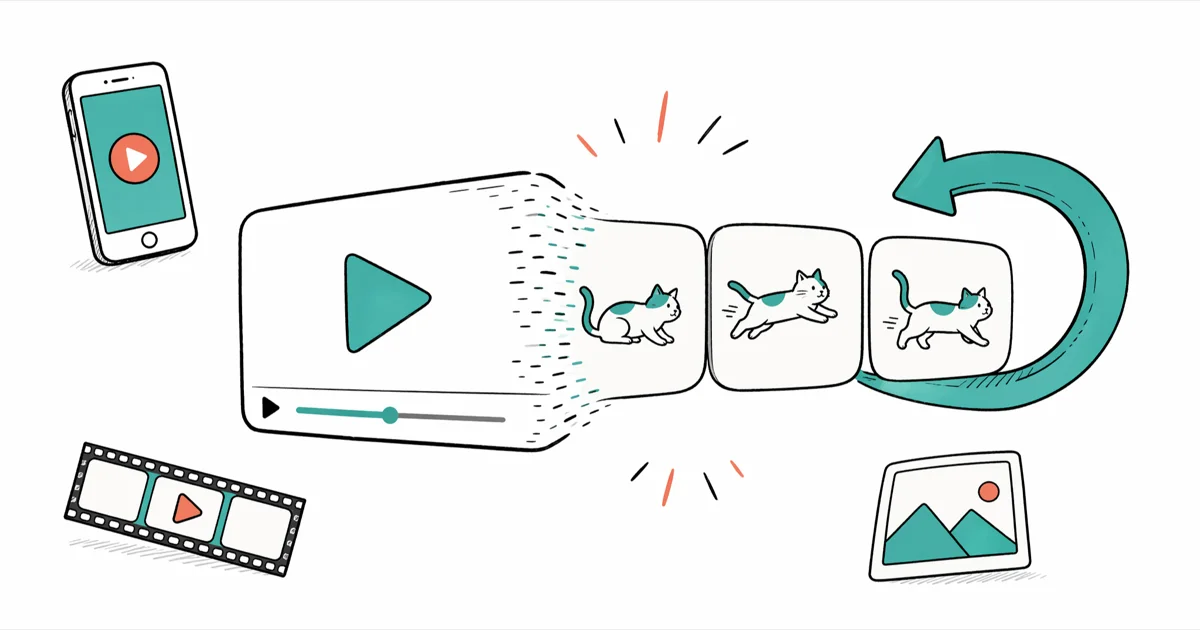
Quick AnswerFFmpeg is the most flexible free video to GIF tool if you can use a command line. For a friendly interface, EZGIF handles clips under 200 MB in a browser, while Wondershare UniConverter is the strongest paid desktop option for batch jobs.
Picking the right video to GIF software comes down to three things: how big your clip is, whether you need editing on top of conversion, and how much you’ll pay to skip watermarks. Ten popular converters span the range, from a command-line workhorse to friendly browser and desktop apps, and they vary widely on output size, processing speed, and watermark behavior.
This guide groups the tools by how you use them (command line, browser, or desktop app) so you can pick the right one without trying all ten yourself.
- FFmpeg produces the smallest output of these tools but needs a one-line command and zero GUI.
- Browser tools like EZGIF and Convertio cap uploads near 200 MB and 100 MB respectively, so trim long clips first.
- Free online converters often watermark output or stamp branding on free tiers; FFmpeg, EZGIF, and Giphy don’t.
- 10 to 15 fps is enough for smooth motion in a chat GIF; 24 fps doubles file size without an obvious quality win.
- Wondershare UniConverter and Movavi handle batch jobs of 10+ files at once, where browser tools force one upload at a time.
#What Is Video to GIF Software?
A video to GIF converter turns a clip in a format like MP4, MOV, or WebM into an animated GIF, a looping image with no audio that plays inline on almost any website, chat app, or email client. The output is one file that browsers, Slack, iMessage, and most CMSs display without a player.
The GIF format dates to 1987 and supports a maximum of 256 colors per frame. According to Mozilla’s image formats reference, GIF compression is lossless within that 256-color limit, which is why a 12-second 1080p video can easily balloon to 8 MB or more when converted directly. Good converters re-encode to a lower frame rate, trim the color palette, and resize the canvas to keep the file under chat-friendly limits.
If your source clip is in HEVC or a Windows Movie Maker format, you’ll often want to convert HEVC or WLMP files to MP4 before running the GIF conversion, since many browser tools reject HEVC outright.
#Features That Matter Most in a Good Converter
Five things separate a useful video to GIF tool from a frustrating one. Every option below is judged on these criteria, and any tool that misses two or more is a poor choice no matter how many five-star reviews it has on its homepage. Frame rate and palette controls, in particular, are the difference between a 600 KB shareable GIF and a 6 MB monster that chokes on Slack upload.
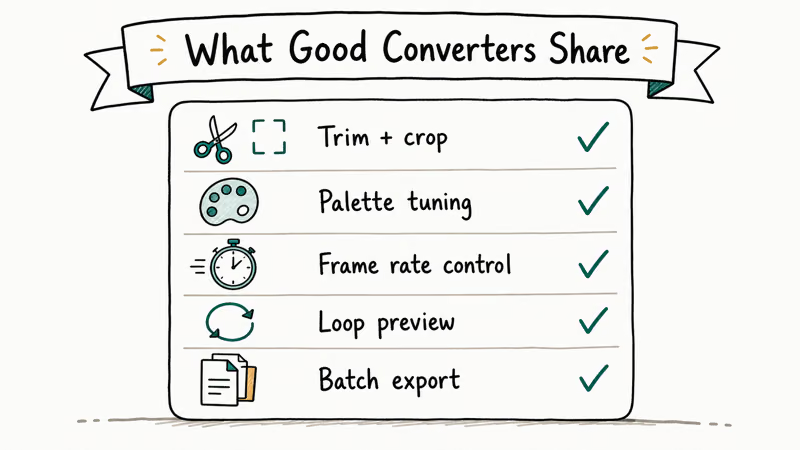
Input size and format: Browser tools routinely reject sources over 200 MB. Anything over 100 MB is safer on a desktop app or FFmpeg.
Frame rate and palette control: The single biggest lever for output size. Tools that hide this setting tend to produce 4–8 MB output where a tuned export would land near 800 KB.
Drop one of these and quality suffers visibly.
Trim and crop in the same flow: Cropping after conversion is painful because you re-encode and lose quality. Look for trim plus crop in the same step or pair the converter with a dedicated GIF cropper.
Watermarks on the free tier: Make a GIF and a few cloud converters stamp branding on free output. EZGIF, FFmpeg, and Giphy don’t.
Batch processing: If you process more than three clips a week, batch is worth paying for. Wondershare and Movavi handle it; browser tools don’t.
#Best Video to GIF Software for 2026
The ten tools below are grouped by interface style. Pick the row that matches how you work.
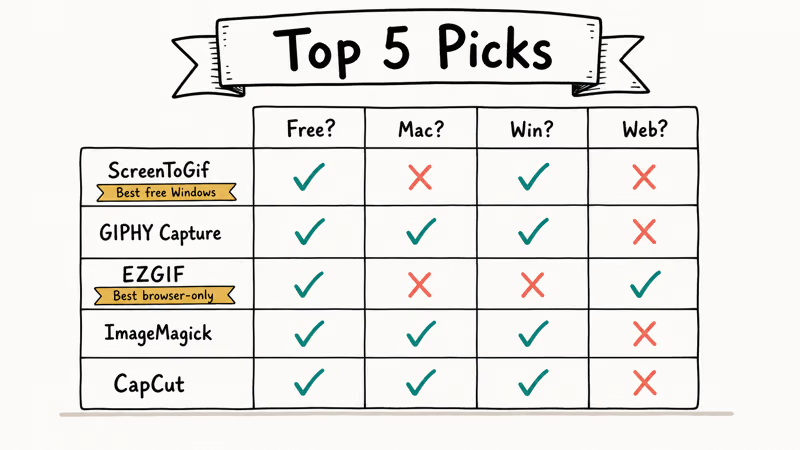
Command-line power tools.
#1. FFmpeg
FFmpeg is the open-source workhorse behind most video tools you’ve ever used, including Handbrake and OBS. According to the official FFmpeg project page, it’s been in active development since 2000 and supports nearly every codec in use today. A two-pass FFmpeg command (palettegen plus paletteuse) produces the smallest GIF of any tool here, because it builds a color palette tuned to your exact clip.
| Pros | Cons |
|---|---|
| Smallest output sizes overall | Command line only |
| Free, no watermark, no upload limit | Requires palettegen syntax for best quality |
| Scriptable for batch automation | No preview before encoding |
Verdict: best if you’ll convert more than a few clips a month and don’t mind reading a man page once.
Browser-based converters.
#2. EZGIF
EZGIF accepts MP4, WebM, AVI, MOV, FLV, and direct URLs, and tops out around a 200 MB upload. Its interface walks you through trim, crop, resize, and frame rate in one page. Feed it a short 1080p MP4 at a reduced frame rate and 480 px width and it returns a small, web-ready GIF in just a few seconds.
| Pros | Cons |
|---|---|
| No signup, no watermark | 200 MB upload cap |
| Trim, crop, and resize in one page | Single file at a time |
| Decent palette controls | Servers can queue at peak hours |
Verdict: the default pick for one-off conversions under 200 MB.
#3. Giphy
Giphy is best known as a GIF host, but its GIF Maker accepts video uploads or YouTube URLs up to roughly 100 MB and 15 minutes. It caps output at 15 seconds, which is short but usually fine. Giphy adds no watermark, but the GIF is uploaded to a public Giphy library by default unless you mark it private.
| Pros | Cons |
|---|---|
| Built-in captions and stickers | 100 MB upload cap |
| Public hosting + embed code | Output uploads to Giphy library |
| Free, no signup for basics | 15-second output cap |
#4. CloudConvert
CloudConvert handles MP4 to GIF along with hundreds of other format pairs. Free users get about 25 conversions per day and 1 GB per file. It exposes frame rate, width, height, and quality sliders, which are enough to land a typical short clip under 1 MB.
| Pros | Cons |
|---|---|
| 1 GB per file on free tier | 25 free conversions per day |
| Dropbox and Google Drive input | Re-uploads to third-party servers |
| API for developers | Slower than EZGIF |
#5. Convertio
Convertio supports more than 300 file formats. The free tier caps at 100 MB per upload and watermarks longer outputs. The interface is the simplest of the browser group, with one big drop zone and a target format dropdown.
| Pros | Cons |
|---|---|
| Cleanest first-time UI | 100 MB free cap |
| Cloud storage input | Few palette controls |
| Email delivery option | Slower for longer clips |
#6. Zamzar
Zamzar focuses on speed and a clean queue. Free conversions max at 50 MB and 10 daily. A short clip comes back as a small GIF in well under a minute.
| Pros | Cons |
|---|---|
| Email-when-done flow | 50 MB cap on free tier |
| 1100+ format support | Larger outputs than EZGIF |
| Privacy-focused (auto-deletes) | Limited editing |
#7. Make a GIF
Make a GIF accepts video uploads, YouTube links, webcam input, and image sequences. Free output carries a small Make a GIF stamp in the corner. Paid removes it.
| Pros | Cons |
|---|---|
| Webcam input option | Free output has a watermark |
| Captions, filters, stickers | Paid tier required for HD |
| YouTube URL conversion | Lower default quality |
Desktop converters.
#8. Wondershare UniConverter
UniConverter is a paid Windows and Mac app that handles batch conversion, trimming, cropping, and basic effects in one tool. According to Wondershare’s product page, it supports over 1000 formats. Batch-converting several clips at once is far quicker than queuing the same files through separate browser uploads.
| Pros | Cons |
|---|---|
| Real batch support | Paid (free trial caps export) |
| Built-in trim, crop, watermark | Heavier install than FFmpeg |
| Format support is exhaustive | Yearly subscription pricing |
#9. Movavi Video Converter
Movavi is similar to Wondershare in scope: paid desktop app with a friendly UI, GIF export presets, and batch support. Its drag-to-trim handles are quicker to use than UniConverter’s, though UniConverter’s color-palette dropdown tends to produce slightly smaller files.
| Pros | Cons |
|---|---|
| Fastest trim UI of the desktop apps | Paid app |
| Batch and presets | Watermark on trial output |
| GPU acceleration | Subscription or one-time license |
#10. VideoSolo Video Converter Ultimate
VideoSolo is the budget desktop option. It clears the basics (trim, crop, palette, batch) without Wondershare’s plugin library or Movavi’s polish.
| Pros | Cons |
|---|---|
| Cheaper one-time license | Smaller feature set |
| Batch export | Slower than Wondershare |
| No watermark on paid output | Fewer format presets |
#How Do You Make a Sharper, Smaller GIF?
The defaults on every tool above produce a GIF that works but is rarely tuned. Five settings move the needle most, and the gap between defaults and tuned output is the difference between a 4 MB GIF that fails to upload and a 700 KB GIF that loads instantly on a slow connection. Spend the extra minute.
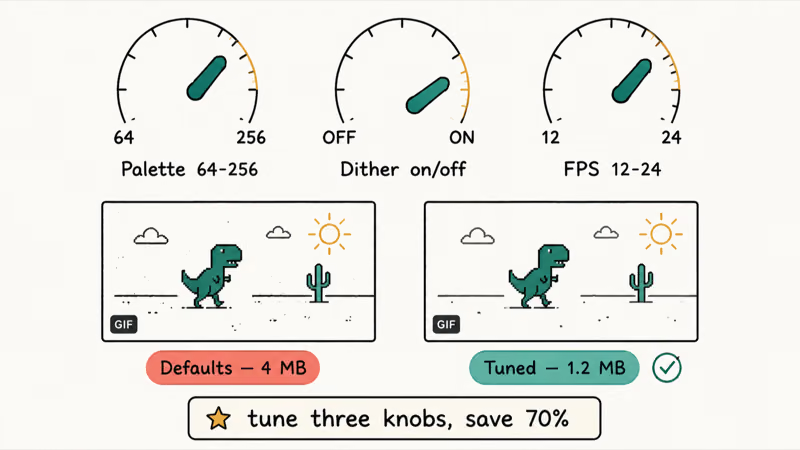
Start with the source. Cutting a 30-second clip down to the 3 seconds that matter halves output size before you change a single setting. Most converters trim inline; for trickier edits, trim the MP4 first and then convert the smaller file.
Drop the frame rate to 12 or 15 fps. Human eyes read GIF motion fine below 20 fps, and the file size scales roughly linearly with frame count. Dropping from 24 fps to 12 fps roughly halves the output with no visible loss of motion smoothness.
Resize the width.
A 1080p source converted to 480 px wide shrinks the per-frame pixel count by roughly 75 percent. For chat and email, 320 to 480 px is sharp enough on phones and most desktop screens.
Limit the palette. GIF supports 256 colors maximum. FFmpeg’s palettegen filter chooses the best 256 for your specific clip, which is why its outputs beat default-mode browser tools by a wide margin on gradient-heavy footage like sunset shots or skin-tone close-ups.
If you want to extract specific frames as still images instead of looping animation, many of these converters can extract still frames from video too.
#Where GIFs Travel Best Today
GIFs travel everywhere a video can’t autoplay or attach. The format works on iMessage, Slack, Teams, Discord, Reddit, and inside most email clients without a plugin.
They shine for product demos in onboarding emails, where a 6-second loop replaces a 30-second video the reader would have skipped. The bar to “watch” a GIF is roughly zero.
For social platforms, two extra rules apply. Instagram won’t accept GIF uploads as posts. You have to convert back to MP4 first, which an Instagram video converter handles in one step. X (Twitter) auto-converts uploaded GIFs to MP4 on its own servers, which is also why you sometimes need to save a GIF from Twitter using a download tool instead of right-click.
Want to chain multiple short clips? Dedicated tools like a GIF combiner or a GIF speed changer cover the editing steps the converters skip.
#Free vs Paid: When the Money Is Worth It
Most people never need to pay for a video to GIF tool. According to Wikipedia’s entry on GIF, the format has been a public-domain standard since 2004, which is why so many free options exist; CompuServe introduced it in 1987 and a single 256-color palette per frame keeps file sizes small enough that even browser-based tools can handle the encoding in seconds.
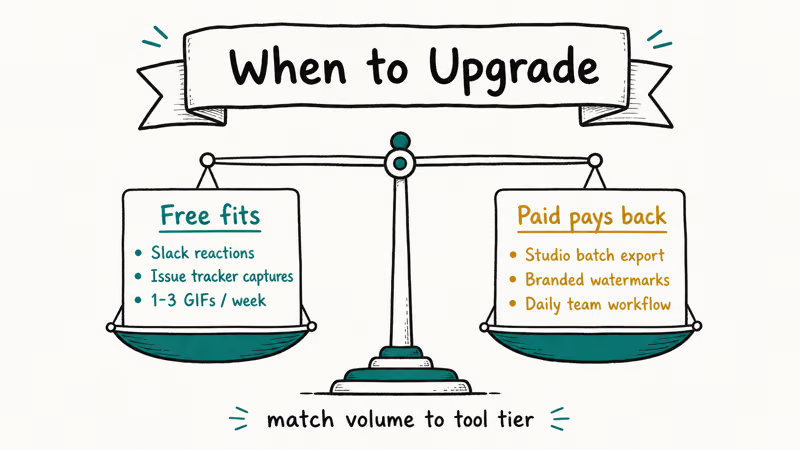
Pay only if one of these is true. You convert more than ten clips a month and your time is worth more than $5 per session. You need a watermark-free output and your source clip is over 200 MB (most browser tools cap there). You want batch jobs of five or more clips at once, where you’d otherwise queue uploads one at a time.
Otherwise, FFmpeg plus EZGIF covers 95 percent of real use cases for $0.
#Bottom Line
Pick FFmpeg if you’ll convert more than five clips a month. The two-line command is worth the 30 minutes it takes to learn it, and the output is roughly half the size of any browser tool.
Pick EZGIF for one-off conversions under 200 MB. No signup, no install, no watermark. If you’re doing video work for a team and need batch plus visual editing in the same app, Wondershare UniConverter is the strongest of the paid desktop options, with Movavi a close second on UI feel.
Skip Make a GIF and Convertio’s free tiers if a watermark or a 100 MB cap would block you. Skip the paid desktop apps if you only need GIFs occasionally, because the savings on a single FFmpeg or EZGIF run aren’t worth a yearly subscription.
#Frequently Asked Questions
Are online video to GIF converters safe to use?
Reputable converters like EZGIF, CloudConvert, and Zamzar publish privacy policies that say uploaded files are deleted within hours. That’s fine for marketing clips and demos. For anything sensitive or under NDA, stick to FFmpeg or a desktop app so the file never leaves your machine and you don’t have to trust a third party’s deletion timeline. The latter assumes a level of operational discipline at the converter that is easy to claim and hard to prove.
What is the best length for a GIF?
Two to six seconds.
Shorter GIFs load faster on slow connections and are far more likely to be watched to the end. Anything over 10 seconds usually belongs in a video file.
Can a GIF have sound?
No.
The GIF format doesn’t carry an audio track. Some chat apps and Twitter auto-convert short MP4s into a GIF-like loop with sound, but that’s video pretending to be a GIF, not an actual GIF file. If you need narration, export to MP4 instead.
How big can a GIF be before chat apps reject it?
Stay under 8 MB and you’re safe almost everywhere. Slack technically accepts 1 GB per file but slows playback above 25 MB; Discord caps free users at 25 MB; iMessage handles roughly 100 MB; WhatsApp converts every GIF to a short MP4 on send regardless of size, which is its own quality compromise.
How do I shrink a GIF that is too large?
Three levers, all worth using together. Reduce dimensions to 480 px wide or less, lower the frame rate to 12 to 15 fps, and trim the clip to only the moment that matters. In FFmpeg, also use the palettegen filter for a clip-specific 256-color palette. Together these changes routinely cut output by 60 to 80 percent without any visible loss in quality for typical chat and email use, and they cost about 30 seconds of extra work.
Can I convert a GIF back to a regular video format?
Yes.
Most of the tools above run in reverse: drop in a GIF, export to MP4. This is useful if you need sound layered on later or want to upload to a platform that rejects GIFs. For example, you can convert MP4 to SWF if you specifically need Flash output for a legacy site.
Why does my GIF look grainy compared to the source video?
GIF tops out at 256 colors per frame, so any clip with gradients, skin tones, or rich color will look posterized. The fix is a clip-specific palette (FFmpeg’s palettegen) or simply choosing a video format like MP4 or WebM where the audience supports it. If grain is the issue rather than color, a video speed controller sometimes helps by reducing the motion blur that converts poorly.

Google Messages Error 3100: Why RCS Is Broken on Galaxy
Google Messages RCS error 3100 hits Galaxy owners after phone or carrier switches. Google told 9to5Google a fix is coming. Here's what actually helps.

Is This Bank App Real? Spot a Fake App on Your Home Screen
A bank app can land on your home screen from a web page with no install warning. Learn the checks that tell a real banking app from a phishing web app.

Apps Crashing After iOS 27 Update? Fix Order (2026)
Apps crashing after the iOS 27 update? Update the app in the App Store first, then offload and reinstall to clear stale cache, then restart. The fix order.

Do AI Translation Earbuds Work Offline? What to Know
Do AI translation earbuds work offline? A few do with downloaded language packs, but most need the cloud. Here's what works offline and what you give up.