GIF Speed Changer: 5 Free Tools for Quick Speed Edits
Change GIF speed in seconds with 5 free tools: EZGIF, VEED, Flixier, Canva and more, compared with frame delay tips that actually work on real files.
Quick AnswerEZGIF is the fastest free GIF speed changer for files under 35 MB, letting you adjust playback by percentage or set per-frame delays in milliseconds. For longer or HD source clips, VEED and Flixier handle uploads up to 1 GB and can export back to MP4 if you need to share the result on Twitter or Discord.
A GIF speed changer rewrites the per-frame delay inside an animated GIF so the loop plays faster or slower without re-encoding the underlying frames. The five free tools below cover meme reactions, screen recordings, and product demos. The short version: EZGIF wins on small files and surgical control, while VEED and Flixier do better when your source is a 200 MB screen capture that you want to convert and slow down in one pass.
- EZGIF caps free uploads at 35 MB and changes speed by percentage (10% to 1000%) or per-frame delay in milliseconds, all in the browser.
- Most browsers silently enforce a minimum frame delay around 20 ms, so cranking speed past 500% usually plays no faster than 500% on Chrome or Firefox.
- VEED and Flixier accept source files up to 1 GB and let you export back to MP4 if Twitter or Discord reject your final GIF.
- Doubling a GIF’s playback rate cuts duration in half but typically shrinks file size only slightly, since the frame count usually stays the same.
- iPhone and Android apps like ImgPlay and GIPHY change speed offline but max out around 0.25x to 4x with no per-frame control.
#Why Change a GIF’s Speed in the First Place?
The most common reason is timing. A reaction GIF that loops too slow loses the punchline; a tutorial GIF that loops too fast leaves viewers unable to read what’s on screen. Slowing a GIF to 0.5x can match the cadence of a Slack message, while speeding it up to 3x suits a faster product walkthrough on a landing page.
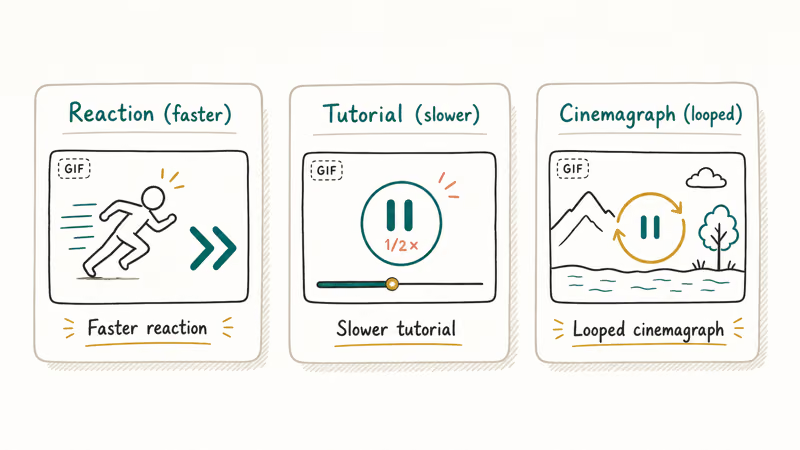
Three other reasons come up often:
- Sync with audio or text. When you embed a GIF next to a caption, matching the loop length to the read time keeps everything on rhythm.
- Trim file size indirectly. Faster GIFs use shorter delays, which sometimes lets you drop a few duplicate frames during re-encoding. The savings are modest, but they add up across a batch.
- Recreate a specific motion feel. Slow-motion replays of swing analysis, faster product spins for hero animations, and dramatic pauses on a punchline all live in the speed dial.
Speed editing also pairs naturally with cropping and combining. If you’re shaping a meme from multiple clips, we usually run the speed edit last so the timing stays predictable after the GIF cropper and combine GIFs steps.
#EZGIF: The Free Tool Most People Reach For
EZGIF’s speed tool gives you two ways to change speed: a percentage slider that scales every frame’s delay together, and a precise field where you set the delay in hundredths of a second for the whole GIF. Files over 35 MB return an upload error before processing starts, which covers most reaction GIFs but rules out long screen recordings without trimming first.
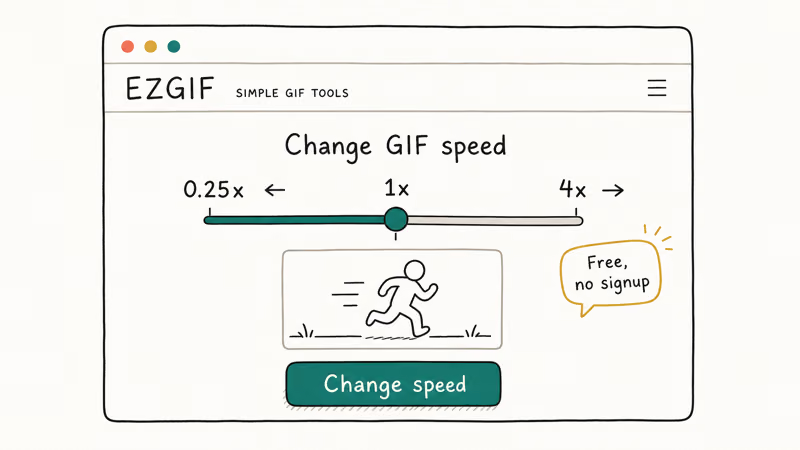
On a short anime reaction GIF, changing the percentage to 200% roughly halves the playback time while keeping the file size about the same. Setting the speed to 500% hits a wall: the loop feels the same as 300%. That’s the browser quirk covered further down.
What EZGIF gets right:
- Per-frame control. After uploading, you can open the frame editor and set custom delays on individual frames. Useful for emphasizing a punchline frame for half a second while the rest of the loop runs at 60 ms.
- Fast turnaround. No account, no signup, no watermark, and no daily limit on routine edits.
- Stacked tools. Crop, resize, optimize, reverse, and write text all live on the same site. You can chain edits without leaving the tab.
What it gets wrong: long source files. If your GIF is over 35 MB, EZGIF refuses the upload. The workaround is to first reduce frame count or resolution with the optimize tool, or to use a different service that takes bigger files. Mozilla’s GIF format reference confirms that GIF files store one delay value per frame, which is why per-frame editing tools like EZGIF can do things drag-and-drop video editors can’t.
#VEED, Flixier, and Other Browser Options Worth Knowing
EZGIF is the default choice, but it’s not always the right call. Here’s when another tool fits better.
#VEED
VEED handles longer source files (up to 1 GB on free, with a watermark on export unless you upgrade) and treats GIFs the way it treats video. Drop the file on the timeline, drag the speed control, and re-export. On a 17-second MP4 screen recording, exporting to GIF at 1.5x can come back smaller than EZGIF’s output because VEED drops duplicate frames during conversion.
The catch: the free tier watermarks the export. If you only need one or two edits a week, the watermark is the trade for the file size headroom. If you’re shipping GIFs to clients, the paid plan starts around $12 per month at the time of writing.
#Flixier
Flixier renders in the cloud, so exports finish faster than browser-based tools. Speed runs from 0.25x to 4x in the free editor.
#Online GIF Tools
Online GIF Tools shows you the raw delay value (in milliseconds) for every frame in your GIF. This is the level of detail you want when you’re chasing a specific browser bug or trying to match the cadence of an existing animation. Adobe’s reference page on the GIF format states that GIF files store per-frame timing alongside palette and frame data, which is exactly the structure Online GIF Tools exposes.
#Canva
Canva is slow for one-offs because it loads a full design editor. Skip it unless the GIF already lives in a Canva design.
#Desktop alternatives
For batch jobs where you need to process 20 GIFs at once with consistent settings, a desktop converter like Filmora or Wondershare UniConverter saves time over re-uploading each file to a browser tool. Browser tools are the better pick for one-offs, while desktop apps earn their place once the batch hits double digits.
Some links on this page are affiliate links, which means fone.tips may earn a commission at no extra cost to you.
#How Do You Change GIF Speed on iPhone and Android?
The honest answer: mobile apps work fine for casual speed edits but lose to browser tools the moment you need precision. The two most reliable picks:
- ImgPlay (iOS, Android). Speed dial goes from 0.25x to 4x with simple preset buttons. On a recent iPhone with a 28-frame GIF, the 2x export looks identical to EZGIF’s percentage output. ImgPlay puts a small watermark on free exports.
- GIPHY’s app. GIPHY’s official speed editor is built into the camera flow, so it’s better for new GIFs than for editing existing ones. Speed is locked to preset multipliers.
If you only have your phone and the GIF lives in your Photos app, you can also use Shortcuts on iOS with a “Change Speed of Image Sequence” action, but the learning curve is steeper than just opening EZGIF in mobile Safari. For an end-to-end mobile workflow that includes slowing down a video on iPhone before converting it to GIF, the slow-down step happens in the Photos app and the GIF export happens in ImgPlay.
#Adjusting Frame Delay vs. Playback Percentage
These two controls look interchangeable but they’re not. Understanding the difference saves time when a GIF refuses to play the way you expect.
Playback percentage scales every frame’s delay by the same factor. A GIF at 8 fps (125 ms per frame) set to 200% playback becomes 16 fps (62.5 ms per frame). Every frame still shows; the loop just runs twice as fast.
Frame delay is the per-frame timing in hundredths of a second (the unit the GIF89a spec actually stores). According to the W3C GIF89a specification, each frame can have its own delay value, which is why some old web animations have a long pause on the first frame followed by quick action. When you set a uniform delay like 50 ms, you’re flattening any per-frame variation that existed before.
Which one to use:
- Use percentage when you want to keep the same rhythm but change the overall pace. Speeding up a swing analysis to 200% keeps the relative timing intact.
- Use frame delay when you need a specific timing target (often to match an existing animation), when you want to emphasize a single frame, or when you’re debugging a browser playback issue.
#Watch Out for File Size, Quality, and Browser Quirks
Three traps catch people the first time they push speed edits hard.
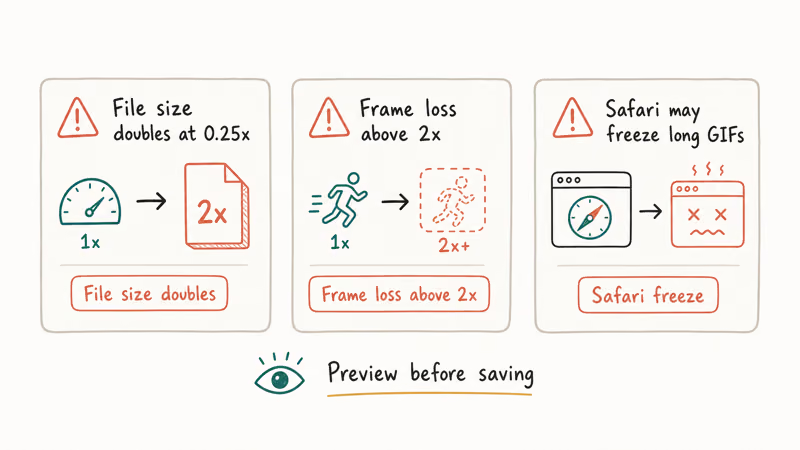
Browsers ignore very short frame delays. Most modern browsers enforce a minimum delay (commonly around 20 ms in Chromium and 10 ms in Firefox) to avoid hammering the CPU. That means a GIF set to 10x playback often plays at the same rate as one set to 5x. The fix is to set the percentage you actually want shown in browsers (300% to 500% is the practical ceiling) rather than chasing higher numbers in your editor.
File size doesn’t drop proportionally. Speeding up a GIF to 2x cuts duration in half but only shrinks file size slightly. The frame count stays the same; only the delay value (a few bytes per frame) changes. If size is the real goal, look at compressing your MP4 first and converting to GIF after, or strip duplicate frames in EZGIF’s optimize tool.
Quality drops if you re-encode every edit. Each time a GIF is opened and re-saved in a lossy tool, color palette quantization can introduce banding, especially on gradients and dark backgrounds.
A good check is to run the original through EZGIF once with no edits applied, then compare it visually against the source. If the dry-run output looks worse, switch to Online GIF Tools, which only rewrites the delay values and leaves the palette untouched.
#Practical Speed Settings That Actually Work
A few speed defaults work well as starting points:
- Reaction memes: 150% to 200% feels punchier than the original 100% almost every time.
- Tutorial loops: 75% to 90% gives readers enough time to follow each step without making the loop drag.
- Slow-motion replays: 25% to 50%, but only if the source had enough frames to begin with. Slowing a 12-frame GIF to 25% means each frame holds long enough to look like a slideshow.
- Product spins: 50% for hero animations, full speed for inline thumbnails.
These are starting points. The best speed for any specific GIF depends on what’s actually happening in the frames, so always preview before exporting.
#Bottom Line
For reaction GIFs and meme edits under 35 MB, EZGIF’s speed tool is the fastest free option and gives you per-frame delay control that VEED and Flixier hide behind their video timelines. Fall back to VEED or Flixier when your source file is too big or you want to export to MP4. Reach for Online GIF Tools when you need raw delay numbers, and skip Canva unless the GIF already lives in a Canva design.
If you’re pushing speed past 300% and the result isn’t playing faster, that’s your browser silently enforcing a minimum frame delay, not the editor failing. Drop to 200% to 300% and the loop usually feels how you want it.
#Frequently Asked Questions
What’s the maximum speed a GIF can play in a web browser?
In practice, around 500% of the original speed. Chrome and Edge enforce a minimum frame delay near 20 ms, which clamps anything faster.
Does changing GIF speed reduce file size?
A little, but less than people expect. Doubling speed reduces file size only slightly. The frame count usually stays the same. If shrinking the file is the real goal, optimize the color palette or drop duplicate frames first, then change speed.
Can I slow down only part of a GIF?
Yes, with per-frame delay editing. EZGIF and Online GIF Tools both let you set a different delay for each frame. Open the frame editor, click the frame you want to emphasize, and set its delay (in hundredths of a second) higher than the others. This is how reaction GIFs hold on a punchline for half a second while the rest of the loop runs fast.
Will speeding up a GIF make it look choppy?
It can, especially below 30 ms per frame. Higher speed needs higher frame count to stay smooth.
Is there a free GIF speed changer that works on iPhone without an app?
Yes. EZGIF’s website works in mobile Safari. Upload from your Photos app, change speed, and download the result back to Photos.
Does changing GIF speed work for embedded GIFs in Slack, Discord, or Twitter?
It works after you re-export and re-upload. Slack, Discord, and Twitter all serve the GIF file from their own CDN, so the speed change has to happen before upload. There’s no way to change speed once the GIF is hosted. For Twitter specifically, you can also save a GIF from Twitter first, edit speed locally, and re-upload.
What if my GIF is too big for EZGIF’s 35 MB cap?
Switch to VEED or Flixier. Both accept files up to about 1 GB.

Google Messages Error 3100: Why RCS Is Broken on Galaxy
Google Messages RCS error 3100 hits Galaxy owners after phone or carrier switches. Google told 9to5Google a fix is coming. Here's what actually helps.

Is This Bank App Real? Spot a Fake App on Your Home Screen
A bank app can land on your home screen from a web page with no install warning. Learn the checks that tell a real banking app from a phishing web app.

Apps Crashing After iOS 27 Update? Fix Order (2026)
Apps crashing after the iOS 27 update? Update the app in the App Store first, then offload and reinstall to clear stale cache, then restart. The fix order.

Do AI Translation Earbuds Work Offline? What to Know
Do AI translation earbuds work offline? A few do with downloaded language packs, but most need the cloud. Here's what works offline and what you give up.