Apps Crashing After iOS 27 Update? Fix Order (2026)
Apps crashing after the iOS 27 update? Update the app in the App Store first, then offload and reinstall to clear stale cache, then restart. The fix order.
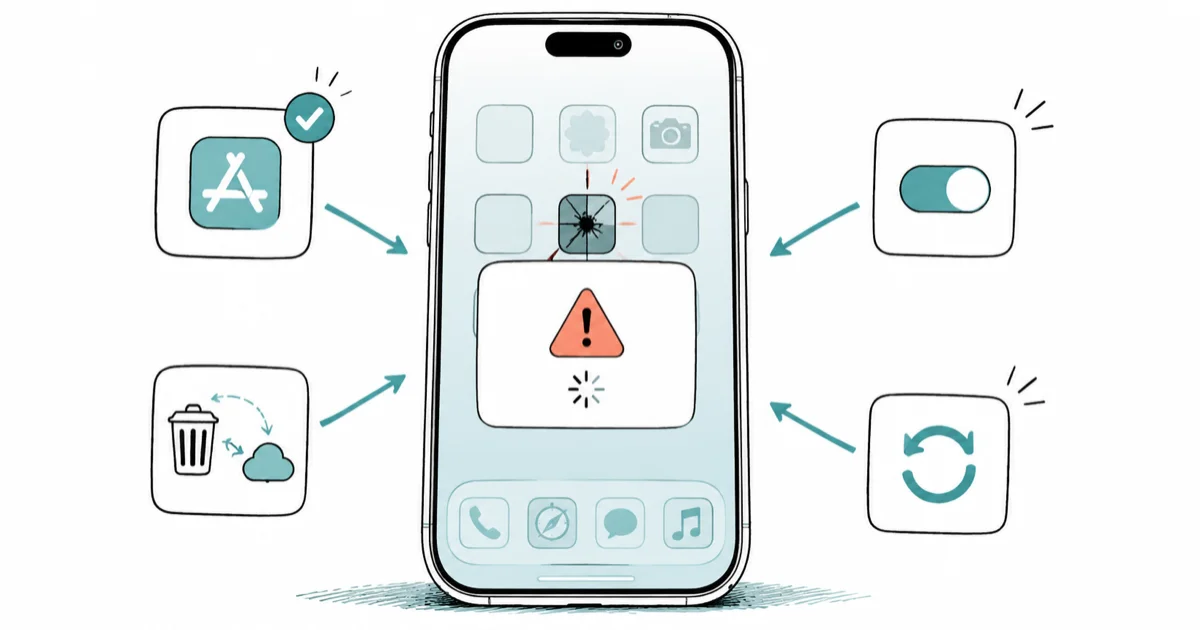
Quick AnswerOpen the App Store and update the crashing app first, since developers ship iOS 27 compatibility fixes during a major release. If that fails, offload and reinstall the app to clear corrupted cache, then restart.
Apps crashing after the iOS 27 update usually isn’t a phone problem. Instagram quits to the Home Screen, a banking app won’t open, or a game black-screens on launch, and the cause is almost always a stale app that hasn’t caught up to the new iOS. The fix order below leads with the real cause, not a generic restart.
- Update the app in the App Store first; developers push iOS 27 compatibility fixes during and after a major release.
- Offloading and reinstalling an app clears corrupted cache carried over from your old iOS version without deleting your data.
- A major iOS update can leave stale app state behind, which is why a clean reinstall fixes more than a restart does.
- Some crashes are the developer’s bug to fix, not something on-device steps can solve.
- Force-close and restart are quick last steps, not the first thing to try after an update.
#Why Does a Major iOS Update Make Apps Crash?
Two things happen when you jump to a major release like iOS 27, and both can knock an app over.
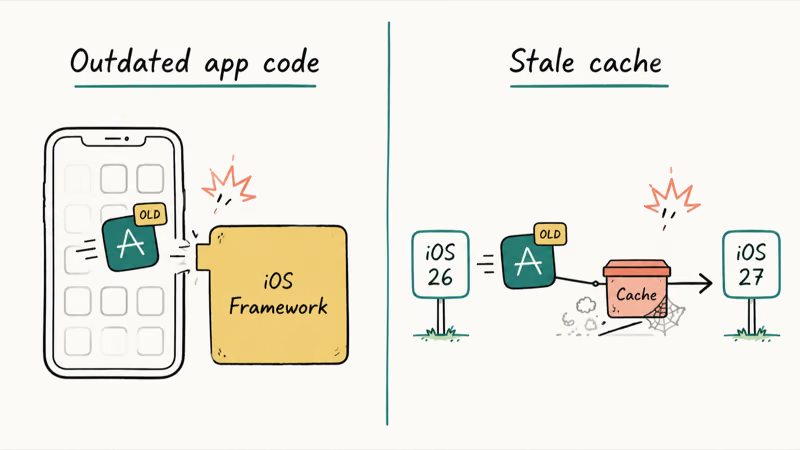
First, the app was built and tested against the previous iOS. A new version changes system frameworks, permission behavior, and APIs under the hood, so an app compiled for the old iOS can hit something it doesn’t expect and quit. Developers fix this by shipping an update, which is exactly why the first wave of “app crashing” reports lands right after every September iOS release and then fades over the following weeks.
Second, your apps carry over cached data and settings from the iOS version you upgraded from. That old cache can be subtly incompatible with the new system, so the app loads a corrupted state and crashes on launch even though the app code itself is fine. This is the same stale-data pattern covered in Apple Music crashing on iPhone, where the app’s own data, not the install, can be the culprit.
So the real fix order is: get the app’s code current (App Store update), then clear the stale state (offload and reinstall). On-device steps like restart come after, because they don’t touch either of those two causes.
#Update the Crashing App First
This single step fixes most post-update crashes, and most people skip it.
According to Apple’s app update support page, “apps that you download from the App Store automatically update by default.” The catch is that automatic updates run on Apple’s schedule, often overnight while charging on Wi-Fi, so right after you update iOS your apps can still be running the old build for a day or more. You want to force the update now, not wait.
Here’s how to update an app manually:
- Open the App Store.
- Tap your profile photo at the top of the screen.
- Tap App Updates (or scroll to the pending updates list).
- Tap Update next to the crashing app, or Update All.
If the app shows an available update, install it and relaunch. If there’s no update yet, the developer may not have shipped an iOS 27 fix, in which case the crash is on their side. Apple’s own guidance for an app that closes unexpectedly confirms this is step one: check the App Store for an update before doing anything heavier, as covered on Apple’s “app won’t open” support page.
#Offload and Reinstall to Clear the Bad Cache
If the app is already current and still crashes, the problem is the stale data it carried over. Offloading is the clean way to fix that.

Offload removes the app itself but leaves your data in place, so it’s safer than a straight delete. According to Apple’s storage support page, the option “frees up storage used by the app, but keeps its documents and data.” When you reinstall, the app rebuilds its working files against iOS 27 instead of reusing the corrupted old ones.
To offload a single app: go to Settings > General > iPhone Storage, tap the crashing app, then tap Offload App. Confirm, then tap Reinstall App on the same screen. For login-heavy apps like banking or social apps, have your password or 2FA ready, since a reinstall can sign you out.
When stale app data is the trigger, offloading and reinstalling can let the app rebuild cleanly with no other change.
If offloading still leaves the app crashing, delete it fully and reinstall from the App Store. A full delete clears everything, including the documents and data an offload keeps, so use it only after offload fails. The iPhone storage almost full guide helps if you’re also low on space, which on its own can make apps crash on launch.
#Are Reset Permissions Causing the Crash?
A major update can scramble the per-app permissions and toggles an app depends on, and the app crashes when it asks for something it can no longer reach.
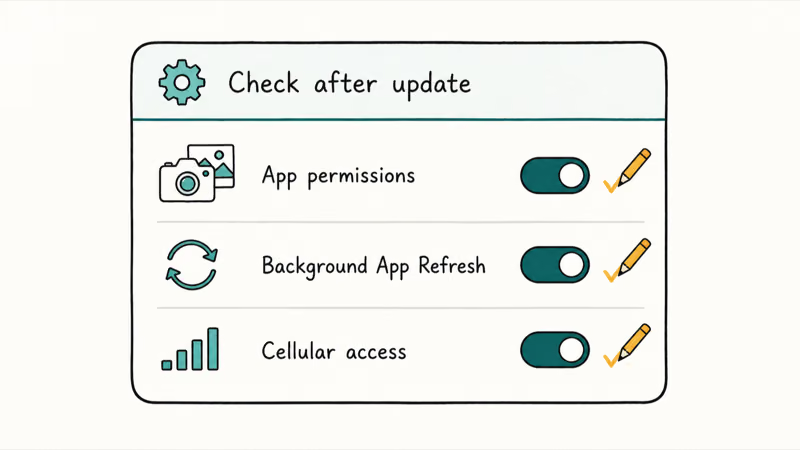
Three settings are worth checking after iOS 27:
- App permissions. Open Settings, scroll to the app, and confirm its access to Photos, Camera, Microphone, Location, or Notifications matches what it needs. An update sometimes flips these to “Ask” or off.
- Background App Refresh. In
Settings>General>Background App Refresh, make sure it’s on for the app. Some apps misbehave when refresh is disabled after an update. - Cellular access. In
Settings>Cellular, scroll down and confirm the app is allowed to use cellular data, especially if it crashes only off Wi-Fi.
Storage pressure ties into this too. iOS needs free space to manage app memory, and a nearly full iPhone makes crashes far more likely, so clearing a few gigabytes often steadies apps that were quitting at random.
#Force-Close, Then Restart
These are the quick on-device resets. They clear a frozen session and stale system state, but they won’t fix an outdated app, so save them for after the steps above.
Force-close the app. Swipe up from the bottom of the screen and pause in the middle to open the App Switcher, find the app, and swipe up on its preview to close it. Apple recommends this as the first move for an app that’s stuck: “Force the app to close. Then open the app to see if it works as expected.” Relaunch it from the Home Screen.
Restart the iPhone. If force-closing doesn’t hold, power the phone off, wait about 30 seconds, and turn it back on. A restart clears the stale state an update can leave behind, and it’s the step Apple points to next when an app keeps quitting. If a system app like Safari is the one crashing rather than a third-party app, our Safari not working on iPhone guide has the browser-specific resets.
#When It’s the App’s Fault, Not Yours
Sometimes you do everything right and the app still crashes, because the bug is the developer’s to fix.
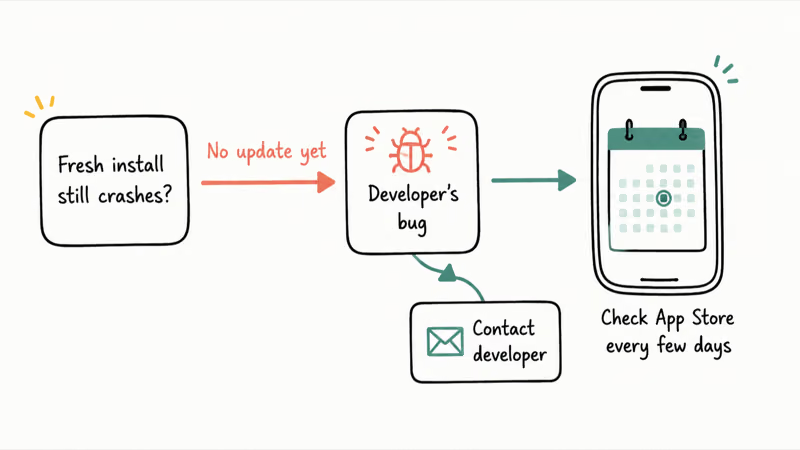
If there’s no App Store update, an offload-and-reinstall doesn’t help, and the app crashes on a fresh install, it simply isn’t compatible with iOS 27 yet. That’s common in the first weeks after a release. The fix is patience plus a quick App Store check every few days for the developer’s update. You can also contact the developer through the app’s App Store page, which Apple lists as the escalation path once on-device steps are exhausted.
This is also why we don’t recommend rushing every app the day a major iOS drops. If an app is mission-critical and broken, it’s worth knowing the update changed more than apps; our iOS 27 new features overview covers what shifted, and post-update glitches like no service after iOS 27 follow the same “wait for the point release” logic.
#Bottom Line
Start in the App Store and update the crashing app. That alone clears most post-update crashes, because the developer’s compatibility fix is usually the missing piece.
If the app is already current, offload and reinstall it to wipe the stale cache from your old iOS, then check its permissions and give the phone one restart. If a fresh install still crashes and there’s no update available, stop troubleshooting your phone. The bug is the developer’s, and the fix is their next App Store update.
iOS 27 Beta
#Frequently Asked Questions
Why are my apps crashing after updating to iOS 27?
Most post-update crashes come from apps that haven’t been updated for iOS 27 yet, or from stale cache the app carried over from your old iOS. Update the app in the App Store first, then offload and reinstall it to clear the bad data. Restarting comes last, since it doesn’t fix either cause.
Will offloading an app delete my data?
No. Offloading removes the app but keeps your documents and data, so when you reinstall, your information is still there. A full delete is different; it clears the data too, so only delete an app if offloading and reinstalling didn’t fix the crash.
Should I update apps or iOS first to stop the crashing?
Update the app first. Open the App Store, tap your profile photo, and look for a pending update for the crashing app. If no app update is available, then update iOS, since Apple advises updating your device software when an app update isn’t offered.
How do I force-close an app on iOS 27?
Swipe up from the bottom of the screen and pause in the middle to open the App Switcher. Find the crashing app, then swipe up on its preview to close it. Reopen it from the Home Screen, and if it still quits, restart the iPhone.
Why does only one app keep crashing after the update?
That points to the app, not your phone. A single app crashing usually means it needs an iOS 27 compatibility update or its cached data is corrupted. Update it, then offload and reinstall. If every app crashes instead, the problem is more likely low storage or a system glitch a restart can fix.
What if there’s no update available for the crashing app?
Then the developer hasn’t shipped an iOS 27 fix yet, and on-device steps may not help. Try a full delete and reinstall once, and if it still crashes, the bug is the developer’s. Check the App Store every few days for their update, or contact the developer through the app’s listing.
Can low storage cause apps to crash after an update?
Yes. iOS needs free space to manage app memory, and a nearly full iPhone makes apps quit on launch far more often. Clear a few gigabytes in Settings > General > iPhone Storage, then relaunch the app. This also makes the offload-and-reinstall step work more reliably.
Apple Intelligence Not Working on iPhone? Fixes (2026)
Apple Intelligence not working on iPhone after iOS 27? Turn off Low Power Mode, stay on Wi-Fi while charging, and free up 7 GB. Step-by-step fixes.

Genmoji or Image Playground Not Working? iOS 27 Fix
Genmoji or Image Playground not working on iOS 27? Turn on Apple Intelligence, free up 7 GB, drop Low Power Mode, and let the image model finish.
iOS 27 Problems and How to Fix Each of Them (2026)
iOS 27 problems? Battery drain, overheating, Wi-Fi drops, crashing apps, and Apple Intelligence stuck. Each problem with its top fix and full guide here.
iPhone Overheating After iOS 27 Update? Why and Fixes
iPhone overheating after the iOS 27 update is usually normal background indexing for the first day or two. How to tell normal heat from a real problem.