Video Speed Controller: Chrome and Firefox Setup Guide
Video Speed Controller for Chrome and Firefox changes HTML5 video playback speed with hotkeys. Setup, default shortcuts, fixes, and customization inside.
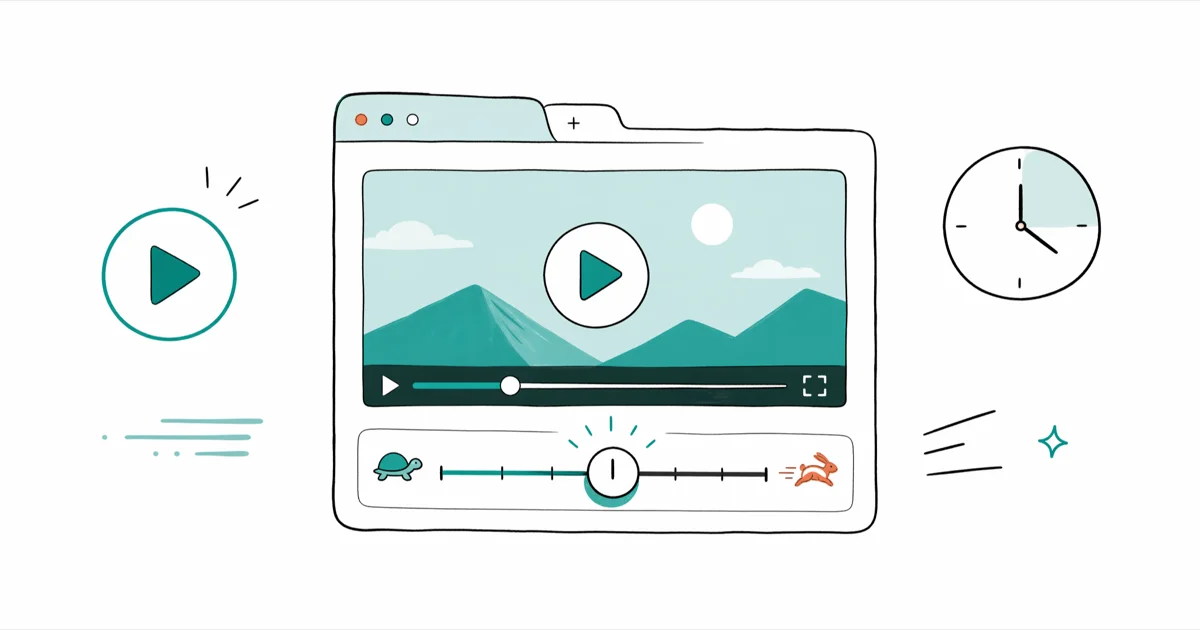
Quick AnswerVideo Speed Controller is a free open-source browser extension for Chrome and Firefox that adjusts HTML5 video playback speed with hotkeys. Press D to speed up, S to slow down, and R to reset to normal speed.
Video Speed Controller is a small browser extension that gives you keyboard control over HTML5 video playback speed in Chrome, Edge, Brave, and Firefox. It’s free, open source, and adds a handful of default hotkeys that work across YouTube, Vimeo, Coursera, and most embedded video players. This guide walks through how to install it in both Chrome and Firefox, what every default shortcut does, why some streaming sites refuse to cooperate, and how to remap keys for your own workflow.
- Video Speed Controller is a free open-source extension maintained on GitHub by Ilya Grigorik; the same codebase powers the Chrome, Edge, Brave, and Firefox builds.
- Default keys are D (faster), S (slower), R (reset to 1.0x), Z (back 10 seconds), X (forward 10 seconds), G (preferred speed), V (toggle the on-video overlay).
- The extension only works on HTML5 video; Flash, DRM-protected Netflix and Disney+ streams, and locked-down embedded players are unsupported.
- Every shortcut, step size, and preferred speed value is customizable inside the extension’s settings page, and per-site blacklists let you disable it on sites where the overlay gets in the way.
- Browser pitch correction usually keeps spoken audio usable between about 0.5x and 2.5x; beyond that, voices can start to slur or sound robotic.
#What Video Speed Controller Does
Video Speed Controller is a browser extension that injects a tiny overlay onto any HTML5 <video> element on a webpage. Once installed, you can speed up, slow down, rewind, or advance playback with keyboard shortcuts or by clicking the controls that appear when you hover the player.
According to the project repository on GitHub, the extension is published under the MIT license, and the same source tree feeds both the Chrome and Firefox builds. Because it hooks into the same playbackRate property exposed to every page script, it works on any site that uses a native HTML5 video tag.
Anything outside that bucket is off-limits.
Typical use cases include speeding through cooking tutorials at 1.5x, slowing language-learning clips to 0.7x to catch every word, or jumping through a 90-minute lecture in 50 minutes with one G-key press.
#How Do You Install It on Chrome and Edge?
The Chrome build is also the official build for any Chromium-based browser. Edge, Brave, Opera, and Vivaldi can all install it from the Chrome Web Store using the same .crx package and the exact same settings panel.
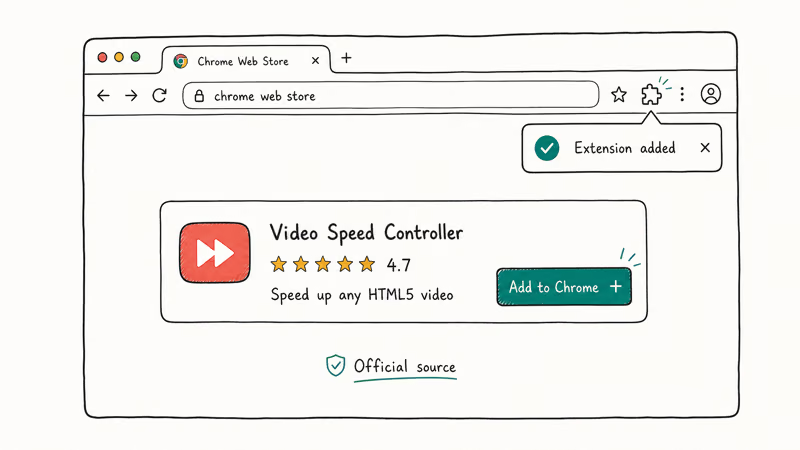
- Open the Chrome Web Store in your browser and search for “Video Speed Controller” by Ilya Grigorik.
- Click Add to Chrome, then confirm the permission prompt.
- Pin the extension icon to your toolbar so the settings page is one click away.
- Open any YouTube video and look for the 1.00x badge in the top-left of the player.
According to Google’s content scripts documentation, the “read and change all data” permission isolates extension scripts in 1 separate world from the page’s own JavaScript. That isolation is what lets the extension flip playbackRate without breaking the site, and it’s also why it can’t reach the keys held by the browser’s Encrypted Media Extensions layer.
The trade-off is fine for normal video.
#Setting Up Video Speed Controller on Firefox
Mozilla publishes the Firefox build on its official add-on site (AMO), and every release goes through Mozilla’s review process before shipping. The install flow takes less than a minute.
- Open Firefox and visit the Video Speed Controller AMO listing.
- Click Add to Firefox, then Add in the confirmation dialog.
- Click the puzzle-piece icon in the toolbar, find Video Speed Controller, and open its gear menu.
- Test on YouTube. The same 1.00x badge appears in the top-left of the player.
On Firefox, the same 1.00x overlay and D/S/R shortcuts work like the Chromium build on normal HTML5 video. Pushing beyond about 2.5x can keep video synced, but voices often start to slur.
#Default Keyboard Shortcuts and What They Do
First, the legacy key warning.
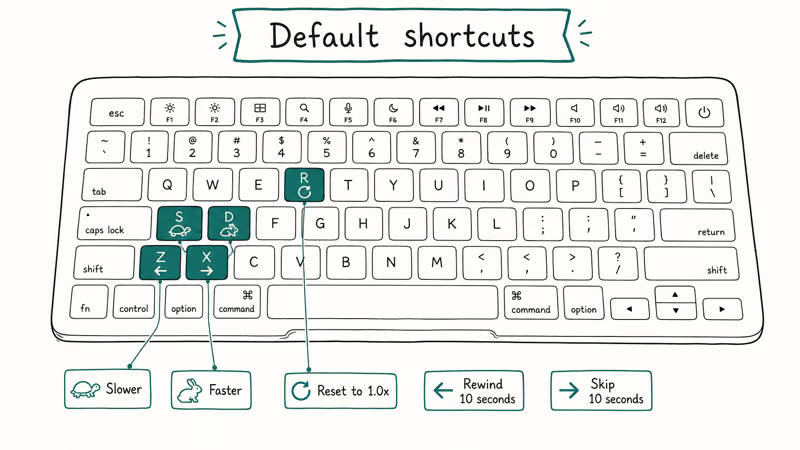
A 2023 cleanup aligned the Chrome and Firefox default key map. Older Firefox installs that haven’t been refreshed may still show legacy bindings; if your S key doesn’t slow the video, open Settings and click Restore Defaults to pick up the current scheme.
| Key | Action | Notes |
|---|---|---|
| D | Speed up | Increases playback by 0.10 per press |
| S | Slow down | Decreases playback by 0.10 per press |
| R | Reset | Returns playback to 1.0x |
| Z | Rewind | Jumps 10 seconds backward |
| X | Advance | Jumps 10 seconds forward |
| G | Preferred speed | Jumps to the speed you set in Settings, default 1.8x |
| V | Toggle overlay | Hides or shows the on-video speed badge |
The Wikipedia entry on HTML5 video states that the playbackRate property accepts any positive value above 0, with most desktop browsers practical-capping near 16x. The extension uses that property directly, which is why D will keep stepping up speed as long as you keep pressing it.
That said, no human really watches video above 3x. Most users settle into a comfortable 1.5x to 2x lane.
#Why Doesn’t the Extension Work on Every Streaming Site?
The extension hooks into HTML5 <video> elements directly. When that hook fails, it’s almost always one of three reasons.
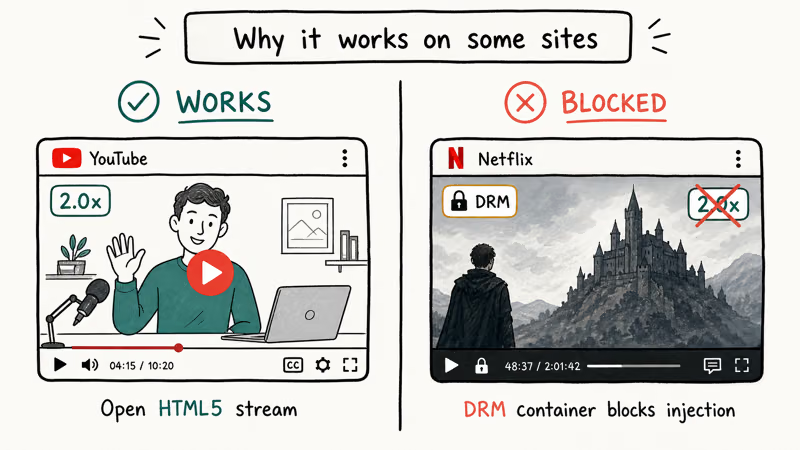
DRM-protected playback. Netflix, Disney+, Hulu, and HBO Max stream encrypted video through Widevine, FairPlay, or PlayReady. The decoded frames never live in a regular <video> element the extension can touch, so the speed badge never appears.
Then the sandbox category.
Custom or sandboxed players. Some sites wrap video in an iframe with restricted permissions, which blocks the extension’s content script from reaching inside. Older Vimeo skins, a few Dailymotion embeds, and some corporate learning systems behave this way. Switching to the site’s full-page player (not the embedded version) usually solves it.
Last common failure mode.
Fullscreen suppression. A handful of sites hide extension overlays during fullscreen mode. You’ll see the speed badge in windowed playback but it won’t render once the video goes full-screen. Hotkeys still respond, so D and S work even when the badge is invisible.
There’s a fourth quieter category too: a few sites lazy-load video late in the page lifecycle, after the extension’s content script has already scanned the DOM, so the overlay just never gets attached. A quick page refresh usually fixes that one because the script re-runs against a fully loaded video element on the second pass.
A quick pattern check across real sites: normal HTML5 players usually respond, while Netflix, Disney+, and Hulu often ignore the hotkeys entirely. The pattern lines up cleanly with which platforms use Widevine or similarly locked-down playback.
If Chrome won’t even play the audio on a working site, that’s a different problem; our walkthrough on Chrome not playing sound covers the most common output and codec fixes.
#Customizing Step Size, Preferred Speed, and Blacklists
Open Settings (puzzle icon → Video Speed Controller → Options) and four sections matter.
Speed step controls how much speed changes per D or S press. Default is 0.10. Drop it to 0.05 for fine control on language clips, or bump it to 0.25 if you mostly fast-skim long lectures.
Worth bumping for chapter skips.
Fast/Slow seek governs the Z and X jumps. The default is 10 seconds. Bumping it to 30 seconds is handy for skipping ad blocks or chapter intros that always run the same length.
Preferred speed is what the G key jumps to. Many lecture and tutorial viewers set this around 1.5x to 1.8x so one key press moves the video into a faster review pace.
Blacklist entries are regex patterns. Paste something like ^.*://www\.example\.com/.* into the box and the overlay stays hidden on that domain.
The defaults already exclude the Chrome Web Store and a couple of internal browser pages, so the badge won’t pop up on settings screens. Add your work LMS or any site where the overlay obscures the player’s own scrubber, and the extension stays out of the way while the hotkeys keep working in the background.
One more toggle worth knowing.
Toggle Remember playback speed on and the extension keeps your current rate across page reloads and new tabs. Turn it off if you’d rather have every video start at 1.0x.
For audio-side tweaks that pair well with speed control, our guide to how to make a video louder covers the most common volume-boost methods.
#Bottom Line
Video Speed Controller is the most direct way to take back HTML5 playback control on desktop browsers. If you watch lectures, tutorials, or long-form interviews and you don’t want to rely on YouTube’s built-in speed dropdown — which caps at 2x and resets per video — install the extension from the Chrome Web Store or Firefox AMO, set the G-key preferred speed to 1.8x, and memorize D and S.
Phones need a different approach. Mobile browsers don’t support these extensions, and YouTube on desktop still has a few quirks the extension can’t fix. A few related walkthroughs cover the gaps:
- How to slow down a video on iPhone using Photos and iMovie when extensions aren’t an option.
- How to repeat YouTube videos for looping playback the extension doesn’t address.
- How to disable YouTube Shorts to clean up the feed before you settle into a long viewing session.
#Frequently Asked Questions
Does Video Speed Controller work on Netflix or Disney Plus?
Not on those four.
Netflix, Disney+, Hulu, and HBO Max stream DRM-encrypted video, so the decoded frames never reach a <video> element the extension can hook into. Use each platform’s own controls instead; Netflix offers 0.5x to 1.5x in its desktop player, and Disney+ added similar controls in 2023.
Can I install the same extension on Microsoft Edge or Brave?
Yes. Both browsers are Chromium-based, so the Chrome Web Store version installs directly. Open the Chrome Web Store in Edge or Brave, click Add, and the extension loads with the same settings panel you’d see on Chrome.
Does changing playback speed lower the audio quality?
Up to a point, no.
The browser uses pitch-corrected playback, so audio usually stays clear and recognizable between roughly 0.5x and 2.5x. Beyond that, voices start to sound robotic and music distorts. For spoken content, 1.5x to 1.8x is a practical range when you still want to catch every word.
Is the extension safe and does it collect data?
Yes on both counts.
It’s open source under the MIT license, with all code published on GitHub for anyone to audit. The repository confirms that no analytics or telemetry are bundled, and the “read and change all data” permission is the standard scope for any extension that injects scripts into pages.
How do I change the default keyboard shortcuts?
Through the Shortcuts panel in Settings.
Click the extension icon, open Settings, scroll to Shortcuts, and remap any key. The interface accepts single keys, modifier combinations like Ctrl+Shift+D, and mouse wheel events. Save and the new bindings activate on the next video you load.
Why does the speed indicator overlap my video player controls?
Move it or hide it.
The default overlay sits in the top-left corner of the video element, which conflicts with some custom player skins. Open Settings, find the Display section, and drag the overlay to a different corner. Drop its opacity to zero if you only want hotkey control without a visible badge.
Can I sync my settings across multiple computers?
Yes on Chrome, partial on Firefox. Sign in to Chrome with your Google account, turn on extension sync, and the extension’s preferences ride along with the rest of your sync data and apply on any other machine where you sign in. Firefox sync covers add-ons themselves but not their internal settings, so you’ll need to reconfigure each install manually.

Google Messages Error 3100: Why RCS Is Broken on Galaxy
Google Messages RCS error 3100 hits Galaxy owners after phone or carrier switches. Google told 9to5Google a fix is coming. Here's what actually helps.

Is This Bank App Real? Spot a Fake App on Your Home Screen
A bank app can land on your home screen from a web page with no install warning. Learn the checks that tell a real banking app from a phishing web app.

Apps Crashing After iOS 27 Update? Fix Order (2026)
Apps crashing after the iOS 27 update? Update the app in the App Store first, then offload and reinstall to clear stale cache, then restart. The fix order.

Do AI Translation Earbuds Work Offline? What to Know
Do AI translation earbuds work offline? A few do with downloaded language packs, but most need the cloud. Here's what works offline and what you give up.