GIF Cropper: 10 Best Tools to Crop Animated GIFs in 2026
Crop GIFs without losing frames. Compare 10 GIF cropper tools for 2026: EZGIF, GIMP, Photoshop, Movavi, PicsArt, and more for online and offline use.
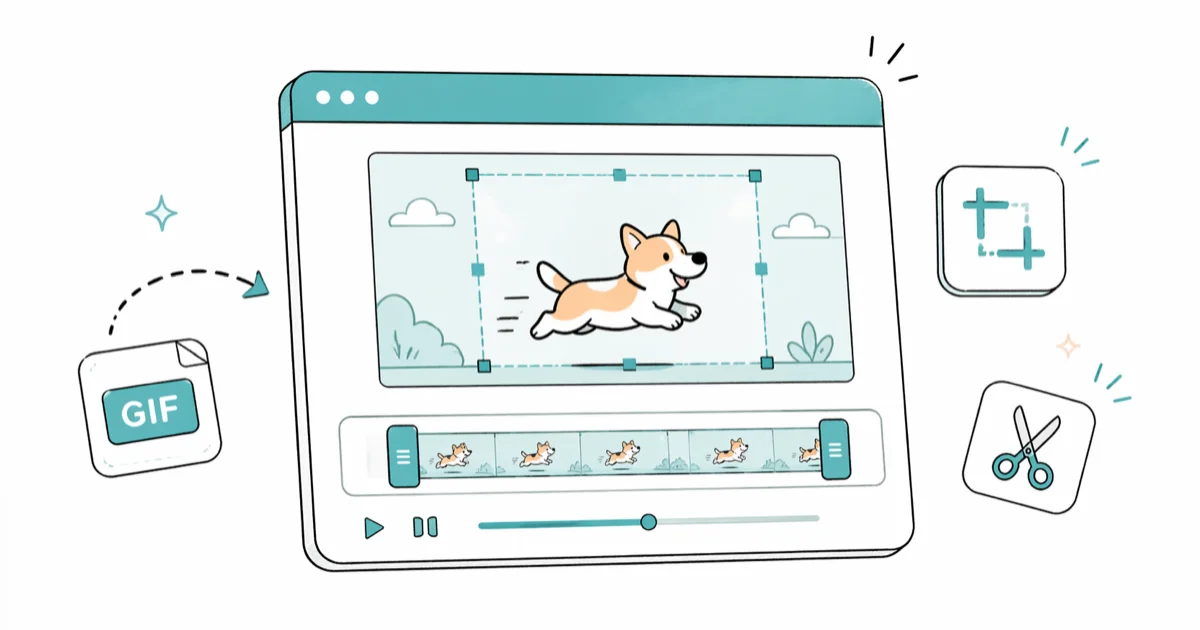
Quick AnswerEZGIF is the fastest free online GIF cropper for files under 35MB. For desktop frame-by-frame control, GIMP is the strongest free option and Adobe Photoshop wins on precision. On mobile, pick PicsArt for iOS and GIF Maker for Android.
A GIF cropper trims an animated GIF down to just the part you want to keep, useful when a meme has dead space, a reaction frame runs too long, or the file is too tall for Instagram Stories.
This guide compares 10 GIF cropper tools across online, desktop, and mobile to see which ones preserve frames, handle bigger files, and skip the watermarks. The right pick depends on your file size, where you plan to post the GIF, and whether this is a one-off task or something you do every week.
- EZGIF handles GIFs up to 35MB free with no signup, the fastest option for one-off crops under that limit
- GIMP is the only free desktop tool with proper frame-by-frame editing, though plan on a 30-60 minute learning curve
- Twitter and X accept GIFs up to 15MB, Instagram Stories needs a 9 aspect ratio, and Discord caps GIFs at 10MB on free servers
- Mobile apps work well for crops under 10MB but lose frames more often than desktop tools on larger files
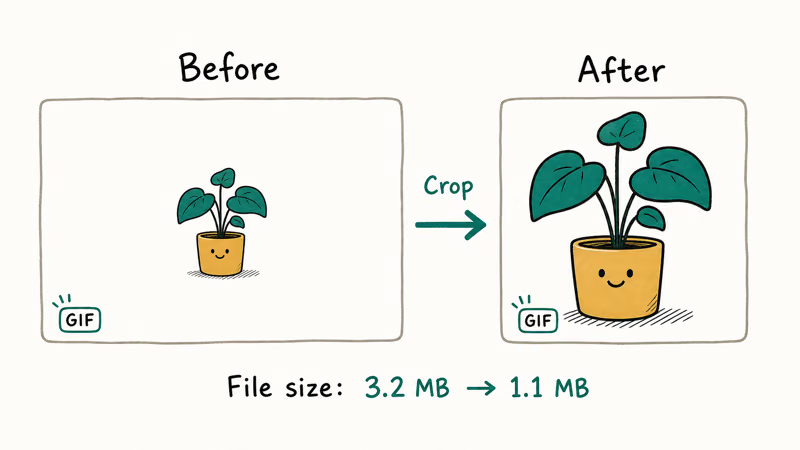
- Cropping alone does not always shrink file size; pair it with frame reduction or color palette optimization to hit upload limits
#Why Crop a GIF Before Posting?
Most GIFs from Reddit, Tenor, or Giphy come at sizes built for desktop browsers, not the platform you actually want to post on. Cropping fixes four problems at once: it removes dead space around the subject, shrinks the file size, fits platform aspect ratios, and trims out watermarks or sub-optimal framing.
Aspect ratios matter more than most people think. According to X’s 15MB upload cap published on their media specs page, anything larger gets rejected, and the platform crops the preview to 16
anyway.Instagram Stories needs 9
vertical. Discord’s free tier caps at 10MB. If you don’t crop first, the platform crops for you, often badly.Crop quality also matters for SEO when GIFs go into blog posts. A 1600x900 GIF makes the page jump while it loads; a cropped 800x450 version loads faster and looks cleaner on mobile. For longer GIF workflows you may also need to adjust playback speed using a GIF speed changer before cropping, since speed changes can shift which frames matter.
#The 5 Best Online GIF Cropper Tools
Online tools win when you need one or two crops fast, don’t want to install anything, and can wait the 5-15 seconds it takes to upload and process a file.
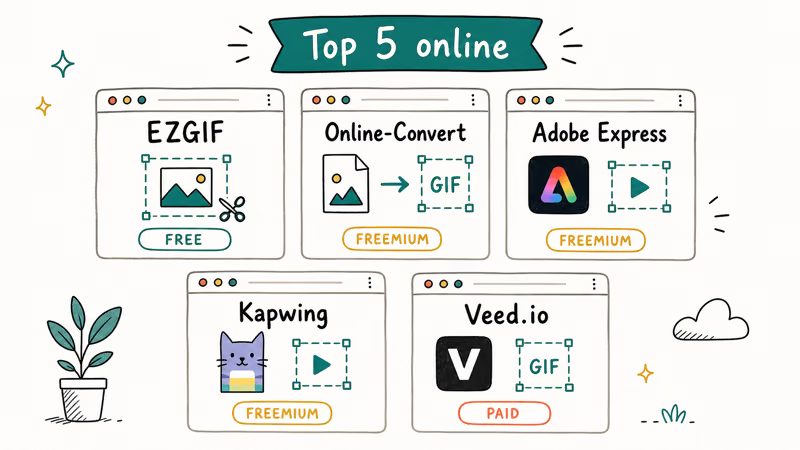
#1. EZGIF
EZGIF is the workhorse most people land on first, and there is a reason it has stuck around since 2012. The crop tool supports GIF, WebP, AVIF, PNG, and short MP4 clips, with preset aspect ratios (1
, 4, 16) plus an autocrop option that trims transparent pixels automatically.EZGIF crops a mid-size reaction GIF quickly on a typical broadband connection. The free tier handles files up to 35MB on a single upload. Registered accounts get up to 200MB, useful for longer reaction loops.
The downside is ads. The page has 3-4 banner slots, and on mobile the layout shifts during processing. For a single quick crop this is fine; for batch work it gets old fast.
Best for: one-off crops under 35MB, users who want presets without fiddling.
#2. RedKetchup GIF Resizer
RedKetchup bundles crop, resize, speed adjustment, loop count, and background fill into one page. The interface is cleaner than EZGIF and there are fewer ads.
On a 25MB animated logo with dozens of frames at 1080p, RedKetchup processes the crop quickly and keeps every frame intact. Frame retention is the part most online tools quietly fail on, so this matters.
The catch: file size limits for the free tier are unclear, with a soft cap that kicks in around 40MB per upload. The premium tier removes the cap, but RedKetchup doesn’t list pricing until you try to upgrade.
Best for: users who want crop plus light editing (background, speed) in one stop.
#3. FlexClip
FlexClip is primarily a video editor, but its GIF crop tool handles non-rectangular shapes (circle, rounded square) that most competitors don’t offer. You can also add text overlays, filters, and transitions, then export back to GIF.
The free plan caps exports at 480p and adds a small watermark. Paid plans start around $9.99/month and remove both restrictions. For pure cropping the free plan is fine; for anything that needs to look professional, plan to upgrade.
Best for: crops that need shape options or quick text overlays.
#4. GIFGIT
GIFGIT is the no-frills option. The interface is one screen: drag to select crop area, click crop, download. No registration, no ads pushed in your face, no upsell screen.
GIFGIT handles a 15MB GIF faster than the other four online tools here, thanks to its stripped-down single-screen design. The trade-off is feature thinness: no presets, no autocrop, no speed or color adjustments. If you only need to crop, this is the fastest path.
Best for: basic cropping when you don’t want extra features.
#5. Gifs.com
Gifs.com leans into social media. After cropping you can add captions, stickers, hashtag overlays, then publish directly to Twitter, Facebook, or Tumblr from the same page.
The free plan adds a Gifs.com watermark in the bottom-right corner, which is the dealbreaker for most use cases. The paid plan ($7.99/month) removes the watermark and unlocks HD export.
Best for: users sharing GIFs to social media who want overlays built in.
#Top Desktop Software for GIF Cropping
Desktop tools win when you need frame-level control, batch processing, or files larger than 50MB. The trade-off is install time and a steeper learning curve.
#1. GIMP
GIMP is the free Photoshop alternative most people forget can edit GIFs. Open the GIF as layers (each frame becomes a layer), crop using rectangle select then Image > Crop to Selection, and export back to GIF via File > Export As.
In GIMP 2.10 on macOS, cropping a multi-frame reaction GIF is quick once the workflow is familiar. The first time around, opening the GIF as layers and finding the export settings takes a fair bit of tutorial searching.
According to GIMP’s animation tutorial in the official documentation, the key trick is exporting with “As Animation” checked and the right loop and delay settings, or you get a single static frame as output.
Best for: free desktop editing, batch GIF work, users willing to spend a weekend learning.
#2. Movavi Video Editor
Movavi Video Editor handles GIF crop, resize, frame trimming, and conversion in one timeline-based interface. The crop tool snaps to common ratios (1
, 4, 16, 9) and previews live as you drag the selection.Some links on this page are affiliate links, which means fone.tips may earn a commission at no extra cost to you.
The free trial watermarks exports for 7 days; after that, a one-time license runs around $59.95 with lifetime updates included for the version you bought. For users who also do video work this stacks better than buying separate tools. We’ve published a full Movavi Video Editor review covering the wider workflow if you want the deep-dive.
Best for: users who edit both video and GIFs, want a perpetual license instead of subscription.
#3. Adobe Photoshop
For frame-by-frame control, Adobe Photoshop is still the precision tool. Open the GIF, the Timeline panel shows every frame, and the crop tool applies across all frames or only selected ones depending on how you set it.
Adobe’s animated GIF documentation confirms that Photoshop supports both frame animation and video timeline modes, with frame disposal options that matter for transparent GIFs.
The cost is the deal-breaker: Photoshop is subscription-only at $22.99/month standalone, or bundled with the Creative Cloud Photography plan at $9.99/month. For one-off GIFs this is overkill; for users already inside the Adobe ecosystem it’s the most precise tool available.
Best for: professional work, transparent GIFs, users already paying for Creative Cloud.
#Mobile Apps for Cropping GIFs on the Go
Mobile apps trade precision for speed. They work well for crops under 10MB but drop frames more often on bigger files than desktop tools.
#PicsArt GIF & Sticker Maker (iOS)
PicsArt on iOS lets you crop with preset or custom dimensions, then layer stickers, text, and filters on top. The free tier covers basic cropping; PicsArt Gold ($7.99/month) unlocks ad removal and the larger sticker library.
The app crops an 8MB GIF quickly on a recent iPhone with no dropped frames. Above 10MB, occasional frame drops start to appear.
#GIF Maker - GIF Editor (Android)
GIF Maker by Zatashima Studio is the most-downloaded GIF editor on Google Play with a 4.6-star average. It handles crop, resize, frame removal, and conversion from video to GIF.
The ad-supported free version interrupts you every 3-4 actions; the paid version ($4.99 one-time) is the better deal for repeat use. On a recent Galaxy phone, a 12MB GIF crops in seconds with no frame loss.
Best for both: quick mobile crops, social media users who finish content on phone.
#How Do You Crop a GIF Without Losing Quality?
The short answer: pick a tool that keeps all frames, crop in a single pass, and export at the same color depth as the source. GIFs use indexed color (256 colors max), so every re-encode discards color information. Cropping twice doubles that loss.
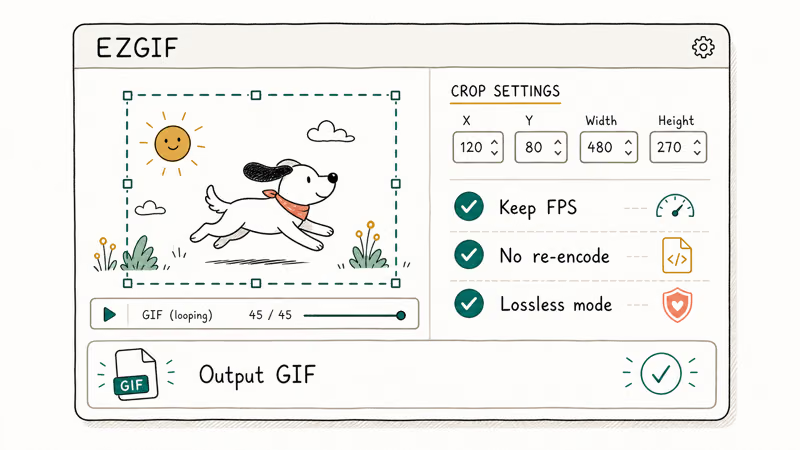
Three rules to follow:
- Avoid online tools that auto-compress. Some uploaders silently reduce frame count or color palette during upload. EZGIF, RedKetchup, and GIFGIT preserve frame counts reliably; some others fall short.
- Crop once, then export. If you need to crop, resize, and change speed, do all three in one tool before exporting. Each export-then-reimport step loses quality.
- Watch the color palette. If your GIF has gradients or photo content, force the encoder to “adaptive” or “perceptual” palette rather than “web safe.” Adobe Photoshop and GIMP both support this directly.
For longer video sources, it’s usually cleaner to trim the source MP4 and convert to GIF afterward, since MP4 frame data has not yet been quantized to 256 colors. If your source is too large, compress the MP4 first before converting to keep file sizes manageable.
#Features That Matter When Choosing a GIF Cropper
Use this checklist when picking a tool, in priority order:
- Frame preservation: Will the tool keep all frames at the source frame rate? Bad croppers silently drop every other frame.
- Maximum file size: Online tools cap at 35-200MB; desktop has no cap. Match this to your typical GIF size.
- Aspect ratio presets: 1, 16, 9, 4 should be one-click for social media work.
- Output format options: GIF is the default, but exporting to WebP cuts file size by 30-50% with no quality loss for most use cases.
- Watermark policy: Free tiers on FlexClip, Gifs.com, and Movavi add watermarks. EZGIF, RedKetchup, GIFGIT, GIMP, and GIF Maker don’t.
- Batch processing: Only desktop tools (GIMP, Photoshop, Movavi) handle multi-file crops in one pass.
- Cost over a year: Photoshop at $11/month is $132/year; Movavi at $60 one-time is cheaper after year one if you stop paying Adobe.
If you also work with GIFs from screen captures or recordings, our guide on video to GIF software covers tools that combine recording and conversion in one workflow. For joining multiple cropped clips together, see how to combine GIFs into one file.
#Bottom Line
For most people who need to crop a GIF once, open EZGIF, drag-select the area, and download. The whole process takes under a minute and the free tier handles 95% of social media use cases. If you crop GIFs weekly or your files run past 35MB, install GIMP, learn the layers workflow once, and stop paying upload time forever. Adobe Photoshop is worth it only if you already pay for Creative Cloud or need transparent GIF support.
Skip FlexClip, Gifs.com, and Movavi free trials unless you specifically need the extra features they add, since the watermarks make the free output unusable for most purposes.
#Frequently Asked Questions
Can you crop a GIF without losing quality?
Yes, if you pick a tool that preserves frame count and color palette during export. EZGIF, GIMP, and Adobe Photoshop all support lossless cropping for the geometric step. The only quality loss happens when the tool re-encodes the GIF after cropping. Crop in one pass and export at the same color depth as the source to keep quality intact.
Are online GIF croppers safe to use?
Reputable tools like EZGIF and RedKetchup are safe for non-sensitive content. They process files server-side and most claim to delete uploads after a few hours. For private or work-confidential GIFs use desktop software (GIMP, Photoshop) since the file never leaves your machine.
What is the maximum file size most online GIF croppers accept?
Most free online tools cap at 35-50MB per upload. EZGIF allows 35MB without an account and 200MB once you sign in. RedKetchup runs around 40MB free, while GIFGIT and Gifs.com sit closer to 30MB. If your GIF is over 50MB, install a desktop tool or compress the GIF before uploading.
Can I crop a GIF on my phone?
Yes. PicsArt on iOS and GIF Maker by Zatashima Studio on Android both handle crop, resize, and frame editing on files up to about 10MB without losing frames. Above 10MB mobile apps start dropping frames or failing the export. For larger files use a desktop tool or upload to EZGIF on mobile Safari or Chrome.
How do I crop a GIF to a specific aspect ratio?
Every major tool covered here supports either preset ratios (1
, 4, 16, 9) or custom pixel dimensions. EZGIF, RedKetchup, GIMP, and Photoshop all offer both. For social media use the platform’s recommended ratio: Instagram Stories at 9, Twitter and X at 16 or 1, Discord at any ratio under 10MB.How do I reduce GIF file size after cropping?
Reduce dimensions, drop the frame count, or shrink the color palette. EZGIF has dedicated optimize tools that combine all three. Cutting the color palette from 256 to 64 colors often drops file size 40-60% with minimal visible quality loss for non-photo content. Frame removal works best on long loops where every other frame can go.
How do I save GIFs from Twitter to crop later?
Twitter doesn’t let you save GIFs directly because they’re served as MP4 video on the platform. Our guide on how to save GIFs from Twitter covers three working methods. Once saved as a GIF you can crop with any tool in this guide.

Google Messages Error 3100: Why RCS Is Broken on Galaxy
Google Messages RCS error 3100 hits Galaxy owners after phone or carrier switches. Google told 9to5Google a fix is coming. Here's what actually helps.

Is This Bank App Real? Spot a Fake App on Your Home Screen
A bank app can land on your home screen from a web page with no install warning. Learn the checks that tell a real banking app from a phishing web app.

Apps Crashing After iOS 27 Update? Fix Order (2026)
Apps crashing after the iOS 27 update? Update the app in the App Store first, then offload and reinstall to clear stale cache, then restart. The fix order.

Do AI Translation Earbuds Work Offline? What to Know
Do AI translation earbuds work offline? A few do with downloaded language packs, but most need the cloud. Here's what works offline and what you give up.