Is This Bank App Real? Spot a Fake App on Your Home Screen
A bank app can land on your home screen from a web page with no install warning. Learn the checks that tell a real banking app from a phishing web app.
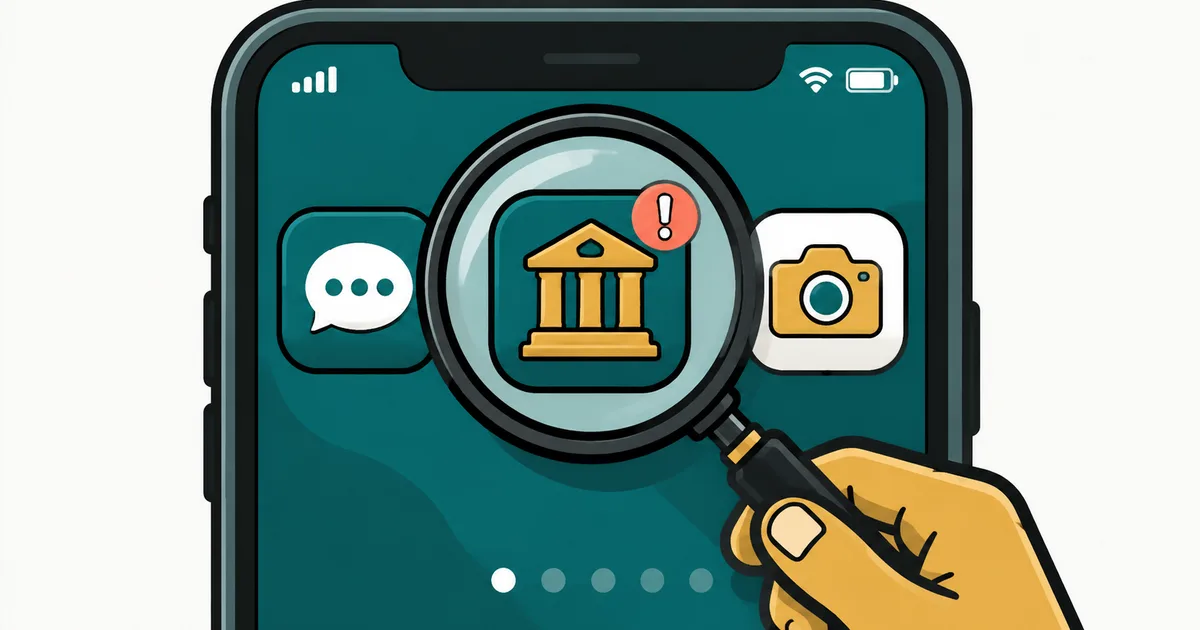
Quick AnswerA fake bank app can reach your home screen straight from a web page, with no App Store or Play Store download and no sideloading warning. Check where it was installed from, not how official it looks.
A fake bank app scam doesn’t need you to disable a security setting or approve a scary install. On iPhone and Android alike, a phishing site can put a convincing banking icon on your home screen using the same web-app technology legitimate sites use.
- Phishing web apps land on your home screen from a browser page, so the usual “unknown sources” warning never appears on Android and no App Store review happens on iOS
- The absence of a sideloading warning is the trick, not proof of safety, and researchers found fake apps that even show Google Play as the install source
- Delivery starts off-app: an unexpected SMS, an automated phone call, or a social media ad telling you your banking app needs an urgent update
- The reliable test is provenance, not appearance, so verify where the app came from rather than how official the icon and login screen look
- If you already entered credentials or a one-time code, contact your bank through a number you look up yourself, never one from the message
#How a Fake Bank App Reaches Your Home Screen
The scam rides on Progressive Web Apps, a legitimate technology that lets any website install itself as an app-like icon.
According to ESET’s research into phishing in PWA applications, published in August 2024, victims were steered to a fake page that walked them through adding a “bank app” to their home screen. Poland’s CSIRT KNF had flagged the Android side of the same technique in July 2023, roughly a year before ESET’s cross-platform analysis landed.
The two platforms get there by different routes, and the difference matters when you’re checking your own phone.
| Platform | What actually happens | What you see |
|---|---|---|
| iPhone | Safari's "Add to Home Screen" saves the phishing site as a web app | On-screen instructions styled to look like a native iOS prompt, then a new icon |
| Android | Chrome packages the site as a WebAPK, which installs like a normal app | A fake Play Store listing or install animation, then an icon with no browser badge |
Neither route is a silent, zero-click install. You have to visit the link and confirm the action. That’s precisely why the scam invests so heavily in making the page look like a system prompt.
It’s worth saying plainly: web apps themselves are fine. Plenty of legitimate services offer them. The problem is that a technology built for convenience also skips the checkpoints most people rely on to judge whether an app is trustworthy.
#Why Doesn’t Android Show an “Unknown Sources” Warning?
Because from the system’s point of view, nothing unusual happened.
According to Google’s documentation on PWA installation, a WebAPK is packaged and signed by a trusted provider, then installed the way a store app would be. No sideloading, no security toggle to flip, no warning to dismiss.
ESET’s researchers found the consequence unsettling: some malicious WebAPKs appeared in the app list as though they’d come from Google Play. So the check most people fall back on, looking at where the app says it came from, can report the wrong answer.
On iPhone the framing differs but the outcome matches.
There’s no Apple review of a home-screen web app because Apple never sees it. As Apple’s guide to web apps describes, the feature works exactly as intended: a website you’ve chosen to keep an icon for. Nothing is broken here, and no bug is being exploited. The scam simply borrows a convenience feature and points it at a page designed to look like your bank.
If your instinct is that a missing warning means the install was vetted, invert it. A banking app that arrived without any of the usual friction deserves more scrutiny, not less.
#The Delivery Method Is Your First Clue
Almost every documented case starts somewhere other than your phone’s app store.
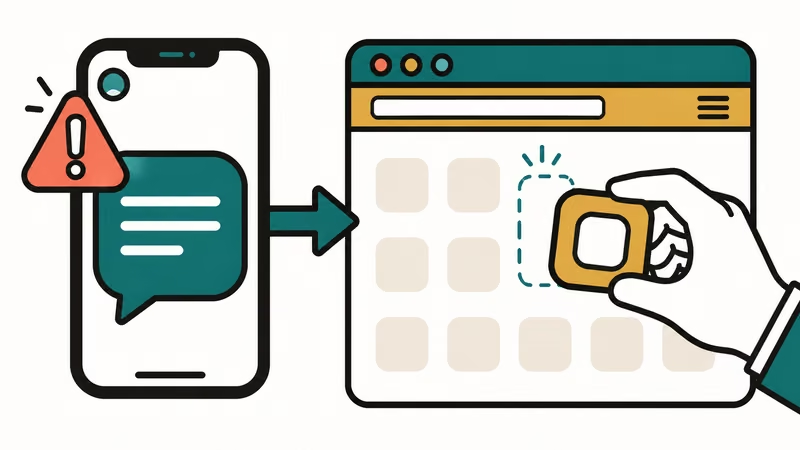
As ESET reported, three delivery routes showed up across the campaigns it tracked: automated voice calls, SMS messages, and paid ads on social media. All three carry the same emotional payload, which is that your banking app is out of date, compromised, or about to lose access.
That pattern should feel familiar. It’s the same playbook behind smishing text scams and the fake delivery texts impersonating USPS. The technique changed; the setup didn’t.
A related variant swaps the link for a QR code, covered separately in our guide to QR code scams and quishing. For the desktop-era version of the same social engineering, spotting a phishing email walks through signals that transfer directly to your phone, including the mismatch between a sender’s display name and the address behind it.
The practical rule costs you nothing: banks don’t push app updates through text messages.
#Five Checks That Actually Tell You Something
Appearance proves nothing here. These checks look at provenance instead.
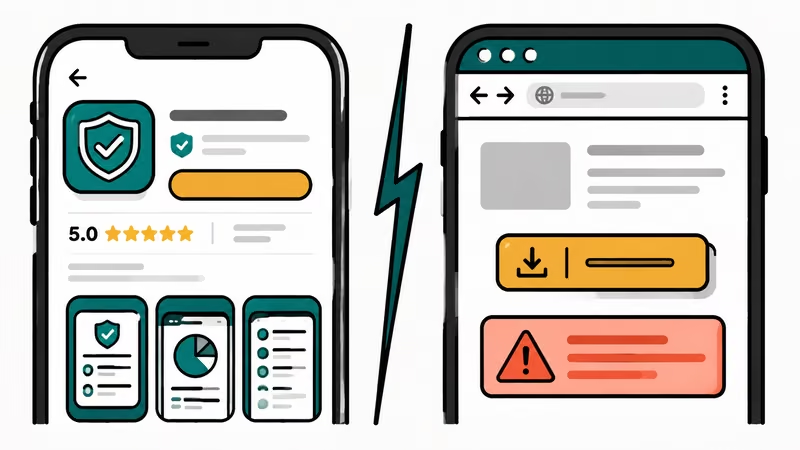
Check where the install happened. Did you tap Install on a page in your browser, or did you open the App Store or Google Play yourself and search for your bank? Only the second one counts. A web page that looks exactly like a Play Store listing is still a web page.
Open your real app store and search for the bank. If the store offers an app you don’t already have, your icon came from elsewhere.
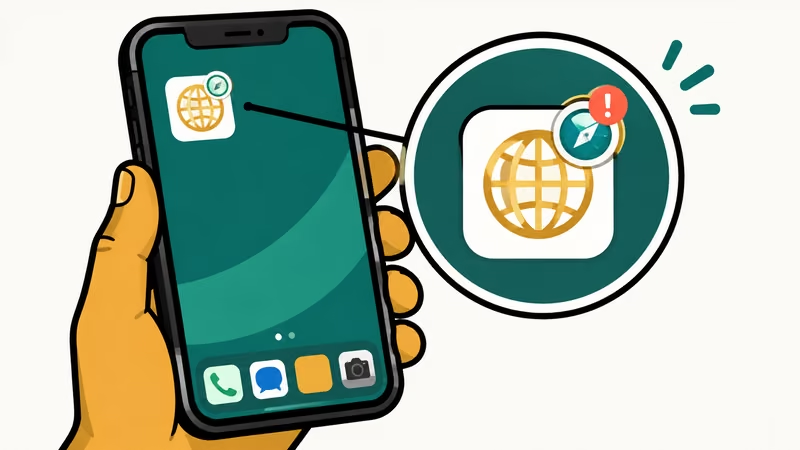
On Android, look for the browser badge. A phishing PWA often carries a small browser icon overlaid on its home-screen icon. WebAPKs can hide it, so absence proves nothing. Presence is damning.
Check the app’s own settings entry. On Android, open Settings and find Apps, then look for your bank. Google’s Chrome support documentation notes that a web app whose name or icon suddenly changes to impersonate something else is a reason to uninstall.
Treat a credential prompt as a stop sign. If a newly appeared icon immediately asks for your online banking login, and you can’t say with certainty where it came from, don’t type anything. Close it and reach your bank through a number or address you look up independently.
#What Permissions Should a Banking App Never Ask For?
Watch what the page requests before you’ve even logged in.
ESET’s analysis notes that phishing web apps can request browser-level permissions the same way any website can, including camera, microphone, and location access. A real banking app might legitimately want your camera for check deposits or QR payments, so a permission prompt on its own doesn’t convict anything.
Timing and context are the signal. A page that reached you through an unexpected text, presents itself as an urgent update, and asks for microphone or location access before showing you anything useful has no business getting either one.
When in doubt, decline everything and close the page. A real banking app asks for access at the moment you use the feature that needs it.
#What to Do If You Already Logged In
Move fast, and don’t use anything the scammer gave you.
Contact your bank using the number printed on your card. According to the Federal Trade Commission’s phishing guidance, never use contact details from the suspicious message itself.
Then delete the app. On iPhone, press and hold the icon and remove it as you would any app. On Android, uninstall through Settings and Apps. Dragging the icon off a home screen can leave the thing installed and still running in the background, which is worse than useless because you’ll believe it’s gone.
Change your banking password from a different device if you can, and read through recent transactions rather than trusting that you’d notice a problem on your own. If the attacker also captured a one-time code, treat your second factor as compromised for that session; our comparison of the best 2FA authenticator apps covers options sturdier than SMS codes, which is worth doing anyway once you’ve cleaned up.
Finally, tell your bank a phishing app is circulating with their branding. Their fraud team can request takedowns, and the report helps other customers.
#Bottom Line
The uncomfortable part of this scam is that every visual cue can be faked. The icon, the login screen, the install animation, even the line claiming the app came from Google Play.
What can’t be faked is your own memory of how the app got there. If you opened your app store, searched, and installed, you’re fine. If a text, a call, or an ad sent you to a page that walked you through adding an icon, you should assume the worst and verify before you type a single character.
Keep your phone’s browser and operating system current, since both platforms continue to tighten how web apps present themselves. And if you’re building better habits generally, our guide to protecting yourself from smishing covers the wider set.
#Frequently Asked Questions
Can a fake app install on my iPhone without me doing anything?
No. Every documented case required the victim to visit a link and then confirm adding the site to the home screen. The pages are designed to make that confirmation feel like a routine system step, but it’s still an action you take.
Does the missing “unknown sources” warning mean Android approved the app?
No, and this is the most dangerous misunderstanding around this scam. A WebAPK installs through a trusted signing path, so no sideloading warning appears. The silence reflects how the technology works, not a security check that passed.
Are all home-screen web apps dangerous?
Not at all. Progressive Web Apps are a standard, legitimate technology, and many well-known services offer them as a lightweight alternative to a full app. The risk comes from installing one that impersonates your bank, not from the format itself.
How can I tell a WebAPK from a real installed app?
On Android that’s very difficult, which is exactly why researchers flagged it. A WebAPK appears in your app drawer and app settings like any other app. Rather than trying to identify the format, verify the source by searching your bank’s app in Google Play yourself.
Which banks have been targeted?
Publicly documented campaigns concentrated on customers in Czechia, with additional cases reported in Poland, Hungary, and Georgia. The technique isn’t limited to those regions, so treat any unexpected “update your banking app” message as suspect regardless of where you live.
Will antivirus software catch a phishing web app?
Don’t count on it. Because each WebAPK can be generated with different identifiers per device, the usual signature-based detection has less to work with. Your own verification of where the app came from is the more reliable defense.
Should I delete a suspicious app before or after contacting my bank?
Contact your bank first if you entered any credentials, because freezing access matters more than removing the app. If you never typed anything, delete it right away and then verify your real banking app is intact.
Passkeys Not Syncing Between iPhone and Windows? Read This
Passkeys not syncing between iPhone and Windows is by design, not a bug. Here is why iCloud passkeys skip Windows Hello and the three ways to fix it.
VPN Not Working on Snapdragon X? Why It Fails, How to Fix
Your VPN won't install or connect on a Snapdragon X Copilot Plus PC because Windows on ARM can't emulate the network driver. Here are the fixes that work.
How to Check If a Link Is Safe Before You Click It
Learn how to check if a link is safe with official-first steps: read the real domain, use the app instead, and treat scanners as a second opinion only.
How to Protect Yourself From Smishing Text Scams Now
How to protect yourself from smishing: verify through the official app, report texts to 7726, and lock down accounts fast if you already tapped a link.