Messenger Not Sending Messages? 8 Fixes That Work Fast
Facebook Messenger not sending messages? Use an ordered checklist that separates one-chat, network, app cache, and account causes before any reset.
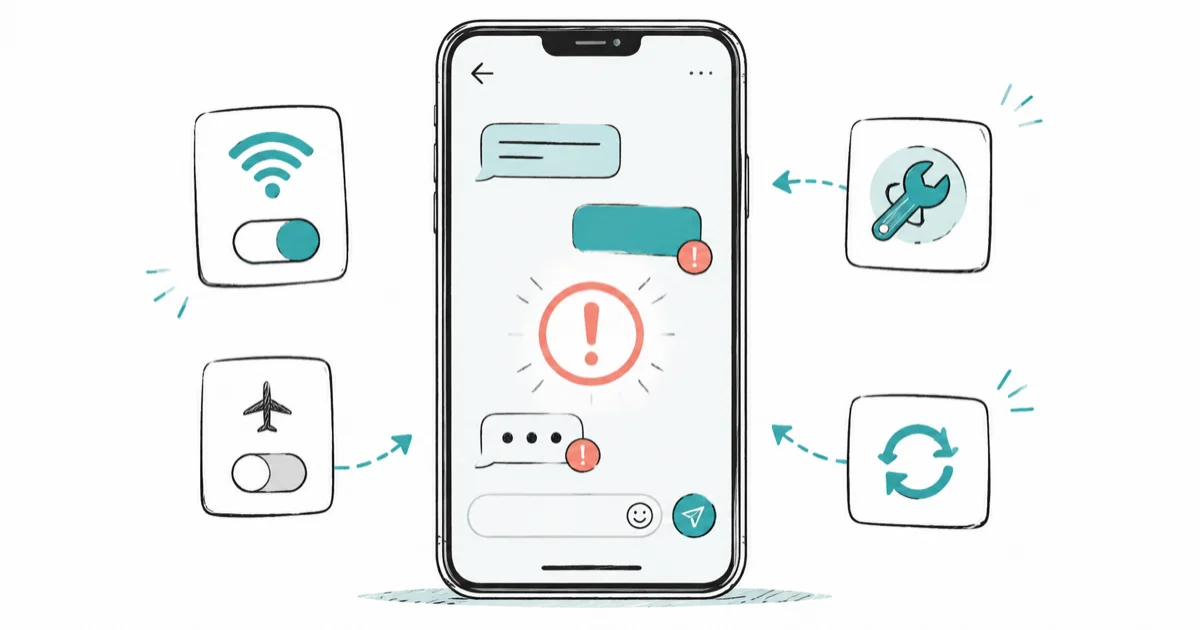
Quick AnswerRun the narrowest test first: try one chat, then all chats, then Messenger on the web. That shows whether the problem is the app, account, network, or one conversation.
Facebook Messenger not sending messages almost always traces to one of four causes: a restricted chat, your network, a stale app cache, or an account limit. Find the scope first. Send to one person, then someone else, then open Messenger in a browser, and where it fails tells you what to fix.
- Test one chat, then a second chat, then Messenger on the web before changing anything. The pattern of failures points straight at the cause.
- A message stuck on a spinning circle never left your phone, so the problem is your connection or the app, not the recipient.
- If only one person’s messages fail, it’s usually a block, a restriction, or their privacy setting, not a bug you can fix from your side.
- Clearing the Messenger cache on Android takes about 30 seconds and won’t delete your chats; iPhone has no cache button, so a reinstall is the equal step.
- When everyone’s messages stall at once, it’s a Meta outage, and no local fix helps until service returns.
#Why Is Messenger Not Sending Messages?
The cause is on a short list: a weak or filtered connection, an outdated app build, a corrupted cache, a Meta outage, or a restriction on one chat. Don’t toggle settings at random, because each of those causes leaves a different fingerprint and the wrong fix wastes time. Find the scope first.
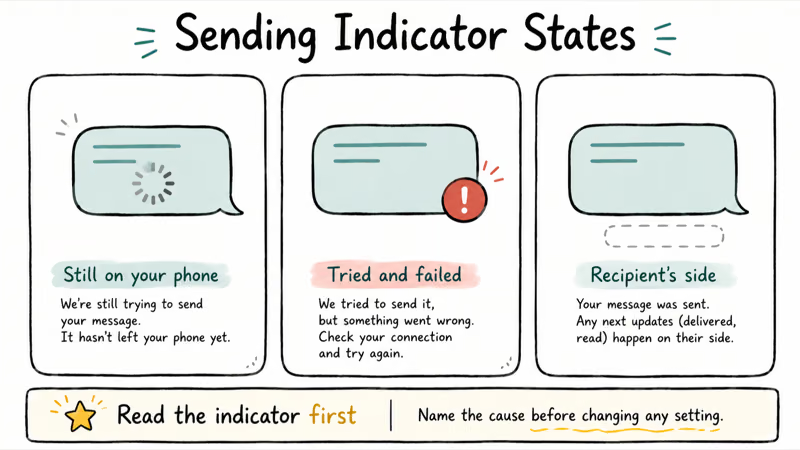
Watch the sending indicator, because it names the cause before you change anything. A spinning gray circle means the message is still queued on your phone and hasn’t left at all. A red exclamation mark means Messenger tried to send it and failed, which is a different problem entirely. And a message that simply never gets a “Delivered” or “Seen” label, while every other chat works fine, points squarely at the recipient’s side rather than at yours.
With mobile data switched off, a queued message holds on the spinning circle the whole time, then jumps to “Sent” the instant data returns, with no retry needed. That single behavior confirms the circle is a local-connection signal rather than anything to do with the recipient or their phone.
#Test One Chat, All Chats, Mobile, and Web
This single test saves you from a needless reinstall. Send a short message to the chat that’s failing. Then send one to a different person. Then open messenger.com in a browser, or use Messenger inside the Facebook website, and try the same two chats there.
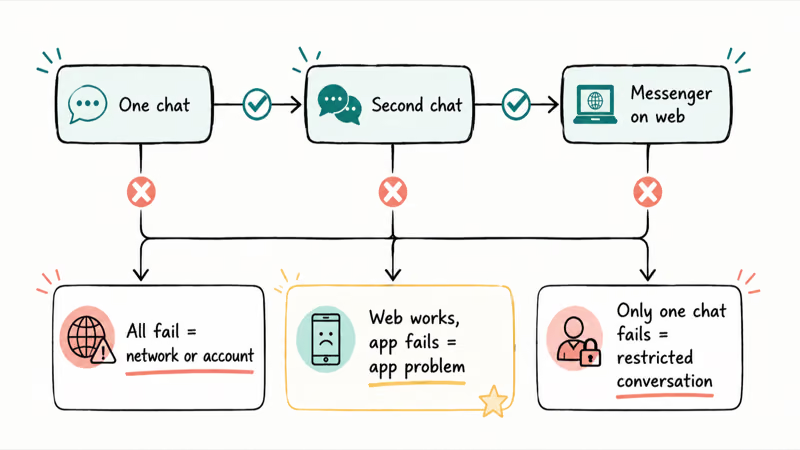
Read the result like a map. If every chat fails on both the app and the web, the issue is your network or your account. If chats work on the web but not in the app, the app itself is the problem, so a cache clear or reinstall is the right move. And if only one chat fails everywhere, that conversation is restricted in some way and no app fix will change it.
Don’t skip the web step. It separates an app bug from an account or network problem in under a minute.
#Check Network, VPN, and Meta Service Issues
A flaky connection causes most send failures, so reset yours first. Turn airplane mode on, wait about 10 seconds, then turn it off. If that does nothing, switch from Wi-Fi to mobile data or back, since you may be on a Wi-Fi network with no working internet behind it.
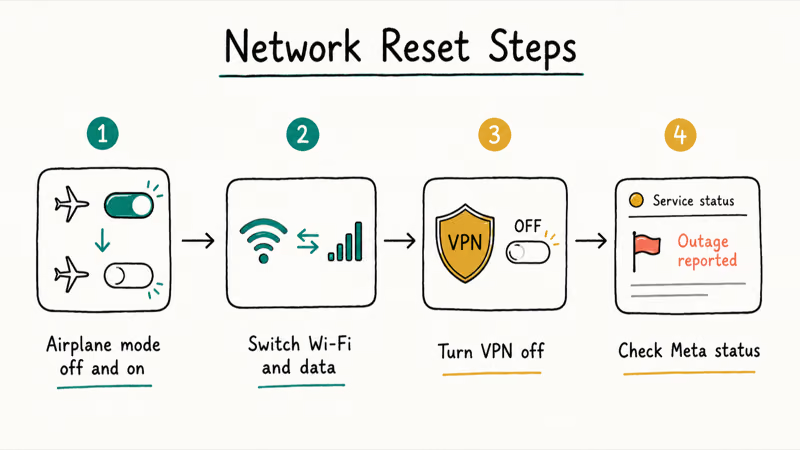
Turn off any VPN next. VPN servers sometimes sit on IP ranges that Meta rate-limits, which makes messages hang on “Sending.” With the VPN active, messages can refuse to send, then clear within seconds of disconnecting it.
If your own connection checks out, the outage may be on Meta’s end instead. The official Messenger Help Center confirms that service interruptions can stop messages from sending, so check it alongside a status site like Downdetector for reports. When messages stall for everyone at once, no phone setting helps until Meta restores service, so just wait it out.
Background data restrictions can also block sending. Confirm Messenger is allowed to use data when the app is closed, since our guide on WhatsApp not sending messages walks through the same background-data check on both platforms.
#What If Messages Fail Only to One Person?
When a single conversation refuses to deliver while everyone else works, stop blaming your phone. The cause sits with that one chat, and there’s a safe way to read it.
A few things produce this pattern. The person may have blocked you, in which case your messages send but never show “Delivered.” They may filter messages from people they aren’t connected to, routing yours to a request folder you can’t see. Or their account may be deactivated. According to Meta’s account restriction guidance, features like messaging can be limited when an account is restricted, so the silence may be on their end entirely.
Respect the boundary. If someone has blocked or filtered you, that’s their choice, and trying to route around it isn’t something we’ll help with. Reach the person through another channel instead.
#Update Messenger and Clear App Cache
If the web test pointed at the app, fix the app directly. Update it first: open the App Store or Play Store, search Messenger, and tap Update.
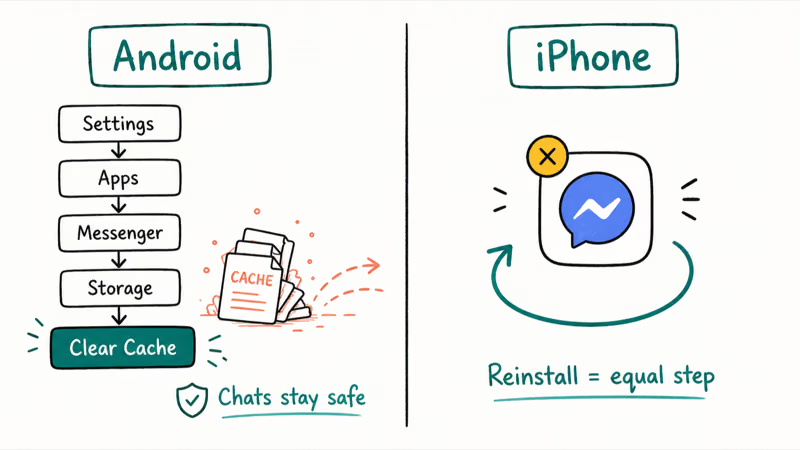
On Android, clear the cache. Go to Settings > Apps > Messenger > Storage and tap Clear Cache, which removes only temporary files and not your chats. According to Google’s Android storage guidance, clearing an app’s cache deletes temporary data and won’t delete your saved content, which is why it’s safe to try first.
That one step alone often unsticks a frozen queue, because the cache is exactly where Messenger holds the half-sent and pending data that jams things up. Messages stuck on the spinning circle often clear the moment the cache is emptied, with no reboot or reinstall needed afterward to keep new messages flowing.
iPhone is different. iOS gives you no per-app cache button, so delete and reinstall Messenger instead. Your conversations live on Meta’s servers and reappear after you sign back in.
If the broader app keeps misbehaving in other ways, two related guides cover the same family of Meta-app fixes: Facebook notifications not working walks through the Facebook-app reset steps you may also need, and Instagram direct messages not working shows how this exact send-failure pattern plays out on a sister app, since both share the same underlying messaging stack.
#Recognize Account Restrictions Without Trying to Bypass Them
Sometimes the problem isn’t a chat or the app at all. Your own account may be temporarily limited, and when that happens, sending quietly fails or you see a notice that you’re blocked from a feature.
Don’t look for a workaround. Use Messenger’s official channels: open the in-app help, or follow Meta’s path to report a problem for a review. Only Meta can lift a restriction.
Knowing what looks normal helps. Avoid blasting identical messages to many people at once, since that pattern reads as spam to automated systems, and keep your account recovery details current so any review resolves fast. For how Messenger stores conversation data on each platform, see recovering deleted Facebook Messenger messages on iOS and the Android version, retrieving deleted Facebook Messenger messages, both of which explain where the app keeps your chat history when something goes wrong.
#Bottom Line
Find the scope before you fix anything. If Messenger works on the web but not the app, fix the app: update it, then clear the cache on Android or reinstall on iPhone. If messages fail only to one person, don’t assume a phone bug, because it’s likely a block, a restriction, or a privacy setting on their end, and that’s not yours to override.
Keep every fix inside Messenger’s official controls. Skip VPNs while you test, check Meta’s status before you reinstall anything, and if your account is limited, report it through Meta and wait rather than reaching for a bypass.
#Frequently Asked Questions
Why is Facebook Messenger not sending messages?
Usually it’s one of four things: a weak or VPN-throttled connection, an outdated app, a corrupted cache, or a restriction on a chat. A Meta outage can also stall every message at once. The fastest way to tell them apart is to test one chat, then a second chat, then Messenger on the web, because the pattern of what fails points straight at the cause.
What should I check first?
Check the scope. Send to the failing chat, then to a different person, then try the same two chats in a browser to see where exactly the breakdown happens.
Can a Messenger update cause this?
It can. A buggy build sometimes ships, and an outdated app eventually loses compatibility with Meta’s servers. Updating Messenger from the App Store or Play Store fixes both situations, and it’s worth doing before any reinstall.
Will clearing the cache or reinstalling delete my chats?
No, your conversations are safe. Messenger stores your chat history on Meta’s servers rather than only on your phone, so neither step touches the messages themselves. Clearing the Android cache removes only temporary files, and a reinstall on iPhone pulls your full chat history back the moment you sign in again, which is exactly why these are safe steps to try before anything more drastic.
When should I contact official support?
Contact Meta when your own account is limited or you see a notice that you’re blocked from a feature. Use the in-app help or Meta’s report-a-problem path, and don’t attempt any bypass, since only Meta can lift a restriction.
How do I prevent this from happening again?
Keep Messenger updated, leave background data enabled for the app, and avoid sending identical messages to many people at once, which can trip spam filters. Check Meta’s status page before assuming your device is broken when messages stall for everyone.

Is This Bank App Real? Spot a Fake App on Your Home Screen
A bank app can land on your home screen from a web page with no install warning. Learn the checks that tell a real banking app from a phishing web app.

Apps Crashing After iOS 27 Update? Fix Order (2026)
Apps crashing after the iOS 27 update? Update the app in the App Store first, then offload and reinstall to clear stale cache, then restart. The fix order.

Do AI Translation Earbuds Work Offline? What to Know
Do AI translation earbuds work offline? A few do with downloaded language packs, but most need the cloud. Here's what works offline and what you give up.
How to Set Up Translation Earbuds (Pairing and Modes)
How to set up translation earbuds: charge, install the app, pair over Bluetooth, pick two languages, and choose a mode. A step-by-step first-use guide.