iPhone 17 Cellular Data Not Working on iOS 26? 9 Fixes
iPhone 17 cellular data still dropping on iOS 26? Apple fixed the launch bug in iOS 26.0.1, but recovery failures persist. Here's the fix ladder.
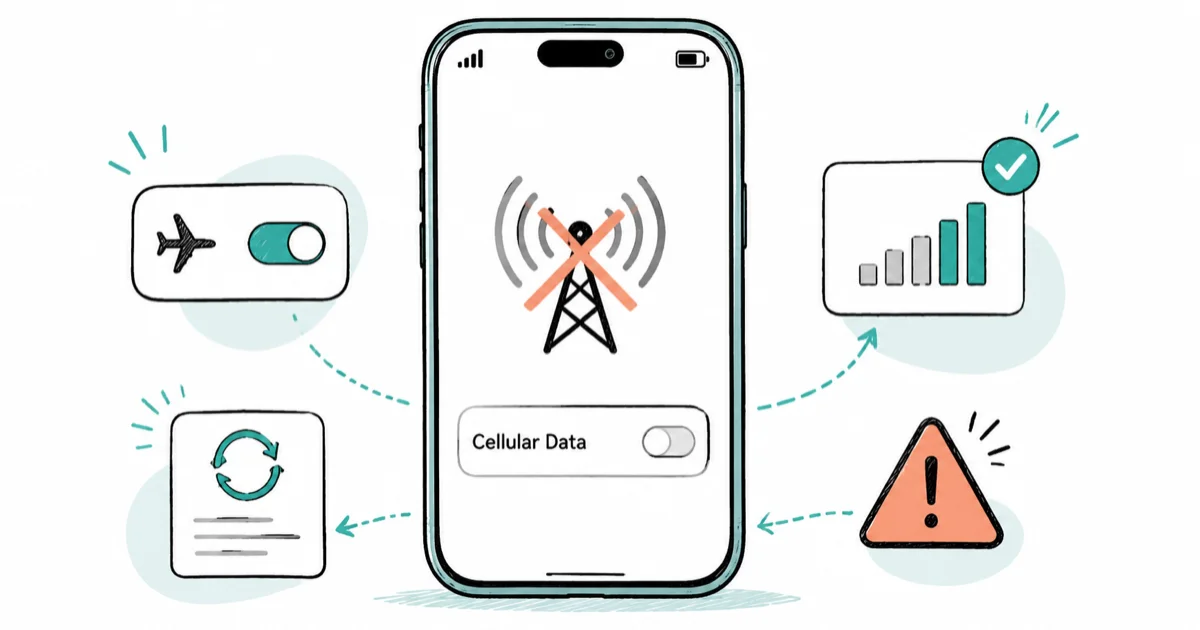
Quick AnswerUpdate to the latest iOS 26 point release first; Apple's iOS 26.0.1 fixed the iPhone 17 launch cellular bug. If data still drops after signal loss, toggle Airplane Mode to reset the modem, then reset network settings.
If your iPhone 17 cellular data isn’t working on iOS 26, you have one of two problems. Apple patched the launch bug in September 2025, but a dead-zone recovery failure still shows up in owner reports. This guide sorts out which one you have and fixes both.
- Apple patched the launch-window cellular bug in iOS 26.0.1 on September 29, 2025, so phones that never reconnected after updating usually just need the newest point release
- A second failure, where the phone stays on No Service after leaving a dead zone, kept appearing in owner reports through at least iOS 26.2 with no confirmed fix version
- A 15-second Airplane Mode toggle forces the modem to re-register with the tower and is the fastest recovery for the dead-zone symptom
- US iPhone 17 models are eSIM-only, so the classic SIM reseat becomes deleting the eSIM and having your carrier push a fresh one
- If drops survive two consecutive point updates plus an eSIM reprovision, book Apple hardware service instead of repeating settings resets
#Is the iPhone 17 Cellular Bug Fixed in iOS 26?
Mostly, but not completely. According to Apple’s iOS 26 update notes, iOS 26.0.1 fixed an issue where “a small number of iPhone users may be unable to connect to a cellular network after updating to iOS 26.” The same release patched Wi-Fi and Bluetooth disconnects on iPhone 17, iPhone Air, and iPhone 17 Pro models.
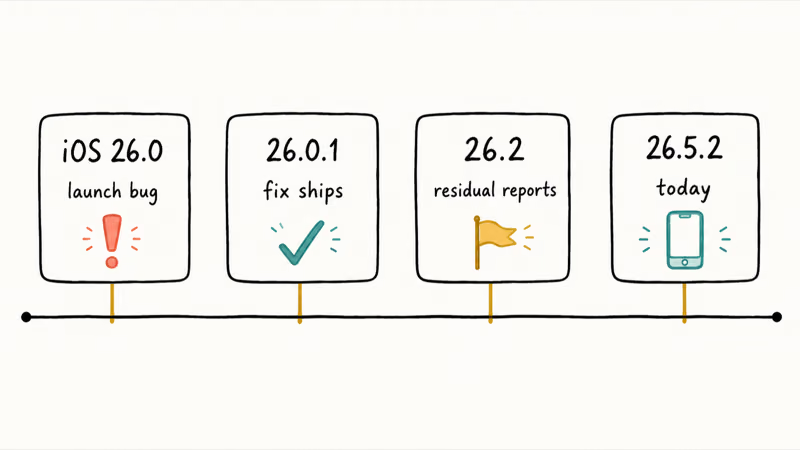
MacRumors reported that iOS 26.0.1 shipped on Monday, September 29, 2025, bundling the cellular, Wi-Fi, and camera fixes into one small download. That was the launch-class bug handled.
The trail goes quiet after that.
| Release | What it changed for cellular |
|---|---|
| iOS 26.0 (September 2025) | Launch version carrying the connection bug |
| iOS 26.0.1 (September 29, 2025) | Documented cellular connection fix, plus Wi-Fi and Bluetooth |
| iOS 26.1 through 26.5.2 | No cellular-specific fix listed in Apple’s release notes |
| iOS 26.6 (July 27, 2026) | Security release; no cellular-specific fix in the notes |
| iOS 26.6.1 (August 17, 2026) | Security-only; its Telephony entry is an IPSec patch, not a connectivity fix |
Apple’s release notes from iOS 26.1 through iOS 26.5.2 list no cellular-specific fix. Meanwhile, owner reports of a narrower signal-recovery failure continued through at least iOS 26.2, and no release note confirms a fix for it. Treat that second bug as open and lean on the workarounds below.
Apple’s security advisories date iOS 26.6 to July 27, 2026 and iOS 26.6.1 to August 17, 2026. The iOS 26.6 advisory lists no Cellular or Telephony entry, while the iOS 26.6.1 advisory has one Telephony item: an IPSec authentication bypass patch, not a connectivity fix.
Two other post-update complaints cluster with this one: an install that hangs, covered in the iOS 26 update stuck guide, and battery drain that settles within a week, covered in iOS 26 battery drain.
#Why Does iPhone 17 Cellular Data Keep Dropping?
Three symptom patterns cover nearly every report, and each routes to a different rung of the ladder.
The launch-window wave hit every major network. Tom’s Guide’s iPhone 17 connectivity report found that owners across AT&T, T-Mobile, Verizon, and several MVNOs saw dropped calls and phones flipping between low 4G and 5G bars without moving. If your phone has behaved this way since day one and you’ve never updated past iOS 26.0, your fix is Fix 4.
The second wave is narrower and nastier. Owner reports describe an iPhone 17 that drops to No Service after passing through a total dead zone, then never re-registers on its own; callers hear ringing while the phone shows nothing. Reports of this recovery failure continued through at least iOS 26.2. Until Apple documents a fix, the reliable workaround is a manual modem reset, which is Fix 1.
One hardware point needs precision, because forum threads keep mangling it. The N1 chip Apple built for the iPhone 17 family handles Wi-Fi, Bluetooth, and Thread; it doesn’t touch cellular at all. MacRumors’ N1 connectivity report found that hundreds of comments about Wi-Fi cutting out piled up across MacRumors Forums, Reddit, and the Apple Support Community within four days of launch, and all of them concern Wi-Fi, not cell service.
Cellular traffic runs through a separate part entirely: a Qualcomm modem in the iPhone 17 and 17 Pro, and Apple’s own modem in the iPhone Air. So blaming N1 for dropped data gets the anatomy wrong. If Wi-Fi keeps cutting out too, treat that as its own issue and start with iPhone Wi-Fi not working.
One last routing note. If the screen shows the exact words “Could not activate cellular data network,” follow the could not activate cellular data walkthrough instead, since that error has its own cause chain.
#Quick Fixes That Reset the iPhone 17 Modem
Start with the fast stuff. These three take under five minutes combined, and they’re the iPhone 17 versions of the fundamentals in the general iPhone cellular data fixes guide.
#1. Toggle Airplane Mode for 15 Seconds
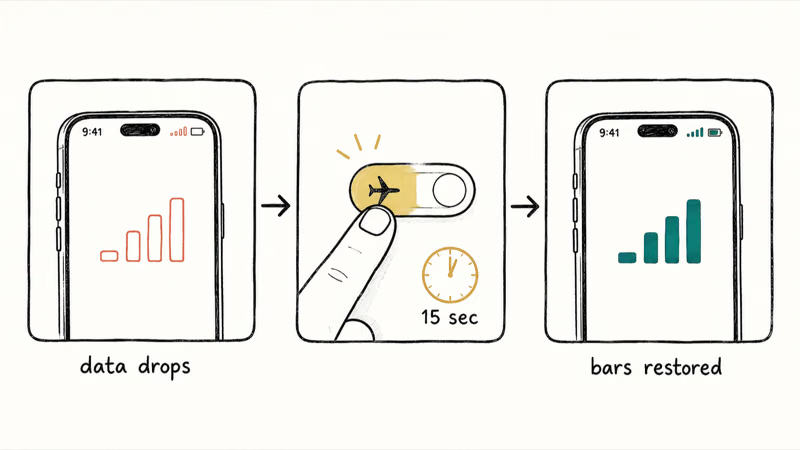
This is the go-to move for the dead-zone symptom, and timing matters more than most people think.
- Swipe down from the top-right corner to open Control Center.
- Tap the airplane icon and leave it on for a full 15 seconds.
- Tap it off and watch the status bar re-register with your carrier.
Use a slow Airplane Mode cycle: leaving it on for the full countdown forces a fresh tower registration, while flipping it back instantly can reconnect to the same stale session. Count the seconds out.
#2. Restart Your iPhone
A restart clears the baseband along with everything else. Hold the side button and either volume button, slide to power off, wait about 30 seconds, then hold the side button until the Apple logo appears. It’s slower than the Airplane Mode toggle but resets more state.
#3. Install a Carrier Settings Update
Go to Settings > General > About and stay on that screen for about 15 seconds. If a carrier settings update is waiting, a prompt appears; tap Update. Carriers have pushed several of these since the iPhone 17 launched, and they tune exactly the tower-handoff behavior this phone struggles with. If the prompt throws an error mid-install, the cellular update failed guide walks through it.
#Settings and Network Resets That Stick
The quick fixes recover a dropped connection. These three make the recovery last.
#4. Update to the Newest iOS 26 Point Release
Go to Settings > General > Software Update and install whatever 26.x release is waiting. TechRadar reported that the iOS 26.0.1 rollout fixed connectivity bugs on the iPhone 17 and iPhone Air and called it worth installing at your earliest opportunity. That advice still holds nine months later: staying current is the entire fix for the launch-class bug, and each point release is the only place a residual-bug fix can arrive.
#5. Reset Network Settings
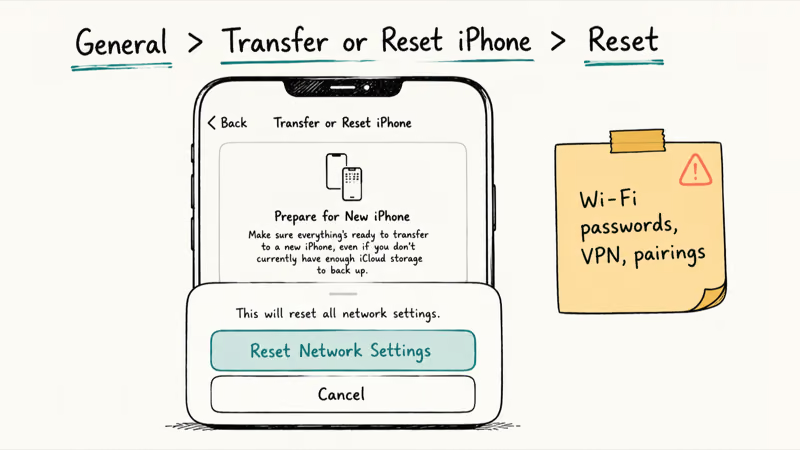
This wipes every saved network preference without touching photos, apps, or messages. Go to Settings > General > Transfer or Reset iPhone > Reset > Reset Network Settings and confirm with your passcode.
A Reset Network Settings pass includes an automatic reboot and wipes saved Wi-Fi passwords as expected. Budget time to rejoin your home network afterward.
#6. Switch Voice & Data to LTE
If your symptom is bars flapping between weak 5G and 4G, park the modem on the steadier network. Go to Settings > Cellular > Cellular Data Options > Voice & Data and pick LTE. You’ll give up peak speeds, but the phone stops renegotiating between networks every few seconds, which is where many of the flapping drops happen. Try 5G Auto again after the next point update.
#The eSIM Fix for Repeat Drops
US iPhone 17 models are eSIM-only, so the old “pop the SIM tray and reseat the card” advice literally can’t be followed. The equivalent fix is deleting the eSIM profile and having your carrier push a fresh one, which rebuilds the phone’s provisioning from scratch. If you want the background on how the profile works, the how eSIM works explainer covers it.
#7. Delete and Re-Download Your eSIM
Don’t start this without your carrier on the phone or in a support chat, because you’ll need them to reactivate the line.
- Call your carrier or open its app and ask them to prepare a new eSIM for your line.
- Go to
Settings>Cellular, tap your plan, and tap Delete eSIM. - Follow the carrier’s reactivation steps; most push the new profile within a few minutes.
This one earns its place late in the ladder. It’s the fix carriers reach for when drops recur weekly despite clean resets.
#When to Escalate to Your Carrier or Apple
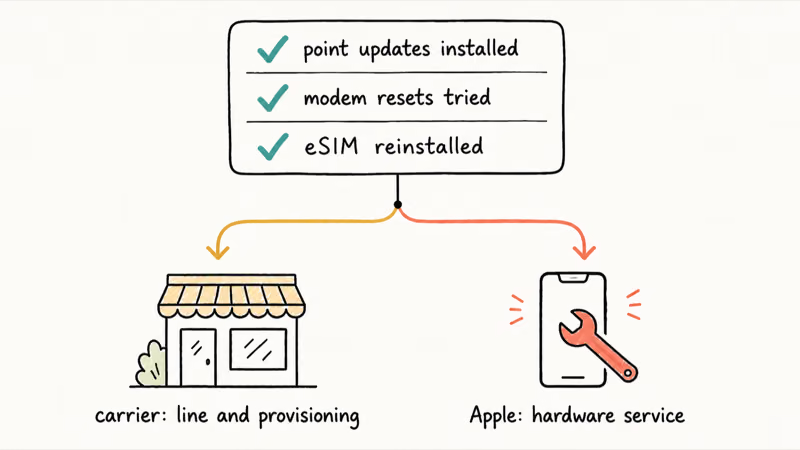
Settings churn has a point of diminishing returns. Two escalation paths remain, and picking the right one saves a week of back-and-forth.
#8. Ask Your Carrier to Check Provisioning and Towers
Your carrier can see things you can’t: whether your line’s provisioning matches the phone, whether nearby towers have open tickets, and whether your account tripped a data cap. Ask support to verify the eSIM provisioning against an iPhone 17 specifically. If the phone reports “cellular network not available” rather than plain No Service, the cellular network not available guide covers that tower-side failure.
#9. Book Apple Hardware Service
Here’s the line in the sand: if cellular drops persist across two consecutive iOS 26 point updates and after an eSIM reprovision, stop treating it as a settings problem. Book a Genius Bar visit or start a mail-in repair, and let Apple run its cellular diagnostics. A modem fault caught under warranty costs you nothing but time, and no amount of toggling fixes bad hardware.
#Bottom Line
Route by symptom, not by a generic checklist. Broken since an update? Install the newest point release, iOS 26.5.2 as of early July 2026, before touching anything else.
Data dies after a dead zone and never returns? That’s the residual recovery bug: toggle Airplane Mode for 15 seconds now, do a one-time Reset Network Settings, and get your carrier to re-push the eSIM if it keeps recurring. And if the drops outlast two point updates and a fresh eSIM, it’s a warranty conversation, not a configuration problem.
iOS 26
#Frequently Asked Questions
Did Apple fix the iPhone 17 cellular data problem?
Partly. iOS 26.0.1, released on September 29, 2025, fixed the launch bug that left some iPhone 17 owners unable to connect after updating. The narrower dead-zone recovery failure has no confirmed fix version in any Apple release note through iOS 26.5.2, so the Airplane Mode workaround still matters.
Why does my iPhone 17 stay on No Service after leaving a dead zone?
Owner reports point to the modem failing to re-register after a complete signal loss. The phone sits on No Service even in strong coverage, and callers hear ringing while nothing comes through. A 15-second Airplane Mode toggle forces re-registration.
Is the N1 chip causing iPhone 17 cellular issues?
No. The N1 handles Wi-Fi, Bluetooth, and Thread, and the launch-window complaints tied to it were about Wi-Fi drops. Cellular runs through a Qualcomm modem in the iPhone 17 and 17 Pro, and through Apple’s own modem in the iPhone Air.
Which iOS 26 release should I be on?
The newest one. As of August 2026 that is iOS 26.6.1, released August 17. Every documented connectivity fix ships in point releases, so sitting on an older build just leaves patched bugs active on your phone. Neither 26.6 nor 26.6.1 lists a cellular-specific fix, but both are security updates worth installing on their own merits.
Does resetting network settings delete anything on my iPhone 17?
It wipes saved Wi-Fi passwords, VPN configurations, and Bluetooth pairings, plus your cellular preferences. Photos, apps, messages, and your eSIM profile all stay put. Plan on re-entering your Wi-Fi password afterward.
Does the iPhone Air have the same cellular problem?
The iPhone Air was named in Apple’s iOS 26.0.1 fix notes alongside the iPhone 17 and 17 Pro. It uses Apple’s own modem rather than the Qualcomm part, but the troubleshooting ladder is identical: update first, then reset, then reprovision the eSIM.
How do I reinstall the eSIM on an iPhone 17?
Contact your carrier first and ask them to prepare a replacement eSIM for your line. Then go to Settings > Cellular, tap your plan, tap Delete eSIM, and follow the reactivation steps the carrier sends. Most lines come back within a few minutes, but don’t delete the profile until support is ready on their end.
When is iPhone 17 cellular trouble a hardware problem?
When drops persist through two consecutive iOS point updates and survive a full eSIM reprovision. At that point the software ladder is exhausted, and Apple’s diagnostics can check the modem itself under warranty.

iOS 26.6.1 Security Update: What Apple Fixed and Who Gets It
Apple released iOS 26.6.1 on August 17 with 29 security fixes, including an IPSec interception bug. See what it patches, who gets it, and how to update.

iOS 26 System Data Storage Full: How to Fix It Now
iOS 26 made System Data storage balloon past 50GB for some iPhones. Here is what is safe to clear, what is normal, and the iOS 26.1 storage fix.
How to Disable Liquid Glass in iOS 26: 2026 Settings
iOS 26 will not let you fully turn off Liquid Glass, but five settings reduce the transparency, motion, and brightness so the iPhone feels flat again.
iOS 26 Screen Time Not Working? Confirmed 2026 Fixes
iOS 26 Screen Time has two confirmed bugs in 2026: the One Minute extension locks all apps, and limits trigger on pickup. Here are the fixes that work.