Gmail Not Receiving Emails? 9 Fixes That Actually Work
Gmail not receiving emails? Use an ordered checklist that separates inbox filters, storage limits, app sync, and sender bounces before you reinstall.
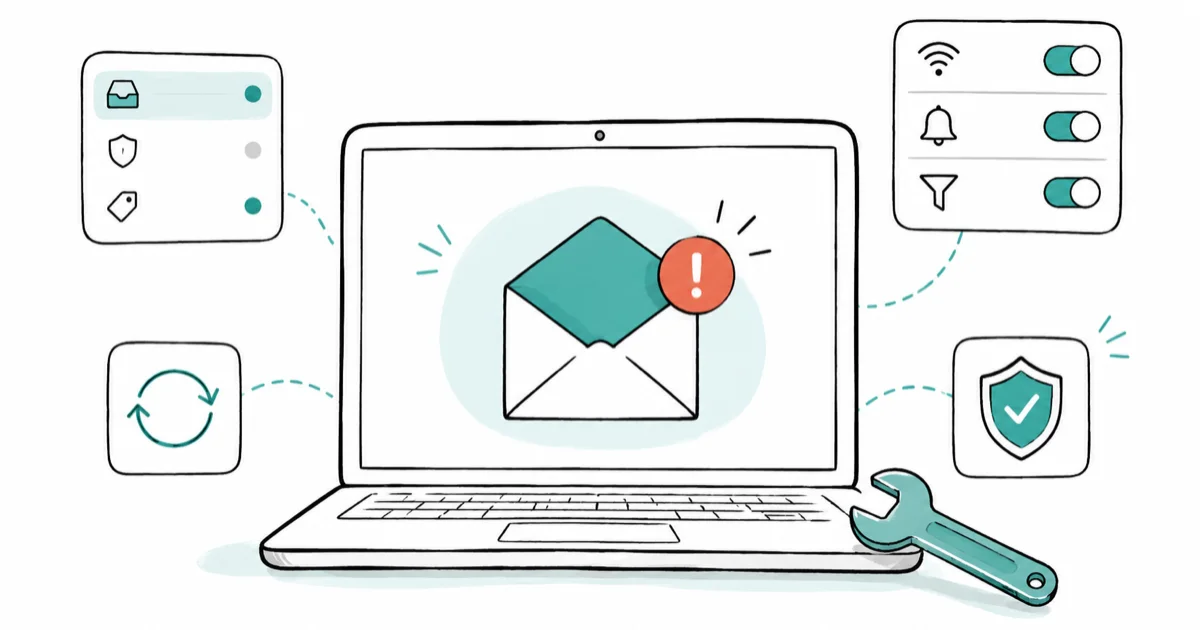
Quick AnswerCheck Gmail on the web first. If a missing message turns up in All Mail, Spam, or a filtered label, delivery is working and the issue is just inbox organization, not a sync bug.
Gmail not receiving emails is usually an organization problem, not a delivery failure. A filter quietly archived the message, your storage is full, or the app stopped syncing. Open Gmail in a browser and search All Mail first, because the web inbox is the source of truth.
- Check Gmail on the web first. If the message is in All Mail, Spam, or under a label, it was delivered and the problem is filtering, not delivery.
- A full Google storage quota stops new mail from arriving, since storage is shared across Gmail, Drive, and Photos.
- Filters and forwarding rules can archive or delete incoming mail automatically, often without you remembering you set them.
- The Gmail app can fall behind the web inbox when sync is off or background data is blocked, so the web is your reference point.
- If a message is missing on the web too, ask the sender for the bounce-back error, which names the exact reason it never arrived.
#Why Is Gmail Not Receiving Emails?
Most “missing” Gmail messages were actually delivered. They just landed somewhere other than the inbox, got filtered out, or never synced down to your phone, while a true delivery failure, where the mail never reaches Google at all, is far rarer and leaves a completely different trail behind that you can confirm in a minute.
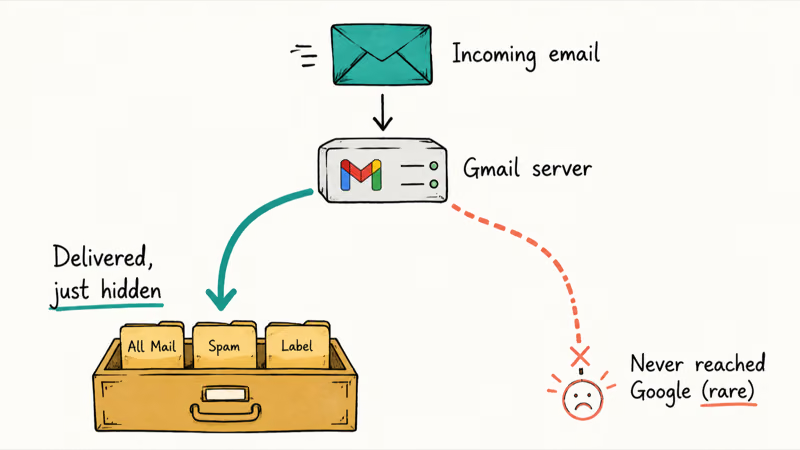
Separate the two before you change anything. Open Gmail in a web browser, not the app, because the web inbox shows your account exactly as Google sees it.
When a message doesn’t show in the mobile app, it can still be sitting under a custom label on the web after a filter auto-archives it. That means the phone isn’t necessarily broken; the search step is what separates a sync issue from a routing issue.
#Check All Mail, Spam, Trash, Filters, and Forwarding
This is the step that solves most cases. On the web, click the search box dropdown and set it to search Mail & Spam & Trash, then look for the sender or subject. According to Google’s missing-mail guidance, this search covers folders a normal inbox search skips, and it also notes that messages in Spam or Trash are permanently deleted after 30 days, so check there before that window closes.
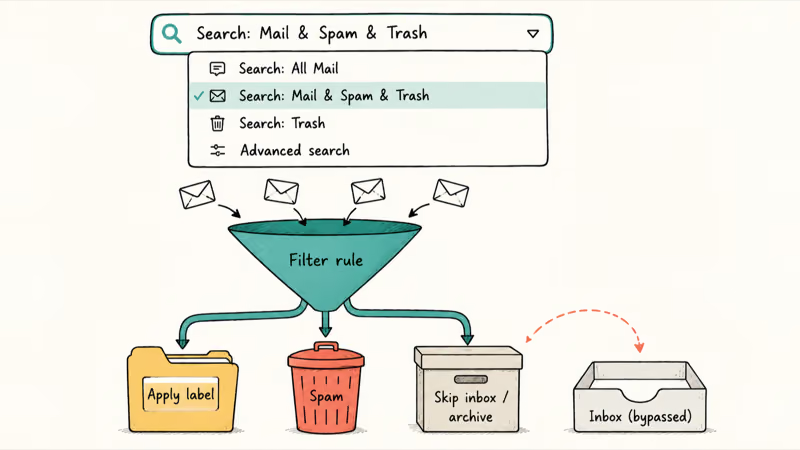
Found it under a label or in Spam? A filter is the cause. Go to Settings > See all settings > Filters and Blocked Addresses and look for any rule that skips the inbox or applies a label.
If a message already vanished from Trash, our guide on how to recover deleted emails on Gmail covers what’s still recoverable.
Gmail filters are powerful. According to Google’s filter documentation, a filter can send mail to a label, archive it, delete it, star it, or automatically forward it, all without touching your inbox. One forgotten rule from years ago can quietly siphon a sender’s mail out of sight.
Check forwarding too. Under Settings > Forwarding and POP/IMAP, confirm forwarding keeps Gmail’s copy in the inbox rather than deleting or archiving it, since a stray POP or forwarding rule can pull every new message out of sight before you ever see it land. Comparing across apps helps here: our guide on how to fix Outlook not receiving emails covers the same family of forwarding traps in a different mail client, and the underlying logic carries straight over.
#Confirm Google Storage Is Not Full
A full account is a silent cause of missing mail. Google storage is shared across Gmail, Drive, and Photos, so a phone backup can quietly eat the space your email needs.
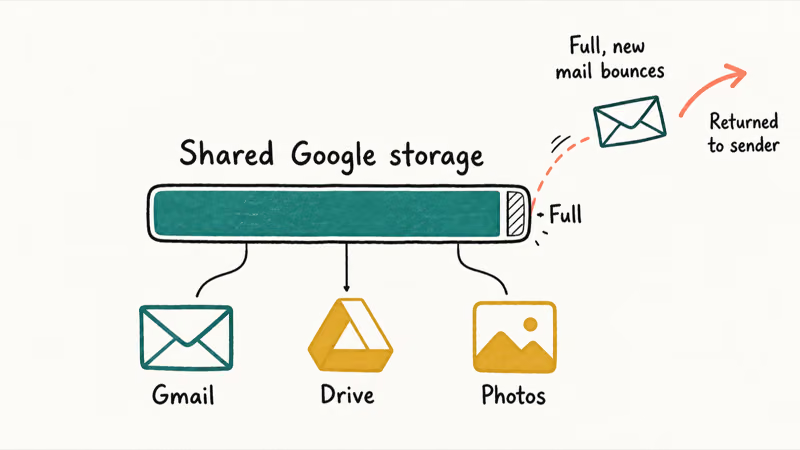
When the quota is full, new messages bounce instead of arriving, and the sender gets an error rather than you. Check your usage at Google’s storage page. If it’s at or near the limit, delete large attachments, empty the Spam and Trash folders, or remove old files from Drive and Photos.
Free up space, then ask the sender to try again. Mail that bounced earlier won’t resend on its own, so a fresh send is what confirms the fix.
#What If Gmail Web Works but the App Does Not?
When the message sits in your web inbox but never reaches the app, the problem is sync, not delivery. The mail arrived; your phone just isn’t pulling it down. That’s good news.
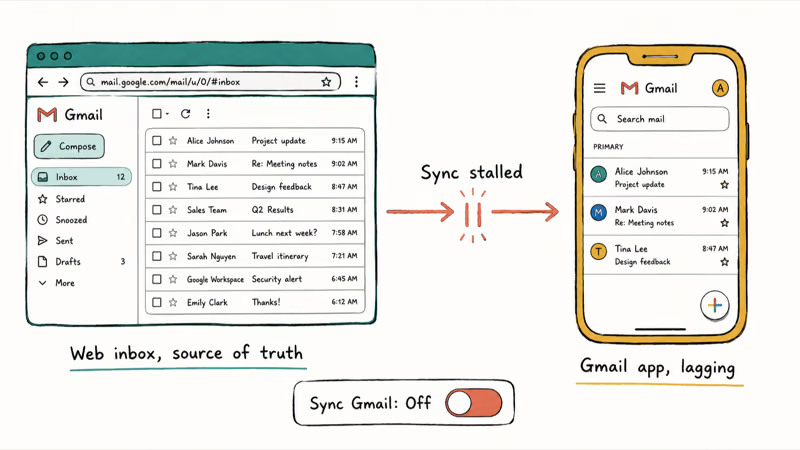
Start with the app’s own sync switch. Open the Gmail app, go to Settings, tap your account, and make sure “Sync Gmail” is checked. According to Google’s Gmail sync guidance for Android, sync also needs your device’s master “Automatically sync data” setting turned on and a live internet connection, so confirm both before you go further, because either one being off will quietly stall every new message at the app layer while the web inbox keeps filling up normally.
Background restrictions are the other common culprit. If battery saver or data limits cut off Gmail in the background, new mail won’t push until you open the app. Our guide on delayed notifications on Android covers the exact settings behind this.
#Fix Gmail Sync on Android or iPhone
If sync is on but the app still lags, restart the phone before moving to heavier fixes.
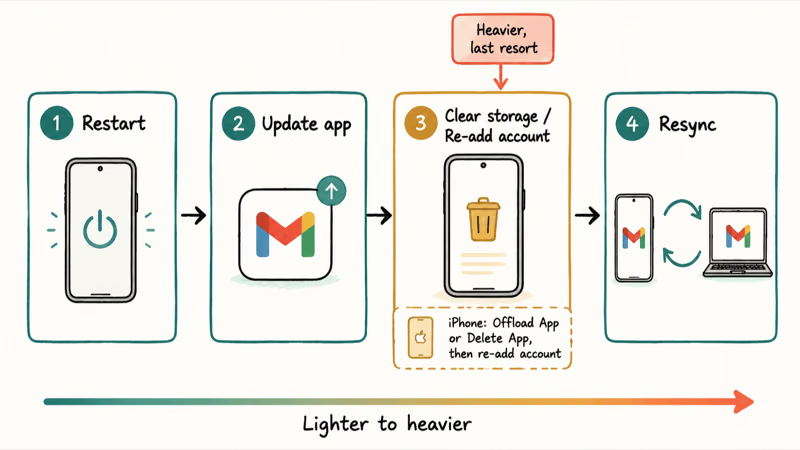
Next, update the Gmail app from the Play Store or App Store, since an outdated build can lose sync compatibility. If the app is behind while Gmail on the web is current, updating is the cleanest lightweight reset before you clear storage or reinstall.
On Android, the heavier step is to clear the Gmail app’s storage, which forces a full resync from Google’s servers but removes drafts and local settings, so save it for after the lighter steps fail. iPhone has no per-app equivalent. There, the parallel move is to remove and re-add the account, or reinstall the app outright, after which Gmail rebuilds its local copy from scratch on the next sign-in and the backlog usually clears in one pass.
Using the built-in iOS Mail app instead of the Gmail app? Our guide on iPhone email not updating covers Apple’s own Mail sync settings. And for the reverse problem, where mail arrives but won’t go out, see Gmail not sending emails.
#Ask the Sender for a Bounce Message
Still missing on the web, even after checking All Mail, Spam, filters, and storage? The failure may be on the delivery side, and the fastest way to learn why is to ask the sender what they saw on their end after hitting send, because the error usually lands in their mailbox, not yours.
A bounce-back is the key clue, and it almost always reaches the sender rather than you. When mail can’t be delivered, the sending server replies to whoever sent it with an automated “delivery failed” notice that names the exact reason: a full mailbox, a blocked address, a rejected connection, or a typo. Have the sender forward you that bounce text word for word, because the phrase inside it tells you precisely where to look next.
For Google Workspace accounts run by an employer or school, the admin can check delivery logs to see whether the message reached the server at all. That log is the definitive answer.
#Bottom Line
Check Gmail on the web before touching the app. If the message is in All Mail, Spam, Trash, or filtered to a label, delivery is working and inbox organization is the issue, so fix the filter or forwarding rule. If the web is missing it too, look at storage, then ask the sender for the bounce message before you reinstall any mobile app.
Treat the app as a sync layer, not the source of truth. When the web has the mail but the app doesn’t, turn on sync, lift background restrictions, update the app, and resync, in that order.
#Frequently Asked Questions
Why is Gmail not receiving emails?
In most cases the mail was delivered but filtered, archived, or routed to Spam, so it’s missing from the inbox rather than from your account. Less often, a full storage quota or a forwarding rule blocks delivery outright. Searching “Mail & Spam & Trash” on the web tells you which situation you’re in within seconds.
What should I check first?
Open Gmail on the web and search All Mail, Spam, and Trash. If the message is there, delivery worked and you only need to fix a filter.
Can a Gmail update cause this?
It can affect the app, not your account. An outdated Gmail app sometimes stops syncing, and updating it from the store usually restores the flow of new mail. Your messages still arrive on Google’s servers regardless of the app version, which is why the web inbox keeps working even when the app falls behind.
Will resetting sync or clearing storage delete my emails?
No, your mail is safe. Your messages live on Google’s servers rather than only on the phone, so clearing the Gmail app’s storage or re-adding the account only wipes local data like drafts and settings. Everything else pulls back down on the next sync. The one thing to note is that an unsent draft stored only on the device can be lost, so send or copy any important drafts first before you clear the app’s storage.
When should I contact official support?
Contact Google or your Workspace admin when a message is missing on the web too and the sender’s bounce points to a server-side problem. For a personal account with no bounce, the cause is almost always a filter or storage issue you can fix yourself.
How do I prevent this from happening again?
Review your filters and forwarding rules every few months, keep your Google storage below the limit, and leave Gmail sync and background data enabled on your phone. If a key sender keeps landing in Spam, open their message and mark it “Not spam” so future mail goes straight to the inbox.

Is This Bank App Real? Spot a Fake App on Your Home Screen
A bank app can land on your home screen from a web page with no install warning. Learn the checks that tell a real banking app from a phishing web app.

Apps Crashing After iOS 27 Update? Fix Order (2026)
Apps crashing after the iOS 27 update? Update the app in the App Store first, then offload and reinstall to clear stale cache, then restart. The fix order.

Do AI Translation Earbuds Work Offline? What to Know
Do AI translation earbuds work offline? A few do with downloaded language packs, but most need the cloud. Here's what works offline and what you give up.
How to Set Up Translation Earbuds (Pairing and Modes)
How to set up translation earbuds: charge, install the app, pair over Bluetooth, pick two languages, and choose a mode. A step-by-step first-use guide.