Discord Mic Not Working? 9 Fixes for Desktop and Mobile
Discord mic not working in voice chat? Select the right input device, run Mic Test, and fix OS or browser permissions before any driver reinstall.
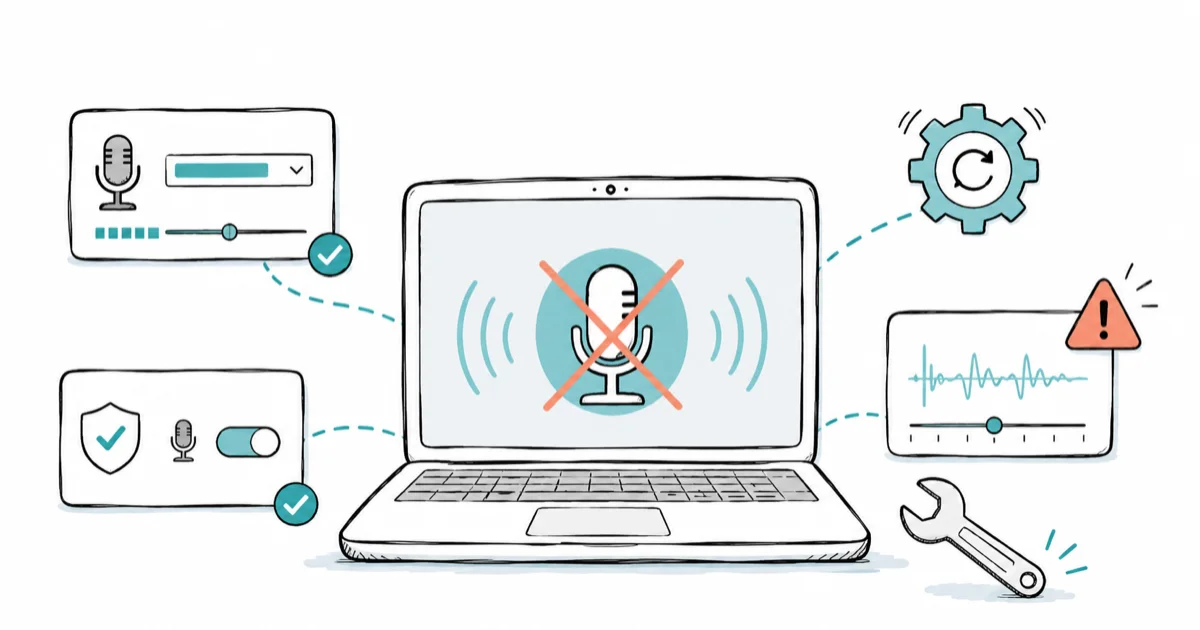
Quick AnswerA Discord mic usually fails because the wrong input device is selected, the OS or browser blocked microphone access, or input sensitivity is set too high. Pick the right input in Discord Voice settings and run Mic Test first, then check OS permissions before touching any drivers.
Discord mic not working in voice chat almost always traces to a setting, not a broken microphone. The wrong input device is selected, the OS blocked Discord’s mic access, or input sensitivity is muting you. This guide starts inside Discord with the built-in Mic Test, then branches to OS and browser permissions, so you fix the real cause before reinstalling anything.
The computer, accounts, and devices here are assumed to be your own.
- The fastest test is Discord’s built-in Mic Test, which tells you instantly whether Discord sees any input at all
- Selecting the wrong input device is the single most common cause, especially after plugging in a headset
- If Discord detects input but friends hear nothing, the problem is voice settings or push-to-talk, not the mic
- OS and browser microphone permissions silently block Discord, and the browser version has its own separate permission
- A driver reinstall is a late-stage fix, never the first move for a mic that worked yesterday
#Why Is Your Discord Mic Not Working?
A dead Discord mic comes from one of a few layers, and Discord’s own tools tell you which. The top layer is Discord’s input device selection and sensitivity. Below that sits the OS or browser microphone permission. Deeper still are exclusive-mode conflicts, push-to-talk confusion, and a physical mute switch on the headset.
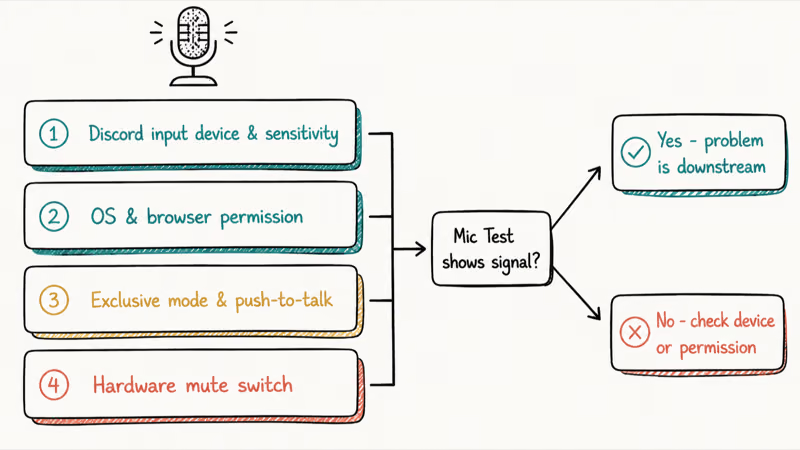
Start inside Discord. The Mic Test there is the fastest diagnostic in the whole guide.
The key fork is whether Discord detects any input. If the Mic Test shows no signal, the problem is the input device or an OS permission. If Discord sees your voice but friends still hear nothing, the problem moved downstream to voice settings, push-to-talk, or noise suppression. Knowing which side of that fork you’re on cuts your troubleshooting in half.
#Pick the Correct Input Device and Run Mic Test
Open Discord’s Voice & Video settings first. Go to User Settings, then Voice & Video, and look at the Input Device dropdown. After you plug in a headset or USB mic, Discord doesn’t always switch to it automatically, so the dropdown may still point at a device that isn’t capturing your voice.
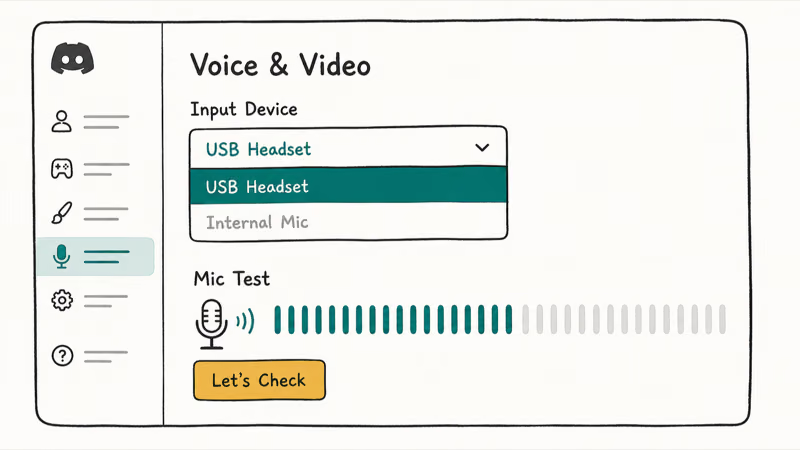
Select the correct input device explicitly. Then scroll to the Mic Test section and click “Let’s Check,” speak normally, and watch the input bar.
If the bar moves, Discord hears you, and your problem is downstream. A newly plugged USB headset can leave Discord pointed at the computer’s internal mic; selecting the headset in the dropdown fixes that input-routing mistake.
If the bar stays flat no matter what you select, the issue is an OS permission or the device itself, which the next section covers. This is the same input-routing trap that hits other apps, like when Instagram keeps crashing after a permission change.
#Check OS and Browser Microphone Permissions
If the Mic Test shows no input, the operating system may be blocking Discord. On Windows, microphone access is a privacy setting that can silently cut off an app.
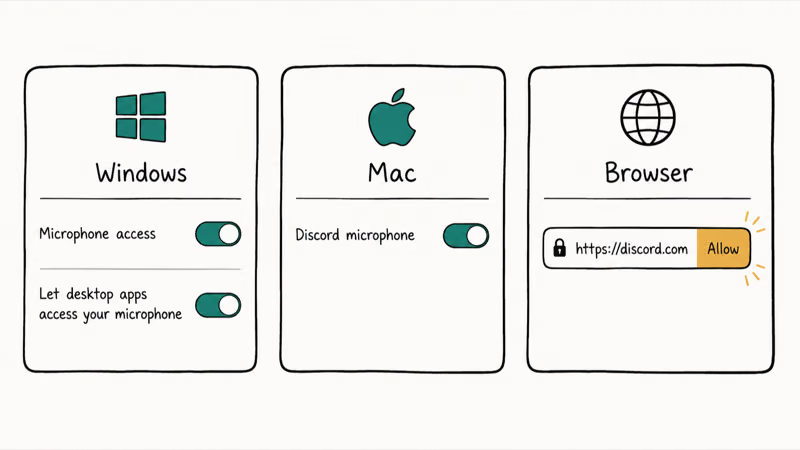
According to Microsoft, Windows 11 and Windows 10 both gate microphone access behind privacy toggles you control. You enable it under Settings > Privacy & security > Microphone, then turn on both “Microphone access” and “Let apps access your microphone.” The official Windows microphone permissions guide confirms you must also enable “Let desktop apps access your microphone” for the Discord desktop client.
On a Mac, check System Settings > Privacy & Security > Microphone and confirm Discord is toggled on.
The browser version of Discord has its own permission. When you join a voice channel in a browser, the site prompts for microphone access, and a single earlier “Block” can stick. Click the padlock or mic icon in the address bar and set the Discord site to Allow. A broader Windows audio fault can also be at play, which the Windows 11 microphone not working guide covers in depth.
#What If Discord Detects the Mic but Friends Hear Nothing?
This is the trickier symptom, because the mic clearly works yet nobody hears you. When the Mic Test bar moves but a call stays silent, the problem is in how Discord transmits, not how it captures.
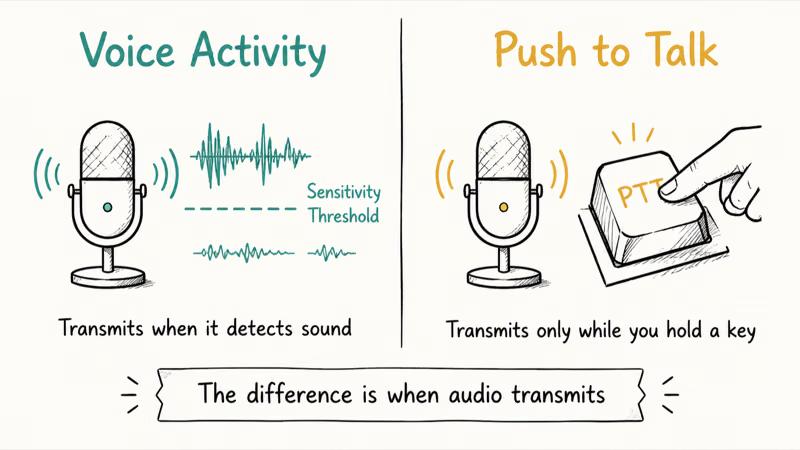
The usual culprit is input mode. Discord has two: Voice Activity transmits when it detects sound, while Push to Talk transmits only while you hold a key. That distinction is the whole reason a working mic can still go silent in a call, since the wrong mode leaves your audio captured but never sent to anyone.
If you’re on Voice Activity, your input sensitivity may be set too high, so Discord treats your normal speaking volume as background noise and never transmits. Lower the sensitivity threshold in Voice & Video until the bar lights up when you talk.
If you’re on Push to Talk, confirm the keybind is set and that you’re actually holding it during calls. Discord’s voice input modes guide states that the 2 modes differ in when audio transmits, and switching between them is often the quickest test. The same “captures but doesn’t transmit” pattern shows up with screen sharing, which the Discord screen share no audio guide addresses.
#Reset Voice Settings and Disable Exclusive Control
When the input device and permissions are right but voice still fails, reset Discord’s voice settings to clear a bad configuration. Scroll to the bottom of Voice & Video and click “Reset Voice Settings,” then confirm. This wipes a tangled setup back to defaults without touching your account or servers.
After the reset, reselect your input device, since the reset clears it. Then rejoin a voice channel and run Mic Test again.
On Windows, also check exclusive mode. Some apps and audio drivers let a program take exclusive control of the mic, which locks Discord out. Open Sound settings, find your microphone’s properties, and under the Advanced tab uncheck “Allow applications to take exclusive control of this device.”
Discord’s voice and video troubleshooting guide recommends a voice-settings reset as an early step for stuck input. On Windows, unchecking exclusive control can also restore capture when another app or companion utility has locked the microphone.
#Fix Push-to-Talk, Noise Suppression, and Headset Mute
A few smaller settings strangle a working mic, and they’re easy to miss because Discord can’t see them. The first is a physical mute switch, common on gaming headsets and inline cables, which cuts your audio at the hardware level no matter what the Discord interface shows, so the app reports a healthy mic while your friends hear dead silence on every call.
Check the headset and cable for a mute toggle or button. Many headsets also mute when you flip the boom mic up.
Inside Discord, noise suppression like Krisp can over-aggressively cut quiet voices, so try lowering or disabling it under Voice & Video if friends say you cut out. Confirm you’re not server-muted or self-muted, since the mic icon at the bottom-left shows your status.
A reinstall of the Discord app is the genuine last resort, only after device selection, permissions, voice reset, and these toggles all check out, the same disciplined order the Windows 11 no sound guide recommends. If your headset mic fails across every app, the AirPods mic not working guide covers a related hardware angle.
#Bottom Line
Start inside Discord: select the right input device and run Mic Test. If Discord sees nothing, fix the OS or browser microphone permission or the headset mute switch. If Discord sees input but calls fail, lower input sensitivity, reset voice settings, and check push-to-talk and noise suppression. A driver or app reinstall is late-stage, not the first move, because the cause is almost always a setting.
#Frequently Asked Questions
Why is my Discord mic not working?
Usually the wrong input device, a blocked OS or browser permission, or input sensitivity set too high. Run Discord’s Mic Test first.
What should I check first?
Open Discord’s Voice & Video settings, confirm the right input device is selected, and run Mic Test. If the input bar moves, Discord hears you and the issue is downstream in voice settings. If it stays flat, the cause is an OS permission or the device.
Can a Discord or Windows update break the mic?
Yes. A Windows update can reset microphone privacy permissions, and a Discord update can revert your input device. After any major update, recheck the input device and confirm microphone access is still on.
Will resetting voice settings delete my account or servers?
No. Resetting voice settings only restores Discord’s audio configuration to defaults, like input device, sensitivity, and input mode. It never touches your account, your servers, your messages, or your friends list. The one thing it clears is your selected input and output devices, so you’ll need to reselect your microphone and headset afterward, which takes only a few seconds.
When should I contact official support?
Reach out to Discord support if the mic still fails after you’ve selected the right device, fixed permissions, reset voice settings, and ruled out a hardware mute. A mic that works elsewhere but never in Discord is worth a ticket.
How do I prevent this from happening again?
After plugging in a new headset, reselect it as Discord’s input device, since Discord won’t always switch automatically. Keep microphone permissions enabled in your OS, and learn where your headset’s mute switch is so you can rule it out fast next time.

Is This Bank App Real? Spot a Fake App on Your Home Screen
A bank app can land on your home screen from a web page with no install warning. Learn the checks that tell a real banking app from a phishing web app.

Apps Crashing After iOS 27 Update? Fix Order (2026)
Apps crashing after the iOS 27 update? Update the app in the App Store first, then offload and reinstall to clear stale cache, then restart. The fix order.

Do AI Translation Earbuds Work Offline? What to Know
Do AI translation earbuds work offline? A few do with downloaded language packs, but most need the cloud. Here's what works offline and what you give up.
How to Set Up Translation Earbuds (Pairing and Modes)
How to set up translation earbuds: charge, install the app, pair over Bluetooth, pick two languages, and choose a mode. A step-by-step first-use guide.