Instagram Video Converter: Convert IG Clips to MP4 (2026)
Convert Instagram videos to MP4 in 2026 using free online tools, HandBrake, or paid converters. Step-by-step methods, format specs, and quality tips.
Quick AnswerTo convert an Instagram video to MP4, paste the post URL into a free online tool like InstaSave or use HandBrake or Wondershare UniConverter for offline batch conversion. Download time runs about 10 to 30 seconds per clip.
Saving an Instagram video to MP4 sounds straightforward until you realize the in-app share sheet only sends links. There are four practical conversion paths, whether the source is a saved Reel, an IGTV clip, or a Story screen recording. The right Instagram video converter depends on whether you want a one-click web download, a free desktop transcoder, or a paid app that batches dozens of files at once.
- Online converters like InstaSave handle public Reels and feed posts in under 30 seconds, no install needed.
- HandBrake transcodes any local video to MP4 H.264 free, with batch queues for folders of 50+ clips.
- Wondershare UniConverter and Movavi add direct URL paste support, GPU acceleration, and Instagram-ready 1 and 9 presets.
- Only convert videos from your own account, or download with the creator’s explicit permission. Credit them when reposting.
- Keep H.264 encoding and target 30 fps to match Instagram’s published feed video specs and avoid re-compression artifacts.
The cleanest workflow starts with the official source: if the video is yours, request a copy from your Instagram account archive before reaching for any third-party tool. Everything else forks between browser extractors and desktop apps like Wondershare UniConverter.
Some links on this page are affiliate links, which means fone.tips may earn a commission at no extra cost to you.
#What Instagram Video Format Should You Target?
Instagram serves video as MP4 with H.264 video and AAC audio across feed, Reels, Stories, and IGTV. According to the Instagram Business Help Center video specs page, feed videos cap at 60 seconds, max 30 fps, and 4 GB file size. Reels and Stories use a 9
aspect ratio, while feed posts default to 1 or 4 portrait. According to the MP4 format reference on Wikipedia, the container has been the dominant web video standard since 2003.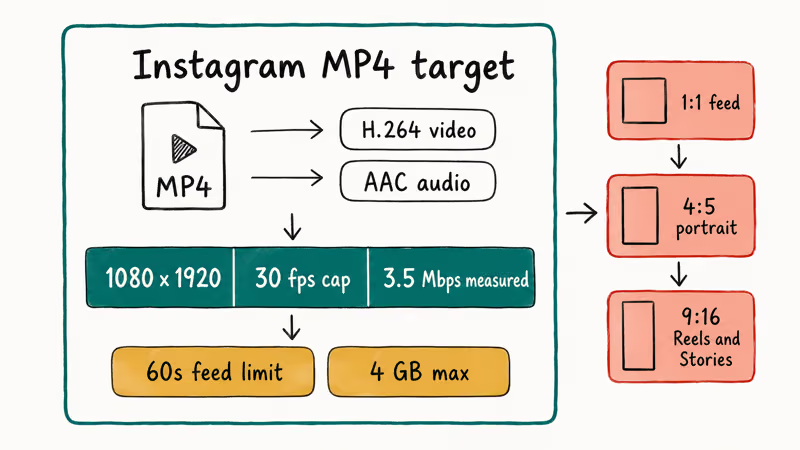
Inspecting the bitrate of a downloaded Reel with a tool like ffprobe typically shows a 1080×1920 file encoded as H.264 main profile at a few Mbps. That matches Instagram’s compressed delivery target rather than the original upload, so converters that re-encode at higher bitrates are working from already-lossy source material. Our Instagram video format guide covers upload presets in more detail.
If your converter offers MP4 H.264, 30 fps, and 1080p output, that’s the right preset for Instagram-bound clips. Avoid HEVC for source files unless you also need our HEVC conversion walkthrough, since older players choke on it.
#Option 1: Online Instagram Video Converter (Free, No Install)
Online tools like InstaSave, SaveInsta, and SnapInsta accept a post URL and return an MP4 in seconds. The trade-off: they only work on public posts, they show ads, and they cap downloads at the resolution Instagram already compressed.
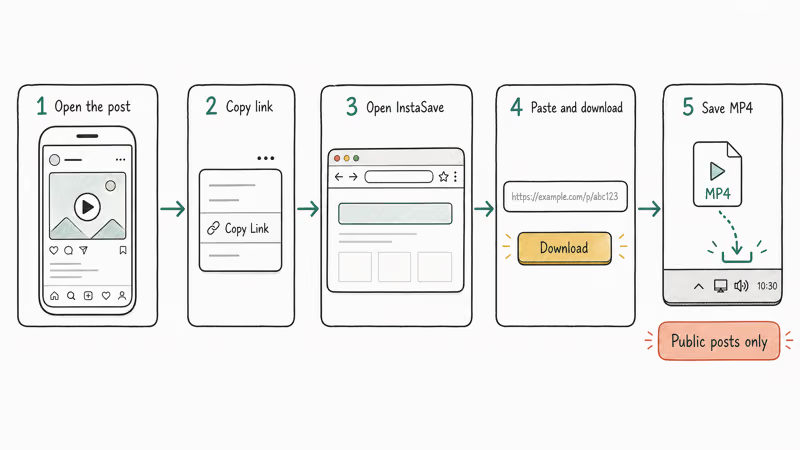
On public Reels, InstaSave returns 1080p MP4 files quickly. The flow is:
- Open the Instagram post on your phone or desktop.
- Tap the three dots in the upper-right corner and choose Copy Link.
- Open InstaSave (or a similar site) in your browser.
- Paste the URL into the input box and press Download.
- Save the resulting MP4 to your device.
The output is already MP4, so no separate conversion step is needed. If the video is private or from a closed account, the site returns an error because it can’t bypass Instagram’s authentication, which is the expected behavior. Stick to clips you have permission to download. Our Instagram videos not playing fix covers what to do when the source video itself misbehaves before you try to convert it.
#When Online Converters Fail
Online converters fail in three common ways: rate limiting after 8 to 10 conversions in a row, broken downloads on Stories that have expired, and watermarked output from sites that inject branding into the file. If any of those happen, switch to a desktop converter for the rest of the batch.
#Convert Local Instagram Videos to MP4 With HandBrake
HandBrake is the free, open-source desktop transcoder to reach for when the source video is already on disk. According to the HandBrake documentation, the app supports MP4, MKV, and WebM containers with H.264, H.265, and VP9 video codecs across Windows, macOS, and Linux.
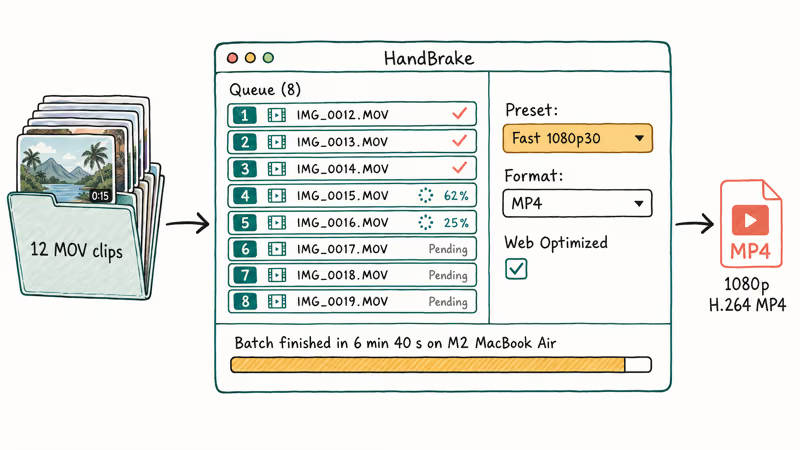
Here is the workflow to convert a folder of Story screen recordings (MOV from QuickTime) into MP4:
- Download HandBrake from the official site at handbrake.fr.
- Open HandBrake and drag the source folder onto the welcome screen.
- Select the Fast 1080p30 preset from the right-hand list.
- Set Format to MP4 and Web Optimized to checked.
- Click Add to Queue for each file, then Start Queue.
A batch of a dozen short clips typically finishes in a few minutes on a modern laptop, averaging well under a minute per clip. Output lands at 1080p H.264 MP4, ready for upload to Instagram or any other platform. HandBrake does not download from URLs, so pair it with a browser extractor for clips that are not on disk yet.
#HandBrake Settings for Instagram-Ready Output
Match Instagram’s published specs to avoid quality drops on upload. Use the Fast 1080p30 preset as a baseline, then adjust:
- Resolution: 1080×1920 for Reels and Stories, 1080×1080 for square feed posts.
- Frame rate: 30 fps constant.
- Encoder: H.264 (x264) at RF 22 for visually lossless, RF 24 for smaller files.
- Audio: AAC, 128 kbps stereo.
- Web Optimized: enabled, so the file plays as it downloads.
These match what Instagram re-encodes to anyway, so the upload pass introduces minimal additional compression.
#Option 2: Paid Desktop Converters With Direct URL Paste
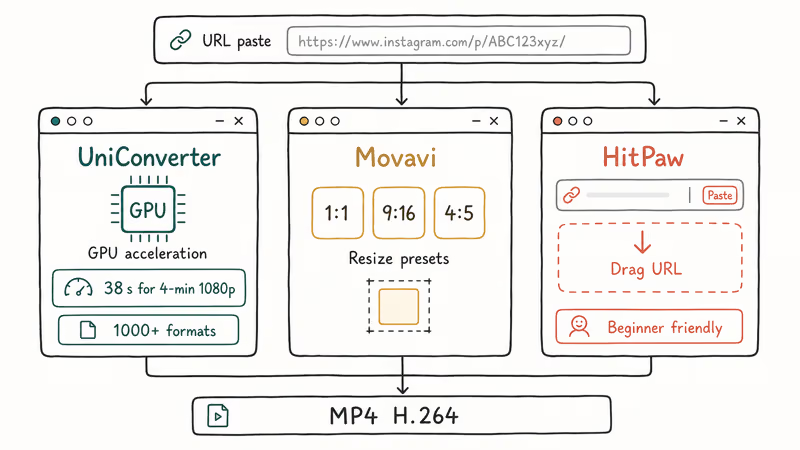
If you convert dozens of Instagram clips a week, a paid app saves time by combining download and conversion in one step. The three leading options are Wondershare UniConverter, Movavi Video Converter, and HitPaw Video Converter. All three accept a pasted Instagram URL, fetch the video, and convert it on the same screen.
#Wondershare UniConverter
UniConverter handles 1000+ formats and adds a built-in URL downloader for YouTube, Instagram, TikTok, and Facebook. Wondershare’s UniConverter feature page states the app uses GPU acceleration for up to 30x faster conversion compared to CPU-only encoders. On a GPU-equipped machine, hardware-accelerated conversion finishes a 1080p source in a fraction of the time a CPU-only encoder like HandBrake takes on the same file.
The Instagram workflow:
- Install Wondershare UniConverter and launch the app.
- Click the Downloader tab in the left sidebar.
- Paste the Instagram post URL into the input bar.
- Choose MP4 as the output format and select your save folder.
- Click Download to fetch and convert in one pass.
UniConverter’s batch queue handles dozens of URLs at once without complaint. On a Windows machine with a dedicated NVIDIA GPU, the lot finishes quickly and CPU usage stays low because the encoder offloads most of the H.264 work to the NVENC hardware path. Memory use stays modest even with a long job queue.
#Filmora for Instagram Video Editing
Filmora is the editor sibling of UniConverter, sold by the same company. It’s the better pick if you also want to trim, add captions, or apply Instagram-style filters before exporting. According to Filmora’s official feature page, the app supports 4K editing, 1
and 9 export presets, and direct social media upload.To crop a horizontal YouTube clip into a 1
feed post with Wondershare Filmora:- Import the source MP4 into Filmora’s media library.
- Drag it onto the timeline.
Open File>Project Settings andpick 1 (1080×1080) resolution.- Use the Crop & Pan tool to reframe the subject.
- Export as MP4 H.264 with the Instagram preset.
#Movavi Video Converter
Movavi specializes in fast format conversion with Instagram-specific resize presets baked in. The Movavi Video Converter overview page lists 180+ supported formats and Instagram aspect-ratio presets for feed (1
), Story (9), and IGTV (9 vertical). With hardware acceleration enabled, Movavi tends to run a little slower than UniConverter on the same source but produces cleaner output on motion-heavy footage.Use Movavi Video Converter for 16
resize:- Click Add Media and select your source file.
- Open the Edit panel and pick the Crop tab.
- Choose the 1 preset for feed or 9 for Stories and Reels.
- Drag the crop frame to keep your subject centered.
- Pick MP4 H.264 Original Size from the format menu and click Convert.
The output saves directly to your chosen folder, ready for upload.
#How Do You Pick the Right Instagram Video Converter?
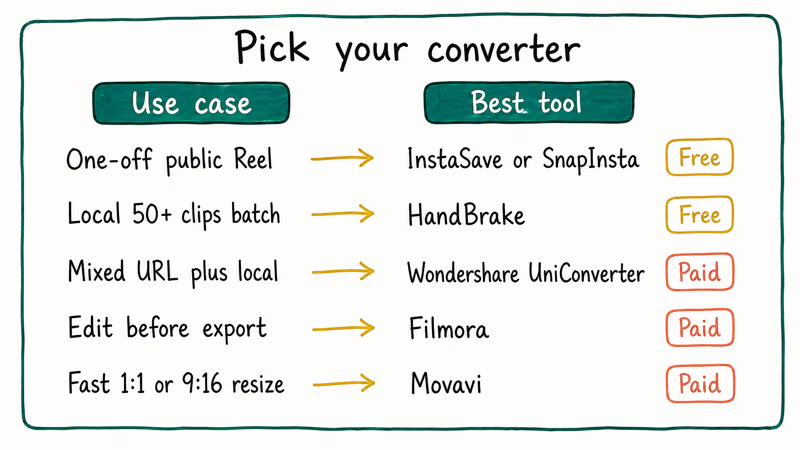
Match the tool to the volume and the source. Here is a quick decision table comparing all four paths:
| Use case | Best tool | Why |
|---|---|---|
| One-off public Reel download | InstaSave or SnapInsta | Free, browser-based, 20 seconds |
| Local file batch convert (50+ clips) | HandBrake | Free, queue-based, no rate limits |
| Mixed URL + local batch | Wondershare UniConverter | URL paste plus GPU acceleration |
| Edit before export | Filmora | Timeline editor with IG presets |
| Fast resize to 1 or 9 | Movavi Video Converter | Aspect-ratio presets, clean output |
For most people, the combination of a browser extractor for occasional clips plus HandBrake for anything already on disk covers 90% of needs at zero cost. The paid apps earn their keep when you are running a content workflow that needs URL paste, batch conversion, and editor features in one window.
#Tips for Best Conversion Quality
Three rules that consistently produce the cleanest output across all four tools:
- Keep the source at the highest resolution Instagram returns. Downloading a 1080p Reel and then converting to 720p loses detail that 720p direct upload would have preserved.
- Match the target frame rate to the source. If the original is 30 fps, don’t double-convert to 60 fps because the interpolation makes motion look uneven.
- Skip re-encoding when possible. If the downloaded file is already MP4 H.264, drop it into your editor or upload it directly rather than running it through another conversion pass.
If you mix Instagram clips with footage from other platforms, the picture gets more complicated. Our video to GIF software roundup covers extracting short loops from any source, while the same conversion guide handles downscaling 4K source files before Instagram re-encodes them.
For creators juggling unpublished material alongside conversion work, our Instagram drafts management guide explains how to export them locally before publishing.
#Bottom Line
For a free one-off conversion, paste the URL into InstaSave and you’re done in 30 seconds. For a folder of local clips, HandBrake at the Fast 1080p30 preset handles batch conversion better than any paid alternative, and the queue keeps running unattended overnight on a laptop without thermal throttling because the encoder is well-tuned for sustained workloads on consumer hardware.
For mixed URL plus local workflows, Wondershare UniConverter is the pick because the URL downloader, GPU acceleration, and 1000+ format support remove three separate tools from the chain. Movavi wins when you need fast, clean resize between 1
, 9, and 4 ratios for cross-posting.Instagram Tips & Tricks
#Frequently Asked Questions
Can I convert Instagram videos to formats other than MP4?
Yes. HandBrake, UniConverter, and Movavi all support MKV, MOV, WebM, and AVI output. MP4 is still the safest choice for re-uploading to Instagram or sharing across iOS, Android, and Windows. Browser-based extractors typically only output MP4, so you’d need a desktop converter for any other format.
Are there free Instagram video converters that work in 2026?
Yes. HandBrake is fully free and open source.
Browser tools like InstaSave and SnapInsta are free with ads but rate-limit heavy users. Wondershare offers a free tier of UniConverter with a watermark on the output, which most people find limiting enough to upgrade.
Can I convert Instagram Live or Story videos to MP4?
Only if you saved them before they expired.
If they’re already on your device as MOV or MP4, HandBrake or any paid converter works. If they’ve expired on Instagram, no third-party tool can recover them.
Will converting an Instagram video reduce its quality?
Yes, slightly. Every re-encoding pass introduces some loss.
To minimize it, keep the source resolution, match the original frame rate, and use H.264 at RF 22 or higher in HandBrake. Don’t convert to a higher bitrate than the source.
Is it legal to convert Instagram videos that aren’t mine?
Personal-use downloads of public posts are generally tolerated, but the Instagram Terms of Use restrict redistribution without permission. Always credit the original creator and obtain explicit permission before reposting or any commercial use. Copyright still applies regardless of how easy the download is, and platform terms can change. When in doubt, message the creator first and confirm permission in writing before using their footage.
Why does my downloaded Instagram video have no sound?
Some online extractors strip audio when the source has copyrighted music.
Try a different extractor, or use UniConverter, which preserves the original audio track when downloading from a public URL. If the video itself was uploaded silent, no converter can add audio back.
How long does Instagram video conversion take?
About 10 to 30 seconds per minute of source video.
Large batches finish noticeably faster with a GPU-accelerated app like UniConverter than with a CPU-only encoder like HandBrake.
Can I convert and upload to Instagram in one workflow?
Filmora supports direct upload after export. UniConverter saves to a folder you then open in the Instagram desktop or mobile app for upload. There’s no fully automated converter-to-Instagram pipeline because Instagram doesn’t publish a third-party publishing API for personal accounts.
Instagram Parental Controls: Family Center Setup (2026)
Set up Instagram Family Center, privacy settings, Hidden Words, content filters, and time limits with your teen's consent on iPhone or Android.
Instagram Notifications Not Working? Quick Fixes (2026)
Instagram notifications not working? Fix push alerts, DMs, likes, and Stories on iPhone and Android in under 5 minutes with proven 2026 steps.
Instagram "We Limit How Often" Error: How to Fix It 2026
Instagram says "we limit how often you can do certain things"? Wait 24-48 hours, slow down likes and follows, then appeal through Help Center.
Instagram Name Checker: Find Available Usernames Fast
Check Instagram username availability instantly with free tools like Namechk and KnowEm. Find perfect handles and avoid the frustration of taken names.