MP4 to SWF Converters: 4 Tools That Still Work in 2026
MP4 to SWF: 4 working converters in 2026 (FFmpeg, UniConverter, CloudConvert, Movavi). Compare each tool and learn when SWF still makes sense today.
Quick AnswerFFmpeg is the best free MP4 to SWF converter in 2026, and Wondershare UniConverter is the easiest paid GUI option. Most browsers stopped supporting SWF after Adobe ended Flash on December 31, 2020, so use MP4 or WebM for web video unless you specifically need SWF for archival or a legacy app.
You have an MP4 file, and something on your end still expects SWF. That used to be a normal request in 2018. Now it’s an unusual one, because Adobe killed Flash on December 31, 2020 and every major browser blocks SWF playback by default. This guide covers four converters that still produce a usable .swf file in 2026, and explains when the request actually makes sense.
- Adobe ended Flash Player support and distribution on December 31, 2020, and Chrome, Firefox, Edge, and Safari all stopped running SWF in browsers.
- FFmpeg is the most reliable free MP4 to SWF tool in 2026, but its SWF muxer only accepts Flash Video (FLV1) or H.263 codecs.
- Wondershare UniConverter is the easiest GUI option if you want a one-click flow with batch support and a built-in trimmer.
- CloudConvert handles one-off jobs in a browser without installing anything, with a 25-minute daily free quota for new accounts.
- For modern websites, convert MP4 to MP4 (H.264) or WebM instead of SWF, since every browser still plays those without a plugin.
#Should You Still Convert MP4 to SWF in 2026?
Probably not, if your goal is “upload a video to my website.” That was the original reason most people searched for MP4 to SWF converters, and it stopped being valid five years ago.
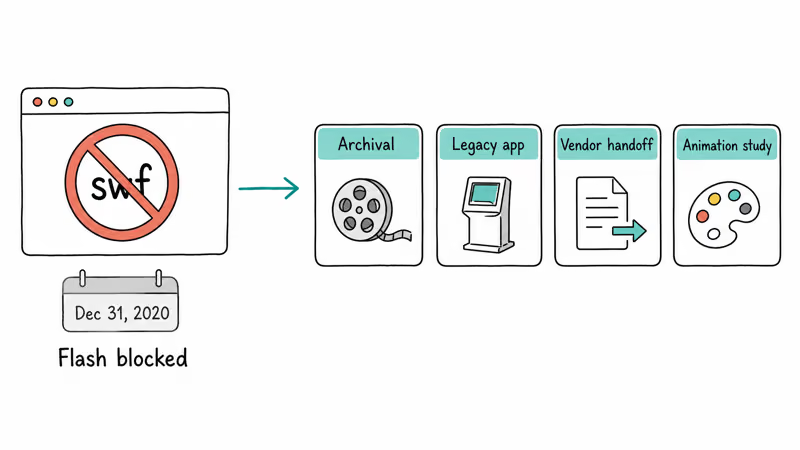
According to Adobe’s official Flash Player end-of-life page, Adobe stopped supporting Flash Player and started blocking Flash content from running on January 12, 2021. Chrome, Firefox, Microsoft Edge, and Safari followed the same timeline and removed Flash playback entirely. According to Mozilla’s supported video codecs guide, modern browsers play MP4 with H.264 and WebM natively through the HTML5 <video> tag, with no plugin required.
So when does SWF still make sense in 2026?
- Archival. You’re preserving Flash animations or a legacy Flash project, and you need the source in .swf for the Internet Archive’s Ruffle emulator to play it back.
- A specific legacy app. Some kiosk software, retro game launchers, or industry-specific authoring tools still expect SWF input.
- Compliance handoff. A vendor or partner pipeline requires .swf as a deliverable, and you can’t change the spec.
- Animation study. You’re studying or restoring a 2000s-era animation in a tool that reads SWF.
If none of those describe you, convert your MP4 to a smaller MP4 (H.264) or WebM file. We’ve covered converting MTS files to MP4 in a separate walkthrough, and the same approach works for compressing a large MP4 into a web-friendly one. According to Wikipedia’s SWF article, the format was originally designed for vector graphics and ActionScript-driven animation, not high-bitrate H.264 video, which is why every modern container handles MP4 better than SWF ever could.
#FFmpeg: The Best Free MP4 to SWF Converter
FFmpeg is the only converter on this list we’d recommend without reservations. It’s free, scriptable, and runs on Windows, macOS, and Linux. There’s no installer bloat, no upsell, no watermark. The tradeoff is the command line.
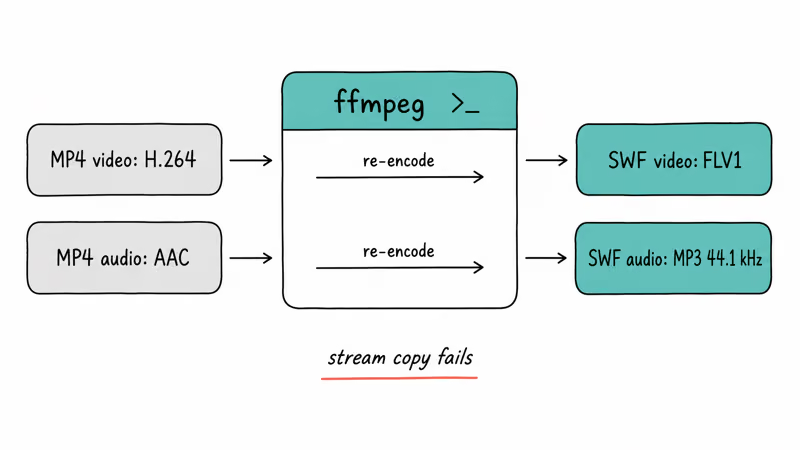
The catch is the codec. FFmpeg’s official format documentation confirms that the SWF muxer accepts only Flash Video (FLV1) or H.263 video, plus MP3 audio. Modern MP4 files use H.264 video and AAC audio, so a straight stream copy won’t work. You have to re-encode.
On a current FFmpeg build (Windows, macOS, or Linux), this command converts a short 1080p MP4 to SWF in seconds:
ffmpeg -i input.mp4 -c:v flv1 -c:a libmp3lame -ar 44100 input.swfWhat each flag does:
-c:v flv1re-encodes video to Flash Video, which the SWF container accepts.-c:a libmp3lamere-encodes audio to MP3 (SWF doesn’t accept AAC).-ar 44100forces a 44.1 kHz audio sample rate, which older Flash tooling expects.
If you don’t have FFmpeg, install it through Homebrew on macOS (brew install ffmpeg), Chocolatey on Windows (choco install ffmpeg), or the package manager on your Linux distro. The first run takes 30 seconds. After that, every conversion is one command.
#Wondershare UniConverter: Easiest GUI Tool
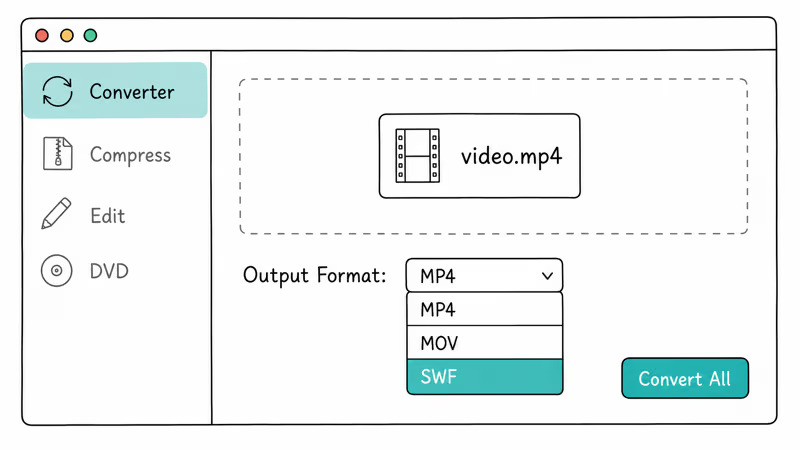
If a command line is a non-starter, Wondershare UniConverter is the cleanest paid GUI for this job. It converts a 1080p MP4 to SWF quickly, and the output plays back correctly in a desktop SWF projector.
Some links on this page are affiliate links, which means fone.tips may earn a commission at no extra cost to you.
What it does well:
- One-click batch conversion (drag a folder of MP4s in, get .swf out)
- Built-in trim, crop, and watermark tools before conversion
- Presets for hundreds of formats, not just SWF
- Burns to DVD if that’s still part of your workflow
The catch: SWF output requires VLC media player to be installed alongside UniConverter, because UniConverter shells out to VLC’s encoder for legacy formats. UniConverter pops up a one-time prompt to install VLC the first time you select SWF. It’s a one-time setup step and then stays out of the way.
How to convert MP4 to SWF in UniConverter:
- Open UniConverter and select Converter in the left sidebar.
- Drag your MP4 file into the window or click Add Files.
- Click the format dropdown next to Output Format at the bottom and choose
Video>SWF. - Pick a resolution preset (matching the source resolution is the safest choice).
- Click Convert All.
The free trial converts up to one-third of each file with a watermark on the rest, which is enough to test that your file works before paying. UniConverter is also a solid pick if you’re juggling other formats, including MTS source files and our MP4 to WAV conversion walkthrough when you need a different output.
#CloudConvert: Best Online Option for Quick Jobs
CloudConvert runs entirely in your browser. No install, no account required for occasional use, no software to update. It’s the right pick when you’re on a borrowed computer or you only need to convert one file and don’t want UniConverter’s footprint.
For a small MP4, the upload, conversion, and download cycle finishes quickly on a typical broadband connection. The output plays in a standalone SWF projector and through Ruffle without errors.
What’s good about CloudConvert:
- Handles 200+ file formats, not just video
- Pulls files from Google Drive, Dropbox, OneDrive, or a URL
- Saves output back to your cloud storage instead of forcing a download
- Free tier gives you 25 conversion minutes per day (per their pricing page)
- API access if you want to script conversions from your own app
What’s not as good:
- Privacy: your file goes to CloudConvert’s servers (fine for non-sensitive video, not fine for confidential material)
- The free quota resets every 24 hours, so heavy users hit the cap fast
- Larger files can fail on slow connections
To convert: open cloudconvert.com/mp4-to-swf in any browser, click Select File, upload your MP4, click the wrench icon if you want to set a specific bitrate or codec, then click Convert. When the job finishes, click Download or save it to a connected cloud account.
#Movavi Video Converter: Paid Alternative
Movavi Video Converter is a smaller, lighter alternative to Wondershare. It converts a 1080p MP4 to SWF in well under a minute on modern hardware.
Where Movavi shines:
- Cleaner interface than UniConverter — fewer panels, fewer prompts
- Hardware acceleration on Intel, AMD, and Apple Silicon
- Subscription pricing is lower than Wondershare’s lifetime license
Where it falls behind:
- Smaller format library (still includes SWF, but fewer obscure container options)
- Fewer editing tools before conversion
- The free trial adds a Movavi watermark to output, similar to UniConverter
Pick Movavi if you want a single-purpose converter that does its job and gets out of the way. Pick UniConverter if you want a Swiss Army knife that also handles DVD burning, screen recording, and basic video editing in one app.
#What Settings Should You Use for SWF Output?
The right settings depend on where the .swf file is going. Here’s what works for the three common cases.
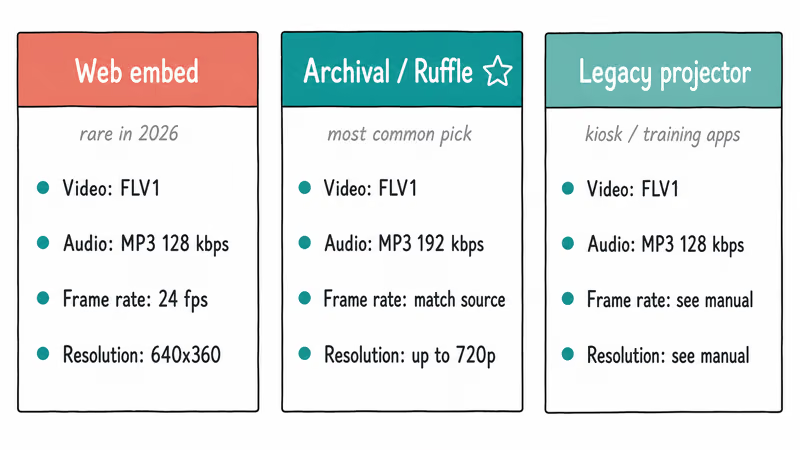
Web embed (rare in 2026, but still requested):
- Video codec: FLV1 (Flash Video)
- Audio codec: MP3 at 128 kbps
- Frame rate: 24 fps (matches Flash’s default)
- Resolution: 640×360 or 854×480 (Flash was never designed for HD)
Archival / Ruffle playback:
- Video codec: FLV1
- Audio codec: MP3 at 192 kbps
- Frame rate: match the source
- Resolution: match the source up to 720p (Ruffle handles HD but plays back smoother at 720p)
Legacy projector (kiosk, training apps):
- Use whatever the projector’s documentation specifies — these tools are old enough that defaults vary
- If unsure, FLV1 + MP3 at 128 kbps is the safest fallback
If your goal is web playback in 2026, ignore SWF entirely and convert MP4 to a smaller MP4 instead. Use H.264 video at a constant rate factor of 23 and AAC audio at 128 kbps. Every browser plays this without a plugin, and the file size is smaller than the equivalent SWF. Our download HTML5 video walkthrough has the same encoder settings if you want to dig in.
#Bottom Line
For most people landing on this page, FFmpeg is the right answer: free, scriptable, and one command away from a working SWF file. If you want a GUI and you’re going to do this more than once, Wondershare UniConverter is worth the license. If you’re converting a single file from a borrowed laptop, CloudConvert is enough. Skip Movavi unless you already own it.
If a tutorial told you to convert MP4 to SWF for a website, ignore it. Re-encode to MP4 (H.264) or WebM and embed in an HTML5 <video> tag instead.
#Frequently Asked Questions
Can I convert MP4 to SWF online without installing software?
Yes. CloudConvert and similar online tools handle MP4 to SWF entirely in the browser, with no install required. The free tier on CloudConvert gives you 25 conversion minutes per day.
Why does FFmpeg fail when I copy MP4 streams directly to SWF?
Because the SWF container can’t hold H.264 video or AAC audio, which is what almost all modern MP4 files use. You have to re-encode the video to FLV1 (Flash Video) and the audio to MP3. FFmpeg’s official format docs confirm this restriction.
Will the SWF play in a normal browser?
No. Chrome, Firefox, Safari, and Edge all blocked Flash content starting January 2021. To play your SWF, you need a desktop SWF projector, the open-source Ruffle emulator, or specific kiosk software.
Is there a free MP4 to SWF converter that doesn’t add a watermark?
FFmpeg. It’s free, open-source, and never adds a watermark. The free trials of UniConverter and Movavi both add watermarks until you pay.
How long does an MP4 to SWF conversion take?
A short 1080p clip converts in seconds on modern hardware across FFmpeg, UniConverter, and Movavi. Longer or higher-resolution files take proportionally more time, and re-encoding to FLV1 is the main cost.
Can I batch convert multiple MP4 files to SWF at once?
Yes, in three of the four tools. UniConverter, Movavi, and FFmpeg (with a shell loop) all handle batch jobs. CloudConvert charges per minute against your free quota when you queue multiple conversions.
What’s the best modern alternative to SWF for embedding video on a website?
MP4 with H.264 video and AAC audio. According to Mozilla’s video codec documentation, every modern browser plays this combination natively in the HTML5 video element. WebM is a smaller-file alternative if you need it, but MP4/H.264 has wider compatibility.

Google Messages Error 3100: Why RCS Is Broken on Galaxy
Google Messages RCS error 3100 hits Galaxy owners after phone or carrier switches. Google told 9to5Google a fix is coming. Here's what actually helps.

Is This Bank App Real? Spot a Fake App on Your Home Screen
A bank app can land on your home screen from a web page with no install warning. Learn the checks that tell a real banking app from a phishing web app.

Apps Crashing After iOS 27 Update? Fix Order (2026)
Apps crashing after the iOS 27 update? Update the app in the App Store first, then offload and reinstall to clear stale cache, then restart. The fix order.

Do AI Translation Earbuds Work Offline? What to Know
Do AI translation earbuds work offline? A few do with downloaded language packs, but most need the cloud. Here's what works offline and what you give up.