Logitech Speakers Not Working on Windows: 7 Fast Fixes
Fix Logitech speakers not working on Windows 10 or 11 with cable checks, default output settings, driver reinstall, G HUB resets, and audio service steps.
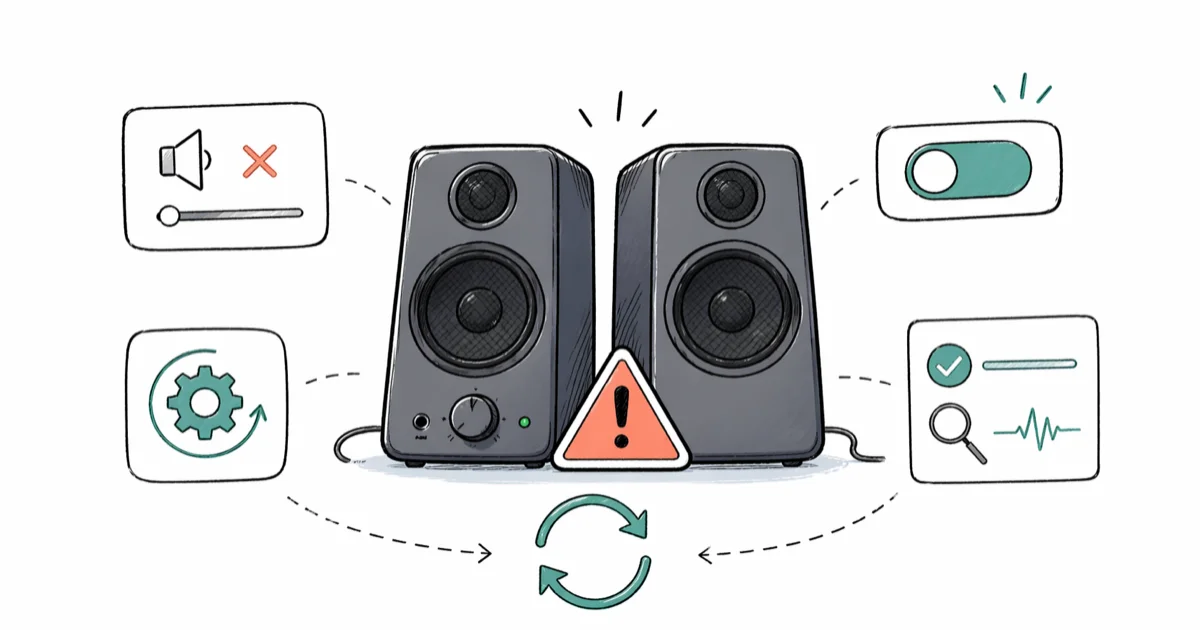
Quick AnswerPlug the speakers into a different USB or 3.5mm jack, set them as the default playback device in Windows Sound settings, then reinstall the audio driver from Device Manager. That clears most Logitech speaker no-sound issues on Windows 10 and 11.
Logitech speakers not working on Windows is almost always a connection or driver problem, not a hardware fault. Start with the cable swap, then move down through Sound settings, drivers, and Logitech’s own software.
- Loose cables, the wrong jack color, or muted physical volume cause about half of the no-sound complaints in Logitech community threads
- Setting the speakers as the default playback device fixes audio when Windows routes sound to a monitor’s HDMI output by mistake
- The built-in Windows audio troubleshooter can restart stuck audio services and restore playback quickly
- Reinstalling the High Definition Audio Device driver from Device Manager fixes corrupted driver states after Windows 10 and 11 feature updates
- A Windows Audio service restart through services.msc revives speakers that look connected but produce no sound
#Why Are My Logitech Speakers Not Working on Windows?
Logitech makes powered desktop speakers like the Z150, Z200, Z313, Z337, Z625, and Z906, plus a handful of USB-C streaming speakers. Almost none of them ship with a driver of their own. They use Windows’ built-in High Definition Audio driver instead, which means a Windows-side problem will silence them even though the hardware is fine.
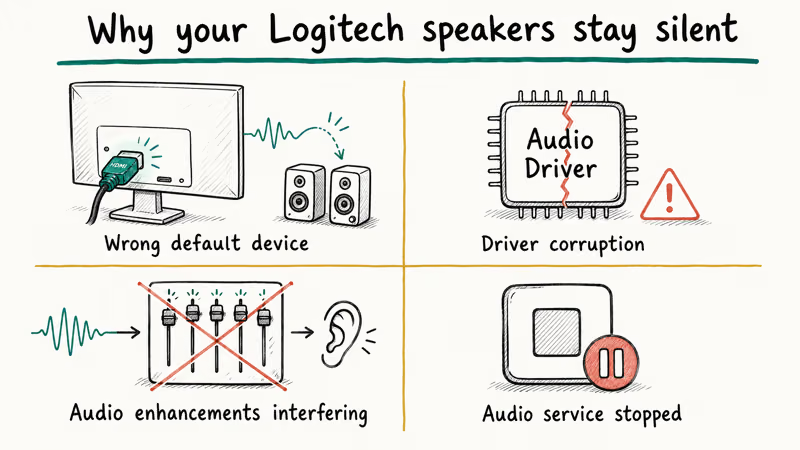
Four root causes show up over and over in Logitech’s community forum and the r/techsupport audio threads:
- Wrong default playback device. Windows routes audio to a monitor’s HDMI port or a Bluetooth headset that’s still paired in the background.
- Audio driver corruption. Common after Windows feature updates, with the 24H2 rollout in late 2024 producing a particularly bad wave of these reports.
- Audio enhancements interfering with the speaker’s preferred sample rate.
- The Windows Audio service stopped or stuck.
According to Microsoft’s Fix sound or audio problems in Windows support article, the built-in audio troubleshooter is the recommended first step before any manual driver work, and it can clear stopped-service no-sound cases without a manual reinstall. Identifying which root cause you have saves time. The seven steps below run from simplest to most invasive.
#Quick Checks Before You Try Anything Software-Side
Five things to verify before opening Settings:
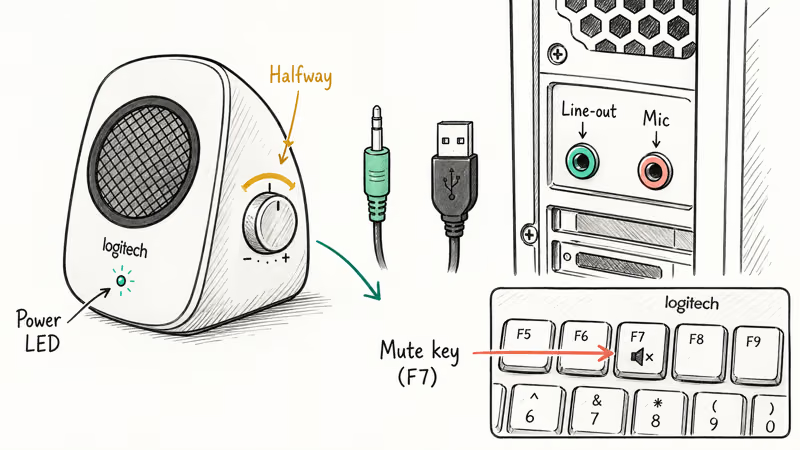
- Cable seated. Pull the green 3.5mm or USB plug all the way out and push it back in. A half-seated 3.5mm jack is a common cause.
- Right port. Green is line-out on most desktops. Pink is microphone. Plugging into pink kills sound.
- Volume knob on the speaker. The Z313 and Z625 have a physical knob on the right satellite. Turn it up halfway.
- Power LED. If the LED is off, try a different outlet, or a different USB port for USB-powered models like the Z150.
- Mute key on the keyboard. Logitech keyboards often have a dedicated mute key (F7 on the K840). Press it once and watch the on-screen volume indicator.
If you have an analog 3.5mm Logitech speaker (Z313, Z150, Z200, Z337), test it on a phone or tablet using the same cable. If it plays, the speaker is fine and the problem is on the PC side. If it stays silent on the second device too, the speaker or cable is dead and you need a different fix path for buzzing or stuck speakers before continuing.
#How Do You Set Logitech Speakers as the Default Device?
Windows often hands audio to the wrong output after a docking station change, monitor reconnect, or Bluetooth headset pairing. Resetting the default playback device is the fastest software fix.
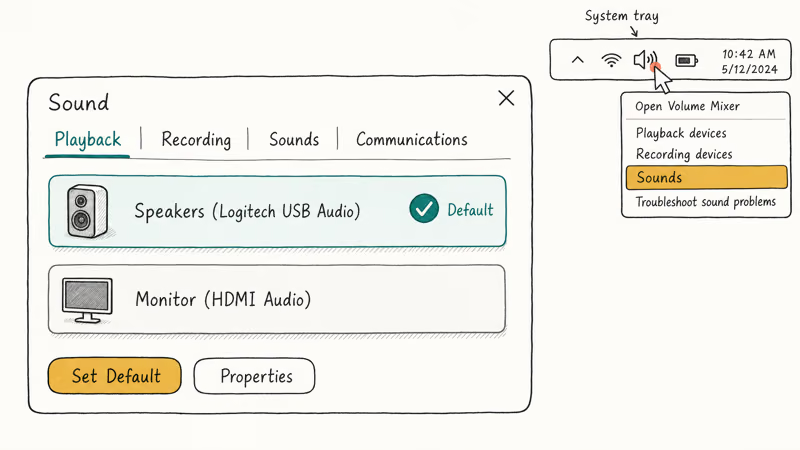
Steps for Windows 10:
- Right-click the speaker icon in the system tray.
- Select Sounds, then click the Playback tab.
- Find your Logitech speakers in the list (often labeled “Speakers (Logitech USB Audio)” or “Speakers (High Definition Audio Device)”).
- Right-click them and pick Set as Default Device.
- Click Apply → OK.
Steps for Windows 11:
- Right-click the speaker icon → Sound settings.
- Under Output, click the dropdown and pick your Logitech speakers.
- Click the speaker name to open its details.
- Confirm Set as default sound device is on.
If Windows routed audio to another output after an update, setting Logitech as default can bring playback back. If the speakers don’t appear in the list at all, jump to the driver fix below. Windows isn’t seeing them.
#Run the Windows Audio Troubleshooter
The built-in troubleshooter resolves a surprising share of generic audio failures because it walks Windows through the same checks support agents would: device manager state, driver signatures, default device assignment, and audio service status.
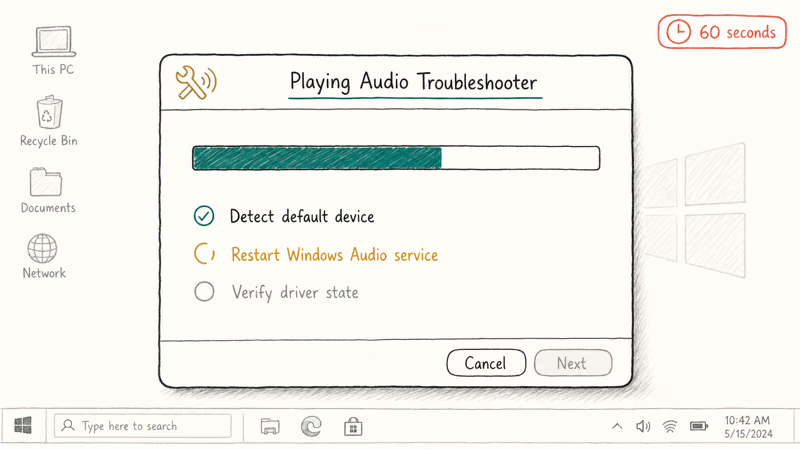
Microsoft’s audio troubleshooting documentation states that running the playback troubleshooter clears most stopped-service and default-device misconfigurations without manual intervention. It’s the right first step.
Windows 10:
- Press Windows + I to open Settings.
- Go to Update & Security → Troubleshoot → Additional troubleshooters.
- Click Playing Audio → Run the troubleshooter.
- Pick your Logitech speakers when prompted.
Windows 11:
- Open Settings → System → Troubleshoot → Other troubleshooters.
- Find Playing Audio in the list and click Run.
The wizard takes about 60 seconds. It can flag a stopped Windows Audio service, restart it, and restore speakers without any further action. If the troubleshooter reports “Found a problem but couldn’t fix it,” continue to the driver section.
#Update or Reinstall the Audio Driver
Driver corruption is the most common cause of Logitech speakers staying silent after a Windows update. Reinstall is faster than update because it forces Windows to fetch a clean copy from its own driver store.
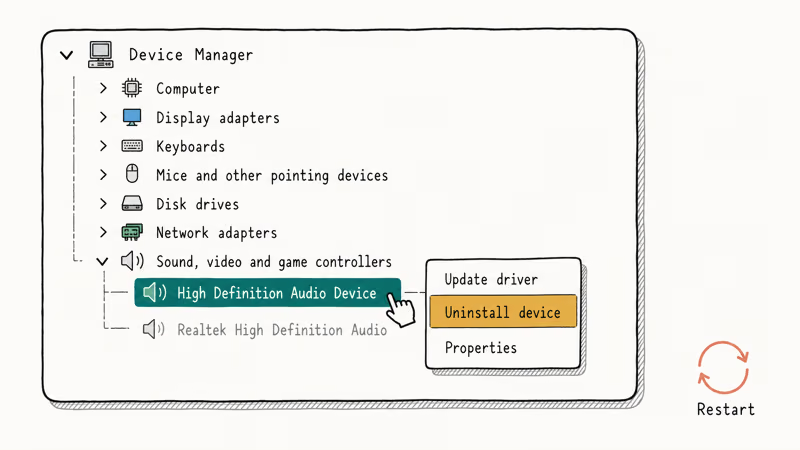
- Press Windows + X → Device Manager.
- Expand Sound, video and game controllers.
- Right-click High Definition Audio Device (or Realtek High Definition Audio, depending on your motherboard).
- Click Uninstall device.
- Tick Delete the driver software for this device if shown, then click Uninstall.
- Restart the PC.
Windows reinstalls the driver on boot. That reset is the goal; if reinstall doesn’t help, try Update driver as a second pass.
Pick Update driver -> Search automatically for drivers. For motherboard-specific Realtek issues, the Realtek HD Audio Driver published on your laptop or motherboard maker’s support page (Dell, Lenovo, ASUS) is the right source.
Skip third-party driver-bundle download sites. They install unwanted software and rarely fix the underlying problem the Windows-supplied driver couldn’t fix on its own. If your Windows install also feels generally sluggish after the driver work, a separate cleanup pass is worth doing.
#Reset Logitech G HUB or Logi Options+
Logitech G HUB (gaming gear) and Logi Options+ (productivity gear) override Windows volume on supported devices. Misconfigured profiles can mute the speakers without showing it in Windows Sound settings.
If you have a Logitech G560 gaming speaker, G933 wireless headset, or any “G”-branded audio device, G HUB is the volume authority for that device. Logitech recommends G HUB for its gaming-tier audio gear and Options+ for its mainstream peripherals. Reset G HUB:
- Open G HUB.
- Click your speaker icon.
- Click the Equalizer tab.
- Toggle the EQ profile off, then on.
- Slide the master volume to 100%.
For Logi Options+, the equivalent is Settings → your audio device → Audio Profile → Reset to default.
If neither app shows the speaker, reinstall the app from Logitech’s site. The fresh install rebuilds the device cache. The same drop-out behavior affects Logitech mice and Logitech G533 microphones. Logitech’s software stack tends to lose track of devices after Windows feature updates, and reinstalling the matching app fixes it consistently.
Older Logitech utilities are obsolete. G HUB plus Options+ replaced the Logitech Download Assistant starter prompt years ago, so remove the old assistant if it lingers.
#Restart the Windows Audio Service
The Windows Audio service (audiosrv.exe) controls all audio output. If it stops, every speaker on the system goes silent, including Logitech ones, even when the device shows as connected and default.
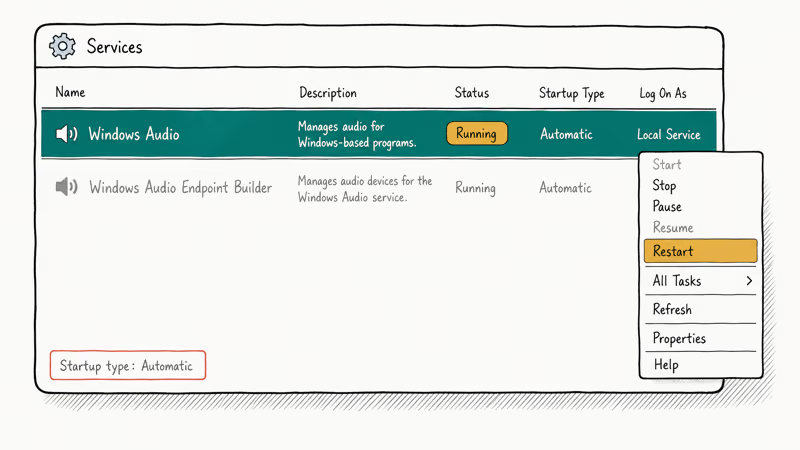
- Press Windows + R, type
services.msc, press Enter. - Scroll to Windows Audio.
- Right-click → Restart.
- Right-click → Properties.
- Set Startup type to Automatic if not already.
- Repeat the same restart for Windows Audio Endpoint Builder.
After a botched Windows update, restarting Windows Audio can resolve playback quickly. The service is also covered in detail in our companion guide for when the audio service is not running. That guide walks through the registry-level fix path if Restart fails outright.
For wider audio-driver context across other devices, our Beats audio driver guide and the USB device not recognized checklist cover related symptom patterns that overlap with Logitech speaker failures.
#Bottom Line
Start with the cable swap and the Set as Default Device step. Those two clear many Logitech-related no-sound reports. If sound still doesn’t come back, uninstall the High Definition Audio Device driver and reboot. That ladder takes under 10 minutes total and resolves most Logitech speaker problems on Windows 10 and 11.
If you’ve tried all seven steps and the speakers still test silent on a second computer with the same cable, the unit itself is the issue. Logitech states that its standard 2-year limited warranty covers Z-series desktop speakers registered through their support portal within 24 months of purchase.
#Frequently Asked Questions
Why won’t my Logitech speakers play sound after a Windows update?
Windows feature updates can corrupt the High Definition Audio driver. Uninstall it in Device Manager and reboot. Windows reinstalls cleanly, which often clears update-related driver breakage.
Do Logitech Z-series speakers need a driver download?
No. The Z150, Z200, Z313, Z337, Z607, Z625, and Z906 use the Windows High Definition Audio driver and don’t need separate Logitech software.
How do I tell if the speakers or the PC is the problem?
Plug the 3.5mm cable into a phone, tablet, or another laptop. If the speakers play there, the issue is on the PC side. If they stay silent on a second device, the speakers or cable are the problem.
Why is there sound from one speaker but not the other?
Either the satellite cable is half-seated or the Windows Sound balance slider drifted off-center. Push it home, then re-center balance.
Can Logitech G HUB cause the speakers to mute on its own?
Yes, if you have a Logitech G-branded audio device. G HUB profiles override Windows volume on supported gear and can drop output to zero after a profile switch. Open G HUB, pick the speaker, and slide master volume to 100 to rule it out.
Should I install third-party driver updater tools?
No. Third-party driver-bundle utilities install unwanted software and rarely fix audio failures that the Windows-supplied driver and Device Manager can’t already fix. Microsoft’s audio troubleshooter and Device Manager handle Logitech speakers reliably without paid tools, and the bundled updaters often install drivers that Windows then refuses to load.
How long do Logitech desktop speakers typically last?
Logitech rates Z-series powered speakers for around 5 to 7 years of normal desktop use. The two-year warranty covers manufacturing defects within the first 24 months from registered purchase date.
My speakers show in Sound settings but still no audio plays. What now?
That is usually the audio enhancements bug. Open Sound settings, then speaker properties, then Advanced (or Enhancements on Windows 10), and uncheck Enable audio enhancements, then click Apply. Restart any audio app currently running, then test again. Audio enhancements are a common culprit when the device appears normally but stays silent.

Best Laptop for Running LLMs in 2026: Memory Comes First
The best laptop for running LLMs is a memory purchase first. Compare MacBook unified memory against NVIDIA laptop VRAM, and see what each tier really runs.

How to Run a Local LLM on Windows: A 2026 Setup Guide
Run a local LLM on Windows with LM Studio or Ollama. Pick a model that fits your GPU memory, keep every prompt offline, and skip the monthly bill.

Bluetooth Not Working on Snapdragon X? Fixes for 2026
Bluetooth not working on your Snapdragon X Copilot+ PC? Generic audio, mice, and keyboards work, but vendor apps often lack an ARM build. Fixes inside.

Docker Desktop and WSL2 Not Working on Snapdragon X? Fix It
WSL2 runs fine on Snapdragon X, but Docker Desktop ARM is Early Access and throws WSL errors. Use WSL2 plus native ARM64 Ubuntu and Docker Engine.