Does OBS Studio Work on Snapdragon X? ARM64 Build Guide
Yes, OBS Studio has an experimental ARM64 build since version 31.1, but x64 plugins won't load and hardware encoding is missing. Here is what works.
Quick AnswerYes. OBS Studio has an experimental native ARM64 build since version 31.1, and recording and streaming work. The catches: hardware encoding is missing, x64 plugins won't load, and the virtual camera needs a manual enable.
OBS Studio does work on a Snapdragon X laptop, and there’s now a native ARM64 build instead of just slow emulation. The honest version most pages skip: it’s experimental, hardware encoding isn’t there yet, and your x64 plugins won’t load into the ARM64 app. If you stream with a stack of plugins, that last point matters most.
- OBS Studio added an experimental native ARM64 build in version 31.1, released mid-2025.
- Recording and streaming work, but hardware encoders are listed as not yet available on ARM.
- x64 third-party plugins won’t load into a native ARM64 OBS process because of the architecture mismatch.
- The virtual camera isn’t enabled by default on ARM builds and needs a manual step.
- Grab the arm64 download specifically, not the default x64 installer that runs under Prism emulation.
#Does OBS Studio Run Natively on Snapdragon X?
Yes. According to the OBS Project’s Windows on Arm FAQ, “OBS 31.1 is our first release with Windows on Arm (WoA) support.” That release landed in mid-2025, so any current OBS has an ARM64 option.
Native matters here. The default Windows installer on the OBS download page is x64 software, and on a Snapdragon X chip it runs through Prism, the built-in translation layer. Microsoft’s documentation on how emulation works on Arm explains that emulation “works as a software simulator, just-in-time compiling blocks of x86 instructions into Arm64 instructions.” That translation has a cost. The native ARM64 build skips it.
The arm64 package should open to the normal OBS interface on compatible Windows on Arm hardware. The catch isn’t whether it launches. It’s what you lose once it does.
#What Works and What’s Broken on ARM
Here’s the practical split. The OBS Project labels this whole path experimental. Per the same FAQ, “Windows on Arm support in OBS is experimental and does not support all our standard features at this time.”
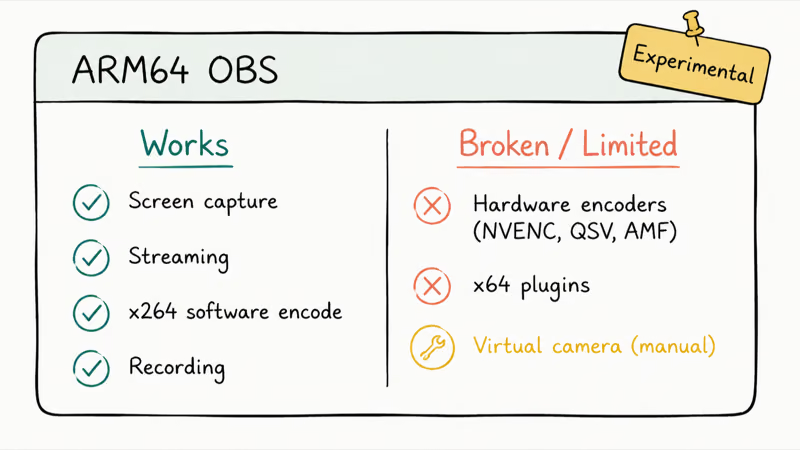
| Feature | Native ARM64 build |
|---|---|
| Screen and window capture | Works |
| Streaming to Twitch, YouTube, etc. | Works |
| Software encoding (x264) | Works |
| Recording to MP4 or MKV | Works |
| Hardware encoders (NVENC, QSV, AMF) | Not yet available |
| x64 third-party plugins | Won’t load |
| Virtual camera | Works after a manual enable |
The hardware encoding gap is the one to plan around. With no hardware encoder, your stream and recordings lean on the CPU through x264. A Snapdragon X handles that for a single 1080p stream, but you’ll want a sensible bitrate and a faster preset rather than the heaviest quality settings. If you hit a wall, our guide on fixing OBS encoding overload covers the same CPU-bound problem on any chip.
#The Plugin Problem Most Streamers Hit
Plugins are where Snapdragon X bites. A native ARM64 program can’t run x64 code inside its own process, and the OBS FAQ is blunt about it: third-party plugins “need to be compiled by the developer for ARM,” and your existing x64 plugins won’t load. Your StreamFX, Move transition, or audio plugin built for regular Windows is x64, and it simply won’t attach.
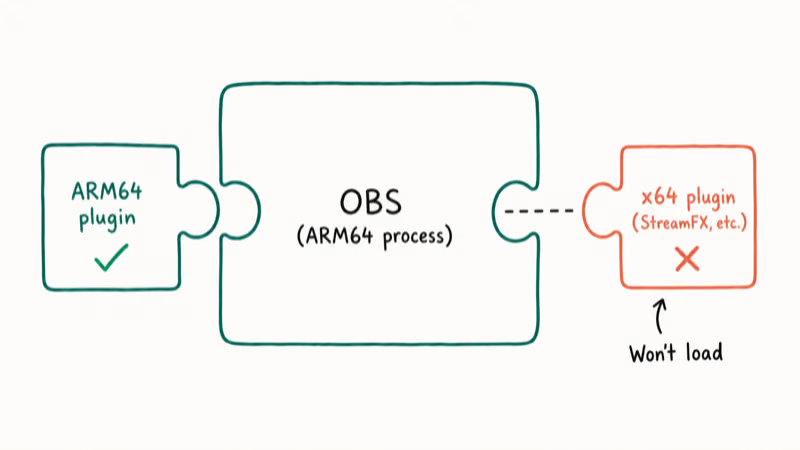
This isn’t an OBS bug. It’s how Windows on Arm draws the line. A native ARM64 process needs its dependencies built for ARM64 too, so a plugin DLL compiled for x64 doesn’t match and the loader skips it.
There are two ways around it, and both have limits. You can hunt for an ARM64 build of each plugin you rely on, but most developers haven’t shipped one yet. The other route is running the x64 OBS under emulation, which loads your x64 plugins fine at the cost of speed. You can’t mix the two in one install, so pick the native build for speed or the emulated build for plugins.
#How to Get the Right OBS Build for ARM Windows
Don’t just click the big Windows button on the OBS homepage. That’s the x64 installer, and it’ll run through emulation on your Snapdragon X. You want the file marked arm64.
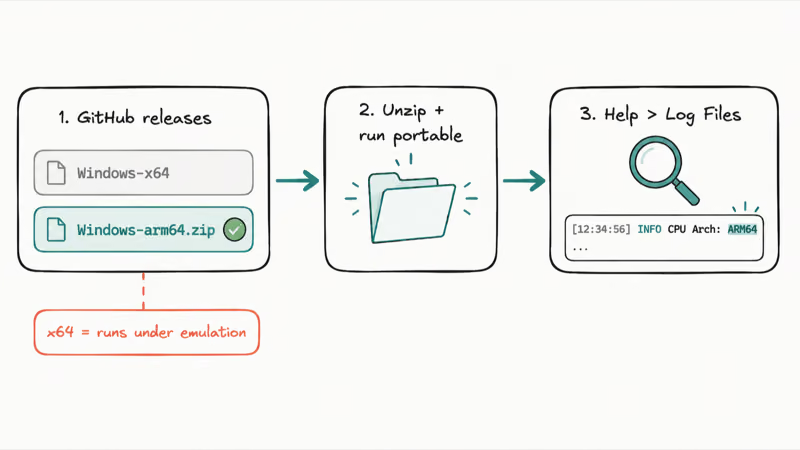
The OBS Studio releases page on GitHub states each version’s downloadable assets. Look for a file named like OBS-Studio-31.1.2-Windows-arm64.zip. The arm64 packages currently ship as portable zip builds rather than a full installer, so you unzip them to a folder and run OBS from there.
To confirm which architecture you actually launched, open OBS, go to Help > Log Files > View Current Log, and read the top lines. The log records the build, and on the native version it reads as an ARM64 process. If it shows x64 on an ARM machine, you grabbed the wrong file or Windows fell back to emulation.
#Does the OBS Virtual Camera Work on Snapdragon X?
It works, but you switch it on first. The OBS FAQ states that “by default, the virtual camera is not enabled on portable builds,” and the ARM64 builds are portable. So you register the camera module manually.
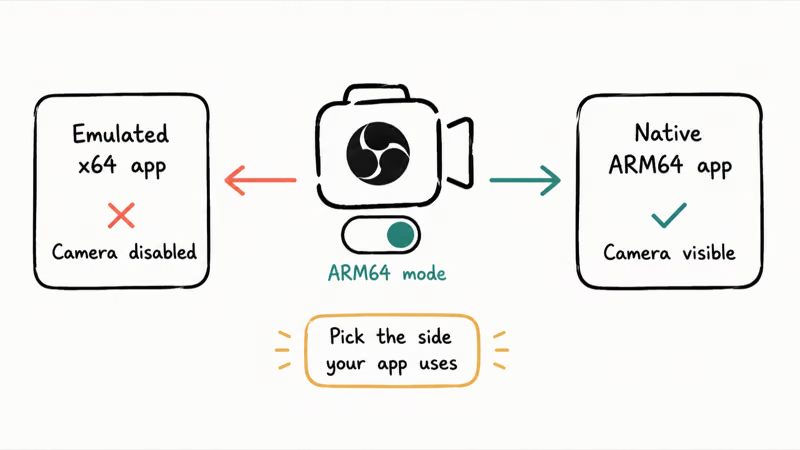
There’s a tradeoff worth knowing before you do it. The OBS FAQ confirms that enabling the virtual camera for native ARM64 apps “will disable virtual camera in emulated x64 apps.” So if you also run an emulated x64 app that expects the OBS camera, flipping it to ARM64 mode breaks that side. Decide which world your meeting or recording app lives in before you set it up.
After the ARM64 camera module is registered, native ARM64 conferencing apps can see the OBS virtual camera. Emulated x64 apps may stop seeing it at that point, which matches the tradeoff described in the FAQ.
#A Snapdragon X Laptop for Streaming: Realistic or Not
For light, plugin-free streaming, it’s fine, but a heavy production setup isn’t there yet. The native ARM64 OBS build streams and records, and a single-source 1080p stream is reasonable on the CPU encoder with a sensible bitrate and fast preset. If your channel is one camera, one capture, and a chat overlay, a Snapdragon X laptop can do that today.
The trouble starts with anything ambitious. No hardware encoding means no offloading the work to a dedicated chip. No x64 plugins means the effects, filters, and integrations many streamers depend on won’t run. If your overlay stack or your scene transitions rely on third-party plugins, a Snapdragon X machine will frustrate you until those developers ship ARM64 versions.
For the broader app picture, see our Windows on ARM app compatibility guide. Gamers should also read why some games won’t launch on Snapdragon X.
If OBS itself misbehaves once it’s running, separate from the ARM question, our OBS black screen fix walks through the capture problems that hit every platform.
#Bottom Line
Stream a clean, single-source setup with no third-party plugins? Install the native ARM64 build of OBS 31.1 or newer, lean on the x264 software encoder, and you’re set. If your production depends on a plugin stack or hardware encoding, don’t buy a Snapdragon X laptop for streaming yet.
The fallback is simple. Either wait for plugin developers to ship ARM64 builds, or keep a traditional x86 machine for OBS and use the Snapdragon X for everything else. If you only need basic capture without OBS’s complexity, an OBS alternative may serve you better on ARM.
AI PCs and Copilot+ Laptops
#Frequently Asked Questions
Is the OBS ARM64 build stable enough to use?
The OBS Project calls Windows on Arm support experimental, so treat it as a tool that mostly works rather than a finished product. Core recording and streaming are supported, but expect rough edges and missing features. Keep your version current, since each release tends to close gaps.
Can I run the x64 version of OBS on Snapdragon X instead?
Yes. The standard x64 OBS installer runs through Prism emulation on Windows on Arm, and it loads x64 plugins normally. The downside is speed, because emulation adds a translation layer that the native ARM64 build avoids. Choose the x64 build only if you need plugins that have no ARM64 version.
Does OBS support NVENC or hardware encoding on Snapdragon X?
No. The OBS FAQ lists hardware encoders under features not yet available on ARM. Your encoding runs on the CPU through x264, so set a moderate bitrate and a faster preset to keep frames from dropping during a stream.
Will my StreamFX or other plugins work on the ARM64 build?
Only if the developer has compiled an ARM64 version, which most haven’t. Existing x64 plugins won’t load into the native ARM64 OBS process because the architectures don’t match. Check each plugin’s releases for an arm64 file before you count on it.
How do I enable the OBS virtual camera on ARM Windows?
The virtual camera is off by default on the portable ARM64 builds, so you register the ARM64 camera module manually before OBS can stream to other apps. Be aware that turning it on for native ARM64 apps disables it for emulated x64 apps, so pick the side your camera app uses.
Which OBS version added Windows on ARM support?
Version 31.1, released in mid-2025, was the first OBS release with Windows on Arm support. Any version from 31.1 onward includes an arm64 download. Older releases like the 30.x line have no native ARM build, so they only run under emulation.

Bluetooth Not Working on Snapdragon X? Fixes for 2026
Bluetooth not working on your Snapdragon X Copilot+ PC? Generic audio, mice, and keyboards work, but vendor apps often lack an ARM build. Fixes inside.

Docker Desktop and WSL2 Not Working on Snapdragon X? Fix It
WSL2 runs fine on Snapdragon X, but Docker Desktop ARM is Early Access and throws WSL errors. Use WSL2 plus native ARM64 Ubuntu and Docker Engine.
Does Photoshop Run on Snapdragon X? Native ARM Answer
Does Photoshop run on Snapdragon X? Yes, as a native ARM64 build. See which features work, which Adobe apps emulate, and fix the 0xc000007b error.
How to Check if an App Runs on Snapdragon X Before Buying
Vet your must-have apps before buying a Snapdragon X PC: native ARM64, Prism emulation, partial, or blocked. The kernel-driver red flag explained.