Logitech G533 Mic Not Working: 9 Fixes That Actually Work
Logitech G533 mic not working on Windows? Try 9 practical fixes for G HUB, dongle reseat, drivers, mic privacy, Discord, audio setup, and USB checks.
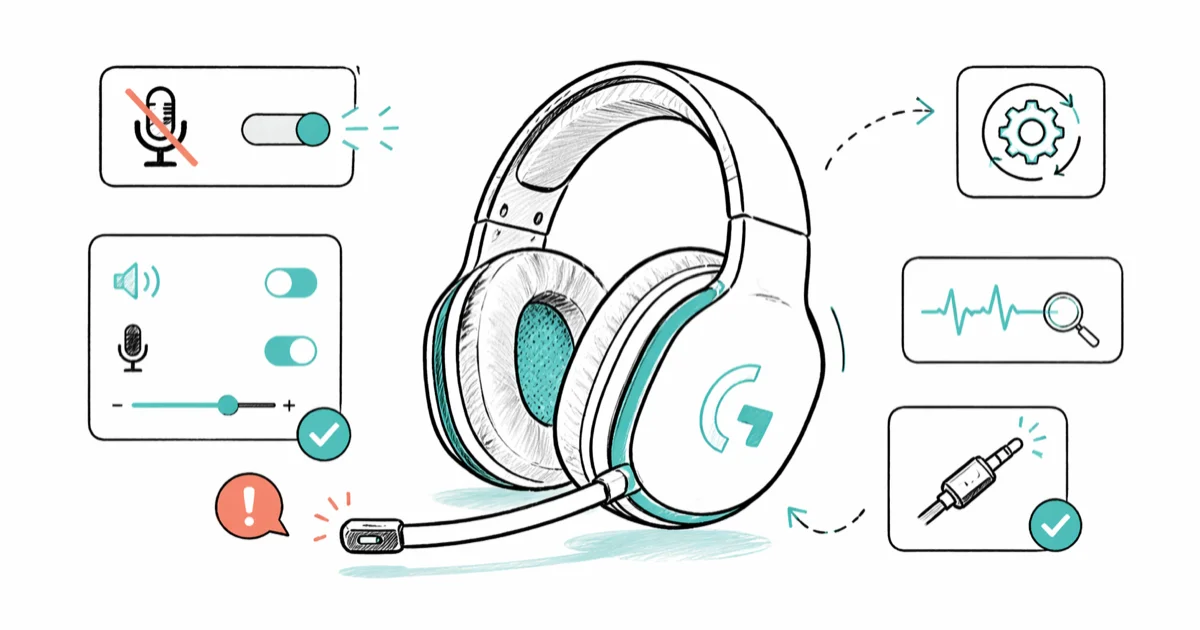
Quick AnswerReseat the wireless dongle in a USB 2.0 port on your PC, then open G HUB, update the G533 firmware, and unmute the mic in Windows Sound settings. That clears the issue for most people in under five minutes.
The Logitech G533 mic not working on Windows almost always comes down to one of three things: the wireless dongle dropped its connection, G HUB never installed the right driver, or Windows muted the input behind your back. Work through the fixes below in order and you’ll catch the cause without reinstalling anything.
- Reseat the wireless USB dongle in a different port before doing anything else; loose dongles are a common cause of missing mic input.
- G HUB is the only Logitech app that updates G533 firmware; legacy LGS will install but won’t push new firmware to the dongle.
- Windows 11 hides app mic permissions under
Settings>Privacy &security > Microphone, and a global toggle there can silence the G533 entirely. - The boom mic on the G533 is muted whenever it’s flipped fully up; flip it down past the click point or it stays off no matter what you do in software.
- Discord, Zoom, and OBS each keep their own input device list and need the G533 selected manually after a driver reinstall.
#Why Is My Logitech G533 Mic Not Working?
The G533 is a wireless headset that talks to your PC through a USB dongle, not a 3.5 mm jack. That changes the failure modes. A wired headset only fails at the cable; the G533 can fail at the dongle, the headset firmware, the wireless link, the Windows audio stack, or the per-app input setting. Knowing which layer broke saves you from running through ten fixes when the problem was a USB port.
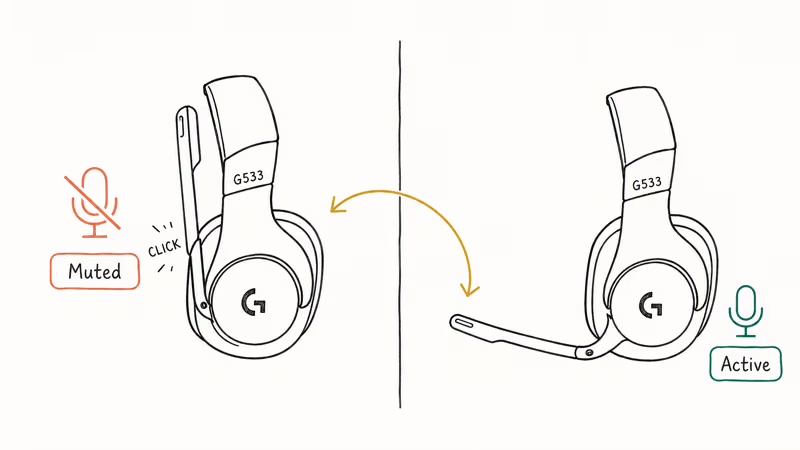
Hardware-side, the boom mic has a hidden mute switch built into the hinge. Flip the boom up past the click and the mic cuts. Windows can still list the mic as “working” when the boom is up, which makes this easy to miss.
Software-side, the most common cause in 2026 is people running Logitech Gaming Software (LGS) instead of G HUB. LGS still installs cleanly on Windows 11 but no longer ships firmware updates for the G533 dongle. According to Logitech G HUB’s official download page, G HUB supports Windows 10 and Windows 11, and the G533 is on that compatibility list as the headset Logitech now expects you to manage through G HUB only.
#Quick Pre-Flight Checks Before You Reinstall Anything
Run these before you touch drivers. They take about two minutes and rule out the dumb causes.
- Flip the boom mic all the way down. You should feel a soft click. If you don’t hear yourself in Windows after that, leave the boom down and continue.
- Charge the headset for at least 15 minutes with the included micro-USB cable. A G533 that’s almost flat will pair, play audio, but drop the mic to save power.
- Move the dongle to a USB port on the back of your desktop, away from the WiFi card. The 2.4 GHz band is crowded, and front-panel ports often share a hub with USB 3.0 devices that radiate noise.
- Power-cycle the headset by holding the power button for 10 seconds, then turning it back on.
If any of those alone fixes it, you can stop here. Otherwise, work through the fixes below.
#Fix 1: Reseat the Wireless Dongle in a Different USB Port
This is the single highest-yield fix and it costs nothing. A weak USB connection can let audio playback work while the microphone fails to enumerate. Moving the dongle to a stable USB port is the quickest way to rule that out.
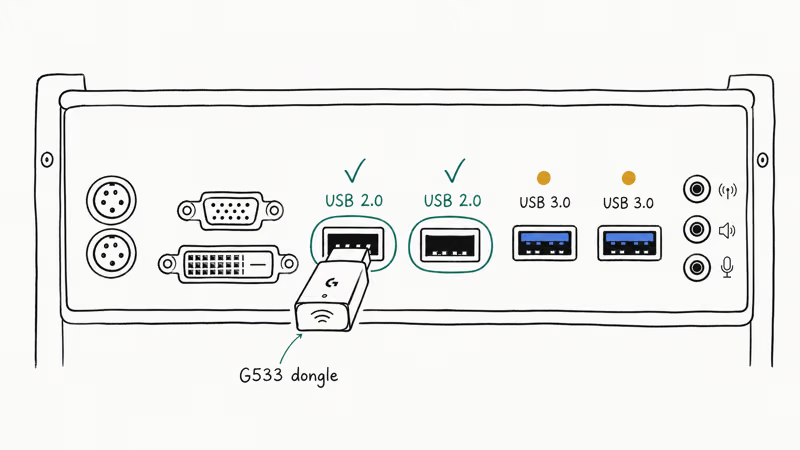
- Unplug the dongle and wait 15 seconds.
- Plug it into a USB 2.0 port on the back of your tower (the black ones, not the blue or red USB 3.0 ports).
- Wait for Windows to chime; check Sound settings to see if “Headset Microphone (G533 Gaming Headset)” appears.
- If you only have a laptop, try every USB-A port you have, including any on a docking station.
If the input device still doesn’t appear, your driver is the next suspect.
#Fix 2: Install Logitech G HUB and Push the Latest Firmware
G HUB does two jobs that LGS no longer does: it installs the current audio driver, and it pushes firmware updates to the wireless dongle. Skip this and you can chase software fixes for hours.
- Uninstall any existing Logitech Gaming Software (LGS) and any old G HUB version from
Windows Settings>Apps>Installedapps. - Reboot the PC.
- Download G HUB from logitechg.com/en-us/innovation/g-hub.html and run the installer as Administrator.
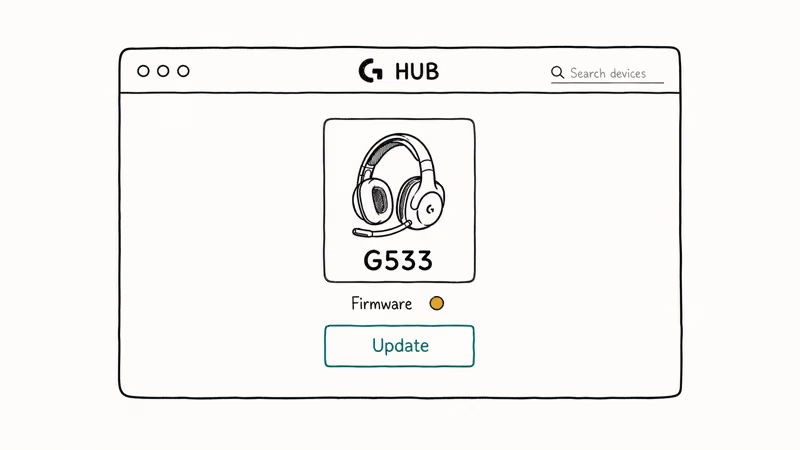
- Open G HUB. Click your G533 tile. If a yellow dot appears next to “Firmware,” click Update and let it run; the screen will warn you not to unplug the dongle.
- When G HUB finishes, restart the PC one more time so the new audio driver registers.
G HUB firmware updates can restore a G533 mic that went silent after a Windows feature update. The whole process is short, but the reboot matters because Windows needs to reload the audio driver.
For the broader picture on Logitech’s installer ecosystem and which apps to keep versus uninstall, see our notes on the Logitech Download Assistant.
#Fix 3: Unmute and Re-Enable the Mic in Windows Sound Settings
Windows likes to default the G533 mic to a low input level after a driver reinstall, and a feature update can silently disable the device. Both happen often enough to check every time.
- Right-click the speaker icon in the system tray and pick Sound settings.
- Scroll to the Input section. Click “Headset Microphone (G533 Gaming Headset).”
- Confirm “Allow apps and Windows to use this microphone for input” is on.
- Set the Input volume to between 75 and 90. Below 50 and the boom mic sounds like a whisper.
- Click “Start test,” speak for 5 seconds, and watch the meter. If you don’t see a green bar move, scroll up and click “Manage sound devices.” Make sure the G533 mic isn’t listed under “Disabled.”
If the device shows up as Disabled, click it and choose Enable. If it doesn’t show at all, go to Fix 4.
#Fix 4: Grant Apps Microphone Permission in Windows Privacy
Windows 11 added a top-level mic privacy switch that overrides every per-app setting. If it’s off, no app can hear you, regardless of how the device is configured. Microsoft’s official microphone privacy documentation confirms that the global toggle, present in Windows 10 and Windows 11, blocks Microsoft Store apps and most desktop apps from receiving input until you turn it on.
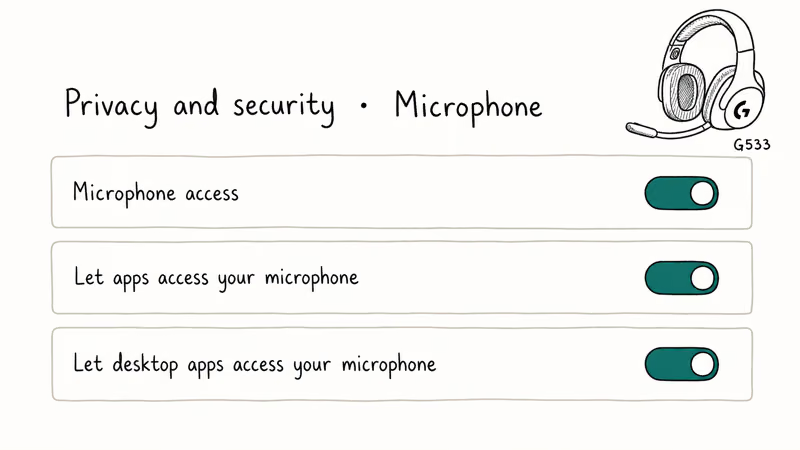
- Press Windows key + I to open Settings.
- Go to Privacy & security > Microphone.
- Toggle “Microphone access” on. This is the global gate.
- Toggle “Let apps access your microphone” on.
- Scroll down and toggle on every specific app you actually use the mic in: Discord, Zoom, OBS, Teams, your browser, and so on.
- For desktop apps that aren’t in the Store, scroll to “Let desktop apps access your microphone” and turn that on too.
The desktop-apps toggle catches Discord, Steam voice chat, and most game launchers in one switch. After flipping it, restart the app you were trying to use the mic in. If the toggle looks correct but the app still gets no input, reboot once so Windows reloads the privacy stack.
#Fix 5: Run the Windows Recording Audio Troubleshooter
The built-in troubleshooter is more useful than people give it credit for. Run it.
- Press Windows key + I, then go to
System>Troubleshoot>Othertroubleshooters. - Find “Recording Audio” (Windows 11) or “Recording Audio” under Find and fix other problems (Windows 10). Click Run.
- When prompted, select “Headset Microphone (G533 Gaming Headset)” as the device to test.
- Apply any fix the wizard suggests. One common fix is “Restart the Windows Audio service,” which the troubleshooter does for you.
Microsoft’s audio troubleshooting guide recommends running this tool before manual driver work.
#Fix 6: Disable Audio Enhancements and Exclusive Mode
Audio enhancements were designed for stereo speakers, not gaming headsets, and they regularly clip the G533 mic input. Exclusive mode lets one app monopolize the device and lock everything else out, which causes Discord to “steal” the mic from OBS or vice versa.
- In Sound settings, click your G533 mic input device, then “Device properties.”
- Click “Additional device properties” at the bottom.
- Open the Enhancements tab and tick “Disable all enhancements.” Click Apply.
- Open the Advanced tab. Under Exclusive Mode, uncheck both “Allow applications to take exclusive control of this device” and “Give exclusive mode applications priority.”
- Click OK to close.
This combination is worth doing even if your symptom is “no sound” rather than “bad sound,” especially on systems that also have persistent speaker buzzing tied to a USB hub.
#Fix 7: Restart the Windows Audio and Endpoint Services
If the G533 mic worked yesterday and stopped today without any installs or updates, the audio services probably hung. Restarting them takes 20 seconds and usually beats rebooting.
- Press Windows key + R, type
services.msc, and press Enter. - Scroll to “Windows Audio.” Right-click and pick Restart.
- Do the same for “Windows Audio Endpoint Builder.”
- Right-click each one again, choose Properties, and confirm Startup type is “Automatic.” If it’s set to Manual or Disabled, change it to Automatic and click Apply.
After both services restart, open Sound settings and confirm the G533 mic returns.
#Fix 8: Set the G533 as the Default Communications Device
Windows tracks two defaults: a Default Device for general playback and recording, and a Default Communications Device used by apps like Skype, Teams, and Zoom. Apps don’t always honor the same one, which is why your mic can work in OBS but not in Discord.
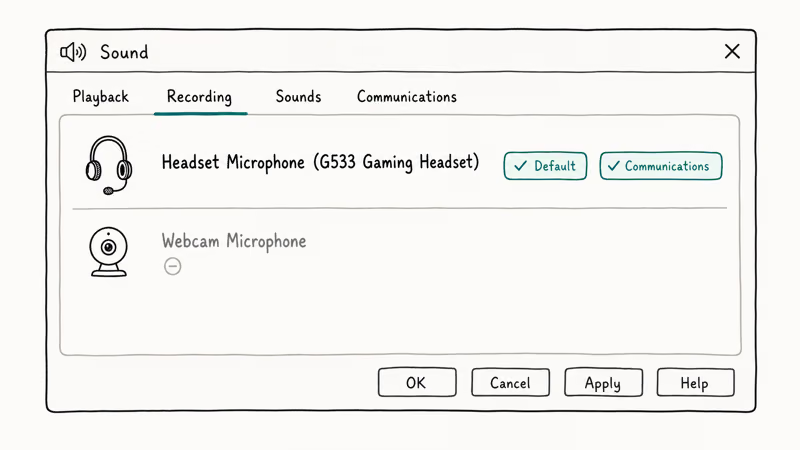
- In Sound settings, scroll to “More sound settings” (Windows 11) or open the legacy Sound control panel directly.
- On the Recording tab, right-click “Headset Microphone (G533 Gaming Headset).”
- Select “Set as Default Device.”
- Right-click the same entry again and select “Set as Default Communication Device.”
- Click Apply, then OK.
Both menu items should now show a green checkmark on the G533 mic. If you also use a webcam mic, manually disable that webcam’s mic on the same Recording tab so apps can’t pick it as a fallback.
#Fix 9: Confirm Your Voice App Has the G533 Selected
Discord, Zoom, OBS, Teams, and most browsers store their own input device choice independent of Windows. Reinstalling the driver resets that choice in some apps and doesn’t in others. According to Discord’s official voice troubleshooting guide, the most common cause of a working Windows mic that fails in voice chat is a stale Input Device entry in the app’s voice settings.
For Discord specifically:
- Open Discord. Click the gear icon next to your username.
- Go to Voice & Video.
- Under Input Device, pick “Headset Microphone (G533 Gaming Headset)” from the dropdown. Don’t leave it on Default.
- Click “Let’s Check” to test. Speak for 5 seconds and watch the green bar move.
- If the bar doesn’t move, scroll down and click “Reset Voice Settings” at the bottom of the page; that fixes 80% of the cases where the dropdown looks correct but no audio comes through.
For Zoom: Settings > Audio > Microphone dropdown. For OBS: Settings > Audio > Mic/Auxiliary Audio. For Microsoft Teams: Settings > Devices > Microphone.
If your mic shows up in Windows tests but breaks specifically in Discord screen-sharing sessions, our Discord stream no sound walkthrough covers a different set of fixes for that scenario.
#What If the G533 Mic Still Doesn’t Work After All Nine Fixes?
At this point you’ve ruled out software. Test the headset on a second computer; if the mic works there, the original PC has a USB or driver problem deeper than this article covers, and a fresh Windows user account is the next thing to try. If the mic also fails on the second PC, the headset itself likely needs a Logitech support ticket. The G533 carries a two-year limited warranty in the US.
For a sanity check on whether the issue is hardware-wide on your PC versus the headset alone, plug in any wired USB mic. If that mic works in Discord but the G533 doesn’t, the dongle or headset is the problem. If neither works, your USB controller or sound stack is the problem.
#Bottom Line
For the vast majority of G533 mic problems, the fix is reseating the dongle in a USB 2.0 port and updating firmware through G HUB. Do those two steps before anything else. If the mic still won’t show up in Windows Sound settings after that, work down the list, and stop as soon as the input meter moves. Don’t install third-party “driver updater” tools; they’re not necessary for a current G533 and they can install drivers that break it further.
#Frequently Asked Questions
Why does my G533 mic suddenly stop working after a Windows update?
Windows feature updates sometimes reset the global microphone privacy toggle to off and reinstall a generic audio driver over the Logitech one. Re-enable mic access in Privacy & security > Microphone, then open G HUB and reinstall the G533 firmware. That clears the problem in most cases without a full driver wipe.
Can I use the G533 mic on a PS4, PS5, or Xbox?
No, the G533 is a PC-only headset and its 2.4 GHz dongle isn’t fully recognized as a console mic. Audio output may work on a PS5 if the console accepts the dongle as a generic USB headset, but mic input usually doesn’t pass through.
Does the boom mic on the G533 have a physical mute switch?
Yes, sort of. The boom is hinged with a built-in click switch: flip it all the way up past the click and the mic mutes regardless of software state, flip it back down past the click to unmute. This is intentional, not a defect.
Should I install Logitech Gaming Software or G HUB for the G533?
G HUB only. Uninstall LGS first if you have it.
Why does my G533 mic work in Windows but not in Discord?
Discord stores its own input device setting that doesn’t always sync with Windows defaults. Open Discord settings, go to Voice & Video, and pick the G533 mic explicitly from the Input Device dropdown instead of leaving it on Default. The change applies immediately, no restart needed.
How long does the G533 battery last when the mic is in use?
Logitech rates the G533 at about 15 hours of mixed audio and mic use on a full charge. Charge it weekly if you use it daily, and charge sooner if voice chat starts dropping while playback still works.
Can I fix the G533 mic by replacing just the boom?
No. The boom is wired into the left earcup. If it’s broken, ship it back to Logitech under warranty or retire it. This differs from the HyperX Cloud II, where mic issues often trace to the detachable boom cable.
What if my Logitech mouse or speakers stopped working at the same time?
That points to a USB controller or general Windows audio problem rather than a G533-specific one. Triage the wider issue with the relevant guide:
- Logitech mouse not working
- Logitech speakers not working
- USB device not recognized — if a USB device fails to enumerate at all

Best Laptop for Running LLMs in 2026: Memory Comes First
The best laptop for running LLMs is a memory purchase first. Compare MacBook unified memory against NVIDIA laptop VRAM, and see what each tier really runs.

How to Run a Local LLM on Windows: A 2026 Setup Guide
Run a local LLM on Windows with LM Studio or Ollama. Pick a model that fits your GPU memory, keep every prompt offline, and skip the monthly bill.

Bluetooth Not Working on Snapdragon X? Fixes for 2026
Bluetooth not working on your Snapdragon X Copilot+ PC? Generic audio, mice, and keyboards work, but vendor apps often lack an ARM build. Fixes inside.

Docker Desktop and WSL2 Not Working on Snapdragon X? Fix It
WSL2 runs fine on Snapdragon X, but Docker Desktop ARM is Early Access and throws WSL errors. Use WSL2 plus native ARM64 Ubuntu and Docker Engine.