Printer Not Working on Snapdragon X? Fix It in 2026
Printer not working on your Snapdragon X Copilot+ PC? x64 print drivers can't run on ARM. Use Windows' built-in IPP driver for Mopria printers instead.
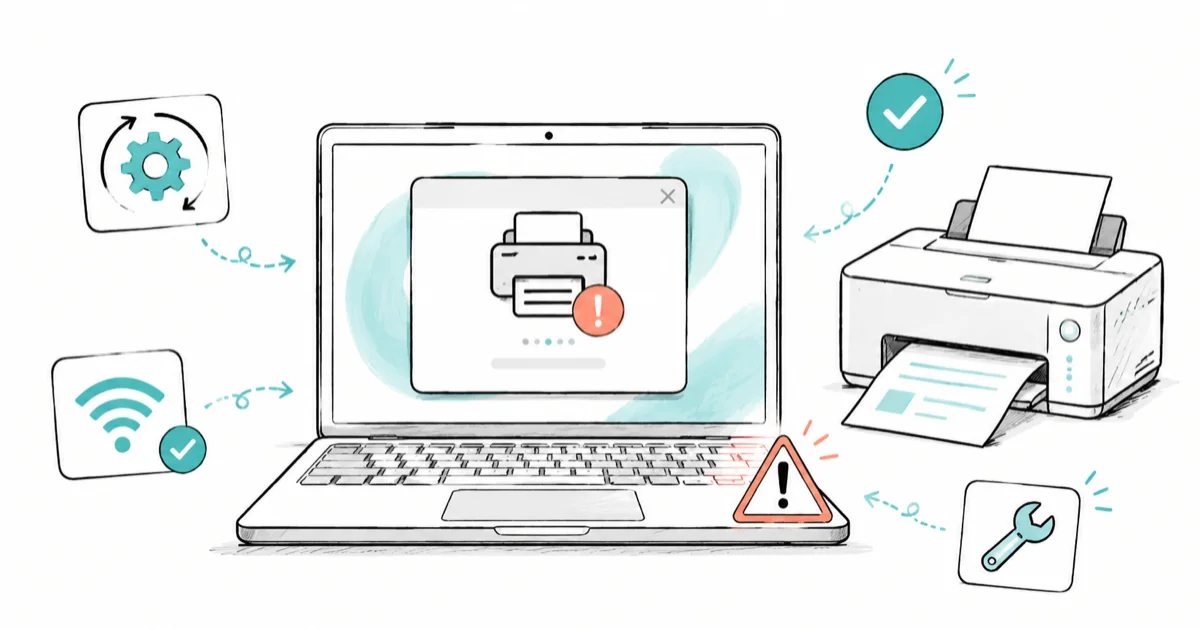
Quick AnswerYour old printer software won't install on a Snapdragon X PC because x64 print drivers can't run on Windows on ARM. Skip the vendor download and let Windows add the printer with its built-in IPP driver instead.
Your printer isn’t working on your Snapdragon X laptop, and the vendor’s driver download refuses to install. Here’s why: the emulation that runs old apps on a Copilot+ PC doesn’t cover drivers, so an x64-only print driver has nothing to fall back on. The clean fix is to let Windows add the printer with its built-in IPP driver instead.
- Emulation on Windows on ARM runs apps, not drivers, so x64-only printer software fails on Snapdragon X.
- Windows’ built-in IPP driver prints to most modern printers with no vendor download needed.
- Driverless printing covers the basics: print over Wi-Fi or USB, choose paper size, do double-sided.
- Advanced extras like proprietary scan apps and color profiles often need a vendor ARM64 driver that may not exist yet.
- Check mopria.org to confirm your printer is certified before you buy or troubleshoot.
#Why Won’t Your Printer Driver Install on Snapdragon X?
A Snapdragon X chip runs Windows on ARM, and the part that makes your old programs work is an emulator called Prism. It translates x86 and x64 app code into ARM instructions on the fly so your familiar software still launches and runs without any changes on your end.
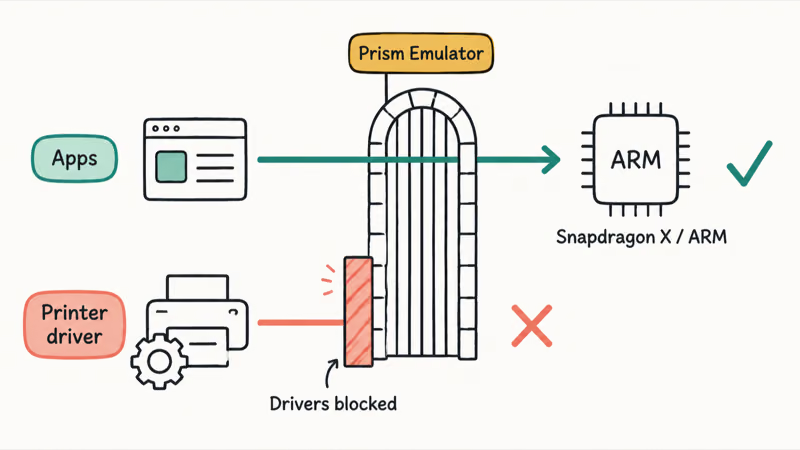
But there’s a catch. Prism only applies to normal apps, not the low-level code a printer driver uses.
According to Microsoft’s emulation documentation for Windows on Arm, “emulation only supports user mode code and doesn’t support drivers. Any kernel mode components must be compiled as Arm64.” A print driver has kernel-level pieces, so an x64-only driver has no emulation path. The installer hits that wall and stops.
This is why the printer maker’s setup file fails on your Copilot+ PC but worked fine on your old Intel laptop. The driver isn’t broken. It’s just built for the wrong processor, and ARM Windows won’t pretend otherwise. An older x64 printer installer can fail before copying files, which lines up with that documentation.
The good news: most people don’t need that driver at all anymore.
#Use the Built-In IPP Driver Instead
Modern Windows can talk to printers without any vendor software using a universal driver based on the Internet Printing Protocol (IPP). According to Microsoft’s modern print platform documentation, “With modern print, printers communicate to PCs without the need to install drivers.” The same page states this “works regardless of a PC’s architecture,” which is exactly what you want on ARM.
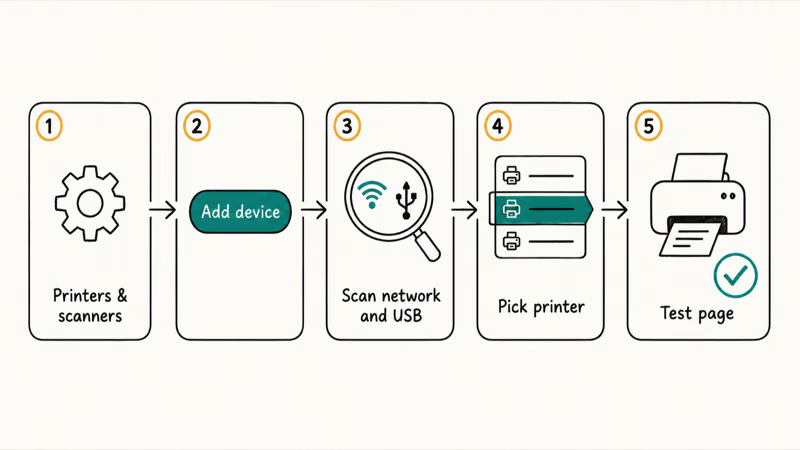
Here’s how to add a printer this way:
- Open
Settings>Bluetooth &devices > Printers & scanners. - Click Add device at the top.
- Wait for Windows to scan your network and USB ports.
- When your printer appears, click Add device next to it.
- Let Windows install it. No driver download, no setup file.
That’s the whole process. Windows pulls in the IPP class driver, the printer shows up in your print dialog, and you can print a test page. On a network printer this usually takes under a minute once the device is on the same Wi-Fi.
If the printer doesn’t show up automatically, click Add manually and enter its IP address. You can find the IP on the printer’s own screen, usually under a network or Wi-Fi settings menu.
#What the IPP driver actually handles
The built-in driver covers everyday printing, but it’s deliberately basic. Set realistic expectations:
| Feature | Built-in IPP driver | Needs vendor driver |
|---|---|---|
| Print over Wi-Fi or Ethernet | Yes | No |
| Print over USB | Yes (modern printers) | No |
| Paper size and orientation | Yes | No |
| Double-sided (duplex) | Yes, if the printer supports it | No |
| Color and grayscale | Yes | No |
| Proprietary scan utility | No | Yes |
| ICC color profiles for photo work | Usually no | Yes |
| Ink-level monitoring app | No | Yes |
| Special tray or finishing presets | Limited | Yes |
For a home user who prints documents, the IPP path covers nearly everything you’d ever reach for in a print dialog, from paper size to double-sided to color. The gaps only matter in two cases. If you’re a photographer who needs exact color, or you rely on a maker’s all-in-one scan software, that’s where an ARM64 vendor driver comes in.
#Check Whether Your Printer Is Mopria Certified
The IPP driver is built around a standard set by the Mopria Alliance, a group of printer makers and software vendors.
According to Microsoft’s modern print documentation, modern print “is designed to work with Mopria certified printers, and many existing printers are already compatible.” You can confirm your own model on the Mopria Alliance’s certified products list. A certified printer is a near-guarantee that the built-in Windows driver will print to it without any extra software on your Snapdragon X PC. So if your printer is on that list, stop troubleshooting drivers entirely. Just add the device and print.
If it’s not certified, the IPP path may still work, since many non-certified printers speak IPP too. But certification is the difference between “should work” and “will work.” With a certified network printer, Windows can add the device with the built-in driver and print a test page without any vendor download.
#USB vs Network: Which Is More Reliable on ARM?
Both connection types use the same driverless IPP path on modern printers, but they behave a little differently on Windows on ARM.
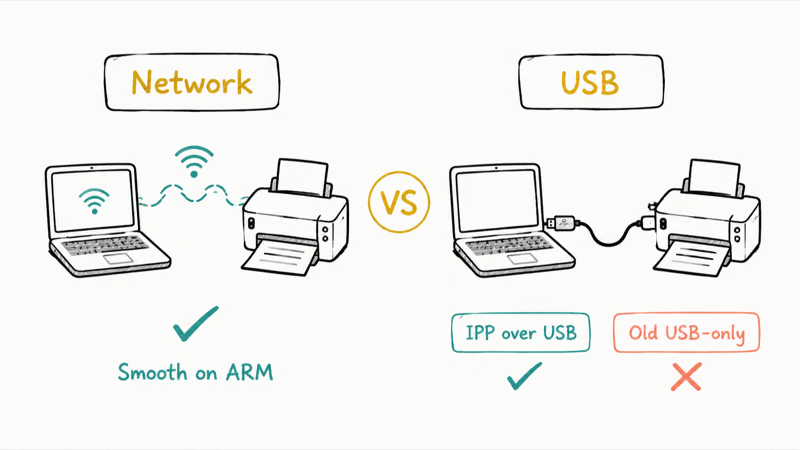
Go network if you can. A connection over Wi-Fi or Ethernet is the smoother option, because the printer advertises itself over the network, Windows finds it, and the IPP driver attaches with no cable involved at all. This is the path most likely to just work on a Copilot+ PC, and it’s the best first choice on an ARM laptop.
USB is more hit-or-miss. Newer printers support IPP over USB, so they install driverless just like a network printer. Older USB-only printers that expect a classic driver can struggle, because that classic driver is the x64 file ARM Windows can’t load.
The workaround is simple. If a USB printer won’t install, connect it to Wi-Fi instead and add it as a network device. That switch fixes a lot of ARM printing headaches.
If you only have a basic, older USB printer with no network option, your choices narrow quickly. You may be stuck waiting on the maker to ship an ARM64 driver that might never arrive, or replacing the printer with a Mopria certified model that prints driverless out of the box. A cheap USB-to-Ethernet print server can sometimes bridge an old printer onto the network, turning an unsupported USB device into a discoverable one.
#When You Actually Need a Vendor ARM64 Driver
Sometimes the built-in driver isn’t enough and you do need the printer maker’s software, compiled for ARM64. This is the case when you rely on:
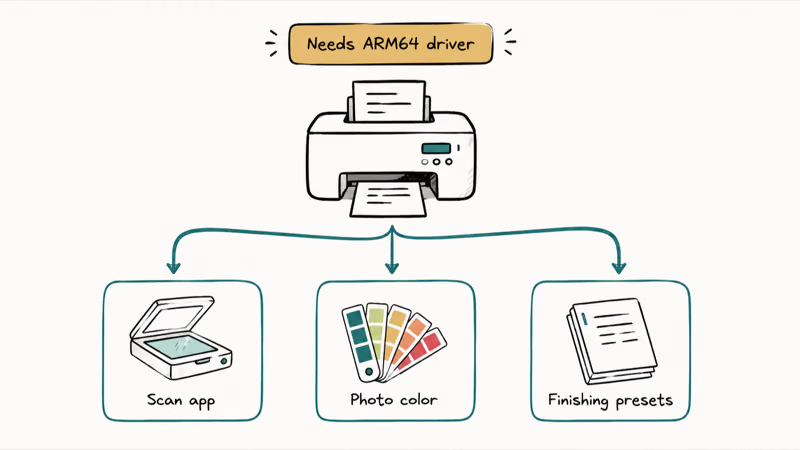
- A bundled scanning app for an all-in-one printer
- Manufacturer color management for photo printing
- Tray, stapling, or booklet finishing presets on an office machine
The honest reality in 2026: ARM64 vendor drivers are still patchy. Some makers ship them, many don’t. HP, for example, offers a universal print driver for ARM64, but its rollout to Copilot+ PCs was rocky, and early versions didn’t work on machines like the Surface Laptop 7 and Surface Pro 11.
HP’s own support forum is full of users tracking fixes for it. Before you assume a vendor driver exists, check the maker’s support site for an explicit ARM64 or Windows on Arm download. Brand-specific quirks matter here, so a guide like the Epson printer troubleshooting walkthrough can help once the basic IPP connection is in place.
If there’s no ARM64 driver and the IPP path doesn’t cover what you need, your two clean options are to print through the built-in driver and scan on a different device, or move to a printer that’s Mopria certified and fully driverless. The same driver wall is why virtualization tools like VMware also stumble on Snapdragon X, and it’s a trait of the platform that the Snapdragon X2 Elite carries forward too.
#Scanning Is the Bigger Gap on Snapdragon X
Printing is mostly solved by the IPP path, but scanning is where ARM still bites. The built-in print stack supports eSCL, a driverless scan standard, so a Mopria certified all-in-one can sometimes scan straight from the Windows Scan app with nothing installed. That’s the best case.
The trouble starts with the bundled software. Vendor scan suites, document-management tools, and OCR utilities are full apps with driver-level pieces, and most makers haven’t recompiled them for ARM64. If your workflow depends on a specific maker’s scan app, test it before you rely on it. A quick fallback that always works: scan from a phone using the printer maker’s mobile app, then send the file to your laptop.
#Bottom Line
Don’t download the vendor’s printer software on a Snapdragon X PC. It’s an x64 driver that ARM Windows can’t load, and chasing it wastes time. Open Settings > Bluetooth & devices > Printers & scanners, click Add device, and let Windows install the printer with its built-in IPP driver.
For document printing, that’s all you need. Only hunt for an ARM64 vendor driver if you require proprietary scanning, exact color profiles, or office finishing presets, and check mopria.org first to confirm your printer is certified.
AI PCs and Copilot+ Laptops
#Frequently Asked Questions
Why does my printer driver say unsupported on a Copilot+ PC?
The driver is an x64 file, and Windows on ARM can’t run drivers through emulation. Microsoft’s documentation states emulation supports only user-mode app code, not drivers, so any driver has to be compiled for ARM64. An x64-only printer driver has no path to install and fails with an unsupported or incompatible error.
Can I print on a Snapdragon X laptop without installing any driver?
Yes. Windows includes a universal IPP driver that prints to most modern printers with nothing to download. Go to Settings > Bluetooth & devices > Printers & scanners, click Add device, and Windows installs the printer automatically. This is the recommended way to print on a Copilot+ PC.
What is a Mopria certified printer?
It’s a printer that meets the Mopria Alliance’s standards for driverless IPP printing. A certified printer is designed to work with Windows’ built-in print driver, which means it should print on your Snapdragon X PC with no vendor software at all. You can check your model on the Mopria certified products list.
Does USB printing work on Windows on ARM?
It depends on the printer. Newer printers support IPP over USB and install driverless just like a network printer. Older USB-only printers that need a classic x64 driver often fail, because that driver can’t load on ARM. If a USB printer won’t install, connect it to Wi-Fi and add it as a network device instead.
Will my old multifunction printer’s scanner work?
Basic printing will usually work through the built-in driver, but the bundled scan app often won’t. Scanning utilities are vendor software that needs an ARM64 build, and many makers haven’t shipped one. You can still print from the Snapdragon X PC and scan from a phone app or another computer in the meantime.
Should I buy a new printer for my Copilot+ PC?
Not necessarily. If your current printer is Mopria certified or speaks IPP, it’ll likely print fine with the built-in driver. Check the Mopria certified products list first. Only consider a new printer if you have an older USB-only model with no network option and no ARM64 driver from the maker.
Why did the printer work on my old laptop but not this one?
Your old laptop almost certainly ran an Intel or AMD x64 chip, which the vendor driver was built for. The Snapdragon X uses an ARM processor, and that same x64 driver can’t run on it. The printer hardware is fine. You just need to add it through Windows’ driverless IPP path instead of the old software.

Bluetooth Not Working on Snapdragon X? Fixes for 2026
Bluetooth not working on your Snapdragon X Copilot+ PC? Generic audio, mice, and keyboards work, but vendor apps often lack an ARM build. Fixes inside.

Docker Desktop and WSL2 Not Working on Snapdragon X? Fix It
WSL2 runs fine on Snapdragon X, but Docker Desktop ARM is Early Access and throws WSL errors. Use WSL2 plus native ARM64 Ubuntu and Docker Engine.

Does OBS Studio Work on Snapdragon X? ARM64 Build Guide
Yes, OBS Studio has an experimental ARM64 build since version 31.1, but x64 plugins won't load and hardware encoding is missing. Here is what works.
Does Photoshop Run on Snapdragon X? Native ARM Answer
Does Photoshop run on Snapdragon X? Yes, as a native ARM64 build. See which features work, which Adobe apps emulate, and fix the 0xc000007b error.