How to Disable Logitech Download Assistant: 5 Methods
Stop Logitech Download Assistant from popping up at Windows startup with 5 fixes: Task Manager, Settings, LogiLDA.dll, Registry, or G HUB switch.
Quick AnswerOpen Task Manager with Ctrl + Shift + Esc, switch to the Startup apps tab, right-click Logitech Download Assistant, and click Disable. Your mouse, keyboard, and webcam keep working without the popup.
Logitech Download Assistant pops up at every Windows sign-in, holds the foreground briefly, and almost never finds an update worth installing. The good news: you can shut it down quickly, and your Logitech mouse, keyboard, headset, or webcam keeps working.
- LDA is a small Windows helper (about 2 MB) that checks Logitech servers for driver and firmware updates at every sign-in.
- Disabling LDA does not affect your mouse, keyboard, webcam, or headset; only the auto-update popup stops.
- Task Manager Startup is the safest fix; deleting LogiLDA.dll or the registry key are backups when the toggle is missing.
- Logitech now ships G HUB for gaming gear and Options+ for productivity gear, and both replace LDA with on-demand updates.
- After disabling LDA, plan to check downloads at logi.com about every 6 months, since firmware and security patches still ship there.
#What Is Logitech Download Assistant?
Logitech Download Assistant (often shortened to LDA, with the file LogiLDA.dll) is a startup helper that ships with older Logitech driver bundles such as SetPoint and the legacy Logitech Gaming Software. According to Logitech’s support center, the helper checks for driver and firmware updates for connected Logitech peripherals each time you sign in to Windows.
That update check usually runs quickly when no update is waiting, but it can still interrupt the sign-in flow.
The actual file lives at C:\Windows\System32\LogiLDA.dll and is launched by a Run registry entry every time a user signs in. On a clean install, LDA uses very little memory, but on machines that ran Logitech’s older drivers for years, the popup can stack with Google Update and other update agents and noticeably slow down logon.
LDA isn’t malware. It’s signed by Logitech Inc. People dislike it because it pops up daily and rarely shows anything useful.
#Why Does the LDA Popup Keep Coming Back?
There are two main reasons LDA returns even after you close its window. First, the helper is registered as a Run entry in HKEY_LOCAL_MACHINE\SOFTWARE\Microsoft\Windows\CurrentVersion\Run, which means Windows launches it every time any user signs in. Closing the window only kills the running process; it doesn’t stop the next sign-in from starting it again.
Second, Windows feature updates and Logitech driver re-installs can re-enable LDA’s startup entry. Some installers re-register their Run keys after upgrades, so a one-time disable sometimes isn’t enough.
If you want LDA gone for good, the registry or DLL methods below are more durable than the Startup tab toggle. If you only want to silence the daily nuisance, Task Manager is the fastest route.
#Method 1: Disable LDA Through Task Manager Startup
This is the quickest reversible fix.
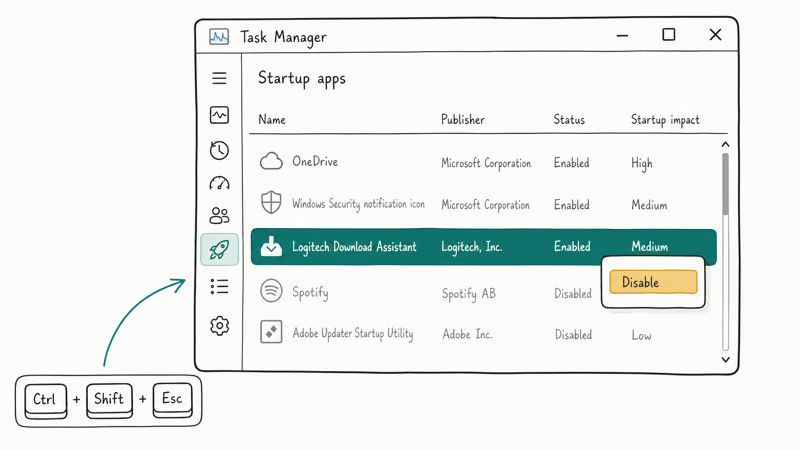
- Press Ctrl + Shift + Esc to open Task Manager.
- On Windows 11, click Startup apps in the left sidebar. On Windows 10, click the Startup tab at the top.
- Find Logitech Download Assistant in the list, right-click it, and choose Disable.
- Close Task Manager and restart the PC.
The next sign-in should be silent. Logitech device settings live in the driver or modern Logitech app, not in the LDA startup helper.
If you ever want LDA back (for example, before checking for a major firmware update), open the same Startup tab, right-click the entry, and choose Enable.
#Method 2: Turn Off LDA Notifications in Windows Settings
If the popup keeps appearing even after disabling LDA in Task Manager, Windows itself may be re-launching the toast notification. Turning off notifications for the LDA app stops the visual popup without changing the startup entry.
- Press Windows + I to open Settings.
- Go to
System>Notifications(Windows 11) orSystem>Notifications &actions (Windows 10). - Scroll the per-app list and find Logitech Download Assistant.
- Toggle the switch to Off.
- Restart the PC.
After notifications are off, the trade-off is simple: if Logitech ever does push a critical security update through LDA, you won’t see the toast. Pair this method with a calendar reminder to check logi.com/downloads every few months. If you’re also troubleshooting the actual hardware, see our guide on what to try when your Logitech mouse is not working.
#Method 3: Delete LogiLDA.dll From System32
This method removes the file LDA needs to start. You’ll need administrator rights and a backup copy first.
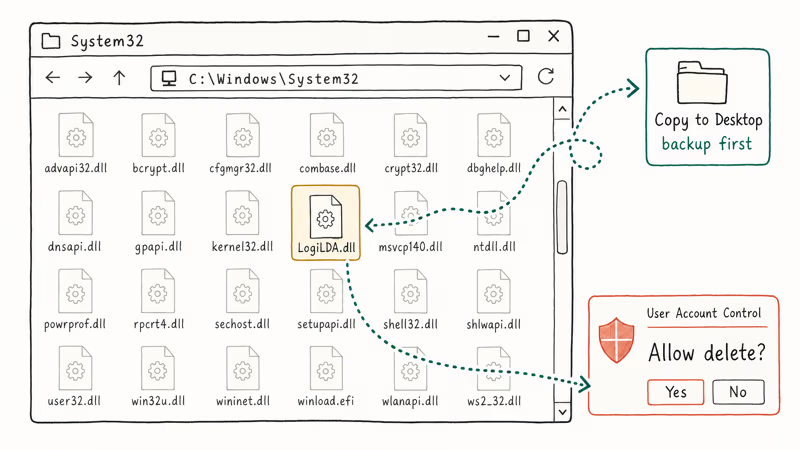
- Press Windows + E to open File Explorer.
- Paste
C:\Windows\System32into the address bar and press Enter. - Find
LogiLDA.dll, right-click it, and choose Copy. Paste a copy somewhere safe (Desktop is fine). - Right-click
LogiLDA.dllin System32 and choose Delete. Approve the User Account Control prompt. - Restart the PC.
Deleting the DLL requires UAC because the file sits in System32. Reboot afterward to confirm the popup helper is gone.
If you ever uninstall and reinstall a Logitech driver bundle, the installer recreates LogiLDA.dll and you’ll need to delete it again. That’s one reason Method 5 (the modern G HUB or Options+ switch) is a more permanent fix.
#Method 4: Remove the LDA Key From the Windows Registry
This is the most thorough method for machines that survive Windows feature updates. Editing the registry is reversible if you back up first, but it can cause boot problems if you delete the wrong key. Microsoft recommends exporting the relevant branch before any change.
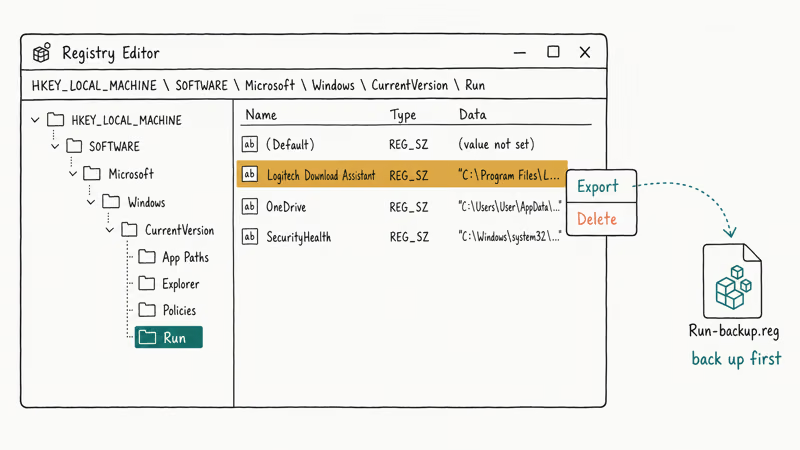
- Press Windows + R, type
regedit, and press Enter. Approve the UAC prompt. - In Registry Editor, paste this path into the address bar and press Enter:
HKEY_LOCAL_MACHINE\SOFTWARE\Microsoft\Windows\CurrentVersion\Run - In the right pane, find the entry named Logitech Download Assistant.
- Right-click the parent
Runkey in the left pane, choose Export, and save the backup asRun-backup.reg. - Right-click the Logitech Download Assistant entry in the right pane and choose Delete. Confirm.
- Close Registry Editor and restart the PC.
Once removed, LDA doesn’t start at sign-in. To restore it, import the Run-backup.reg file from step 4.
If you also want to clean up the older HKEY_CURRENT_USER variant, repeat the same steps under HKEY_CURRENT_USER\Software\Microsoft\Windows\CurrentVersion\Run. Older SetPoint setups sometimes leave a stub there.
#Method 5: Uninstall LDA and Switch to G HUB or Options+
Switching to G HUB or Options+ is the cleanest long-term fix. LDA ships with Logitech’s older driver packages. Logitech recommends G HUB for gaming devices like the G502, G915, and G Pro line, and Options+ for productivity devices like the MX Master, MX Keys, and MX Anywhere.
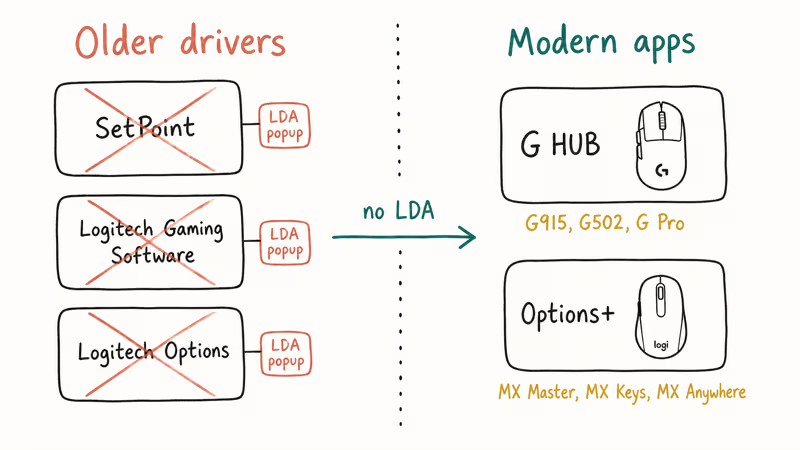
Open Settings>Apps>Installedapps (Windows 11) orSettings>Apps>Apps &features (Windows 10).- Search for Logitech.
- Uninstall any older packages such as Logitech SetPoint, Logitech Gaming Software, or Logitech Options (without the +).
- Reboot.
- Download G HUB from the Logitech G HUB page for gaming gear, or Options+ for productivity gear.
- Run the installer and sign in.
After the switch, neither app installs LDA. G HUB and Options+ handle profiles and pairing through their own services instead of the old LDA helper.
G HUB and Options+ both register their own hotkey listeners and audio profiles independent of LDA, so other Logitech peripherals keep working after the switch:
- Headsets: G HUB handles mic equalizer presets, sidetone level, and surround sound profiles without LDA running. See our G533 mic troubleshooting guide if mic input still drops.
- Speakers: the same applies when Logitech speakers stop responding after a Windows audio driver update.
- Keyboards: hotkey bindings covered in our Logitech keyboard screenshot guide remain active.
If sign-in still drags, see our Windows 10 slow boot guide for the rest of your startup list.
#Bottom Line
Start with Method 1: it solves the LDA popup for most people and is fully reversible. If the popup keeps coming back after Windows updates, follow it with Method 4 to remove the registry entry.
Move to Method 5 (G HUB for gaming peripherals, or Options+ for productivity peripherals) when you have time to install the modern Logitech app and confirm your profiles. Skip Method 3 unless the others fail, since deleting LogiLDA.dll works for one boot but the next Logitech installer recreates the file.
#Frequently Asked Questions
Will disabling Logitech Download Assistant break my mouse or keyboard?
No, LDA only handles update notifications and doesn’t touch the device drivers themselves. The actual mouse, keyboard, headset, and webcam drivers install separately and stay loaded after you disable LDA. Button mappings, macro profiles, lighting effects, and video presets are handled by Logitech’s driver stack or modern apps.
Is Logitech Download Assistant a virus or malware?
LDA isn’t malware. The file is digitally signed by Logitech Inc. and ships through Logitech’s official installer. Some users mistake it for adware because the popup is loud relative to what it does, but Microsoft Defender and most third-party scanners flag it as clean.
Should I install Logitech G HUB or Logi Options+ after disabling LDA?
It depends on what gear you use. Logitech recommends G HUB for the G-series gaming line and Options+ for the MX productivity line. If you have a mix, both apps can run side by side. Either way, both apps are far smaller than the old SetPoint bundle and don’t install LDA.
Will the LDA popup come back after a Windows update?
Sometimes. Major Windows feature updates (such as 22H2 to 23H2 or any in-place upgrade between Windows versions) can silently re-enable startup entries, and reinstalling any older Logitech driver such as SetPoint or Logitech Gaming Software recreates LogiLDA.dll in C:\Windows\System32. Method 4 (registry removal) survives most updates because Windows preserves user Run key edits; Method 5 (switch to G HUB or Options+) survives all of them, since neither installs LDA.
Can I delete LogiLDA.dll without admin rights?
You can’t. C:\Windows\System32 requires administrator rights. Use Method 1 from a standard account, or ask an admin to run Method 3.
How do I check which Logitech driver version I am running right now?
Open G HUB or Options+ and look at the Settings or About screen; both apps list the running driver version, the connected device firmware, and the app version itself. If you only have the legacy Logitech Options (no plus sign), open it and click the gear icon, then About. For SetPoint or Logitech Gaming Software, open the app and look at Help > About.
Is editing the registry to remove LDA reversible?
Yes, if you exported the Run key first as described in Method 4 step 4. Double-clicking the .reg backup re-imports the LDA entry and restores the popup at the next sign-in. If you forgot to back up, you can also reinstall the original Logitech driver bundle to recreate the entry, since the installer re-adds the registry value automatically.

Best Laptop for Running LLMs in 2026: Memory Comes First
The best laptop for running LLMs is a memory purchase first. Compare MacBook unified memory against NVIDIA laptop VRAM, and see what each tier really runs.

How to Run a Local LLM on Windows: A 2026 Setup Guide
Run a local LLM on Windows with LM Studio or Ollama. Pick a model that fits your GPU memory, keep every prompt offline, and skip the monthly bill.

Bluetooth Not Working on Snapdragon X? Fixes for 2026
Bluetooth not working on your Snapdragon X Copilot+ PC? Generic audio, mice, and keyboards work, but vendor apps often lack an ARM build. Fixes inside.

Docker Desktop and WSL2 Not Working on Snapdragon X? Fix It
WSL2 runs fine on Snapdragon X, but Docker Desktop ARM is Early Access and throws WSL errors. Use WSL2 plus native ARM64 Ubuntu and Docker Engine.