Why Is Windows 10 So Slow and Unresponsive? Fixes That Work
Windows 10 running slow and unresponsive? Discover 6 proven fixes including startup optimization, system file repair, and power plan changes to fix it.

Quick AnswerWindows 10 slows down due to too many startup programs, corrupted system files, full hard drives, or hyperactive antivirus software. Disabling unnecessary startup apps, running SFC and DISM, freeing disk space, and adjusting your power plan are the most effective fixes.
Do you wonder why Windows 10 is so slow though it’s expected to be very fast? If so, you’re not alone at all. There are plenty of other Windows users who experience the same issue, just like you.
- Disabling unnecessary startup programs can cut boot times by 30-50%
- Corrupted system files cause random slowdowns, fixable with DISM and SFC
- A hard drive over 95% full will noticeably degrade system performance
- Switching your power plan from Battery Saver to High Performance trades battery life for speed
- Running too many browser tabs and background apps eats RAM and CPU, so close what you don’t need
In this article, we’ll explain why Windows 10 is very slow and unresponsive and practical solutions to fix it.
#Common Reasons Windows 10 Runs Slow
There can be several reasons for the Windows 10 operating system to run very slowly. According to Microsoft’s support documentation, background processes and startup apps are among the top causes of slowdowns. Let’s examine the most common ones.
#Too Many Startup Programs Slowing Down Boot
Do you notice that your PC takes too long to get started or is frozen during boot? If so, that can happen mainly because of too many startup programs.
To fix this issue, you should disable those extra applications that impact the startup.
First, simultaneously hit the ‘Windows’ and ‘X’ keys. This will open up the Quick Link menu. You should click on ‘Task Manager’ from this menu.
Once the task manager is opened, you’ll be able to see several tabs on it. Click on the tab labeled ‘Startup.’
Now, you can look through the list of programs that are placed under startup. Then, you’ll be able to find the programs that you don’t need anymore on the startup menu.
A typical Windows 10 machine that has been in use for a couple of years often has 15 or more startup programs enabled. After finding the programs you don’t need anymore, you should right-click them.
Then, you’ll see a popup menu in which the option ‘Disable’ is placed. You should repeat these steps for all the programs that might affect your computer’s performance.
Also, here, you’ll learn more about how to fix COM Surrogate has stopped working. If disabling a startup app triggers a SmartScreen prompt the next time it launches, our guide on the Windows protected your PC warning explains how to clear it safely.
#How Do Corrupted System Files Cause Slowdowns?
You can see that Windows 10 is slow if you have driver errors, blue screen, black screen, etc. Such issues can create severe impacts on the performance of your PC. Mentioned below are the steps you should take to fix such a situation.
Here’s the fix if Windows 10 is slow and unresponsive due to driver errors or erroneous system files. To do this, you can first try the built-in tools offered by the Windows operating system itself.
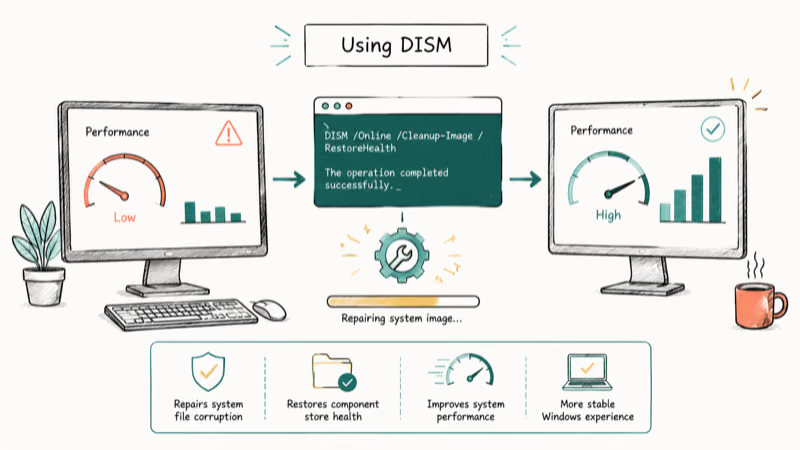
The first tool is the Deployment Image Service and Management Tool, also known as DISM. The second option is the System File Checker (known as SFC). Mentioned below are the steps to follow when using these tools.
#Using DISM
- First, you should type the text ‘PowerShell’ in the Windows search bar. Then, press the enter key on the keyboard. Once prompted, you should right-click on the desktop app and select Run as Administrator.
-
Now, you should see the command-line interface. Enter the text
dism.exe /Online /Cleanup-image /Restorehealthand hit the ‘Enter’ key on the keyboard. -
The DISM tool will start scanning for corrupted files and replace them automatically.
#Using SFC
- First, you should open ‘PowerShell’ from the Windows search bar just like you did in the previous step. Also, make sure that you run it as an administrator.
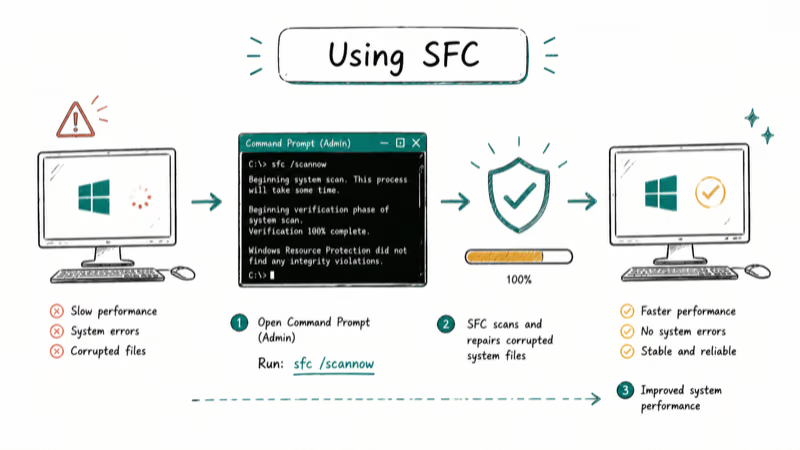
- Now, type the text ‘sfc/scannow’ in the search bar and hit the ‘Enter’ key on the keyboard.
This process will start replacing the corrupted files, and eventually, it’ll repair the PC. When the process is completed, you’ll have to restart the PC. A typical SFC scan finds and repairs corrupted system files in about 10 to 15 minutes. If a repair step stalls with a permissions error, our walkthrough on Folder Access Denied shows how to take ownership so the scan can finish.
If your Windows 10 is very slow and unresponsive due to corrupted files, this should fix it. PCMag’s troubleshooting guide confirms that corrupted system files can drag down boot and runtime performance, so running these repair tools regularly is a smart habit.
By the way, you may want to know how to crack Windows 7 and fix the Page_Fault_In_Nonpaged_Area blue screen of death here.
#Too Many Programs Running at Once
In fact, this can be a no-brainer for many users. As a result of running many programs at once, your computer won’t be able to handle the work.
For instance, if you have a very powerful computer with a high-end configuration, you’ll not notice much disturbance. But, if you have a computer with average performance, you may notice a significant loss in performance.
In a nutshell, getting rid of the running programs will help computers to run faster. So, to make sure, you should check the task manager.
As a result, your computer will perform very slow browsing speed, and applications will take too long to be loaded. Also, the application screen may frequently freeze if your computer suffers from this issue.
Fixing this issue simply by closing down the applications that aren’t required any longer.
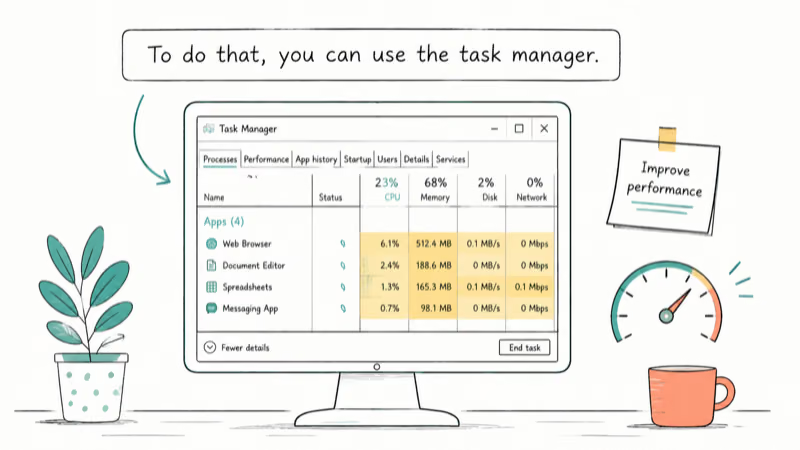
#To do that, you can use the task manager.
- First, you should type in the text ‘task manager’ on the Windows Search bar. Then, you should get it opened.
-
In the second step, you should see that there is a list of programs that run currently. Also, this window shows the amount of memory consumed by the respective programs that are running. As a result, you can easily identify the most impactful programs on the computer. You can even sort the programs out by using memory by clicking on the memory column.
-
Now, right-click on the respective program and choose ‘End Task.’
-
Apart from that, you should close all the extra tabs on the browser and quit background applications. This process will enable you to free up the RAM and allow your PC to perform smoothly. Also it will reduce CPU bandwidth as well.
#Hyperactive Antivirus Programs
Many who wonder why windows 10 is so slow may have hyperactive antivirus programs.
Although it’s a good approach to have an antivirus program, it can be troublesome at some times. When your antivirus program is extremely active, it will create an impact on your PC’s performance.
To fix it, you’ll have to change the settings of your antivirus program. The process can slightly differ depending on the type of antivirus program used.
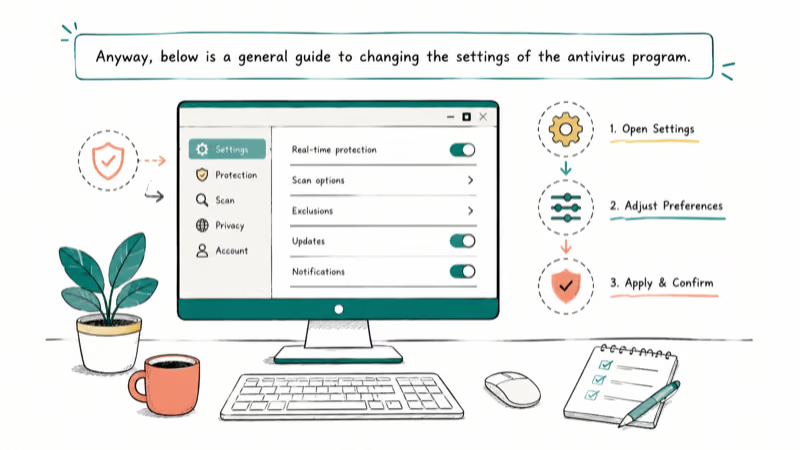
#Anyway, below is a general guide to changing the settings of the antivirus program.
- Launch your antivirus program (either through the taskbar or the start menu of your PC).
-
Then, go to the ‘Settings’ option and click on ‘Scan Schedule.’ After that, you should choose a scan process that doesn’t impact your PC.
-
You can change the time as well as the data of the scan and reschedule it. Also, you can change the frequency of scanning.
#Hard Drive Running Out of Space
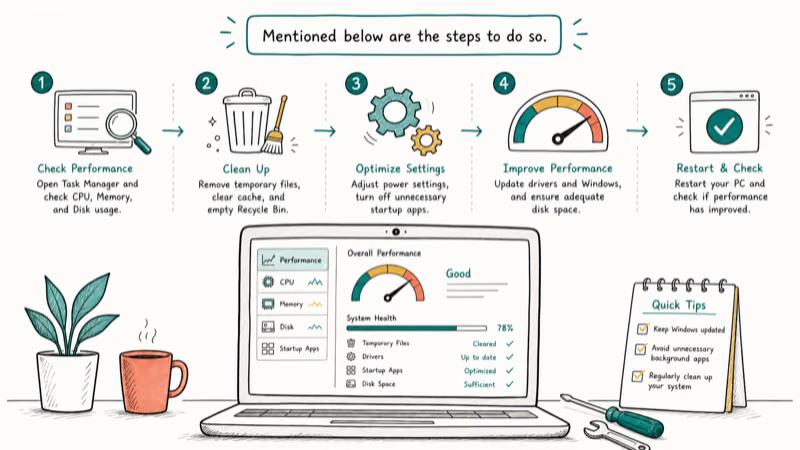
Do you notice that your PC is running incredibly slow (probably at half of its normal speed)? If so, you must check your computer’s hard drive and see if it has enough space.
If your hard drive is almost full, your computer will surely become slower. Microsoft’s guide on freeing up space for updates states that feature updates alone can require 16 to 20 GB of free space, and Windows needs that headroom to manage virtual memory and temporary files efficiently. Freeing up storage is one of the most reliable speed fixes.
When there is not enough space for temporary files, you’ll see a significant performance drop. To fix this issue, you’ll have to clean up your hard disk without waiting.
In most cases, you can free up a considerable amount of space by deleting unnecessary files.
#Mentioned below are the steps to do so.
- As the first step, open Windows Explorer.
-
Then, you should browse for folders that might be filled with various types of data. In this case, folders like ‘Temporary Files,’ ‘Apps & Games,’ etc.
-
Open up those folders and then delete the subfolders and files that have larger files.
#Power Plan Settings Affecting Performance
Do you experience an impressive battery life from your laptop, but it doesn’t work as expected? If so, it can be related to the battery plan of your laptop, and it can be fixable.
To fix it, you should simply change the settings of the battery plan. If the battery plan is set to ‘Battery Saver’ or ‘Recommended,’ you may have to change it. Here’s how to do it.
-
In your Windows 10 search bar, type the text Power Options. Then, go to ‘Edit Power Plan’ in the Control Panel.
-
Click on the option called ‘Change Advanced Power Settings.’
-
Choose the option called ‘High Performance’ and hit OK.
-
Now, this option will boost PC performance. However, you’ll experience a notably low battery life as a result.
By the way, if you need to fix the error of the Kmode_Exception_Not_Handled, click to read more.
#What Other Solutions Can You Try if Windows 10 Is Slow?
Here are some other solutions to try.
#Use Windows Troubleshooter
- Go to ‘Control Panel,’ ‘System and Security’ and select the ‘Security and Maintenance’ option.
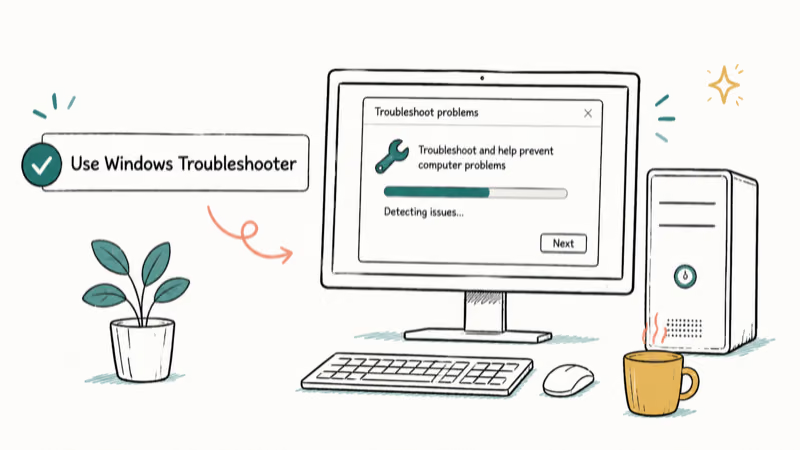
- Click on ‘Start Maintenance’ located under ‘Maintenance.‘
#Use Performance Monitor
- Go to Windows Search Box and type ‘perfmon/report.’
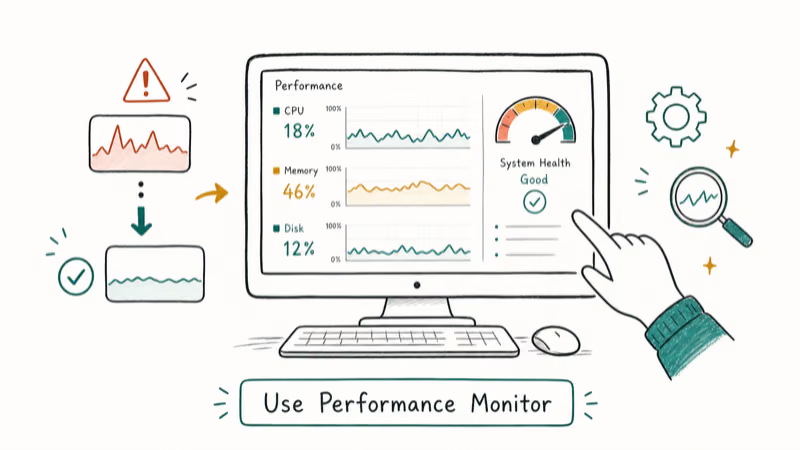
- Hit ‘Enter.’
This will give you a complete report mentioning the issues that affect your PC’s performance.
If the built-in cleanup and startup checks still leave unwanted programs behind, IObit Uninstaller can remove a selected app and check for leftovers; review the list instead of running a blanket cleanup.
Some links on this page are affiliate links, which means fone.tips may earn a commission at no extra cost to you.
#Frequently Asked Questions
How can I check if my Windows 10 system is infected with malware?
To check for malware infections, use a reliable antivirus program and perform a full system scan. Windows Defender, which comes built into Windows 10, can detect and remove most threats without installing extra software.
Can upgrading my RAM improve the performance of Windows 10?
Yes, upgrading your RAM can provide a noticeable improvement in system performance. If you’re currently running 4GB, bumping up to 8GB or 16GB makes a real difference for multitasking and memory-intensive apps.
How often should I run disk defragmentation on Windows 10?
It’s recommended to run disk defragmentation once every few months on traditional hard drives. SSDs don’t need defragmentation because they use a different storage method.
What should I do if Windows 10 is still slow after trying these fixes?
If the issue persists, consider performing a clean installation of Windows 10 or seeking professional help. You can also try resetting your PC through Settings > Update & Security > Recovery, which reinstalls Windows while giving you the option to keep your files.
Why is it important to keep Windows 10 up to date?
Keeping your system up to date ensures you have the latest security patches, bug fixes, and performance improvements. Microsoft regularly releases cumulative updates that address known slowdown issues.
Does disabling visual effects help speed up Windows 10?
Turning off animations and transparency effects can help on older or lower-spec hardware. Go to System Properties > Advanced > Performance Settings and select “Adjust for best performance” to disable all visual effects at once.
#Bottom Line
A slow Windows 10 system usually comes down to a few fixable causes: too many startup programs, corrupted system files, a full hard drive, or a conservative power plan. Start with the startup programs fix since it takes under a minute and often delivers the biggest improvement. If that doesn’t help, run the DISM and SFC tools to repair any corrupted files, and make sure your hard drive has at least 10-15% free space.

Best Laptop for Running LLMs in 2026: Memory Comes First
The best laptop for running LLMs is a memory purchase first. Compare MacBook unified memory against NVIDIA laptop VRAM, and see what each tier really runs.

How to Run a Local LLM on Windows: A 2026 Setup Guide
Run a local LLM on Windows with LM Studio or Ollama. Pick a model that fits your GPU memory, keep every prompt offline, and skip the monthly bill.

Bluetooth Not Working on Snapdragon X? Fixes for 2026
Bluetooth not working on your Snapdragon X Copilot+ PC? Generic audio, mice, and keyboards work, but vendor apps often lack an ARM build. Fixes inside.

Docker Desktop and WSL2 Not Working on Snapdragon X? Fix It
WSL2 runs fine on Snapdragon X, but Docker Desktop ARM is Early Access and throws WSL errors. Use WSL2 plus native ARM64 Ubuntu and Docker Engine.