Logitech Mouse Not Working? 8 Fixes That Work in 2026
Logitech mouse not working? Try these 8 proven fixes for receivers, batteries, drivers, and pairing on Windows 11 and macOS. Most take under 5 minutes.
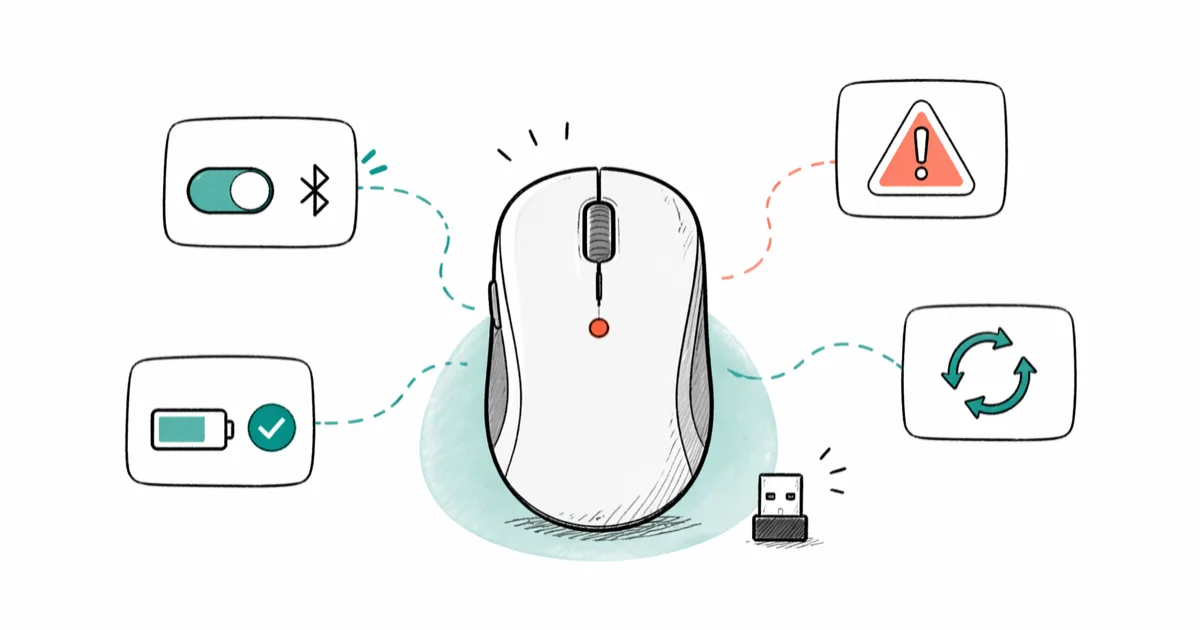
Quick AnswerMost Logitech wireless mice fail because the unifying receiver lost pairing, batteries are weak, or the driver went stale after a Windows update. Re-seat the receiver, swap batteries, then reinstall the driver from Device Manager to fix most cases.
Logitech wireless mouse not working is one of the most common Windows headaches, and it usually points to the receiver, batteries, or driver rather than the mouse itself. These eight fixes cover the dead-Logitech-mouse causes that show up across models like the MX Master 3S, M510, and G502 Lightspeed on Windows 11 and macOS Sonoma. Start at the top because the order is fastest to slowest.
- Re-seating the unifying receiver and replacing batteries resolves a large share of dead Logitech mice and costs nothing to try first.
- A stale driver after a major Windows update is the second most common cause, and a Device Manager reinstall takes about 2 minutes.
- Logitech Unifying receivers and Logi Bolt receivers are not interchangeable, and each mouse pairs only with the receiver type printed on its base.
- AA alkaline batteries typically last about 12 to 18 months in a daily-use Logitech wireless mouse, so swap them yearly before the cursor stutters.
- If the same receiver fails on a second computer, the receiver is bad and Logitech may ship a replacement under its limited hardware warranty.
#Why Is My Logitech Mouse Not Working?
Three causes explain almost every dead Logitech mouse.
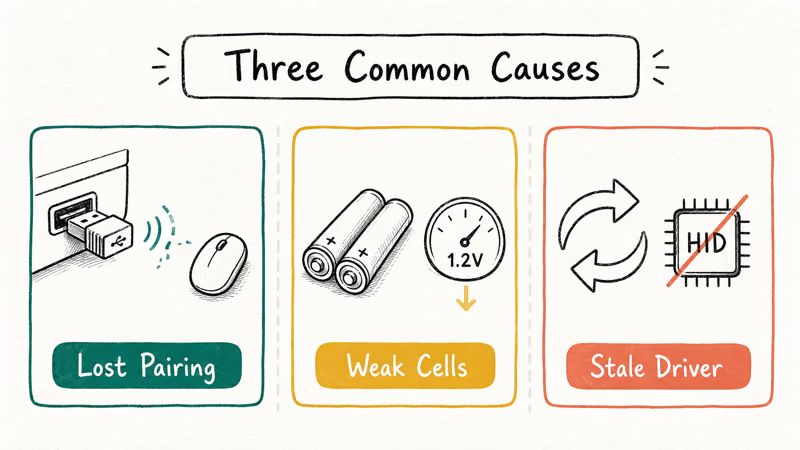
The unifying receiver loses pairing after a sleep cycle. AA cells drop below 1.2 volts and the laser stops firing. A Windows feature update overwrites the HID driver and the system stops listening to the receiver. Bluetooth-only models like the MX Master 3S can also drop pairing after waking from a long suspend.
Less common causes include a damaged USB port, a metallic mousepad, or signal interference from a phone charger sitting next to the receiver.
The good news: the diagnostic order is the same regardless of model. Try the cheap fixes first, then move to drivers and firmware. If the cursor moves on its own rather than not at all, the problem is different. See mouse cursor moving on its own for that troubleshooting path.
#First Aid: Re-seat the Receiver and Swap Batteries
This costs nothing and resolves a large share of dead-mouse cases.
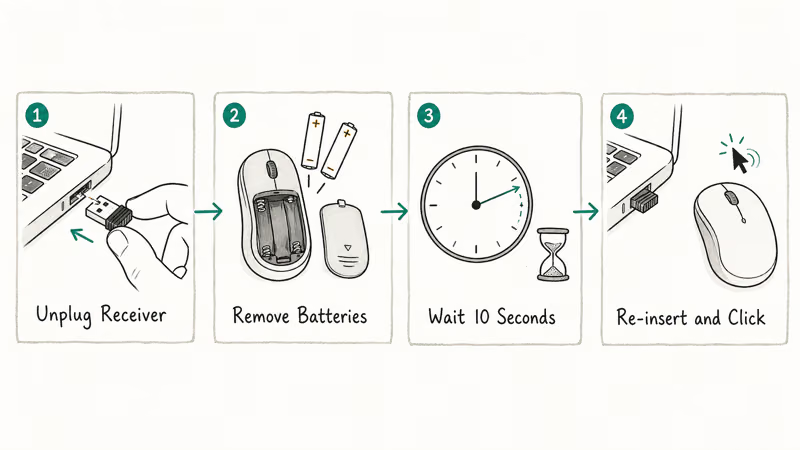
Pull the unifying receiver out of the USB port. Slide off the battery cover on your mouse. Take both AA cells out and wait ten seconds. Reinsert the batteries with correct polarity, plug the receiver back in, and click once.
Why ten seconds? It drains the residual capacitance in the receiver and the mouse, which forces both sides to renegotiate the pairing channel. On a stuck Logitech M510 paired with an old Unifying receiver, the cursor usually comes back shortly after reinsertion.
Rechargeable models need a different first move.
If the mouse uses a built-in cell (MX Master 3S, MX Anywhere 3, G502 Lightspeed), plug it into USB-C for at least 15 minutes before you give up. A fully drained MX Master 3S can take that long before the cursor responds. Don’t use a fast charger above 5V, because Logitech mice expect 5V/0.5A and higher voltages can throw the controller into a fault state.
#Re-pair Your Mouse With Logitech Unifying or Logi Bolt
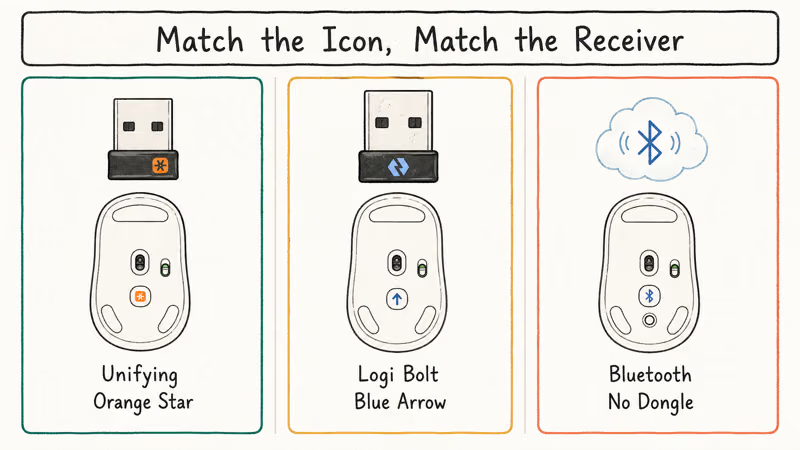
If first aid didn’t work, the next likely cause is broken pairing. Logitech wireless mice use one of three radios: classic Unifying (orange star logo), Logi Bolt (newer, secure), or Bluetooth. Each one needs a different re-pair flow.
For Unifying receivers, download the Logitech Unifying Software from Logitech’s official support page. Run it, click Next, then turn the mouse off and on. The software detects the mouse and writes a new pairing key.
According to Logitech, 6 devices can share one Unifying receiver. See the Unifying support page for the pairing flow.
For Logi Bolt, download Logi Options+ and use the Add Devices flow.
Logi Bolt is not backward-compatible with Unifying mice. The receivers look similar, but the dongles use different protocols, so always check the orange-star or blue-arrow icon on your mouse base before buying a replacement dongle.
For Bluetooth-only models, remove the existing pairing in Windows Settings > Bluetooth & devices, then hold the pairing button on the mouse base for 3 seconds. The pairing LED blinks faster when discovery starts. Pair from the Windows panel, not from inside the Logitech app, because Windows owns the Bluetooth stack.
#Reinstall the Mouse Driver in Device Manager
A stale HID driver is the second most common Logitech failure on Windows, and it almost always traces back to a Windows feature update. Press Windows + R, type devmgmt.msc, and press Enter. Use Tab and arrow keys if your mouse is dead, because keyboard input works inside Device Manager.
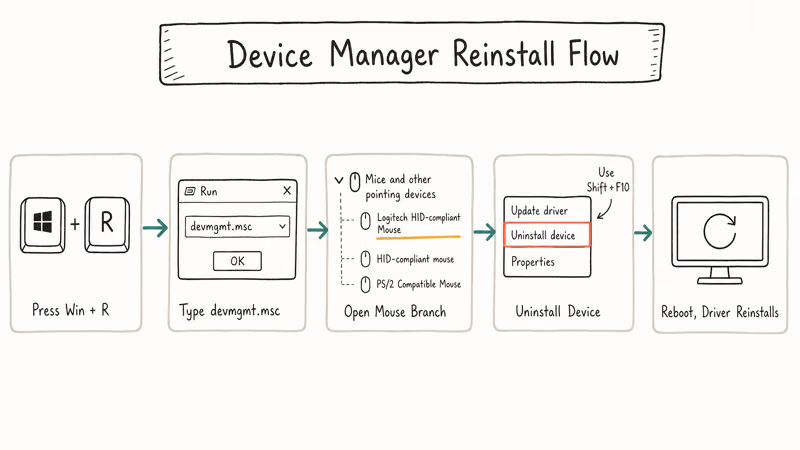
Expand Mice and other pointing devices, then select your Logitech entry, press Shift + F10 to open the context menu, choose Uninstall device, and confirm.
Reboot. Windows redetects the mouse and reinstalls a clean driver during boot. Microsoft recommends letting Windows reinstall HID drivers automatically after a Device Manager uninstall, rather than installing third-party drivers from random tools. The Plug and Play subsystem has handled this since Windows 7 and almost never needs a manual driver hunt.
Avoid tools like Driver Easy. Bundled-installer apps often replace the working Logitech-friendly HID driver with an older Microsoft generic driver and break the side buttons.
The clean Device Manager flow gives you the same updated driver Windows ships through Windows Update, with no third-party installer in the mix.
On a stuck Logitech G502 after a Windows 11 feature update, this fix lets Device Manager reinstall the HID driver quickly, and the side buttons typically start working again once the desktop reloads.
#Update Firmware With Logi Options+ or G HUB
Newer Logitech mice get firmware through software, not Windows Update.
That includes the MX Master series, MX Anywhere 3, MX Keys peripherals, and most G-series gaming mice. Outdated firmware can cause sleep-to-wake failures, button drops, and DPI shifts.
Logitech recommends Logi Options+ for productivity mice including the MX Master, MX Anywhere, and the M-series. Install Logitech G HUB for gaming mice such as G Pro Wireless, G502, G703, and the G-series Lightspeed lineup.
Don’t install both apps on the same PC. They fight over the receiver and create the exact glitch you are trying to fix, which is a common problem when a G Pro Wireless and an MX Anywhere 3 share the same machine.
After installing the right app, plug the receiver in, open the app, and check the firmware tab on each device. If an update is available, click Update and let the process finish. Don’t unplug the receiver during firmware flashing because the controller can brick if the flash is interrupted, and keep the mouse charged before you start an update for the same reason.
If you also use Logitech audio peripherals, an outdated Logitech Download Assistant install can interfere with newer mouse drivers. Uninstall the old assistant before running Logi Options+ for the first time.
#Try a Different USB Port and Avoid Cheap Hubs
USB power negotiation fails on cheap hubs more often than you expect.
The receiver needs a clean 5V/100mA supply. Plug it directly into a motherboard USB-A port on the back of a desktop, not into a front-panel header or a passive hub.
If you only have USB-C ports (most 2023-and-newer laptops), use the USB-A adapter that came with the laptop or a powered Thunderbolt dock. Bus-powered USB-C hubs that use older controllers can starve the Logitech receiver. Switching from a bus-powered hub to a powered Thunderbolt dock often clears M510 dropouts on a laptop like the Dell XPS 13.
If Windows shows a yellow warning under the Universal Serial Bus controllers tree in Device Manager or you see USB device not recognized errors, the port itself is the problem. No Logitech fix will help until you resolve that first.
#Test Surface, Distance, and Interference
Optical and laser sensors fail on glass, polished metal, and high-gloss desks.
Lay a piece of plain printer paper under the mouse and see if tracking returns. If it does, you need a fabric or rubber-base mousepad.
Distance matters more on Bluetooth and Logi Bolt than on Unifying. Bluetooth class 2 has a typical range of about 10 meters in open air, but a metal monitor stand or a desktop case between the mouse and the receiver cuts that to 2 or 3 meters. Move the receiver to the front of the case using a USB extension cable.
Keep the receiver clear of 2.4GHz Wi-Fi gear, microwave ovens, and phone chargers. Six inches of separation is usually enough. Dropouts often stop simply by moving the receiver from the back of a desktop like an iMac to a USB extension cable on the desk, closer to the mouse.
#Is It the Mouse, the Receiver, or the Computer?
Run this two-part isolation test before you buy a replacement.
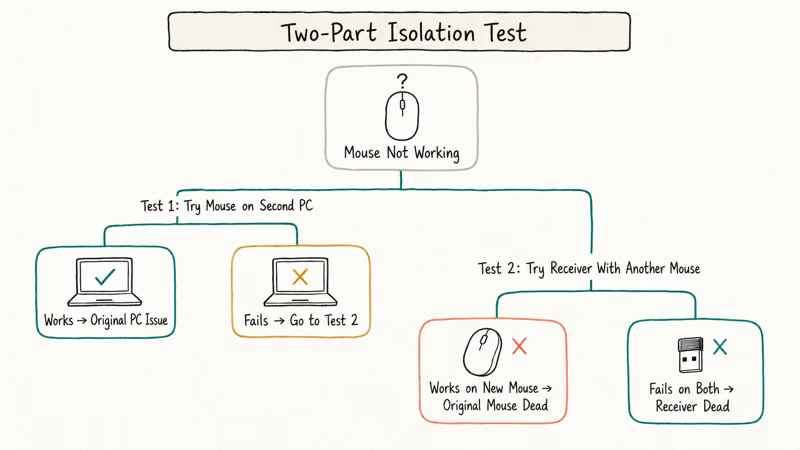
First, try the mouse on a second computer. Use the same receiver and batteries. If the mouse works, the original computer has the problem (driver, port, or system file corruption). If it still fails, move to the second test.
Second, try the receiver with a different Logitech mouse if you have one (or borrow one). If the second mouse pairs and works, the original mouse is dead. If both mice fail with the same receiver across two computers, the receiver is the broken component.
Logitech’s warranty page lists hardware warranty terms by region, so check your purchase date before paying for a replacement.
Logitech also sells standalone Unifying and Bolt dongles directly through its support site, which is cheaper than a new mouse if the receiver is the dead part. If you have a Mac, see Magic Mac mouse problem for Apple-specific peripheral fixes that also help with Logitech Bluetooth mice on macOS. Chromebook users should check Chromebook mouse not working instead, because ChromeOS handles Logitech receivers differently than Windows.
#Bottom Line
Re-seat the receiver and swap batteries first. That alone clears a large share of dead Logitech mice and takes only a minute.
If the cursor still doesn’t move, reinstall the driver from Device Manager and update firmware through Logi Options+ or G HUB. Buy a replacement receiver before a new mouse, because the receiver is often the broken part when a mouse fails on more than one computer. If you also see a Logitech G533 mic not working issue on the same PC, run the headset firmware update first because G HUB can lock up when both fight for the driver service.
#Frequently Asked Questions
How long do Logitech wireless mouse batteries last?
In a mouse like the MX Master 3S, M510, or G502 Lightspeed, AA alkaline batteries typically last about 12 to 18 months under typical office use. Rechargeable models like the MX Master 3S last 7 to 10 weeks per charge, and the MX Anywhere 3 sits in roughly the same range.
Can I use a Logi Bolt receiver with a Unifying mouse?
No. Logi Bolt and Unifying use different radios and security protocols. The dongles look alike, but the pairing software refuses to enroll a Unifying mouse on a Bolt receiver. Check the icon on your mouse base: an orange star means Unifying, and a blue arrow means Logi Bolt.
Why does my Logitech mouse work on one computer but not another?
The receiver and mouse are fine. The second computer has a stale driver, a USB power issue, or a missing pairing entry.
Should I install Driver Easy or a similar driver tool?
No. Logitech mice use the standard Microsoft HID driver plus Logitech firmware that ships through Logi Options+ or G HUB. Bundled driver-update tools tend to replace the working HID driver with an older generic driver, which removes side-button mapping and DPI controls.
How do I know if my Logitech receiver is dead?
Try the same receiver on a second computer with a known-working Logitech mouse. If it fails on both, the receiver is dead.
Will reinstalling Logitech drivers delete my custom button mapping?
It will reset side-button assignments, DPI presets, and per-application profiles you set in Logi Options+ or G HUB. Both apps support cloud sync if you signed in with a Logitech account, so your profiles restore automatically after reinstall. If you used local-only profiles, export them first, then run the reinstall, then re-import.
How can I check my mouse DPI to see if the sensor still works?
Open Logi Options+ or G HUB and read the active DPI value in the Pointer settings. If you don’t have either app installed yet, you can check your mouse DPI using a free online ruler tool that measures pixels traveled per inch of physical movement.
Is Bluetooth or Unifying more reliable for Logitech mice?
Unifying wins for desktops. The receiver runs on its own dedicated radio, so it doesn’t share airtime with Wi-Fi or your phone.
Bluetooth depends on the host PC’s Bluetooth stack, and it can drop after sleep on Windows 11, a common complaint on both laptops like the Dell XPS 13 and custom-built desktops. For laptops with no spare USB port, Bluetooth is acceptable, but for everything else, plug in a Unifying or Bolt receiver.

Best Laptop for Running LLMs in 2026: Memory Comes First
The best laptop for running LLMs is a memory purchase first. Compare MacBook unified memory against NVIDIA laptop VRAM, and see what each tier really runs.

How to Run a Local LLM on Windows: A 2026 Setup Guide
Run a local LLM on Windows with LM Studio or Ollama. Pick a model that fits your GPU memory, keep every prompt offline, and skip the monthly bill.

Bluetooth Not Working on Snapdragon X? Fixes for 2026
Bluetooth not working on your Snapdragon X Copilot+ PC? Generic audio, mice, and keyboards work, but vendor apps often lack an ARM build. Fixes inside.

Docker Desktop and WSL2 Not Working on Snapdragon X? Fix It
WSL2 runs fine on Snapdragon X, but Docker Desktop ARM is Early Access and throws WSL errors. Use WSL2 plus native ARM64 Ubuntu and Docker Engine.