USB Device Not Recognized on Windows: 8 Proven Fixes
Fix the USB device not recognized error on Windows 10 and 11 with 8 proven methods. Covers driver reinstalls, power settings, and port checks.
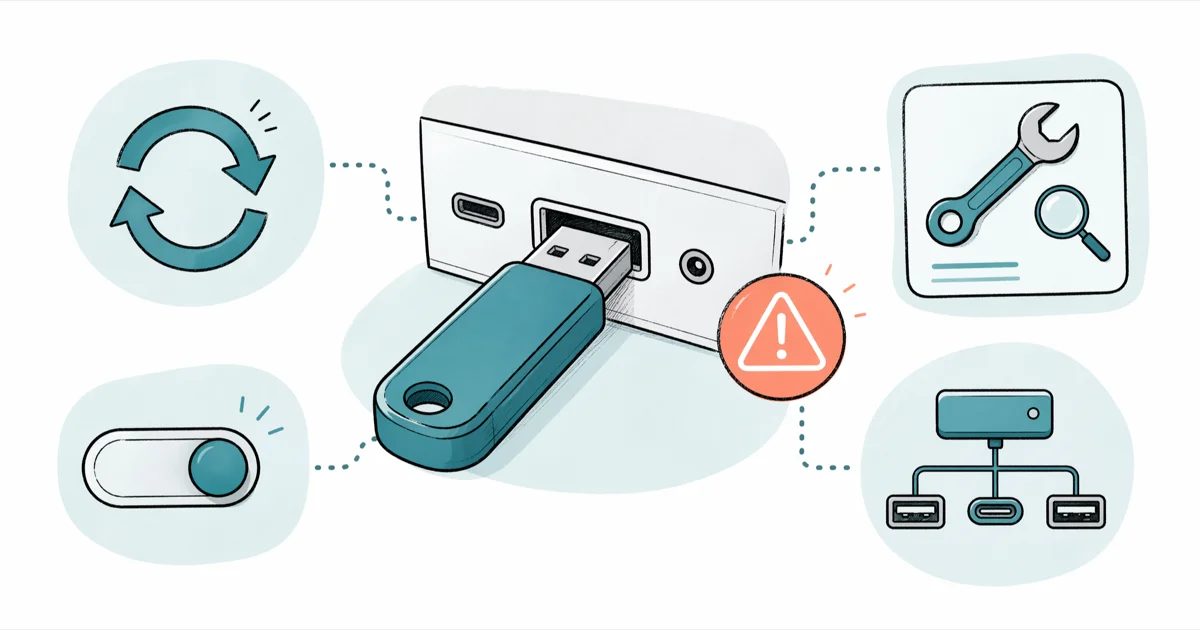
Quick AnswerUnplug the USB device, restart your computer, and plug it back into a different USB port. If that does not work, open Device Manager, expand Universal Serial Bus controllers, right-click each USB Root Hub, select Uninstall device, then restart your PC to let Windows reinstall the drivers automatically.
The “USB device not recognized” error pops up the moment Windows can’t communicate with whatever you just plugged in. This guide covers eight fixes that work on Windows 11 24H2 and Windows 10 22H2. Restarting and switching USB ports solves the problem most of the time.
- Restart and switch ports first. This fixes the majority of cases
- Reinstall USB drivers via Device Manager in under 3 minutes
- Disable USB Selective Suspend on laptops to stop intermittent disconnects
- Windows 11 24H2 had USB bugs patched in KB5066835 (October 2025)
- Bad cables or worn ports are a common cause of persistent USB errors
#Why Does the USB Device Not Recognized Error Happen?
Windows throws this error when it can’t identify a connected USB device. The causes fall into three categories: software (corrupted or outdated drivers), power (insufficient power delivery to the port), and hardware (bad cables, damaged ports, or a failing device).
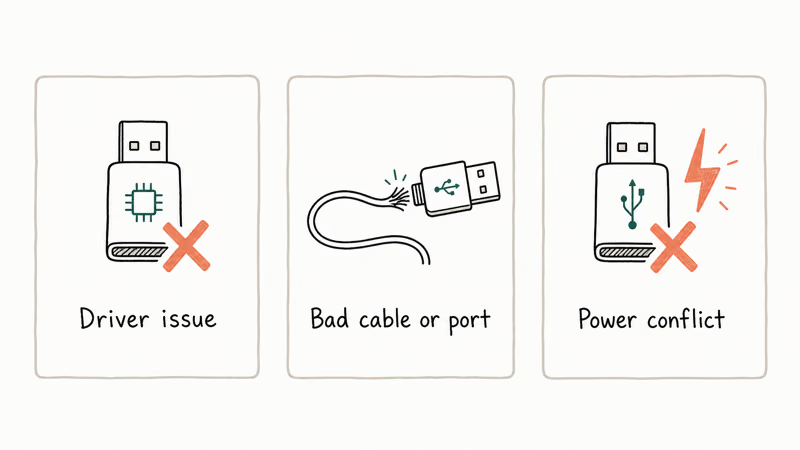
According to Microsoft’s official troubleshooting documentation, the error occurs when the currently loaded USB driver has become unstable or corrupt. This scenario is common after a Windows Update.
You’ll see a notification balloon saying “The last USB device you connected to this computer malfunctioned.” The device won’t appear in File Explorer.
#1. Restart Your Computer and Switch USB Ports
Pull out the USB device and shut down completely. Don’t use Sleep. Wait 10 seconds, then power back on.
Once Windows loads, plug the USB device into a different port. If you were using a front panel port, try one on the back of the desktop instead. Back panel ports connect directly to the motherboard and deliver more stable power.
A restart and port swap often recognizes a previously failing drive immediately. This is the fix that works for most people.
If you have a USB hub between your device and the computer, remove it. Plug directly into the PC. Hubs can cause recognition failures when they don’t supply enough power, especially with external hard drives. This same port-switching logic applies if your HDMI port isn’t working on a monitor connection.
#2. Reinstall USB Controllers in Device Manager
Open Device Manager by pressing Windows + X and selecting Device Manager.
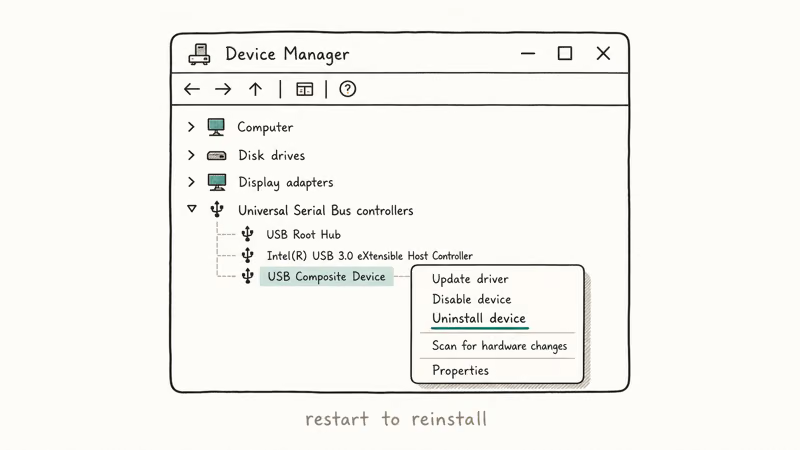
Scroll down to Universal Serial Bus controllers and expand it. You’ll see USB Root Hub, USB Composite Device, and your specific host controllers listed there.
-
Right-click on USB Root Hub and select Uninstall device
-
Repeat for every USB Root Hub entry in the list
-
Restart your computer
Windows will automatically detect the hardware changes and reinstall fresh USB drivers on boot. Microsoft’s driver update guide confirms that this process resets the driver stack without affecting other system components.
This usually takes about 2 minutes. After the restart, the USB ports should recognize devices without errors.
#3. Update or Roll Back USB Drivers
Sometimes the installed driver is just outdated. Other times a recent update broke things.
To update the driver:
-
Open Device Manager
-
Find your USB device under Universal Serial Bus controllers (it might show with a yellow exclamation mark)
-
Right-click it and select Update driver
-
Choose Search automatically for drivers
To roll back a recent driver update:
-
Right-click the problematic USB device in Device Manager
-
Select Properties > Driver tab
-
Click Roll Back Driver (grayed out if no previous version exists)
On Windows 10, rolling back the USB controller driver can fix recognition issues that started after a cumulative update. The whole process takes about 90 seconds. Driver conflicts can cause similar problems with other peripherals too, like the Beats audio driver not working after system updates.
#How Do I Fix USB Selective Suspend Issues?
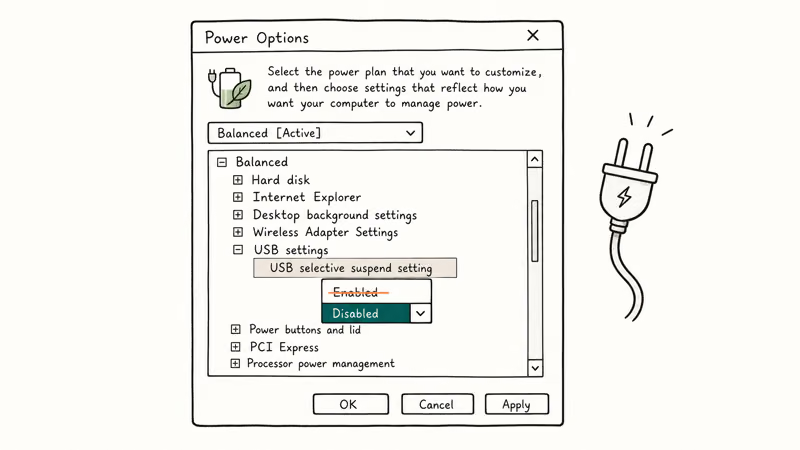
USB Selective Suspend is a Windows power management feature that cuts power to individual USB ports to save battery. On laptops, this is the hidden culprit behind many “device not recognized” errors.
-
Press Windows + R, type
powercfg.cpl, and press Enter -
Click Change plan settings next to your active power plan
-
Click Change advanced power settings
-
Expand USB settings > USB selective suspend setting
-
Set both On battery and Plugged in to Disabled
-
Click Apply and OK
Disabling this on a laptop often stops intermittent USB disconnections completely. As How-To Geek’s USB troubleshooting guide points out, Selective Suspend is enabled by default on most laptops and causes problems with devices that need constant power.
Also disable the power-saving option on individual USB Root Hubs:
-
Open Device Manager
-
Right-click each USB Root Hub > Properties
-
Go to the Power Management tab
-
Uncheck Allow the computer to turn off this device to save power
#5. Run the Hardware and Devices Troubleshooter
Windows has a built-in troubleshooter that scans for USB problems automatically.
-
Press Windows + R
-
Type
msdt.exe -id DeviceDiagnosticand press Enter -
Click Next and let the troubleshooter scan
The troubleshooter checks for driver issues, power configuration problems, and hardware conflicts. It fixes the issue on its own in a minority of cases. Not the most reliable method, but it takes less than a minute to run.
If the troubleshooter finds a problem but can’t fix it, note the error description. You’ll often see “USB device descriptor request failed” which points to a driver or power issue you can fix with Methods 2-4 above.
#6. Check Your Cable, Port, and Device Hardware
Yes. Physical damage is responsible for a significant portion of persistent USB errors that software fixes can’t touch.
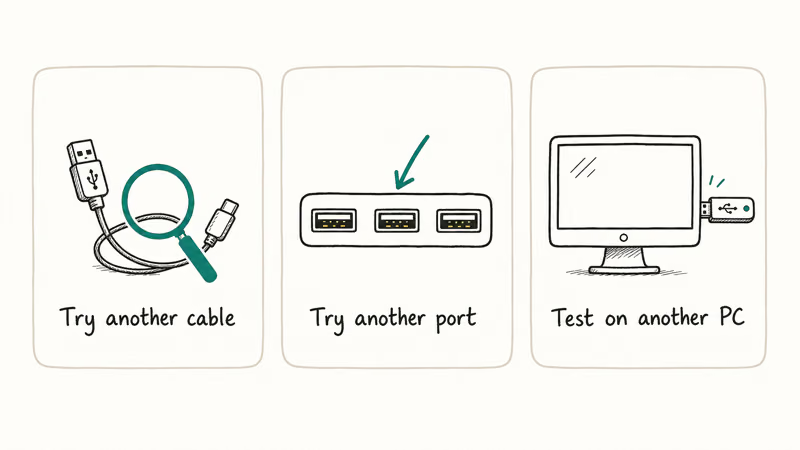
Check the cable first. Look for frayed ends, bent connectors, or loose connections. Try a different USB cable with the same device.
Check the port. Shine a flashlight into the port and look for lint, dust, or bent pins. Use compressed air to clean out debris. If you’re dealing with a Bluetooth peripheral device driver error or similar hardware issues, the port itself might need professional inspection. USB-C cables are especially prone to connection issues when the connector is worn, so test with a known-good cable before blaming the port.
Check the device on another machine. Plug the USB device into another computer entirely. If it works there, the problem is your PC’s ports or drivers. If it fails on multiple computers, the device itself is likely damaged.
A bent pin inside a front USB-A port is a common culprit. After straightening it carefully with a thin plastic pick, the port often works fine again.
#7. Check Disk Management for Unassigned Drive Letters
Your USB drive might actually be recognized by Windows but not show up in File Explorer because it wasn’t assigned a drive letter.
-
Press Windows + R, type
diskmgmt.msc, and press Enter -
Look for your USB drive in the list of disks at the bottom
-
If it shows up with no drive letter, right-click the partition
-
Select Change Drive Letter and Paths
-
Click Add, assign a letter, and click OK
According to PCWorld’s USB troubleshooting article, this issue is common after Windows updates that reset drive letter assignments. A flash drive that worked the day before can suddenly stop appearing for this reason.
If the drive shows up in Disk Management as “Unallocated” or “RAW,” the file system is corrupted. Run chkdsk X: /f (replace X with the drive letter) in an elevated Command Prompt before considering a format. If the drive holds important files you can’t access, you’ll want a data recovery tool for external hard drives before attempting repairs.
#8. Reset USB Power by Removing the Power Supply
This method clears residual electrical charge from the motherboard’s USB controllers. It works on desktops and is worth trying when nothing else has.
For desktops:
-
Shut down the computer completely
-
Unplug the power cable from the back of the PC
-
Press and hold the power button for 15 seconds to drain the capacitors, then wait another 30 seconds before reconnecting anything
-
Plug the power cable back in and turn on the PC
For laptops with removable batteries:
-
Shut down the laptop
-
Remove the battery
-
Hold the power button for 15 seconds
-
Reinsert the battery and power on
This is an old-school fix, but it can clear a stubborn USB recognition error when driver reinstalls don’t help. The whole process takes about 2 minutes.
If your Seagate external hard drive isn’t showing up after all eight methods, the drive’s USB-to-SATA bridge board might be failing.
#Bottom Line
Start with Method 1. A restart and port swap fixes this for most people. If that doesn’t work, reinstall your USB controllers through Device Manager (Method 2). For laptop users getting intermittent disconnections, disable USB Selective Suspend (Method 4).
If none of these work after going through all eight, your USB device or port has a hardware problem. Try the device on another computer to confirm, and don’t format a drive with important data until you’ve exhausted all recovery options first. If the drive is recognized but copies stall mid-transfer, our can’t read from the source file or disk guide covers the bad-sector and long-path causes.
#Frequently Asked Questions
Why does my USB keep disconnecting and reconnecting?
USB Selective Suspend is the most common cause. Disable it in your power plan’s advanced settings under USB settings. If that doesn’t stop the disconnect cycle, try a different cable and port since worn USB-C connectors are another frequent culprit. Disabling Selective Suspend alone often fixes intermittent disconnections that have been happening for weeks.
Does the USB device not recognized error mean my drive is broken?
No, not usually. It’s a driver or power issue far more often than a broken device. Plug the device into another computer to confirm.
Can I fix USB device not recognized without restarting?
Yes. Open Device Manager, uninstall USB Root Hub drivers, then click Action > Scan for hardware changes. Windows will reinstall drivers without rebooting. This works roughly half the time.
Is USB device not recognized different on Windows 10 vs Windows 11?
The core troubleshooting steps are identical on both. One exception: Windows 11 24H2 introduced a USB-specific bug that Microsoft patched in October 2025 with update KB5066835. That patch broke USB keyboards and mice in the Windows Recovery Environment. If you’re on Windows 11 and the error started after a system update, check whether KB5066835 is installed through Settings > Windows Update > Update history.
Will formatting my USB drive fix the not recognized error?
Only if the drive appears in Disk Management with a corrupted file system. If Windows can’t detect the drive at all, there’s nothing to format. Fix the recognition problem first using Methods 1-4, then handle file system repair with chkdsk if needed.
How do I check if my USB port is getting enough power?
Open Device Manager, expand Universal Serial Bus controllers, and double-click any USB Root Hub. The Power tab shows current draw versus available power. USB 2.0 ports supply 500mA while USB 3.0 ports supply 900mA. If a power-hungry device like an external hard drive draws more than the port provides, you’ll get recognition errors until you switch to a powered USB hub or a port with higher output.
Can a Windows update cause USB device not recognized?
Yes, and it happens more often than you’d expect. Cumulative updates sometimes reset driver configurations or introduce compatibility bugs. If USB problems started right after an update, roll back the driver through Device Manager (Method 3) or uninstall the specific update entirely.
Should I use a third-party driver updater tool?
We don’t recommend them for USB problems. Windows’ built-in driver database through Windows Update covers virtually all USB chipsets, and Device Manager’s update feature works well for this specific issue. Third-party updaters add risk of installing wrong drivers. If you need a chipset-specific driver, download it directly from your motherboard manufacturer’s support page instead.

Best Laptop for Running LLMs in 2026: Memory Comes First
The best laptop for running LLMs is a memory purchase first. Compare MacBook unified memory against NVIDIA laptop VRAM, and see what each tier really runs.

How to Run a Local LLM on Windows: A 2026 Setup Guide
Run a local LLM on Windows with LM Studio or Ollama. Pick a model that fits your GPU memory, keep every prompt offline, and skip the monthly bill.

Bluetooth Not Working on Snapdragon X? Fixes for 2026
Bluetooth not working on your Snapdragon X Copilot+ PC? Generic audio, mice, and keyboards work, but vendor apps often lack an ARM build. Fixes inside.

Docker Desktop and WSL2 Not Working on Snapdragon X? Fix It
WSL2 runs fine on Snapdragon X, but Docker Desktop ARM is Early Access and throws WSL errors. Use WSL2 plus native ARM64 Ubuntu and Docker Engine.