Does iTunes Work on Snapdragon X? ARM Windows 11 Guide
Yes, iTunes runs on Snapdragon X laptops through Prism emulation, but the Apple Devices app is the smoother route. Here is what to install on ARM.
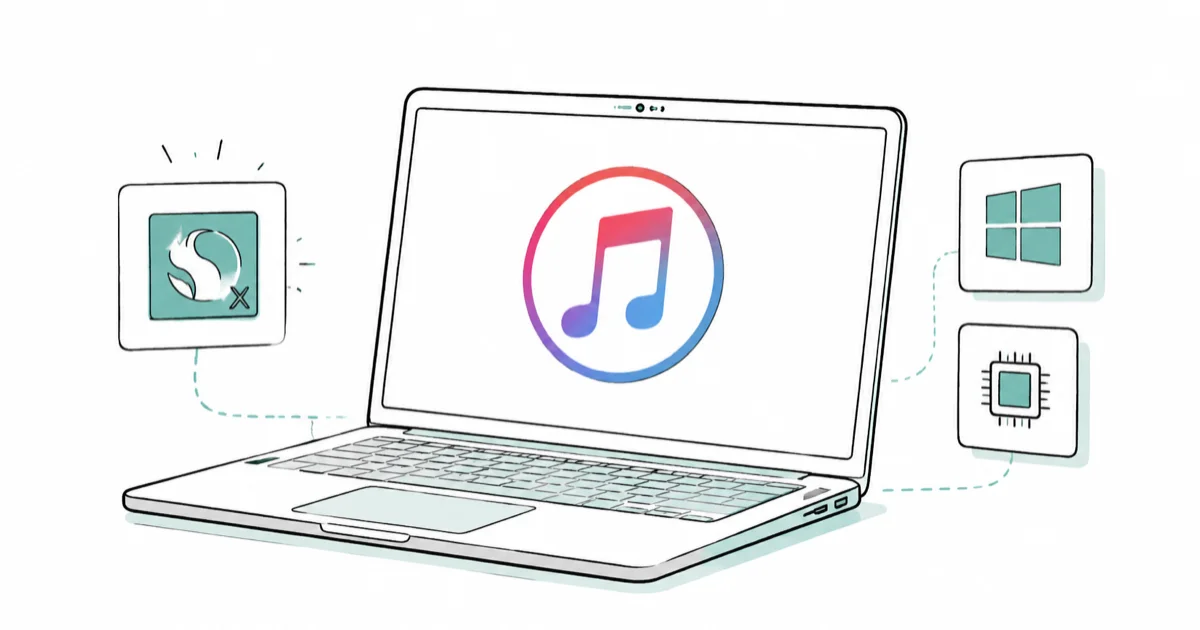
Quick AnswerYes. The x64 iTunes installer runs on Snapdragon X through Windows on ARM Prism emulation. It works for most tasks, but large backups feel sluggish, so the Apple Devices app from the Microsoft Store is the cleaner choice.
You can run iTunes on a Snapdragon X laptop, and you don’t need a special version. The standard iTunes installer is x64 software, and Windows 11 on ARM translates it on the fly through Prism emulation. The catch is speed, since emulation adds overhead and heavy jobs like a full device backup run slower than on an Intel or AMD machine. For most people managing an iPhone or iPad, Apple’s newer Apple Devices app is the better pick.
- iTunes is x64 software with no native ARM build, so it runs on Snapdragon X through Prism emulation rather than running directly on the chip.
- Prism is built into Windows 11 24H2 and turns on automatically, so there’s nothing extra to install before iTunes will launch.
- Device backups, restores, and large syncs are the slowest tasks under emulation, sometimes taking noticeably longer than on an x86 laptop.
- The Apple Devices app from the Microsoft Store handles iPhone and iPad backup, restore, and sync, and it’s the route Apple now points Windows users toward.
- Apps that need their own kernel driver can fail on ARM, so a USB connection issue is usually the first thing to check when iTunes doesn’t see your device.
#Does iTunes Run Natively on Snapdragon X?
No. Apple ships iTunes for Windows as an x64 program, and there’s no ARM64 build of it. On a Snapdragon X laptop, the chip can’t read x64 code directly, so Windows steps in and translates it.
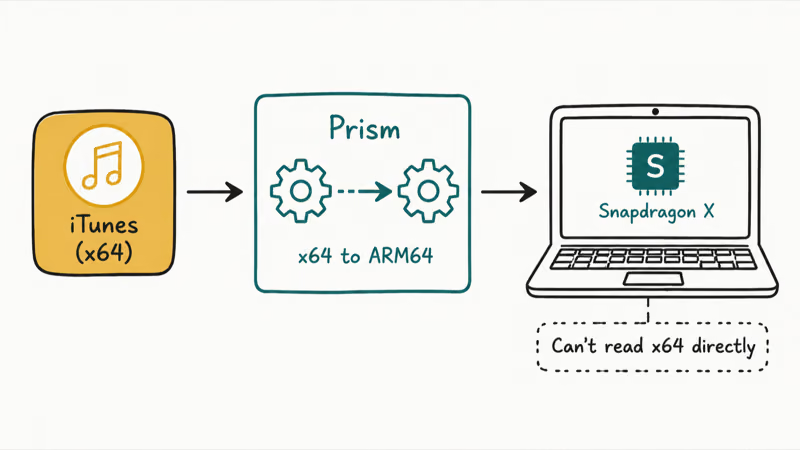
That translation layer is Prism. According to Microsoft’s emulation documentation for Windows on ARM, “Windows 11 on Arm supports emulation of both x86 and x64 apps,” and the process “is transparent to you and is part of Windows; it doesn’t require any extra components to be installed.” So iTunes launches the same way it would on any PC. You download the installer, run it, and the operating system handles the rest behind the scenes.
The difference matters. Native apps are compiled for the ARM chip and run at full speed. Emulated apps are converted as they run. iTunes is emulated, and that’s where the trade-offs come from.
#How Well Does iTunes Perform Under Prism Emulation?
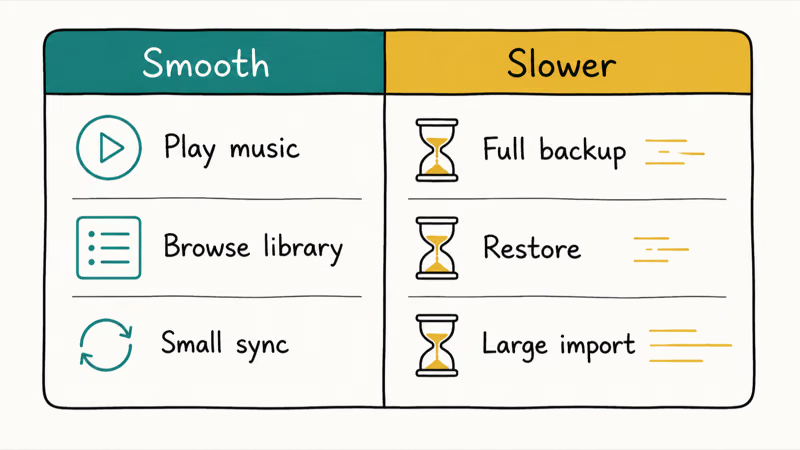
For routine tasks, it should hold up fine. Browsing your library, playing a track, and opening the app are lighter workloads. The slowdowns are most likely during full backups, restores, and large syncs, where Prism has more x64 work to translate.
Microsoft has put real work into closing that gap. The Surface ARM FAQ states that Prism “automatically handles x86/x64 apps, translating their code to run efficiently on Arm architecture,” and that “significant optimizations in Prism have improved performance and reduced CPU usage compared to previous emulation technologies.” Microsoft also says “most x64 applications are expected to perform comparably to native apps under emulation.”
Here’s where the slowdown shows up, and where it doesn’t:
How common iTunes tasks behave on a Snapdragon X laptop under Prism emulation
| Task | What to expect |
|---|---|
| Opening iTunes and browsing your library | Close to normal, minor launch delay |
| Playing music or video | Smooth, no real difference |
| Syncing a small playlist | Slightly slower, usually fine |
| Full device backup or restore | Noticeably slower, can take much longer |
| Importing a large CD or music collection | Slowest task, plan for extra time |
For playing music or the occasional small sync, emulated iTunes is usually fine. But if you back up an iPhone nightly or move gigabytes of media often, the lag gets old, and that’s when to switch tools.
#Why the Apple Devices App Is the Better Choice
Apple has been pulling apart iTunes for Windows for a while, and device management now lives in a dedicated app. According to Apple’s support page for the Windows apps, the Apple Devices app lets you “Manually update, back up, restore, manage, and sync your iPhone or iPad.” Apple Music handles your music library, and Apple TV handles movies and shows.
iTunes still exists as a fallback. That same Apple page notes you can use iTunes for Windows if “your PC doesn’t meet the system requirements for the Apple apps for Windows.”
You install the Apple Devices app from the Microsoft Store, which is a cleaner path than hunting down a standalone installer. The Store handles updates for you, and you skip the bundled extras that the full iTunes package drags along.
Be honest about what you actually need, though. The Apple Devices app covers iPhone and iPad work well. It doesn’t manage podcasts or audiobooks on your PC, and that’s one of the few reasons Apple still lists iTunes as an option. If those formats are part of your routine, you may end up keeping iTunes around alongside the newer app.
#What to Install on a Snapdragon X Laptop
Start with the Apple Devices app and only reach for iTunes if you hit a wall. Here is the order that works best:
- Open the Microsoft Store and search for Apple Devices.
- Install it, then connect your iPhone or iPad with a USB-C cable.
- Approve the “Trust This Computer” prompt on your phone.
- Use the app to back up, restore, or sync.
If you specifically need the full iTunes experience, podcasts, audiobooks, or an older workflow you’re used to, grab iTunes for Windows instead. Our guide to reinstalling iTunes on Windows walks through a clean install, which matters more on ARM because a half-installed driver is a common failure point.
This same emulation picture applies to plenty of legacy Windows software, not just Apple’s. Our breakdown of Windows on ARM app compatibility covers which categories run cleanly and which still struggle.
#The Native ARM Reality Behind the Scenes
It helps to know why Apple’s split-up apps feel smoother than emulated iTunes. The Apple Devices, Apple Music, and Apple TV apps still ship as x64 software too, so they also lean on Prism. But they’re smaller, single-purpose apps, so the emulation overhead lands on far less code than the all-in-one iTunes carries.
The broader Windows on ARM ecosystem has moved fast on native builds. The Surface ARM FAQ notes that “nearly 90% of total app usage is projected to come from native apps,” and big names like Chrome, Spotify, and Zoom now run natively on ARM. Apple’s device-management tools haven’t made that jump yet, so emulation is still the reality for syncing an iPhone on a Snapdragon X laptop in 2026.
That’s not a dealbreaker. It just sets the expectation. You’re choosing between two emulated routes, and the lighter Apple Devices app wins on the tasks that matter most.
#When iTunes Won’t See Your Device
The most common ARM-specific problem is a driver one. iTunes relies on the Apple Mobile Device USB driver to detect your iPhone, and drivers are the one area where emulation can’t help. As Microsoft’s emulation documentation states, “emulation only supports user mode code and doesn’t support drivers,” and the Surface ARM FAQ adds that “apps requiring non-Arm drivers might not function.”
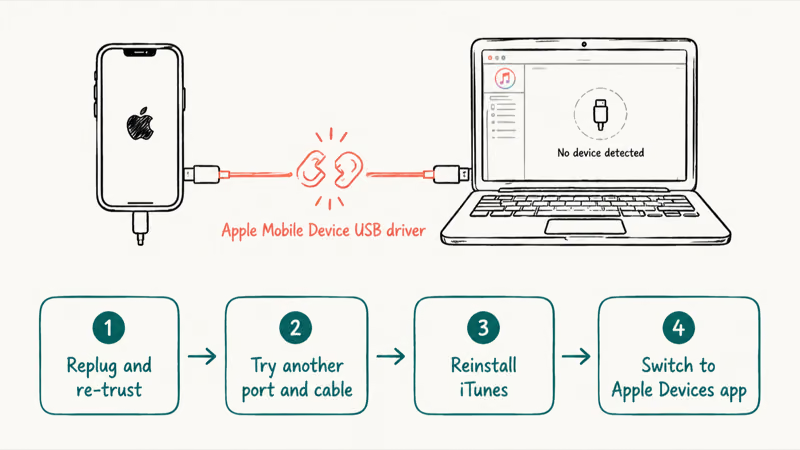
In plain terms, the app runs through Prism, but a driver has to be ARM-ready on its own. If iTunes opens but your phone never shows up, the driver is the first suspect.
Try these steps in order:
- Unplug and replug the cable, then re-approve the trust prompt on your phone.
- Try a different USB-C port and a known-good cable.
- Reinstall iTunes so the driver gets reinstalled fresh.
- Switch to the Apple Devices app, which often detects a phone that emulated iTunes misses.
If iTunes still won’t launch at all, that is a different problem from a device-detection issue, and our walkthrough on fixing iTunes that won’t open on Windows covers the launch-failure side specifically.
#Bottom Line
Install the Apple Devices app from the Microsoft Store first. It handles iPhone and iPad backups and syncs without the worst of the emulation drag, and it’s the path Apple now steers Windows users toward. Keep iTunes only if you manage podcasts or audiobooks, or if a specific old workflow needs the full app. If your phone won’t connect, treat it as a driver problem before anything else.
Still shopping? Our look at Snapdragon X versus Intel and AMD and our explainer on the second-generation Snapdragon X2 Elite lay out where ARM laptops fit today.
#Frequently Asked Questions
Can I install iTunes directly on a Snapdragon X laptop?
Yes. You download the standard iTunes for Windows installer and run it like normal. Windows 11 on ARM emulates the x64 program through Prism automatically, so there is no separate ARM version to find and nothing extra to set up first.
Is there an ARM version of iTunes for Windows?
No. Apple has not released a native ARM64 build of iTunes. It only ships as x64 software, which is why it runs through emulation on Snapdragon X rather than running directly on the chip.
Will iTunes be slow on Snapdragon X?
It depends on the task. Playing music and browsing your library feel close to normal. Full device backups, restores, and large library imports are the slow points under emulation, and they can take noticeably longer than on an Intel or AMD laptop.
Should I use the Apple Devices app or iTunes?
For most people, use the Apple Devices app from the Microsoft Store. It handles iPhone and iPad backup, restore, and sync, and Apple now points Windows users toward it. Keep iTunes only if you need to manage podcasts or audiobooks on your PC.
Why won’t iTunes detect my iPhone on a Snapdragon laptop?
It’s usually the Apple Mobile Device USB driver. Emulation runs the app but not drivers, so a device-detection failure points to the driver. Reinstall iTunes, try a different cable and port, or switch to the Apple Devices app, which often sees a phone that emulated iTunes misses.
Do Apple Music and Apple TV work on Snapdragon X too?
Yes. Apple Music and Apple TV install from the Microsoft Store and play your library and purchases. Like the Apple Devices app, they give you the modern, split-out replacement for the all-in-one iTunes experience on Windows.
Does Prism emulation need to be turned on for iTunes to run?
No. Prism is built into Windows 11 24H2 and runs automatically for x64 apps. You don’t flip a switch or install a package. You just run the iTunes installer and the operating system handles the translation in the background.

Bluetooth Not Working on Snapdragon X? Fixes for 2026
Bluetooth not working on your Snapdragon X Copilot+ PC? Generic audio, mice, and keyboards work, but vendor apps often lack an ARM build. Fixes inside.

Docker Desktop and WSL2 Not Working on Snapdragon X? Fix It
WSL2 runs fine on Snapdragon X, but Docker Desktop ARM is Early Access and throws WSL errors. Use WSL2 plus native ARM64 Ubuntu and Docker Engine.

Does OBS Studio Work on Snapdragon X? ARM64 Build Guide
Yes, OBS Studio has an experimental ARM64 build since version 31.1, but x64 plugins won't load and hardware encoding is missing. Here is what works.
Does Photoshop Run on Snapdragon X? Native ARM Answer
Does Photoshop run on Snapdragon X? Yes, as a native ARM64 build. See which features work, which Adobe apps emulate, and fix the 0xc000007b error.