How to Check if an App Runs on Snapdragon X Before Buying
Vet your must-have apps before buying a Snapdragon X PC: native ARM64, Prism emulation, partial, or blocked. The kernel-driver red flag explained.
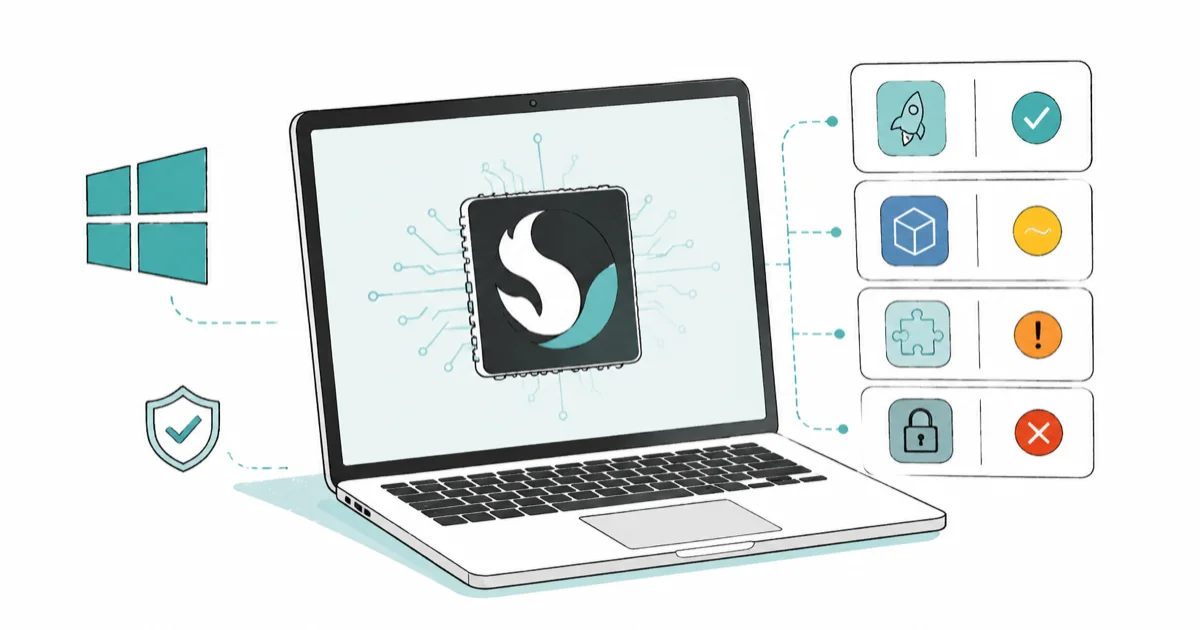
Quick AnswerSort each must-have app into four tiers: native ARM64, emulated by Prism, partially broken, or fully blocked. Apps that install a kernel-mode driver, like some VPNs and anti-cheat games, are the high-risk group, since emulation cannot run drivers.
Before you spend on a Snapdragon X or Copilot+ PC, vet your must-have apps first. Most software runs fine, but a few categories still break in predictable ways. The fix is a quick sort: put each app into one of four tiers, then confirm the risky ones.
- Sort every must-have app into four tiers: native ARM64, emulated, partially broken, or fully blocked.
- The single biggest red flag is software that installs a kernel-mode driver, because emulation does not cover drivers.
- Check a vendor’s own download page for an ARM64 build first, then a compatibility list for everything else.
- The usual problem apps are some VPNs, some antivirus, anti-cheat games, and certain peripheral drivers.
- After buying, confirm any app’s real architecture in Task Manager, where the column reads Arm64 or x64.
#What Are the Four Compatibility Tiers?
Every Windows app on a Snapdragon X chip lands in one of four buckets. Knowing which bucket your apps fall into is the whole game, because the buckets behave very differently.
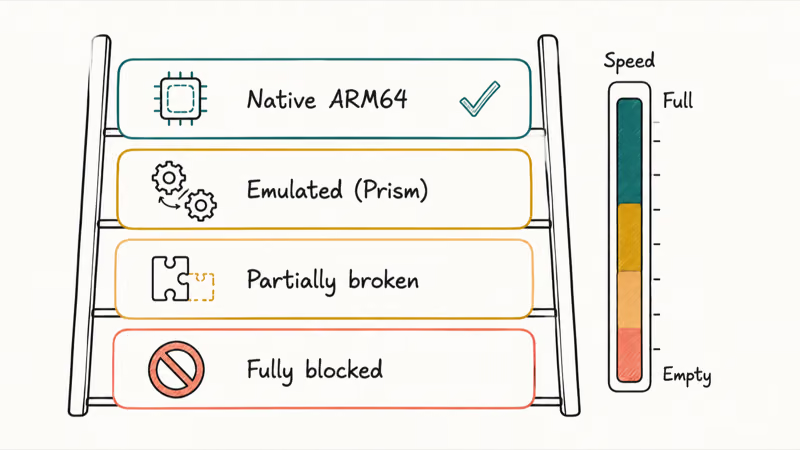
Native ARM64 is the best case. The app ships a build compiled for the chip, so it runs at full speed with no translation. This is the bucket you want for anything demanding.
Runs under emulation is the second case, and it covers a lot of ground. Windows on ARM has a built-in translator called Prism that converts x86 and x64 code on the fly. According to Microsoft’s emulation documentation, Prism is “the new emulator included with Windows 11 24H2” and is “optimized and tuned specifically for Qualcomm Snapdragon processors.” These apps work, but they carry a speed and battery cost on heavy jobs.
Partially broken is the third case: the app installs and runs, but one feature is missing on ARM, like a creative app whose video module never made the build.
Fully blocked is the worst case. The app refuses to install or crashes at launch, almost always because it relies on a kernel-mode driver, and a VPN client with a network filter driver and no ARM64 version is a textbook example of this failure.
Why that last group fails comes straight from Microsoft, whose documentation states that “emulation only supports user mode code and doesn’t support drivers. Any kernel mode components must be compiled as Arm64.” That one sentence explains most of the hard failures on Snapdragon X. Apps that stay in user mode can usually rely on native ARM64 builds or Prism emulation, while driver-based tools need ARM64 driver support.
The four app compatibility tiers on Snapdragon X
| Tier | What happens | Speed | Typical examples |
|---|---|---|---|
| Native ARM64 | Runs directly on the chip | Full speed | Office, Chrome, Photoshop, VS Code |
| Emulated (Prism) | Translated x86/x64 code | Slower, more battery | Older utilities, many legacy desktop apps |
| Partially broken | Installs, feature missing | Varies | Apps with a driver-based plugin or module |
| Fully blocked | Won’t install or crashes | None | Some VPNs, some antivirus, anti-cheat games |
For a deeper map of where common software falls, our guide to Windows on ARM app compatibility breaks down the same tiers app by app.
#Where Do You Check if Your App Has an ARM64 Build?
You don’t have to guess. Three sources cover almost every app, and you check them in order from most authoritative to most current.
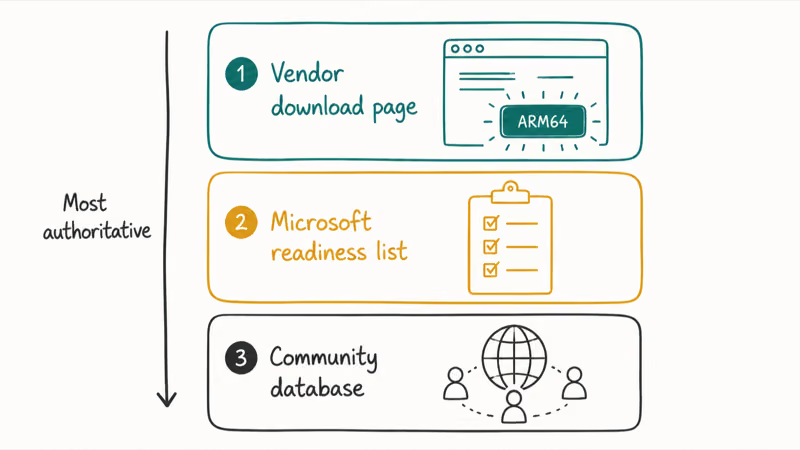
Start with the vendor’s own download page. It’s the most reliable signal because it’s first-party. Look for an explicit “ARM64” or “Windows on Arm” download option next to the standard one, and if a dedicated ARM64 installer exists, that app is native and you’re done. Adobe Photoshop, Google Chrome, Zoom, and Microsoft Office all publish ARM64 builds this way, so the vendor page settles most of your list before you go anywhere else.
Next, check Microsoft’s official readiness list. Its Windows on Arm overview confirms that “Windows on Arm runs native Arm apps, as well as many unmodified x86 and x64 apps,” and points readers to the Windows on Arm Ready Software catalog, which Microsoft calls “your source for compatibility information for many apps and games on Windows devices that run on Arm architecture.” It’s curated and well-organized. The catch is that it leans toward bigger names.
Then check the community database for anything obscure. The volunteer-run windowsonarm.org tags software and games as native, emulated, or broken, and it catches niche tools the official list misses. Treat it as a strong hint, not gospel.
New to the platform? Our explainer on what a Copilot+ PC is covers why these machines run Windows on ARM at all.
#The Pre-Purchase App Checklist
Here’s the part to actually do. List every app you can’t live without, then run each one down this checklist.
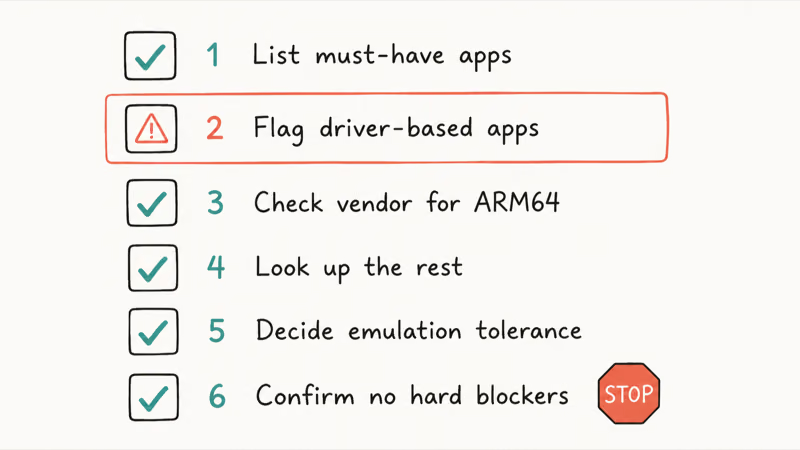
- Write your must-have list. Be honest about what’s essential versus nice-to-have. Most people have five to ten apps that truly matter, plus the browser.
- Flag the driver-based apps first. VPNs, antivirus suites, audio interfaces, printer software, capture cards, and games with anti-cheat all tend to install drivers. These are your highest-risk apps, so vet them before anything else.
- Check each vendor’s download page for an ARM64 option. A dedicated ARM64 installer means native and safe. No ARM64 build means the app will lean on emulation, which is fine for most software but not for the driver group.
- Look up the rest on the readiness list and community database. Confirm native, emulated, or broken status for anything you couldn’t settle from the vendor.
- Decide your tolerance for emulation. Light apps run great under Prism. Heavy, sustained workloads like long video exports pay a real penalty, so if a demanding app has no native build, weigh that.
- Confirm no hard blockers remain. If a single essential app is fully blocked, like a corporate VPN with a kernel driver and no ARM64 version, that’s often a reason to choose an x86 laptop instead.
That last point is the tiebreaker for a lot of buyers. If your job depends on x86 virtual machines or a specific kernel-level security client, the limits are real, and our comparison of Snapdragon X versus Intel Core Ultra versus AMD Ryzen AI lays out where the x86 platforms still win.
#Why Driver-Based Apps Are the Real Risk
Most app worries on Snapdragon X are overblown. The real danger is narrow, and it traces back to one thing: drivers. A normal app runs in user space, so emulation handles it without a hitch. But low-level hardware access needs a kernel-mode driver, and emulation does not translate those.
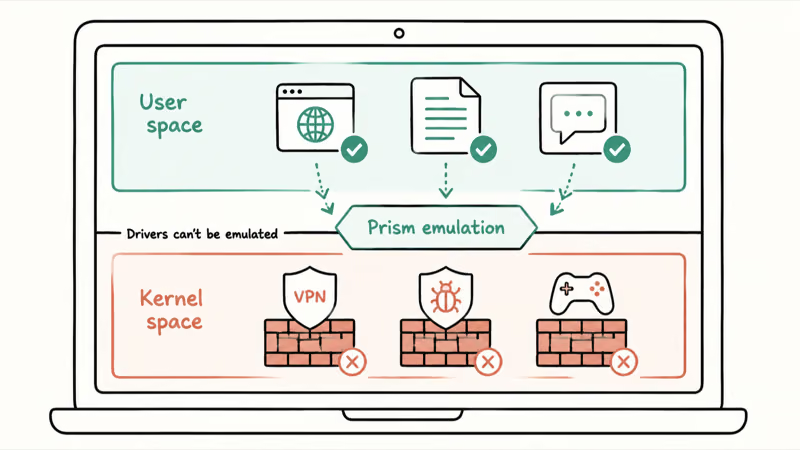
That single rule decides almost every hard failure on the platform. The driver question is the only one worth real worry before you buy.
This is why the same categories keep showing up on every “doesn’t work” list. Some consumer VPN clients install a kernel-level network driver, and some antivirus engines hook into the kernel for real-time scanning. Competitive games with anti-cheat load a kernel module that won’t run on ARM unless the developer ships an ARM64 version.
Older peripherals fail for the same reason. A niche audio interface or an aging scanner can stop working simply because no ARM64 driver exists.
If your VPN, antivirus, or favorite multiplayer game falls in this group, that’s the one thing worth confirming before you buy, not after. The good news is that the major players are catching up, and many now offer ARM64-native versions. The honest caveat is that the long tail of smaller vendors has not.
Virtualization is its own special case worth flagging. If you planned to run x86 software inside a virtual machine to dodge ARM limits, that path is closed, since you can’t run an x86 VM on ARM Windows at all. Our guide to running VirtualBox or VMware on Snapdragon X explains why, and what the working alternatives actually are.
#The Apps That Surprise People by Working
Plenty of buyers expect a long list of failures and find almost none. The “nothing runs on ARM” reputation is years out of date, and most of the software people assume is risky turns out to be fine.
Web browsers are all native now, including Chrome, Edge, and Firefox. The big creative tools mostly run native too. Communication apps like Zoom, Slack, Discord, and Teams have ARM64 builds, and even most older x86 utilities run acceptably under Prism, which is the whole point of the emulator.
The broad app categories that tend to work best are browser, productivity, communication, and mainstream creative tools. The risky group is much narrower: apps that touch hardware drivers.
So carry this into the store: assume it works, and vet only the driver-based shortlist.
#How to Verify an App After You Buy
Vetting before purchase tells you what should work. Once the laptop arrives, you can confirm what’s actually running native versus translated in about ten seconds, using a tool that’s already built into Windows.
Open Task Manager, go to the Details tab, right-click any column header, choose Select columns, and turn on the Architecture column. With your app running, find its process in the list and read the architecture value. A native install reads Arm64, while an emulated app reads x64 or x86 instead. Our Photoshop on Snapdragon X guide walks through this exact check with screenshots and explains how to force a reinstall if you got the wrong build.
This matters because some apps quietly install the x64 version even when a native one exists, usually after a botched update. Reading the architecture column yourself is the only way to be certain, and a clean reinstall from the vendor usually pulls the right build.
Want the bigger picture? Our rundown of Copilot+ PC features and our explainer on the Snapdragon X2 Elite cover what the newer silicon adds.
#Bottom Line
Don’t buy a Snapdragon X laptop blind, and don’t avoid one out of outdated fear. Spend twenty minutes first: list your essential apps, flag anything that installs a driver, and confirm those few against a vendor download page and a compatibility list. If every must-have app is native or emulation-friendly, buy with confidence.
The only real stop sign is a driver-dependent app with no ARM64 build, like a corporate VPN, a kernel-level antivirus, or an anti-cheat game you play daily. If one of those is non-negotiable and unsupported, pick an x86 laptop instead. For everyone else, the platform is ready, and a quick Task Manager check after delivery confirms you got the native builds you expected.
AI PCs and Copilot+ Laptops
#Frequently Asked Questions
How can I tell if an app is native ARM64 or just emulated?
Check the vendor’s download page for a dedicated ARM64 installer before you buy. After buying, open Task Manager, go to the Details tab, and enable the Architecture column. Native apps read Arm64 there, while emulated ones read x64 or x86. That column is the clearest signal you have.
Will most of my apps work on a Snapdragon X laptop?
Yes. Microsoft confirms that Windows on ARM runs native Arm apps plus many unmodified x86 and x64 apps through its Prism emulator. The big names like Office, browsers, Photoshop, and VS Code are native and run at full speed. The narrow exceptions are driver-dependent software, which is why you vet those specifically.
What kinds of apps usually don’t run on Snapdragon X?
The recurring failures are some VPN clients, some antivirus suites, games with kernel-level anti-cheat, and older peripherals without ARM64 drivers. They share one trait: they install a kernel-mode driver, and Microsoft’s documentation states that emulation doesn’t support drivers. Anything that talks to hardware at a low level is the group to check.
Does emulation slow my apps down?
It depends on the app. Light productivity tools and utilities run smoothly under Prism with little noticeable lag. Heavy, sustained workloads like long video exports or large compiles pay a measurable speed and battery cost, because every block of code gets translated on the fly. For demanding apps, a native ARM64 build is worth seeking out.
Can I run x86 software in a virtual machine to get around ARM limits?
No. You can’t run an x86 virtual machine on ARM Windows, so virtualization isn’t a workaround for unsupported x86 apps. The working VM options on Snapdragon X run Arm guests only. For a single legacy program, the built-in emulation layer is the better route, since it runs many x86 apps directly without a VM.
Is checking the community list enough, or do I need the vendor page too?
Use both, and trust the vendor page more. A first-party ARM64 download is definitive proof an app is native. Community lists like windowsonarm.org and Microsoft’s readiness catalog are great for breadth and for niche apps, but they can lag behind a recent release. Confirm your highest-stakes apps directly with the maker.
What if one essential app is fully blocked on ARM?
Weigh how essential it really is. If a blocked app is something you use daily, like a required work VPN with a kernel driver, that’s a strong reason to choose an Intel or AMD laptop instead. If it’s something you can replace or only use occasionally, the trade-off may still be worth it for the battery life and AI features.

Bluetooth Not Working on Snapdragon X? Fixes for 2026
Bluetooth not working on your Snapdragon X Copilot+ PC? Generic audio, mice, and keyboards work, but vendor apps often lack an ARM build. Fixes inside.

Docker Desktop and WSL2 Not Working on Snapdragon X? Fix It
WSL2 runs fine on Snapdragon X, but Docker Desktop ARM is Early Access and throws WSL errors. Use WSL2 plus native ARM64 Ubuntu and Docker Engine.

Does OBS Studio Work on Snapdragon X? ARM64 Build Guide
Yes, OBS Studio has an experimental ARM64 build since version 31.1, but x64 plugins won't load and hardware encoding is missing. Here is what works.
Does Photoshop Run on Snapdragon X? Native ARM Answer
Does Photoshop run on Snapdragon X? Yes, as a native ARM64 build. See which features work, which Adobe apps emulate, and fix the 0xc000007b error.