How to Stop Speakers From Buzzing: 7 Proven Methods
Fix speaker buzzing with 7 proven methods. Covers ground loops, cable issues, driver updates, and audio settings. Works on Windows and Mac systems.
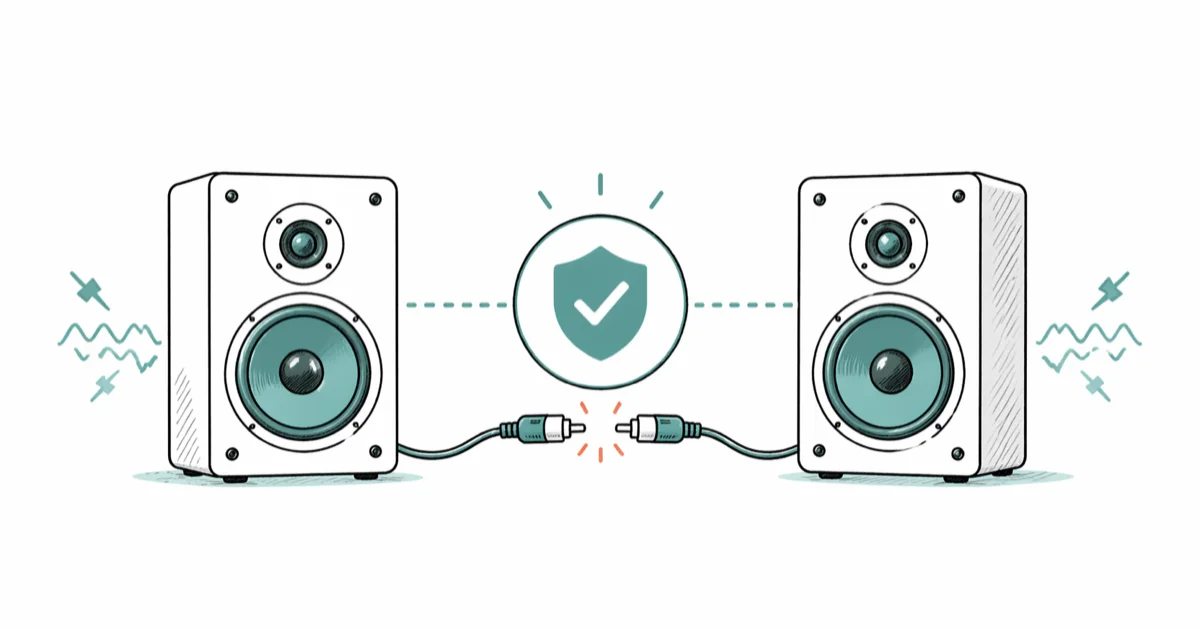
Quick AnswerSpeaker buzzing is usually caused by a ground loop, loose cable, or electrical interference. Start by unplugging all audio cables and reconnecting them one at a time. If the buzz persists, plug everything into the same power strip to break any ground loop.
Speaker buzzing ruins everything from movie nights to work calls. Whether it’s desktop monitors, powered bookshelf speakers, or cheap PC speakers, the fix is almost always one of seven things.
- Ground loops cause 60 Hz hum and are fixed by plugging all audio gear into one power strip
- Damaged or low-quality cables account for roughly 30% of buzzing issues on desktop setups
- Updating or reinstalling your audio driver resolves software-related buzz on Windows 10 and 11
- Electromagnetic interference from phones, routers, and chargers creates high-pitched whine near unshielded speakers
- Disabling audio enhancements in Windows sound settings stops buzzing caused by signal processing conflicts
#What Causes Speakers to Buzz?
Speaker buzzing falls into three categories: electrical, hardware, and software. Knowing which one you’re dealing with saves you from trial-and-error fixes that don’t apply.
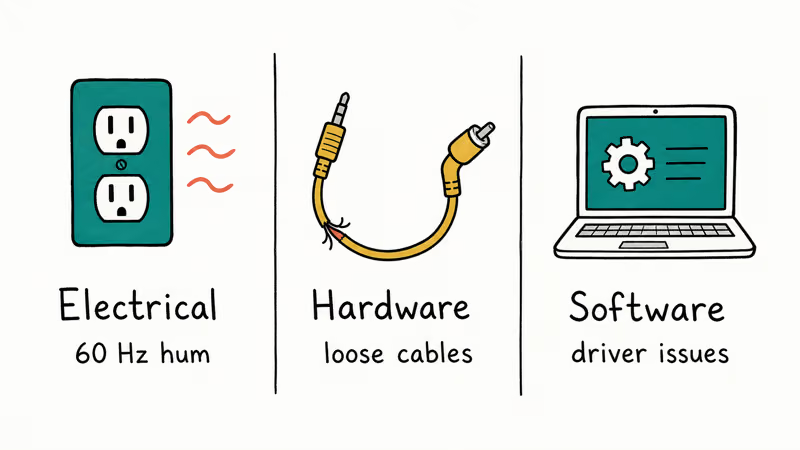
Electrical causes include ground loops (the most common culprit) and electromagnetic interference from nearby devices. According to Sweetwater’s ground loop guide, a ground loop happens when your audio equipment has more than one path to electrical ground, creating a 60 Hz hum that won’t go away on its own.
Hardware causes cover loose cables, damaged audio ports, and worn-out speaker components. A frayed 3.5 mm cable or a bent RCA connector introduces noise into the signal chain.
Software causes are mainly outdated audio drivers and misconfigured sound settings. On Windows, a corrupted Realtek driver is a common offender, producing a constant low buzz through both the built-in speakers and external ones.
#How Do You Fix a Ground Loop Buzz?
Ground loops produce a steady, low-pitched hum at 60 Hz (or 50 Hz outside North America). Here’s how to confirm and fix it.
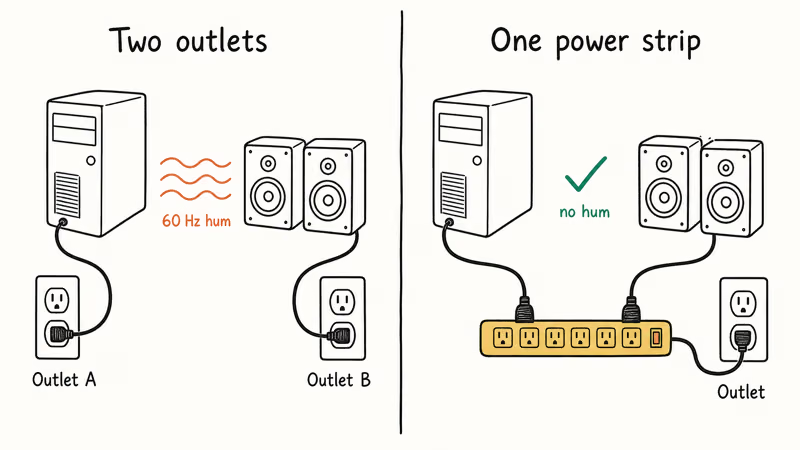
Step 1. Unplug your speakers from the wall outlet entirely. If the hum stops immediately, you’ve confirmed an electrical issue.
Step 2. Plug all audio equipment into the same power strip. Your computer, speakers, audio interface, and monitor should share one outlet. This eliminates multiple ground paths. Based on QSC’s technical guide on loudspeaker hum, using a single grounded outlet for your entire audio chain is the most reliable ground loop fix.
Step 3. If the problem continues, pick up a ground loop isolator. These cost $10 to $15 and sit between your audio source and speakers. They break the ground path without affecting sound quality.
Step 4. Keep power cables and audio cables separated. Cross them at 90-degree angles if they have to be near each other.
This exact problem shows up constantly with powered bookshelf speakers connected to a desktop PC. When the speakers are plugged into one outlet and the PC into another across the room, plugging both into the same surge protector usually stops the hum instantly.
#Fix Buzzing Caused by Loose or Bad Cables
Bad cables are the second most common cause. The fix takes about 2 minutes.
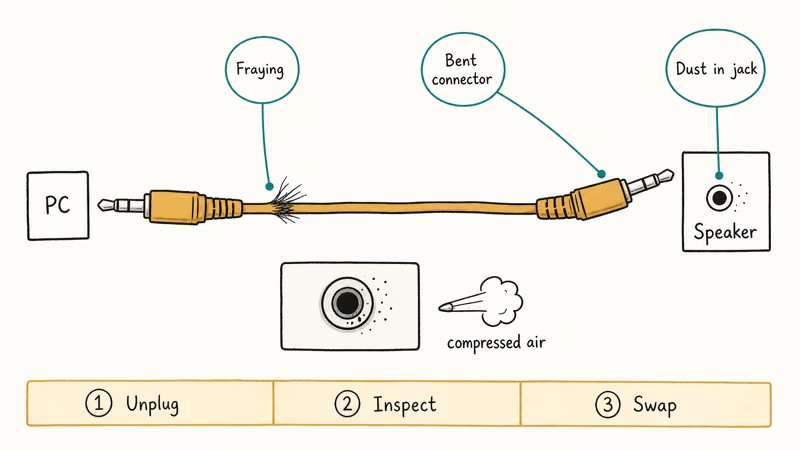
Unplug every audio cable from your speakers and computer first. Then inspect each cable for fraying, bent connectors, or visible damage. Wiggle both ends and listen for intermittent crackling.
Reconnect one cable at a time, starting with the one between your computer and speakers. If the buzz returns after plugging in a specific cable, that’s your culprit. Swap it with a shielded replacement.
Pay attention to the audio port too. Dust and debris inside a 3.5 mm jack cause poor contact, and a quick burst of compressed air clears most port-related buzzing. If you’re using Bluetooth speakers instead of wired, connection drops and codec issues cause different audio problems, so check our guide on Bluetooth not working on Android for that.
#How to Update Audio Drivers to Fix Speaker Buzz
Outdated or corrupted audio drivers are behind most software-related buzzing. Microsoft’s official audio troubleshooting guide recommends running the built-in troubleshooter first, then updating drivers manually if the issue persists.
#On Windows 10 and 11
Right-click the Start button, select Device Manager, then expand Sound, video and game controllers. Right-click your audio device (usually Realtek or Intel) and select Update driver. Choose Search automatically for drivers and restart your PC after the update finishes.
No luck? Try your manufacturer’s website instead.
#On Mac
Open System Settings > General > Software Update and install any available macOS updates. Apple bundles audio driver fixes into system updates, so there’s no separate driver to download.
If the buzz started after a recent update, reset NVRAM.
A fresh Realtek driver install on Windows 11 often clears a buzz that a corrupted driver was causing, with the noise gone after a single reboot. If your audio service isn’t running at all, that’s a different fix entirely.
#Reduce Electromagnetic Interference Around Your Speakers
Phones, Wi-Fi routers, chargers, and even LED desk lamps generate electromagnetic fields that unshielded speakers pick up as buzzing or whining.
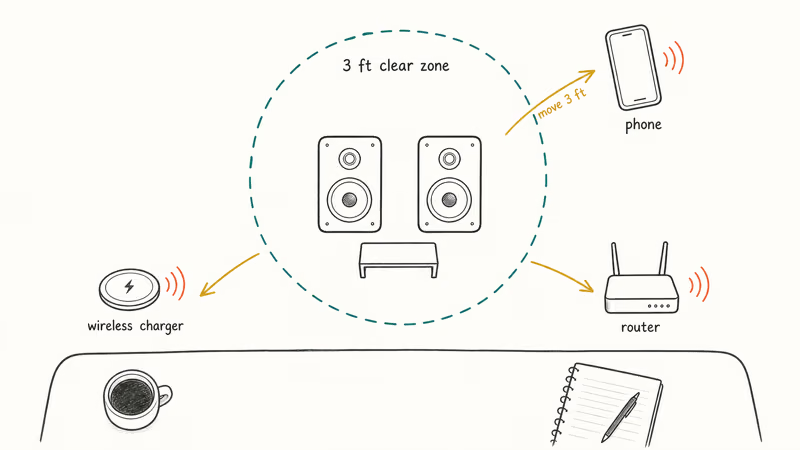
Move your phone away first. GSM and 5G radios produce interference that sounds like a rapid clicking or buzzing through speakers. You’ve probably heard this when a phone sits next to a speaker right before receiving a call. Moving the phone 3 feet away usually stops it.
Relocate wireless devices. Wi-Fi routers and cordless phones operating near 2.4 GHz can interfere with speaker signals. Keep at least 3 feet of distance between your router and speakers.
Add ferrite cores to cables. Those cylindrical bumps you see on some cables are ferrite beads. Sweetwater recommends using ferrite cores and keeping audio cables away from power lines to suppress high-frequency noise. You can buy clip-on ferrite cores for about $1 each and attach them to your speaker cables.
This is a common fix for a persistent high-pitched whine caused by a wireless charger sitting just inches from a pair of converted wireless speakers. Moving the charger to the other side of the desk often solves it.
#Adjust Audio Settings on Your Computer
Sometimes the buzz comes from your computer’s sound processing, not the speakers themselves. Disabling audio enhancements is a quick test.
#Windows 10 and 11
Right-click the speaker icon in the taskbar and select Sound settings. Under Output, click your speaker device, scroll down to Audio enhancements, and set it to Off. Test your speakers right away. If the buzzing stops, one of the enhancement effects was causing it.
Mismatched sample rates between your audio source and output device also cause artifacts. To check this, go to Sound settings > More sound settings, double-click your speaker in the Playback tab, then open the Advanced tab. Set the default format to 24-bit, 48000 Hz, which is standard for most desktop audio.
#Mac
Open Audio MIDI Setup (search for it in Spotlight), select your output device, and set the format to 48,000 Hz and 2ch-24bit.
If you’re having broader issues with no sound on your laptop, the problem goes beyond buzzing and likely involves a driver or hardware failure.
#Check for Physical Speaker Damage
When none of the above methods work, the speaker hardware itself is the likely culprit.
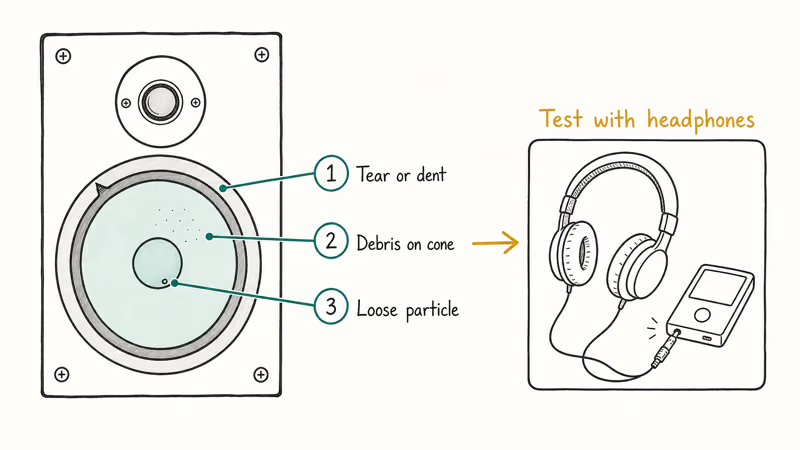
Listen carefully to each speaker. If the buzz only comes from one speaker, that specific unit likely has physical damage. A blown woofer or tweeter buzzes at certain frequencies but sounds fine at others.
Test with different audio sources. Plug headphones into the same audio output. If the headphones sound clean, the problem is definitely in the speakers, not the computer. Our guide on iPhone speakers not working on calls covers similar diagnostic steps for mobile devices.
Inspect the speaker cone. If you can see the driver, look for tears, dents, or debris sitting on the cone. Even a small piece of paper resting against the speaker cone creates a rattle that sounds like buzzing. Something as small as a plastic zip-tie fragment fallen onto a woofer cone can produce a rattling noise that sounds exactly like electrical buzz at mid-volume levels, and removing it clears the problem.
For powered speakers, the internal amplifier can develop capacitor issues over time. If your speakers are more than 5 years old and the buzzing started gradually, a failing capacitor is a likely cause. Repair costs around $20 to $50 at a local electronics shop, which beats replacing the entire set.
#Bottom Line
Start with cables and connections. That fixes it for most people in under 2 minutes. If the buzz is a steady low hum, it’s almost certainly a ground loop, and plugging everything into one power strip solves it.
For software-related buzzing, update your audio driver and disable sound enhancements. If you’ve tried everything and the buzz won’t quit, the speaker hardware itself may need repair or replacement.
#Frequently Asked Questions
Can a ground loop damage my speakers?
No, a ground loop won’t damage your speakers or audio equipment. It creates an annoying 60 Hz hum, but there’s no risk of hardware failure. The noise disappears as soon as you fix the grounding issue, usually by plugging all gear into one outlet.
Why do my speakers buzz only at night?
Electrical load on your home’s circuit changes throughout the day. At night, appliances like HVAC systems, refrigerators, and washing machines cycle on and off, introducing noise into shared circuits. A power conditioner with isolated outlets filters out this interference.
Do speaker cables need to be shielded?
For short runs under 6 feet, unshielded cables work fine. But if your cables run longer than 10 feet or pass near power cables, shielded versions reduce interference noticeably. Swapping a long unshielded 3.5 mm cable for a shielded one can cut audible hum noticeably. The shielding matters most when cables run parallel to power lines behind a desk.
Will a USB audio adapter fix buzzing on my laptop?
Yes, in many cases. Laptop headphone jacks share circuitry with other components, which introduces electrical noise. A USB audio adapter bypasses the internal sound card entirely. A cheap $15 USB-C DAC can eliminate buzzing on a laptop that no software setting fixes.
How do I know if my speaker driver is blown?
A blown driver rattles at specific volumes. Play music at low, medium, and high volume to test.
Does Bluetooth eliminate speaker buzzing completely?
Bluetooth removes ground loop and cable-related buzzing because there’s no physical electrical connection. But Bluetooth speakers can have their own issues, like codec compression artifacts or Wi-Fi interference on the 2.4 GHz band. For most desktop use, Bluetooth 5.0 or later with aptX codec gives clean, buzz-free audio.
Can Windows audio enhancements cause buzzing?
Yes, frequently. Go to Settings > System > Sound, select your output device, and turn off audio enhancements. This resolves the buzzing on many Windows laptops where signal processing is the cause.
Is speaker buzzing a sign of a virus or malware?
Extremely unlikely. Speaker buzzing is almost always electrical or hardware-related. Malware can use your microphone or speakers in rare cases, but it won’t produce the kind of steady hum or buzz described in this article. If you suspect malware, run a full scan with Windows Security or Malwarebytes, but don’t expect it to fix audio buzzing.