Bluetooth Not Working on Snapdragon X? Fixes for 2026
Bluetooth not working on your Snapdragon X Copilot+ PC? Generic audio, mice, and keyboards work, but vendor apps often lack an ARM build. Fixes inside.
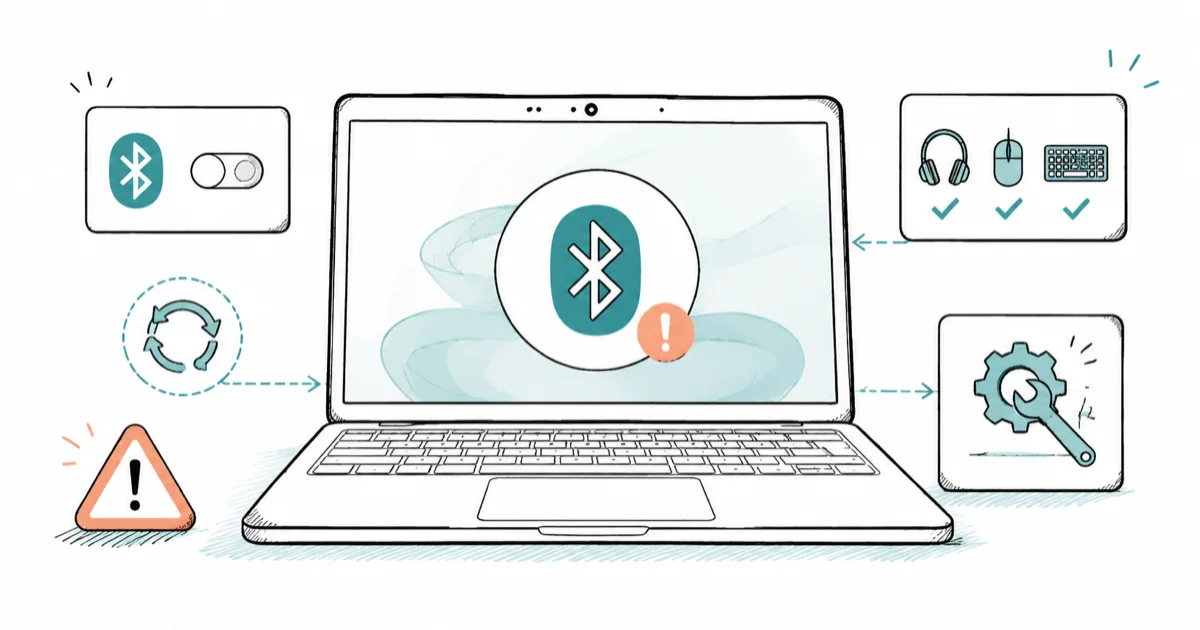
Quick AnswerGeneric Bluetooth audio, mice, and keyboards work fine on Snapdragon X. The usual culprits are a Windows update that broke pairing, which a remove-and-re-add fixes, or a vendor companion app that has no ARM build yet.
Bluetooth not working on your Snapdragon X laptop usually isn’t the broad failure it feels like. On a Copilot+ PC, generic Bluetooth audio, mice, and keyboards work through Windows’ own stack. What breaks is narrower: pairing that stops after an update, a headset that stutters on early drivers, or a vendor app with no ARM build yet.
- Generic Bluetooth audio, mice, and keyboards work on Snapdragon X through Windows’ built-in stack.
- Pairing that drops after a Windows update is the most common complaint, and removing then re-adding the device usually fixes it.
- Vendor companion apps (Logitech, Dell, gaming-headset suites) often have no ARM build, so deep features stay locked even when basic audio works.
- Drivers are not emulated on Windows on ARM, so any device that needs a custom driver needs an Arm64 one.
- Windows Update is where ARM64 Bluetooth and chipset drivers ship, so a fully updated machine fixes a surprising share of issues.
#Why Does Bluetooth Act Up on Snapdragon X?
Two different problems hide under one symptom. One is ordinary Windows Bluetooth flakiness, the kind that hits Intel laptops too. The other is specific to Windows on ARM, and it’s the one that catches people off guard.
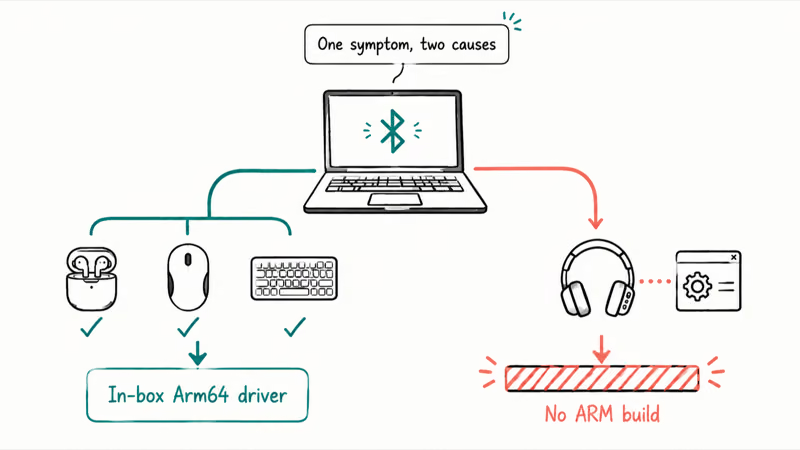
The ARM-specific issue comes down to drivers. According to Microsoft’s explainer on how emulation works on Arm, “emulation only supports user mode code and doesn’t support drivers. Any kernel mode components must be compiled as Arm64.” In plain terms: the translation layer that lets old x86 apps run on a Copilot+ PC stops at apps. It does not extend to drivers.
That distinction is everything. The generic Bluetooth radio uses Windows’ in-box driver, which is already Arm64, so it works. But a gadget that ships its own kernel-level driver, or a companion app that installs one, has nothing to fall back on if the vendor never built an ARM version. The device might pair for basic audio and still refuse to expose its custom features.
If you’re new to this hardware, our explainer on what a Copilot+ PC is covers why the Arm64 architecture changes the rules for drivers and old software.
Generic wireless earbuds can pair through Windows’ built-in Bluetooth stack, while trouble often starts with peripherals that depend on desktop companion apps.
#Bluetooth Stopped After a Windows Update
This is the single most common report, and it sounds scarier than the reality. A feature update occasionally invalidates an existing pairing, so a device that worked yesterday won’t connect today. The radio is fine. The saved pairing went stale, and that’s a thirty-second fix once you know to suspect it rather than the hardware or the laptop itself.
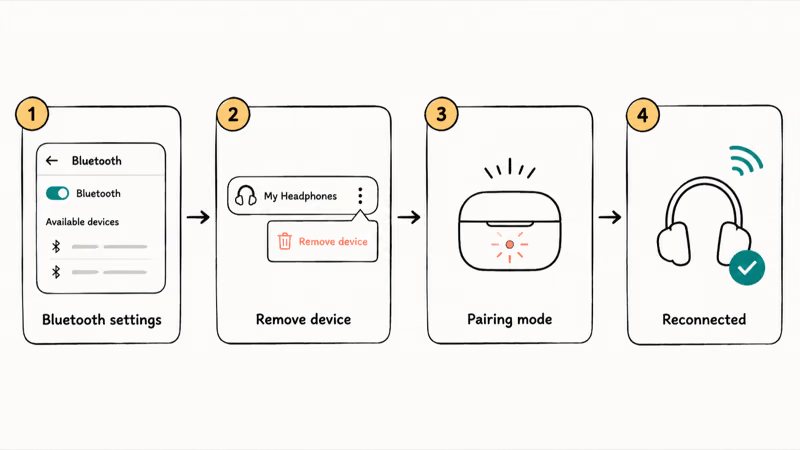
The fix is to forget the device and pair it again. Microsoft’s guide to fixing Bluetooth problems in Windows walks through it: open Bluetooth settings, “select the device you’re having problems connecting to, and then select Remove device > Yes,” then put the accessory back into pairing mode and add it fresh.
Run the obvious checks first, though. Confirm the device is powered on, charged, and in range before you assume the laptop is at fault, because those basics catch more cases than people expect.
Use this sequence:
- Open
Settings>Bluetooth &devices. - Find the problem device, click the three dots, and choose Remove device, then confirm.
- Put the accessory into pairing mode (usually a held button until an LED blinks).
- Click Add device > Bluetooth and select it from the list.
After a Windows update knocks a keyboard offline, removing and re-pairing the device is the clean first move. If it still won’t pair, toggle Bluetooth off and back on, or flip Airplane mode on for five seconds and off again to reset the radio. A reboot clears a stuck radio in cases where the toggle alone doesn’t.
#Audio Dropouts and Stutter on Early Drivers
Bluetooth audio that cuts out or stutters is a known early-driver symptom on Windows on ARM. The good news is that it fades as the platform matures, because the fixes ship through updates rather than anything you configure by hand.
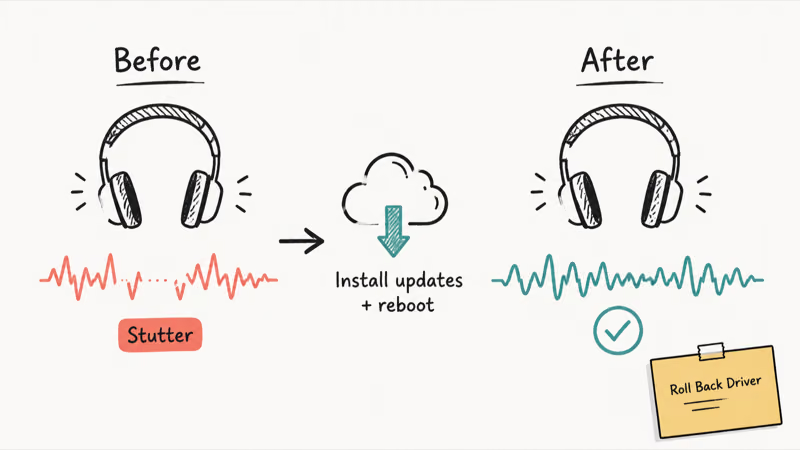
The lever that actually moves things is Windows Update. On a fresh Snapdragon X install, the machine boots and runs before every driver is fully in place, and Microsoft delivers the remaining ARM64 Bluetooth and chipset drivers through Windows Update. That’s also why a brand-new or freshly reset Copilot+ PC behaves better once it has been online for a while and pulled its updates.
So the first real fix for choppy audio is simple. Go to Settings > Windows Update, install everything including optional driver updates, then reboot and test the connection again.
If a specific update broke audio rather than fixed it, you can roll back the Bluetooth driver in Device Manager: right-click the Bluetooth adapter, open Properties, and use Roll Back Driver on the Driver tab. Microsoft’s Bluetooth guide states that “an outdated or incompatible driver is one of the most common causes of Bluetooth connection problems,” which cuts both ways. Usually you want the newest driver, but occasionally the previous one is steadier.
Codec also matters for audio quality. Generic A2DP and the standard hands-free profile work through the in-box stack, but a headset’s premium high-resolution codec may depend on the maker’s app, and that loops back to the ARM build problem below.
#Why Won’t My Headset’s App Install?
This is the wall most people hit, and no toggle fixes it. Plenty of Bluetooth accessories rely on a desktop companion app, Logitech Options, a gaming-headset suite, a fitness-tracker sync tool, to unlock buttons, EQ presets, or firmware updates. When the maker hasn’t shipped an ARM build, the installer fails outright or the app installs and then misbehaves, which is the symptom most people mistake for a hardware fault.
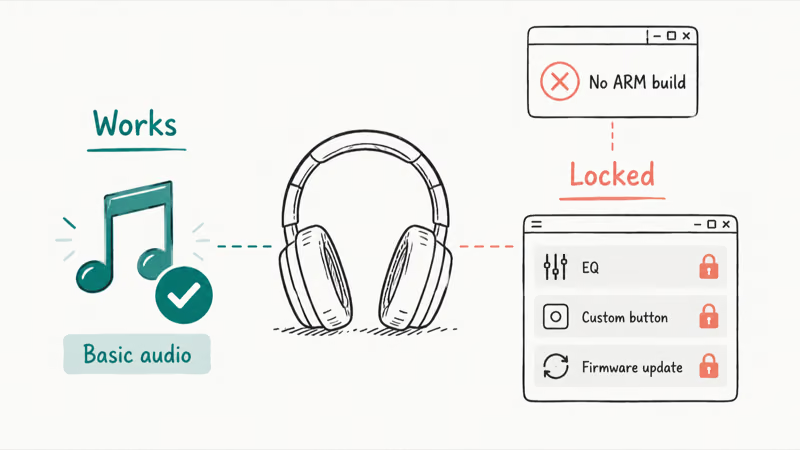
Microsoft’s Surface guide to software and peripherals on ARM devices states that “some peripherals including printers may not be installed when using an installer provided by the manufacturer if the software does not support ARM.” The same principle covers Bluetooth gadgets that lean on a vendor installer.
The honest part is the split. Basic function comes from Windows and works; the deep features in the companion app stay locked until the vendor ships ARM software. It’s the same root cause behind a printer not working on Snapdragon X, where the vendor’s x64 driver has no ARM build to install.
Our broader rundown of app compatibility on Windows on ARM maps which software runs natively, which leans on emulation, and which still breaks. Bluetooth companion apps sit squarely in that last group.
Your options are limited but real: check the maker’s site for an ARM or Arm64 build, see whether the device exposes its settings through a web dashboard or phone app instead of a Windows app, or accept basic Bluetooth function and skip the extras. There’s no emulation trick that conjures a driver the vendor never wrote.
One note before you sign in: treat these fixes as for a device you own or are authorized to manage, and read each companion app’s privacy policy first, since vendor apps often pull in account and usage data and a work-managed laptop may block what you can install.
#Bluetooth Symptoms, Causes, and Fixes
Match your symptom to the row below before you start changing settings. Most issues fall into one of these patterns.
How common Snapdragon X Bluetooth symptoms map to cause and fix
| Symptom | Likely cause | Fix |
|---|---|---|
| Worked yesterday, won’t connect today | Pairing went stale after a Windows update | Remove the device and re-pair it |
| Audio stutters or cuts out | Early-driver bug on Windows on ARM | Install all Windows Updates, including driver updates |
| Pairs for audio, no custom features | Vendor companion app has no ARM build | Look for an Arm64 app, a web dashboard, or a phone app |
| Headset app won’t install at all | x86/x64 installer with no ARM support | Check the maker’s site for an ARM build; basic audio still works |
| Bluetooth toggle gone entirely | Radio driver issue, not ARM-specific | See the generic Windows 11 Bluetooth not working fixes |
| Device pairs then drops repeatedly | Interference, power saving, or stale driver | Disable USB selective suspend; update via Windows Update |
The pattern is consistent: anything generic works, anything that needs custom software waits on the vendor. That single rule explains most of what people read as “Bluetooth is broken on ARM.”
#Setting Realistic Expectations Before You Buy Accessories
If you’re shopping for Bluetooth gear to pair with a Snapdragon X laptop, the safe bet is anything standards-based. Plain audio devices, mice, and keyboards that don’t ask you to install Windows software work without fuss. The accessories that disappoint are the ones whose value lives in a companion app.
That risk isn’t unique to Bluetooth. It shows up across peripherals, including a VPN not working on Snapdragon X whose client installs a network driver with no ARM build.
This is one reason the platform comparison matters. Our breakdown of Snapdragon X versus Intel Core Ultra versus AMD Ryzen AI lays out where ARM still trails x86 on driver and software support, and accessory compatibility is part of that gap.
An x86 laptop runs every vendor’s Windows installer without a second thought, since the software was written for that architecture. On ARM, that same installer is a coin flip until the maker ships an Arm64 build. For anyone who leans on a gadget’s desktop app daily, that’s worth weighing before committing to a Copilot+ machine.
#Bottom Line
Start by figuring out which of the three problems you actually have. That one decision points you straight at the fix.
If a device stopped connecting after an update, remove it and pair it again, since that fixes the most common case in under a minute. If audio stutters, install every pending Windows Update, because that’s where ARM64 drivers land.
If a headset’s companion app won’t install, that’s the architecture limit, not a setting you can flip. Check the vendor for an Arm64 build and use basic Bluetooth meanwhile. Generic Bluetooth on Snapdragon X is reliable; the vendor-specific extras are what test your patience.
AI PCs and Copilot+ Laptops
#Frequently Asked Questions
Does Bluetooth work at all on a Snapdragon X laptop?
Yes. Generic Bluetooth audio, mice, keyboards, and most standard accessories work through Windows’ built-in Arm64 stack, no extra drivers needed. The trouble starts only with devices that depend on a vendor companion app or a custom driver that has no ARM build.
Why did my Bluetooth stop working after a Windows update?
Updates sometimes invalidate a saved Bluetooth pairing, so a device that connected before suddenly won’t. The radio is fine; the pairing is stale. Remove the device in Bluetooth settings and add it again, and it should reconnect normally.
Why won’t my Bluetooth headset’s app install on Snapdragon X?
Because the app likely has no ARM build. Windows on ARM emulates x86 and x64 apps but not drivers, and many headset suites install a driver or are simply not compiled for Arm. Basic audio still works through Windows; the app’s extra features stay unavailable until the maker ships an ARM version.
How do I fix Bluetooth audio stuttering on a Copilot+ PC?
Install every pending update under Settings > Windows Update, including optional driver updates, then reboot. ARM64 Bluetooth and chipset drivers ship through Windows Update, and a fully updated machine resolves most early stutter. If a recent update caused it, roll back the Bluetooth driver in Device Manager.
Do Bluetooth drivers run through emulation on Windows on ARM?
No. Microsoft states that emulation supports user-mode apps only and not drivers, so any kernel-mode component must be built for Arm64. That’s why the in-box Bluetooth radio works but a third-party device needing its own driver requires an Arm64 driver to function.
My Bluetooth device pairs but keeps disconnecting. What’s wrong?
This is often interference, aggressive power saving, or a driver that needs updating, and it isn’t unique to ARM. Disable USB selective suspend in power settings, move closer to the laptop, and run Windows Update. If it persists, remove and re-pair the device to rebuild the connection.

Docker Desktop and WSL2 Not Working on Snapdragon X? Fix It
WSL2 runs fine on Snapdragon X, but Docker Desktop ARM is Early Access and throws WSL errors. Use WSL2 plus native ARM64 Ubuntu and Docker Engine.

Does OBS Studio Work on Snapdragon X? ARM64 Build Guide
Yes, OBS Studio has an experimental ARM64 build since version 31.1, but x64 plugins won't load and hardware encoding is missing. Here is what works.
Does Photoshop Run on Snapdragon X? Native ARM Answer
Does Photoshop run on Snapdragon X? Yes, as a native ARM64 build. See which features work, which Adobe apps emulate, and fix the 0xc000007b error.
How to Check if an App Runs on Snapdragon X Before Buying
Vet your must-have apps before buying a Snapdragon X PC: native ARM64, Prism emulation, partial, or blocked. The kernel-driver red flag explained.