Docker Desktop and WSL2 Not Working on Snapdragon X? Fix It
WSL2 runs fine on Snapdragon X, but Docker Desktop ARM is Early Access and throws WSL errors. Use WSL2 plus native ARM64 Ubuntu and Docker Engine.

Quick AnswerWSL2 works on Snapdragon X once you install a native ARM64 Ubuntu distro, but Docker Desktop for Windows on ARM is Early Access and often throws WSL errors. The steadier path is Docker Engine installed inside the Linux distro for native arm64 containers.
Docker Desktop and WSL2 not working on your Snapdragon X laptop usually comes down to one thing most guides skip: these are two separate layers, and only one is actually broken. WSL2 itself runs well on Windows on ARM, while Docker Desktop’s ARM build is the part that throws “Unexpected WSL error” and refuses to start. Once you split the two, the fix is straightforward.
- WSL2 runs natively on Snapdragon X once you install an ARM64 Ubuntu distro, which is a different problem from Docker Desktop failing.
- Docker Desktop for Windows on ARM is labeled Early Access by Docker, so WSL errors and startup failures are common.
- You can’t run linux/amd64 images natively on an ARM64 host without QEMU emulation, which is slow and the source of many “exec format” errors.
- The reliable setup is WSL2 plus Docker Engine installed inside the Linux distro, giving you native arm64 containers without the Docker Desktop GUI.
- Confirm your stack with wsl —version and wsl -l -v before assuming anything is wrong with Docker.
#Why Does WSL2 Work but Docker Desktop Fail on Snapdragon X?
Because they’re built for different things, and only one has a mature ARM build.
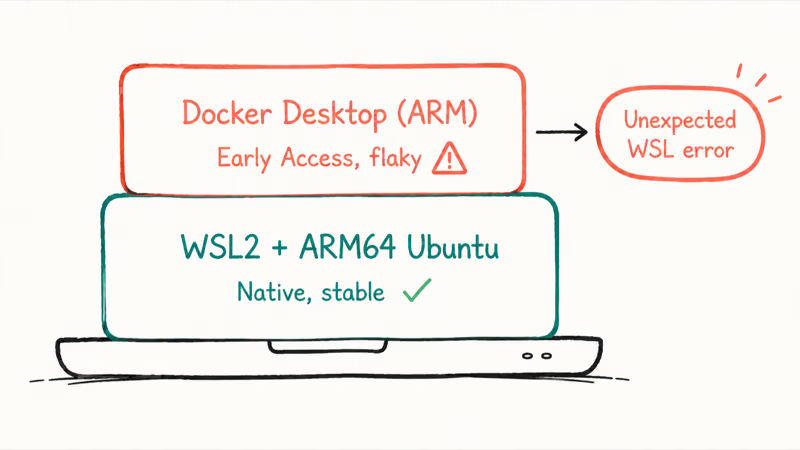
WSL2 is part of Windows itself. On a Snapdragon X machine you install it with one command, and it pulls down a native ARM64 Linux kernel and an ARM64 Ubuntu image. According to Microsoft’s WSL install documentation, running wsl --install installs Ubuntu and sets new distros to “WSL 2 by default.” That gives WSL2 a native ARM64 Linux layer for running native Linux containers.
Docker Desktop is a separate GUI app that sits on top of WSL2. Its Windows-on-ARM version is newer and far less finished. Docker’s own Windows install page lists the ARM download as “Docker Desktop for Windows - Arm (Early Access).” Early Access means exactly what you’d expect: it installs, but it’s prone to the WSL handshake failures people keep posting about.
So when you see WSL2 commands working in a terminal while Docker Desktop sits there with a red error, nothing is contradictory. The kernel layer is healthy. The beta app on top of it isn’t.
#The Two Layers, Side by Side
This table is the whole article in one glance. Match your symptom to the right layer before you change anything.
| Layer | What it does | State on Snapdragon X | Common error |
|---|---|---|---|
| WSL2 + ARM64 distro | Native Linux kernel inside Windows | Stable, native ARM64 | ”distribution not found” if no distro installed |
| Docker Desktop (ARM) | GUI app on top of WSL2 | Early Access, flaky | ”Unexpected WSL error”, fails to start engine |
| Docker Engine in WSL | Linux Docker daemon inside Ubuntu | Stable, native arm64 | none once installed correctly |
| linux/amd64 images | x86 containers on ARM host | Need QEMU emulation | ”exec format error”, slow runs |
If your problem is in row 1, it’s a setup gap and easy to fix. If it’s row 2, the fix is to stop relying on Docker Desktop. If it’s row 4, you have an image architecture mismatch, covered further down.
#Step 1: Get WSL2 Running on ARM the Right Way
Start clean. A lot of “Docker won’t start” reports are really “WSL was never fully set up.”
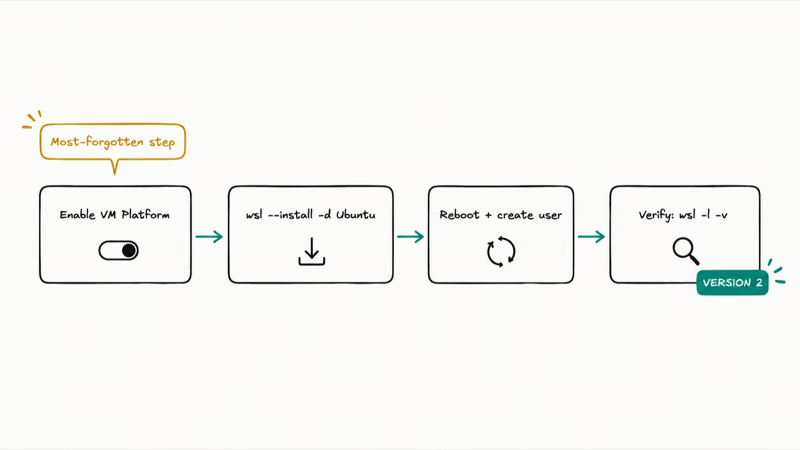
Open PowerShell as administrator and enable the platform features Windows needs for WSL2. The Virtual Machine Platform is the one people forget, and without it WSL2 can’t run its lightweight VM.
dism.exe /online /enable-feature /featurename:Microsoft-Windows-Subsystem-Linux /all /norestart
dism.exe /online /enable-feature /featurename:VirtualMachinePlatform /all /norestart
Restart, then install WSL with the distribution in one go:
wsl --install -d UbuntuAfter the reboot, Ubuntu opens and asks you to create a Linux username and password. That’s your native ARM64 distro. The first launch decompresses files and can take a minute, which is normal per Microsoft’s documentation.
Now verify the stack. These two commands tell you almost everything:
wsl --version
wsl -l -v
wsl --version shows your WSL, kernel, and WSLg versions. wsl -l -v lists each distro with its WSL version, and you want to see VERSION 2 next to Ubuntu. If it says 1, convert it with wsl --set-version Ubuntu 2. If wsl --version errors out entirely, run wsl --update to pull the current build.
#Step 2: Choose Your Container Path
Here’s the decision that fixes the actual problem. You have two real options on Snapdragon X, and the GUI is the weaker one.
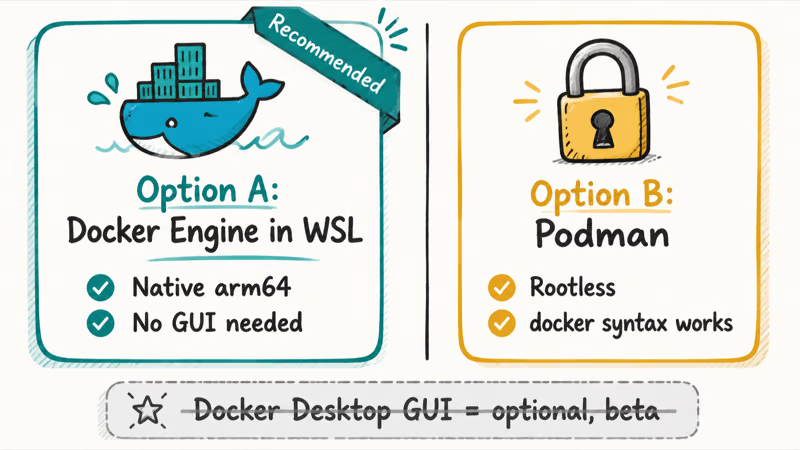
Option A, Docker Engine inside WSL (recommended). Skip Docker Desktop and install the Linux Docker daemon directly in your Ubuntu distro. This is plain native arm64 Docker, the same thing that runs on a Raspberry Pi or an ARM server, so it doesn’t depend on the Early Access Windows GUI at all. Inside the Ubuntu terminal:
curl -fsSL https://get.docker.com | sh
sudo usermod -aG docker $USER
Close and reopen the terminal, then run docker run hello-world. Because you’re on an ARM64 host pulling an arm64 image, the native container path avoids the WSL handshake layer that Docker Desktop can trip over.
That’s the same native-ARM advantage that lets apps like Photoshop run on Snapdragon X at full speed when there’s a real ARM64 build.
Option B, Podman. If you’d rather avoid the Docker daemon entirely, Podman runs rootless and ships in Ubuntu’s repos: sudo apt install podman. The docker command syntax mostly carries over, so podman run hello-world behaves the same.
Both options give you native arm64 containers without fighting a beta GUI. If you specifically need the Docker Desktop dashboard, you can still try it, but treat it as optional and expect rough edges. This mirrors the broader ARM reality covered in our guide to Windows on ARM app compatibility, where native builds beat emulated or beta ports every time.
#Why Do My linux/amd64 Containers Fail or Run Slowly?
Because your laptop’s CPU is ARM64, and x86 container images don’t run on it natively.
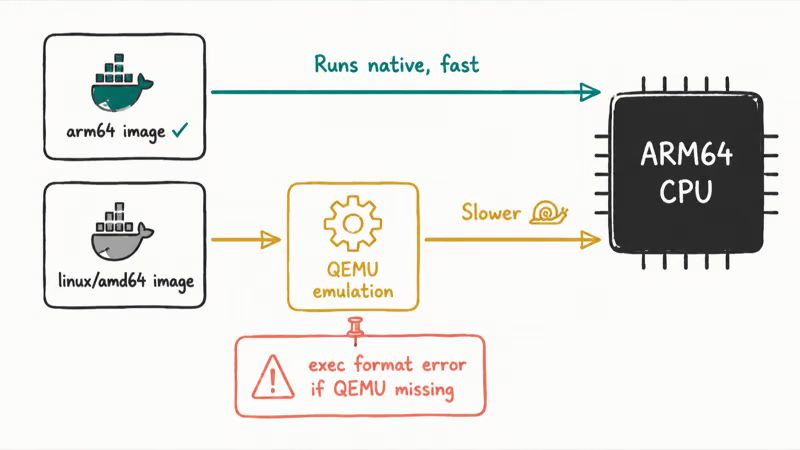
A huge number of images on Docker Hub are built for linux/amd64, the x86 architecture. On a Snapdragon X host, Docker can only run those through QEMU emulation, a software CPU translation layer. When the emulation layer isn’t set up, you get the classic exec format error. When it’s set up, the container runs, just noticeably slower because every instruction is being translated.
This is the same principle behind how Windows itself runs x86 desktop apps on these chips. According to Microsoft’s explanation of how emulation works on Arm, the Prism emulator works by “just-in-time compiling blocks of x86 instructions into Arm64 instructions.” Containers use a different translator, QEMU rather than Prism, but the tradeoff is identical.
It works, and it costs you speed. If you want the chip-level side of this, our Snapdragon X versus Intel Core Ultra versus AMD Ryzen AI breakdown explains where ARM gives and takes.
Two practical rules:
- Prefer multi-arch images. Official images like
node,python,postgres, andnginxpublish an arm64 variant, so Docker grabs it automatically and runs native. - When you must run an x86-only image, pin the platform explicitly with
docker run --platform linux/amd64 imagenameso you know emulation is in play, and accept the slowdown.
For comparison, hypervisors hit the same wall in a different way. Full virtual machines can’t run x86 guests on ARM Windows either, which we cover in running VirtualBox or VMware on Snapdragon X.
#When WSL Itself Throws Errors
Work through these in order. Most “Unexpected WSL error” cases clear up at step 2 or 3.
- Update WSL. Run
wsl --updatein PowerShell, thenwsl --shutdownto restart the subsystem cleanly. - Confirm virtualization is on in firmware. Snapdragon X ships with it enabled, but a BIOS reset can turn it off. WSL2 needs the Virtual Machine Platform feature plus hardware virtualization.
- Reinstall the distro if it’s corrupted.
wsl --unregister Ubuntuwipes it, thenwsl --install -d Ubuntugives you a fresh ARM64 image. Back up anything in the Linux home folder first. - Check your WSL version against Docker’s floor. Docker’s WSL2 backend documentation states that you need “at a minimum WSL version 2.1.5” for Docker Desktop to behave.
If WSL2 commands now work but Docker Desktop still fails, that’s your signal to switch to Docker Engine in WSL. You’ve proven the kernel layer is fine, so stop debugging the beta GUI. Knowing why these ARM machines behave differently helps, and our explainer on what a Copilot+ PC is covers the platform basics.
#Bottom Line
On a Snapdragon X laptop, install WSL2 with a native ARM64 Ubuntu distro, then run Docker Engine directly inside that distro for native arm64 containers. Treat Docker Desktop for Windows on ARM as optional and beta, because its Early Access state is what generates the WSL errors, not WSL2 itself. If you only ever hit x86-only images, expect QEMU emulation and the slowdown that comes with it, or find a multi-arch alternative.
AI PCs and Copilot+ Laptops
#Frequently Asked Questions
Does WSL2 work on Snapdragon X laptops?
Yes. WSL2 installs and runs natively on Snapdragon X once you add an ARM64 Linux distribution like Ubuntu. Microsoft’s documentation confirms wsl --install sets up WSL2 by default and pulls the Ubuntu image. The kernel and distro are true native ARM64, so this layer is stable, unlike the Docker Desktop GUI that sits above it.
Why does Docker Desktop throw an Unexpected WSL error on ARM?
Docker Desktop for Windows on ARM is still Early Access, so its integration with WSL2 is not fully baked. The handshake between the Docker engine and the WSL backend fails more often than on x86 Windows. The workaround is to install Docker Engine inside your Ubuntu distro instead, which runs as native arm64 Docker without depending on the beta GUI.
Can I run x86 Docker images on Snapdragon X?
You can, but only through QEMU emulation, and it’s slower than native. Most official images publish an arm64 variant that Docker uses automatically, so you often don’t need emulation at all. For x86-only images, add --platform linux/amd64 to your run command so you know translation is happening.
Is Docker Engine in WSL better than Docker Desktop on ARM?
For Snapdragon X, usually yes. Docker Engine installed inside WSL is the standard Linux daemon compiled for arm64, so it sidesteps the Early Access Windows GUI entirely. You lose the Docker Desktop dashboard, but you gain a stable native container engine that doesn’t depend on Docker Desktop starting successfully.
How do I check if my distro is running WSL2?
Run wsl -l -v in PowerShell. It lists each installed distribution with a VERSION column, and you want 2 next to your distro. If it shows 1, convert it with wsl --set-version Ubuntu 2. You can also run wsl --version to confirm your WSL, kernel, and WSLg build numbers.
Do I need Hyper-V or the Virtual Machine Platform for WSL2?
You need the Virtual Machine Platform feature, which is separate from full Hyper-V. Enable it with dism.exe /online /enable-feature /featurename:VirtualMachinePlatform /all, then reboot. WSL2 uses this lightweight VM layer to run its Linux kernel. Leaving it off is one of the most common reasons WSL2 won’t start on a fresh Windows on ARM machine.
Will Docker Desktop for ARM leave Early Access soon?
Docker hasn’t published a general-availability date, so plan around the current beta state rather than a promise. The safe approach is the in-WSL Docker Engine path, which doesn’t depend on Docker Desktop’s release timeline at all. If the GUI graduates to stable later, switching over is easy, but your containers won’t need it in the meantime.

Bluetooth Not Working on Snapdragon X? Fixes for 2026
Bluetooth not working on your Snapdragon X Copilot+ PC? Generic audio, mice, and keyboards work, but vendor apps often lack an ARM build. Fixes inside.

Does OBS Studio Work on Snapdragon X? ARM64 Build Guide
Yes, OBS Studio has an experimental ARM64 build since version 31.1, but x64 plugins won't load and hardware encoding is missing. Here is what works.
Does Photoshop Run on Snapdragon X? Native ARM Answer
Does Photoshop run on Snapdragon X? Yes, as a native ARM64 build. See which features work, which Adobe apps emulate, and fix the 0xc000007b error.
How to Check if an App Runs on Snapdragon X Before Buying
Vet your must-have apps before buying a Snapdragon X PC: native ARM64, Prism emulation, partial, or blocked. The kernel-driver red flag explained.