OneDrive Files On-Demand Not Downloading? 7 Fixes (2026)
Fix OneDrive Files On-Demand not downloading with 7 proven steps: pause/resume sync, reset the client, re-auth your account. Covers the post-sleep cause.
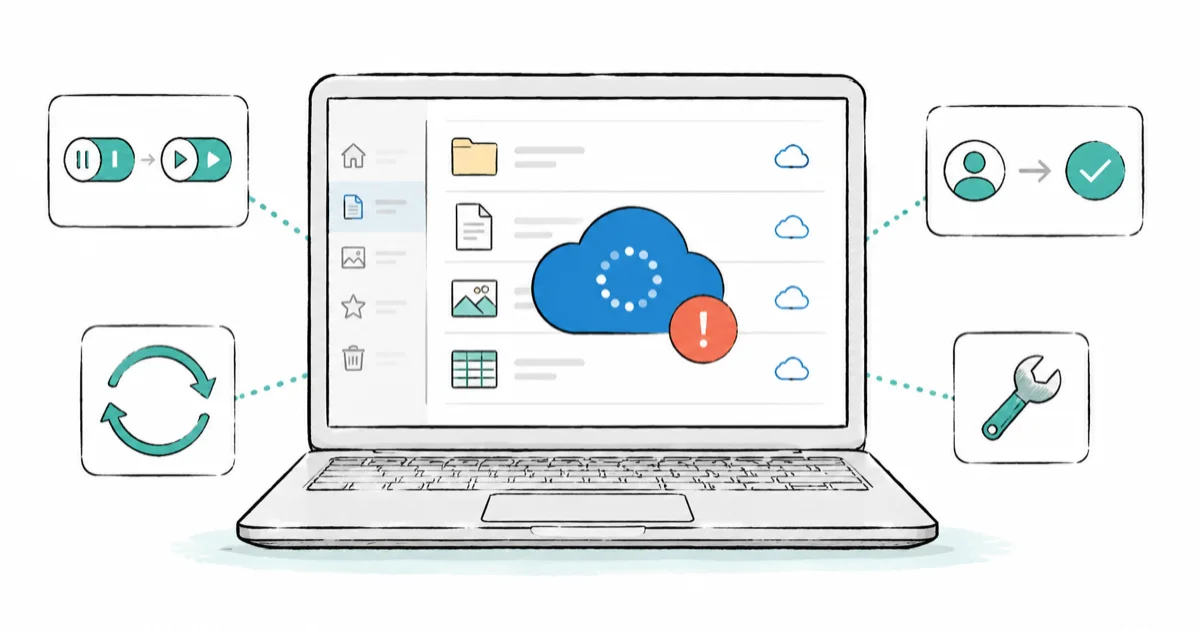
Quick AnswerPause and resume sync from the OneDrive tray icon first. If the blue cloud icon still will not turn into a downloaded file, re-sign in to your account or run onedrive.exe /reset. Most stuck downloads clear after a resume or a reset.
OneDrive Files On-Demand not downloading usually means one stuck file shows the blue cloud icon and refuses to turn into a real, local copy when you double-click it. The fix ladder below runs from a quick pause-and-resume up to a full client reset, and it covers the post-sleep glitch most guides skip.
- A blue cloud icon means the file is online-only, so a download that never starts is the real symptom, not the icon itself.
- Pausing and resuming sync from the tray icon clears the most common one-off download stall in under 30 seconds.
- Files On-Demand has shipped on by default since OneDrive build 23.066, so a missing toggle is rare and usually points to a group policy.
- Running onedrive.exe /reset disconnects sync but keeps all your files, then forces a full re-sync from the cloud.
- Waking a laptop from sleep or hibernation often leaves the OneDrive sync engine in a stalled state that only a restart fixes.
#Why Won’t OneDrive Files On-Demand Download My Files?
The blue cloud icon is doing its job. It means the file is online-only and lives in the cloud until you open it. The bug is the hydration step that follows: you double-click, OneDrive is supposed to pull the file down, and that handoff silently fails.
According to Microsoft’s Files On-Demand documentation, a blue cloud icon next to a file means it’s only available online, and opening it should download it and switch the icon to a green check. When that switch never happens, you’re stuck.
A few things break that download handoff. The sync engine can stall after the PC wakes from sleep, your account token can quietly expire so OneDrive thinks it’s connected but can’t fetch anything, and a Windows or OneDrive update can leave the client half-updated. On a work or school account, a group policy can block on-demand downloads outright.
Work top to bottom. The early steps take seconds and fix most cases, so there’s no reason to jump straight to a reset.
#Pause and Resume Sync First
This is the single fastest fix, and it clears most one-off download stalls. A pause forces OneDrive to drop its current sync state and rebuild the connection when it resumes.
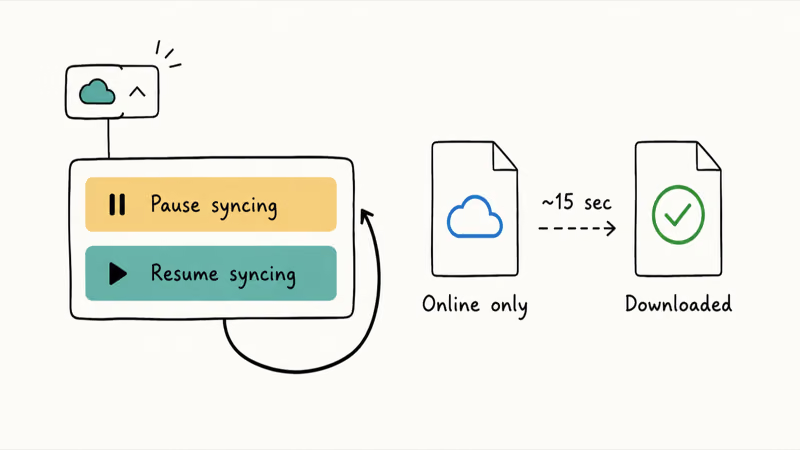
Here’s the 30-second version:
- Click the OneDrive cloud icon in the system tray (bottom-right, near the clock).
- Click the gear icon, then Pause syncing > 2 hours.
- Wait about 15 seconds.
- Open the same menu again and click Resume syncing.
- Double-click the stuck file. The icon should switch from a blue cloud to a green check within a few seconds.
If the file downloads after pause and resume, you’re done. If it still won’t budge, keep going.
#Re-Check the Files On-Demand Toggle
If no files will download and they all show the blue cloud, the feature itself may be in a weird state. Toggling it off and on rebuilds how OneDrive tracks local versus cloud files.
Go to the OneDrive tray icon, then Settings > Sync and backup > Advanced settings, and look for the Files On-Demand switch. Turn it off, wait for the files to fully download or revert, then turn it back on. Give it a minute between the off and on, because flipping the switch too fast sometimes leaves the same files stuck on the cloud icon you started with.
One caveat: turning Files On-Demand off downloads your entire OneDrive folder to the PC. If you’re tight on disk space, don’t flip it off on a huge folder. Microsoft’s Files On-Demand guide notes the feature has been enabled by default since build 23.066, so if the toggle is missing entirely on a managed device, a workplace policy is likely hiding it. A personal account should always show it.
For the file you actually need, skip the global toggle and right-click it directly. Choose Always keep on this device to force a permanent download. A solid green circle with a white check mark means the file is pinned locally and won’t be pushed back to the cloud.
#Re-Sign In to Your OneDrive Account
A silently expired token is a classic cause of “connected but nothing downloads.” Re-authenticating refreshes the token without touching any of your files.
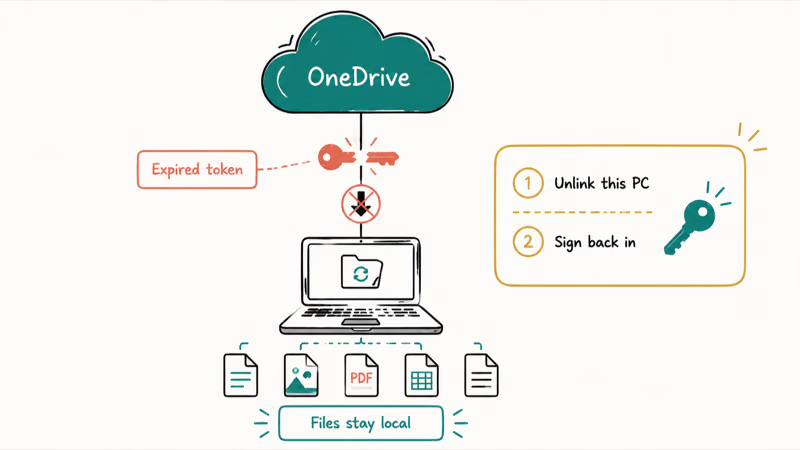
Open the OneDrive Settings > Account tab, click Unlink this PC, and confirm. Your local files don’t move. Sign back in to rebuild the map.
After you sign in, OneDrive re-reads which files are cloud-only and which are local, so the stuck file should hydrate when you open it. This is also the right step if you recently changed your password or turned on two-factor authentication, since either can invalidate the old session.
#How Do You Reset OneDrive Without Losing Files?
A reset is the heavy hitter for a stuck sync client, and it’s safer than people assume. According to Microsoft’s reset documentation, you won’t lose files or data by resetting OneDrive, and the client performs a full sync after the reset. The reset only disconnects your sync connections, then rebuilds them from scratch.
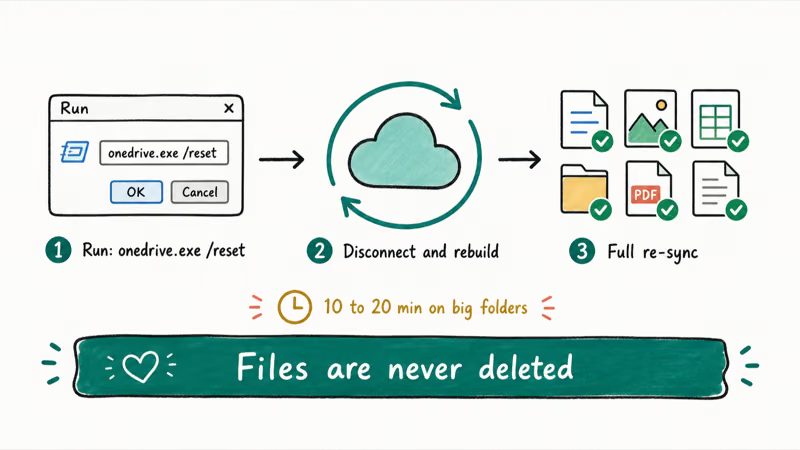
Press Win + R to open the Run box, paste this command, and press Enter:
%localappdata%\Microsoft\OneDrive\onedrive.exe /resetThe OneDrive icon will vanish from the tray for a minute or two while it resets. If it doesn’t come back on its own after a few minutes, relaunch it by opening Run again and pasting:
%localappdata%\Microsoft\OneDrive\onedrive.exeGot a “Windows can’t find the file” error? Your install lives elsewhere. Microsoft lists two alternates to paste into the same Run box:
C:\Program Files\Microsoft OneDrive\onedrive.exe /resetC:\Program Files (x86)\Microsoft OneDrive\onedrive.exe /reset
Give the full re-sync time to finish before you judge whether it worked. Large folders can look stuck while OneDrive re-indexes and re-downloads placeholders. Sync problems aren’t unique to OneDrive, and the same reset-and-reconnect logic applies if you ever hit Dropbox not syncing on the same PC.
#The Post-Sleep Cause Most Guides Miss
Here’s the one that traps people. If downloads only break after your laptop wakes up, the sync engine stalled during sleep. The tray icon still looks online, but the connection silently dropped.
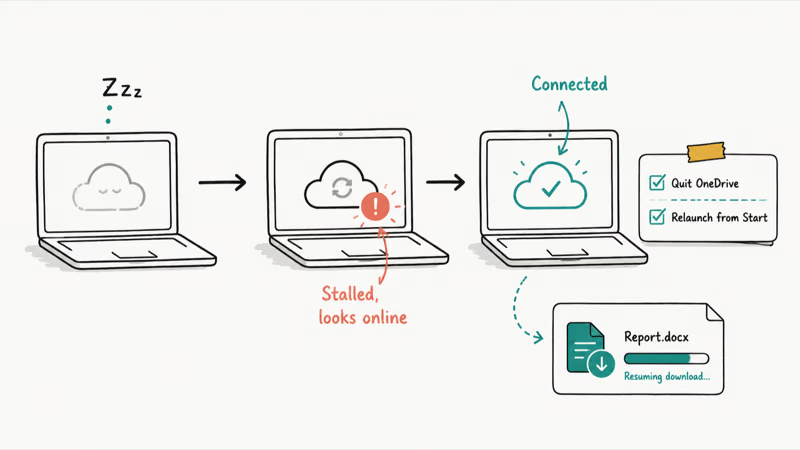
The fix is a clean restart of the process, not a reset. Right-click the OneDrive tray icon, choose the gear, and click Quit OneDrive, then confirm it. Open the Start menu, type OneDrive, and launch it again. The fresh process re-establishes the cloud connection, and stuck files start downloading.
If this happens every single morning, the deeper culprit is your power settings cutting network access during sleep. Our Windows 11 sleep mode not working guide walks through the power-plan changes that keep background sync alive. You can also tell OneDrive to launch at startup so it re-initializes cleanly after every boot.
#When File Explorer Itself Is the Problem
Sometimes the download works but File Explorer doesn’t redraw the icon, so a downloaded file still shows the blue cloud. That’s a display bug, not a sync bug, and restarting Explorer fixes it.
Press Ctrl + Shift + Esc to open Task Manager, find Windows Explorer in the list, right-click it, and choose Restart. The taskbar will flicker for a second while Explorer reloads. After that, the icons usually refresh to show the correct download status.
If Explorer is crashing or hanging on top of the OneDrive issue, fix that first, because a frozen Explorer can block right-click actions like Always keep on this device. Our Windows 11 File Explorer not responding guide covers the shell resets for that. A pending system update can also break sync after a reboot, which is worth ruling out with our Windows 11 update stuck steps if the trouble started right after an update.
#Bottom Line
Start with pause-and-resume from the tray icon. It’s a 30-second fix that clears most stuck downloads on the first try. If that fails, re-sign in to refresh your token, then fall back to onedrive.exe /reset, which keeps every file and forces a clean re-sync. If sync stays broken anyway, your files are still safe in the cloud, so moving them from OneDrive to Google Drive is a clean way to start fresh.
#Frequently Asked Questions
Why does my OneDrive file show a cloud icon but won’t download?
The blue cloud icon means the file is online-only, which is normal for Files On-Demand. The problem is that the download won’t start when you open it. That usually means the sync engine stalled, often after the PC woke from sleep, or your account token expired. Pause and resume sync from the tray icon first, then re-sign in if it persists.
Does resetting OneDrive delete my files?
No. According to Microsoft, you won’t lose files or data by resetting OneDrive. The reset only disconnects your sync connections and then performs a full sync from the cloud afterward. Your local files stay on the PC, and your cloud files stay in the cloud the whole time.
Where is the Files On-Demand setting in Windows 11?
Click the OneDrive cloud icon in the system tray, open Settings, then go to the Sync and backup tab and click Advanced settings. The Files On-Demand toggle lives there. If you don’t see it on a work or school PC, an administrator policy may be hiding it, since the feature is on by default for personal accounts.
How do I force a single OneDrive file to download?
Right-click the file in File Explorer and choose Always keep on this device. This pins the file locally and downloads it immediately, even if the rest of your folder stays online-only. A solid green circle with a white check mark confirms the file is permanently stored on your device.
Why do my OneDrive downloads stop working after sleep?
Sleep and hibernation can drop OneDrive’s cloud connection without changing the tray icon, so downloads silently stall after you wake the PC. Quit OneDrive from the tray menu and relaunch it to rebuild the connection. If it happens daily, adjust your power settings so Windows doesn’t cut network access during sleep.
What is the OneDrive reset command path?
The primary command is %localappdata%\Microsoft\OneDrive\onedrive.exe /reset, which you run from the Win + R box. If Windows can’t find it there, try C:\Program Files\Microsoft OneDrive\onedrive.exe /reset or the same path under Program Files (x86). Microsoft lists all three as valid reset locations.
Will turning off Files On-Demand fix the download problem?
It can, but it downloads your entire OneDrive folder to the PC, which may fill your drive. Toggle it off only if you have the disk space, then turn it back on to rebuild the local-versus-cloud tracking. For a single stuck file, right-clicking it and choosing Always keep on this device is the safer move.

Bluetooth Not Working on Snapdragon X? Fixes for 2026
Bluetooth not working on your Snapdragon X Copilot+ PC? Generic audio, mice, and keyboards work, but vendor apps often lack an ARM build. Fixes inside.

Docker Desktop and WSL2 Not Working on Snapdragon X? Fix It
WSL2 runs fine on Snapdragon X, but Docker Desktop ARM is Early Access and throws WSL errors. Use WSL2 plus native ARM64 Ubuntu and Docker Engine.
Does iTunes Work on Snapdragon X? ARM Windows 11 Guide
Yes, iTunes runs on Snapdragon X laptops through Prism emulation, but the Apple Devices app is the smoother route. Here is what to install on ARM.

Does OBS Studio Work on Snapdragon X? ARM64 Build Guide
Yes, OBS Studio has an experimental ARM64 build since version 31.1, but x64 plugins won't load and hardware encoding is missing. Here is what works.