Fix 'System Cannot Find the File Specified' on Windows
The 'system cannot find the file specified' Windows error (0x80070002) signals a missing or moved file. Run SFC, DISM, or reinstall the driver to fix.
Quick AnswerThe 'system cannot find the file specified' error usually means a Windows file path is broken or the system file is missing. Run SFC then DISM in an admin Command Prompt to repair core files, then reboot.
Error 0x80070002 in Windows surfaces when an app, installer, backup tool, or driver tries to open a path the system can no longer resolve. The cause is almost always one of four things: a corrupt system file, a stale Windows Update, a driver that lost its INF reference, or a deleted personal file. Three fixes resolve most cases (SFC, DISM, and a clean driver reinstall). The rest usually need an update repair or a recovery scan.
- The error maps to Windows code 0x80070002 and means a referenced file is missing, moved, or corrupted on disk.
- SFC and DISM are the standard repair pair, run as Administrator from Command Prompt or PowerShell.
- Driver-triggered cases need a clean Device Manager uninstall plus the manufacturer’s INF package, not the Windows Update cache.
- Update-triggered cases usually clear after wiping C:\Windows\SoftwareDistribution\Download and retrying Windows Update.
- If the error blocks a personal file you can’t replace, stop writing to that drive and run a recovery scan before any further repair attempts.
#What Causes Error 0x80070002 in Windows?
Windows raises this error whenever a process asks the file system for a path that returns nothing. The path may have been valid yesterday, but something has changed: a file was deleted, an update was interrupted halfway, a registry key now points to a folder that no longer exists, or a driver INF file got corrupted during a sleep-resume cycle.
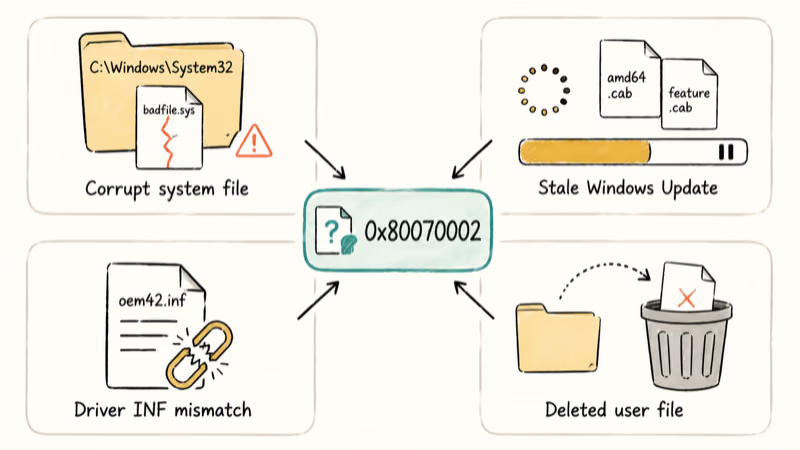
In practice, the same error string covers four separate failure modes. Identifying which one applies saves you from running fixes that don’t match your case.
- Corrupt system file: a Windows component (DLL, EXE, or SYS file) inside
C:\Windows\System32is missing or has a bad checksum. - Stale Windows Update: the update pipeline holds a partial download in
C:\Windows\SoftwareDistribution\Downloadand keeps trying to apply it. - Driver INF mismatch: the registry references a driver INF file that was renamed, archived, or deleted by a cleanup tool.
- Deleted user file: a personal file (script, project, backup) was removed, moved, or sent to the recycle bin while a program still expected it at the old path.
If you opened a backup app or built-in tool like File History when the error appeared, the cause is most likely the fourth one. Your file is no longer where the app expects. If the error appeared during boot, an update, or a printer install, the cause is in the first three buckets.
Related performance issues sometimes ride alongside this error. If your machine also feels sluggish, walk through the Windows 10 slow troubleshooting guide before chasing the file error itself.
#How Do You Fix Error 0x80070002 in Windows?
The fastest path is to start with the lowest-risk repair (SFC), escalate to DISM if SFC can’t finish the job, and only then poke at drivers, the registry, or recovery tools. Skip ahead only if you already know the trigger. For example, if you saw the error right after uninstalling a printer driver, Method 3 is the right starting point.
The five sections below cover, in order: System File Checker, DISM image repair, driver reinstall, Windows Update cleanup, and personal-file recovery. Each method explains when it fits so you can match the fix to your trigger.
#Run SFC and DISM to Repair System Files
System File Checker scans every protected system file, compares each one against a cached reference copy, and replaces corrupt versions in place. Microsoft’s System File Checker support page confirms that sfc /scannow ships built-in on Windows 7 and later releases, with the same syntax across every supported version. It’s the right first move for any 0x80070002 case that doesn’t involve a missing personal file.
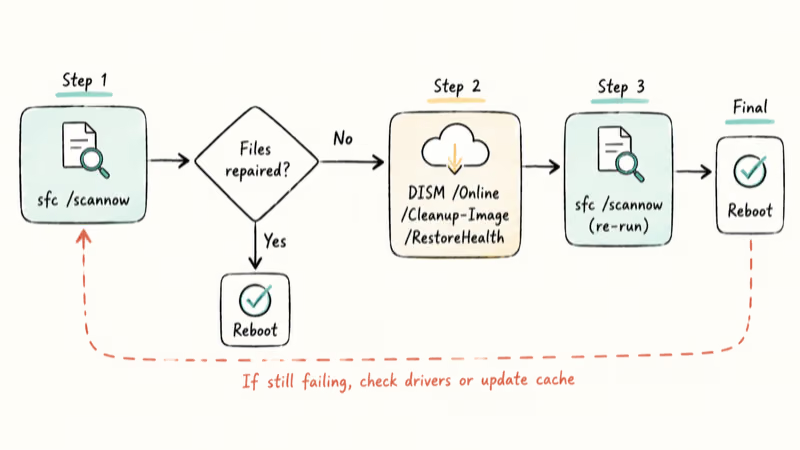
Run it from an elevated prompt:
- Press Windows + S, type
cmd, right-click Command Prompt, and choose Run as administrator. - At the prompt, type
sfc /scannowand press Enter. - Leave the window open until the scan reports completion. Don’t reboot mid-scan.
- Read the result line. “Windows Resource Protection did not find any integrity violations” means SFC sees no problem; “found corrupt files and successfully repaired them” means the fix is done.
After SFC reports repaired files, reboot once and retry the action that triggered 0x80070002. Check CBS.log if the same error returns.
If SFC reports “found corrupt files but was unable to fix some of them,” DISM is the next step. Microsoft’s Repair a Windows Image guide confirms that the /RestoreHealth flag re-pulls replacement files from Windows Update to repair the component store that SFC depends on.
Run DISM, then re-run SFC:
- In the same admin prompt, type
DISM /Online /Cleanup-Image /RestoreHealthand press Enter. - Wait. The progress bar can sit at 20% or 62% for several minutes; that’s normal.
- When DISM finishes with “The restore operation completed successfully,” run
sfc /scannowa second time. - Reboot.
If the error came back, the corruption isn’t in protected system files. Move to driver or update repair.
#Reinstall the Driver Causing the Error
Drivers are a common culprit when 0x80070002 appears during printer setup, network adapter loads, or after a Windows Update installs a generic driver over a manufacturer one. The fix is to wipe the bad INF reference and reinstall from the manufacturer’s package, not the Windows-cached copy.
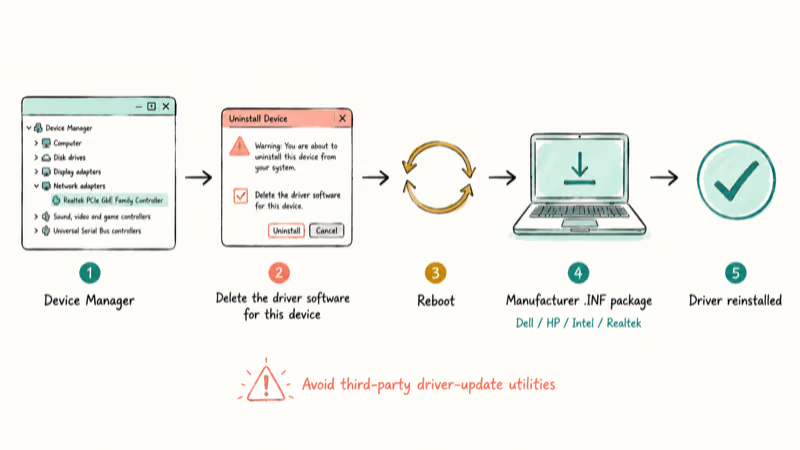
Open Device Manager and uninstall the suspect device first:
- Press Windows + X and choose Device Manager.
- Expand the category that matches the failing hardware (for example, Print queues for a printer or Network adapters for Wi-Fi).
- Right-click the device and choose Uninstall device.
- In the confirmation dialog, check Delete the driver software for this device if it appears, then click Uninstall.
- Reboot.
After reboot, download the latest driver directly from the hardware manufacturer (Dell, HP, Intel, Realtek, or the printer brand). Avoid third-party driver-update utilities; they often pull mismatched packages that recreate the same INF problem. If the device is a graphics card, the Vulkan Run Time Libraries explainer covers a related runtime issue you may also need to clean up.
#Update Windows and Patch Missing Files
Stuck Windows Updates are the second-most common trigger. The update pipeline downloads metadata into C:\Windows\SoftwareDistribution\Download, and when one of those files goes missing or corrupts, every retry hits 0x80070002. According to Microsoft’s Windows Update troubleshooting article, the troubleshooter ships built-in on Windows 10 and 11 and lists 6 common repair paths, with SoftwareDistribution cleanup near the top.
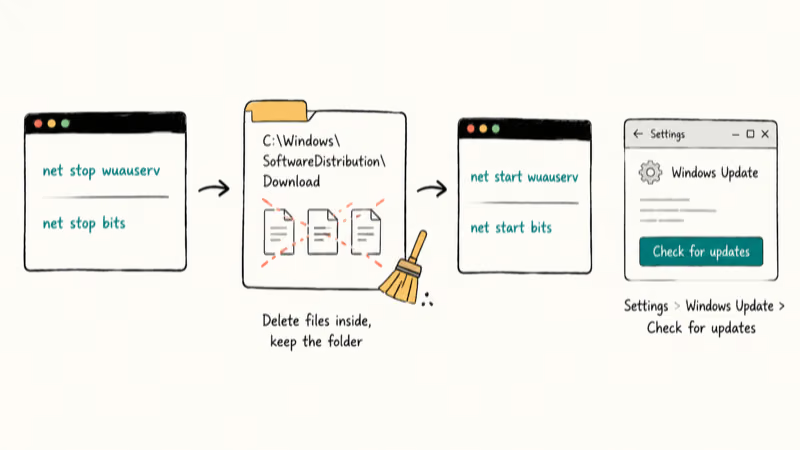
Wipe the folder safely:
- Open Command Prompt as administrator.
- Stop the update services:
net stop wuauservthennet stop bits. - Open File Explorer, go to C:\Windows\SoftwareDistribution\Download, and delete every file inside (keep the folder itself).
- Back in Command Prompt, run
net start wuauservandnet start bits. - Open
Settings>Windows Updateand click Check for updates.
For update-cache cases, clearing the SoftwareDistribution download folder and restarting wuauserv forces Windows Update to rebuild missing metadata on the next check.
If the cache wipe fails, run the built-in Windows Update troubleshooter at Settings > System > Troubleshoot. It catches BITS service issues that command-line cleanup misses.
#Recover Lost Files With Data Recovery Software
If the error blocks a personal file (a project folder, an email export, a script, a photo library) and the file isn’t in the recycle bin, treat the drive as a recovery target. Stop writing to it immediately, including from auto-saving apps, cloud sync clients, or browsers that cache to disk.
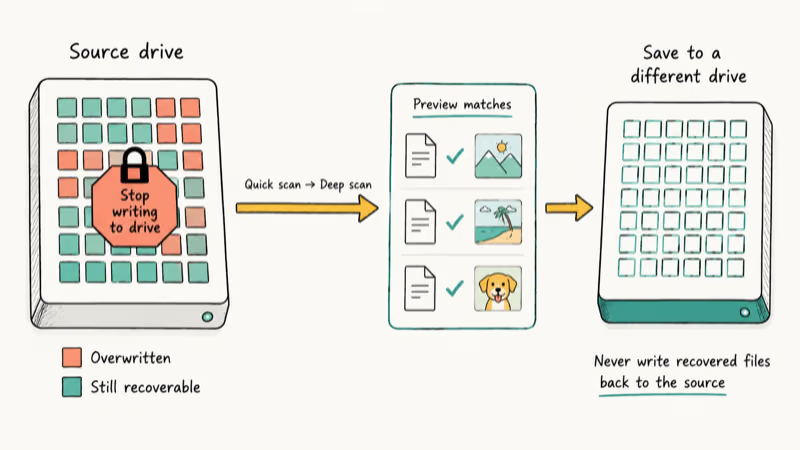
Every save, every browser cache write, every Windows log entry can overwrite the sectors that still hold your file. The window between deletion and overwrite is often hours, not days, on a busy system drive.
A recovery scan reads the drive at the sector level and reconstructs files from filesystem fragments, even after the file table no longer references them. EaseUS Data Recovery Wizard is one option that supports NTFS, exFAT, and FAT32 volumes; the is-easeus-safe review covers what to verify before you install it.
Some links on this page are affiliate links, which means fone.tips may earn a commission at no extra cost to you.
If the lost file lived on an NTFS volume specifically, the NTFS hard drive recovery walkthrough covers the volume-shadow approach as a free first attempt.
Recovery scan workflow:
- Install the recovery tool on a different drive than the one holding the lost file.
- Launch the tool and select the source drive (the one where the file went missing).
- Run a quick scan first; if it doesn’t find the file, run a deep scan (this can take hours on a 1 TB drive).
- Preview matches before recovering. File headers can be present even when the data block is half-overwritten.
- Save recovered files to a separate drive, never back to the source.
If the drive itself is failing, with slow reads, clicking sounds, or no listing at all, the SSD not showing up troubleshooting guide walks through enclosure tests and SMART checks before any recovery attempt.
#Reinstall Windows as a Last Resort
Reinstalling is the last resort, but it’s the right call when SFC, DISM, and update-cache repair all fail and the error appears system-wide rather than tied to one device or app. Most users avoid it: the Method 1 through Method 4 chain closes the case. Reinstall is reserved for situations where the component store itself is unrecoverable. Three signals point that direction:
- The error fires on every boot, regardless of which app or driver loaded.
- DISM /RestoreHealth fails with its own error, suggesting the component store itself is unrecoverable.
- The Windows Update cache wipe reproduces the error on the next download attempt.
Before reinstalling, back up everything. The system volume information large guide explains how to rule out shadow-copy bloat.
Also check that the file system itself is clean. Open an admin prompt and run chkdsk C: /f /r (it’ll prompt to schedule on next boot). Related read errors sometimes show up alongside 0x80070002, and the requested resource is in use error guide covers the classic cleanup-handle case.
For the reinstall itself, prefer the in-place upgrade option from Microsoft’s Windows installation media. It preserves apps and files while replacing every system file. A clean install is faster but wipes user data unless you’ve backed it up first.
#Bottom Line
Start with sfc /scannow. If it can’t repair every file, run DISM /Online /Cleanup-Image /RestoreHealth and then re-run SFC. Most 0x80070002 cases close at that point.
If the error survives both, the trigger is almost always a driver or a stuck Windows Update: uninstall the suspect device in Device Manager and reinstall from the manufacturer’s package, or wipe C:\Windows\SoftwareDistribution\Download and rerun update. Skip recovery software unless the missing file is personal data you can’t replace, and only reinstall Windows after every other path has failed twice.
When the file is present but blocked, use the steps to unblock a Windows file that won’t open.
#Frequently Asked Questions
Is this error specific to Windows?
The exact error string comes from the Windows API and tracks to error code 0x80070002. macOS and Linux raise their own equivalents (ENOENT on Linux, “No such file or directory”) but with different code paths and fixes.
Will sfc /scannow delete my files?
No. SFC only touches protected Windows system files inside C:\Windows and replaces corrupt versions with cached Microsoft copies. Your documents, photos, browser data, and installed apps are untouched.
How long does DISM /RestoreHealth take?
On a typical SSD with a fast internet connection, DISM finishes in 10 to 30 minutes. On a spinning hard drive or a slow connection, it can stretch past an hour. The progress bar pauses for long stretches at 20% and 62%; that’s normal, don’t kill the process.
Can a failing hard drive cause this error?
Yes, and it’s worth ruling out before chasing software fixes. Bad sectors can make a file disappear from the filesystem index even though Windows still references it in the registry. Run chkdsk C: /f /r from an admin prompt and check the Reliability Monitor (search Windows for “reliability”) for disk-related errors in the past 30 days. If you see clicking sounds, repeated read failures, or sudden free-space changes, copy your data to another drive immediately and replace the disk.
Why does the error keep returning after a fix?
Most repeats trace to one of two causes: a scheduled task or driver that recreates the broken state on every boot, or a registry key that still references the deleted file. Open Task Scheduler and Event Viewer and look for entries that fire right before the error reappears. They usually name the missing path, which gives you the registry key to clean.
Do I need to reinstall Windows?
Almost never. SFC, DISM, driver reinstall, and Windows Update cache cleanup resolve most 0x80070002 cases. Reinstall is only justified when DISM itself fails and the error fires on every boot regardless of which app is running.
What logs help diagnose this error?
Two logs are worth checking. CBS.log at C:\Windows\Logs\CBS\CBS.log records every SFC and DISM action, including the file paths each tool tried to repair. Setupapi.dev.log at C:\Windows\inf\setupapi.dev.log records driver INF resolutions and is the right place to find the exact missing INF file when the error came from a printer or device install.

Best Laptop for Running LLMs in 2026: Memory Comes First
The best laptop for running LLMs is a memory purchase first. Compare MacBook unified memory against NVIDIA laptop VRAM, and see what each tier really runs.

How to Run a Local LLM on Windows: A 2026 Setup Guide
Run a local LLM on Windows with LM Studio or Ollama. Pick a model that fits your GPU memory, keep every prompt offline, and skip the monthly bill.

Bluetooth Not Working on Snapdragon X? Fixes for 2026
Bluetooth not working on your Snapdragon X Copilot+ PC? Generic audio, mice, and keyboards work, but vendor apps often lack an ARM build. Fixes inside.

Docker Desktop and WSL2 Not Working on Snapdragon X? Fix It
WSL2 runs fine on Snapdragon X, but Docker Desktop ARM is Early Access and throws WSL errors. Use WSL2 plus native ARM64 Ubuntu and Docker Engine.