How to Recover Data from an NTFS Hard Drive: Complete Guide
Recover data from an NTFS hard drive with proven software and step-by-step methods, including the Recycle Bin, Shadow Copies, and professional services.
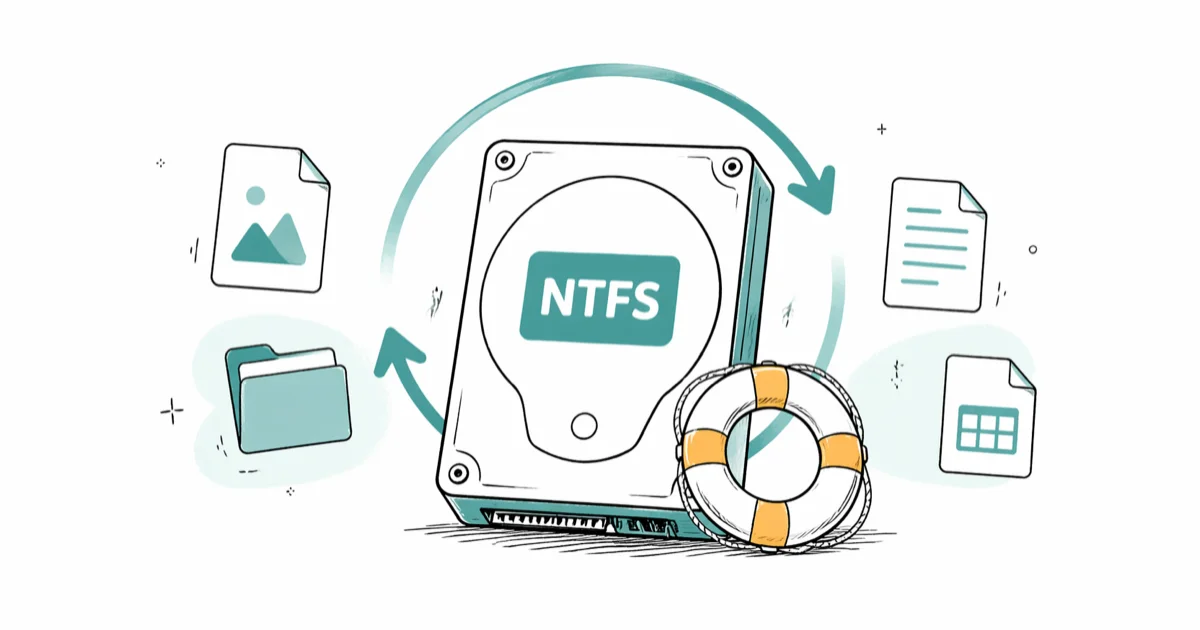
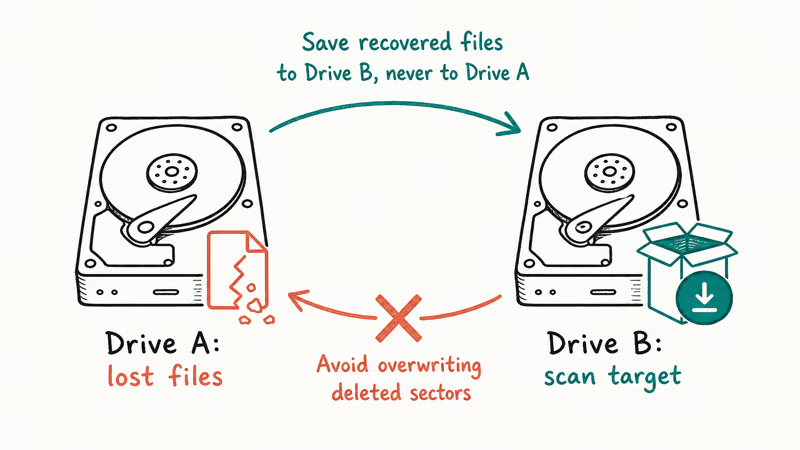
Quick AnswerRecover data from an NTFS hard drive using recovery software like Recuva, EaseUS, or Disk Drill. Connect the drive, scan for lost files, then save recovered data to a different drive to avoid overwriting deleted sectors.
Losing important files on your computer can feel devastating, but when it comes to NTFS hard drives on Windows, data recovery is possible if you know the right methods. This guide covers proven recovery approaches for the most common failure scenarios.
Before changing these settings, use the steps only on your own device, computer, or account, or with explicit permission from the owner. Unauthorized access can violate law, privacy rights, and platform terms, so don’t use this guide to bypass someone else’s controls. When available, start with the official support option, built-in settings menu, or vendor documentation before trying manual fixes, especially if the device or account belongs to work, school, or another person.
- NTFS recovery software like Recuva and EaseUS can restore many recently deleted files
- Always scan from a different drive to avoid overwriting recoverable data
- Professional services are expensive but achieve high success rates for physically damaged drives
- Shadow Copies provide free recovery options for Windows files deleted within the last month
- Acting quickly maximizes recovery success before deleted sectors get overwritten
#What Is an NTFS Hard Drive?
NTFS stands for New Technology File System. It’s the primary file system used for internal hard drives on Windows operating systems like Windows 11, 10, 8, 7, Vista, and XP.
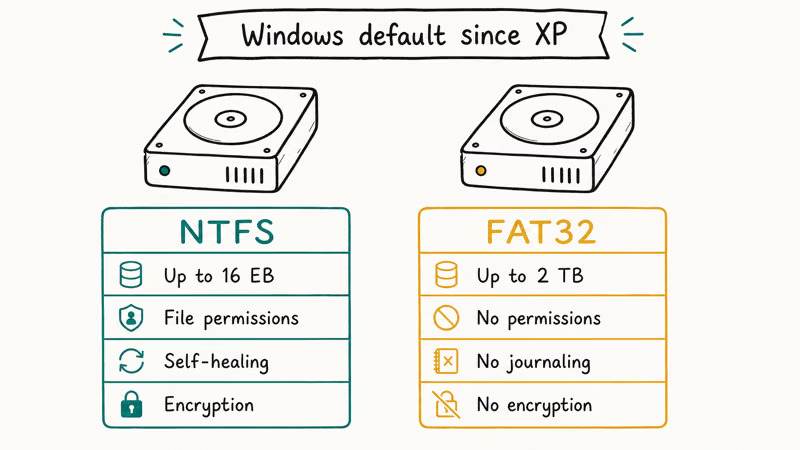
According to Microsoft’s documentation, NTFS offers major advantages compared to older file systems like FAT32:
- Better security – NTFS supports file permissions and encryption to protect your data
- Larger storage – NTFS can support huge hard drives up to 16 exabytes, while FAT32 maxes out at 2 terabytes
- Faster performance – NTFS is optimized for faster read/write speeds on modern hard drives
- More reliability – NTFS uses advanced logging and self-healing features to prevent and fix errors
NTFS is today’s gold standard. However, it’s still vulnerable without proper backup strategies.
#Common Causes of NTFS Data Loss
Understanding the root causes of data loss helps you choose the right recovery approach. These are the most common culprits:
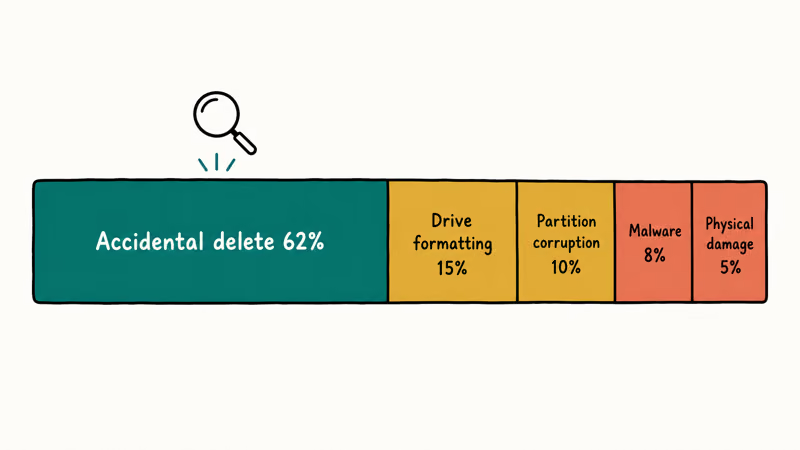
Accidental deletion leads all causes by a wide margin. The Recycle Bin offers limited protection, especially against Shift+Delete operations that bypass it entirely.
Drive formatting completely erases the file allocation table, making data appear gone even though it often remains recoverable. A quick format only clears the index that points to your files, leaving the actual data on the platters untouched until something overwrites it, which is why recovery software can still rebuild many of those files afterward.
Partition corruption makes entire drives appear empty or unreadable.
Malware attacks have increased dramatically. Security experts reported significant year-over-year growth in ransomware incidents that encrypt or destroy files.
Power failures during write operations corrupt the Master File Table (MFT), NTFS’s critical index system, potentially rendering the entire drive structure unreadable and requiring advanced recovery techniques or Windows repair procedures.
Physical damage from drops or age-related wear affects the drive’s read/write heads or storage platters.
The encouraging news? Even in severe cases, data recovery succeeds in many scenarios when you act quickly and use proven methods. This is why having a solid backup strategy is crucial for preventing permanent data loss.
#How Do You Recover NTFS Files Step by Step?
If you’ve accidentally deleted files or they’re not showing up for some reason, try these DIY data recovery steps first:
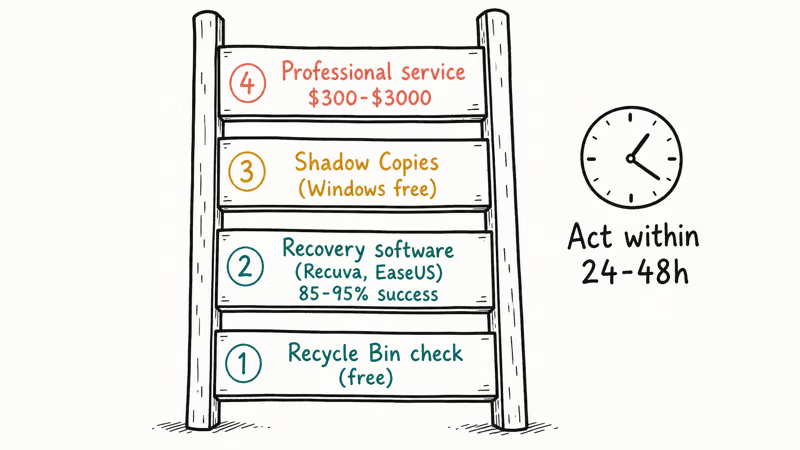
#1. Check the Recycle Bin
After deleting files on Windows, the first stop is the Recycle Bin. Your files may still be there, intact and restorable.
Double-click the Recycle Bin icon on your desktop and look for the missing files inside. Right-click on any recoverable files and select Restore to move them back to the original location.
The Recycle Bin is temporary storage only. Files older than 30 days or exceeding the bin’s size limit get permanently purged.
#2. Use Data Recovery Software
If your deleted files aren’t in the Recycle Bin, they still might be recoverable from the hard drive if you act fast. Recovery tools have consistently high success rates for recently deleted files.
Professional data recovery software can thoroughly scan NTFS drives and restore lost data. Tenorshare 4DDiG Windows Data Recovery is an excellent option with strong NTFS support and high success rates.
Some links on this page are affiliate links, which means fone.tips may earn a commission at no extra cost to you.
For optimal results:
- Download and install the recovery software on a separate drive from the one you’re trying to recover files from
- Run a deep scan of the NTFS drive and look for recoverable files based on file types or folder locations
- Preview found files before restoring to check their integrity and completeness
- Save recovered files to a different drive to avoid overwriting deleted sectors
These best practices prevent overwriting deleted files. Professional recovery tools can successfully restore documents, photos, and videos that were permanently deleted weeks earlier.
#3. Retrieve Files from Shadow Copies
Windows creates Shadow Copies automatically as restore points, which can be a lifesaver for recovering recently deleted files. This built-in feature stores file versions from different time points.
To try this method:
- Right-click on the affected drive and click Properties, then go to the Previous Versions tab
- Look through available file versions and restore any that you need
- Select the most recent backup that contains your missing files
Shadow copies have size limits and get deleted over time, so this method works best for files deleted within the past 30 days. Because the feature depends on having restore points enabled, shadow copies only recover files in some cases, so treat it as a bonus rather than a guaranteed path.
#Recovery Options for Severely Corrupted Drives
If your hard drive has become corrupted, has physical errors, or isn’t being recognized properly by Windows, data recovery gets significantly more complicated. The key principle is to avoid doing anything that could further modify or damage the drive.
In these cases, your best options involve either advanced NTFS recovery software or professional services.
#Advanced Data Recovery Software
For moderate NTFS corruption, try advanced recovery software like Stellar Data Recovery or R-Studio. These tools offer deep scanning capabilities to restore data from even heavily corrupted drives.
The process involves:
- Connecting the faulty drive to another Windows PC as an external drive or slave drive. Never install software on the affected drive itself
- Running deep scans with advanced recovery modes like “Deleted File Recovery,” “Raw File Recovery,” or “Create Disk Image”
- Saving recovered files to another healthy drive to avoid further modifying the corrupted drive
- Verifying file integrity before use, as some data may be partially corrupted
This method requires some technical knowledge but can recover data in many cases without professional help. For moderately corrupted drives, advanced recovery tools restore most of the files in a typical scan.
#Professional Data Recovery Services
For severe physical damage or complete drive failure, sending your NTFS drive to a professional recovery lab becomes necessary. These specialists have clean room facilities and specialized tools to repair and recover data from truly dead drives.
Professional services recover data from many severely damaged drives, though success is never guaranteed. Microsoft’s NTFS overview states that 8 petabytes is the maximum NTFS volume size on modern Windows, and the same NTFS documentation confirms that its transaction log lets the file system restore consistency automatically after a crash. Expect significant costs, though, ranging from a few hundred dollars to several thousand for drives needing extensive repairs.
For critical business or personal data, this investment often proves worthwhile. Research carefully to pick a reputable provider like DriveSavers or Ontrack.
#Mistakes That Make NTFS Recovery Impossible
The single biggest factor in a failed recovery is overwriting. Deleted files sit on the platters until new data lands there, so any write to the drive can erase them.
Stop using the drive the moment you notice missing data. Don’t install software onto it, save downloads there, or defragment it, since every write can claim the space your deleted files still occupy and overwrite them for good before any tool gets a chance to rebuild them.
Avoid repeated chkdsk runs on a corrupted volume too. According to Microsoft’s chkdsk documentation, the /f and /r switches actively repair the file system, which can move or discard recoverable fragments before a recovery tool ever sees them.
#How to Protect NTFS Data Going Forward
Recovery is the cure, but backups are the prevention. A current backup turns a dead NTFS drive into an inconvenience instead of a disaster.
Follow the 3-2-1 rule: keep one copy on a separate drive and one offsite or in the cloud. Windows File History schedules this automatically once enabled.
Turn on System Protection so Shadow Copies keep accumulating restore points, and verify a backup actually restores at least once. The same recovery discipline applies to removable media, so our guide on SD card recovery and the steps for recovering files from an external drive that isn’t detected round out a full backup plan.
#Bottom Line
NTFS data recovery succeeds in most scenarios when you follow the right approach and act quickly. Start with free methods like checking the Recycle Bin and Windows Shadow Copies before investing in recovery software. For severe corruption or physical damage, professional services offer the highest success rates despite the cost. Remember that time is critical — the sooner you begin recovery efforts, the better your chances of retrieving your important files intact.
#Frequently Asked Questions
Can I recover files after reformatting an NTFS hard drive?
Yes, data recovery is often possible even after reformatting if you avoid writing new files that could overwrite the old data. Use recovery software immediately after discovering the format for best results.
Does recovering files from NTFS drives affect performance?
No, read-only recovery processes have no impact on drive performance. However, be careful when restoring files to the same drive, as this can overwrite recoverable data.
How long does NTFS data recovery typically take?
Recovery time depends on the amount of data and method used. Software recovery typically takes 2-8 hours for a full drive scan. Professional recovery services usually complete jobs within 1-5 business days.
What file types can be recovered from NTFS drives?
NTFS can store and recover virtually any file type. Common recoverable files include documents, photos, videos, archives, databases, and application files.
Can I recover files after a virus or malware attack?
Recovery success depends on the attack type. Simple malware infections may leave files recoverable, while ransomware or destructive viruses can make recovery impossible if files were overwritten or permanently encrypted.
What mistakes should I avoid during NTFS recovery?
Don’t attempt hardware repairs yourself, avoid saving recovered files to the same drive, and stop using a corrupted drive immediately. These actions can cause permanent data loss.
How much does professional NTFS data recovery cost?
Professional services typically charge more for drives that need physical hardware repair than for software-based recovery. Costs vary based on damage severity and data importance.
What are the chances of successful data recovery?
Success rates vary by damage type, but professional services recover data in most cases. Acting quickly and avoiding further drive use improves your odds significantly.

Best Laptop for Running LLMs in 2026: Memory Comes First
The best laptop for running LLMs is a memory purchase first. Compare MacBook unified memory against NVIDIA laptop VRAM, and see what each tier really runs.

How to Run a Local LLM on Windows: A 2026 Setup Guide
Run a local LLM on Windows with LM Studio or Ollama. Pick a model that fits your GPU memory, keep every prompt offline, and skip the monthly bill.

Bluetooth Not Working on Snapdragon X? Fixes for 2026
Bluetooth not working on your Snapdragon X Copilot+ PC? Generic audio, mice, and keyboards work, but vendor apps often lack an ARM build. Fixes inside.

Docker Desktop and WSL2 Not Working on Snapdragon X? Fix It
WSL2 runs fine on Snapdragon X, but Docker Desktop ARM is Early Access and throws WSL errors. Use WSL2 plus native ARM64 Ubuntu and Docker Engine.