Fix "Windows Cannot Access the Specified Path" Error
Fix Windows cannot access the specified device, path, or file in 5 steps: Unblock downloads, repair NTFS permissions, clear Defender, fix shortcuts.
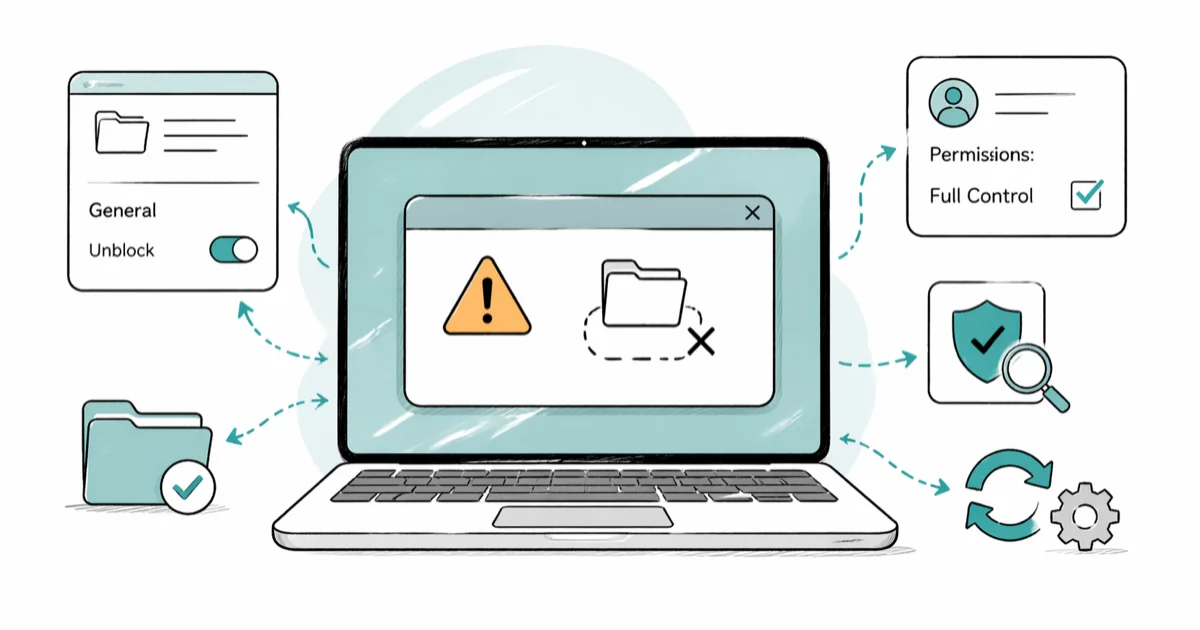
Quick AnswerRight-click the file, open Properties, and click Unblock on the General tab to clear the Zone.Identifier stream. If that is missing, switch to the Security tab and give your account Full Control, then rerun the file as administrator.
The Windows can't access the specified device, path, or file error means Windows located the file but a security check blocked the open call. It shows up on both Windows 10 and Windows 11. The fix depends on which check is blocking you: the file’s Zone.Identifier stream, the NTFS access control list, a SmartScreen or Defender quarantine, or a dead shortcut pointing to a drive that’s no longer mounted.
Using these methods on devices or accounts you don’t own may violate applicable laws and platform terms.
- The error is a front-end for four distinct security checks: Mark of the Web, NTFS permissions, Defender quarantine, and shortcut path resolution.
File Properties>General>Unblockremoves the Zone.Identifier stream set on files downloaded from the internet.- Full Control requires either your user SID or the Administrators group (S-1-5-32-544) on the file’s security descriptor.
- SmartScreen and Defender can hold an executable in quarantine even after you grant permissions.
- Shortcuts throw this error when the target drive has unmounted or the original path has changed since the shortcut was created.
#What Triggers This Error on Modern Windows?
The wording is old, but the underlying causes on Windows 10 and 11 are specific. When you double-click a file, Windows runs a sequence of checks before handing the file to an application: zone identifier, NTFS access control, attribute bits, SmartScreen reputation, and shortcut path resolution. Any one failing returns the same dialog.
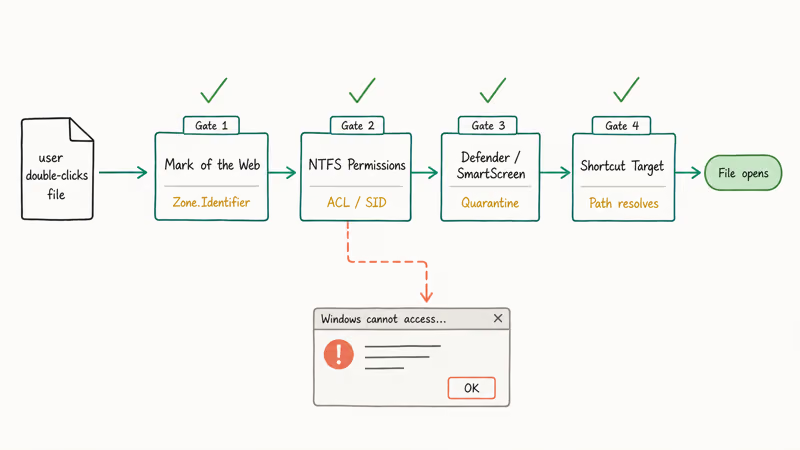
Each of the four causes produces the same dialog through a different path.
A .exe downloaded through Edge produces the message until the Mark of the Web is cleared. A spreadsheet that inherited a restrictive ACL from an old domain user stays blocked by the Security tab until ownership is reassigned. A .msi flagged as a threat sits in Defender quarantine, and a desktop shortcut pointing at F:\Installers\setup.exe breaks once the F: drive is removed. Four causes, one dialog.
Knowing which cause applies saves you from running every fix. Check where the file came from.
- Downloaded from the internet → start with Method 1 (Unblock).
- Inherited from an old user account → Method 2 (NTFS permissions).
- Blocked with a Defender toast → Method 3 (SmartScreen/Defender).
- Opened through a shortcut → Method 4 (shortcut target).
If the origin isn’t clear, work through the methods in order.
#Method 1: Unblock Downloaded Files From Properties
Windows tags every file downloaded through a browser with a Zone.Identifier alternate data stream. According to Microsoft’s PowerShell Unblock-File documentation, Zone.Identifier value 3 marks a file as originating from the internet. Windows holds back execution until you remove that stream. The cmdlet was introduced in PowerShell 3.0 and removes the stream without otherwise modifying the file.
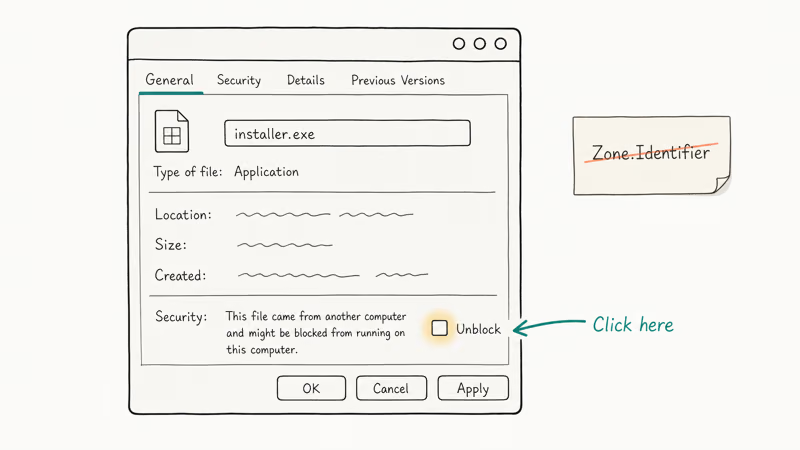
Steps:
- Right-click the blocked file and select Properties.
- On the General tab, look at the bottom for a Security section with a message like “This file came from another computer and might be blocked.”
- Check the Unblock box and click Apply.
- Click OK and try to open the file again.
If you don’t see an Unblock checkbox, the file has no Zone.Identifier stream and this method doesn’t apply. Move to Method 2.
For bulk unblocks, PowerShell is faster. Open an elevated PowerShell window, go to the folder, and run Get-ChildItem -Recurse | Unblock-File. On a folder full of blocked installers, this clears every Zone.Identifier stream at once, almost instantly.
Only unblock files from sources you trust. The Zone.Identifier stream is a deliberate safety brake, and Microsoft’s own Unblock-File documentation recommends reviewing the file and its source before removing the stream. If the file came from an email attachment or an unverified site, run it through VirusTotal first. Our guide on FileRepMalware false positives covers the verification workflow.
#Method 2: Repair NTFS Permissions on the Security Tab
If Unblock isn’t the problem, the file’s NTFS access control list is the next suspect. Windows uses security identifiers (SIDs) to decide who can read and write each file. According to Microsoft, the built-in Administrators group has RID value 544 and fixed SID S-1-5-32-544; permissions granted to that SID apply to every Administrator regardless of display name changes. See the Security Identifiers reference for the full list of well-known SIDs.
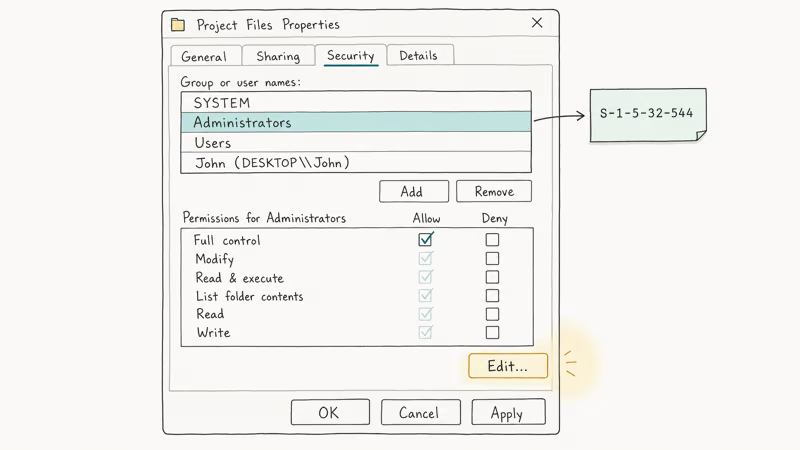
Steps:
- Right-click the file or folder and open Properties.
- Switch to the Security tab. Under Group or user names, select your account.
- Check the Permissions column on the right. If Full Control is not checked under Allow, click Edit.
- Select your account again and tick Full Control, then Apply.
- If your account is not listed at all, click Edit > Add > type your username > Check Names > OK.
When the Edit dialog throws its own permission error, you aren’t the file owner.
Close the dialog, go to Security > Advanced > Change next to Owner, type your username, check Replace owner on subcontainers and objects, and apply. Retry the Edit step.
For related access errors on Windows 7 and Server versions, our guide on how to get administrator privileges on Windows 7 walks through the built-in Administrator account and Safe Mode recovery. If the file is still locked by an active process instead of an ACL, see the file is open in system error guide for handle diagnostics with Resource Monitor.
#Method 3: Clear SmartScreen and Defender Blocks
Microsoft Defender and SmartScreen can hold a file in quarantine even after you fix its permissions. This is separate from UAC elevation. According to Microsoft’s User Account Control documentation, UAC elevation prompts come in two colors: yellow for unsigned executables and gray for verified publishers. A blocked SmartScreen or Defender event is different.
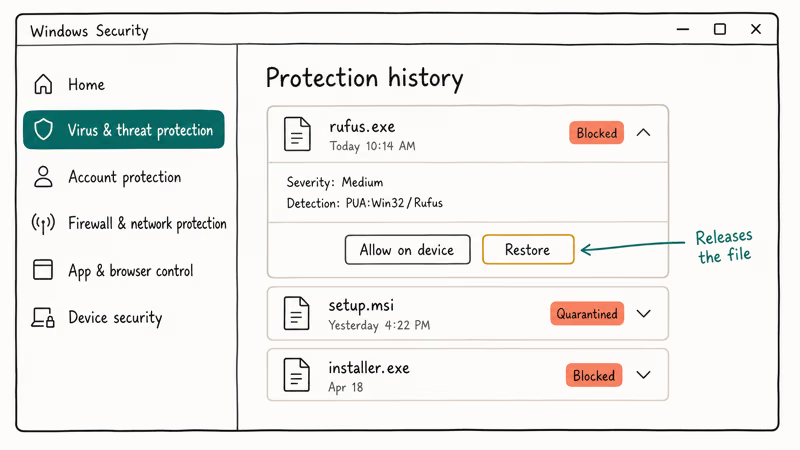
Check Defender first:
- Open Windows Security (Start menu, type “Windows Security”).
- Go to Virus & threat protection > Protection history.
- Look for recent entries with your file name and a Blocked or Quarantined status.
- Click the entry > Actions > Restore if you are sure the file is safe.
If SmartScreen blocked it:
- Right-click the file > Properties > General tab.
- If you see a Unblock checkbox, tick it (this overlaps Method 1).
- For persistent SmartScreen prompts, temporarily lower the setting under Windows Security > App & browser control > Reputation-based protection settings > set Check apps and files to Warn instead of Block.
A common case is an installer like Rufus that passes Method 2 but still throws the error.
Windows Security > Protection History often lists this kind of file under a Potentially Unwanted App detection, and restoring it clears the block within seconds. Our guide on Windows SmartScreen “Windows protected your PC” covers the reputation check in more depth. If Defender quarantined the file as csrss.exe, verify it’s the legitimate system process and not a disguised threat using our csrss.exe trojan guide before restoring.
#Method 4: Fix Broken Shortcuts and Dead Targets
When the error appears after double-clicking a desktop shortcut or Start menu tile, the shortcut’s target is the problem. Windows can’t open a file that no longer exists at the recorded path. Shortcuts created on removable drives break the moment the drive ejects.
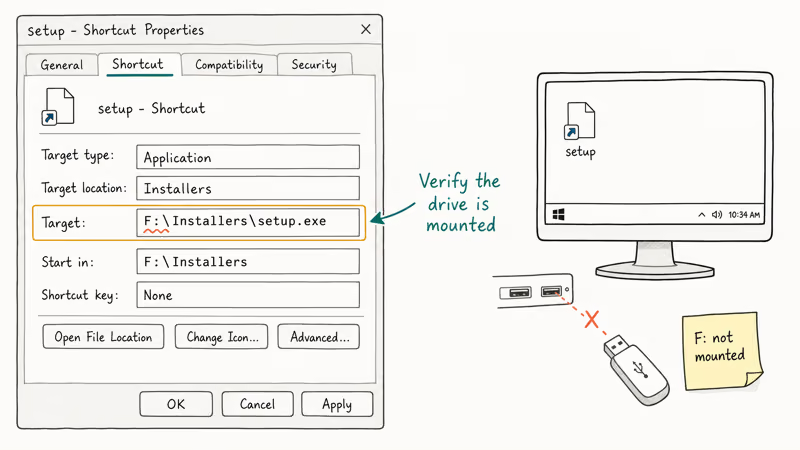
Steps:
- Right-click the shortcut > Properties.
- On the Shortcut tab, read the Target field.
- Check if the drive letter in the target (e.g.,
F:\Installers\setup.exe) is still mounted. Open File Explorer and look under This PC. - If the drive is missing, reconnect the external device or find the file on its current drive.
- If the path has changed, click Change Icon > Browse > select the current file, or delete the shortcut and create a new one.
A common trap: shortcuts from a previous Windows install point to C:\Users\OldUsername\... paths that no longer exist under the new user. The Target field shows the old path even though Windows migrated the file. Update the Target to C:\Users\<current>\... or recreate the shortcut.
For shortcuts to files on a network share, verify the share is still mapped and the remote machine is online. Our guide on fixing the requested resource is in use covers related file lock errors.
#Use Data Recovery When the File Is Truly Missing
If all four methods above fail, the file itself may be corrupt, deleted, or on a failing drive. At that point the error is honest: Windows can’t access the file because the file is no longer there. Recovery software that scans the raw sectors of a drive can retrieve a file even when the file system table has lost its entry.
A tool like Wondershare Recoverit handles the case where CHKDSK has orphaned files into a lost+found folder on a USB drive. Its deep scan can return most orphaned files with their original filenames intact.
Some links on this page are affiliate links, which means fone.tips may earn a commission at no extra cost to you.
For external drives Windows won’t mount at all, our guide on recovering files from an external hard drive not detected walks through the full diagnostic and recovery sequence.
Run recovery before any more writes happen to the drive. Once Windows allocates the old sectors to new data, recovery chances drop sharply. Copy recovered files to a different physical drive, never the one you’re recovering from. Our broader guide on how to recover data from an NTFS hard drive covers the case where the entire NTFS partition is unreadable.
#Why Does the Error Still Appear After I Fix Permissions?
Permissions are only one of the five checks Windows runs. Fixing the Security tab clears the ACL gate but does nothing for Zone.Identifier, Defender quarantine, attribute flags, or dead shortcut paths. A file can pass the permission check and still fail at the next gate.
File attributes are a common second hit. According to Microsoft’s File Attribute Constants reference, FILE_ATTRIBUTE_READONLY (value 1) prevents writes, FILE_ATTRIBUTE_HIDDEN (value 2) keeps the file out of directory listings, and FILE_ATTRIBUTE_SYSTEM (value 4) marks it as OS-reserved.
Right-click the file > Properties > General and uncheck Read-only and Hidden. For System-flagged files, open an elevated command prompt and run attrib -s "C:\path\to\file" to clear the system bit.
The order that works best: Unblock first (clears Zone.Identifier), then the Security tab (grants ACL), then Defender Protection History (clears quarantine), then attributes (clears read-only, hidden, and system bits), then the shortcut target check if the error is from a .lnk. Run them in that order and you avoid looping back on a fix you already tried.
#Bottom Line
Start with Method 1 if the file was downloaded, Method 2 if it was inherited from another user, Method 3 if you saw a Defender or SmartScreen notification, and Method 4 if you opened it through a shortcut. Most cases resolve with the Unblock checkbox alone.
For files that are truly gone, Wondershare Recoverit is a solid first choice because its deep scan handles the orphaned-file case CHKDSK leaves behind. Skip the “reinstall Windows” advice in older forum threads.
#Frequently Asked Questions
Can I just restart my computer to fix this?
A restart clears temporary handles and process locks, so it can fix cases where another process was holding the file open. It doesn’t touch Zone.Identifier, NTFS permissions, Defender quarantine, or broken shortcut paths. Try it once; if the error returns, work through Methods 1 through 4.
Why doesn’t running as administrator always work?
Running as administrator elevates UAC but doesn’t override NTFS ACL denies. If your account has no permissions on the file, Administrators group membership alone won’t help. You have to take ownership first, then grant your account read or full control. The elevation prompt and the ACL check are independent security gates.
Is this error ever caused by malware?
Yes. Malware can set restrictive permissions, hide files with the system attribute, or leave broken shortcuts pointing at payloads Defender later quarantined. Run a full Windows Defender scan before trusting the file.
What if the Security tab has no Edit button?
The Edit button appears only when you have Read Control permission on the file. If you don’t, go to Advanced > Change owner, make your account the owner, then reopen Properties. The Edit button will appear. Microsoft changed this to a two-step workflow starting in Windows 8 to reduce accidental permission damage.
Does this error affect OneDrive files?
OneDrive shows this error when the sync client hasn’t downloaded the file content, only the placeholder. Right-click the file > Always keep on this device, wait for the green checkmark, retry.
Can I disable Defender permanently to stop the error?
Disabling Defender isn’t a fix. It’s a workaround that leaves your machine exposed. Restore the specific file from Protection History instead, or add the folder to Defender’s exclusion list if it’s a known-safe development directory.
Why do I see this on network shares but not local files?
Network shares add a second ACL layer: the share permissions, set by the share owner, sit on top of the NTFS permissions, and both must grant access for the file to open. Ask the share owner to verify your account appears in the share’s permission list with Read (minimum) or Change rights. If the remote machine is offline or the share is unmounted, the error surfaces the same way as a missing local path.

Best Laptop for Running LLMs in 2026: Memory Comes First
The best laptop for running LLMs is a memory purchase first. Compare MacBook unified memory against NVIDIA laptop VRAM, and see what each tier really runs.

How to Run a Local LLM on Windows: A 2026 Setup Guide
Run a local LLM on Windows with LM Studio or Ollama. Pick a model that fits your GPU memory, keep every prompt offline, and skip the monthly bill.

Bluetooth Not Working on Snapdragon X? Fixes for 2026
Bluetooth not working on your Snapdragon X Copilot+ PC? Generic audio, mice, and keyboards work, but vendor apps often lack an ARM build. Fixes inside.

Docker Desktop and WSL2 Not Working on Snapdragon X? Fix It
WSL2 runs fine on Snapdragon X, but Docker Desktop ARM is Early Access and throws WSL errors. Use WSL2 plus native ARM64 Ubuntu and Docker Engine.