What Makes the System Volume Information Folder Large?
Why the System Volume Information folder gets large on Windows and how to shrink it safely. Set restore-point limits and clean exFAT external drives.
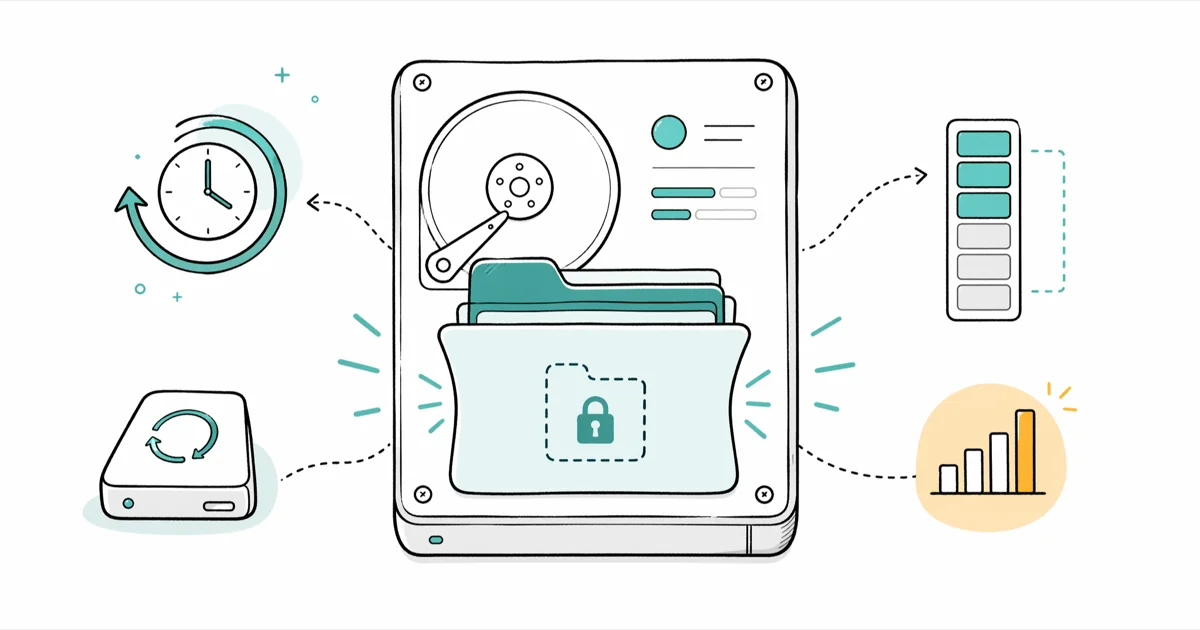
Quick AnswerThe System Volume Information folder grows because Windows stores System Restore points, Volume Shadow Copies, and File History inside it. Open System Properties, click System Protection, then Configure, and lower Max Usage to keep the folder small on Windows 10 and 11.
Windows fills the System Volume Information folder with restore points and shadow copies. The cleanup steps below work on Windows 10 22H2 and Windows 11 23H2.
Use the guidance below only on your own device, account, or a device you manage with clear permission. Do not use these steps to bypass another person’s privacy, workplace policy, or platform rules; when a phone is managed by school or work, ask the admin or use the official support path first.
- The System Volume Information folder mostly stores System Restore points, Volume Shadow Copies, File History data, and indexing databases.
- On NTFS drives, the folder is locked to the SYSTEM account, so even administrators can’t open it without taking ownership.
- Windows typically caps System Protection at around 10 percent of the drive, but you can lower it through System Properties, System Protection, then Configure.
- On exFAT and FAT32 external drives, the folder has no permission lock and you can delete it from File Explorer or Disk Management.
- Lowering Max Usage to 5 percent forces Windows to prune old restore points, which can shrink the folder by tens of gigabytes on a drive that was near its cap.
#Why Does the System Volume Information Folder Grow So Large?
The folder grows because Windows uses it as the storage container for several recovery features. By default, Windows allocates up to 10 percent of each drive for System Protection data, so on a 1 TB drive that ceiling alone can reach 100 GB before Windows starts pruning the oldest snapshots.
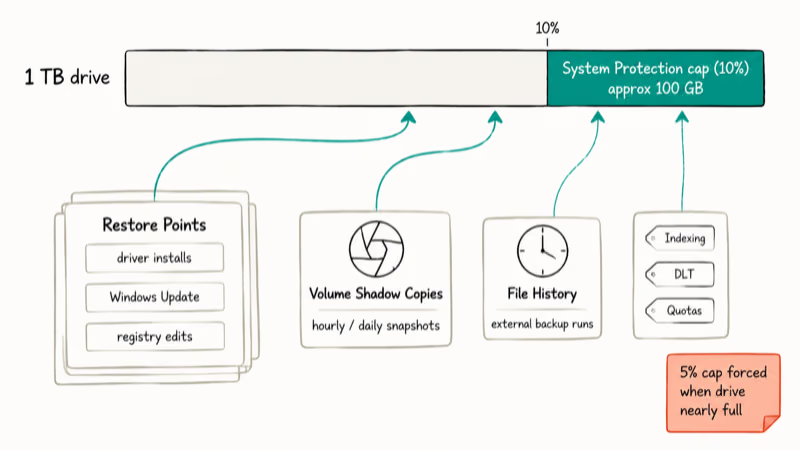
System Restore points are the biggest contributor on most PCs. Each restore point captures changes since the previous snapshot — driver installs, Windows Update payloads, and registry edits all expand the size. Volume Shadow Copy data adds to that with hourly or daily block-level snapshots whenever File History or a third-party backup tool is running.
That ratio explains why drives near full almost always need a 5 percent Max Usage cap.
According to Microsoft’s Volume Shadow Copy Service documentation, VSS coordinates writers, providers, and requesters during snapshot creation, and the resulting shadow data lives inside System Volume Information. Each File History run or Windows Backup adds another snapshot to that folder.
A few smaller contributors round out the bulk:
- Indexing Service database used by Windows Search
- NTFS Disk Quota settings
- Distributed Link Tracking Service database
- Data Deduplication metadata on Storage Spaces and Server SKUs
If your drive also struggles with Windows Update bloat that inflates restore points, our walkthrough on deleting Windows Update files completely clears the staging folders before the next snapshot runs.
#What the System Volume Information Folder Stores
Knowing what is inside the folder explains why Windows protects it so aggressively.
The biggest payload is restore-point images. They let you roll back system files, installed apps, drivers, and registry hives without touching personal documents. Restore points capture system files and registry settings, not user data, so they don’t back up the contents of your Documents folder.
Beyond System Restore, the folder also stores:
- Volume Shadow Copies for File History and most backup tools
- NTFS Disk Quota database for per-user disk allocation tracking
- Indexing Service database that accelerates Search results across the drive
- Distributed Link Tracking that repairs shortcuts pointing to renamed or moved files
- DFS Replication staging mostly relevant on file servers, not consumer PCs
- File Deduplication chunk store that is server-side but visible on Storage Spaces volumes
Delete the folder casually and you lose the ability to restore the system, recover earlier file versions, and search efficiently across the drive. That trade-off is rarely worth a few extra gigabytes.
#Why You Can’t Open the Folder on NTFS Drives
On every internal drive formatted as NTFS, Windows assigns the folder permissions to the SYSTEM account only. Even when you turn on Show hidden files plus the protected operating-system files toggle in Folder Options, double-clicking the folder returns “You don’t currently have permission to access this folder.”
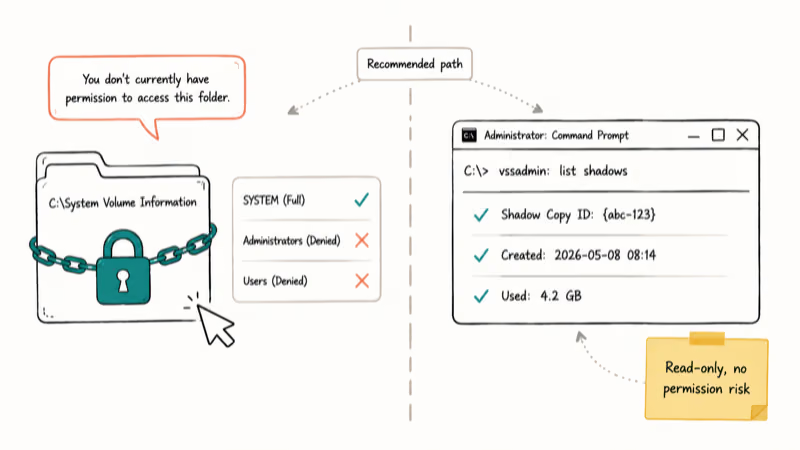
Taking ownership through icacls and granting administrators full control can unlock the folder, but Windows often quarantines the changes and resets permissions on the next reboot.
If you do need to inspect contents (for example, to confirm a corrupted snapshot), Microsoft recommends using vssadmin list shadows from an elevated Command Prompt rather than poking the folder directly. The vssadmin output lists shadow copy IDs, sizes, and creation times without breaking permissions.
You can grant your user temporary read access using icacls, though this is rarely worth the rollback risk:
icacls "C:\System Volume Information" /grant username:R
icacls "C:\System Volume Information" /remove username
Microsoft’s icacls command reference states that the /grant flag adds the listed permissions and /remove revokes them without resetting other ACLs. Both commands finish almost instantly, and Windows Defender may flag the access attempt in its event log.
#How to Reduce System Volume Information Size on Windows 10 and 11
The safe way to shrink the folder is to cap how much disk Windows can use for System Protection. The Max Usage slider lives in the same dialog where you turn System Restore on and off.
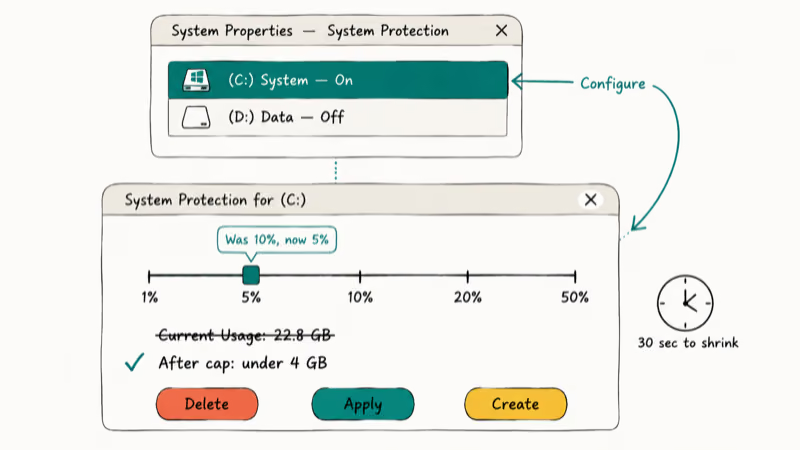
- Press the Windows key, type Create a restore point, then open the matching Control Panel result.
- In the System Properties dialog that appears, the System Protection tab lists each drive with Protection On or Off.
- Highlight the drive whose System Volume Information folder is bloated and click Configure.
- Drag the Max Usage slider down. Windows defaults to around 10 percent of the drive. Lowering it to 5 percent forces Windows to prune snapshots, and the folder shrinks within seconds on most drives.
- Click Delete to clear all existing restore points if you need an immediate cleanup, then Apply.
- Click Create to take a fresh restore point so you still have one usable rollback target.
The Max Usage cap is enforced in real time. As Windows creates new snapshots, it deletes the oldest ones to stay under the limit. There is no need to revisit the setting after the initial change.
If you also use File History to back up to an external drive, lower its retention in Settings > Update & Security > Backup > More options > Keep my backups. The Until space is needed option lets Windows recycle older versions automatically rather than holding them indefinitely.
For PCs that already feel sluggish from a packed system drive, our Windows 10 slow guide walks through a broader cleanup pass that recovers far more space than restore-point trimming alone.
#Cleaning the Folder on exFAT and FAT32 External Drives
External USB sticks, SD cards, and old portable hard drives formatted as exFAT or FAT32 don’t enforce SYSTEM ownership. You can open System Volume Information directly in File Explorer once hidden files are visible, and Windows lets you delete it like any other folder.
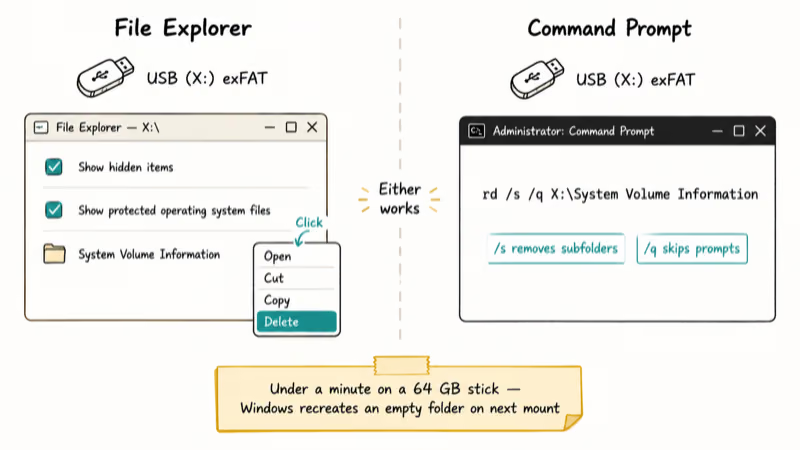
Two safe ways to remove the folder on a removable drive:
File Explorer method
- Plug in the external drive.
- Open File Explorer, click
View>Show>Hiddenitems, and tick Show protected operating system files underFolder Options>View. - Browse to the drive root, right-click System Volume Information, and choose Delete.
Command Prompt method
Open an elevated Command Prompt, then run:
rd /s /q "X:\System Volume Information"Replace X: with your drive letter. The /s flag removes subdirectories and /q skips confirmation prompts.
Both methods take under a minute on a typical exFAT thumb drive. After deletion, Windows recreates an empty System Volume Information folder the next time the drive is mounted, but only if Windows decides the drive needs indexing or shadow copy support. Usually the recreated folder stays a few hundred kilobytes on flash media.
If your external drive starts throwing can’t read from the source file or disk errors after the cleanup, the folder reset is unrelated. The underlying fix is a chkdsk pass on the drive.
#Should You Disable System Protection Entirely?
Disabling System Protection wipes existing restore points and prevents Windows from creating new ones. The System Volume Information folder shrinks to a few megabytes of metadata, but you lose the safety net for driver rollbacks and bad updates.
For most consumer PCs, keep System Restore on for at least the system drive. If you really need every gigabyte back, for example on a 128 GB SSD that is near full, disable protection only on data drives where restore points provide little value and keep it on for C:.
To disable protection on a non-system drive:
- Open System Properties (Windows key + Pause/Break, then Advanced system settings).
- Click the System Protection tab.
- Select the drive, click Configure, then choose Disable system protection.
- Click Delete to clear existing restore points.
A more useful path for most readers: keep System Protection on, but cap Max Usage at 3 to 5 percent. That gives you a couple of recent restore points without ever growing past a few gigabytes.
If you also see Service Host: Local System pinning the disk during snapshot creation, our Service Host Local System high disk and CPU walkthrough explains why VSS spikes I/O on older drives and how to throttle it.
#Bottom Line
For most Windows 10 and 11 PCs, lower Max Usage to 5 percent in System Properties > System Protection > Configure on the C: drive, then click Delete to wipe old snapshots and Create for a fresh one. That single change keeps the System Volume Information folder to a few gigabytes without sacrificing the rollback safety net. Save full disabling for data drives or SSDs where every gigabyte counts.
If your drive is so full that Windows throws an error 0x80070070 about low disk space, trim restore points first and then run Disk Cleanup for the rest. For a corrupted snapshot, run vssadmin delete shadows /all /quiet from an elevated Command Prompt, then re-enable System Protection so the next snapshot starts from a clean slate.
#Frequently Asked Questions
Can you delete the System Volume Information folder to free up disk space?
Not on internal NTFS drives. Windows protects the folder, and even with elevated permissions you risk corrupting System Restore. On external exFAT or FAT32 drives, you can delete it safely from File Explorer or with the rd command. Windows recreates an empty version the next time it mounts the drive.
How can you reduce the size of the folder?
Lower the Max Usage slider in System Properties > System Protection > Configure. Five percent works for most drives over 256 GB.
Can you move the System Volume Information folder to a different location?
No. Windows hardcodes the path to each drive root. Junction points or symlinks break System Restore and Volume Shadow Copy.
Why does the folder keep growing on its own?
Each new restore point, File History snapshot, or VSS-backed backup adds data, and Windows prunes only when the Max Usage cap is reached. Lower the cap to force immediate pruning.
Is it possible to disable System Restore to stop the folder from growing?
Yes. Open System Properties > System Protection, click Configure for the drive, and choose Disable system protection. Click Delete to wipe existing restore points. We recommend keeping System Restore active on the C: drive so you can roll back a bad driver or update.
What is the default size limit for System Volume Information?
Windows caps the default at around 10 percent of the drive. On a 1 TB drive that lands at 30 to 100 GB before trimming.
Does Disk Cleanup remove old restore points?
Yes. Open Disk Cleanup, click Clean up system files, switch to the More Options tab, and click Clean up under System Restore and Shadow Copies. This removes everything except the most recent restore point and is faster than the Max Usage slider for one-shot cleanups.
Will deleting System Volume Information break my backups?
It will if your backups depend on Volume Shadow Copy data stored in that folder. Windows File History, Windows Backup, and many third-party tools (Acronis, Macrium Reflect, Veeam) use VSS. Deleting the folder on the drive being backed up invalidates the local snapshot chain, so your next backup runs as a full one instead of an incremental. Restart afterward and run a fresh full backup before trusting incremental schedules again.

Best Laptop for Running LLMs in 2026: Memory Comes First
The best laptop for running LLMs is a memory purchase first. Compare MacBook unified memory against NVIDIA laptop VRAM, and see what each tier really runs.

How to Run a Local LLM on Windows: A 2026 Setup Guide
Run a local LLM on Windows with LM Studio or Ollama. Pick a model that fits your GPU memory, keep every prompt offline, and skip the monthly bill.

Bluetooth Not Working on Snapdragon X? Fixes for 2026
Bluetooth not working on your Snapdragon X Copilot+ PC? Generic audio, mice, and keyboards work, but vendor apps often lack an ARM build. Fixes inside.

Docker Desktop and WSL2 Not Working on Snapdragon X? Fix It
WSL2 runs fine on Snapdragon X, but Docker Desktop ARM is Early Access and throws WSL errors. Use WSL2 plus native ARM64 Ubuntu and Docker Engine.