Fix "The Requested Resource Is in Use" Error on Windows
Fix "The requested resource is in use" on Windows 10 and 11. Unlock files, end hidden processes, remove SmartService malware, and reset permissions.
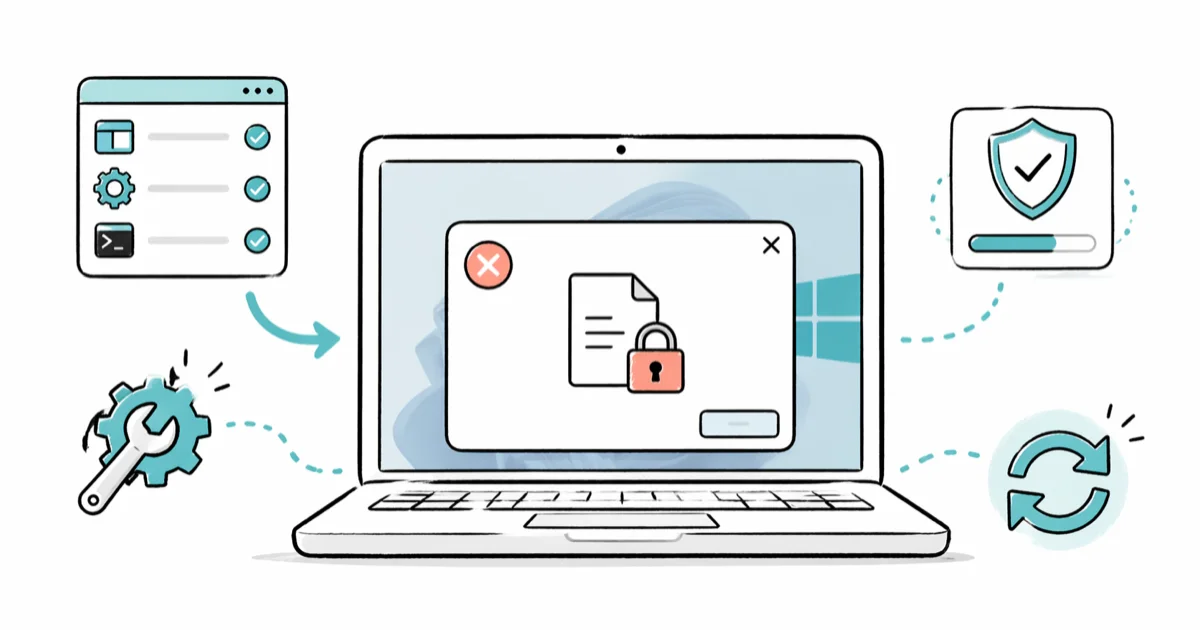
Quick AnswerThe error means another process has locked the file. Close the app, end its process in Task Manager, run a Microsoft Defender Offline scan to rule out SmartService malware, then retry the action.
“The requested resource is in use” is Windows telling you another process has a handle on the file you’re trying to delete, move, or modify. Most of the time it’s a background app you forgot about; other times it’s the SmartService trojan blocking your antivirus. Every fix on this page works on Windows 10 and 11 when the error is actively reproducing.
Before changing these settings, use the steps only on your own device, computer, or account, or with explicit permission from the owner. Unauthorized access can violate law, privacy rights, and platform terms, so don’t use this guide to bypass someone else’s controls. When available, start with the official support option, built-in settings menu, or vendor documentation before trying manual fixes, especially if the device or account belongs to work, school, or another person.
- The error comes from a file handle held by another process, not from the file itself being corrupted
- Microsoft Defender Offline scan catches SmartService, the trojan most often tied to this message
- Resource Monitor’s CPU tab has a hidden “Associated Handles” search that names the exact process locking your file
- Safe Mode boots Windows without third-party services, so the lock usually drops the moment you log in
- Resetting NTFS permissions from an elevated Command Prompt fixes the lingering “Access Denied” that remains after the process is gone
Some links on this page are affiliate links, which means fone.tips may earn a commission at no extra cost to you.
#What Does “The Requested Resource Is in Use” Actually Mean?
Windows shows this dialog when the action you requested (delete, move, rename, overwrite) needs exclusive access to a file, but another process already has an open handle on it. The operating system refuses the second request rather than risk data corruption.
If the file sits on an external drive and you need the data back before you start killing processes, recover it first with EaseUS Data Recovery Wizard so nothing gets wiped during the fix.
Three distinct triggers account for most cases: an app that crashed without releasing its handle, Windows Defender mid-scan, and the SmartService malware family that latches onto user-mode files to prevent removal. Microsoft’s File Explorer troubleshooting guide confirms that locked files and stuck processes are a common File Explorer error class and recommends identifying the owning process before forcing the action.
The error is not specific to a file type. A tiny .txt file that a crashed Notepad still holds open throws the same dialog as a multi-gigabyte video left open in VLC. The fix path is the same: find the process, release the handle, retry.
#How to Find the Process Locking Your File
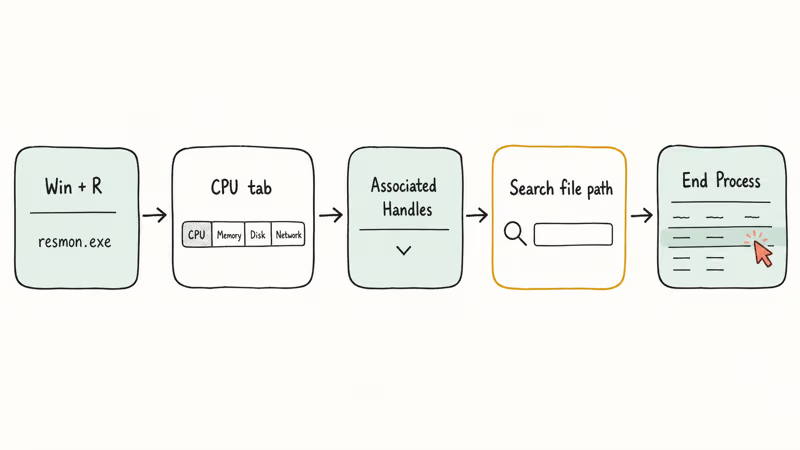
Before you reboot or run scans, identify what’s holding the file. Resource Monitor ships with every Windows 10 and 11 install and gives you a precise answer in under a minute.
-
Press
Windows + R, typeresmon.exe, and press Enter. -
Open the CPU tab.
-
Expand the Associated Handles section at the bottom.
-
Paste the full file path (or just the filename) into the search box on the right side of that section.
-
The process holding the handle appears in the list. Right-click it and pick End Process.
Resource Monitor usually names the lock holder within seconds of pasting the path, and an orphaned process such as a stuck Teams.exe is a common culprit. According to Microsoft’s Resource Monitor documentation, the 4 tabs (CPU, Memory, Disk, Network) each expose their own handle views, so Associated Handles catches locks that Task Manager’s standard view hides.
If Resource Monitor comes up empty, the file may be locked by the kernel or by a service running under SYSTEM. The next section covers that case.
#Using Sysinternals Process Explorer as a Fallback
Process Explorer is Microsoft’s power-user replacement for Task Manager. Download it from the official Sysinternals Process Explorer page, launch procexp64.exe as Administrator, then press Ctrl + F and type the filename. It surfaces handles opened by SYSTEM-level services that Resource Monitor won’t show.
When a lock is held by svchost.exe, Process Explorer names the exact child service inside svchost, so you can stop just that service rather than risk killing the parent. Close the handle from the Find dialog, then retry your file action.
#Why Does Safe Boot Usually Fix the Error?
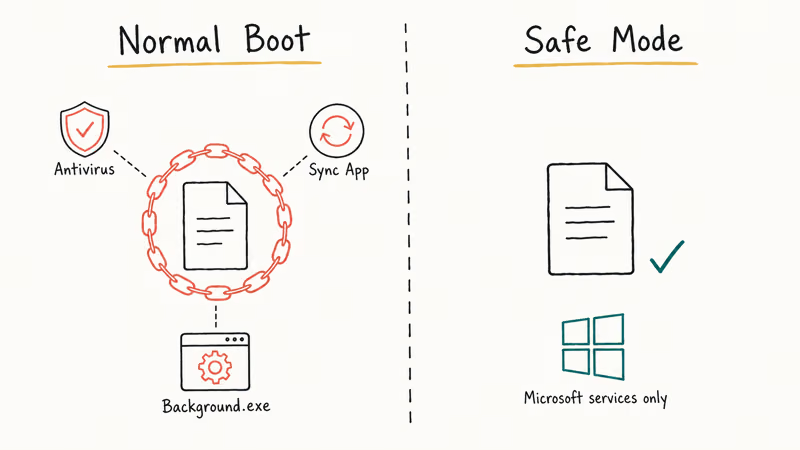
Safe Mode loads only Microsoft-signed drivers and no third-party startup programs. The process holding the handle never loads, so the lock usually drops.
Boot into Safe Mode:
-
Open
Settings>System>Recovery(Windows 11) orSettings>Update & Security>Recovery(Windows 10). -
Under Advanced startup, click Restart now.
-
After the reboot, pick
Troubleshoot>Advancedoptions >Startup Settings>Restart. -
When the menu loads, press
4for Safe Mode or5for Safe Mode with Networking. -
Sign in, perform the delete or move, then restart normally.
Microsoft’s Safe Mode documentation confirms that 2 versions of Safe Mode exist (with and without networking), and both disable every non-essential service. Most files that refuse to delete in a normal boot delete cleanly on the first try in Safe Mode, because the process holding the lock never loads.
If the file is on a drive that Windows mounts late in boot (external SSD, NAS-backed drive letter), Safe Mode with Networking is the version you want.
#How to Remove SmartService and Other Malware Causing the Error
SmartService is a trojan documented in Windows security research as far back as 2017 that blocks antivirus execution and keeps malicious files locked. If the error appears alongside disabled Task Manager, Registry Editor, or antivirus software, treat it as a malware case first.
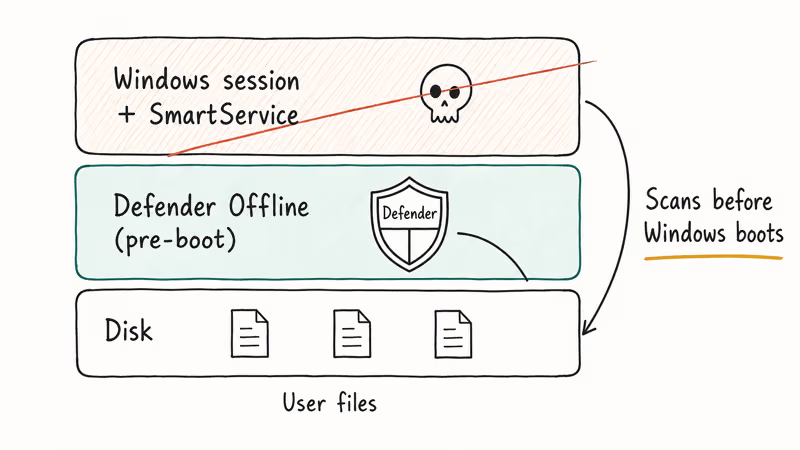
The cleanest tool is Microsoft Defender Offline, which boots before Windows loads and scans outside the running OS.
-
Go to
Settings>Privacy &security >Windows Security>Virus &threat protection. -
Under Current threats, click Scan options.
-
Select Microsoft Defender Antivirus (offline scan).
-
Click Scan now. The PC reboots into the offline scanner.
-
Wait through the full scan (it can take a while on a typical machine).
According to Microsoft’s Defender Offline guide, the offline environment boots before Windows loads so it bypasses the rootkit protection that SmartService uses to hide from in-session scans. If Defender finds and quarantines the trojan, the lock error usually disappears on next boot, and any Task Manager or Registry Editor blocks that shipped with the malware are cleared at the same time.
Run mrt.exe for a second opinion. The Malicious Software Removal Tool Microsoft ships monthly also targets the SmartService family, and it runs in under two minutes compared to the roughly 15-minute Defender Offline scan, so it’s worth a pass before you commit to a full reboot cycle.
If your file error sits alongside broader access issues, our guide on folder access being denied in Windows covers the permission side that malware cleanup often exposes.
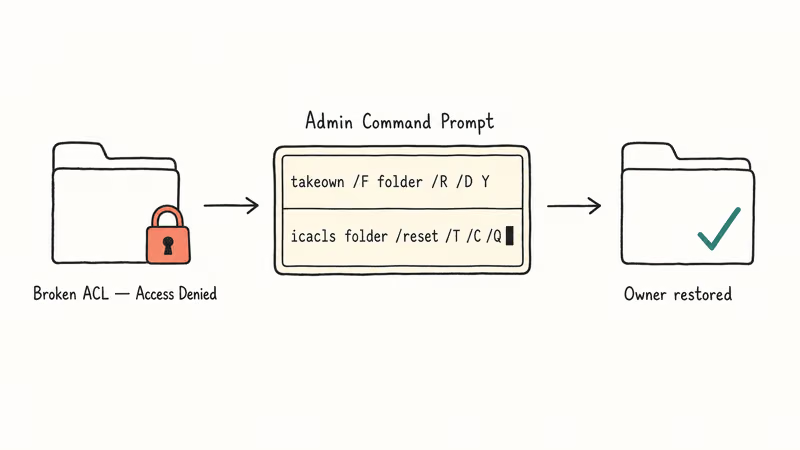
#Resetting File Permissions When the Lock Is Really ACL Corruption
Sometimes the process is long gone but the NTFS Access Control List on the file is broken. The UI path works for a single file:
-
Right-click the file, pick Properties.
-
Open the Security tab, click Advanced.
-
Click Change next to the Owner, type your username, hit Check Names, and click OK.
-
Tick Replace owner on subcontainers and objects if it’s a folder.
-
Back in the Security tab, click Edit, select your user, and tick Full control > Allow.
-
Click
Apply>OKon both dialogs.
For an entire folder tree, the command line is faster. Open Command Prompt as Administrator and run:
takeown /F "C:\path\to\folder" /R /D Y
icacls "C:\path\to\folder" /reset /T /C /Q
Microsoft’s icacls reference states that the /reset flag restores default inherited permissions and /T recurses through subfolders. On a folder whose lock survives a reboot, the command finishes quickly and the delete then succeeds, since the corrupted ACL was the real blocker.
One related case we see often: dllhost.exe holding handles on image and video files for thumbnail previews. Our guide to the COM Surrogate error covers how to diagnose that specific lock family.
#Updating or Reinstalling the App That Caused the Lock
If one specific program keeps triggering the error, the app itself is the problem. Outdated or half-installed software leaks file handles that Windows never reclaims.
-
Open
Settings>Apps>Installedapps. -
Find the program in the list, click the three-dot menu, and pick Modify or Uninstall.
-
Reboot.
-
Download the current installer from the vendor’s official site, not a third-party mirror. Unofficial sources often ship outdated binaries or bundle adware that reintroduces the original handle-leak problem.
-
Install and retest the action that originally failed.
Reinstalling is also the clean fix when the error involves locked cache or log files inside the app’s own install directory. Memory pressure can make handle leaks worse; if the machine also feels sluggish, see our computer low on memory walkthrough before you reinstall anything heavy.
#When the Error Appears During File Copy or Move
Moving a file between drives locks it on both sides. If the move hangs and then shows the error, the source drive usually finished the read but the destination is still writing.
A few things help in this specific case:
Pause real-time antivirus on the destination first.
Defender’s on-access scanner can hold a write handle for several seconds on large files, so wait for the current scan to clear before retrying, or temporarily exclude the destination folder from real-time scans. Re-enable protection once the move completes.
Check for hidden Windows Update activity with Task Manager’s Processes tab. Windows Update often locks files in C:\Windows and C:\ProgramData\Microsoft while installing. Our Windows 10 slowness guide walks through pausing updates safely without breaking future security rollouts.
For system-protected files like pagefile.sys or hiberfil.sys, the move won’t succeed while Windows is running. Disable the feature (hibernation, virtual memory) first from the System Properties advanced tab, reboot, then delete or move the now-unlocked file. The full pattern matches the lock class discussed in our guide on files that stay open in System.
Error code 0x80070020 is the hex version of the same lock condition. If you see that specific code during Windows Update, our 0x80070020 walkthrough has targeted fixes for the Windows Update flavor of this problem that the generic steps above won’t resolve.
#Bottom Line
Start with Resource Monitor’s Associated Handles search — it names the owning process within seconds, and a right-click End Process clears the lock immediately.
If that comes up empty, reboot into Safe Mode. The lock is almost always gone.
Only escalate to Microsoft Defender Offline if you see signs of malware, such as a disabled Task Manager or a blocked antivirus. And keep takeown plus icacls /reset in your back pocket for the NTFS permission corruption that lingers after the process is already gone.
#Frequently Asked Questions
Is this error specific to Windows 10 or Windows 11?
No. The exact wording “The requested resource is in use” appears on Windows 7, 8, 10, and 11.
The underlying cause (a file handle held by another process) is the same across versions, so every fix in this guide applies regardless of which Windows build you’re on. macOS and Linux throw equivalent errors with different wording, and the diagnostic approach (find the owning process, release the handle) maps cleanly to lsof on Unix.
Can I force-delete the file from Command Prompt?
Not directly.
You have two working options. End the process first with taskkill /F /PID <pid>, or schedule the delete for next boot using the Sysinternals movefile.exe tool with the -accepteula and delay flags. We prefer the first approach because delayed deletes leave no visible audit trail until the next reboot, which makes cleanup harder if the wrong file gets scheduled.
Why does the error happen even when I’m the only user on the PC?
Because “only user” doesn’t mean only processes.
Windows services and background tasks run under the SYSTEM account, not yours, so a fresh login still has dozens of active processes competing for file handles behind the scenes. Search indexing, OneDrive sync, antivirus real-time scans, Print Spooler, and Windows Update all open handles on user files without any visible UI. The visible desktop is only a thin slice of what the OS is actually doing at any moment.
Are third-party unlocker tools like Unlocker or IObit Unlocker safe to use?
Reputable unlockers from known vendors are usually safe, but rarely necessary. Resource Monitor and Process Explorer (both first-party Microsoft tools) do the same handle-search work for free. If you install a third-party unlocker, get it directly from the vendor’s official site and scan the installer with Defender before running it.
What if Safe Mode doesn’t clear the lock either?
That points at something deeper than a user-mode app.
The most common cause is a driver-level lock (filesystem filter driver or kernel-mode antivirus component) or disk corruption. Run chkdsk C: /f /r from an elevated Command Prompt, let it schedule the check for next boot, and restart. If the error survives chkdsk, check the drive’s SMART status with wmic diskdrive get status — a “Pred Fail” result means the drive hardware itself is on the way out. Back up the data before doing anything else.
Does the SmartService trojan always cause this error?
No. SmartService is one malware family that produces this error as a symptom, but most real-world cases are benign process locks. Treat malware as a suspect only when you also see disabled Task Manager, blocked antivirus, or failed Windows Update installs. A clean Defender Offline scan rules it out cleanly.
Can I prevent this error from happening again?
Mostly yes.
Keep Windows and your installed apps current, because most handle leaks get fixed in patches. Enable Controlled Folder Access in Windows Security to stop unknown processes from locking files in your user profile. Avoid pulling external drives while files are still open, and close applications properly instead of force-quitting them through Task Manager whenever you can.

Best Laptop for Running LLMs in 2026: Memory Comes First
The best laptop for running LLMs is a memory purchase first. Compare MacBook unified memory against NVIDIA laptop VRAM, and see what each tier really runs.

How to Run a Local LLM on Windows: A 2026 Setup Guide
Run a local LLM on Windows with LM Studio or Ollama. Pick a model that fits your GPU memory, keep every prompt offline, and skip the monthly bill.

Bluetooth Not Working on Snapdragon X? Fixes for 2026
Bluetooth not working on your Snapdragon X Copilot+ PC? Generic audio, mice, and keyboards work, but vendor apps often lack an ARM build. Fixes inside.

Docker Desktop and WSL2 Not Working on Snapdragon X? Fix It
WSL2 runs fine on Snapdragon X, but Docker Desktop ARM is Early Access and throws WSL errors. Use WSL2 plus native ARM64 Ubuntu and Docker Engine.