SSD Not Showing Up on Windows? 8 Real Fixes for 2026
SSD not showing up in Windows? Walk through 8 proven fixes for SATA cables, Disk Management, drivers, and BIOS to make a hidden drive appear.

Quick AnswerAn SSD usually fails to show up because Windows hasn't initialized it, no drive letter is assigned, the SATA cable is loose, or the storage driver is outdated. Open Disk Management, initialize the drive, assign a letter, and update drivers to fix the issue.
Plugging in a brand-new SSD and seeing nothing in File Explorer is one of the most frustrating moments in a Windows build.
The drive is right there in the case, the BIOS sometimes shows it, and yet the operating system pretends it doesn’t exist. The eight fixes below cover both SATA and NVMe SSDs on Windows 10 and Windows 11, and at least one of them brings the drive back in nearly every case.
This guide walks through the order we actually use: hardware first, Disk Management second, drivers and BIOS last. Skipping ahead to driver reinstalls when a SATA cable is loose just wastes an hour. Run these steps only on your own computer or one you have explicit authorization to repair, since initializing or formatting a drive is a destructive operation.
- A new SSD shipped from the factory is not initialized; Windows hides uninitialized disks from File Explorer until you initialize them in Disk Management.
- Disk Management at
diskmgmt.mscresolves most missing-SSD cases, between initialize, assign drive letter, and convert partition style. - A SATA cable that looks seated can still be loose, so reseating both the SATA data and SATA power connectors often brings a “missing drive” back.
- BIOS or UEFI must report the drive before Windows can see it, so check the BIOS storage list before chasing driver issues.
- If the SSD is visible in BIOS but absent in Windows after every fix, your data is usually fine and a controller-level recovery tool is the right next step.
#Why Is My SSD Not Showing Up on Windows?
Three things hide a drive from File Explorer.
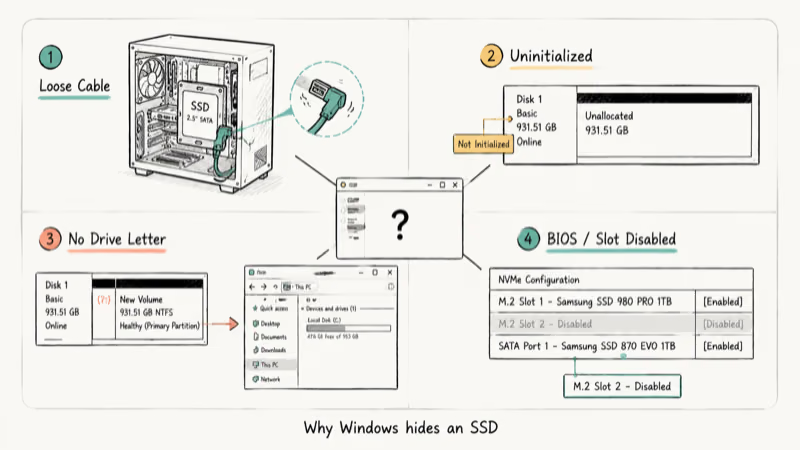
The first: the disk has no recognized partition. The second: no drive letter is assigned. The third: the operating system never received a clean signal from the controller. A brand-new SSD ships unallocated, so it sits silently in Disk Management with the label Not Initialized until you act on it.
Older SATA drives that worked yesterday and disappeared today are usually a connection problem. SATA cables loosen when the case is moved, and the L-shaped connector on the drive end is particularly easy to wiggle out of place.
Power cables from the PSU fail in the same way.
NVMe drives have their own failure pattern. They share PCIe lanes with the GPU on many B-series and H-series motherboards, and an aggressive overclock or a recent BIOS reset can disable the M.2 slot until you re-enable it manually.
Storage drivers matter, too.
Intel RST, AMD RAID, and the inbox Microsoft NVMe driver all behave differently when a controller mode flips between AHCI and RAID, and a single mode change can knock several drives off the visible list on a multi-disk system.
According to Microsoft’s official guidance, 1 click on Initialize Disk writes a partition table and brings the drive online; the full Disk Management initialize new disks reference details the steps.
If the SSD is detected but throws read errors during file copy, see our Can’t Read from Source File or Disk fix for that path.
#First-Pass Hardware and Connection Checks
Rule out a physical fault first.
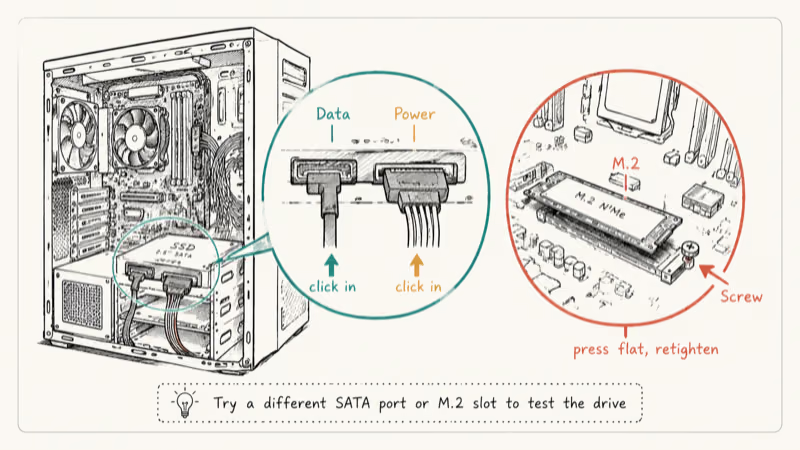
Reseating cables fixes this exact symptom more often than any software step. Power down, unplug the system, and open the side panel.
For a 2.5-inch SATA SSD, follow the SATA data cable from the drive to the motherboard and reseat both ends until you feel a firm click. Do the same for the SATA power connector from the PSU.
If you have a spare SATA cable in the motherboard box, swap it in; SATA cables are the cheapest part of any build and the first to fail.
Replacing a cable often resolves a “drive vanished overnight” problem in minutes, before you even open Disk Management.
For an M.2 NVMe drive, check the screw at the far end of the slot.
A drive that pops up at a slight angle isn’t fully seated, and Windows won’t enumerate it. Press the drive flat, retighten the screw, and confirm the heatsink isn’t pinching the controller.
If you are testing whether the drive itself is alive, plug it into a different SATA port or a different M.2 slot on the same board. A working SSD on a dead port still looks like a dead drive.
For external SSDs that vanish from a Windows machine, the playbook in our Seagate external hard drive not showing up guide covers USB-specific causes that internal drives don’t have.
#How Do I Force Windows to Recognize a Brand-New SSD?
This is the single highest-yield step in the guide.
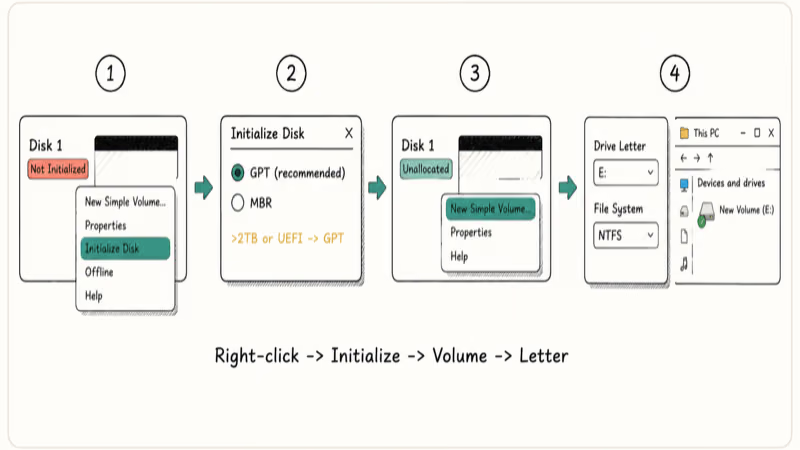
Most missing-SSD cases end here, because Windows won’t show an uninitialized or unlettered disk in File Explorer.
Press Win + R, type diskmgmt.msc, and press Enter. Disk Management opens with a list of every drive the operating system can see at the controller level. Even an “invisible” SSD almost always appears here.
Look for a disk row marked Not Initialized with a black bar across its capacity.
Right-click the disk label on the left, choose Initialize Disk, and pick a partition style.
Use GPT for any drive larger than 2TB or any system on UEFI; use MBR only for legacy BIOS systems with drives under 2TB. The Microsoft initialize new disks reference recommends GPT for almost all modern installations, since GPT supports up to 128 primary partitions per disk versus the 4-partition limit of MBR.
Once initialized, the bar turns into Unallocated space. Right-click the bar, choose New Simple Volume, accept the default size, assign a drive letter, and format as NTFS with the default allocation unit size. The drive should appear in File Explorer within seconds.
If the disk already has a partition but no drive letter (a common state after migrating data with cloning software), skip Initialize and go straight to Change Drive Letter and Paths. Add any unused letter and click OK; the drive becomes visible immediately.
A drive that shows up labeled GPT Protective Partition needs a different recovery flow because Windows has flagged the partition table as foreign; our GPT Protective Partition fix walks through the safe ways to reclaim that space without losing data.
#Update or Reinstall the Storage Driver
Outdated SATA controller drivers and Intel RST drivers are a quieter cause of missing SSDs, especially on prebuilt systems that haven’t been updated in a year or two. The symptom is usually the drive appearing intermittently, or appearing only after a cold boot.
Press Win + X and open Device Manager.
Expand Storage controllers, right-click the entry that matches your chipset (Intel RST, AMD AHCI, or “Standard NVM Express Controller”), and choose Update driver then Search automatically. Reboot once Windows finishes.
If the inbox driver is current but the drive is still missing, uninstall the storage controller and reboot. Windows reinstalls a clean copy on the next startup. Don’t uninstall the boot drive’s controller; check which physical drive each controller is bound to before you act.
Under Disk drives, repeat the update step for each disk entry.
The “Generic” driver Windows assigns to many SSDs lags behind the firmware-aware driver from Samsung Magician or Western Digital Dashboard, and that gap can hide a drive from File Explorer until the right driver loads.
A SATA driver issue often surfaces as a blue screen rather than a silent disappearance; if you’ve seen DPC errors recently, the same root cause is likely, and our DPC Watchdog Violation fix covers the SATA driver replacement path in detail.
#Enable the SSD in BIOS or UEFI
If Disk Management still doesn’t list the drive, it isn’t reaching the operating system at all. The BIOS is the next stop.
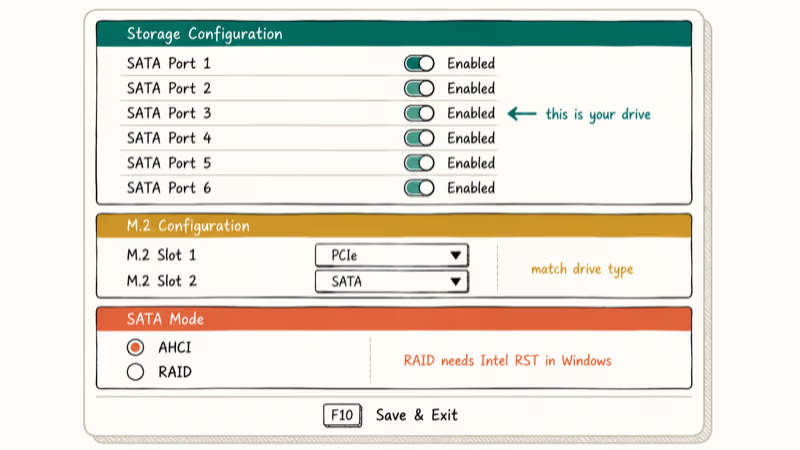
Restart the PC and press the BIOS key at the vendor splash screen. Common keys are Del for ASUS, MSI, and Gigabyte boards, F2 for Dell and ASRock, and F10 for HP. The exact key appears for half a second on the splash screen.
In the BIOS, go to the Storage Configuration or SATA Configuration page.
Confirm the SATA port the drive is plugged into is Enabled, not Disabled. For NVMe drives, find the M.2 Configuration page and confirm the slot is enabled and set to PCIe mode rather than SATA mode. Most modern boards auto-detect, but a recent BIOS reset can flip this back to a default that doesn’t match your drive, especially on B-series chipsets where 2 M.2 slots share PCIe bandwidth with the GPU lane.
While you’re there, check the SATA Mode setting. It should be AHCI for a single-drive setup. RAID mode requires Intel RST drivers in Windows; if those aren’t installed, switching to RAID hides every drive on the controller.
Save and exit.
The drive should appear in the BIOS POST list and in Windows Disk Management on the next boot. According to Crucial’s Storage Executive support page, confirming BIOS-level visibility is the recommended first diagnostic step before any deeper troubleshooting, because no Windows-side fix can recover a drive the BIOS doesn’t see.
#Run Diagnostics for Health and File-System Errors
A drive that flickers in and out, or shows up but won’t open, is often failing rather than misconfigured. Two diagnostics rule this out.
Open Command Prompt as administrator and run chkdsk X: /f /r, replacing X with the SSD’s drive letter. The /f flag fixes file-system errors and /r finds and recovers data from bad sectors. Microsoft’s chkdsk command reference confirms that /r includes the work of /f, so you don’t need both flags on a clean disk; running both is a safe habit when the drive history is unknown.
For SMART health data, install Samsung Magician, Crucial Storage Executive, or CrystalDiskInfo.
Samsung’s Magician documentation lists at least 5 critical SMART attributes that flag impending failure, including reallocated sector count, wear leveling count, and pending sector count. Anything above 0 on a new drive is a return-merchandise event, not a software fix.
If diagnostics confirm the drive is dying, get your data off first. Our guide to recovering files from an external hard drive not detected applies equally to internal SSDs that mount intermittently.
#When to Disable Fast Startup or Reset BIOS
These are last-resort fixes that work for a small but real subset of cases.
Fast Startup, the hybrid-shutdown feature that ships enabled by default on Windows 10 and 11, can cache a partial driver state that misses newly installed hardware. To disable it, open Control Panel, go to Power Options, click Choose what the power buttons do, click Change settings that are currently unavailable, and uncheck Turn on fast startup. Save and shut down fully (not restart). Power the system back on and check Disk Management again.
A BIOS reset clears any conflicting overclock or storage setting that may be hiding the drive.
Enter the BIOS, find the Load Optimized Defaults option (sometimes called Load Setup Defaults), apply it, and save. You’ll lose any custom XMP memory profiles and fan curves, but storage detection issues caused by a bad setting almost always clear up after this.
If neither fix works and the drive still doesn’t show up, the next step is a System Restore to a point before the symptom started, or a fresh Windows install on the SSD itself to rule out a corrupted Windows storage stack.
Once the drive is detected and formatted, the most common next task is moving data from the boot drive; our walk-through on moving files from SSD to HDD on Windows covers File Explorer, Robocopy, and free migration tools.
#Bottom Line
The fastest path to a visible SSD on Windows is the boring one.
Open Disk Management, initialize the drive, assign a letter. That single step solves the majority of “my new SSD is missing” cases on its own, and it takes under a minute.
Reach for cable reseating and BIOS checks only when Disk Management can’t see the drive at all, and reach for chkdsk and SMART tools only when the drive flickers or refuses to format. If your drive is a Samsung 870 EVO or a Crucial MX500 and Magician or Storage Executive reports zero pending sectors, the problem is almost certainly Windows-side, not hardware-side, and the eight steps above will land you back in File Explorer.
#Frequently Asked Questions
Can a faulty SATA cable cause an SSD to not show up on Windows 10?
Yes. A loose or damaged SATA data or power cable is one of the most common reasons a previously working SSD vanishes. Reseat both connectors first, and swap in a known-good SATA cable from the motherboard box if the drive still isn’t detected.
Why is my SSD visible in BIOS but not in Windows 10?
The drive is reaching the controller but Windows hasn’t initialized it, hasn’t assigned a drive letter, or has loaded a storage driver that doesn’t recognize it. Open diskmgmt.msc and look for an unallocated or unlettered disk; that is your SSD waiting to be set up.
What should I do if my SSD still isn’t showing up after reinstalling Windows?
Confirm the drive is healthy first by checking SMART data with Samsung Magician, Crucial Storage Executive, or CrystalDiskInfo. If SMART reports any reallocated or pending sectors on a new drive, return it under warranty. If SMART is clean and the drive is still missing, contact the motherboard manufacturer; the M.2 slot or SATA port may be defective.
Will formatting my SSD delete all the data on it?
Yes, formatting an SSD wipes every visible file. Quick Format clears the file system in seconds; Full Format also writes zeros across the cells. If the drive contains anything you care about, recover the data before you format, not after.
Can I use these steps to fix an HDD not showing up on Windows 10?
Most of them, yes. Disk Management initialization, drive-letter assignment, driver updates, and SATA cable checks all apply to mechanical hard drives. The SMART diagnostic step is even more important for HDDs because mechanical failures progress faster than NAND wear-out.
A dead SSD is invisible in BIOS POST and in Disk Management. A hidden one shows up somewhere in either tool. If the drive lights up briefly when powered, then disappears from BIOS within a minute, the controller is failing and the drive is on its way out. If the drive stays visible in BIOS but invisible in Windows, it’s a software fix.
Is it safe to initialize an SSD that has data on it?
No. Initializing writes a new partition table and any existing data becomes inaccessible by normal means. Only initialize a drive you know is blank or one you’ve already imaged with cloning software.
Why does my NVMe SSD work in one M.2 slot but not another?
Most consumer motherboards share PCIe lanes between M.2 slots and SATA ports or the primary GPU slot. Plugging a drive into a slot that disables itself when other ports are populated is a common cause of “this slot doesn’t see the drive.” Check the motherboard manual for the lane-sharing diagram and pick the slot that reads from the CPU rather than the chipset for top performance.

Best Laptop for Running LLMs in 2026: Memory Comes First
The best laptop for running LLMs is a memory purchase first. Compare MacBook unified memory against NVIDIA laptop VRAM, and see what each tier really runs.

How to Run a Local LLM on Windows: A 2026 Setup Guide
Run a local LLM on Windows with LM Studio or Ollama. Pick a model that fits your GPU memory, keep every prompt offline, and skip the monthly bill.

Bluetooth Not Working on Snapdragon X? Fixes for 2026
Bluetooth not working on your Snapdragon X Copilot+ PC? Generic audio, mice, and keyboards work, but vendor apps often lack an ARM build. Fixes inside.

Docker Desktop and WSL2 Not Working on Snapdragon X? Fix It
WSL2 runs fine on Snapdragon X, but Docker Desktop ARM is Early Access and throws WSL errors. Use WSL2 plus native ARM64 Ubuntu and Docker Engine.