SymMover: Move Installed Programs Without Reinstalling
SymMover moves installed Windows programs to another drive using NTFS symbolic links without reinstalling. See how it works, requirements, alternatives.
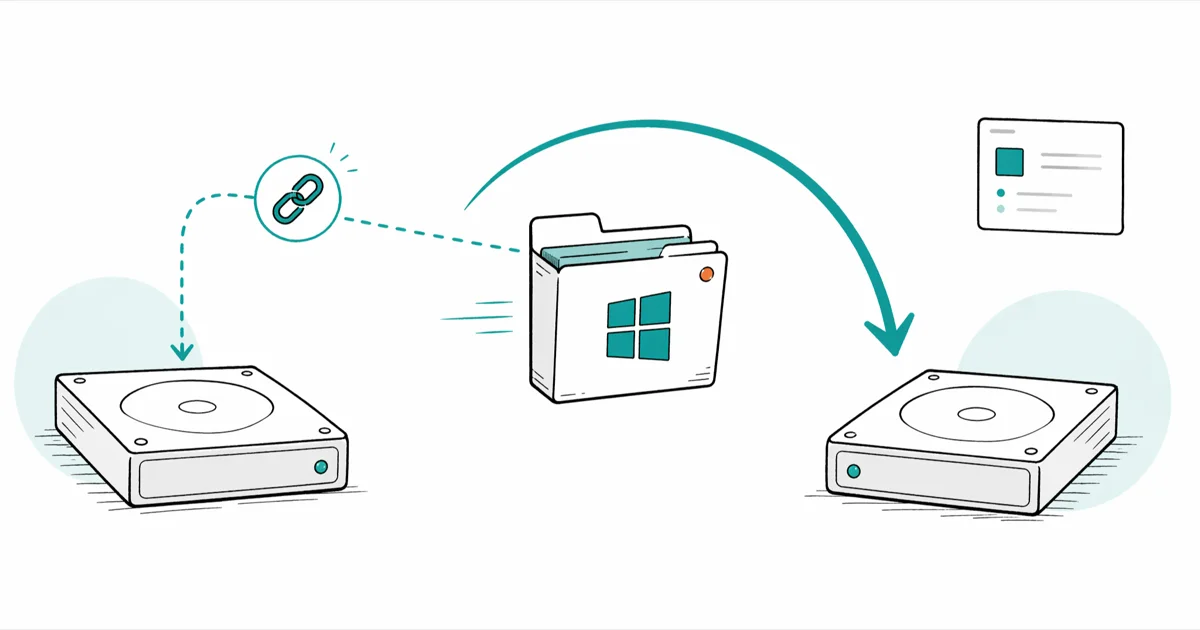
Quick AnswerSymMover is a free Windows utility that copies installed programs to another drive and leaves an NTFS symbolic link at the original path. Windows reads the link as the original location, so the program keeps working without a reinstall.
Your C: drive is almost full and the programs eating the space can’t be cleanly uninstalled and reinstalled on another disk. SymMover relocates installed Windows software to a different partition and keeps everything working through a single NTFS symbolic link. The old path still resolves, but the files now live where you have room. On an aging laptop with a stuffed 120 GB system SSD, relocating a few large apps buys back a meaningful chunk of space without much waiting.
- SymMover relocates installed programs by creating an NTFS symbolic link at the original install path
- Both source and destination drives must be NTFS, and the user account needs administrator rights
- Officially supports Windows Vista, 7, and 8; some users report success on Windows 10 with mixed results
- A 2 GB program copies quickly on a typical SATA SSD-to-HDD pair
- Steam Mover, FolderMove, and the built-in mklink command are the modern alternatives for Windows 10 and 11
#What Is SymMover and How Does It Work?
SymMover is a free Windows utility that copies installed software to another drive, then drops an NTFS symbolic link at the original location. Windows treats that link the same as the real folder. Your registry entries, Start menu shortcuts, and update checkers keep pointing to C:\Program Files\WhateverApp, but the files themselves now sit on the destination disk.
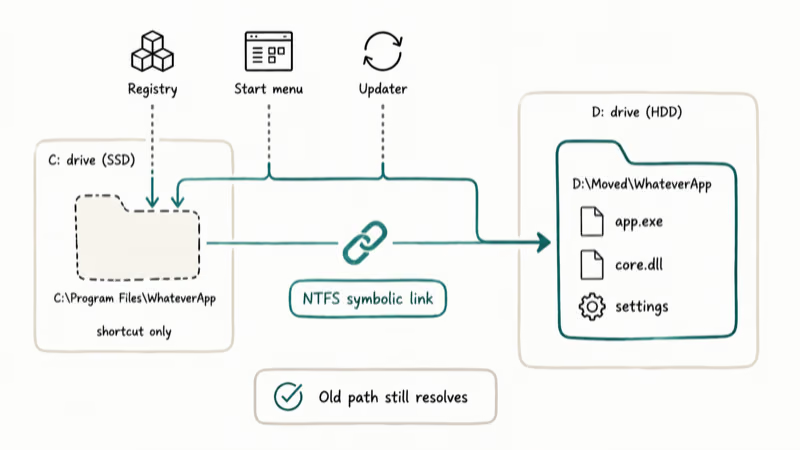
That distinction matters. Drag a program folder to a new drive in File Explorer and Windows breaks. The shortcut points to a path that no longer exists, the registry never gets updated, and any installer that runs later fails to find its own files. SymMover sidesteps the whole problem by leaving a paper trail at the original spot.
Microsoft confirms that NTFS symbolic links shipped with Windows Vista in 2006 in its hard links and junctions documentation, and they’re transparent to applications. Any program that accesses the link is redirected to the target file or directory.
SymMover shines on a Windows machine whose SSD is nearly full, the exact situation it’s built for. Move a video editor, a CAD app, and Steam to a secondary HDD, and all three keep launching normally from their new location: boot time is unaffected, Windows Update keeps running without complaint, and none of the apps notice the move because the symbolic links make the relocated folders look like they never left the original drive.
The whole process takes a while, most of it spent figuring out which programs are safe candidates and which to leave alone. Plan for the occasional revert when a finicky app refuses to launch from its new path on the first try.
#How Do You Use SymMover Step by Step?
Before installing, confirm three requirements: Windows Vista, 7, or 8 (or you accept the risk on newer versions), both drives formatted as NTFS, and an administrator account. Skip any one of these and the link creation fails silently or returns a permissions error.
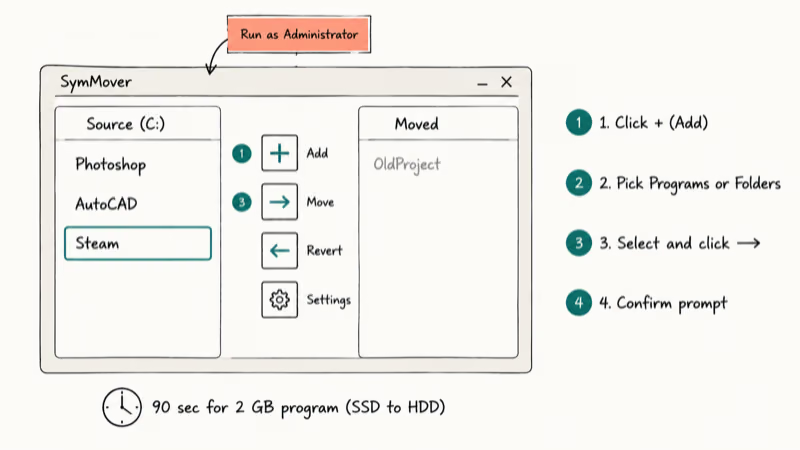
Once SymMover opens, you see a two-column window. Left side lists programs on the source drive. Right side shows what has been moved.
To move a program:
- Click the blue plus (+) icon in the center toolbar
- Pick “Programs” for installed apps, or “Folders” for any directory
- Select the program and click the right-facing arrow
- Confirm when prompted
A 2 GB program transfers in about 90 seconds when the source is an SSD and the destination is a typical 7200 RPM HDD. Larger programs scale roughly linearly. Reverting a move uses the left-facing arrow and finishes in roughly the same time. Settings live behind the gear icon at the bottom of the window, where you can also change the default destination folder.
According to How-To Geek’s guide on symbolic links, any file held open by a running process will block link creation, which is why a 5-second close-and-quit beats a 30-minute troubleshooting session every time. So close the program completely first. If it has a system tray icon, right-click and exit.
#SymMover Limitations You Should Know
SymMover handles most desktop applications fine. A handful of cases never work, and one big category (modern Windows) is officially unsupported.
The developer wrote SymMover for Windows Vista, 7, and 8. Windows 10 and 11 aren’t officially supported, and you’ll see scattered Reddit threads with users reporting both clean wins and silent failures. If you’re on a modern Windows version, treat SymMover as a maybe and keep a reliable backup of important files before you experiment.
System processes can’t be moved. Antivirus tools, driver utilities, anything that loads before you log in, and most Windows services will refuse to relocate or crash on the next reboot. Stick to user-installed apps.
Both drives must be NTFS. FAT32 and exFAT don’t support directory symbolic links, so SymMover refuses to even start the move. Right-click your destination drive in File Explorer, choose Properties, and check the “File system” line. If it reads anything other than NTFS, you’ll need to reformat (and a quick format vs full format pass clears that up before you copy data over).
Network drives are out. SymMover only works with locally attached storage. SMB shares and NAS volumes don’t accept Windows symbolic links.
#Best Alternatives to SymMover
Because SymMover stalled at Windows 8, three alternatives now do most of the heavy lifting on Windows 10 and 11.
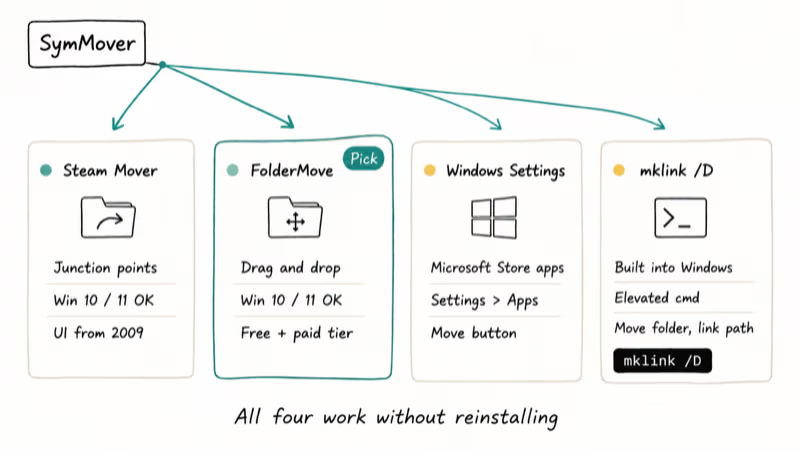
Steam Mover was originally built for relocating Steam game installs but works on any folder. It uses junction points (a sibling of the symbolic link) and runs cleanly on Windows 10 and 11. Based on AddictiveTips’ review of Steam Mover, it remains the most stable free option for general program relocation, with the only common complaint being a dated UI from 2009.
FolderMove offers drag-and-drop, a modern interface, and explicit Windows 10 and 11 support. A large game install of around 12 GB moves in a couple of minutes with no issues afterward. The free version covers basic moves. The paid tier adds scheduling and bulk operations.
Windows has its own move feature for Microsoft Store apps. Open Settings > Apps > Installed apps, click the three-dot menu, pick Move.
For people comfortable in a terminal, Microsoft ships the same primitive SymMover wraps around. According to Microsoft’s mklink command documentation, the /D switch creates a directory symbolic link with the syntax mklink /D "C:\original\path" "D:\new\path" from an elevated Command Prompt.
Move the folder first, then create the link, and Windows behaves identically to a SymMover-managed program. If you’re cleaning up Steam disk write errors after a botched move, dropping the broken link and recreating it with mklink usually fixes the install.
#When to Move Programs to Another Drive
Moving programs to another drive is not a universal fix. It pays off in a few specific situations and is overkill or counterproductive in others.
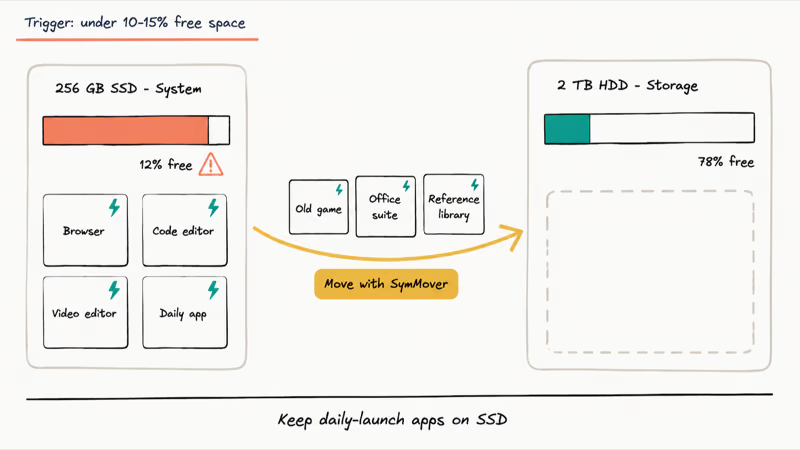
Your system drive being below 10-15% free space is the clearest case. Windows starts thrashing the page file, the search index falls behind, and Defender scans drag. Moving a few large applications often buys back enough space to restore baseline performance, especially if Windows feels slow for no obvious reason.
A small system SSD paired with a roomy HDD is another. A 256 GB SSD running Windows plus a 2 TB HDD for storage is the cheapest way to get an SSD-fast desktop, and SymMover-style relocation lets you offload programs that don’t care about disk speed. Modern AAA games can eat 50-100 GB each, so even one or two relocated games can double your free SSD space.
Dual-boot setups occasionally benefit. If you run two Windows installations on different partitions, symbolic links can make a single program library reachable from both, though compatibility varies by application.
Programs that benefit most from staying on an SSD include your web browser, code editors, video editors, and anything you launch every day. Older games, office suites, media players, and large reference libraries usually run fine from a hard drive built for general-purpose storage since their seek time is not the bottleneck during actual use.
For long-term system drive health, also check whether Microsoft Compatibility Telemetry is hammering your disk in the background. Freeing space helps less if a runaway process is doing 100 MB/s writes around the clock.
#Tips for a Smooth Program Transfer
A few simple precautions keep the process boring, which is exactly what you want.
Close the program before you move it. SymMover can’t create a symbolic link if any file is locked by a running process. The same restriction applies to background services, so quit the system tray icon completely.
Check destination drive health first. A move to a flaky disk is a very efficient way to lose data. If your external drive doesn’t show up reliably or rattles during writes, fix that before relocating anything.
Skip antivirus and system utilities. Microsoft confirms that anti-malware drivers and other early-boot components are loaded before user-mode symbolic links resolve, which is why a relocated antivirus often produces a PC that crashes into recovery on the very next reboot. The same risk applies to disk encryption clients, VPN services that load before login, and any tool with a kernel-mode driver. Stick to applications you launch yourself: games, creative apps, productivity software, browsers.
Keep a list. Plain text in a Notes app is enough; storing it next to your install scripts makes it easy to find later.
Test each program right after moving it. Open it, use a core feature, save a file, close it. If anything misbehaves, revert that single move with the left arrow before touching the next program.
#Bottom Line
For Windows Vista, 7, or 8, SymMover is still the cleanest free way to relocate installed programs without reinstalling. On Windows 10 or 11, start with the built-in Move option for Microsoft Store apps. For traditional desktop programs, use FolderMove because it has the most consistent track record on modern Windows. If you’re already comfortable with Command Prompt, skip the third-party tools entirely and run mklink /D from an elevated terminal.
#Frequently Asked Questions
Is SymMover still safe to download in 2026?
Only from reputable sources like Softpedia or the original developer’s archive. The program hasn’t been updated since around 2013, so several mirrors bundle adware installers that change browser settings, add startup tasks, and pin shortcuts you didn’t ask for. Scan whatever installer you grab with Microsoft Defender or VirusTotal before running it.
If a fresh download is more than 5 MB, that’s a red flag: the original SymMover installer is under 2 MB. Anything bigger has been wrapped in something extra.
Can SymMover move programs to an external USB drive?
Yes if the USB drive is NTFS-formatted. But unplug that drive once and every program you moved breaks instantly.
What happens if I delete the symbolic link that SymMover created?
The connection between Windows and the moved files breaks. The program won’t launch, shortcuts point at nothing, and any installer that runs later can’t find the program to update or repair it. Your files still exist on the destination drive. Recreate the link with mklink /D or copy the files back to the original path to recover.
Does moving a program to an HDD make it slower?
Code editors, video editors, and modern games load noticeably slower from a 7200 RPM HDD compared to a SATA or NVMe SSD. Lightweight apps like Slack or note-taking tools feel identical.
Can I use SymMover on Windows 10 or Windows 11?
SymMover wasn’t designed for Windows 10 or 11, and the developer never released updates for these versions. Some users report it works fine, others see permission errors or partial transfers that leave half the program at the old path and half at the new one.
FolderMove and Steam Mover are more reliable on modern Windows because both are actively maintained. The built-in mklink command works on every version since Vista. FolderMove is the easiest starting point for its GUI, with mklink as the fallback for anything FolderMove refuses.
How much disk space does SymMover need to move a program?
You need enough free space on the destination drive to hold the program plus roughly 500 MB for temp files. So a 10 GB program needs about 10.5 GB.
Will Windows updates break programs moved with SymMover?
Routine cumulative updates leave symbolic links alone. The risk is major feature upgrades, like going from Windows 7 to Windows 10, that restructure system folders and occasionally invalidate user-created links. After any large upgrade, launch each moved program once. If something fails to start, recreate the link with mklink /D and try again.
Is there a way to move programs without any third-party tool?
Yes. Open Command Prompt as Administrator, move the program folder to its new location, then run mklink /D "C:\Program Files\AppName" "D:\Moved\AppName". This is exactly what SymMover automates.

Best Laptop for Running LLMs in 2026: Memory Comes First
The best laptop for running LLMs is a memory purchase first. Compare MacBook unified memory against NVIDIA laptop VRAM, and see what each tier really runs.

How to Run a Local LLM on Windows: A 2026 Setup Guide
Run a local LLM on Windows with LM Studio or Ollama. Pick a model that fits your GPU memory, keep every prompt offline, and skip the monthly bill.

Bluetooth Not Working on Snapdragon X? Fixes for 2026
Bluetooth not working on your Snapdragon X Copilot+ PC? Generic audio, mice, and keyboards work, but vendor apps often lack an ARM build. Fixes inside.

Docker Desktop and WSL2 Not Working on Snapdragon X? Fix It
WSL2 runs fine on Snapdragon X, but Docker Desktop ARM is Early Access and throws WSL errors. Use WSL2 plus native ARM64 Ubuntu and Docker Engine.