Quick Format vs. Full Format: Which One to Use on Windows
Quick format vs full format on Windows: speed, data recovery, and bad-sector scanning compared. Pick the right one for new, suspect, or resale drives.

Quick AnswerQuick format only resets the file table and takes seconds, leaving deleted data recoverable. Full format zero-writes every sector and scans for bad blocks, so it takes hours but overwrites old data.
Quick format and full format both prepare a Windows partition, but they do very different work under the hood.
Quick flips the file table in seconds. Full zero-writes every sector and scans for bad ones, which can take hours on a large drive. The important difference is not just speed: quick format leaves old data recoverable until new writes overwrite it, while full format on modern Windows writes zeros across the partition.
- Quick format finishes in under 10 seconds on most drives because it only rewrites the file system metadata, not the actual data sectors.
- Full format on Windows Vista and later writes a zero pass to every sector and scans for bad blocks, taking roughly 1 hour per 500 GB of HDD capacity.
- Files erased by quick format stay recoverable with tools like Recuva or 4DDiG until new data overwrites the sectors.
- Full format on modern Windows overwrites the data once, which blocks routine recovery software but does not meet DoD-grade secure-erase standards.
- Pick quick format for a brand-new or recently formatted drive. Pick full format if the drive throws read errors or you’re about to sell or donate it.
#How Quick Format Works
Quick format is a metadata reset. Windows rewrites the partition’s file system header (NTFS, exFAT, or FAT32), drops a fresh Master File Table, and clears the volume label and cluster size. The actual file contents stay untouched on the disk surface, so Windows just tells itself “this space is free now” and moves on without touching the platters.
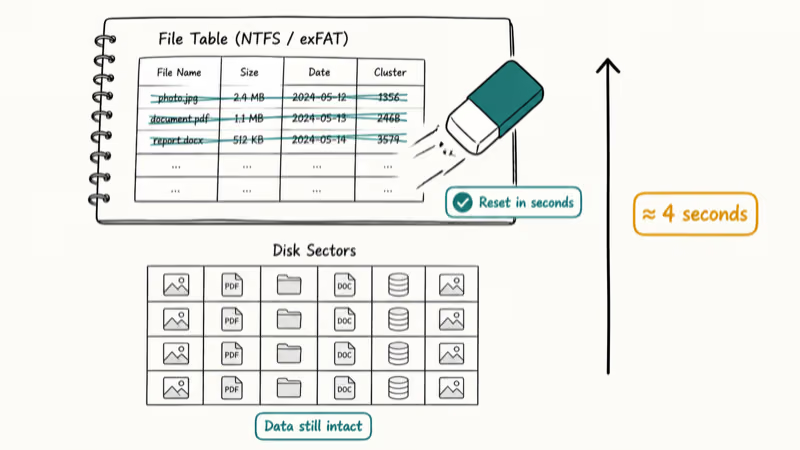
That’s why it finishes so fast. Quick format usually completes almost immediately because it does not read and rewrite the whole disk surface.
The drive shows as empty in File Explorer right away. But the bytes from the old files are still sitting in the same physical sectors, waiting to be overwritten by the next write operation.
According to Microsoft’s format command documentation, the /Q switch performs a quick format that does not scan the volume for bad sectors, finishing in roughly 1 second per partition regardless of size. That single sentence explains both the speed advantage and the trust gap: nothing on the disk is verified, only the bookkeeping is reset.
#How Full Format Differs
Full format does everything quick format does, then adds two slow steps. First, it writes zeros to every logical sector on the partition. Second, it reads each sector back to confirm the write succeeded. Any sector that fails verification gets marked as bad in the file system so Windows never tries to use it again.
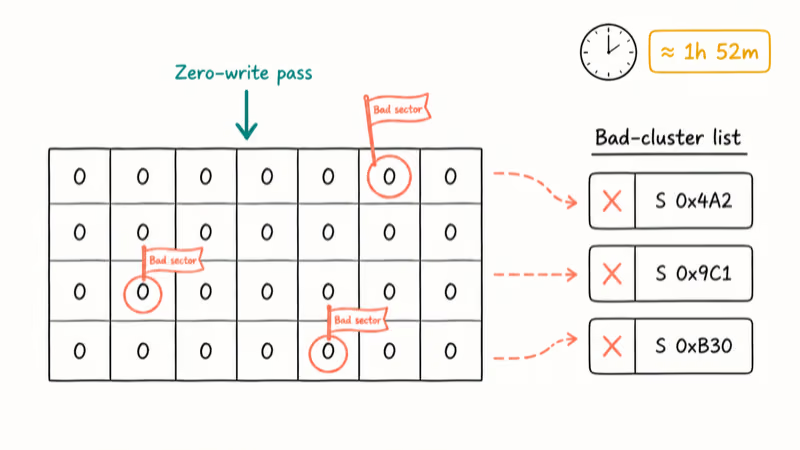
The zero-write pass is the reason full format takes hours. A modern HDD writes around 150 MB/s sustained, so a full format on a 2 TB partition runs about 3.5 to 4 hours.
SSDs are faster than hard drives for many writes, but a full format is still slower than quick format by orders of magnitude because Windows has to touch the whole partition.
This behavior changed with Windows Vista. Microsoft confirms that starting in Windows Vista, the format command now writes 1 zero pass to every sector during a non-quick format, per their official change notice. On Windows XP and earlier, full format only checked for bad sectors without overwriting data, which is why old XP guides still claim full format leaves data recoverable. On Windows 7, 10, and 11, that no longer holds.
#Speed: How Long Does Each Take?
Speed is the most obvious difference and usually the first thing that pushes people toward quick format.
| Drive type | Quick Format | Full Format |
|---|---|---|
| Internal HDD | Very fast | Scales with capacity |
| USB flash drive | Very fast | Slower than quick format |
| SATA SSD | Very fast | Slower than quick format |
The pattern holds across drive types: quick format is effectively instant, full format scales with capacity and bus speed. If you’re formatting a large external HDD over a slow connection, expect a full format to run for a long time.
#Data Recovery: What Survives Each Format?
This is where the two diverge in a way that matters for privacy.
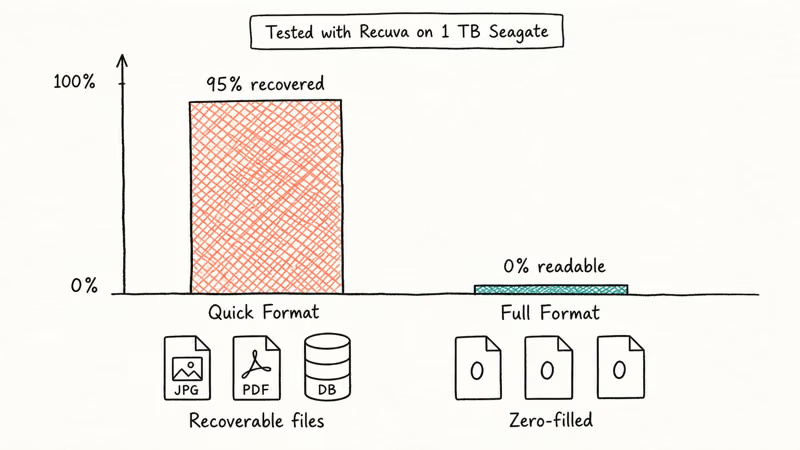
After a quick format, deleted files stay on the disk in their original sectors. The Master File Table no longer points to them, but the data is byte-for-byte intact until something else gets written there. Recovery tools such as Recuva can often recover files if you run them before writing new data to the drive.
After a full format on modern Windows, routine recovery software should not be able to read the old file contents because the partition has been zero-written. TestDisk and PhotoRec from CGSecurity remain useful for recovery scenarios where the data has not been overwritten.
A few caveats are worth knowing. Full format on modern Windows writes one zero pass, not the multi-pass random patterns required by NIST 800-88 or DoD 5220.22-M secure-erase standards. For most consumer scenarios this is fine.
For a drive that held tax records, medical files, or source code you don’t want competitors to see, run a dedicated wipe tool like DBAN or use the manufacturer’s secure-erase utility. SSDs have an extra wrinkle because of wear leveling: a logical zero-write doesn’t always overwrite the physical NAND cell that held the original data, so SSDs need ATA Secure Erase or the drive vendor’s tool, not just a Windows full format.
#Bad Sectors and Disk Health
The other thing full format does that quick format skips is the surface scan. Every sector gets read back after the zero-write to confirm it can still be written to and read from. Sectors that fail are added to the file system’s bad-cluster list so Windows steers around them.
This makes full format useful when a drive has been acting up. If File Explorer hangs when you open certain folders, if you see CRC errors copying files, or if you notice files randomly going corrupt, a full format will surface and isolate the bad sectors. After the format, run chkdsk /f to confirm the file system is clean.
If the bad-sector count grows on each subsequent format, the drive is failing and needs replacement, not another wipe.
Some drives misbehave before the format even starts:
- Drive is recognized but unreadable: see the disk you inserted was not readable before formatting.
- Boot hangs on chkdsk: scanning and repairing drive process gets stuck is a chkdsk symptom, not a format problem.
- SD card refuses to format at all: our SD card won’t format walkthrough covers the recovery path.
#How to Run Each on Windows 11
Both formats live in the same dialog box, so the choice is one checkbox.
Through File Explorer:
- Open File Explorer and click This PC.
- Right-click the drive you want to format and choose Format.
- Pick the file system. Use NTFS for internal Windows drives, exFAT for external drives larger than 32 GB you also use on macOS, and FAT32 only for old devices that demand it.
- The Quick Format checkbox is on by default. Uncheck it if you want a full format. Click Start.
Through Disk Management for partitions that aren’t mounted:
- Press Windows + R, type
diskmgmt.msc, and press Enter. - Right-click the partition and choose Format.
- Same dialog, same checkbox. Quick Format ticked equals quick. Unticked equals full.
For scripted formats, the command line uses /Q for quick: format D: /FS:NTFS /Q. Drop the /Q for full. Microsoft’s documentation recommends running format from an elevated command prompt when targeting a partition Windows is currently using.
#Decision Tree: Pick the Right One
This decision tree covers about 95% of real situations.
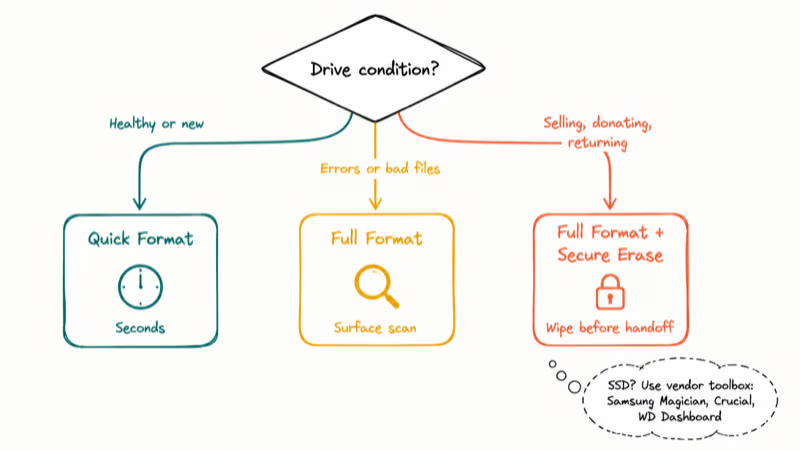
- New, factory-fresh drive that’s never been used: quick format. There’s nothing to overwrite and nothing to scan that the manufacturer hasn’t already checked.
- Drive working fine and you just need to wipe one partition: quick format. Recovery exposure is low if the drive stays in your possession.
- Drive throwing read errors, slow file copies, or corrupt files: full format. The bad-sector scan is the whole point.
- Drive about to be sold, donated, given to a family member, or returned at end of lease: full format minimum, dedicated secure-erase tool preferred. A quick-formatted drive can be brought back to life by anyone with free SD card recovery software and patience.
- SSD you want to fully reset: use the manufacturer’s toolbox (Samsung Magician, Crucial Storage Executive, WD Dashboard) for ATA Secure Erase. A Windows full format on an SSD is overkill for routine wipes and underkill for resale-grade erasure.
- USB stick or SD card holding personal photos that’s going to a thrift store: full format, then physically destroy if the data was sensitive. Flash media holds residual data even after writes.
Reformatting a phone instead of a disk? See our format Android phone guide or the format iPhone completely walkthrough — factory reset maps loosely onto quick format.
#Bottom Line
For a drive that’s never given you trouble, quick format is the right call almost every time. Hours saved, low recovery risk if the drive stays with you.
The moment a drive starts misbehaving or the moment it’s about to leave your hands, switch to full format. The hours it costs are cheap compared to leaking your old tax returns to whoever buys your hard drive on eBay.
#Frequently Asked Questions
Can I recover files after a quick format on Windows 11?
Yes, usually. Run Recuva or PhotoRec right after the format, before writing any new data.
Does a full format on Windows actually overwrite my data?
Yes, on Windows Vista and later. Microsoft changed the default behavior so a non-quick format writes a single zero pass to every sector. On Windows XP and older, full format only checked for bad sectors and left the data intact, which is why outdated guides still claim full format is recoverable.
How long does a full format take on a 1 TB drive?
Plan for about 2 hours on an internal SATA HDD, 4 to 5 hours on a USB 3.0 external HDD, 30 to 40 minutes on a SATA SSD, and up to 12 hours over USB 2.0.
Is full format enough to securely wipe a drive before selling it?
For most consumer use, yes. For data that needs to meet a regulatory standard (HIPAA, GDPR right-to-erasure, financial records), no. Use DBAN for HDDs or the manufacturer’s ATA Secure Erase utility for SSDs. Full format writes one zero pass, which beats quick format but does not meet NIST 800-88 purge requirements.
Should I quick format or full format an SSD?
Quick format. Wear leveling means a full format doesn’t reliably overwrite every NAND cell. For a clean wipe, use ATA Secure Erase from the vendor toolbox.
Can I cancel a full format halfway through?
Technically yes, by closing the dialog or hitting Stop, but you’ll leave the partition in an unstable state. The file system header may be valid but the zero-write pass will be incomplete. Best practice: let it finish. If you need to cancel, immediately run a quick format afterward to leave the partition in a known-good state.
Why does my full format fail or hang on a specific drive?
Usually because the drive has bad sectors that can’t be remapped. Watch the progress bar: if it stalls at the same percentage twice in a row, the drive is failing. Run chkdsk /r to confirm and back up anything you can still read. A drive that can’t complete a full format is on the way out.

Best Laptop for Running LLMs in 2026: Memory Comes First
The best laptop for running LLMs is a memory purchase first. Compare MacBook unified memory against NVIDIA laptop VRAM, and see what each tier really runs.

How to Run a Local LLM on Windows: A 2026 Setup Guide
Run a local LLM on Windows with LM Studio or Ollama. Pick a model that fits your GPU memory, keep every prompt offline, and skip the monthly bill.

Bluetooth Not Working on Snapdragon X? Fixes for 2026
Bluetooth not working on your Snapdragon X Copilot+ PC? Generic audio, mice, and keyboards work, but vendor apps often lack an ARM build. Fixes inside.

Docker Desktop and WSL2 Not Working on Snapdragon X? Fix It
WSL2 runs fine on Snapdragon X, but Docker Desktop ARM is Early Access and throws WSL errors. Use WSL2 plus native ARM64 Ubuntu and Docker Engine.