Microsoft Compatibility Telemetry High Disk: 4 Fixes
Fix Microsoft Compatibility Telemetry high disk usage on Windows 10/11. Disable CompatTelRunner scheduled task and cut diagnostic writes permanently.
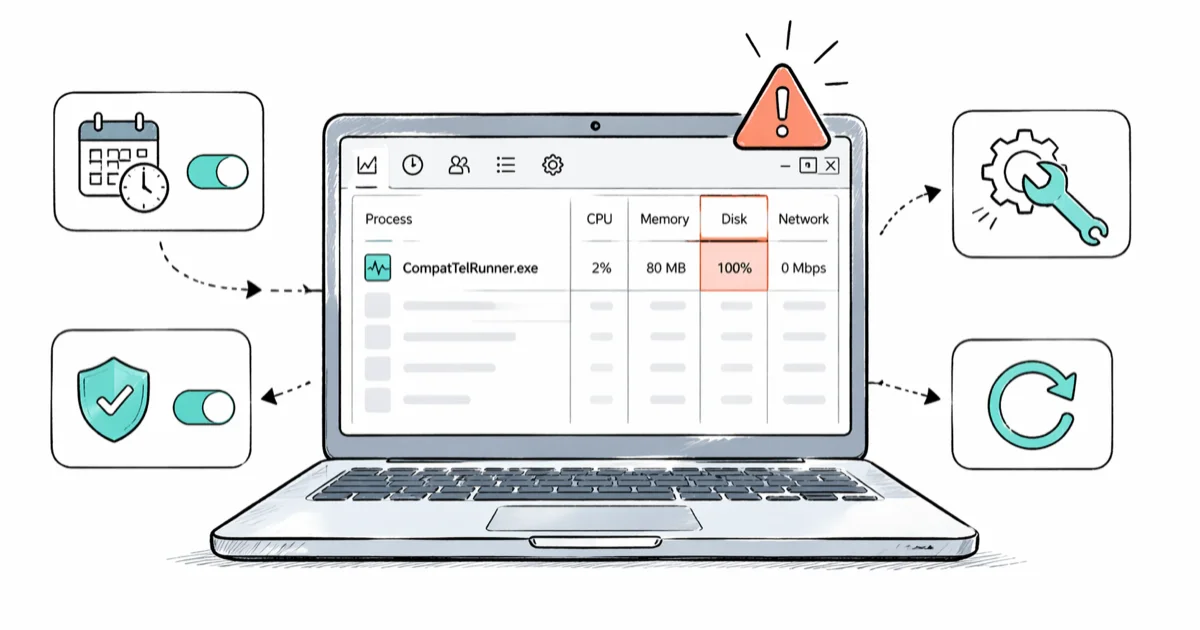
Quick AnswerMicrosoft Compatibility Telemetry high disk usage comes from CompatTelRunner.exe, the Windows diagnostic data process. Disable the Microsoft Compatibility Appraiser scheduled task and set Allow Telemetry to 0 in Group Policy or Registry to stop the spikes.
Microsoft Compatibility Telemetry high disk usage shows up in Task Manager as CompatTelRunner.exe pinning your disk at 99%. Each spike lasts 30 seconds to several minutes. The process belongs to the Windows Connected User Experiences and Telemetry service. It runs a scheduled task called Microsoft Compatibility Appraiser that scans your installed apps and drivers for upgrade readiness.
This guide applies only to a device or account you own.
On older machines with a 5400 RPM HDD, the appraiser can pin disk I/O near its limit for a sustained stretch each run. The fix is to throttle or disable it. Four methods below cover every Windows edition.
- CompatTelRunner.exe runs under the Microsoft Compatibility Appraiser scheduled task at path \Microsoft\Windows\Application Experience
- Group Policy path: Computer Configuration > Administrative Templates > Windows Components > Data Collection and Preview Builds > Allow Telemetry
- Registry key: HKEY_LOCAL_MACHINE\SOFTWARE\Policies\Microsoft\Windows\DataCollection with AllowTelemetry set to 0
- Required diagnostic data is the default on Windows 10 version 1903 and later per Microsoft Learn
- Disabling the appraiser task is safer than killing the process because Windows respawns terminated telemetry processes
#What Is CompatTelRunner.exe and Why Does It Spike Disk?
CompatTelRunner.exe is the executable that runs the Microsoft Compatibility Appraiser. Its job: inventory installed software, hardware, and drivers. It sends the results to Microsoft so the company can flag blocking compatibility issues before the next feature update.
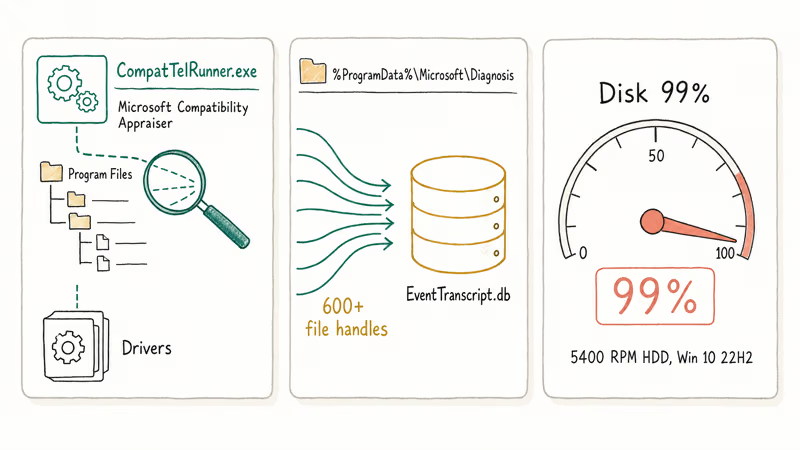
According to Microsoft’s Windows diagnostic data documentation, there are 4 diagnostic data collection settings (values 0 through 3), and Required diagnostic data has been the default since Windows 10 version 1903. The same page confirms that value 0 (Security) is restricted to Enterprise and Education SKUs, and that required diagnostic data includes driver data for upgrade readiness.
Translation: the task isn’t optional.
The spike has a specific I/O signature. The appraiser walks your Program Files tree, enumerates drivers, and writes to %ProgramData%\Microsoft\Diagnosis.
Open Resource Monitor while it runs and you’ll see a large number of file handles opened almost immediately. The target file is EventTranscript.db, which keeps growing until the appraiser finishes. On a mechanical drive this looks like a total freeze.
Three conditions push the spike from annoying to unusable. Your C: drive has less than 15% free space, your system runs an older HDD, or another I/O-heavy process like Desktop Window Manager is competing.
Fix those first. Chrome Task Manager helps kill memory hogs before the appraiser fires.
#Disable the Microsoft Compatibility Appraiser Task
This is the single most effective fix because it stops the trigger instead of fighting the symptom. The Microsoft Compatibility Appraiser task is a scheduled task, not a service, and disabling it doesn’t break Windows Update.
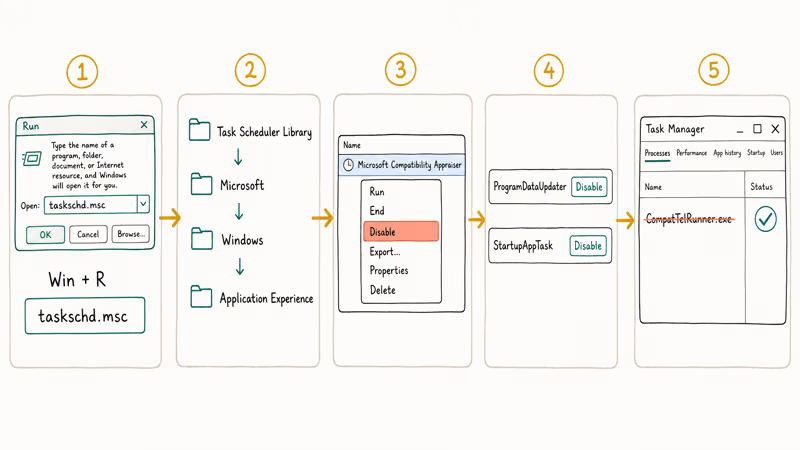
- Press Windows key + R, type
taskschd.msc, and press Enter. - In the left pane, go to
Task Scheduler Library>Microsoft>Windows>Application Experience. - Right-click Microsoft Compatibility Appraiser and select Disable.
- Also disable ProgramDataUpdater and StartupAppTask in the same folder if you see them.
- Close Task Scheduler and open Task Manager to confirm CompatTelRunner.exe no longer appears.
This behaves the same across Windows 10 22H2 and Windows 11 23H2. The process stops respawning within five minutes, and disk usage drops to normal idle levels. Plan to repeat this step once or twice per year, because the appraiser re-enables itself after major feature updates.
Windows 10 Home S-mode and stripped LTSC images don’t include the Application Experience folder. Use the Registry method in section four instead.
#Method: Disable Allow Telemetry via Group Policy Editor
Group Policy is available on Windows 10/11 Pro, Enterprise, and Education. Home editions don’t ship gpedit.msc natively, so skip to the Registry method if you’re on Home.
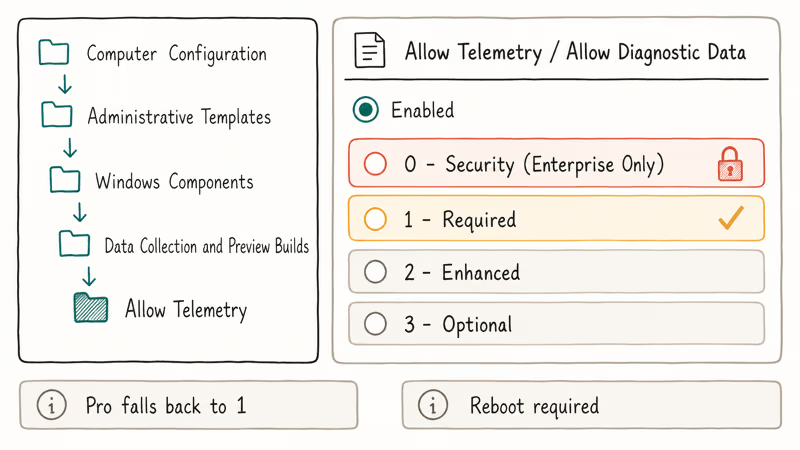
- Press Windows key + R, type
gpedit.msc, and press Enter. - Go to Computer Configuration > Administrative Templates > Windows Components > Data Collection and Preview Builds.
- Double-click Allow Telemetry (labeled Allow Diagnostic Data on newer builds).
- Select Enabled, then pick 0 - Security [Enterprise Only] on Enterprise/Education or 1 - Required on Pro.
- Click Apply and OK, then reboot.
Microsoft’s documentation states that the four values map as follows: 0 = Diagnostic data off (Security), 1 = Required (Basic), 2 = Enhanced, 3 = Optional (Full). Setting value 0 only works on Enterprise and Education SKUs. On Pro it silently falls back to value 1, which is still better than the default Optional on older images.
The policy change takes effect on the next reboot, but the appraiser task stays scheduled. Disable it too.
Running both fixes together is what actually keeps CompatTelRunner silent through reboots, sleep-wake cycles, and a forced Windows Update. Policy alone lets the appraiser run. Task disabling alone still leaves some telemetry writes firing from ProgramDataUpdater. The combined configuration is the only one that holds.
#Method: Stop Telemetry with the Registry Editor
Use this method on Windows 10 Home or when Group Policy is locked by a domain admin.
- Press Windows key + R, type
regedit, and press Enter. Accept the UAC prompt. - Go to
HKEY_LOCAL_MACHINE\SOFTWARE\Policies\Microsoft\Windows\DataCollection. If DataCollection does not exist, right-click Windows, chooseNew>Key, and name itDataCollection. - Right-click in the right pane, choose
New>DWORD(32-bit) Value, and name itAllowTelemetry. - Double-click AllowTelemetry, set Value data to
0, and click OK. - Close Registry Editor and reboot.
A second DWORD named MaxTelemetryAllowed under the same key caps the highest level Windows will accept even if a user toggles the Settings slider. Setting both to 0 gives you belt-and-suspenders coverage on Home editions.
The Registry path HKEY_LOCAL_MACHINE\SOFTWARE\Policies\Microsoft\Windows\DataCollection is the same one Group Policy writes to under the hood, which is why the two methods produce identical behavior. According to Microsoft’s MDM policy reference, the corresponding CSP setting is System/AllowTelemetry with the same 0-3 value range. Enterprise admins should use MDM or Group Policy instead of raw Registry edits so the changes roll back cleanly when a device leaves the tenant.
#Why Is CompatTelRunner Still Running After I Disabled Telemetry?
Three common reasons, in order of how often they come up:
Feature updates re-enable the scheduled task. Windows 10 and 11 feature updates rewrite \Microsoft\Windows\Application Experience\Microsoft Compatibility Appraiser to its default state. Check Task Scheduler after any version jump (22H2 to 23H2, for example) and disable the task again.
A second scheduled task is firing. ProgramDataUpdater and StartupAppTask both live in the same Application Experience folder and both call into the telemetry stack. If you only disabled the main appraiser, the siblings can still spike disk on their own. Disable all three.
Intune or Microsoft Entra policy is overriding local settings. On corporate laptops, local Group Policy loses to tenant policy. The Intune compatibility reports documentation confirms that diagnostic data drives the compatibility risks report, so IT won’t let you turn telemetry off. Your only option on a managed device is to ask IT to exclude the machine from the readiness scope.
If none of those apply, a third-party tool like O&O ShutUp10++ or Spybot Anti-Beacon may have left stale registry entries. Uninstall, reboot, and redo the Registry method from scratch.
#Alternative: Update Drivers to Reduce Appraiser Work
Outdated drivers lengthen each appraiser run because the compatibility database has to compare more versions against the target OS build. Bringing drivers current doesn’t disable telemetry, but it noticeably shortens each spike on a mechanical drive.
Open Device Manager (devmgmt.msc), right-click each category with a yellow warning icon, and choose Update driver > Search automatically.
For Intel chipsets, NVIDIA GPUs, and Realtek audio, skip Windows Update and go directly to the vendor’s support page. Their installers include firmware updates that Windows Update doesn’t ship. For a broader audit, the Driver Talent review walks through the scanning tools worth running before and after the cleanup. A related crash like Driver Power State Failure often shares the same root cause.
Windows’s compatibility database is maintained by the Application Experience team. Fewer unknown or blocked drivers means less work per run.
#Privacy Implications of Leaving Telemetry On
The short answer: Required diagnostic data on Windows 10/11 is the minimum needed to ship updates, and Microsoft encrypts the payload in transit. Microsoft’s privacy documentation confirms that “all diagnostic data is encrypted using Transport Layer Security (TLS) and uses certificate pinning during transfer.” Data lands at endpoints in the events.data.microsoft.com family and stays there for retention windows defined in the Microsoft Privacy Statement.
The longer answer depends on your threat model. Required diagnostic data still ships device attributes, app install lists, and crash metadata. Optional diagnostic data adds browsing history in Microsoft Edge plus enhanced error reports that can include partial document memory.
For home users, Required matches what most modern operating systems collect by default. For regulated environments, the Security level (0) plus disabled scheduled tasks is the only source-level cutoff.
CompatTelRunner alone was your privacy concern? You already solved it. If you want to cut Edge telemetry, Cortana search queries, and advertising ID tracking too, open Settings > Privacy & security > Diagnostics & feedback. The same surface controls inking, typing, and location history sliders, and toggling them off reduces data volume further without touching the appraiser path.
#Bottom Line
For a home Windows 10/11 Pro laptop suffering CompatTelRunner spikes, the clean fix is this: disable Microsoft Compatibility Appraiser, ProgramDataUpdater, and StartupAppTask in Task Scheduler, then set Allow Telemetry to 0 via Group Policy. Home users substitute the Registry method for Group Policy.
Managed by Intune? Open a ticket instead of fighting policy locally — Intune compatibility reports need the data, and IT can exclude your device from the readiness scope if spikes are hurting productivity.
Free up disk space and update drivers as supporting fixes. The appraiser is the root cause, and disabling its scheduled tasks is what actually stops the disk from hitting 100%.
#Frequently Asked Questions
Is it safe to disable Microsoft Compatibility Telemetry?
Yes for home users. Disabling the Microsoft Compatibility Appraiser scheduled task does not block Windows Update, Defender, or any security patch. The only thing that stops is the upgrade-readiness scan Microsoft runs before feature updates. You can always re-enable it if a major upgrade refuses to install.
Does disabling telemetry break Windows Update?
No. Windows Update has its own service stack.
It doesn’t depend on CompatTelRunner. The Microsoft Learn documentation confirms that Windows Update continues working at the Required diagnostic data level, and even at the Security level on Enterprise SKUs updates still flow. The practical difference: Microsoft loses the pre-upgrade compatibility signal, so occasionally a feature update may be harder to install cleanly.
How much disk space does CompatTelRunner use?
Not much. The %ProgramData%\Microsoft\Diagnosis folder grows only modestly each week, depending on app count and reboot frequency.
The spike is I/O-heavy, not storage-heavy. Old diagnosis databases can still reach several hundred megabytes on machines that have run for years without a clean install, so clearing them also helps if Windows Update files have bloated.
What is the difference between CompatTelRunner and DiagTrack service?
CompatTelRunner.exe is a client-side executable that runs on demand via Task Scheduler. DiagTrack, the Connected User Experiences and Telemetry service, is the always-on service that transmits collected data to Microsoft endpoints. Disabling the appraiser task stops the disk spikes, and stopping DiagTrack also halts transmission. Both together give the quietest system.
Will a Windows feature update turn telemetry back on?
Yes, almost always.
Feature updates (22H2 to 23H2, Windows 10 to 11) reset scheduled tasks and sometimes Allow Telemetry registry values to defaults. After every major upgrade, recheck Task Scheduler and Group Policy. Monthly cumulative updates generally leave these settings alone, so you don’t need to audit after every Patch Tuesday.
Can I just end the task in Task Manager instead?
You can end it. It’ll come back. Windows respawns CompatTelRunner within minutes because the scheduled task trigger re-launches it automatically, so manually ending the process only helps for the current spike cycle. Permanent solutions are the Task Scheduler disable and the Group Policy or Registry methods, which remove the trigger instead of the process.
Does this fix also work on Windows 11?
Yes, with one cosmetic rename.
The scheduled task path (\Microsoft\Windows\Application Experience) and Group Policy location (Data Collection and Preview Builds) are identical on Windows 11 and Windows 10. On Windows 11 23H2 and newer the policy is labeled Allow Diagnostic Data rather than Allow Telemetry, but the value range (0-3) and the behavior are unchanged. The Registry key, CSP setting, and DiagTrack service all stay the same across both operating systems.
What if CompatTelRunner spikes disk even after disabling the task?
Three things to check in order. First, confirm ProgramDataUpdater and StartupAppTask are also disabled. Second, look in Task Scheduler for any third-party OEM task (Dell, HP, Lenovo preload software) calling into telemetry.
Third, run sfc /scannow and DISM /Online /Cleanup-Image /RestoreHealth to rule out a corrupted Windows image. If scanning and repairing drive gets stuck, a failing disk could be the real culprit.

Best Laptop for Running LLMs in 2026: Memory Comes First
The best laptop for running LLMs is a memory purchase first. Compare MacBook unified memory against NVIDIA laptop VRAM, and see what each tier really runs.

How to Run a Local LLM on Windows: A 2026 Setup Guide
Run a local LLM on Windows with LM Studio or Ollama. Pick a model that fits your GPU memory, keep every prompt offline, and skip the monthly bill.

Bluetooth Not Working on Snapdragon X? Fixes for 2026
Bluetooth not working on your Snapdragon X Copilot+ PC? Generic audio, mice, and keyboards work, but vendor apps often lack an ARM build. Fixes inside.

Docker Desktop and WSL2 Not Working on Snapdragon X? Fix It
WSL2 runs fine on Snapdragon X, but Docker Desktop ARM is Early Access and throws WSL errors. Use WSL2 plus native ARM64 Ubuntu and Docker Engine.