Your PC Ran Into a Problem and Needs to Restart: 7 Fixes
Your PC ran into a problem and needs to restart? Use these 7 Windows 10 and 11 fixes covering driver, memory, overheating, and update BSOD triggers.
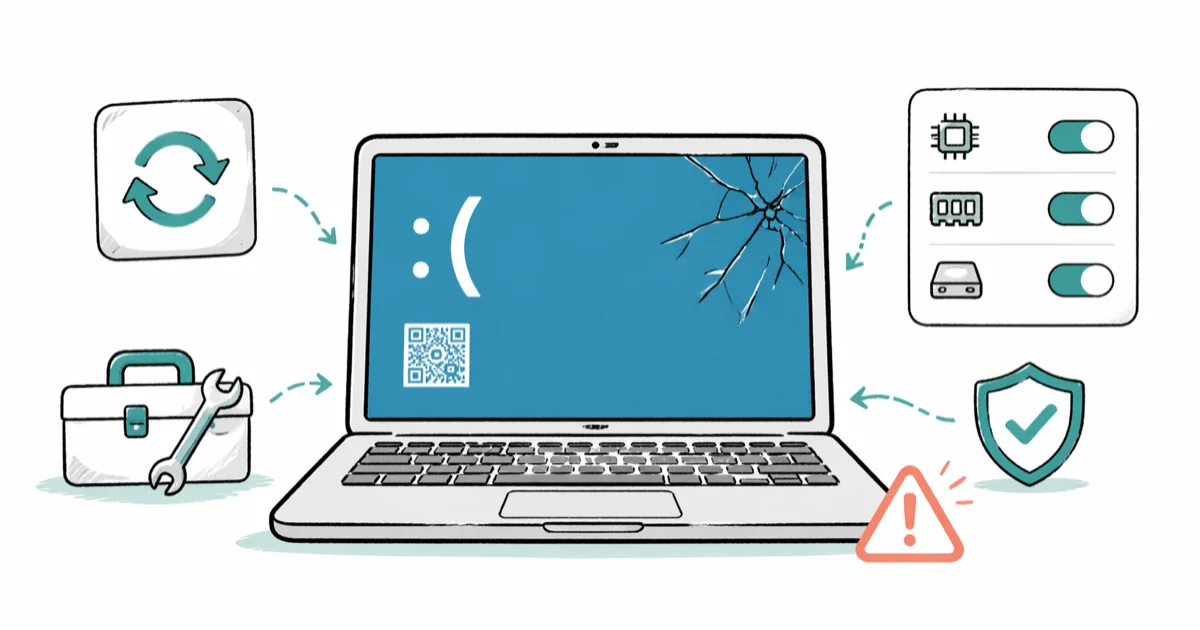
Quick AnswerThe 'Your PC ran into a problem and needs to restart' BSOD usually points to a buggy driver, a bad Windows update, or failing memory. Boot into Safe Mode, write down the stop code, then update or roll back the suspect driver before you touch anything else.
The “Your PC ran into a problem and needs to restart” message is a Windows blue screen that loops until you fix the underlying trigger. Across Windows 10 and 11, a driver rollback in Safe Mode is the fix that clears this loop most often, with seven methods below covering the other common triggers.
This guide assumes the PC you’re working on is yours, since recovery tools, Safe Mode, and driver rollbacks all touch system files that need administrator rights you only have on your own device.
- The error is a Windows blue screen that keeps restarting your PC until you stop the trigger or boot to Safe Mode.
- Driver problems are the leading cause; failing RAM, overheating, USB peripherals, and bad updates make up the rest.
- Booting into Safe Mode first is essential, since the BSOD loop blocks a normal sign-in and a bad driver usually won’t load in Safe Mode.
- Unplug every USB device before you reboot, since one bad peripheral can recreate the crash on the next boot.
- If the loop keeps coming back even in Safe Mode, the next step is Startup Repair from a Windows recovery USB.
#What Causes “Your PC Ran Into a Problem and Needs to Restart”?
Windows shows this BSOD when the kernel hits a fault it can’t recover from, dumps memory to disk, and triggers a forced restart. The cause is almost always a driver, a hardware fault, or a corrupted system file. The frowny-face screen is generic; the stop code below it tells you which bucket you’re in.
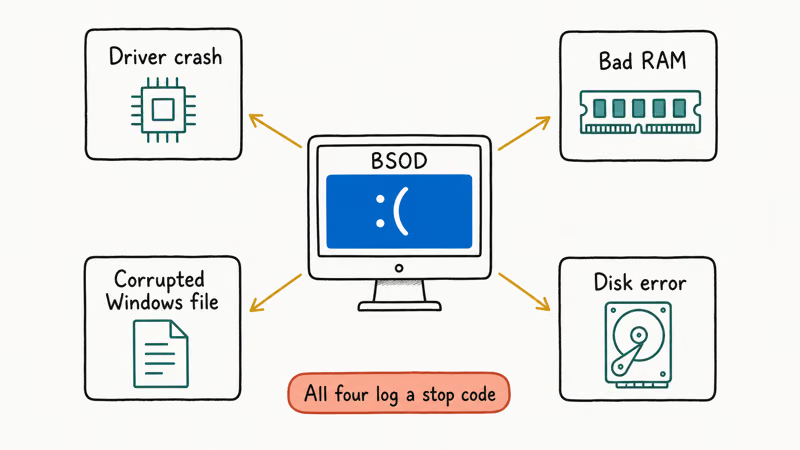
One machine might trace the loop to a third-party graphics driver installed days earlier, while another hits the same screen because of a single bad DIMM that surfaces only under load. Same on-screen message, two completely different fixes.
The five categories that account for nearly every occurrence:
- Outdated, beta, or third-party drivers (the most common bucket)
- Bad RAM or storage hardware
- A failed Windows update or a corrupted system file
- An external USB device the system can’t enumerate
- Thermal throttling or a CPU that’s overheating
According to Microsoft’s troubleshoot blue screen errors guide, driver issues are the most common root cause of unexpected restart loops, and the documentation walks through Driver Verifier as the standard isolation tool when the bug check code points at the kernel.
#How Do You Read the Stop Code?
The stop code is the short string under the frowny face, usually printed as something like SYSTEM_SERVICE_EXCEPTION, IRQL_NOT_LESS_OR_EQUAL, or DPC_WATCHDOG_VIOLATION. Each code maps to a category of fault. Microsoft’s bug check code reference lists every code and the most likely subsystem.
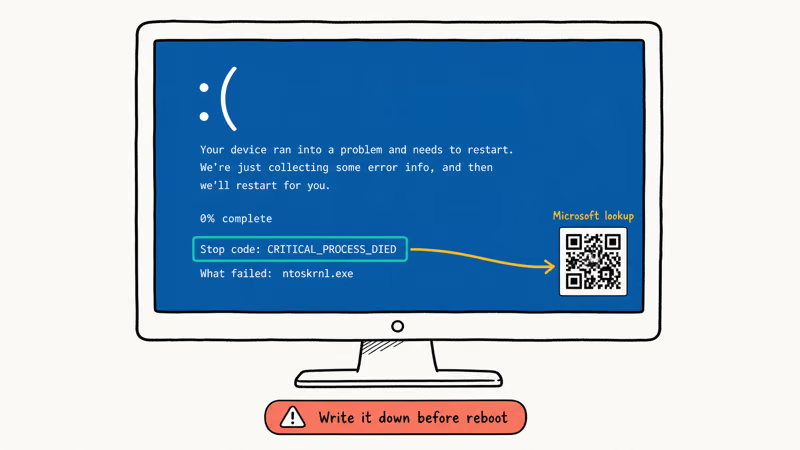
If the PC restarts before you can read the code, do this:
- Boot into Safe Mode (instructions in the next section).
- Open Event Viewer from the Start menu.
- Expand
Windows Logs>System. - Filter on Critical and look for the event labeled BugCheck.
- The first parameter on the event detail tab is the stop code in hex.
When Event Viewer points at a code like MEMORY_MANAGEMENT, it sends you straight to the Windows Memory Diagnostic step instead of hours of blind driver swapping.
#Boot Into Safe Mode Before You Start Fixing
Almost every fix below needs you signed in, which the BSOD loop won’t let you do from a normal boot. Safe Mode loads only the drivers Windows needs to start, so a bad driver usually doesn’t load at all.
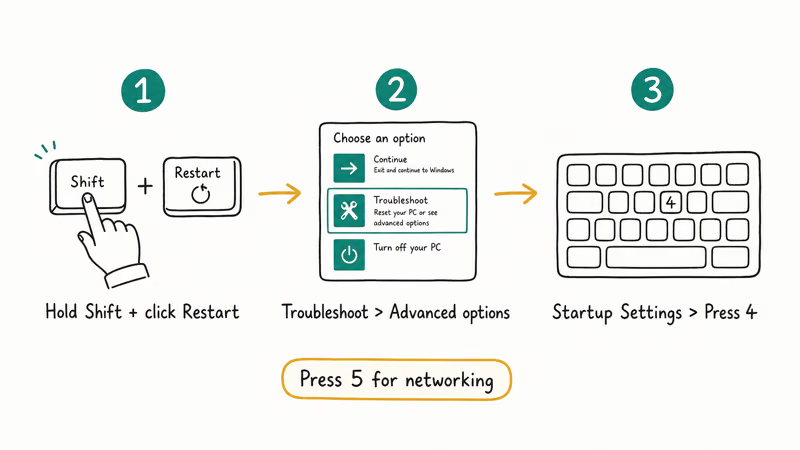
The fastest way in if the loop is already running:
- Force the PC off by holding the power button while you see the BSOD.
- Power on, wait for the spinning dots, and force off again.
- Repeat twice more. On the third boot, Windows opens the Automatic Repair screen.
- Choose Advanced options >
Troubleshoot>Advancedoptions >Startup Settings>Restart. - After reboot, press 4 for Safe Mode or 5 for Safe Mode with Networking.
If you can still reach the sign-in screen between crashes, hold Shift and click Restart from the power menu to land on the same Advanced options screen without the three-force-off trick.
Microsoft’s Safe Mode page states that pressing 4 at the Startup Settings menu boots Windows into Safe Mode with only the drivers and services Windows needs to start, which is exactly why a misbehaving GPU or audio driver can’t take down the boot here.
#7 Fixes That Actually Work
Try these in order. The early steps are reversible and take a minute or two; the later ones need a recovery USB or hardware swaps.
#1. Unplug Every USB Device, Then Reboot
The first thing to try on any unfamiliar BSOD loop is to pull every USB cable except the keyboard and mouse, then boot. External drives, docks, capture cards, and cheap USB-C hubs are routine culprits because their drivers run very early in the boot path.
Removing a single problem device, like a USB-C dock with a bad audio chip, can break the loop on the very next reboot, no driver work required. If the loop stops with peripherals unplugged, plug them back in one at a time until the crash returns. The device you just plugged in is the cause. The USB device not recognized fix lists the most common offenders to swap or update.
#2. Roll Back the Last Driver You Installed
If the crash started right after a driver update, roll it back. In Safe Mode:
- Press Win + X, choose Device Manager.
- Expand the category for the suspect driver (Display adapters, Network adapters, and so on).
- Right-click the device, choose
Properties>Driver>Roll Back Driver. - Restart in normal mode.
Roll Back Driver is grayed out if no previous version is cached. In that case, uninstall the driver and let Windows install the in-box version on the next reboot. Microsoft’s Driver Verifier documentation states that Verifier can pin down the offending driver by intentionally stressing each one until the bad code path crashes, which is the next step when a manual rollback doesn’t help.
#3. Update Windows and Drivers in the Right Order
If you haven’t installed updates in months, both Windows and the driver catalog are probably out of sync. Run Windows Update first, then check Device Manager for any remaining yellow exclamation marks.
In Safe Mode with Networking:
- Open
Settings>Windows Update>Check forupdates. - Install every update, including optional driver updates.
- Restart and check whether the loop is gone.
- If not, open Device Manager and update any device with a warning icon.
Avoid third-party driver-updater utilities. Many bundle adware, and they’re known to install the wrong chipset driver, which can make a BSOD loop worse. The thread stuck in device driver fix covers the manufacturer-direct route for the drivers that cause this BSOD most often.
#4. Run Windows Memory Diagnostic
Bad RAM produces this BSOD on a predictable schedule: idle for ten minutes, then crash; or load a game, then crash. Windows ships with a free memory tester.
- Type Windows Memory Diagnostic in the Start menu.
- Choose Restart now and check for problems.
- Let the test run two full passes (about 40 minutes on 16 GB).
- Read the result in Event Viewer under MemoryDiagnostics-Results.
After a MEMORY_MANAGEMENT stop code, the tool often flags a bad DIMM on the second pass, and pulling that stick stops the loop instantly.
Run at least two standard passes before you replace any RAM, since the test needs more than one cycle to confirm whether memory is the actual problem. If the diagnostic comes back clean but you still see the loop, the how to fix your computer is low on memory issue guide covers software-side memory pressure, which produces a similar crash pattern.
#5. Uninstall Recently Installed Software
Antivirus suites, VPN clients, and disk utilities install kernel-level drivers that can collide with Windows changes. If the BSOD lined up with a software install, uninstall that program first.
In Safe Mode:
- Open
Settings>Apps>Installedapps. - Sort by Date installed.
- Uninstall anything from the past week that touches the kernel (security suites, disk tools, peripheral drivers).
- Reboot.
The “uninstall and see” pass is fast, and it isolates whether a software install is the trigger before you start on heavier recovery steps.
#6. Repair Corrupted System Files with SFC and DISM
A failed Windows update can leave system files corrupted. Two built-in tools fix that without a reinstall.
Open an elevated Command Prompt (right-click > Run as administrator) and run:
sfc /scannow
DISM /Online /Cleanup-Image /RestoreHealth
SFC scans protected system files against a known-good copy. DISM rebuilds the component store SFC pulls from. Run SFC first, then DISM if SFC reports problems it couldn’t fix. The whole pass takes 15 to 30 minutes depending on your storage type.
If both tools come back clean but the loop returns, the underlying file the BSOD points to may be a driver, not a system file. Move on to the next step. The registry error fix covers the related case where a corrupted registry hive triggers a similar restart loop.
#7. Check Heat, Power, and Storage Hardware
Hardware faults are the last category to rule out because they’re the most disruptive to test. Three quick checks:
Open Task Manager>Performance andwatch CPU temperature under load. Sustained temps above 90 °C are out of spec for most consumer chips.- Press hard on the SSD or RAM connectors to confirm they’re seated; a loose stick mimics every memory-related stop code.
- If the system runs fine in Safe Mode for hours but crashes within minutes in normal mode and you’ve eliminated every driver, the power supply is the next suspect on desktops.
A common version of this is a year-old gaming laptop that crashes only when the GPU spins up. The laptop overheating while gaming checklist often surfaces a clogged heatsink in under ten minutes of inspection.
#Back Up Crash Dumps and Files Before You Reset
A reset wipes the C:\Windows\Minidump\ folder and (with Remove everything) every file on the system drive. Save what matters before you start:
- Boot into Safe Mode with File Explorer access.
- Copy
C:\Windows\Minidump\*.dmpto a USB drive for later forum analysis. - Copy the Users\YourName folder, plus any work folders outside the default profile.
- Note your installed-app list from
Settings>Apps>Installedapps so you can reinstall the essentials later.
This step costs 10 to 20 minutes and saves the only diagnostic record you have if the reset itself fails. It’s a common mistake to reset before grabbing the dumps, only to face a hardware fault that the reset didn’t touch and can no longer be diagnosed.
#When to Reinstall Windows Instead
If you’ve worked through all seven fixes and the loop still comes back inside Safe Mode, the install itself is probably corrupted. At that point, the fastest path is a clean reinstall using Reset this PC.
- Go to
Settings>System>Recovery. - Under Reset this PC, choose Reset PC.
- Pick Keep my files if you want to preserve documents, or Remove everything for a clean slate.
- Choose Cloud download so Windows pulls a fresh ISO instead of using the broken local image.
The cloud download path is the one to use here, since reusing the local image often just reinstalls the same corruption. If your files are not yet backed up, copy them to an external drive from Safe Mode with File Explorer before you start the reset. The how long does system restore take breakdown covers timing expectations if you want to try a point-in-time restore first.
#Bottom Line
Start with Fix 1 — unplug every USB device and reboot. A large share of these loops resolve at that step alone, and it costs you 30 seconds. If the loop survives that, force-boot into Safe Mode, write down the stop code from Event Viewer, and roll back the driver Windows updated most recently. That sequence clears the loop on most machines without ever touching a recovery USB.
#Frequently Asked Questions
Is “Your PC ran into a problem” the same as the classic Windows blue screen?
Yes. The frowny-face screen with the “Your PC ran into a problem and needs to restart” message is the modern presentation of the Windows blue screen of death. The underlying mechanism is identical: a kernel-level fault, a memory dump, and a forced restart. Only the visual layout changed, starting with Windows 8.
Can a faulty power supply cause this error?
A failing power supply on a desktop can trigger this BSOD, especially under load when the GPU and CPU draw their full wattage at once. If the loop only appears during gaming or video rendering and Safe Mode runs clean for hours, the PSU is a reasonable suspect. Swap-testing with a known-good PSU is the only reliable way to confirm.
How long should I wait before forcing a restart when the screen is stuck?
Wait at least 60 seconds. Windows is collecting a memory dump that you’ll need for diagnosis later, and the percentage indicator on the screen reflects the dump’s progress. Once it reaches 100 percent the system restarts on its own. Forcing the power off before the dump finishes loses the evidence and sometimes corrupts the dump file.
Does Windows automatically collect crash dumps?
Yes, Windows writes a minidump to C:\Windows\Minidump\ on every BSOD by default. The file is named with the date and a sequence number. You can open it with WinDbg or upload it to a community forum for analysis. If the folder is empty, dump collection is disabled and you’ll need to enable it under System Properties > Advanced > Startup and Recovery.
Should I use a third-party driver updater?
We don’t recommend it. Free driver-updater tools often bundle browser hijackers or install the wrong driver for your specific chipset. Windows Update plus a manual visit to your laptop manufacturer’s support page covers about 95 percent of what these tools claim to do, with none of the side effects.
Will System Restore fix this BSOD?
System Restore can help if the loop started right after a recent software install, a Windows update, or a driver change, because it rolls the registry and driver versions back to the restore point. It won’t fix hardware faults like bad RAM or a failing SSD. Try it from Safe Mode after the other software-side fixes, not before.
Can the error appear on a brand-new PC?
Yes, and when it does the cause is almost always a factory driver bundle that ships with a known bug or a single bad RAM stick that escaped quality control. Run Windows Memory Diagnostic first, then update every driver from the manufacturer’s site. If neither helps, return the PC under warranty; this is not a problem you should be spending hours on within the first 30 days.

Best Laptop for Running LLMs in 2026: Memory Comes First
The best laptop for running LLMs is a memory purchase first. Compare MacBook unified memory against NVIDIA laptop VRAM, and see what each tier really runs.

How to Run a Local LLM on Windows: A 2026 Setup Guide
Run a local LLM on Windows with LM Studio or Ollama. Pick a model that fits your GPU memory, keep every prompt offline, and skip the monthly bill.

Bluetooth Not Working on Snapdragon X? Fixes for 2026
Bluetooth not working on your Snapdragon X Copilot+ PC? Generic audio, mice, and keyboards work, but vendor apps often lack an ARM build. Fixes inside.

Docker Desktop and WSL2 Not Working on Snapdragon X? Fix It
WSL2 runs fine on Snapdragon X, but Docker Desktop ARM is Early Access and throws WSL errors. Use WSL2 plus native ARM64 Ubuntu and Docker Engine.