How to Fix Storahci.sys Blue Screen on Windows 10 and 11
Fix the storahci.sys BSOD by updating the AHCI driver, running SFC and DISM, reseating the SATA cable, or rolling back. Works on Windows 10 and 11.
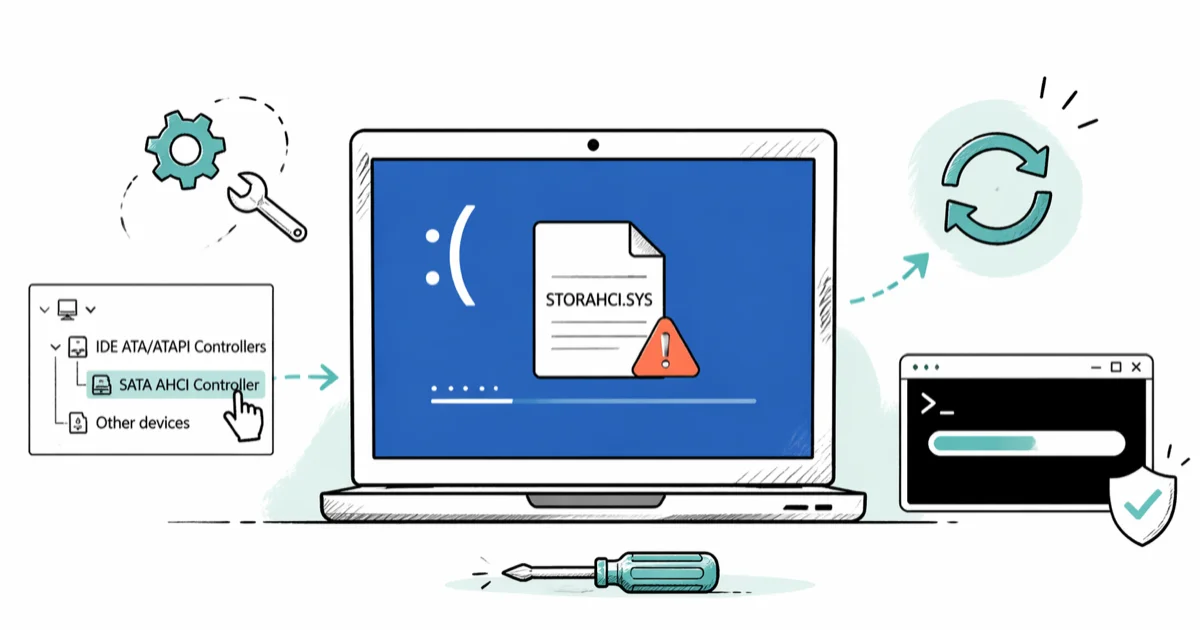
Quick AnswerOpen Device Manager, expand IDE ATA/ATAPI Controllers, right-click the SATA controller, and choose Update Driver. Restart. If the blue screen returns, run SFC /scannow in an elevated Command Prompt to repair corrupted system files behind the driver.
The storahci.sys blue screen is almost always a driver problem, not a virus or a dying drive. Start with the AHCI driver in Device Manager, then move to SFC, the SATA cable, and driver rollback if the crash keeps coming back.
Most cases don’t require a reinstall.
- Storahci.sys is the Microsoft-signed AHCI driver that talks to SATA drives, so antivirus flags on this file are false positives
- Updating the AHCI driver in Device Manager is the first fix to try because it targets the storage driver directly
- SFC /scannow repairs corrupted system files the driver depends on, even when Device Manager reports the driver as fine
- A loose or worn SATA data cable produces the same BSOD as a bad driver, and swapping the cable is a low-risk hardware check
- Rolling back the AHCI driver is the right first step when the crash starts right after a Windows Update
#What Is Storahci.sys and Why Does It Trigger a Blue Screen?
Storahci.sys is the Windows driver for the Storport AHCI controller. It bridges the operating system and any drive connected through SATA, so without it Windows can’t read or write to a hard disk or SATA SSD. The file lives in C:\Windows\System32\drivers\ and ships with every install of Windows 10 and Windows 11.
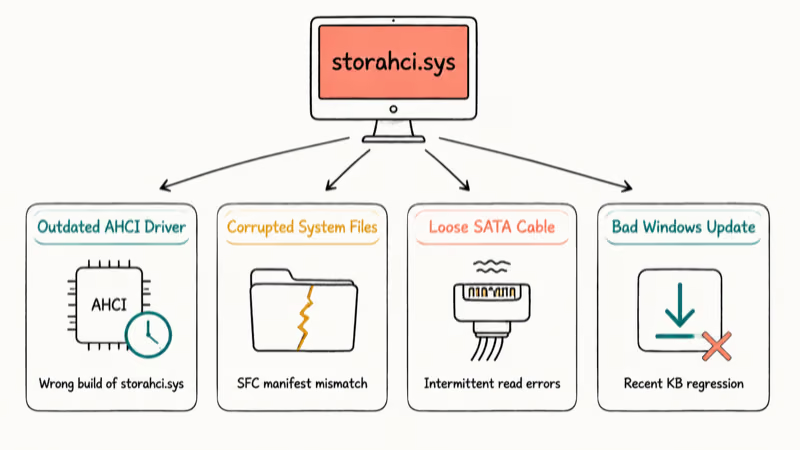
According to Microsoft’s storage driver documentation, storahci is the in-box AHCI driver for Windows 8 and later, replacing the older msahci.sys that shipped with Windows 7. When you see “storahci.sys” on a blue screen, the storage subsystem hit a fault it couldn’t recover from. There are four common triggers, and the rest of this guide walks each one to a fix.
The four root causes:
- An outdated, mismatched, or corrupted AHCI driver
- Damaged Windows system files the driver loads at boot
- A loose or worn SATA data cable creating intermittent read errors
- A Windows Update regression that shipped a bad driver version
Antivirus tools sometimes flag storahci.sys because malware authors abuse driver names. The file in your drivers folder is digitally signed by Microsoft. Right-click it, open Properties > Digital Signatures, and confirm the signer before you panic. Don’t delete the file under any circumstances.
If you’re also chasing a graphics-related blue screen on the same machine, our dxgkrnl.sys blue screen guide walks the GPU driver side.
#Method 1: Update the AHCI Driver in Device Manager
This is the highest-yield fix. Always start here.
If a Windows update pins the AHCI controller to a bad or outdated build, a Device Manager refresh can clear the crash without touching the registry, BIOS, or any third-party tool.
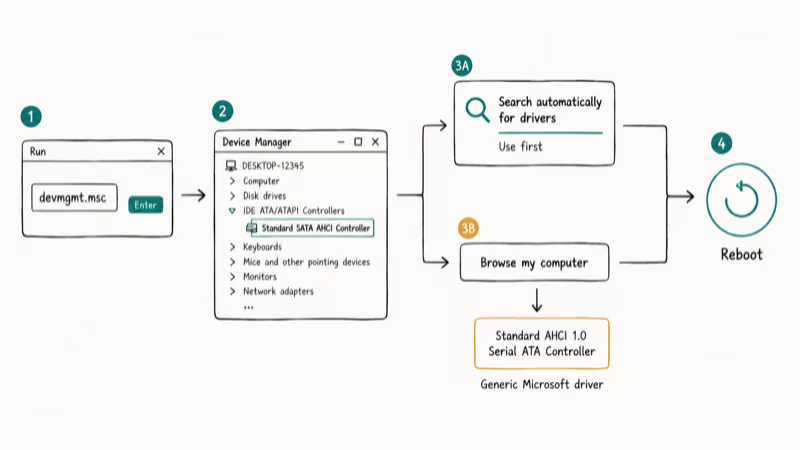
Press Windows + R, type devmgmt.msc, and press Enter. Expand IDE ATA/ATAPI Controllers. Right-click each entry that mentions SATA or AHCI, choose Update Driver, and select Search automatically for drivers. Reboot when the install finishes.
If Windows reports the driver is already current, don’t stop there. Reopen the same controller, choose Browse my computer for drivers, then Let me pick from a list of available drivers on my computer. Pick Standard AHCI 1.0 Serial ATA Controller and apply. The generic Microsoft driver often clears crashes that the OEM driver can’t.
If neither path works, your motherboard vendor probably has a newer driver. Search the support page for your exact board model and the term “AHCI” or “SATA controller,” download the latest INF package, and install it through Browse my computer. Vendors like ASUS, MSI, and Gigabyte typically post fresh drivers within weeks of a major Windows update.
For other driver-caused stop codes, our guide on the thread stuck in device driver error covers a related pattern that responds to the same Device Manager workflow.
#Method 2: Repair Windows System Files With SFC and DISM
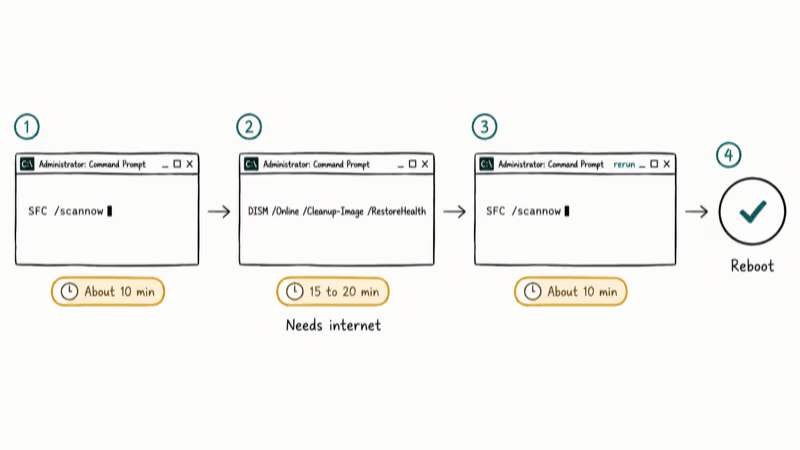
A clean driver still fails when the Windows component store underneath gets corrupted. The System File Checker scans every protected system file and replaces damaged ones, and DISM repairs the component store that SFC pulls clean copies from. Run them in that order so SFC has a healthy source to work against.
Step 1: Run SFC
Press the Windows key, type cmd, right-click Command Prompt, and choose Run as administrator. Type SFC /scannow and press Enter. The scan takes about 10 minutes on most machines. Leave the window open until it finishes, then reboot.
Step 2: Run DISM if SFC reports unrepairable files
In the same elevated Command Prompt, run DISM /Online /Cleanup-Image /RestoreHealth. DISM needs an internet connection and 15 to 20 minutes to download replacement files. Reboot, then run SFC one more time so it can finish what DISM healed.
According to Microsoft, SFC supports Windows 7, 8, 10, and 11 and can repair drivers that Windows itself doesn’t flag as damaged, per its SFC support documentation. That’s exactly why this step rescues storahci.sys crashes that Device Manager misses: the binary on disk looks valid, but its hash no longer matches the manifest.
If SFC throws a separate disk error mid-scan, see our kernel data inpage error guide for the CHKDSK steps that pair with it.
#Does a Loose SATA Cable Really Cause Storahci.sys?
Yes. A worn or partially seated SATA data cable produces intermittent read errors that the driver flags as a fatal storage fault. The driver did its job; the wire underneath is the actual point of failure.
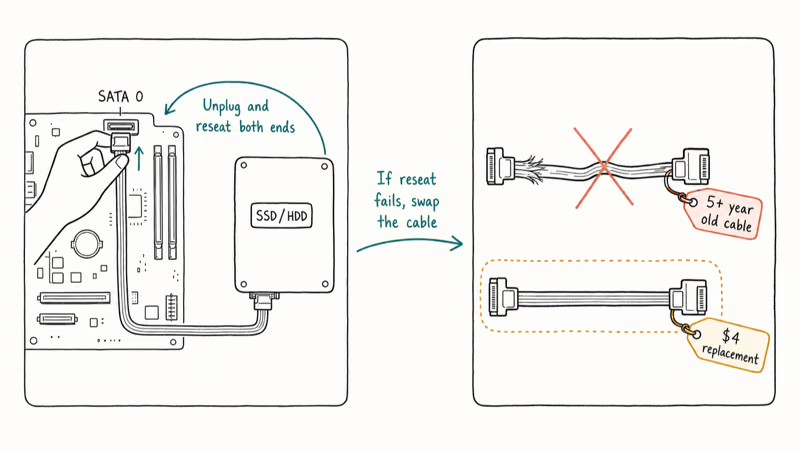
Check this when the crashes started after you moved the PC, swapped a drive, opened the case for cleaning, or the machine hasn’t been reseated in years. It’s also a strong suspect when the BSOD only fires under sustained disk load like a backup, a game install, or a video encode.
To test the cable:
Power down completely and unplug the PC. Open the case, locate the SATA data cable that runs from each drive to the motherboard, unplug both ends, and reseat them firmly. If you have a spare cable, swap it in entirely. Boot Windows and run a normal workload for at least 30 minutes to see if the crash reappears.
If the crashes stop after a cable swap, the cable was the failure point. It’s worth checking before you spend a Saturday on registry edits and clean installs.
If reseating didn’t clear it, the drive itself may be on the way out. Our walkthrough on SSDs not showing up in Windows covers SMART data, port testing, and the cheaper diagnostic tools that confirm a hardware failure.
#Method 4: Roll Back the Driver After a Windows Update
Try this first whenever the storahci.sys crash started in the same week as a Windows Update. Rollback is faster than any other method and reverses the exact change that introduced the regression.
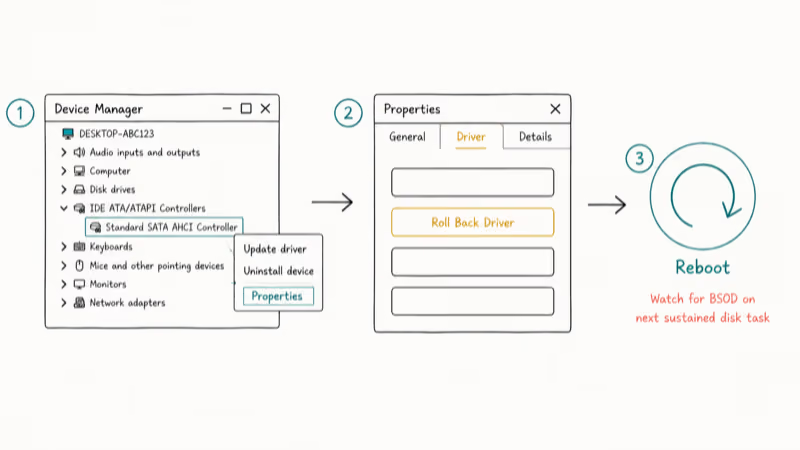
Press Windows + R, type devmgmt.msc, and press Enter. Expand IDE ATA/ATAPI Controllers, right-click your SATA controller, and choose Properties. Open the Driver tab, click Roll Back Driver, pick a reason from the dropdown such as “Previous version performed better” (the choice is logged for Microsoft telemetry only and doesn’t change what gets rolled back), and confirm. Reboot, then watch for the BSOD on the next sustained disk operation like a backup or game install.
If Roll Back Driver is grayed out, Windows didn’t retain a previous version. Visit your motherboard vendor’s downloads page, grab a stable AHCI driver from a build you remember as working, and install it through Browse my computer for drivers.
According to Microsoft’s driver update documentation, Windows keeps the previous driver version on hand, so Device Manager’s Roll Back Driver restores the build that ran before the most recent install. That is why it works on regression bugs: it’s a surgical reversal, not a guess.
For neighboring driver-caused stop codes, our guides on driver power state failure and the DPC watchdog violation error walk the same rollback procedure with the wording adapted to those drivers.
#When All Four Methods Fail: Hardware-Side Checks
The trail at this point points at hardware or deep system corruption, not at a driver. Three suspects to check, in order: bad sectors on the drive, a defective SATA port on the motherboard, or a Windows install that needs more than SFC can repair.
Check the drive first with CHKDSK.
Open an elevated Command Prompt and run chkdsk C: /f /r. The full pass takes 30 to 90 minutes depending on drive size. If CHKDSK reports any reallocated sectors, pending sectors, or uncorrectable errors, back the drive up immediately. Microsoft’s hardware troubleshooting guidance recommends replacing any drive that surfaces those flags, since the failures only get worse.
Move the drive to a different SATA port.
Most desktop boards have four to six SATA ports. Connect the drive to a new port, reboot, and watch for the crash. A defective port produces the same storahci.sys BSOD as a bad cable.
Run a Windows repair install if hardware checks out.
Boot from a Windows USB drive, choose Repair your computer, and pick Reset this PC > Keep my files. This rebuilds the entire Windows component store without touching personal files or installed apps. It takes 30 to 45 minutes on most systems.
For two related stop codes that respond to the same hardware checks, see our guides on ndis.sys blue screens and ntfs.sys blue screens.
#Bottom Line
Start with Method 1. Updating the AHCI driver in Device Manager targets the most likely cause, and SFC plus DISM cover corrupted system files. If all four methods fail, run CHKDSK and check the drive’s SMART data with CrystalDiskInfo before you commit to a repair install. A failing drive is the only scenario where any of this work is wasted.
#Frequently Asked Questions
Is storahci.sys a virus?
No. Storahci.sys is a Microsoft-signed driver that ships with Windows and handles SATA storage. Antivirus flags on this filename are false positives in nearly every case. Verify the digital signature in Properties before you take any action.
Can I delete storahci.sys to stop the crash?
No. If you remove storahci.sys, Windows can’t read from any SATA drive and the system won’t boot. Run SFC /scannow instead. It replaces a corrupted copy with a clean one from the Windows component store and finishes in about 10 minutes.
How long does SFC /scannow really take?
About 10 minutes on most machines, longer on older mechanical drives. Keep the Command Prompt window open the whole time and let the scan finish before you reboot.
Does storahci.sys affect NVMe drives?
No. Storahci.sys only handles SATA traffic. NVMe SSDs in M.2 slots use the stornvme driver, which is separate. If your PC has both NVMe and SATA drives, the BSOD is coming from the SATA side and the NVMe is not the cause.
Will updating the AHCI driver erase my files?
No. A driver update through Device Manager replaces only the driver binary that talks to the storage controller. Your files, programs, settings, and browser data stay untouched. The only way data is at risk during this process is if the underlying drive is already physically failing, and CHKDSK will surface that with bad sector counts before you lose anything.
What if I don’t see IDE ATA/ATAPI Controllers in Device Manager?
In Device Manager, click View > Show hidden devices. If it still doesn’t appear, your system is likely in RAID or NVMe mode, not AHCI. Check your BIOS under Storage Configuration before changing anything.
Can a botched Windows Update cause storahci.sys?
Yes. A partial or interrupted update can leave the AHCI driver out of sync with the rest of the storage stack. Roll the driver back first using Method 4. If rollback is unavailable, uninstall the most recent update through Settings > Windows Update > Update history > Uninstall updates and reboot.
How do I check whether my SATA drive is failing?
Download CrystalDiskInfo from crystalmark.info. The free tool reads SMART data from your drive and flags warning attributes like reallocated sectors, pending sectors, and uncorrectable errors. Any non-zero count on those means the drive is developing bad sectors, so back up your data and plan a replacement.

Best Laptop for Running LLMs in 2026: Memory Comes First
The best laptop for running LLMs is a memory purchase first. Compare MacBook unified memory against NVIDIA laptop VRAM, and see what each tier really runs.

How to Run a Local LLM on Windows: A 2026 Setup Guide
Run a local LLM on Windows with LM Studio or Ollama. Pick a model that fits your GPU memory, keep every prompt offline, and skip the monthly bill.

Bluetooth Not Working on Snapdragon X? Fixes for 2026
Bluetooth not working on your Snapdragon X Copilot+ PC? Generic audio, mice, and keyboards work, but vendor apps often lack an ARM build. Fixes inside.

Docker Desktop and WSL2 Not Working on Snapdragon X? Fix It
WSL2 runs fine on Snapdragon X, but Docker Desktop ARM is Early Access and throws WSL errors. Use WSL2 plus native ARM64 Ubuntu and Docker Engine.