ndis.sys Failed BSOD on Windows 10 and 11: 5 Fixes
Fix the ndis.sys failed BSOD on Windows 10 and 11 with 5 proven steps. Update Wi-Fi drivers, run SFC and DISM, resolve antivirus conflicts fast.
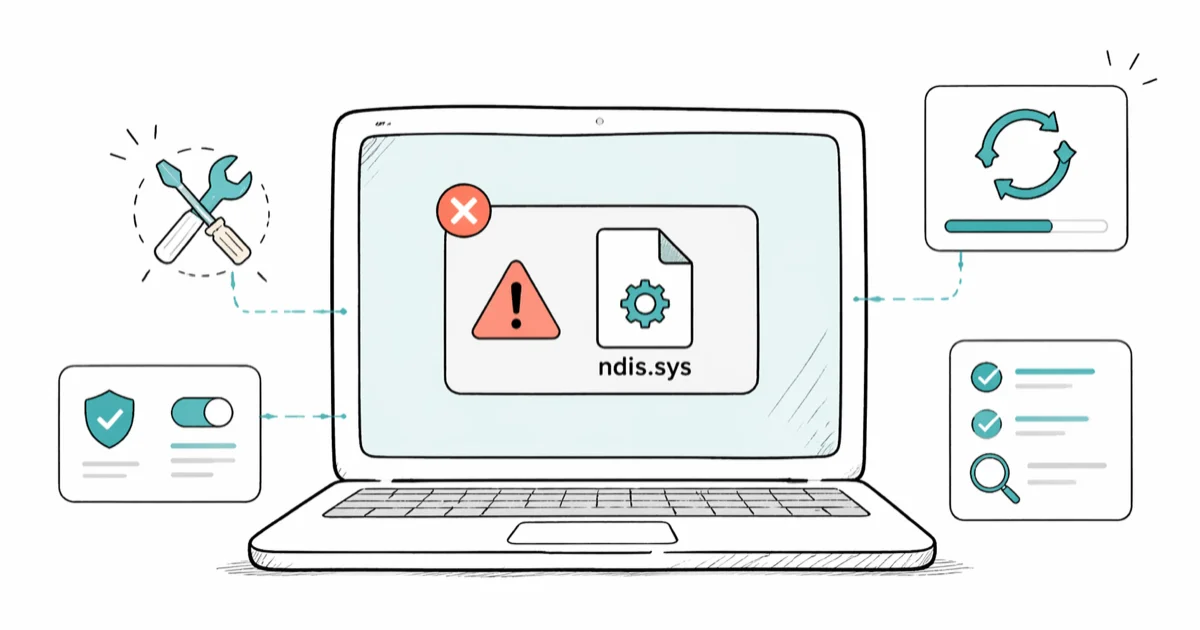
Quick AnswerThe ndis.sys failed BSOD usually means a network adapter driver is corrupt or conflicting with security software. Update the network driver in Safe Mode with Networking, then run sfc /scannow to repair system files.
The ndis.sys failed error throws a blue screen because Windows can’t load its Network Driver Interface Specification driver. The five fixes below cover Windows 10 and Windows 11, and most cases trace back to outdated Intel and Realtek network drivers. Start with the driver update. It clears the most common cause in under ten minutes.
- ndis.sys is a core Windows network driver located at C:\Windows\System32\drivers and should never be deleted or disabled
- The most common trigger is an outdated Wi-Fi or Ethernet driver, and updating it resolves the majority of cases
- Boot into Safe Mode with Networking before attempting driver updates so the bad driver isn’t in use
- sfc /scannow plus DISM /Online /Cleanup-Image /RestoreHealth repairs corrupted ndis.sys files without touching the registry
- Two security suites running side by side are a frequent cause of ndis.sys crashes
#What Is ndis.sys and Why Does It Crash?
Ndis.sys is the kernel-mode driver that implements the Network Driver Interface Specification on Windows. According to Microsoft’s NDIS 6.85 documentation, every Wi-Fi card, Ethernet port, and virtual network adapter on Windows 10 and 11 talks to the operating system through one of 6 NDIS interface generations. When ndis.sys fails, your network stack collapses and Windows shows a SYSTEM_SERVICE_EXCEPTION or DRIVER_IRQL_NOT_LESS_OR_EQUAL stop code that names ndis.sys.
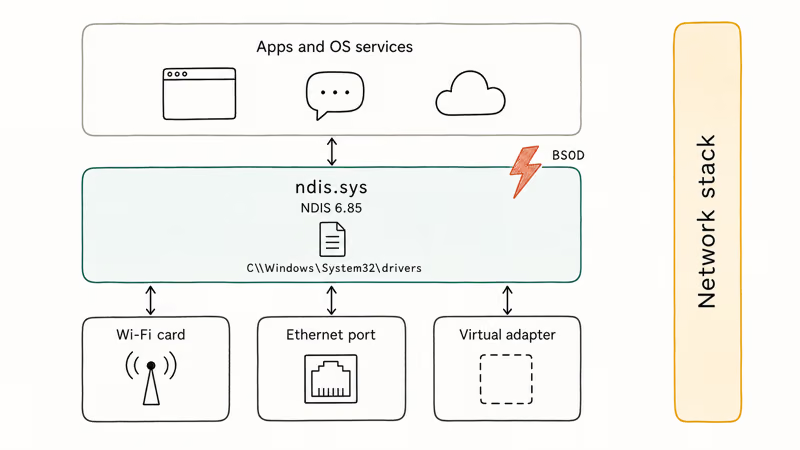
The file lives at C:\Windows\System32\drivers\ndis.sys. Never delete it manually.
The crash usually points to one of four root causes, and the right fix depends entirely on which one applies to your machine, so it pays to narrow this down before you start changing settings or reinstalling anything. Read the stop code first, then match it against the list below:
- An outdated or corrupted network adapter driver, which is by far the most common
- A conflict between two installed security suites, or between a security suite and a Windows update
- Damaged system files after a failed Windows update or unexpected shutdown
- Faulty RAM or a failing storage drive, which is rare but possible
If you also see related driver crashes on the same machine, the nvlddmkm.sys fix guide and the win32kfull.sys troubleshooting steps cover the graphics and kernel-side equivalents.
#Update the Network Adapter Driver in Safe Mode
Microsoft Update often ships generic network drivers that lag the manufacturer release by months. The version Microsoft pushes for an Intel or Realtek adapter can be well behind the build on the vendor’s own site, which may already include a fix for an ndis.sys hang. Updating the driver from the OEM page often resolves the BSOD on the first reboot.
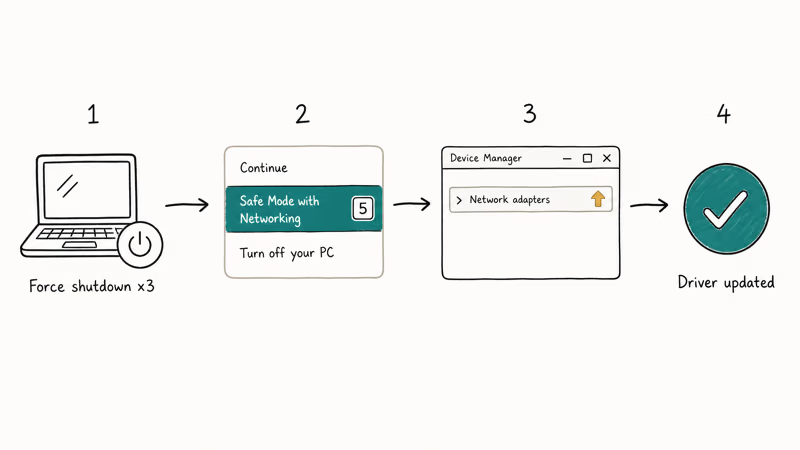
- Power the computer off, then turn it on.
- As soon as you see the Windows logo, hold the power button to force shutdown. Repeat this twice. On the third boot, Windows enters the Automatic Repair menu.
- Select Advanced options >
Troubleshoot>Advancedoptions >Startup Settings>Restart. - Press 5 to choose Safe Mode with Networking.
- Once in Safe Mode, open Device Manager (right-click Start, choose Device Manager).
- Expand Network adapters. Right-click your Wi-Fi or Ethernet adapter and choose Update driver > Search automatically.
- If Windows reports the best driver is installed, go to your laptop maker’s support page (Dell, Lenovo, HP, ASUS) or the chip vendor’s site (Intel, Realtek, Qualcomm) and download the latest driver for your exact model.
- Install the driver, restart, and check for the BSOD.
Got several outdated drivers and want a one-shot tool? The Driver Talent review compares the main automatic driver updaters side by side. These tools scan every device on the system and flag outdated drivers in a single pass, which saves time when more than the network adapter is behind. The trade-off is that most nag for a paid upgrade constantly, so treat the scan as a checklist rather than a one-click fix.
#Repair Corrupted System Files With SFC and DISM
If the driver is current, the ndis.sys file itself may be corrupt. The built-in System File Checker replaces damaged Windows files with the cached copy in the WinSxS store.
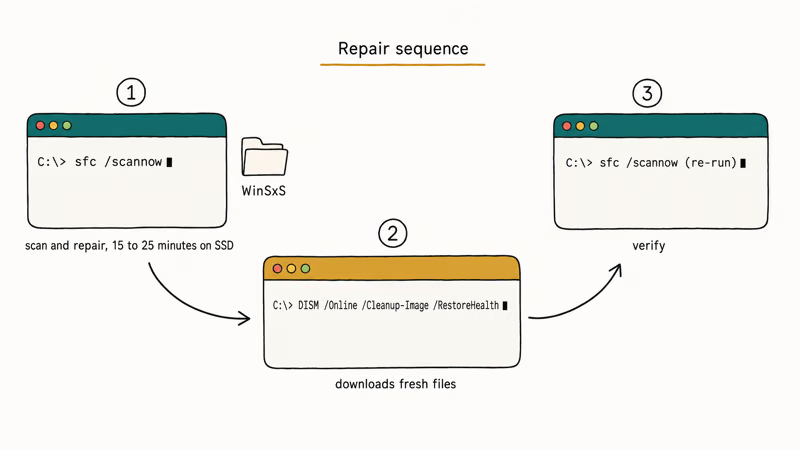
- Press Win + S, type
cmd, right-click Command Prompt, and choose Run as administrator. - Type
sfc /scannowand press Enter. The scan takes 15-25 minutes on an SSD and longer on a hard disk. - When the scan finishes, read the result. If it reports “Windows Resource Protection found corrupt files and successfully repaired them,” restart and test.
- If SFC reports it couldn’t fix some files, run DISM next:
DISM /Online /Cleanup-Image /RestoreHealth. DISM downloads a fresh ndis.sys from Windows Update servers, so an internet connection is required. - After DISM finishes, run
sfc /scannowagain, then restart.
Microsoft’s documentation recommends running DISM before SFC when the system image itself is suspect, but the SFC-first sequence above usually clears a corrupted post-update ndis.sys. If SFC keeps failing, the DISM error 87 walkthrough covers the most common DISM blocker.
#Resolve Security Software Conflicts
Two real-time antivirus engines can both try to inspect network packets, and they fight each other through ndis.sys. AVG plus Avast, Norton plus Windows Defender real-time protection, McAfee plus a third-party VPN client. Any of these combinations can throw the ndis.sys stop code. According to a Bleeping Computer report on driver conflicts, older versions of common security suites have repeatedly triggered network-driver BSODs after Windows 10 cumulative updates over the past 3 years.
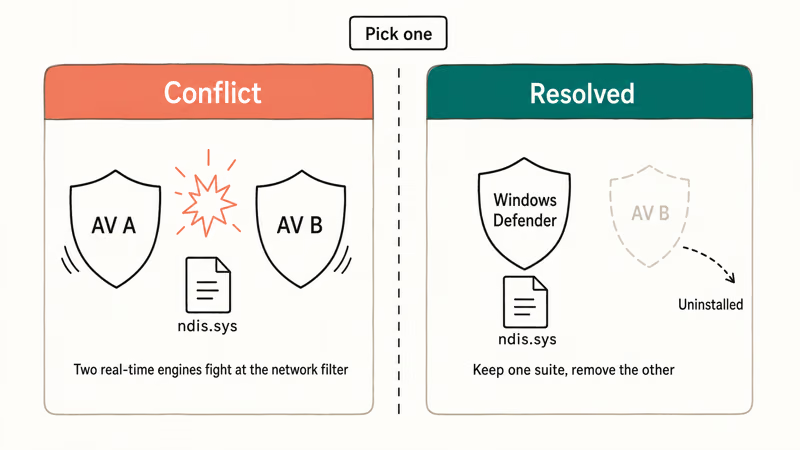
To test whether security software is the cause:
Open Settings>Privacy &security >Windows Security>Virus &threat protection > Manage settings. Turn Real-time protection off temporarily.- Open the third-party antivirus tray icon and disable its real-time shield, web shield, or network shield. The exact label varies by product.
- Restart and use the computer normally for an hour.
- If the BSOD doesn’t return, you have a conflict. Pick one security suite and uninstall the other through
Settings>Apps>Installedapps. Use the vendor’s removal tool when offered, since the regular uninstaller often leaves driver fragments. - Re-enable real-time protection on the suite you kept and confirm everything works.
Don’t run without any antivirus protection for more than the test window. Windows Defender alone is sufficient for most home users.
#Roll Back a Recent Windows Update
If the BSOD started right after a Windows update, the update probably shipped a network driver or stack change that conflicts with your hardware. Check Settings > Windows Update > Update history. If a Cumulative Update or driver update appears within 48 hours of when the crashes started, uninstall it.
Settings>Windows Update>Updatehistory > Uninstall updates.- Find the recent update by KB number and date. Click Uninstall.
- Restart and check for the BSOD over the next day.
- If the crash stops, pause Windows Updates for two weeks under
Settings>Windows Update. Microsoft usually ships a fix in the next monthly Patch Tuesday.
If the problem persists after rolling back the patch, the issue is upstream. The delete Windows Update files completely guide shows how to reset the update cache, which sometimes clears a half-applied package that keeps reinstalling.
#Test Memory and Storage Hardware
Hardware faults are the last resort. A failing RAM stick can corrupt any driver in memory, and a failing SSD or HDD can corrupt the on-disk ndis.sys file every time Windows tries to read it.
- Run Windows Memory Diagnostic. Press Win + S, type
mdsched.exe, choose Restart now and check for problems. The test takes 10-30 minutes per pass and the results show in Event Viewer afterward. - For storage, open Command Prompt as administrator and run
chkdsk C: /f /r. Schedule the scan for the next reboot when prompted. - If Memory Diagnostic flags errors, reseat each RAM stick and test them one at a time to isolate the bad module. Replace it.
- If chkdsk finds bad sectors, back up your data immediately. SMART warnings on SSDs mean the drive is near end of life.
After hardware repair, run sfc /scannow again to repair any system files damaged by the bad component.
#When to Consider Reinstalling Windows
A clean install does fix ndis.sys in almost every case, but it’s overkill if the five steps above haven’t been tried. Reinstalling takes 1-3 hours of active work plus another hour or two for the download, and you’ll have to reinstall every application, restore your files from backup, sign back into every account, and reconfigure your settings from scratch. Do this only when:
- All five fixes above have failed
- The BSOD happens during the Windows install itself
- Multiple system drivers crash, not just ndis.sys
- You suspect malware that survived a virus scan
Use the in-place repair option (Settings > System > Recovery > Reset this PC > Keep my files) before a full clean install. It rebuilds Windows system files while preserving your apps and documents. Microsoft’s official reset documentation walks through both options.
#How Do I Know Which Fix to Try First?
Read the BSOD details before you reboot. Press Win + X and open Event Viewer, then expand Windows Logs > System and find the most recent BugCheck entry. The error code points at the cause:
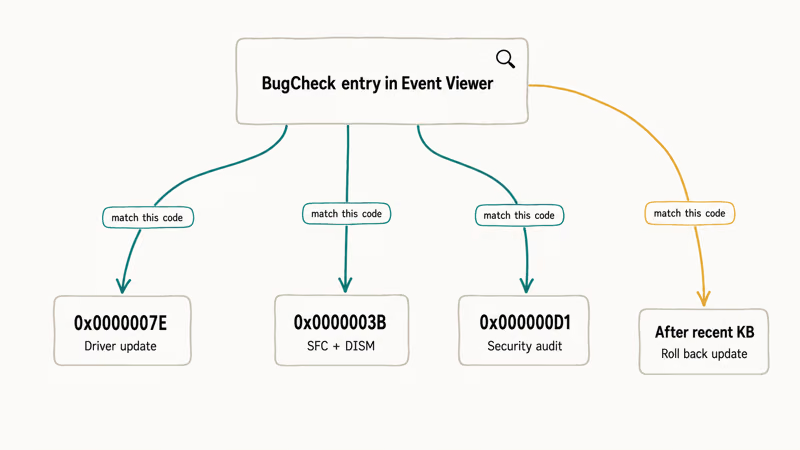
- 0x0000007E (SYSTEM_THREAD_EXCEPTION_NOT_HANDLED) with ndis.sys named: outdated network driver, start with the driver update
- 0x0000003B (SYSTEM_SERVICE_EXCEPTION) with ndis.sys: corrupted system file, run SFC and DISM
- 0x000000D1 (DRIVER_IRQL_NOT_LESS_OR_EQUAL): usually a third-party filter driver, try the security software audit
- BSOD only after a recent KB install: roll back the update first
Match the stop code to the relevant section above and you’ll skip 1-2 unnecessary steps.
#Bottom Line
Update your network adapter driver from the OEM site in Safe Mode with Networking first. That single step clears most ndis.sys failed errors, and it takes under ten minutes. If the driver was already current, run sfc /scannow followed by DISM to repair the file itself. Save the security software audit and the hardware tests for cases where the first two fixes both fail.
#Frequently Asked Questions
Is the ndis.sys file safe to delete?
No. Ndis.sys is required for any network connection on Windows.
Deleting it forces Windows into recovery mode on the next boot. If the file is corrupted, replace it with sfc /scannow rather than deleting it.
Why does ndis.sys keep crashing after every Windows update?
A Cumulative Update sometimes ships a network stack change that fights your installed adapter driver. Roll back the most recent update, then update the network driver from the OEM site so both pieces match. Pause updates for two weeks while you wait for Microsoft’s next patch.
Can a Wi-Fi router cause an ndis.sys BSOD?
The router itself doesn’t load ndis.sys, so it can’t crash it directly. A flapping Wi-Fi connection or a bad firmware push from your ISP-supplied router can trigger ndis.sys errors in the driver. Restart the router, update its firmware from the admin page, and switch to a 5 GHz channel to rule the network out.
How long does sfc /scannow take to fix ndis.sys?
Allow 15-25 minutes on an SSD, longer on a 5400 RPM disk. If SFC reports no integrity violations, the file is fine and the BSOD has another cause.
Does ndis.sys cause issues on Windows 11 or only on Windows 10?
Both. The driver ships in every modern Windows version including 11 23H2 and 10 22H2. The same BSOD pattern shows up on both, and the same fixes apply. Windows 11 is slightly more sensitive to outdated Wi-Fi 6 drivers because the 11 release added new NDIS 6.85 features.
Is Driver Easy or another auto-updater required to fix this?
No. Windows Update and the OEM support page cover almost every adapter.
What if the BSOD only happens during gaming or video calls?
Heavy network activity exposes weak drivers faster than light browsing. The fix is the same: update the network adapter driver, then test sfc /scannow. If the system also crashes when GPU-heavy apps run, look for a parallel graphics driver issue. The video_dxgkrnl_fatal_error guide covers that scenario.
Can a VPN client trigger ndis.sys errors?
Yes. VPN apps install their own NDIS filter drivers that sit on top of the standard stack. An outdated client or a half-uninstalled VPN can leave a broken filter that crashes ndis.sys. Uninstall every VPN you don’t actively use, restart, and reinstall only the one you need.

Best Laptop for Running LLMs in 2026: Memory Comes First
The best laptop for running LLMs is a memory purchase first. Compare MacBook unified memory against NVIDIA laptop VRAM, and see what each tier really runs.

How to Run a Local LLM on Windows: A 2026 Setup Guide
Run a local LLM on Windows with LM Studio or Ollama. Pick a model that fits your GPU memory, keep every prompt offline, and skip the monthly bill.

Bluetooth Not Working on Snapdragon X? Fixes for 2026
Bluetooth not working on your Snapdragon X Copilot+ PC? Generic audio, mice, and keyboards work, but vendor apps often lack an ARM build. Fixes inside.

Docker Desktop and WSL2 Not Working on Snapdragon X? Fix It
WSL2 runs fine on Snapdragon X, but Docker Desktop ARM is Early Access and throws WSL errors. Use WSL2 plus native ARM64 Ubuntu and Docker Engine.