How to Fix DPC Watchdog Violation on Windows 10 and 11
Fix DPC Watchdog Violation BSOD on Windows 10 and 11 with 7 proven methods: SATA driver update, disk repair, SFC scan, and firmware update steps.
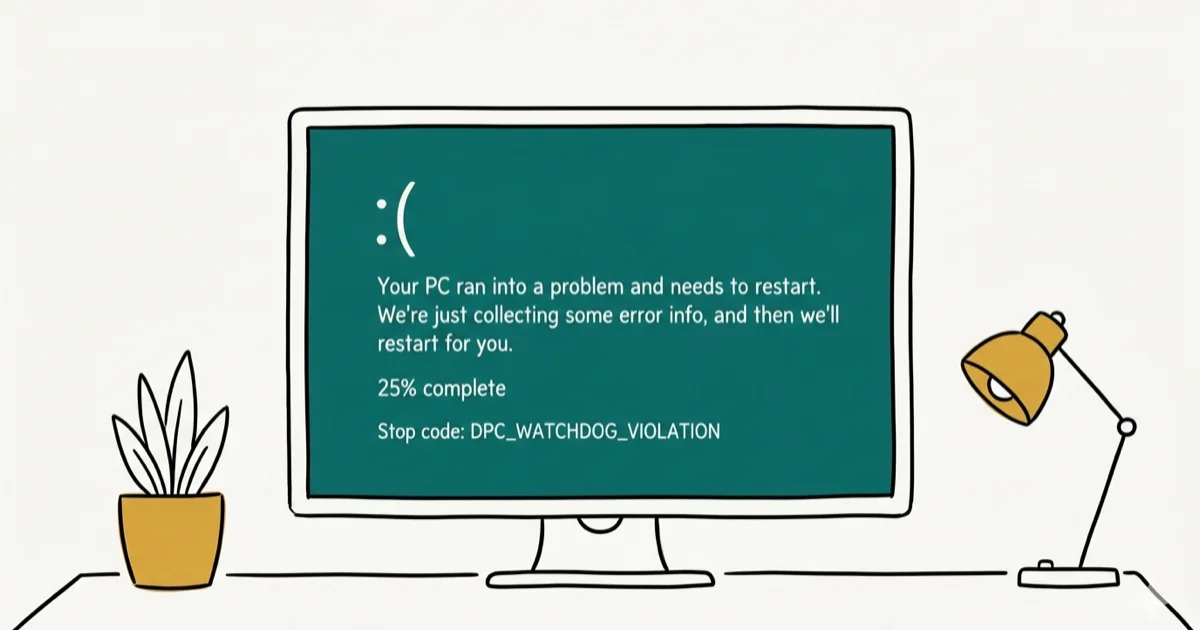
Quick AnswerTo fix DPC Watchdog Violation on Windows 10, disconnect all external devices and restart. If the error returns, open Device Manager, find the SATA AHCI controller under IDE ATA/ATAPI controllers, update the driver to Standard SATA AHCI Controller, and reboot.
DPC Watchdog Violation is a blue screen error that crashes Windows and restarts your PC. It usually points to a storage driver, firmware, external-device, or corrupted-system-file problem.
- DPC stands for Deferred Procedure Call; the watchdog crashes Windows when a DPC routine runs too long
- Disconnecting all external USB devices and restarting resolves a sizable share of cases
- Changing the SATA AHCI driver from iaStorA.sys to the Standard SATA AHCI Controller fixes many SSD-related instances
- Running SFC /scannow repairs corrupted system files that can trigger the watchdog error
- Outdated SSD firmware is one of the most common but overlooked causes on machines upgraded from HDD to SSD
#What Causes the DPC Watchdog Violation Error?
DPC stands for Deferred Procedure Call, a mechanism Windows uses to schedule low-priority tasks after higher-priority interrupts complete. The watchdog monitors how long these calls take. Microsoft’s Windows Hardware documentation states that bug check 0x133 fires when a single DPC runs longer than 100 microseconds or when cumulative DPC time exceeds a threshold. See Microsoft’s bug check reference for the full technical specification.

Four conditions trigger this most often:
- Incompatible or outdated drivers that conflict with Windows kernel calls
- SSD firmware mismatch when the drive’s firmware doesn’t support the current AHCI controller driver
- Conflicting software such as two active antivirus programs running simultaneously
- Corrupted system files from an incomplete Windows update or forced shutdown
A fresh SSD installed in an older PC without current firmware can trigger the error shortly after normal use starts.
#How Do You Fix DPC Watchdog Violation in Under 5 Minutes?
The fastest fix to try first: disconnect every external device. If a drive is the suspect and Windows can’t see it at all, the guide on SSD not showing up in Windows covers that case separately. Unplug USB drives, external hard drives, printers, and scanners, leaving only the keyboard and mouse. Restart Windows and see if the BSOD returns.
Hardware conflicts from recently added peripherals trigger this error more often than most guides acknowledge.
If the error comes back after disconnecting peripherals, work through the remaining fixes below in order.
#Method 1: Update the SATA AHCI Driver
This fix resolves DPC Watchdog Violations caused by Intel Rapid Storage Technology (RST) driver conflicts. It swaps the iaStorA.sys driver for the standard Windows AHCI driver.
- Press Win + X and select Device Manager
- Expand IDE ATA/ATAPI controllers
- Right-click SATA AHCI Controller and select Properties
- Click the Driver tab, then Driver Details
- Confirm the driver file listed is iaStorA.sys, if it shows storahci.sys, skip this method
- Click Update Driver, then Browse my computer for driver software
- Select Let me pick from a list of available drivers on my computer
- Choose Standard SATA AHCI Controller and click Next
- Restart your PC after the driver installs
This method is most relevant when the driver details show iaStorA.sys or another Intel RST driver. If the error persists after the standard AHCI driver swap, move to the SSD firmware update in Method 4. The Standard SATA AHCI Controller driver is built into Windows, so the swap doesn’t require a separate download when it’s available in Device Manager.
#Method 2: Run CHKDSK to Check Disk Errors
Disk read errors can trigger DPC timeouts when Windows waits too long for a storage response. CHKDSK finds and marks bad sectors:
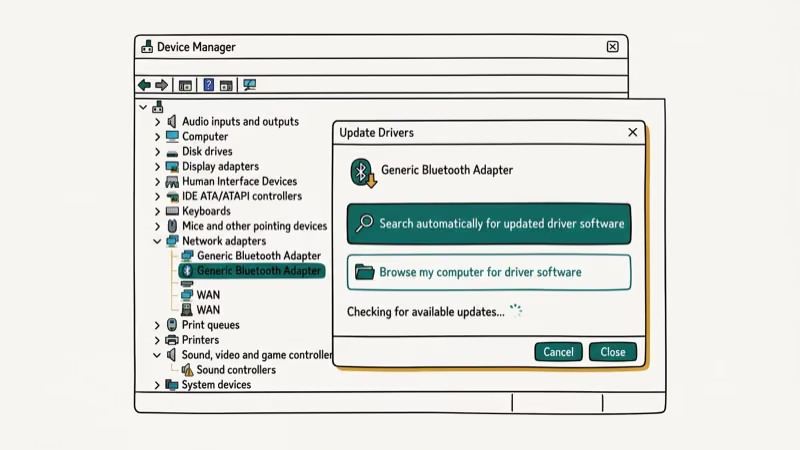
- Type cmd in the Start menu search
- Right-click Command Prompt and select Run as administrator
- Type
chkdsk c: /fand press Enter - Type Y when prompted to schedule the check at next restart
- Restart your PC. The check runs before Windows loads and takes 10-30 minutes
If CHKDSK reports errors and fixes them, run it a second time after restarting to confirm the disk is clean. Disk errors can trigger intermittent DPC violations under heavy disk load.
#Method 3: Run System File Checker
Corrupted system files cause DPC violations when a driver calls a broken Windows API. SFC repairs them automatically:
- Open Command Prompt as administrator (same steps as above)
- Type
sfc /scannowand press Enter - Wait for the scan to finish. This takes 5-15 minutes depending on drive speed
- Restart your PC after the scan completes
According to Microsoft’s SFC documentation, SFC automatically replaces corrupted protected system files with a cached copy stored in a compressed folder at %windir%\System32\dllcache.
#Method 4: Update SSD Firmware
Outdated SSD firmware is a common and overlooked cause of DPC violations on machines upgraded from spinning hard drives. Manufacturers release firmware updates that fix compatibility issues. Samsung’s page on updating SSD firmware states that updates improve performance, reliability, and overall quality, and that they arrive through the Samsung Magician software rather than Windows Update:
- Press Win + X and open Device Manager
- Expand Disk drives and note your SSD’s model number
- Visit the manufacturer’s support site (Samsung, Crucial, Western Digital, etc.)
- Search for your model and download the firmware updater tool
- Run the updater and follow the on-screen instructions
- Restart after the firmware installs
Keep your laptop plugged in or confirm at least 50% battery before starting. An interrupted firmware update can brick the drive.
#Method 5: Remove Recently Installed Software
Software conflicts trigger DPC violations when two programs fight for the same system resource. Running two antivirus applications simultaneously is the most common example. Uninstall any software added in the days before the error first appeared:
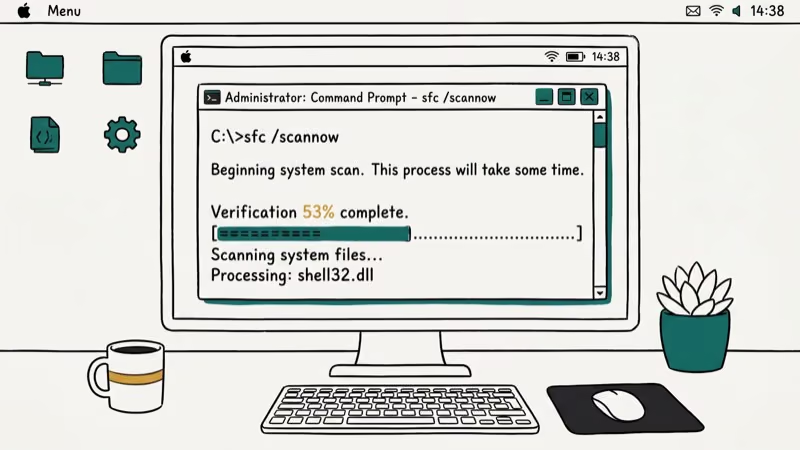
- Press Win + I to open Settings
- Go to
Apps>Installedapps (Windows 11) or Apps & features (Windows 10) - Sort by Install date
- Uninstall any software added around the time the error started
Restart and monitor for 30 minutes to see if the BSOD returns. For deeper Windows driver troubleshooting, the guide on the storahci.sys blue screen covers similar Device Manager steps for the AHCI controller driver swap.
#Method 6: Check Event Viewer for the Root Cause
Event Viewer shows what was running when the crash occurred, helping you identify which driver or process caused the timeout:
- Press Win + X and select Event Viewer
- Expand Windows Logs in the left panel
- Click System
- Look for events marked Critical or Error with timestamps near when the BSOD occurred
- Note the source and event ID from the details panel
The Event ID for DPC Watchdog Violation is typically 41 (unexpected shutdown) paired with stop code entries. Cross-reference the source with the driver it points to, then update or roll back that specific driver. If Event Viewer points to a power-management driver, the Driver_Power_State_Failure fix guide walks through the same diagnostic path for that related BSOD.
#Method 7: Use a Windows Repair Tool
For persistent errors that survive all manual fixes, ReiBoot for Android and similar PC repair tools automate the firmware repair process.
On the Windows side, running Startup Repair from a Windows installation USB can rebuild the boot configuration and repair driver corruption that CHKDSK and SFC miss. It replaces no user data. Try it before a factory reset, which erases everything and costs you hours of reinstallation.
Some links on this page are affiliate links, which means fone.tips may earn a commission at no extra cost to you.
To run Startup Repair:
- Boot from a Windows 10/11 USB installation drive
- Select Repair your computer instead of Install
- Go to
Troubleshoot>Advancedoptions > Startup Repair - Let it complete and restart
#Bottom Line
Start with the SATA AHCI driver swap if you have an SSD. If you changed hardware recently, disconnect it first.
SFC /scannow catches corrupted system files when nothing else explains the crash, and Event Viewer is the best diagnostic when the cause is unclear. Keep a factory reset as the last resort, since it erases everything.
If the error persists after all seven methods, the fault is likely hardware: a failing SSD, RAM stick, or motherboard needs physical testing. For a comparison of BSOD and mobile crash patterns, see the guide on fixing white screen errors on Android.
#Frequently Asked Questions
Is DPC Watchdog Violation specific to Windows 10?
No. The error occurs on Windows 10 and Windows 11, and it’s rarer on Windows 7 because that OS used a different driver architecture. On Windows 11 the frequent trigger is an in-place upgrade: drivers that worked fine on Windows 10 turn out to be incompatible. Rolling back the upgrade confirms whether that mismatch is the cause, and a clean install with fresh drivers usually settles it.
Can outdated BIOS cause DPC Watchdog Violation?
Yes. Outdated BIOS firmware sometimes lacks support for newer AHCI controller modes, which causes DPC timeouts when the storage driver tries to use unsupported commands. Update your BIOS from your motherboard manufacturer’s website and test afterward.
Will DPC Watchdog Violation corrupt my files?
The crash itself doesn’t corrupt data. Windows creates a memory dump when it BSODs, and file system corruption from the abrupt shutdown is possible but rare. Running CHKDSK after a crash confirms your drive is clean.
Should I back up my data before trying these fixes?
Always back up first. The SATA driver swap and SFC scan are low risk, but firmware updates can fail if interrupted, and an interrupted firmware update can leave a drive unbootable. Back up important files to an external drive or cloud storage before running Method 4. A backup copy of your Windows installation environment also helps if recovery tools need to be run from external media.
How long does SFC /scannow take?
Typically 10-20 minutes on an SSD and up to 40 minutes on a spinning hard drive. Don’t close the Command Prompt window or interrupt it. If SFC reports it couldn’t repair all files, run DISM first with the command DISM /Online /Cleanup-Image /RestoreHealth, then run SFC again.
How do I get into Safe Mode if Windows keeps crashing?
Hold the power button for 4 seconds to force a hard shutdown, and do this 3 times in a row. On the fourth boot, Windows automatically opens Automatic Repair Mode. From there, go to Troubleshoot, Advanced Options, Startup Settings, and Restart, then press 4 or F4 at the menu to boot into Safe Mode.

Best Laptop for Running LLMs in 2026: Memory Comes First
The best laptop for running LLMs is a memory purchase first. Compare MacBook unified memory against NVIDIA laptop VRAM, and see what each tier really runs.

How to Run a Local LLM on Windows: A 2026 Setup Guide
Run a local LLM on Windows with LM Studio or Ollama. Pick a model that fits your GPU memory, keep every prompt offline, and skip the monthly bill.

Bluetooth Not Working on Snapdragon X? Fixes for 2026
Bluetooth not working on your Snapdragon X Copilot+ PC? Generic audio, mice, and keyboards work, but vendor apps often lack an ARM build. Fixes inside.

Docker Desktop and WSL2 Not Working on Snapdragon X? Fix It
WSL2 runs fine on Snapdragon X, but Docker Desktop ARM is Early Access and throws WSL errors. Use WSL2 plus native ARM64 Ubuntu and Docker Engine.