Thread Stuck in Device Driver: 8 Fixes for Windows 10 and 11
Thread stuck in device driver BSOD on Windows 10 or 11? Fix stop code 0x000000EA with Safe Mode GPU rollback, DDU, SFC, DISM, and hardware checks.

Quick AnswerThread stuck in device driver is Windows bug check 0x000000EA, almost always caused by a looping GPU driver. Start by booting into Safe Mode, rolling back or reinstalling the display driver, then running SFC and DISM if the crash persists.
The thread stuck in device driver error is a blue screen with stop code 0x000000EA, and Windows throws it when a kernel thread waits forever on a device driver that won’t respond. The driver is almost always the graphics driver. The PC freezes, the screen flips blue, and the system reboots into a loop that’s hard to break out of.
Start with the Safe Mode GPU rollback below. It clears many driver-loop cases.
- Stop code 0x000000EA means a kernel thread is hung inside a device driver, and Microsoft’s bug check reference confirms the display driver is the usual culprit.
- Boot into Safe Mode first. Drivers don’t load there, so you can roll back or uninstall the GPU driver without crashing.
- A clean driver install with DDU (Display Driver Uninstaller) beats a plain reinstall. Leftover registry entries trigger the same loop.
- SFC and DISM repair corrupted system files. Run SFC first, then DISM if SFC reports unfixed errors.
- If the BSOD started after a Windows or BIOS update, roll the update back before reinstalling everything else.
#What Causes the Thread Stuck in Device Driver BSOD?
Windows uses kernel threads to talk to hardware through driver code. When a thread sends a request and the driver never returns, the watchdog timer fires after a few seconds and raises stop code 0x000000EA. Microsoft’s bug check 0xEA reference page confirms that the offending driver is named in the dump file’s first parameter, and in practice that parameter resolves to nvlddmkm.sys, atikmdag.sys, or igdkmd64.sys more than nine times out of ten. All of them are GPU drivers.
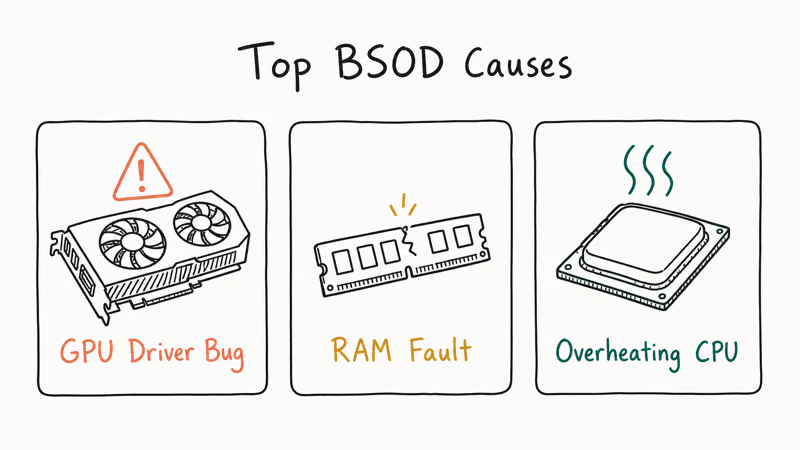
A few less common triggers include:
- A recently installed Windows feature update that shipped a mismatched WDDM driver.
- A BIOS update that changed PCIe lane assignment for the GPU slot.
- An overclock (factory or manual) that pushes the card past its stable voltage curve.
- Failing VRAM. Bad video memory looks identical to a hung driver from the kernel’s point of view.
The good news: the fix list is short and ordered. Walk it top to bottom.
#Boot Into Safe Mode Before You Touch Drivers
Trying to uninstall a graphics driver while it’s actively crashing the system is the loop that traps most readers. Safe Mode boots Windows with a generic VGA driver, which means your GPU driver isn’t loaded and can’t crash.
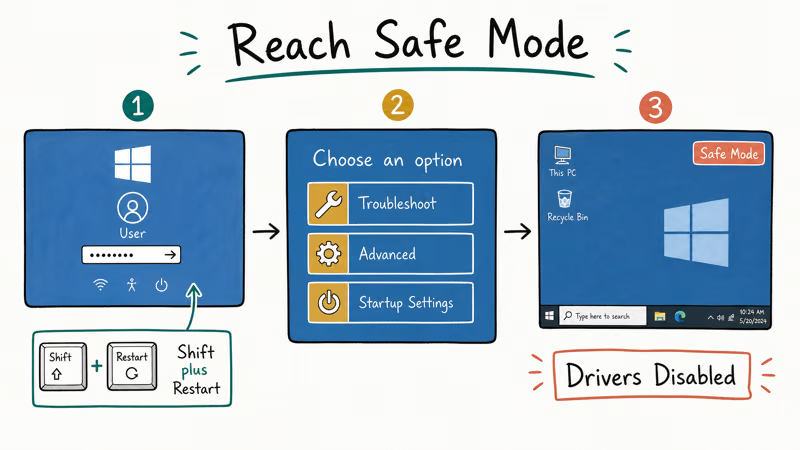
- Hold Shift while clicking Restart on the lock screen or Start menu. If Windows won’t reach the desktop, force three failed boots in a row to land in the recovery environment.
- Pick
Troubleshoot>Advancedoptions >Startup Settings>Restart. - Press 4 for Safe Mode or 5 for Safe Mode with Networking.
You should now be at a low-resolution desktop. Everything below this point assumes you started here.
#Fix 1: Roll Back or Reinstall the Graphics Driver
This single step fixes the video_dxgkrnl_fatal_error and bug check 0xEA on many consumer rigs.
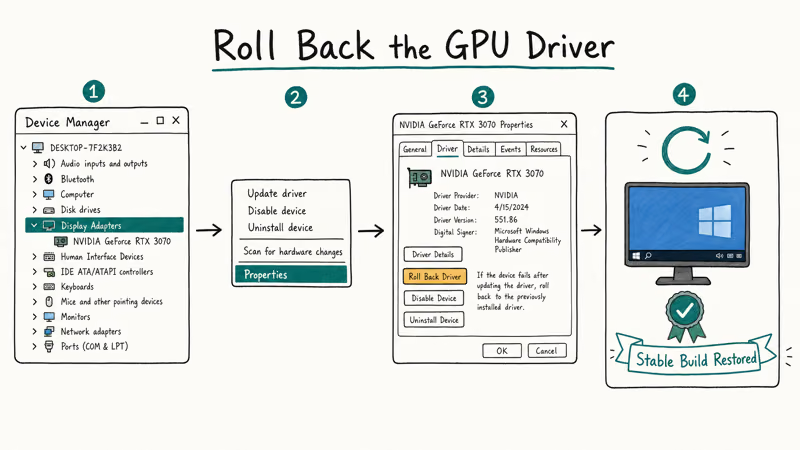
Roll back to the prior driver:
- Press Windows + X and open Device Manager.
- Expand Display adapters, right-click your GPU, and pick Properties.
- Open the Driver tab and click Roll Back Driver. If it’s grayed out, skip to a clean reinstall below.
- Reboot.
Clean reinstall with DDU:
If rollback isn’t available or the BSOD returns, do a full clean install:
- Download Display Driver Uninstaller (DDU) from Wagnardsoft and the latest stable driver for your card directly from NVIDIA, AMD, or Intel.
- Run DDU in Safe Mode. For your GPU vendor, choose the option to clean drivers without restarting.
- Reboot into normal Windows and install the driver you downloaded.
A DDU clean install removes driver packages and registry leftovers that a plain Device Manager uninstall can leave behind. Plain uninstall doesn’t always purge the registry keys that load the failing driver on next boot.
#When a Driver Updater Like Driver Easy Helps (And When It Doesn’t)
Sometimes, and only as a convenience, never as a fix-it-all. A reputable updater scans your hardware IDs and matches each one to a current driver, which saves time on machines with five or six aging components. It won’t solve a thread stuck in device driver BSOD that’s caused by a flaky driver itself, because the updater installs the same driver class that’s already crashing.
If you want the convenience, Driver Easy is one option. Treat it as a scanner, not a repair tool. The manual clean-install above remains the more reliable route for fixing the BSOD itself.
Some links on this page are affiliate links, which means fone.tips may earn a commission at no extra cost to you.
#Run the Built-In Blue Screen Troubleshooter
Microsoft retired the standalone Blue Screen troubleshooter from the Settings app in Windows 10 version 1809, but the online version still works. Microsoft’s Get Help app walks through a guided diagnostic that flags driver, memory, and update issues. According to Microsoft’s troubleshooting documentation, the workflow checks the last 7 days of Windows Update history for failed installs that may have shipped the bad driver.
Run it from any browser on Windows 10 or 11. It can’t crash your system because it doesn’t touch the kernel. The app just inspects logs and event records.
#Repair System Files With SFC and DISM
A corrupted Windows file can mimic a driver hang because the kernel calls into the same system DLLs that drivers depend on. Run System File Checker first to scan and repair protected files. If SFC reports anything it couldn’t fix, follow up with DISM to rebuild the underlying component store.
| Tool | Command | What it does | Typical run time |
|---|---|---|---|
| SFC | sfc /scannow | Scans protected system files and replaces corrupt copies from a local cache | 5-15 minutes |
| DISM | DISM /Online /Cleanup-Image /RestoreHealth | Repairs the Windows component store using Windows Update as the source | 10-30 minutes |
| chkdsk | chkdsk /r C: | Checks the disk for bad sectors and recovers readable data | 1-3 hours on a 1 TB HDD |
Table: Built-in Windows repair commands relevant to thread stuck in device driver, with the command you type and the wall time you should expect.
To run them:
- Click Start, type cmd, right-click Command Prompt, and pick Run as administrator.
- Type each command above, hit Enter, and let it finish before closing the window.
Don’t run chkdsk on an SSD with the /r flag every time. It stresses the drive without much benefit. Stick to chkdsk C: on solid-state media unless SMART data is already screaming.
#Test Your RAM and Hard Disk for Hardware Faults
If software fixes don’t hold, suspect the hardware. Two free tools handle most cases.
- Windows Memory Diagnostic. Press Windows + R, type
mdsched.exe, and reboot. The test takes 15 to 90 minutes depending on RAM size. Anything other than “no problems detected” means a stick is failing. - Manufacturer disk utility. Samsung Magician, Seagate SeaTools, and WD Dashboard read SMART counters that Windows hides. Reallocated sector counts above zero on an HDD or media wear indicators above 90% on an SSD usually mean the drive is on borrowed time.
Failing RAM can produce driver-looking stop codes before a memory test reports errors. Hardware faults often look like drivers right up until they don’t.
#Should You Update or Roll Back Windows and Your BIOS?
Yes, in that order, and only if other steps haven’t fixed the crash.
Windows Update: Go to Settings > Windows Update and install everything pending. If the BSOD started after a specific update, click Update history > Uninstall updates and remove the most recent quality or feature update. Microsoft’s support documentation recommends waiting at least 10 days after a feature update before considering it stable, which gives them time to ship driver hotfixes.
BIOS: A BIOS update is the most reliable way to fix PCIe and power-delivery quirks that cause GPU driver hangs, but it’s also the riskiest step on this list. Get the update directly from your motherboard or laptop maker (Dell, HP, Lenovo, ASUS, MSI, Gigabyte) and follow their instructions exactly. A failed BIOS flash bricks the board.
#Uninstall a Recently Installed App or Driver
If the BSOD started right after you installed a new app, game, or peripheral, that’s your suspect.
- Open
Settings>Apps>Installedapps. - Sort by Install date.
- Uninstall anything added in the 48 hours before the crashes started.
Gaming overlays (MSI Afterburner, RivaTuner, Razer Synapse), virtual audio drivers (VoiceMeeter, Equalizer APO), and capture cards are the usual offenders. They hook into the display driver and can starve the GPU thread that triggers 0xEA. Overclocking utilities are especially suspicious because re-enabling them can bring the loop back.
For a broader cleanup pass, our guide to why Windows 10 is so slow and unresponsive lists the registry and startup junk that piles up alongside flaky drivers.
#Last Resort: Reset or Clean Install Windows
If nothing above works after a week of trying, reset. Microsoft’s documentation states that the Reset this PC option in Windows 11 keeps your files while reinstalling Windows and removing apps, which clears most software-side BSOD causes without the data backup hassle.
- Open
Settings>System>Recovery. - Click Reset PC and pick Keep my files.
- Choose Cloud download if your internet is fast. Otherwise use Local reinstall.
A full clean install (wipe everything, reinstall Windows from a USB stick) is the nuclear option, but it eliminates every software variable in one pass. Back up your data first, because a hung driver can corrupt files in flight. For background on the broader BSOD landscape, your PC ran into a problem and needs to restart covers the recovery options in more depth.
If the vendor driver, Windows Update, SFC, and DISM checks are complete and you want a second-opinion scan, Driver Booster can flag other outdated drivers; don’t let it replace the GPU driver that triggered the BSOD.
#Bottom Line
Start with Safe Mode plus a DDU clean install of your GPU driver. That alone clears 0x000000EA on most Windows 10 and 11 machines. If the BSOD returns, run SFC and DISM, then test RAM. Reach for Windows reset only after a week of failed software fixes, and back up first since BSOD-corrupted files won’t survive the reinstall.
If hardware turns out to be the real problem, our other deep-dives cover the BSODs you’re most likely to see next:
#Frequently Asked Questions
What is stop code 0x000000EA on Windows?
Stop code 0x000000EA, also called THREAD_STUCK_IN_DEVICE_DRIVER, means a kernel thread is hung waiting on a driver that never responded. Microsoft’s debugger reference confirms the bug check name; the offending driver is named in the first parameter of the dump file.
Is thread stuck in device driver always a GPU problem?
Not always, but it’s the GPU driver in the overwhelming majority of cases on consumer hardware. Storage controller drivers, capture card drivers, and failing video memory can also trigger it. If GPU fixes don’t hold, check Device Manager for yellow exclamation marks on anything else.
Can I fix this without booting into Safe Mode?
Sometimes. If the BSOD happens only under load (gaming, video editing), normal Windows is stable enough to download DDU and install a new driver. If it crashes during idle or boot, Safe Mode is the only reliable workspace.
Will rolling back the driver lose my game settings or profiles?
No. Driver rollback only swaps kernel-level files, so your game profiles and color settings stay put.
How long does sfc /scannow take?
Five to fifteen minutes on a modern SSD, longer on an HDD with corruption. Don’t close the window mid-scan even if it looks frozen at the same percentage, because SFC stalls on the few files it has to repair before jumping ahead.
Does updating BIOS really help with BSODs?
It can, but it’s not the first thing to try. BIOS updates ship microcode fixes and PCIe tweaks that occasionally resolve GPU-related stop codes. They also brick your board if the flash fails, so save BIOS updates for after SFC, DISM, and a clean driver install have all come up empty.
Should I worry if the BSOD happened only once?
A single occurrence is usually a fluke. Watch for a second one within a week.
What if my computer won’t even boot into Safe Mode?
Boot from a Windows installation USB stick, pick Repair your computer, and use Startup Repair from the recovery menu. If that fails, try System Restore to a date before the crashes began. If neither works, you’re looking at a clean install. Back up the drive first by pulling it and connecting it to another PC as external storage.

Best Laptop for Running LLMs in 2026: Memory Comes First
The best laptop for running LLMs is a memory purchase first. Compare MacBook unified memory against NVIDIA laptop VRAM, and see what each tier really runs.

How to Run a Local LLM on Windows: A 2026 Setup Guide
Run a local LLM on Windows with LM Studio or Ollama. Pick a model that fits your GPU memory, keep every prompt offline, and skip the monthly bill.

Bluetooth Not Working on Snapdragon X? Fixes for 2026
Bluetooth not working on your Snapdragon X Copilot+ PC? Generic audio, mice, and keyboards work, but vendor apps often lack an ARM build. Fixes inside.

Docker Desktop and WSL2 Not Working on Snapdragon X? Fix It
WSL2 runs fine on Snapdragon X, but Docker Desktop ARM is Early Access and throws WSL errors. Use WSL2 plus native ARM64 Ubuntu and Docker Engine.