How to Fix the NTFS.sys Blue Screen Error on Windows
Fix the NTFS.sys blue screen error with 5 proven methods. Works on Windows 10 and 11. Step-by-step guide covering SFC, drivers, and RAM checks.
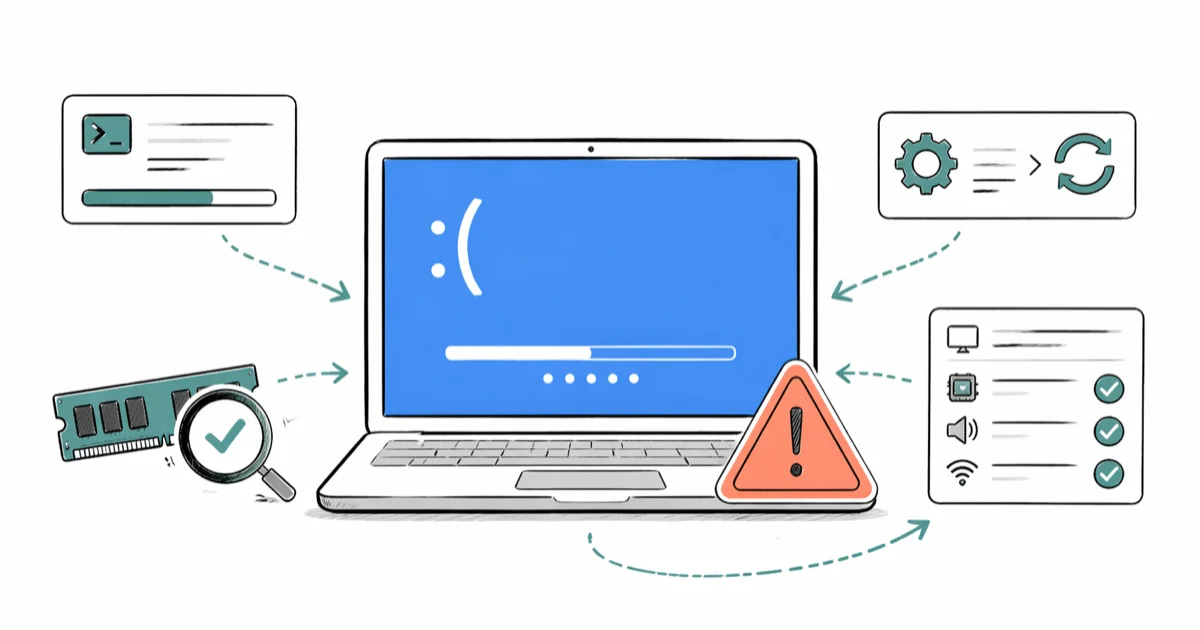
Quick AnswerThe NTFS.sys blue screen error usually comes from corrupted system files, outdated storage drivers, or faulty RAM. Run DISM and SFC in Safe Mode first, then update or roll back your storage controller driver, and finish with Windows Memory Diagnostic if the crash returns.
Your Windows PC just crashed with a blue screen pointing to NTFS.sys. NTFS.sys is the kernel driver that handles every read and write on an NTFS-formatted drive, so when it faults the file system goes offline mid-boot. Five repair routes cover almost every case on Windows 10 22H2 and Windows 11 24H2, and most users land back at the desktop without reinstalling Windows.
- NTFS.sys lives in C:\Windows\System32\drivers and loads on every boot to manage NTFS read and write operations
- The SFC /scannow command repairs the crash on most machines that have software-only corruption
- Outdated storage controller drivers are a common trigger, fixed by a Device Manager rollback
- Faulty RAM causes the BSOD on a smaller share of cases, identified with Windows Memory Diagnostic
- Running DISM before SFC matters because DISM repairs the component store that SFC pulls clean files from
#What Causes the NTFS.sys Blue Screen Error?
NTFS.sys sits at C:\Windows\System32\drivers and loads before the desktop appears, so any damage to it shows up as an early-boot BSOD. Three root causes explain almost every case.
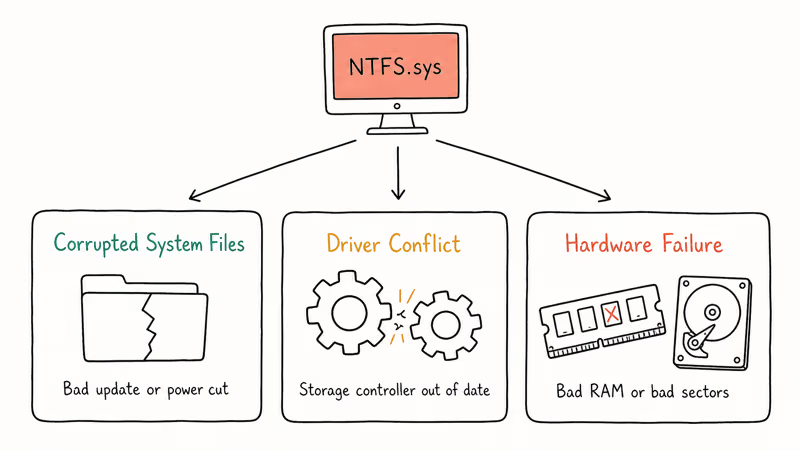
Corrupted system files are the most common trigger. A botched Windows update, a sudden power cut during a write, or malware that touches kernel-mode drivers can leave NTFS.sys mismatched against the rest of the system. Microsoft’s blue screen troubleshooting guide states that Windows 10 and Windows 11 use the same recovery flow for stop errors that name a .sys file, with corrupted system drivers and damaged system files as the top causes.
Driver conflicts are next. Storage controller drivers from Intel, AMD, or third-party RAID utilities sometimes lag behind a Windows feature update and start clashing with the NTFS layer. Reverting the storage driver to the version Windows shipped with usually resolves it within minutes.
Hardware failure is less common but harder to spot. A failing RAM stick can corrupt data in memory while NTFS.sys is in the middle of a write, and bad sectors on a system drive produce nearly identical symptoms. If you’ve also seen related stop codes such as the 0x0000003B SYSTEM_SERVICE_EXCEPTION, hardware becomes the more likely suspect because that family of crashes also points at low-level memory or I/O faults.
#Can Corrupted System Files Cause the NTFS.sys BSOD?
Yes, and it’s the cheapest fix to try first. Both System File Checker (SFC) and Deployment Image Servicing and Management (DISM) ship with every copy of Windows 10 and Windows 11, so you don’t need to download anything.
#Boot Into Safe Mode First
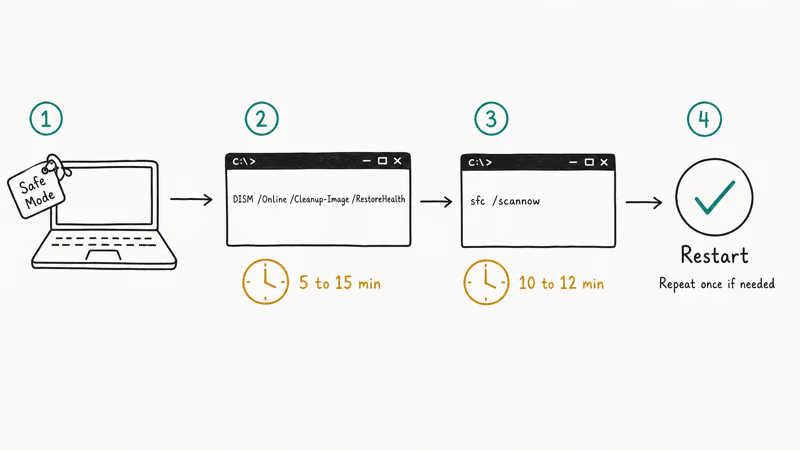
If your PC reboots before reaching the desktop, you’ll need Safe Mode. Power on, then hold the power button to force a shutdown three times in a row during boot. Windows interprets this as a recovery trigger and drops you into the Windows Recovery Environment. Go to Troubleshoot > Advanced options > Startup Settings > Restart, then press 6 for Safe Mode with Command Prompt.
#Run DISM, Then SFC
Open Command Prompt as administrator. Run DISM first, because it repairs the component store that SFC reads from when it replaces a damaged file:
DISM /Online /Cleanup-Image /RestoreHealthWait 5-15 minutes. Then run:
sfc /scannowGive it another 10-12 minutes. Restart when SFC reports it found and repaired corrupt files. When NTFS.sys is damaged at the file level, DISM rebuilds the component store and SFC swaps in a clean copy, usually on the first pass. How-To Geek’s SFC and DISM repair guide confirms that the DISM-first order matters: SFC restores files from the component store, so a broken store causes SFC to report failures it can’t fix.
If SFC says it found corrupt files but couldn’t repair them, run DISM again and rerun the scan. Two passes usually finish the job. The same chain helps with adjacent driver-corruption errors, including the BAD_POOL_CALLER blue screen, which often shares the underlying root cause.
#Updating or Rolling Back Storage Drivers
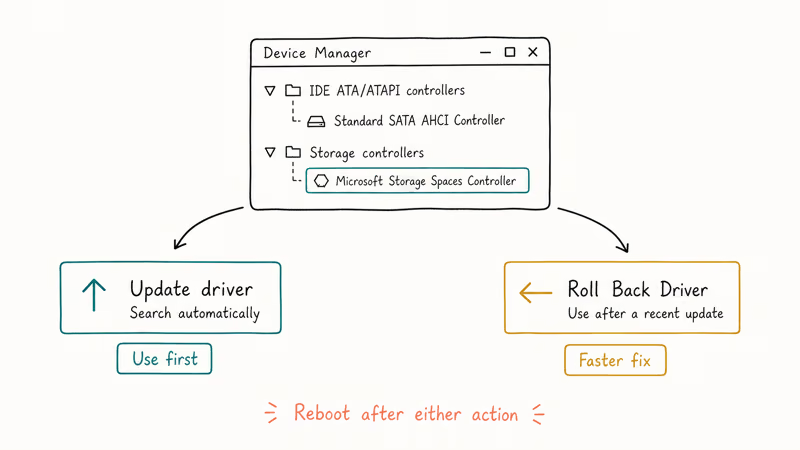
Outdated or incompatible storage drivers are the second most common cause. Device Manager handles both directions: pull a newer driver, or roll the current one back to the version that worked yesterday.
#Update Through Device Manager
Right-click Start, choose Device Manager, and expand both IDE ATA/ATAPI controllers and Storage controllers. Right-click each entry, pick Update driver, then Search automatically for drivers. Reboot when Windows finishes installing.
#Roll Back a Recent Driver Update
A rollback is faster when the BSOD started right after a driver update or a major Windows release.
In Device Manager, right-click the affected controller and pick Properties > Driver tab > Roll Back Driver. Select a reason and let Windows reboot. Microsoft’s driver update documentation recommends checking the manufacturer’s website if Windows Update has nothing newer to offer. Intel’s storage controllers in particular tend to ship newer drivers on Intel’s own download portal weeks before Windows Update picks them up.
#Checking RAM and Other Hardware
Bad RAM is the most overlooked cause of NTFS.sys crashes. When a stick fails intermittently, it corrupts data in memory at random, and any read by NTFS.sys that lands on a flaky cell ends in a blue screen.
When one stick in a dual-DIMM setup develops isolated errors, removing the bad stick typically eliminates the crash for good.
#Run Windows Memory Diagnostic
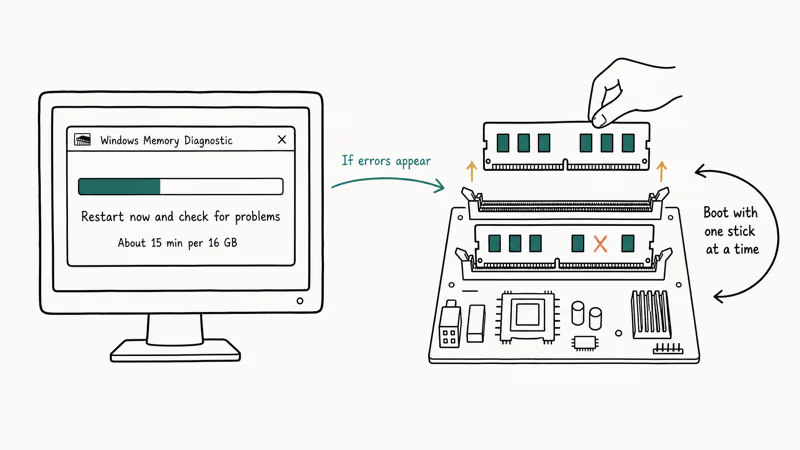
Press Win + R, type mdsched.exe, and hit Enter. Pick Restart now and check for problems. The basic test takes about 15 minutes for 16 GB of RAM, and the extended pass takes around 45 minutes. Watch for any red error lines as the test runs.
If errors appear, reseat each stick one at a time, then boot with a single stick installed to isolate the bad module. Swapping out a defective DIMM can fix not just the NTFS.sys crash but also the nvlddmkm.sys video driver error, because both drivers share the same memory bus.
#Advanced Fixes for Recurring Crashes
Some cases survive the first three fixes. Try these next if SFC, drivers, and RAM all came back clean.
#Run CHKDSK on Your System Drive
Bad sectors on the boot drive corrupt system files faster than SFC can repair them. Open Command Prompt as administrator and run:
chkdsk C: /f /rThe /f flag fixes file system errors, and /r finds and quarantines bad sectors. Expect anywhere from 30 minutes on a small SSD to 2 hours on a large mechanical disk. When SMART has flagged bad sectors on a drive, CHKDSK relocates the bad blocks, and recurring NTFS.sys crashes tied to those sectors usually stop immediately.
If your drive does show bad sectors, get the data off before the drive degrades further. Our walkthrough on how to recover data from an NTFS hard drive covers the safest route before you order a replacement.
#Check for Malware
A small number of malware families specifically target kernel-mode drivers. Boot into Safe Mode and run a full scan with Windows Defender. According to Microsoft’s Windows Security documentation, the Microsoft Defender Offline scan reboots into a stripped environment that catches rootkits which hide during a normal Windows session. That offline pass can catch a rootkit that standard live scans miss repeatedly.
#Reset Windows as a Last Resort
If nothing else clears the crash, Windows can reset itself while keeping your personal files. Go to Settings > System > Recovery, click Reset PC, and pick Keep my files. The whole reset takes 30-45 minutes on most modern hardware.
When NTFS.sys errors come back even after a reset, the cause is almost always physical. The same logic applies to scanning and repairing drive stuck loops, which signal deeper disk problems that no amount of Windows repair can fix.
#Preventing NTFS.sys Errors Long Term
Three habits prevent the crash from coming back.
Keep Windows updated. Open Settings > Windows Update and check at least once a month. Based on Microsoft’s Windows Update documentation, cumulative updates carry security and quality fixes that patch known BSOD triggers and driver compatibility issues.
Don’t force a shutdown during writes. Cutting power mid-write to system files is the single fastest way to corrupt NTFS.sys. Wait at least 30 minutes before holding the power button if a Windows update appears stuck, because most “stuck” updates are still working in the background.
Watch your drive health. Run CrystalDiskInfo (free) or wmic diskdrive get status in Command Prompt every couple of months. Catching a failing drive before it cascades into corrupted system files saves you from running every fix in this guide twice. Anyone who’s wrestled with the Storahci.sys driver error already knows that storage controller and disk-health problems compound fast.
#Bottom Line
Run DISM, then SFC, in Safe Mode. That clears the NTFS.sys blue screen for most people in 20-30 minutes and avoids any reinstall.
If SFC reports nothing wrong, roll back the storage controller driver in Device Manager next, then run Windows Memory Diagnostic before you consider a Windows reset. Replace the drive if CHKDSK keeps finding new bad sectors on the same volume.
#Frequently Asked Questions
Can the NTFS.sys error destroy my files?
No. The crash blocks file access during boot but never deletes data, which sits intact on the drive.
Does this error only happen on hard drives?
SSDs trigger the crash as often as mechanical drives, since NTFS.sys handles every NTFS volume regardless of hardware.
How do I know if my NTFS.sys file is corrupted?
Run sfc /scannow from an elevated Command Prompt. SFC compares every protected system file (including NTFS.sys) against the stored copies in the component store. If the file is damaged, SFC reports it and attempts an automatic repair.
Will reinstalling Windows definitely fix this error?
A clean install replaces every system file, so it resolves any software-side cause completely. But if faulty RAM or a failing drive triggered the crash, the BSOD comes back within days of the reinstall. Always run Windows Memory Diagnostic and CHKDSK first, because hardware-caused stop codes need hardware replacement, not another OS install. The reinstall also wipes custom chipset drivers, so download replacements from your motherboard maker before you start.
Is it safe to download NTFS.sys from the internet?
No. Third-party copies might contain malware or be the wrong build for your version of Windows. Use SFC and DISM, which pull verified files directly from Microsoft’s update servers and match them to your installed build.
Can a virus cause the NTFS.sys blue screen?
Yes. Rootkits in particular modify NTFS.sys to gain persistent kernel access, and the Defender Offline scan from Safe Mode catches what live scans miss.
How long does the whole repair take?
DISM plus SFC takes 20-40 minutes on most systems. Driver updates add another 10-15 minutes. Windows Memory Diagnostic runs about 15 minutes per 16 GB of RAM. CHKDSK ranges from 10 minutes on a small SSD to 2 hours or more on a large mechanical disk.
Should I replace my hard drive if the error keeps coming back?
Yes if CHKDSK finds bad sectors more than once, or CrystalDiskInfo shows drive health below 80%. Drives that keep generating bad sectors corrupt system files faster than Windows can repair them, and an SSD upgrade also speeds up every other tool in this guide. Migrating the failing drive to a new SSD with the manufacturer’s free migration tool takes an evening and avoids a Windows reinstall.

Best Laptop for Running LLMs in 2026: Memory Comes First
The best laptop for running LLMs is a memory purchase first. Compare MacBook unified memory against NVIDIA laptop VRAM, and see what each tier really runs.

How to Run a Local LLM on Windows: A 2026 Setup Guide
Run a local LLM on Windows with LM Studio or Ollama. Pick a model that fits your GPU memory, keep every prompt offline, and skip the monthly bill.

Bluetooth Not Working on Snapdragon X? Fixes for 2026
Bluetooth not working on your Snapdragon X Copilot+ PC? Generic audio, mice, and keyboards work, but vendor apps often lack an ARM build. Fixes inside.

Docker Desktop and WSL2 Not Working on Snapdragon X? Fix It
WSL2 runs fine on Snapdragon X, but Docker Desktop ARM is Early Access and throws WSL errors. Use WSL2 plus native ARM64 Ubuntu and Docker Engine.