Fix Dxgkrnl.sys BSOD Blue Screen Error on Windows 10/11
Fix dxgkrnl.sys blue screen errors on Windows 10 and 11 with 6 proven methods: driver updates, DirectX diagnostics, SFC repair, and safe mode fixes.

Quick AnswerThe dxgkrnl.sys BSOD error is caused by a corrupted or outdated graphics driver. Update your GPU driver through Device Manager or download it directly from NVIDIA or AMD. If that fails, run the DirectX Diagnostic Tool and use SFC to repair corrupted system files.
The dxgkrnl.sys BSOD crashes Windows when the DirectX graphics kernel subsystem encounters an unrecoverable error. The fixes below start with the most common software causes: Windows updates, GPU drivers, DirectX diagnostics, and system file repair.
- Dxgkrnl.sys stands for DirectX Graphics Kernel, the Windows system file that manages GPU communication. When it crashes, you get a BSOD.
- Outdated or incompatible GPU drivers cause this error in the majority of cases, making a driver update the first fix to try.
- The DirectX Diagnostic Tool (dxdiag) reveals exactly which DirectX component is failing and whether your drivers are current.
- Running SFC /scannow followed by DISM /RestoreHealth repairs corrupted system files that can cause this BSOD even with healthy drivers.
- If NVIDIA Surround or multi-monitor setups are involved, disabling NVIDIA Surround via Ctrl+Alt+R often resolves the crash immediately.
#Common Causes of Dxgkrnl.sys Errors
The dxgkrnl.sys error indicates a problem with the DirectX graphics kernel. This driver manages communication between Windows and your GPU hardware. When it fails, Windows can’t recover and shows the blue screen. According to Wikipedia’s article on DirectX, the DirectX kernel-mode subsystem (dxgkrnl.sys) was introduced in Windows Vista and has been the primary GPU management layer in every Windows version since then.

Common causes include:
- Outdated or incompatible GPU drivers: the most common cause, especially after a Windows update
- Corrupted DirectX installation: can happen after failed Windows updates or software conflicts
- Faulty RAM modules: bad memory causes random system file corruption including graphics drivers
- NVIDIA Surround enabled: multi-monitor spanning setups sometimes trigger this specific error
- Malware: some malware targets system drivers and can corrupt dxgkrnl.sys
This error relates directly to the DXGI_ERROR_DEVICE_HUNG crash code you may also encounter in games. If you’re also seeing registry errors on Windows 10, those can indicate the same underlying system file corruption.
Similarly, a bad pool caller error often accompanies driver-related BSODs and points to the same family of memory or driver corruption issues.
#Fix 1: Update Windows First
Start by updating your graphics driver, which resolves the error in most cases. According to Microsoft’s DirectX graphics documentation, the DirectX Graphics Kernel is updated with every GPU driver release, so an outdated driver can directly cause this BSOD. Third-party drivers are a well-documented cause of Windows BSODs, which is why keeping GPU drivers current is the recommended first step.
#Fix 3: Reinstall Windows Updates
Running outdated Windows builds creates compatibility gaps between the kernel and GPU drivers. Windows Updates often include patches for DirectX and graphics subsystem bugs.
- Press Windows + X and click Settings.
- Click Update & Security (Windows 10) or Windows Update (Windows 11).
- Click Check for updates and install everything available.
- Restart your PC and check if the BSOD recurs.
Install pending Windows updates before changing hardware or reinstalling Windows, because graphics subsystem fixes often ship through Windows Update.
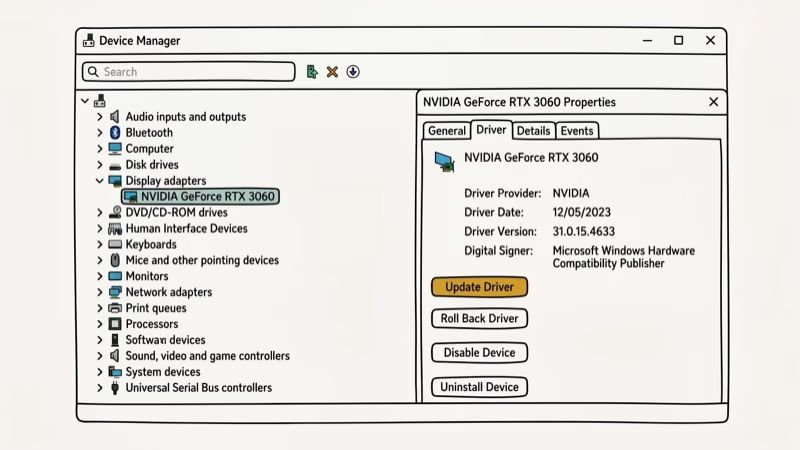
#Fix 2: Update or Reinstall the Graphics Driver
This is the most important fix. An incompatible GPU driver is the primary cause of dxgkrnl.sys crashes. Here’s the correct process:
- Press Windows Start and open Device Manager.
- Expand Display adapters and right-click your GPU.
- Click Uninstall device and check the box to delete the driver software.
- Restart Windows. The system reinstalls a basic driver automatically.
- Go to your GPU manufacturer’s website and download the latest driver:
If a normal driver update doesn’t help, uninstall the existing graphics driver first, restart, then install the latest driver from the GPU vendor’s site.
#Does Running the DirectX Diagnostic Tool Help?
The dxdiag tool reveals whether DirectX itself is corrupted or outdated:
- Press Windows + R, type
dxdiag, and press Enter. - Wait for the scan to complete (this takes 30 to 60 seconds).
- Click the Display tab and look for warnings in the Notes box at the bottom.
- If errors appear, run Windows Update to get the latest DirectX version.
- Click Save All Information to export the full diagnostic report for reference.
For Windows 7 and 8, the DirectX End-User Runtime must be downloaded separately from Microsoft’s download center.
#Fix 5: Run System File Checker
Corrupted system files can trigger dxgkrnl.sys crashes even with healthy drivers. According to Microsoft’s SFC documentation, SFC can find and repair damaged Windows files including driver-related components.
- Press Windows + S, type
cmd, and right-click Command Prompt. - Click Run as administrator.
- Type
sfc /scannowand press Enter. The scan takes 10 to 20 minutes. - If SFC finds but can’t fix all errors, follow up with DISM:
DISM /Online /Cleanup-Image /RestoreHealthRestart after both commands finish, then check if the BSOD is gone.
#Can DISM Repair the Corrupted Files?
If SFC reports that it found corrupted files but couldn’t repair them, DISM pulls clean copies from Windows Update servers:
- Open Command Prompt as administrator (same steps as above).
- Run these three commands one at a time, pressing Enter after each:
DISM /Online /Cleanup-Image /CheckHealth
DISM /Online /Cleanup-Image /ScanHealth
DISM /Online /Cleanup-Image /RestoreHealth
DISM typically takes 15 to 30 minutes on the RestoreHealth step. Restart when it completes.
#Fix 7: Check for Hardware Failure
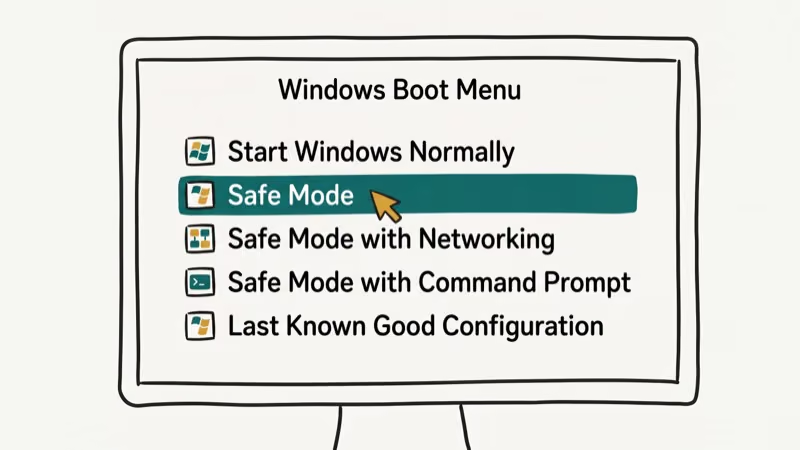
If all software fixes fail, the problem may be hardware. Before taking your PC for repair:
Disable NVIDIA Surround: Press Ctrl+Alt+R or Ctrl+Alt+S to toggle off NVIDIA multi-monitor spanning. This resolves dxgkrnl.sys crashes specifically caused by multi-monitor GPU configurations.
Test your RAM: Faulty RAM corrupts system files over time. Run Windows Memory Diagnostic by pressing Windows + R, typing mdsched.exe, and restarting. If it finds errors, replace the faulty RAM stick.
Check GPU temperatures: Download GPU-Z or HWiNFO and check your GPU temperature under load. If it exceeds 85°C consistently, thermal throttling may be triggering the crash. Cleaning the GPU fan and improving case airflow can fix this. If you’re also seeing NDIS.SYS errors, this suggests a broader hardware or driver stack problem. For driver-related BSODs in general, our guide to fixing driver power state failure covers a similar repair process.
#Bottom Line
Update your GPU driver first. If that doesn’t fix it, run SFC and DISM to repair corrupted system files. Windows Update is the next step. Reserve the hardware checks for last, because dxgkrnl.sys is usually tied to software, driver, or system file problems rather than failed hardware.
#Frequently Asked Questions
What is the dxgkrnl.sys error in Windows 10?
The dxgkrnl.sys error is a BSOD caused by a failure in the DirectX Graphics Kernel subsystem. It can occur during gaming, video playback, or anytime Windows needs the GPU to perform complex graphics operations.
How do I update my graphics drivers in Windows 10?
Open Device Manager from the Start menu, expand Display adapters, right-click your GPU, and select Update driver. For the latest version, download directly from NVIDIA, AMD, or Intel’s website using your exact GPU model.
Can malware cause the dxgkrnl.sys error?
Yes. Some malware corrupts system driver files, including graphics-related ones. Run a full scan with Windows Defender or another trusted antivirus after fixing the BSOD to rule this out.
Is it safe to use registry cleaner tools for this error?
Registry cleaners rarely fix dxgkrnl.sys errors and can cause additional problems if they delete valid entries. Use SFC and DISM instead, since they’re built into Windows and designed specifically for this type of repair.
When should I seek professional help for the dxgkrnl.sys error?
If the BSOD persists after updating drivers, running SFC and DISM, and testing your RAM, the GPU itself may be failing. A repair shop can run a hardware diagnostic to confirm whether the card needs replacement.
Does dxgkrnl.sys error appear in games only?
No. The BSOD can appear during any GPU-intensive task including video playback, 3D rendering in design software, or even during Windows startup. Gaming is the most common trigger because it puts sustained load on the GPU, which stresses the driver stack more than light desktop use.

Best Laptop for Running LLMs in 2026: Memory Comes First
The best laptop for running LLMs is a memory purchase first. Compare MacBook unified memory against NVIDIA laptop VRAM, and see what each tier really runs.

How to Run a Local LLM on Windows: A 2026 Setup Guide
Run a local LLM on Windows with LM Studio or Ollama. Pick a model that fits your GPU memory, keep every prompt offline, and skip the monthly bill.

Bluetooth Not Working on Snapdragon X? Fixes for 2026
Bluetooth not working on your Snapdragon X Copilot+ PC? Generic audio, mice, and keyboards work, but vendor apps often lack an ARM build. Fixes inside.

Docker Desktop and WSL2 Not Working on Snapdragon X? Fix It
WSL2 runs fine on Snapdragon X, but Docker Desktop ARM is Early Access and throws WSL errors. Use WSL2 plus native ARM64 Ubuntu and Docker Engine.