Fix Driver_Power_State_Failure BSOD on Windows 10/11
Fix the Driver_Power_State_Failure blue screen on Windows 10 and 11 with five proven methods, from driver updates to SFC system file repair.
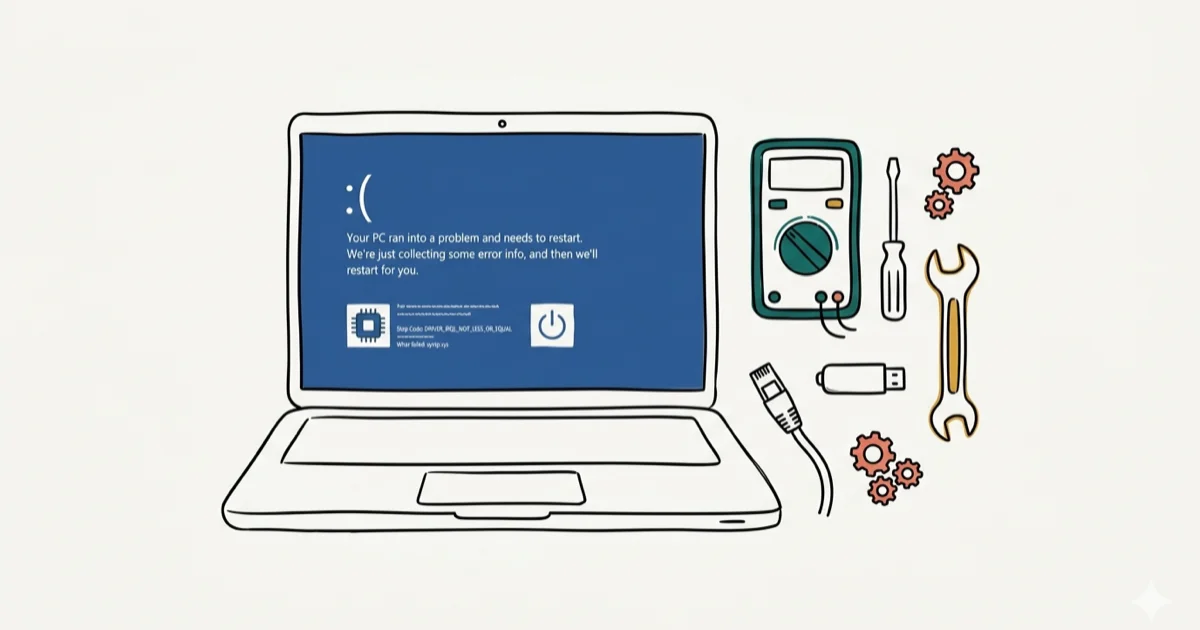
Quick AnswerDriver_Power_State_Failure is a Windows BSOD caused by incompatible or outdated drivers conflicting with power management. Update your drivers through Device Manager or boot into Safe Mode and run Driver Verifier to identify the problem driver.
The Driver_Power_State_Failure blue screen error crashes your Windows PC when a driver can’t handle a power state transition. Five fixes cover almost every case, from updating the GPU driver to repairing system files, and updating an outdated graphics or Wi-Fi driver resolves the issue on most machines within minutes.
- Driver_Power_State_Failure is a BSOD that appears when a driver sends an incorrect power state request to the Windows kernel during sleep or wake
- Outdated GPU and Wi-Fi drivers are among the most common causes of this error
- Boot into Safe Mode and run Driver Verifier to pinpoint exactly which driver file is crashing the system
- The SFC and DISM command-line tools repair corrupted Windows system files that contribute to this BSOD
- Disconnecting all external USB devices before restarting eliminates peripheral-based driver conflicts quickly
#What Causes Driver_Power_State_Failure?
This BSOD appears when Windows tries to change a device’s power state (sleep, wake, hibernate) and the device’s driver responds incorrectly. According to Microsoft’s official documentation on bug check 0x9F, the system halts because a driver is in an inconsistent or invalid power state after a transition. Wikipedia’s article on the Windows blue screen of death confirms that driver-related BSODs account for the majority of Windows crash reports, with power state failures among the top causes on laptops.
The most common triggers include:
- Outdated or incompatible drivers, especially for GPUs (NVIDIA, AMD) and wireless adapters
- Corrupted system files from interrupted Windows updates
- Power management conflicts between Windows settings and hardware drivers
- Recently installed software that modifies driver behavior
This error almost always traces back to a single driver. The challenge is figuring out which one. If you’re dealing with other Windows BSOD errors like Unmountable Boot Volume or 0x0000003B, the root cause may overlap.
#How Do You Fix Driver_Power_State_Failure?
Start with the simplest approach: disconnect all external devices (printers, USB drives, external monitors) and restart. A faulty peripheral driver is a common trigger, so removing a USB docking station or hub often stops the BSOD loop right away.
If you’re on a laptop, force shut down by holding the power button for 10 seconds. Remove the battery (if removable), hold the power button for another 30 seconds to drain residual charge, then reinsert and power on.
#Run Startup Repair
If Windows won’t boot at all, use the built-in Startup Repair tool:
- Boot from a Windows installation USB or recovery drive.
- On the install screen, click Repair your computer (don’t click Install).
- Go to
Troubleshoot>Advanced Options>Startup Repair.
Windows scans for corrupted boot files, damaged registry entries, and incompatible drivers. The repair usually takes several minutes on an SSD-equipped laptop, and the PC restarts automatically when it finishes.
#Safe Mode and Driver Verifier
Safe Mode loads Windows with only essential drivers, which isolates the problem. Here’s how to get there:
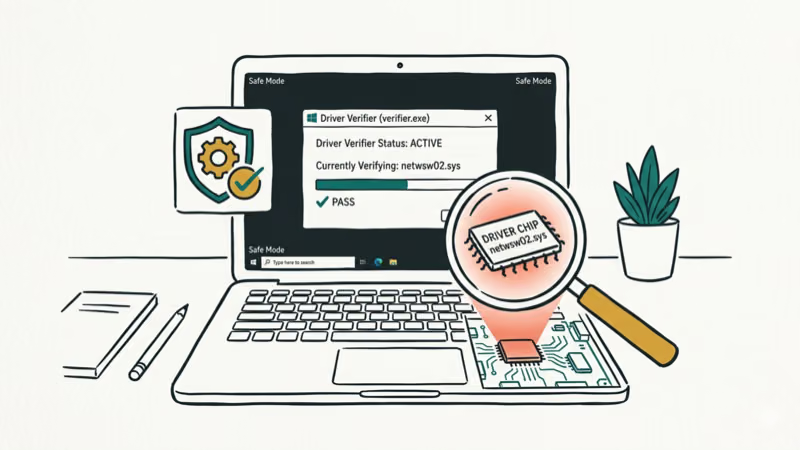
- Go to Advanced Options (via recovery media or by interrupting boot 3 times).
- Click Startup Settings, then restart.
- Press F4 to enter Safe Mode (or F5 for Safe Mode with Networking).
Once in Safe Mode, run Driver Verifier to catch the faulty driver:
- Open Command Prompt as Administrator.
- Type
verifierand press Enter. - Select Create standard settings and click Next.
- Choose Automatically select all drivers installed on this computer and click Finish.
- Restart when prompted.
Driver Verifier monitors every loaded driver and forces a controlled crash with a detailed log when it finds the offending one. According to Microsoft’s Driver Verifier documentation, this tool is the definitive method for diagnosing driver-related BSODs.
#Updating or Reinstalling Device Drivers
Right-click the Windows Start Menu and open Device Manager. Look for any device marked with a yellow triangle:
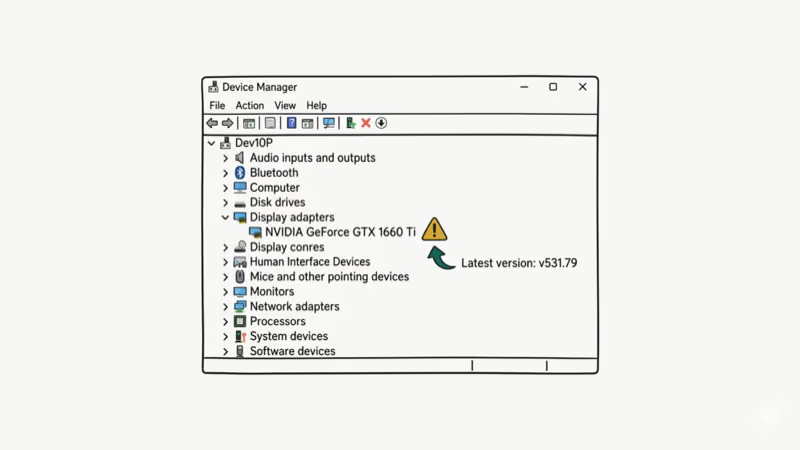
- Right-click the flagged device and select Uninstall device.
- Restart Windows. The system reinstalls the built-in driver automatically.
- Visit the manufacturer’s website to download the latest driver version.
Pay special attention to GPU drivers. NVIDIA’s driver download page and AMD’s driver support page both let you search by exact model. An outdated graphics driver is one of the most frequent causes of this BSOD, and installing the latest version directly from the manufacturer often fixes it permanently.
After you identify and install the suspect vendor driver, Driver Booster can scan for other outdated devices as a second opinion; don’t let it replace the GPU or Wi-Fi package you just verified.
Some links on this page are affiliate links, which means fone.tips may earn a commission at no extra cost to you.
#Repairing System Files With SFC and DISM
Corrupted Windows system files can trigger this BSOD even with healthy drivers. Run these two commands in an elevated Command Prompt (Admin):
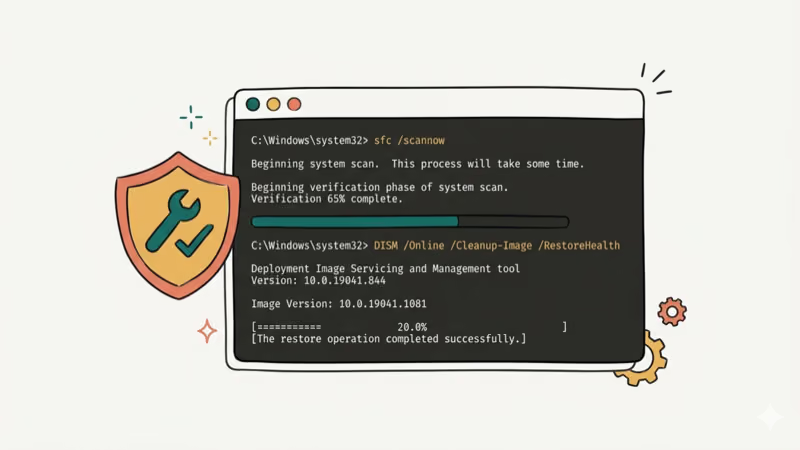
sfc /scannowThis scan takes 10-20 minutes. If SFC reports that it found corrupted files but couldn’t fix all of them, follow up with DISM:
DISM /Online /Cleanup-Image /RestoreHealthDISM pulls clean copies of damaged files from Windows Update. After both scans finish, restart and check whether the BSOD recurs. Microsoft’s support page confirms that running SFC followed by DISM is the recommended repair sequence.
#Removing Conflicting Software and Reinstalling Windows
If the BSOD started after installing new software, that program may have installed a conflicting driver:
- Go to
Settings>Apps>Installedapps. - Sort by install date and uninstall the most recent additions.
- Restart and monitor for the error.
VPN clients, antivirus tools, and virtualization software (like VMware or VirtualBox) are frequent offenders because they install kernel-level drivers. If you’re also seeing keyboard issues on Windows 10, the same driver conflict may be responsible.
When nothing else works, a clean Windows install is the final option. Back up your files first using an external drive or cloud storage. Use the built-in Reset this PC feature (Settings > System > Recovery) or boot from installation media for a completely fresh start.
For other BSOD errors you might encounter alongside this one, check our guides on BAD_POOL_CALLER and NTFS.sys errors.
#Bottom Line
Driver_Power_State_Failure is almost always a driver problem, not a hardware failure. Start by disconnecting USB peripherals and restarting. If the BSOD persists, boot into Safe Mode, run Driver Verifier, and update the flagged driver. The SFC and DISM commands handle corrupted system files, and a clean Windows reinstall is the last resort. Updating the GPU or Wi-Fi driver alone fixes it more often than any other step.
#Frequently Asked Questions
What causes the Driver_Power_State_Failure error?
A device driver sends an invalid power state response to the Windows kernel. The most common culprits are outdated GPU and Wi-Fi adapter drivers.
How do I identify which driver is causing the crash?
Boot into Safe Mode and run Driver Verifier from an elevated Command Prompt. This tool monitors every loaded driver and forces a controlled crash that logs the exact driver file responsible. After the crash, check the minidump file in C:\Windows\Minidump with tools like BlueScreenView to see which .sys file triggered the BSOD, then update or uninstall that specific driver.
Can I fix this error without entering Safe Mode?
Sometimes. Disconnecting all external USB devices and restarting works if the problem driver belongs to a peripheral. Running sfc /scannow from a recovery command prompt is another option when Windows won’t boot normally.
Does this error mean my hardware is failing?
Not usually. Updating or reinstalling the offending driver resolves most cases. Only run a full hardware diagnostic (RAM test with MemTest86, disk check with CrystalDiskInfo) if the BSOD persists after a clean Windows install with fresh drivers from the manufacturer.
Can Windows Update cause Driver_Power_State_Failure?
Yes. Some Windows updates ship with generic drivers that conflict with manufacturer-specific ones. If the BSOD started right after an update, roll back the update through Settings > Windows Update > Update history > Uninstall updates.
Should I disable power management to prevent this error?
Disabling USB selective suspend and PCI Express power management can help if the BSOD only occurs during sleep or wake cycles. Go to Power Options > Change plan settings > Change advanced power settings and set both to Disabled. This prevents Windows from cutting power to devices whose drivers can’t handle the transition.

Best Laptop for Running LLMs in 2026: Memory Comes First
The best laptop for running LLMs is a memory purchase first. Compare MacBook unified memory against NVIDIA laptop VRAM, and see what each tier really runs.

How to Run a Local LLM on Windows: A 2026 Setup Guide
Run a local LLM on Windows with LM Studio or Ollama. Pick a model that fits your GPU memory, keep every prompt offline, and skip the monthly bill.

Bluetooth Not Working on Snapdragon X? Fixes for 2026
Bluetooth not working on your Snapdragon X Copilot+ PC? Generic audio, mice, and keyboards work, but vendor apps often lack an ARM build. Fixes inside.

Docker Desktop and WSL2 Not Working on Snapdragon X? Fix It
WSL2 runs fine on Snapdragon X, but Docker Desktop ARM is Early Access and throws WSL errors. Use WSL2 plus native ARM64 Ubuntu and Docker Engine.