How to Fix Kernel Data Inpage Error on Windows 10/11
Fix the KERNEL_DATA_INPAGE_ERROR blue screen on Windows 10 and 11. Step-by-step guide covers CHKDSK, RAM testing, driver updates, and hardware checks.
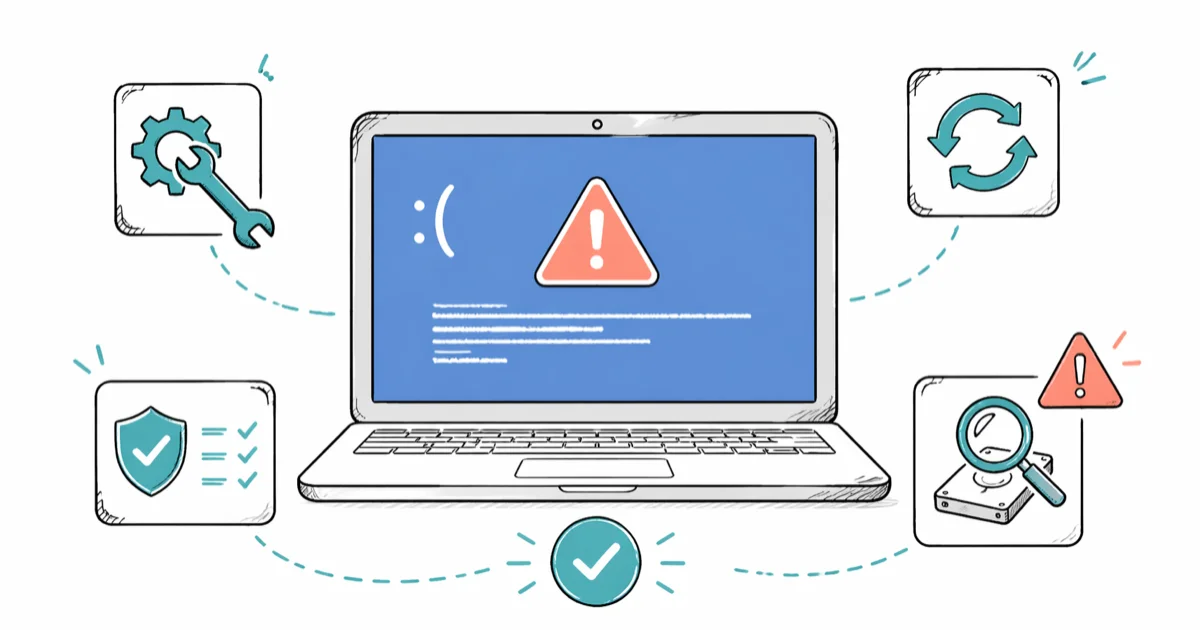
Quick AnswerRun chkdsk /f /r from an elevated Command Prompt to scan your hard drive for bad sectors. If the BSOD returns, test your RAM with Windows Memory Diagnostic and reseat your SATA or NVMe cables.
The KERNEL_DATA_INPAGE_ERROR (stop code 0x0000007A) is a blue screen error that fires when Windows can’t read a required page of data from disk into memory. The error points to a problem with your storage hardware, RAM, or the paging file itself.
- CHKDSK /f /r fixes the error in most cases by repairing bad disk sectors that block paging file reads
- Faulty RAM is the second most common trigger, and Windows Memory Diagnostic catches it without third-party tools
- A loose or damaged SATA cable can intermittently disconnect the disk mid-read, causing the exact same stop code
- Outdated or corrupted storage controller drivers prevent the OS from reading pages correctly, especially after Windows updates
- Setting the paging file to automatic management prevents size mismatches that trigger the error on drives with limited free space
#What Causes the Kernel Data Inpage Error?
Windows uses a paging file on your disk as an extension of physical RAM. When the system needs data stored in that file, it reads the relevant page back into memory. The KERNEL_DATA_INPAGE_ERROR fires when that read fails.
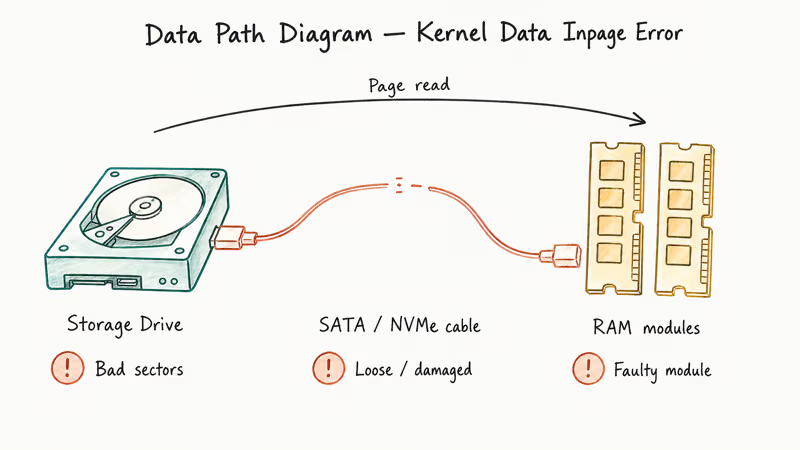
Three hardware components sit in the path between the paging file and RAM: the storage drive, the cable connecting it to the motherboard, and the RAM modules. A fault in any one of them causes the read to fail. Software causes include corrupted storage drivers, malware that damages the file system, and a paging file locked to an incorrect size.
This error belongs to the same family of boot and disk BSODs as the unmountable boot volume error, but it targets the paging file specifically rather than the boot partition. On a drive with known bad sectors, the BSOD often appears after a short stretch of normal use, as soon as the paging file lands on a damaged region.
According to Microsoft’s stop-code troubleshooting guide, the first move is pulling any hardware you added just before the error, then checking Device Manager for a device flagged with an exclamation point.
#Run CHKDSK to Repair Disk Errors
CHKDSK scans your disk for bad sectors and file system corruption, then attempts to repair them. Start here.
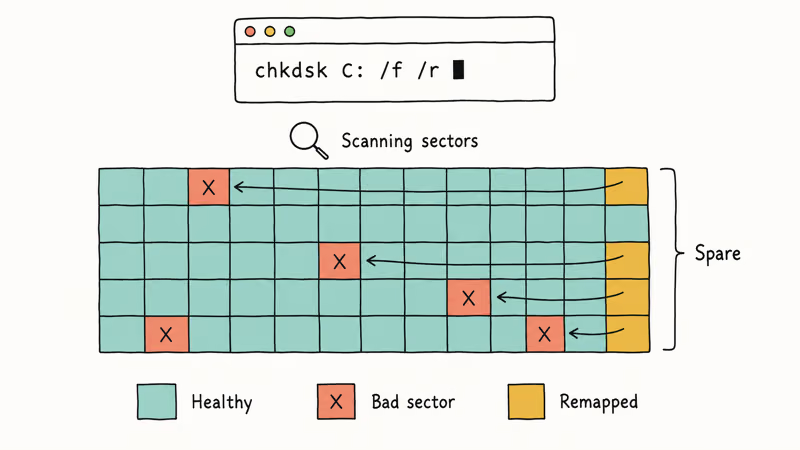
This is the single most effective fix because the KERNEL_DATA_INPAGE_ERROR usually traces back to unreadable disk sectors.
- Press Win + S and type cmd.
- Right-click Command Prompt and select Run as administrator.
- Type
chkdsk C: /f /rand press Enter. ReplaceC:with your OS drive letter if different. - If prompted to schedule the scan for the next restart, type Y and press Enter.
- Restart your PC. The scan runs before Windows loads and takes 30 minutes to 2 hours depending on drive size.
The /f flag fixes file system errors. The /r flag locates bad sectors and recovers readable data from them. When the BSOD traces back to a handful of bad sectors flagged in Event Viewer, CHKDSK can remap them and stop the error.
If CHKDSK reports it can’t fix all errors, your drive likely has extensive physical damage. Skip ahead to the hardware section below.
#Test Your RAM With Windows Memory Diagnostic
Faulty RAM corrupts data in transit between physical memory and the paging file. The KERNEL_DATA_INPAGE_ERROR doesn’t distinguish between a disk read failure and a memory write failure, so bad RAM looks exactly like a bad disk to the system.
- Press Win + R, type
mdsched.exe, and press Enter. - Click Restart now and check for problems (recommended).
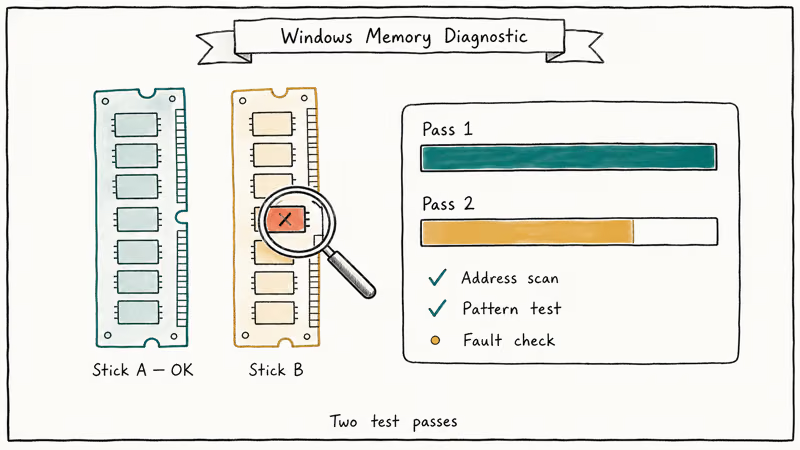
- Your PC restarts and runs two test passes automatically. The process takes 10-20 minutes.
- After restarting, press Win + X and open Event Viewer. Go to
Windows Logs>Systemand look for MemoryDiagnostics-Results.
According to Microsoft’s Windows Memory Diagnostic documentation, the Standard mode runs several successive memory tests, each using a unique algorithm to scan ranges of memory addresses for different types of errors.
If the tool reports errors, power off your PC, open the case, and reseat each RAM stick. Run the test again, and if errors persist, test each stick individually to isolate the faulty module. With an intermittent RAM fault, Memory Diagnostic often flags the error only on a later pass, and replacing the bad stick eliminates the BSOD entirely.
#Update or Roll Back Your Storage Drivers
Storage controller drivers translate Windows read/write requests into commands your disk understands. A corrupted or incompatible driver triggers BSOD errors like IRQL_NOT_LESS_OR_EQUAL just as hardware failures do.
To update your storage drivers:
- Press Win + X and select Device Manager.
- Expand IDE ATA/ATAPI controllers (for SATA drives) or Storage controllers (for NVMe drives).
- Right-click your storage controller and select Update driver.
- Choose Search automatically for drivers.
To roll back after a recent update:
- In Device Manager, right-click the storage controller and select Properties.
- Go to the Driver tab and click Roll Back Driver.
- Restart your PC.
Microsoft’s Device Manager driver guide states that when a problem starts after a Windows Update, reinstalling the previous driver often resolves it, and that you have to be signed in with administrator permissions to roll a driver back at all. Also check Settings > Windows Update > Advanced options > Optional updates for newer storage drivers from Microsoft’s catalog.
#Set the Paging File to Automatic
Windows manages the paging file dynamically. Problems start when someone sets a fixed size.
A paging file locked to a specific size can end up too small for your workload or get placed on a nearly full drive, and both situations trigger the KERNEL_DATA_INPAGE_ERROR.
- Press Win + R, type
sysdm.cpl, and press Enter. - Go to the Advanced tab and click Settings under Performance.
- In the new window, go to the Advanced tab and click Change under Virtual Memory.
- Check the box labeled Automatically manage paging file size for all drives.
- Click OK three times and restart your PC.
Manually setting a small fixed paging file on a system with limited RAM and a nearly full SSD can cause this exact error under heavy multitasking. Switching back to automatic resolves it because Windows adjusts the allocation based on actual demand.
#Scan for Malware
Malware is a less common cause, but worth ruling out.
Certain malware families target the file system and the Master Boot Record, corrupting sectors that the paging file relies on. A rootkit can intercept disk read operations directly, causing the system thread exception error or the KERNEL_DATA_INPAGE_ERROR.
- Open
Settings>Privacy &security >Windows Security>Virus &threat protection. - Click Scan options and select Full scan.
- Click Scan now. A full scan takes 1-3 hours depending on drive size.
For rootkits, run Windows Defender Offline from the same page. It scans before the OS loads, catching threats that hide during normal Windows operation.
#Check SATA Cables and Hardware Connections
A loose or partially damaged SATA data cable causes intermittent read failures. The disk works most of the time, but the occasional dropped read triggers the KERNEL_DATA_INPAGE_ERROR. This is common in desktops that have been moved recently.
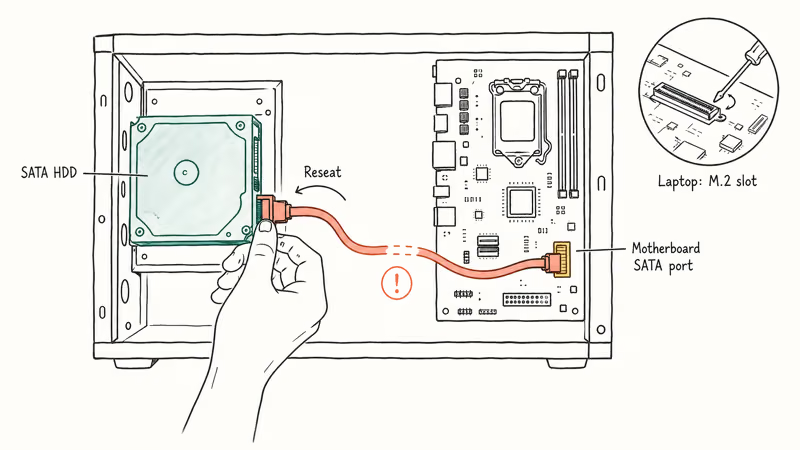
- Shut down your PC and unplug the power cable.
- Open the case and locate your storage drive.
- Unplug the SATA data cable from both the drive and the motherboard.
- Inspect the cable for bent pins, fraying, or oxidation. Replace it if damaged.
- Reconnect both ends firmly. Swap in a spare SATA cable if you have one.
- For NVMe SSDs, unscrew the drive, clean the M.2 slot contacts with isopropyl alcohol, and reseat it.
After reseating, monitor for the BSOD over the next 2-3 days before declaring the fix successful.
Laptop users who can’t open the case should install CrystalDiskInfo instead. It reads S.M.A.R.T. health data directly from Windows and flags “Reallocated Sectors Count” and “Current Pending Sector Count” values above zero, both of which indicate physical damage that will eventually require a drive replacement.
#When Should You Replace Your Hard Drive?
The KERNEL_DATA_INPAGE_ERROR becomes a hardware replacement signal when CHKDSK keeps finding new bad sectors on every run, or when the PFN_LIST_CORRUPT error appears alongside it.
S.M.A.R.T. diagnostics give you the clearest picture. If CrystalDiskInfo shows “Caution” or “Bad” health status, back up your data immediately and start shopping for a replacement drive. Here are the specific thresholds to watch:
- Reallocated Sectors Count above 100 means the drive is actively failing
- Current Pending Sector Count above 0 means sectors are queued for reallocation
- Uncorrectable Sector Count above 0 means permanent data loss has occurred
warnings rather than waiting for complete failure.
Still on a mechanical HDD? A SATA SSD upgrade eliminates the moving parts behind most read failures — under $30 for 256GB.
#Bottom Line
Start with CHKDSK /f /r — it fixes the KERNEL_DATA_INPAGE_ERROR more often than any other method because bad disk sectors are the primary cause. If CHKDSK comes back clean, test your RAM with Windows Memory Diagnostic. For desktops, reseat your SATA cables before spending time on software fixes. If you’re seeing new bad sectors every time you run CHKDSK, replace the drive with a SATA SSD.
#Frequently Asked Questions
What does the stop code 0x0000007A mean?
Stop code 0x0000007A is the numeric identifier for the KERNEL_DATA_INPAGE_ERROR. It means Windows tried to read a page of data from the disk paging file into physical memory, and the read failed. The failure traces back to a bad disk sector, faulty RAM, or a cable connection issue. Some systems display the full name on the blue screen while others show only the hex code.
Can a Windows update cause this blue screen?
Yes. A Windows update that includes new storage controller drivers can trigger this BSOD if the driver is incompatible with your hardware. This is similar to the Windows upgrade error 0xc1900101, which also stems from driver conflicts. Rolling back the driver through Device Manager fixes both issues.
Is this the same as the KERNEL_STACK_INPAGE_ERROR?
No, they’re different stop codes with different root causes. The KERNEL_DATA_INPAGE_ERROR (0x0000007A) involves general data pages in the paging file, while the KERNEL_STACK_INPAGE_ERROR (0x00000077) involves kernel stack pages. Both point to disk or memory hardware issues, but the stack variant tends to appear specifically when kernel-mode code is affected rather than user-mode data. The troubleshooting steps overlap significantly, so the fixes in this guide apply to both errors.
How do I check if my hard drive is failing?
Download CrystalDiskInfo, a free S.M.A.R.T. monitoring tool, and check the Health Status indicator. “Good” means no detected issues, “Caution” means degraded sectors requiring immediate backup, and “Bad” means active failure. You can also run wmic diskdrive get status from Command Prompt for a quick pass/fail check, though CrystalDiskInfo gives more detail.
Does this error mean I’ll lose my data?
The error indicates a read failure, not data destruction. Back up your files as soon as you can boot into Windows, then run CHKDSK /r to recover data from any bad sectors.
Can faulty RAM really cause a disk-related error?
Yes, RAM sits in the data path between your storage drive and running programs. When Windows reads a page from the paging file, the data passes through RAM before reaching the requesting process. If a RAM module corrupts data during that transfer, Windows reports it as an inpage error even though the disk is fine. Windows Memory Diagnostic isolates this by testing each memory address independently.
Should I increase my paging file size to prevent this error?
Don’t set a fixed size. Let Windows manage it automatically by checking “Automatically manage paging file size for all drives” in Virtual Memory settings, since a fixed allocation that’s too small triggers the error under heavy load.
Will reinstalling Windows fix this error?
A clean install fixes software causes like corrupted drivers, damaged system files, and malware. It won’t fix hardware problems, so a failing hard drive, bad RAM, or a loose cable will produce the same BSOD on the fresh install. Test your hardware first using the steps in this guide. If CHKDSK and Memory Diagnostic both come back clean, a reinstall is worth trying as a last resort.

Best Laptop for Running LLMs in 2026: Memory Comes First
The best laptop for running LLMs is a memory purchase first. Compare MacBook unified memory against NVIDIA laptop VRAM, and see what each tier really runs.

How to Run a Local LLM on Windows: A 2026 Setup Guide
Run a local LLM on Windows with LM Studio or Ollama. Pick a model that fits your GPU memory, keep every prompt offline, and skip the monthly bill.

Bluetooth Not Working on Snapdragon X? Fixes for 2026
Bluetooth not working on your Snapdragon X Copilot+ PC? Generic audio, mice, and keyboards work, but vendor apps often lack an ARM build. Fixes inside.

Docker Desktop and WSL2 Not Working on Snapdragon X? Fix It
WSL2 runs fine on Snapdragon X, but Docker Desktop ARM is Early Access and throws WSL errors. Use WSL2 plus native ARM64 Ubuntu and Docker Engine.