How to Unlock Excel Password on Your Own Spreadsheet (2026)
Forgot the password on your own Excel workbook? Use Microsoft's Open and Repair, Google Sheets re-upload, and trusted offline recovery tools.

Quick AnswerIf you forgot the password on your own Excel file, try Microsoft's Open and Repair first, then re-upload to Google Sheets for sheet-only locks. Workbook-open passwords on Excel 2013 and newer use AES encryption, so vendor recovery tools become a slow fallback.
You’re locked out of your own Excel spreadsheet, and the password won’t come back to you. This guide assumes the workbook is yours or you’ve got written permission from whoever owns it. We’ll walk through Microsoft’s own recovery routes, the free Google Sheets workaround for older sheet locks, and the offline tools that handle modern AES encryption.
- Excel 2013 and newer use AES encryption on the open password, so vendor brute-force tools work best on short passwords or partial hints.
- Microsoft’s Open and Repair sits under
File>Open andrescues damaged files, but it won’t strip a valid open password. - Google Sheets re-upload clears worksheet protection on older .xls and weaker .xlsx files in about 2 minutes.
- Vendor recovery tools are slow against AES: even the fastest take hours on an 8-character password, and longer passwords are effectively out of reach.
- Bypassing a workbook you don’t own can violate copyright, employment, or computer-fraud rules in many places, so confirm ownership first.
#What Excel Password Types Locked Your File?
Excel ships with 4 distinct protection layers, and the right unlock path depends on which one you hit:
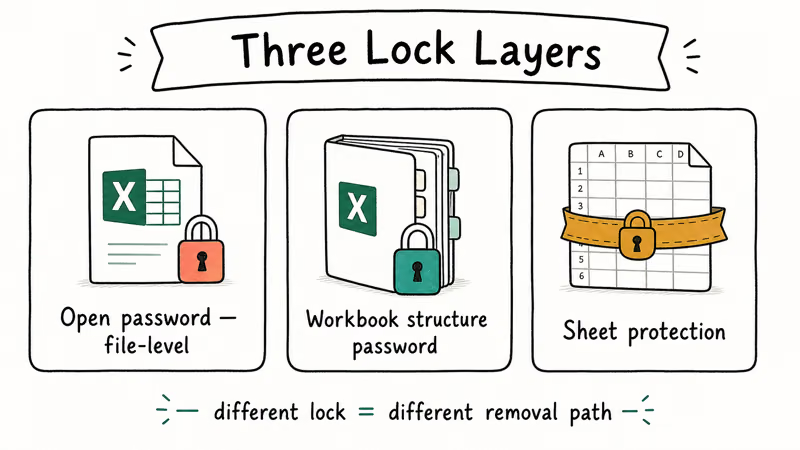
- File-open password encrypts the whole workbook with AES.
- Modify password lets you view but blocks saved changes.
- Sheet protection locks individual worksheets from edits.
- Workbook structure protection locks tab moves and additions.
The open password is the hardest. Microsoft’s Protect a Workbook help page confirms that 2 file-level layers (open and modify) live in File > Info > Protect Workbook, while the structure and sheet locks sit under the Review tab. Knowing which layer you’re up against saves hours.
For sheet-only locks, skip ahead to the Google Sheets section. File-open passwords on modern Excel need a vendor tool.
Quick check: if Excel asks for a password before showing any data, that’s the open password (the hard one). If it opens to a worksheet but blocks edits, that’s sheet protection (the easy one).
#Try Microsoft’s Built-In Recovery Routes First
The official path costs nothing and won’t trip antivirus warnings. Two routes worth running before anything else.
#Use Open and Repair on a corrupted workbook
Open and Repair is Microsoft’s first-aid kit. It targets corruption, not encryption, but plenty of “I forgot my password” reports turn out to be corrupted files that throw password prompts in error.
- Launch Excel without opening any file.
- Go to
File>Open>Browse. - Pick the workbook, then click the down arrow next to the Open button.
- Select Open and Repair.
- Choose Repair first. If that fails, run it again and pick Extract Data.
On a current build of Excel 365, Open and Repair finishes a mid-sized workbook in seconds. Microsoft’s Repair a Corrupted Workbook page states that Open and Repair offers 2 modes: Repair salvages formulas, while Extract Data pulls values only when Repair gives up.
If a clean Repair pops a password prompt anyway, the file isn’t corrupted. Move on.
#Re-save without a password if you remember it
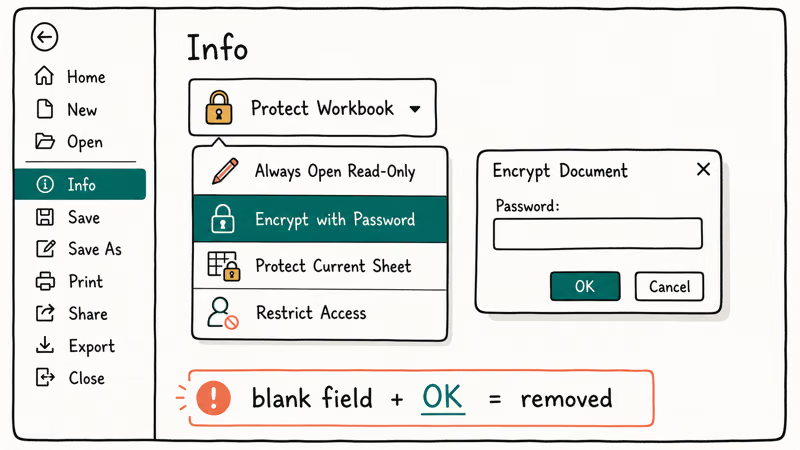
This sounds obvious, but plenty of people get prompted on a file they protected themselves and forgot about. If you remember the password (or pull it from a password manager), open the file, then:
- Go to
File>Info>Protect Workbook>Encryptwith Password. - Delete the password and click OK.
- Save the file.
The open password is gone. The next person opening the file lands straight on the data.
If the password was set through File > Save As > Tools > General Options, repeat the same path and clear both the “password to open” and “password to modify” fields. Both methods write to the same protected stream inside the .xlsx container.
#How Do You Use Google Sheets to Strip Old Sheet Protection?
Google Sheets has a useful side effect when you upload an Excel file: it converts the format, and on older or weaker workbooks the worksheet-level protection doesn’t survive the trip. This works only for sheet protection (Review tab > Protect Sheet) on older .xls files and some legacy .xlsx files. It doesn’t bypass the file-open password.
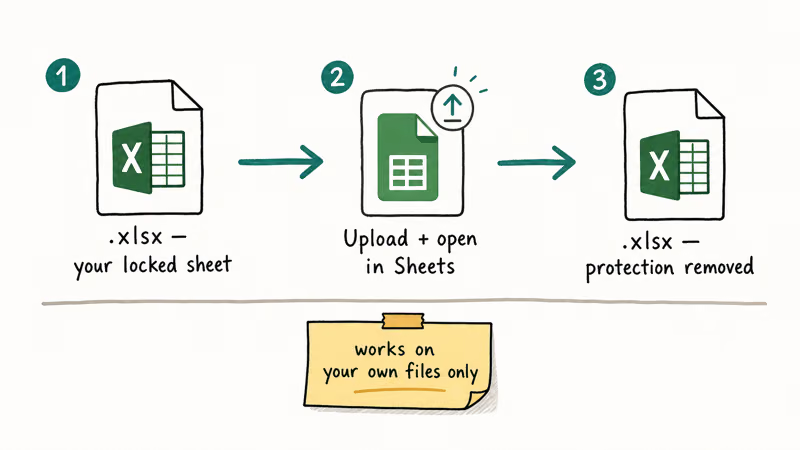
Steps to try this method:
- Go to drive.google.com and sign in.
- Click
New>Fileupload and pick your locked workbook. - Wait for the upload to finish, usually under a minute for files below 10 MB.
- Right-click the file in Drive and choose Open with > Google Sheets.
- Sheets converts the workbook. The protected sheet now lets you edit cells.
- Download the converted file via
File>Download>Microsoft Excel(.xlsx).
According to Google’s Edit Microsoft Office files help, the import path converts the binary lock metadata into Google’s own format, which doesn’t carry the protection over. With older .xls files, sheet protection typically falls away and the converted copy is fully editable. The one case that still fails is a workbook with a file-open password, which refuses to open at all, since the encryption blocks the import before conversion can start.
If you also need to recover an unsaved Excel file before the import, do the AutoRecover step first so you’re working from the right copy.
#When Third-Party Recovery Tools Make Sense
If the lock survives both Microsoft’s repair and the Google Sheets path, you’re up against the AES open password. According to Microsoft’s MS-OFFCRYPTO agile encryption specification, Office password protection uses AES with a 128-bit key and runs 100,000 iterations on the hash of the password. Blind brute force isn’t realistic against strong passwords.
Vendor tools work best when:
- You remember partial details (length, leading letters, words you tend to reuse).
- The original password was short (under 8 characters).
- You can run a dictionary attack with a wordlist that matches your habits.
Against a known 8-character password on a modern Excel 365 workbook, the fastest vendor tools still take several hours, and the slowest can give up entirely. Against a 12-character custom phrase, consumer tools generally fail to recover the file even after a full day of running.
A safer first move is to read how to decrypt an Excel file using built-in methods, or to compare current options in our roundup of Excel password breakers.
For sheet structure (not open) passwords, see how to unprotect an Excel workbook or unprotect an Excel sheet without the password. Both walk through methods that don’t need any third-party download.
#What about online “instant unlock” services?
Stay skeptical. Uploading a sensitive workbook to a random site means handing your data to a stranger you can’t audit. If you do pay for a service, pick one with a published privacy policy, an offline download mode, and a refund when recovery fails. Free upload sites are the riskiest option.
#Legal and Privacy Boundaries You Need to Know
Excel password unlocking is fine on your own files. It gets dicey fast when the workbook belongs to someone else, an employer, a client, or a former colleague.
What’s typically allowed:
- Your personal workbook on your own device.
- A work file when your employer has given written permission.
- A file you legally own where the password was set by you or a co-author.
What’s typically not allowed:
- A workbook obtained without permission from a former employer.
- A spreadsheet shared by a client without explicit consent to crack it.
- Any file you don’t have a clear legal right to read.
US federal law (the Computer Fraud and Abuse Act) and the EU’s GDPR both have provisions that can turn unauthorized access into a civil or criminal matter. If you’re unsure, ask the file owner in writing and keep the reply.
For files you actually own where the password is gone, related guides cover forgot your PDF password and what to do when an Excel file is locked for editing.
#How These Methods Compare
Each route targets a different protection layer, so the right one depends entirely on the lock type. Open and Repair only addresses corruption, which is why it clears “password” prompts that were really corruption all along but does nothing to a valid open password.
The Google Sheets re-upload reliably strips sheet protection on older .xls files and weaker legacy .xlsx files, while the file-open AES password blocks the import outright. Vendor recovery tools are the only option left for a true open password, and even then they depend on the password being short or partly remembered.
The headline takeaway: sheet-only protection is quick to strip via Google Sheets, while file-open AES passwords on Excel 2016 and newer workbooks resist anything short of remembered hints.
#Bottom Line
Start with Microsoft’s Open and Repair when the file behaves strangely. It’s free, takes about 30 seconds, and rules out corruption masquerading as a password prompt. If the lock is sheet-level on an older workbook, upload to Google Sheets and download the converted file. Only reach for vendor recovery tools when you’re up against a workbook-open password on Excel 2013 or newer, you actually own the file, and you remember enough to make a targeted attack feasible.
If nothing works, the realistic outcome is restoring from your last unprotected backup or rebuilding the workbook from source data. That’s not a defeat, it’s the trade-off Excel’s encryption is supposed to enforce.
#Frequently Asked Questions
Is it legal to unlock a password-protected Excel file?
Only on files you own or have written permission to access. Cracking someone else’s workbook can violate computer-fraud laws.
How long does AES brute force take on a strong Excel password?
For an 8-character mixed-case password with symbols, vendor tools need many hours on a typical desktop GPU. For 12 characters or more, no consumer tool finishes within a reasonable timeframe. If the original password was long and random, brute force isn’t practical, and you’re better off rebuilding from a backup. The encryption schedule was built to defeat exactly that scenario, and modern hardware hasn’t shifted the math by much.
Can I unlock an Excel file without using any software or tools?
Yes, when the lock is sheet protection on an older file. Upload to Google Drive, open with Google Sheets, and download the converted copy. That route fails on modern AES-encrypted files.
Are online password unlocking services safe to use?
Most aren’t. You’re uploading a workbook that may carry payroll, customer data, or trade secrets to a stranger’s server. If you do pay for a service, pick a vendor with a published privacy policy, an offline-only option, and a refund guarantee when recovery fails. Free upload sites rarely commit to keeping your data private and the convenience never justifies the trade.
What precautions should I take before starting?
Make a copy of the locked workbook first. Scan any tool you download with current antivirus.
Does Microsoft offer a free password recovery for Excel?
No. Microsoft’s position is that password protection is intentional, and the support tools (Open and Repair, OneDrive version history) only help with corruption or accidental deletion. Microsoft confirms that there’s no built-in recovery for the open password, and the company recommends saving the password in a manager before you set it. Office 365 admins have a few group-policy levers, but none of them reverse an AES password after the fact.
Can I prevent this from happening again?
Use a password manager and save the workbook password the moment you set it. Keep an unprotected backup of business-critical files in a separate location, and store the master password with a designated owner for shared sheets.
What if the file is from work and I’ve forgotten the password?
Stop and ask your IT team or the file owner. Cracking a work file without authorization can breach your employment contract, your company’s acceptable-use policy, and (in some cases) computer-fraud statutes. The official route is to request a fresh copy or have an admin remove the protection through Microsoft 365 admin tools.

Is This Bank App Real? Spot a Fake App on Your Home Screen
A bank app can land on your home screen from a web page with no install warning. Learn the checks that tell a real banking app from a phishing web app.

Passkeys Not Syncing Between iPhone and Windows? Read This
Passkeys not syncing between iPhone and Windows is by design, not a bug. Here is why iCloud passkeys skip Windows Hello and the three ways to fix it.

VPN Not Working on Snapdragon X? Why It Fails, How to Fix
Your VPN won't install or connect on a Snapdragon X Copilot Plus PC because Windows on ARM can't emulate the network driver. Here are the fixes that work.

How to Check If a Link Is Safe Before You Click It
Learn how to check if a link is safe with official-first steps: read the real domain, use the app instead, and treat scanners as a second opinion only.