Forgot PDF Password? Recover Your Own File in 2026
Forgot your own PDF password? Match the password type to the right tool, estimate realistic recovery time, and stay within the law on files you own.
Quick AnswerIf you forgot the password on a PDF you own, first try Adobe Acrobat's Remove Security option if you still know the Permissions password, then restore from an earlier cloud version, and only fall back to a recovery tool like PassFab for PDF if those fail. Recovery time depends on password length, not on the file size.
Forgot PDF password recovery starts with one question: whose file is it? If the document’s yours, or you inherited it with a paper trail, the methods below are legal and workable on a file you own. If it belongs to someone else and you want to peek inside without asking, stop reading. This guide walks through Adobe’s official channels first, then technical recovery paths, then the legal line you shouldn’t cross.
- Document-open passwords on PDF 1.6 and later use AES-128 or AES-256 encryption with no master key or backdoor
- Permissions passwords strip in under a minute if you still know the Open password, because they only restrict actions, not access
- Short dictionary passwords usually recover in minutes; truly random 12-character passwords are effectively unrecoverable on consumer hardware
- Adobe’s official path is Acrobat Pro’s Remove Security for files you own, plus cloud version history for Adobe Document Cloud or Google Drive copies
- Only unlock PDFs you own, inherited with written authorization, or your employer directed you to recover
#Is It Legal to Unlock a Forgotten PDF Password?
On files you own, yes. On anyone else’s file, no, and the line is sharper with PDFs than with most formats.
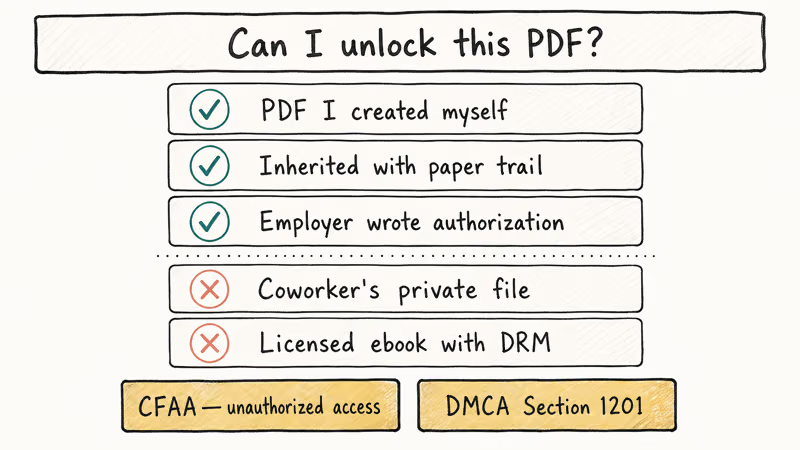
The scope that stays inside the law covers three situations: a PDF you created and whose password you forgot, a document your employer explicitly asked you to recover, or a file you inherited with a clear paper trail. Outside those three, assume you need written permission before touching the file.
Two federal statutes govern this in the United States.
According to the U.S. Department of Justice’s charging guidance on the Computer Fraud and Abuse Act, accessing a computer or file “without authorization” is a federal offense even when the file is technically in your possession. The DOJ document states employers should document authorization in writing before asking an employee to bypass security.
The second statute is the DMCA. Section 1201 of the Digital Millennium Copyright Act prohibits circumventing a technological measure that controls access to a copyrighted work. That means cracking DRM on a commercial ebook, an academic textbook you only licensed, or any PDF distributed under copyright protection is a separate federal violation stacked on top of any unauthorized-access claim.
The European Data Protection Board is the EU body responsible for enforcing GDPR, which sets significant penalties for extracting personal data from a protected file without consent.
Get written authorization before you start.
#Step 1: Try Adobe’s Official Recovery Path First
Before you reach for a third-party cracker, check whether Adobe can hand you back access through the front door. This is faster and lower-risk than any brute-force run.
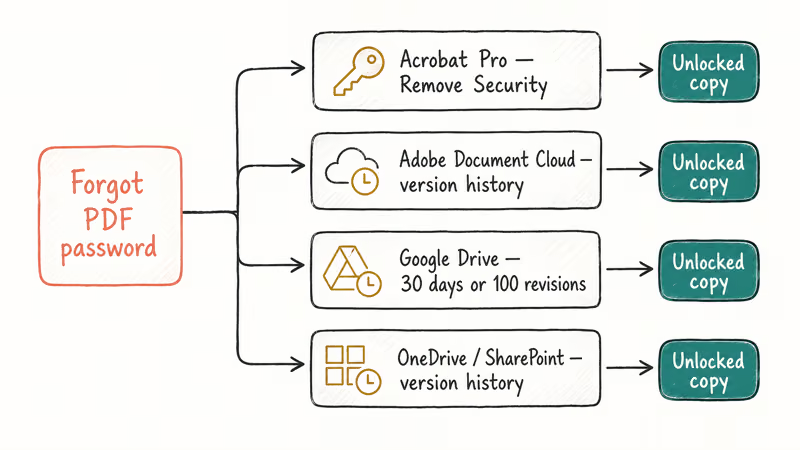
If you still know one of the two passwords. PDFs can carry two passwords: the Open password that encrypts the file, and the Permissions password (sometimes called the Owner password) that restricts printing, editing, and copying.
If you forgot the Permissions password but can still open the file, Acrobat Pro handles the removal in about 30 seconds. Go to File > Properties > Security, change the Security Method to No Security, and Acrobat prompts for whichever password you still remember.
According to Adobe’s PDF password protection documentation, removing security from a file you own inside Acrobat Pro is a supported workflow that doesn’t require a third-party tool.
Adobe Document Cloud version history. Check acrobat.adobe.com first. If the PDF was saved to Document Cloud or shared through Acrobat’s online service, an earlier version before the password was applied is often one click away. Rolling back beats any recovery tool for speed, cost, and privacy, and it sidesteps the whole question of which encryption the file uses because you’re simply replacing the locked copy with the previous unlocked copy. No cracking tool approaches that workflow.
Google Drive version history. Google’s support page confirms that Drive keeps 30 days or 100 revisions of a file, whichever comes first, and that you can open File > Version history > See version history on a file you own to download an earlier unprotected copy. See the Drive version history support page for the current retention details.
If the password was added recently in your own Google Drive, restoring the previous version recovers the unprotected copy in under a minute.
Microsoft OneDrive and SharePoint. OneDrive and SharePoint also keep previous versions. Microsoft’s file version history documentation states that OneDrive stores a rolling history of file versions. Rolling a PDF back to a pre-password version is often faster than any recovery tool.
If none of the official paths help because the file is an offline PDF with encryption set inside Acrobat and no cloud copy exists, move to Step 2.
#Step 2: Identify Which PDF Password You Forgot
Adobe Acrobat uses the word “password” for two different things. Knowing which one is blocking you saves hours.
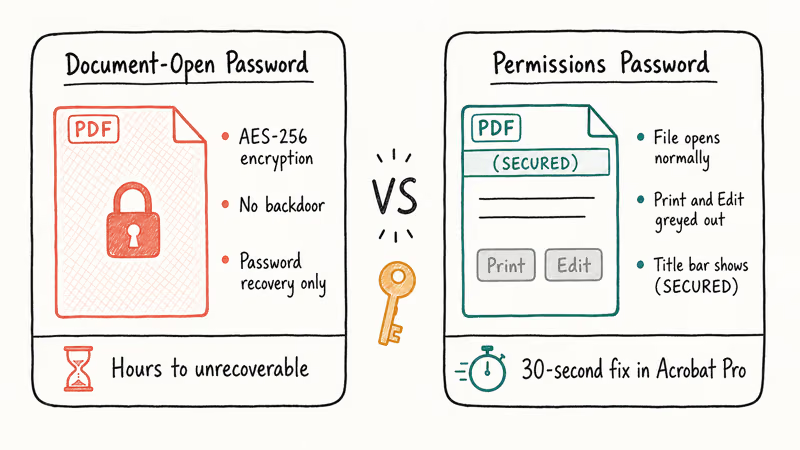
Document-open password (User password). Encrypts the whole file with AES. You can’t read, copy, or print anything without it. Adobe states that Acrobat X and later use 256-bit AES encryption with no backdoor and no reset path, which is the same trust model Adobe uses for enterprise signing. Adobe’s security documentation covers the full cryptographic stack.
Permissions password (Owner password). Lets anyone open the PDF, but restricts printing, editing, commenting, or text extraction. The file opens normally; you just see “(SECURED)” in the title bar and certain menu items greyed out.
Try to open the file. If Acrobat asks for a password before the document renders, you forgot a document-open password and only brute-force recovery works. If the file opens and you can read it but editing and printing are greyed out, you forgot a Permissions password, and removal is trivial in Acrobat Pro via Step 1 above. Most cases labelled “forgot PDF password” online are actually Permissions-password cases, where the fix is a 30-second menu click, not a cracker.
Commercial ebooks and academic PDFs often carry a third form of protection: Adobe’s DRM layer (ADEPT), which ties a PDF to your Adobe ID. DRM isn’t a password you forgot. It’s copyright protection and falls under DMCA Section 1201. If you licensed a book, handle license issues with the vendor’s support, not with a cracking tool.
#Recovering a Forgotten Document-Open Password
Only proceed if the file is yours or you have written authorization. For a document-open password on a PDF you own, recovery tools attempt passwords in sequence against your own hardware until one works.
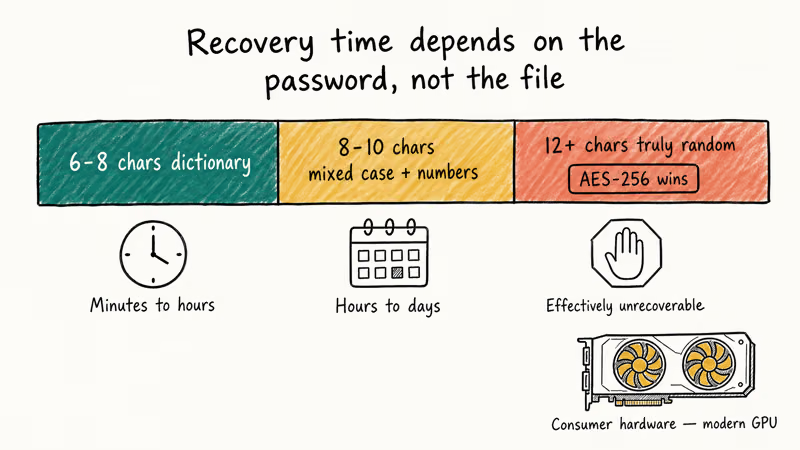
Set expectations before starting. Recovery time depends entirely on password length and character set, not on the size of the PDF.
#Recovery-time expectations
- Short or common (6-8 characters, dictionary words): usually recoverable in minutes to hours on a modern GPU
- Medium (8-10 characters, mixed case plus numbers): hours to days
- Long random (12+ characters, truly random): effectively unrecoverable with consumer hardware, so stop and restore from a backup
With a 15-character random password and no partial memory, AES-256 wins. It’s doing its job.
#PassFab for PDF
PassFab for PDF is the option most home users reach for. It runs three attack modes against a document-open password: dictionary, brute-force, and mask. The interface is the same “load file, pick attack, wait” flow across all PassFab products, so anyone who’s used PassFab for Excel or PassFab for Word will recognize the layout.
Some links on this page are affiliate links, which means fone.tips may earn a commission at no extra cost to you.
Mask attack is the feature worth calling out.
If you remember the password starts with your initials and ends with a four-digit year but forgot the middle, the mask attack lets you encode that pattern and skip billions of irrelevant guesses.
A short, all-lowercase document-open password can often be recovered by plain brute force fairly quickly, because the number of possible combinations stays small. Adding a mask that covers a known prefix cuts that time down sharply, because every character you can pin down removes a whole layer of guesses the tool would otherwise have to grind through one combination at a time.
PassFab also handles Permissions-password removal as a one-click operation, though for a Permissions password you already know the Open password, so Acrobat Pro’s built-in Remove Security is faster.
#Elcomsoft Advanced PDF Password Recovery
Elcomsoft’s Advanced PDF Password Recovery is the veteran in this space. ElcomSoft’s product page confirms the tool supports every PDF version since Acrobat 3 and handles document-open, permissions, and certificate-based encryption.
It announced GPU acceleration for NVIDIA and AMD cards in its desktop and forensic editions, which matters for multi-day brute-force runs on longer passwords. For a legacy PDF from Acrobat 4-8 still using 40-bit RC4, Elcomsoft retains the instant-decryption shortcut that newer tools have stopped shipping.
#Passware PDF Key
Passware PDF Key is Passware’s PDF-specific product. It extends the multi-GPU architecture Passware uses across its Office and archive tools.
If you already own Passware Kit for other recovery work, the PDF module slots in without a separate install. The product page lists GPU acceleration support for NVIDIA RTX and Apple Silicon machines in current releases, which matters if you’re planning multi-day brute-force runs on a long password. For a home user with a single file to recover, the free trial usually reveals enough of the password to decide whether the paid version is worth buying.
#Online password-recovery services (handle with care)
Services like Unlock-PDF.com and LostMyPass accept your .pdf over HTTPS, run it through their server-side infrastructure, and return an unlocked copy. The free tier tries a common-passwords dictionary; the paid tier runs longer brute-force attacks on their hardware. They’re faster than your laptop, and they’re also a privacy exposure most users underestimate until the file’s already uploaded.
Three risks to weigh:
- Your file sits on someone else’s servers during the attack
- Retention policies are rarely audited
- HTTPS protects transit only; their internal security takes over after that
For a PDF you made yourself with no sensitive data, an online service is fine. For anything containing personal data, financial records, client information, or regulated data like HIPAA or GDPR categories, keep the file on your own machine. The same caution applies to online ZIP password crackers if your PDF was wrapped inside a protected archive.
#Mac-Specific Recovery Options
Mac users have three practical options because several PDF recovery tools are Windows-only.
Keychain Access. If you let macOS save the password when you first opened the PDF in Preview or Acrobat, it lives in Keychain.
Open Applications > Utilities > Keychain Access, search for the file name or “Adobe Acrobat,” double-click the saved entry, tick Show password, and authenticate with your login password. This does nothing if you never told macOS to remember it.
Preview’s Export trick (Permissions-password case only). For a Permissions-password PDF where you want to export without restrictions, open the file in Preview on macOS, go to File > Export, choose PDF as the format, and save. Preview’s export process rewrites the file and often strips non-encrypted restriction flags in the process. It won’t touch a document-open password, which is real encryption.
Windows VM or loaner PC. Copy the file to a Windows machine, run PassFab for PDF or Elcomsoft there, then copy the recovered file back. Running these tools inside a Windows VM on a Mac tends to be a bit slower than native Windows on a dedicated PC, but it’s fine for a one-off recovery.
If the PDF came from a Google Drive or OneDrive copy that predates the password, rolling back to an earlier cloud version is still faster than any Mac cracker.
#How Do You Avoid Locking Yourself Out of a PDF Again?
PDF password recovery is miserable. Better hygiene is cheaper than any cracking tool.
- Use a password manager. Bitwarden, 1Password, and KeePass all store PDF passwords next to your web logins. A good habit is to create a matching password-manager entry tagged
pdf-docsfor every new protected PDF before the file closes for the first time. - Prefer file-system encryption over in-file passwords. Windows BitLocker and macOS FileVault encrypt the whole drive behind one strong passphrase. You stop juggling dozens of file-level passwords you can forget individually.
- Use cloud permissions for team PDFs. A PDF shared by Google Drive or SharePoint permission can be revoked or regranted without a password reset. A PDF locked with an in-file Open password has to be cracked if the owner leaves and forgot to share it.
- Keep a sealed paper record of high-stakes passwords. One printed copy in a locked drawer beats a 4 a.m. panic over a tax-deadline PDF.
- For signed or sensitive documents, prefer Adobe Sign or certificate-based security. Identity-based access ties a PDF to a user and can be revoked centrally when someone leaves the company.
If you’re cleaning up after a former employee who locked every PDF on a shared drive, pair a recovery tool with written authorization from HR, and audit Sejda PDF editor or Acrobat Pro as your standardization destination. Related issues often trace back to a Permissions-password restriction rather than a forgotten Open password, and they resolve in Acrobat’s Security panel without any cracking tool.
#Bottom Line
Pick the path that matches what you actually forgot.
Permissions password on your own file: open it in Acrobat Pro, go to File > Properties > Security, switch to No Security, supply the Open password you still remember, and save. Under a minute. PassFab for PDF is overkill here.
Document-open password on a PDF saved to Google Drive or OneDrive: check Version History first. Restoring a pre-password copy beats any cracker for a file that was online at the time the password was set.
Document-open password on an offline PDF you own: start with PassFab for PDF for a home user, especially if you remember partial structure (your dog’s name, a year, a suffix) and can use mask attack. Upgrade to Elcomsoft Advanced PDF Password Recovery if you have GPU hardware and a longer password to crunch.
A truly random 15-character Open password you have no partial memory of: restore from a backup. AES-256 is doing its job, and no consumer tool will finish the search in a useful timeframe.
#Frequently Asked Questions
Is it legal to recover a PDF password if I created the file myself?
Yes. PDFs you authored and own the copyright to are yours to unlock. The line moves the moment the file belongs to someone else: a coworker’s private document, a PDF you found on a drive you don’t own, or a copyrighted ebook you only licensed. On those, you need written permission from the owner, and cracking DRM on copyrighted material is a separate DMCA violation regardless of intent.
How long does PassFab for PDF take to recover a forgotten document-open password?
It depends entirely on the password, not the file. A 6-character lowercase password often finishes in under 30 minutes on a recent laptop, a 10-character mixed-case-plus-numbers password can run for days, and a 15-character random string may never finish in your lifetime on consumer hardware. Check the estimated time the tool shows after you pick an attack type, then decide whether waiting makes sense.
Can I remove a Permissions password without knowing the Open password?
Not through Acrobat. A Permissions password sits on top of a file you can already open. You need a document-open recovery tool for that case.
Is it safe to upload my PDF to an online password-removal service?
For a non-sensitive PDF from your personal machine, the risk is modest. For anything containing financial records, personal data, client information, or regulated data like HIPAA or GDPR categories, keep the file on your own computer. Once the PDF leaves your laptop you can’t recall it, and most online services don’t publish audited retention policies. The privacy tradeoff rarely makes sense for sensitive files.
What if my PDF was saved by a former employee who no longer works here?
Get written authorization first. An email from a manager or HR counts. Without it you’re stepping outside what CFAA calls authorized access even on a company device.
Recovery then follows the same flow as any other PDF you own: start with Acrobat Pro’s Remove Security if you know the Open password, fall back to Google Drive or OneDrive version history if the file was synced, and only reach for a recovery tool last. If you’re running into locked spreadsheets from the same employee, our forgot Excel password guide covers Excel, and our Word password remover covers Word.
Will recovery software damage or corrupt my PDF file?
Not if you work on a copy. Every reputable tool reads the PDF and reports back without touching the original. Keep the original sealed.
What do I do about PDFs that won’t open even with the right password?
That is almost always a broken Acrobat install or a damaged file, not a password problem. Adobe recommends repairing via Help > Repair Installation. If the file itself is damaged, ask the sender to resend. For export-related PDF workflows, our Firefox save as PDF guide covers the browser-to-PDF path that sometimes produces corrupt output.

Is This Bank App Real? Spot a Fake App on Your Home Screen
A bank app can land on your home screen from a web page with no install warning. Learn the checks that tell a real banking app from a phishing web app.

Passkeys Not Syncing Between iPhone and Windows? Read This
Passkeys not syncing between iPhone and Windows is by design, not a bug. Here is why iCloud passkeys skip Windows Hello and the three ways to fix it.

VPN Not Working on Snapdragon X? Why It Fails, How to Fix
Your VPN won't install or connect on a Snapdragon X Copilot Plus PC because Windows on ARM can't emulate the network driver. Here are the fixes that work.

How to Check If a Link Is Safe Before You Click It
Learn how to check if a link is safe with official-first steps: read the real domain, use the app instead, and treat scanners as a second opinion only.