Passkeys Not Syncing Between iPhone and Windows? Read This
Passkeys not syncing between iPhone and Windows is by design, not a bug. Here is why iCloud passkeys skip Windows Hello and the three ways to fix it.
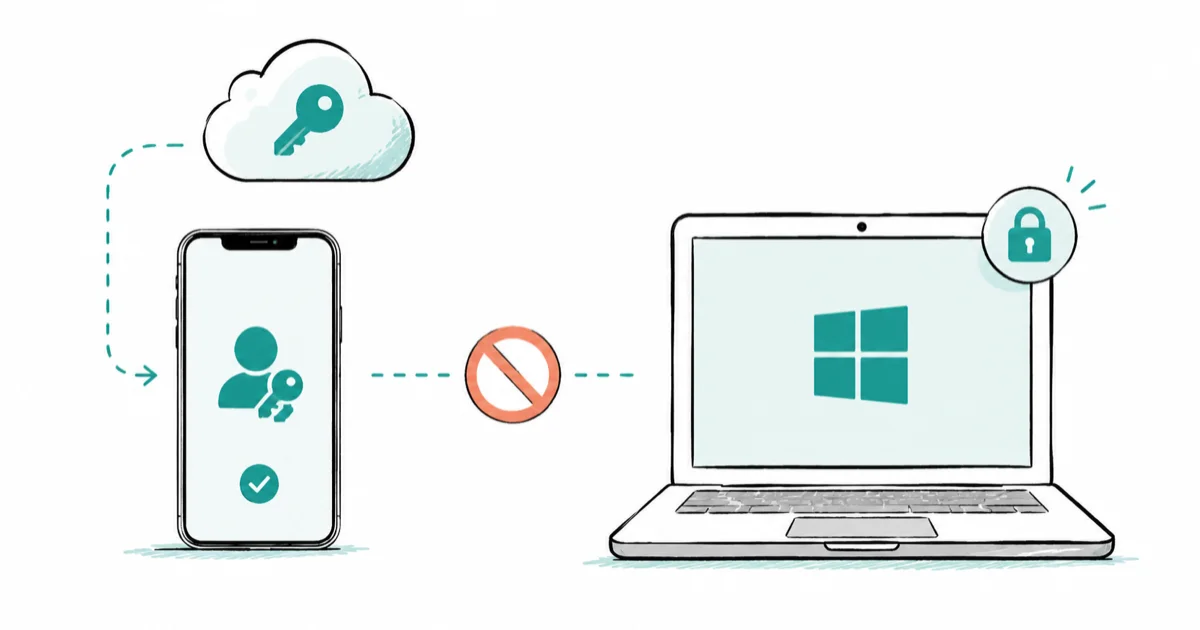
Quick AnsweriPhone passkeys never sync to Windows on their own because iCloud Keychain only syncs between Apple devices. To use them on a PC, install the iCloud Passwords app or sign in by scanning a QR code with your phone.
Passkeys not syncing between iPhone and Windows isn’t a bug. iCloud Keychain only shares passkeys between Apple devices by design, so they never land on a PC the way they hop from your iPhone to your Mac. You still have three ways to use those iPhone passkeys on Windows, and one needs no syncing at all.
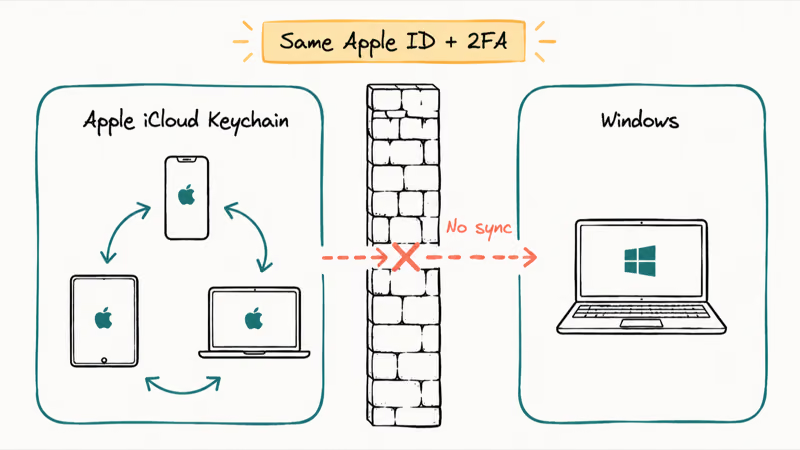
- iCloud Keychain syncs passkeys only between Apple devices signed in with the same Apple ID and two-factor authentication turned on
- Windows keeps its own separate passkey stores (Windows Hello and Microsoft Password Manager), and they never receive iCloud passkeys
- The iCloud Passwords app plus its Chrome or Edge extension is the only way to see your Apple Keychain passkeys natively on Windows
- Cross-Device Authentication lets you use an iPhone passkey on a PC by scanning a QR code, with no syncing required at all
- A cross-platform manager like 1Password or Bitwarden is the cleanest fix if you switch between iPhone and Windows daily
#iPhone vs Windows Passkey Storage at a Glance
The fastest way to understand the gap is to see where each platform keeps its passkeys and what it syncs to.
Where passkeys live on Apple devices versus Windows, and what each one syncs across.
| Storage location | Lives on | Syncs to |
|---|---|---|
| iCloud Keychain | iPhone, iPad, Mac | Other Apple devices only |
| Windows Hello | One Windows PC | Nothing (device-bound) |
| Microsoft Password Manager | Windows + Edge | Other Windows devices via Microsoft account |
| 1Password / Bitwarden | Every platform | All your devices and browsers |
The takeaway is simple. An iPhone passkey starts life in iCloud Keychain, and none of the Windows columns can reach into that vault on their own.
#Why Won’t My iPhone Passkeys Show Up on Windows?
Because iCloud Keychain was never built to leave the Apple ecosystem. When you set up a passkey on your iPhone, it syncs through iCloud Keychain to your iPad and Mac, but that sync stops at the edge of Apple’s platform. Windows runs a completely separate credential system, and the two don’t talk to each other by default, which is why nothing shows up no matter how long you wait or how many times you restart the PC.
Passwords trip people up the same way. They don’t truly sync everywhere either, but the gap is less obvious. A passkey is a cryptographic key pair locked into your device’s secure storage, so moving one takes a deliberate, encrypted handoff rather than a simple copy-paste.
According to Apple’s iCloud Keychain support page, syncing requires that you turn on iCloud Keychain on every device, sign in with the same Apple ID, and have two-factor authentication enabled. Even with all of that set, the sync still covers only Apple hardware. A Windows PC isn’t part of that mesh, so the passkey has nowhere to appear.
So stop toggling iCloud Keychain off and on hoping a PC will pick up your passkeys. That fix is for one Apple device not seeing another. It will never push a credential into Windows.
#Where Windows Actually Stores Passkeys
Windows has its own passkey vaults, and they sit completely apart from iCloud. When you create a passkey directly on a PC, Windows asks where to save it.
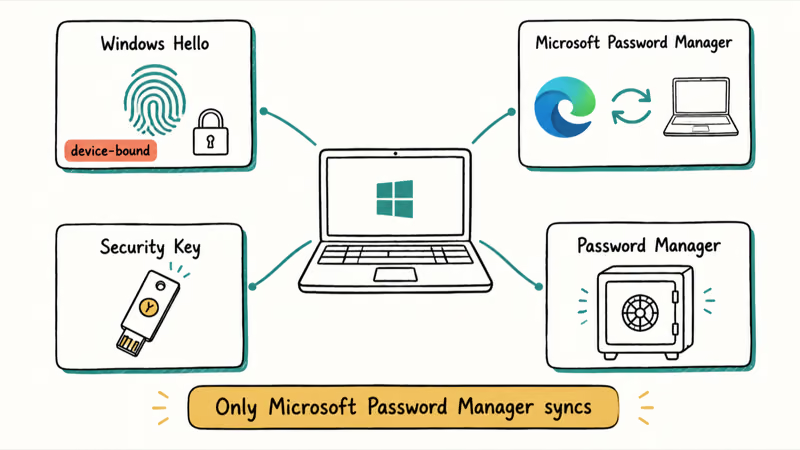
Microsoft’s guide to creating a passkey states that your choices are Windows Hello on the local device, a phone or tablet, a physical security key, or a third-party password manager. A passkey saved to Windows Hello is locked behind your face, fingerprint, or PIN, and it stays on that single machine with no automatic copy to any of your other computers unless you pick a different store.
Microsoft Password Manager is the closest Windows equivalent to iCloud Keychain. Passkeys saved there sync to your other Windows devices when you’re signed into Microsoft Edge with the same Microsoft account. It’s the mirror image of Apple, locked to its own platform.
That’s the whole problem in one line. Apple syncs to Apple, Microsoft syncs to Microsoft, and neither reaches across.
#How to Get iPhone Passkeys on Windows (3 Ways)
You have three real options, and the right one depends on whether you want the passkeys living on your PC or just usable when you need them.
#Method 1: iCloud Passwords App for Windows
This is the only native bridge Apple offers. Install iCloud for Windows from the Microsoft Store, sign in with an Apple ID that has two-factor authentication on, then turn on the Passwords and Keychain feature. Finally, add the iCloud Passwords browser extension for Chrome or Edge.
As Techlicious’s walkthrough explains, once it’s set up, the passwords and passkeys stored in your Apple Keychain on iPhone, iPad, and Mac appear in the iCloud Passwords app on your PC and stay in sync going forward. You unlock the app with your Windows biometric login or PIN, so day to day it feels a lot like the Keychain prompt you already know from your iPhone.
Here’s the honest limit. These passkeys live inside the iCloud Passwords extension, not inside Windows Hello, so the browser extension fills them only when you visit a matching site. The same credential should not be expected to appear in the standard Windows credential picker. That separation is expected, not a fault.
#Method 2: Sign In With Your iPhone (QR Code, No Sync)
This is the option people forget, and it’s the slickest one by far. You sync nothing. The passkey stays on your iPhone, and you use it on the PC only when you need it.
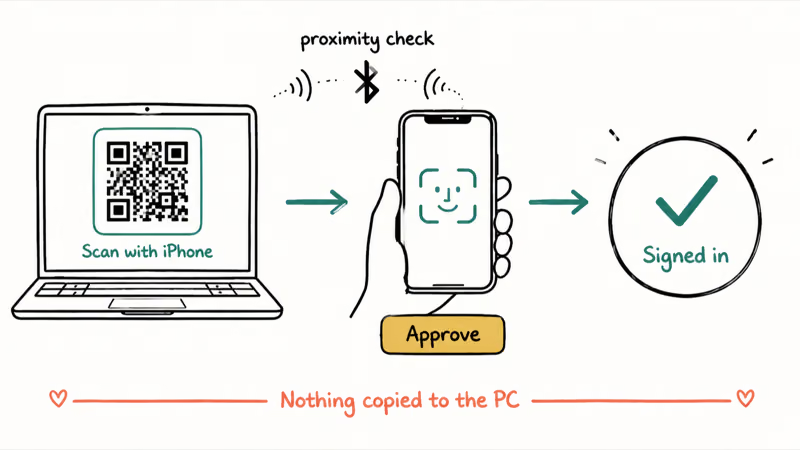
When a website asks for a passkey on Windows, choose the option to use a phone or tablet. Windows shows a QR code. Scan it with your iPhone’s camera, approve with Face ID, and you’re in. The FIDO Alliance’s passkey overview confirms that this Cross-Device Authentication flow pairs a QR code with a Bluetooth proximity check to prove your phone is physically next to the computer.
The Bluetooth step matters. It proves the two devices are in the same room, which blocks a remote attacker from tricking you into approving their login. The QR-plus-Bluetooth flow is also useful on a borrowed or locked-down Windows machine because nothing has to be copied to the PC.
The passkey never left the iPhone. That’s the whole appeal.
#Method 3: Switch to a Cross-Platform Password Manager
If you live in both worlds every day, the iCloud-versus-Windows tug-of-war gets old fast. A manager built to ignore platform borders is the durable fix. Both 1Password and Bitwarden store passkeys and sync them to iPhone, Windows, Android, and the browser, so a passkey you make on one shows up on all of them, including the passkeys you set up on an Android phone if your household mixes devices.
The trade-off is that you create passkeys inside the manager rather than in iCloud Keychain. That’s fine, because Windows treats a third-party manager as a first-class option: Microsoft’s passkey guide lists a third-party password manager right alongside Windows Hello as a place to save a new passkey. If you’re new to this, our beginner’s guide to using a password manager walks through the setup.
#How to Tell Which Fix You Need
Pick by how often you actually touch a Windows machine.
Regular PC user? Reach for the iCloud Passwords app. Once the extension is in place, your Apple passkeys fill logins in Chrome or Edge automatically. It’s the closest thing to real sync that Apple offers a PC today, and you barely think about it after setup.
Only the occasional PC? Use the QR-code sign-in. Think a library computer or a locked-down work machine. Nothing lands on it.
Living in both worlds daily? Go all-in on 1Password or Bitwarden. Moving your passkeys into a neutral manager is more upfront work, but it ends the iPhone-versus-Windows problem for good and covers every future device you add to either side.
#Will Passkeys Ever Sync Across iPhone and Windows Automatically?
Real cross-platform syncing is coming. It’s just early. The missing piece has always been a secure, standard way to move a passkey from one vault to another without dumping it into a plain text file that anyone could read, and the industry finally agreed on one.
The FIDO Alliance built exactly that. Its Credential Exchange specifications define a standard, encrypted format for transferring passwords, passkeys, and other credentials between credential managers in a way that’s secure by default. The format piece, called CXF, has reached its first published version, and the protocol piece that handles the encrypted transfer, CXP, is still being finalized across the industry.
So it’s real, but not here yet. Apple, Google, Microsoft, 1Password, and Bitwarden are all building toward it. Until that protocol ships and switches on in each app, the three methods above are how you bridge iPhone and Windows.
Want the fundamentals first? Our explainer on what passkeys are and how they work covers the basics, and our breakdown of passkeys versus passwords versus 2FA compares them on phishing resistance and recovery.
#Bottom Line
Stop fighting the sync. It will never happen.
Apple built iCloud Keychain to stay inside its own ecosystem, so an iPhone passkey reaching Windows on its own is not a feature that exists. Pick the route that matches how often you actually sit down at a PC, and the frustration disappears.
Want them living on your PC? Install the iCloud Passwords app and its browser extension. Only need them now and then? Use the QR-code sign-in with your iPhone, since it’s faster and copies nothing.
And if you bounce between iPhone and Windows all day, move your passkeys into 1Password or Bitwarden and skip the platform walls entirely.
#Frequently Asked Questions
Why are my passkeys not syncing from iPhone to Windows?
They aren’t supposed to. iCloud Keychain syncs passkeys only between Apple devices on the same Apple ID with two-factor authentication on. Windows isn’t part of that sync, so the credentials never appear there automatically. You need the iCloud Passwords app or a cross-platform manager to bridge the gap.
Does the iCloud Passwords app for Windows include passkeys or just passwords?
Both. Once iCloud for Windows and the Chrome or Edge extension are set up, your Apple Keychain passwords and passkeys appear in the app and keep syncing, filling through the extension rather than Windows Hello.
Can I use an iPhone passkey on a Windows PC without syncing anything?
Yes, and it’s the easiest route. When a site asks for a passkey on Windows, pick the phone option, scan the QR code with your iPhone, and approve with Face ID. A Bluetooth proximity check confirms your phone is nearby, and the passkey stays on your iPhone the whole time.
Why does Windows ask where to save a passkey when I create one?
Because Windows supports several passkey stores. You can save to Windows Hello on that device, to a phone or tablet, to a security key, or to a third-party password manager. Each lives in a different place, which is exactly why an iPhone passkey and a Windows Hello passkey don’t share a single vault.
Is it safe to keep passkeys in 1Password or Bitwarden instead of iCloud Keychain?
Yes, and it’s often more convenient across platforms. Both managers encrypt your passkeys end to end and sync them everywhere, including iPhone, Windows, Android, and your browser. The one real difference is that you create the passkey inside the manager rather than in iCloud, so it’s no longer chained to a single ecosystem and follows you if you ever switch phones or laptops.
Will the FIDO passkey transfer standard fix syncing between Apple and Windows?
Eventually, yes. The FIDO Credential Exchange standard defines an encrypted format for moving passkeys between credential managers, and the format version has already been published. The transfer protocol is still being finalized, so until each platform ships and enables it, you’ll still rely on the iCloud Passwords app, QR sign-in, or a cross-platform manager.

Is This Bank App Real? Spot a Fake App on Your Home Screen
A bank app can land on your home screen from a web page with no install warning. Learn the checks that tell a real banking app from a phishing web app.

VPN Not Working on Snapdragon X? Why It Fails, How to Fix
Your VPN won't install or connect on a Snapdragon X Copilot Plus PC because Windows on ARM can't emulate the network driver. Here are the fixes that work.

How to Check If a Link Is Safe Before You Click It
Learn how to check if a link is safe with official-first steps: read the real domain, use the app instead, and treat scanners as a second opinion only.
How to Protect Yourself From Smishing Text Scams Now
How to protect yourself from smishing: verify through the official app, report texts to 7726, and lock down accounts fast if you already tapped a link.