How to Use a Password Manager: The Beginner's Guide
Start using a password manager the safe way: pick one, set a strong master password, import your logins, generate unique passwords, and use autofill.
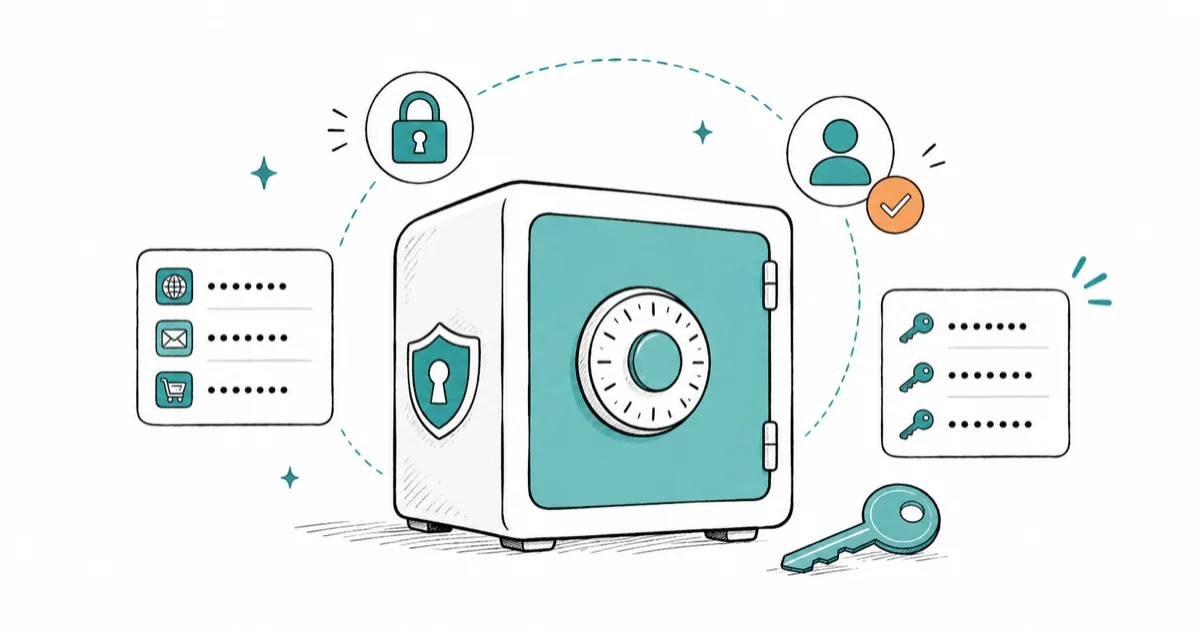
Quick AnswerChoose a reputable password manager, create one strong master password you never reuse, and import your logins. Let it generate and autofill a unique password for every account.
A password manager stores all your logins in one encrypted vault, so you memorize a single master password. It fills the rest and generates a unique password for every account. If you reuse passwords, switching is the biggest upgrade you can make to your own security.
- A password manager keeps every login in one encrypted vault behind a single master password.
- The master password is the one thing you must memorize, and it usually can’t be recovered.
- A built-in option from your phone or browser is a safe, free place to start.
- Let the manager generate and autofill a unique password for each account.
- Protect the vault itself with two-step verification and save your recovery options.
#What Does a Password Manager Actually Do?
It removes the impossible job of remembering dozens of strong passwords. A password manager keeps your logins in an encrypted vault and unlocks them with one master password.
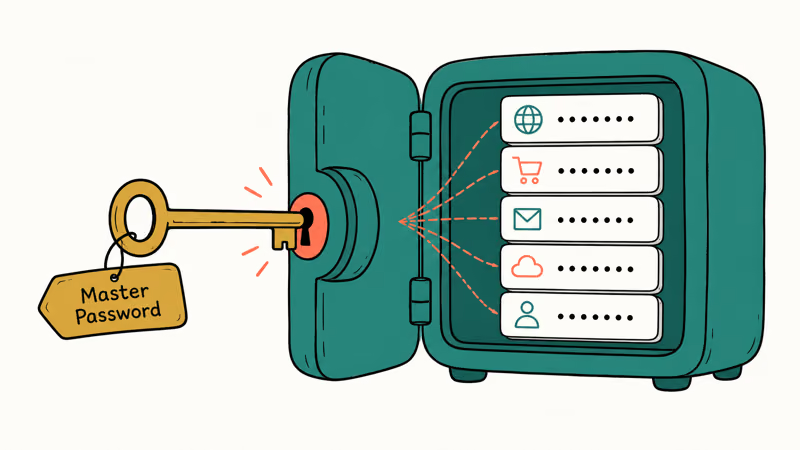
That swap is the whole win.
Instead of reusing one memorable password everywhere, a habit that turns a single breach into a chain reaction, you let the manager hold a different strong password for each site. Apple’s Passwords app guide confirms that iCloud Keychain syncs your saved passwords and passkeys across your iPhone, iPad, and Mac. If a breach scare brought you here, our guide to checking for a data breach is a good companion read.
#Choosing One and Creating a Strong Master Password
You don’t need to overthink the pick. The password manager built into your phone or browser is reputable and free, and a dedicated third-party app adds cross-platform syncing if you mix devices.
The master password matters far more than the brand.
Make it long, unique, and memorable to you alone, since it’s the one key that opens everything. A passphrase of several unrelated words is easy to recall and hard to crack. The US agency CISA recommends using a password manager so every account gets a long, unique password rather than a recycled one.
#How Do You Import and Organize Your Logins?
Most managers import in a couple of clicks. They can pull saved passwords straight from your browser, so you’re not retyping years of logins by hand.
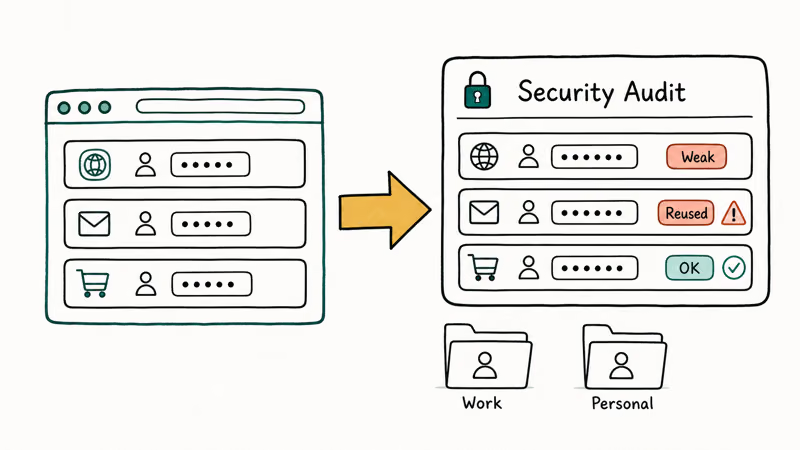
Run the import first, then review.
After import, most managers run a security audit that flags reused and weak passwords; that audit becomes the cleanup list. Work through that list a few at a time, replacing the worst offenders, and your overall security climbs fast. Organizing logins into folders, like work and personal, makes the vault easier to live in long term.
#Generating Unique Passwords and Using Autofill
This is where the daily effort drops to almost nothing. When you sign up for something new, the manager offers to generate a long random password and saves it automatically.
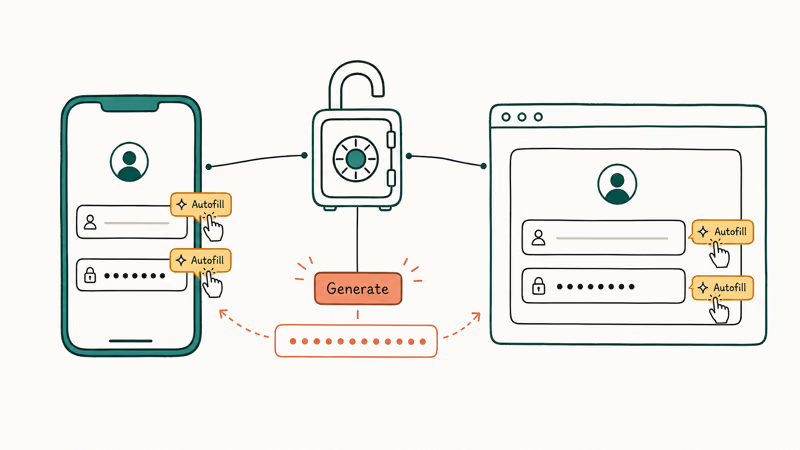
Autofill handles the rest.
On your phone and in your browser, the manager fills your username and password with a tap once you unlock the vault, so you never type or even see most passwords. Enable autofill in the device settings so the manager can fill logins across the browser and mobile app without copy-pasting. The result is unique passwords everywhere with less effort than reusing one.
#Recovery If You Forget the Master Password
Here’s the trade-off to understand upfront: a strong master password usually can’t be recovered if you forget it. That’s by design, since a recoverable master password would be a backdoor.
So plan recovery before you need it.
Many managers offer an emergency kit, a recovery code, or a trusted-contact option, and built-in OS managers tie recovery to your device account. Set whichever your manager provides and store it somewhere safe and offline. If you rely on an authenticator alongside this, our guide to moving your authenticator covers a device switch without losing access.
#Protecting the Vault and Staying Safe
The vault is now your single most valuable target, so guard it well. The UK’s NCSC password manager guidance states that you should protect the manager itself with 2-step verification, not just a master password.
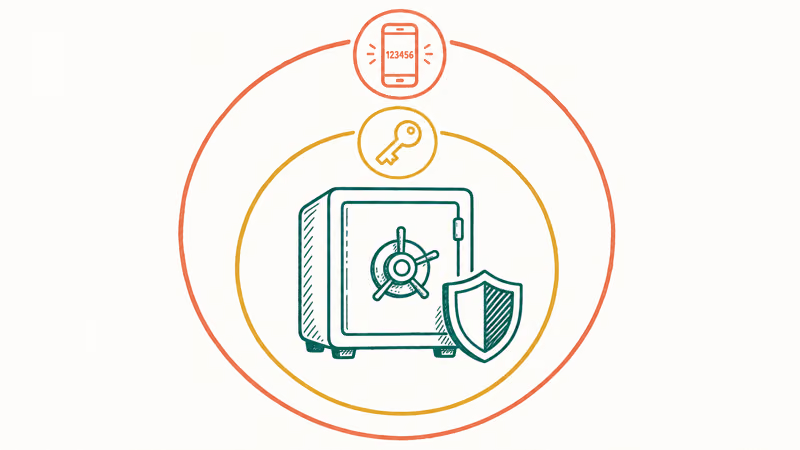
Pair the vault with a strong second factor from a trusted authenticator app, and it becomes very hard to breach with two-step verification in place.
A couple of habits round it out: never save passwords in a browser on a shared or public computer, and treat passkeys as an upgrade where a service offers them, since our explainer on passkeys vs passwords shows why. One boundary worth stating plainly: a password manager is for your own accounts, and using one to access logins that aren’t yours is illegal and a serious privacy violation.
#Bottom Line
A password manager is the single biggest upgrade most people can make to their online security, and a built-in option from your phone or browser is a perfectly safe place to start. Put your effort into one strong, unique master password and a recovery plan, then let the manager generate and autofill everything else. Protect the vault with two-step verification, and you’ve closed the gap that reused passwords leave wide open.
#Frequently Asked Questions
Is it really safe to store all my passwords in one place?
Yes, when the vault is encrypted and protected by a strong master password plus two-step verification. The alternative, reusing a handful of passwords across sites, is far riskier, because one breach exposes everything at once.
How do I create a strong master password?
Make it long, unique, and something only you would know. A passphrase built from several unrelated words is both easy to remember and hard to crack, and it beats a short, complex string. Never reuse it on any other account, since it’s the one key that unlocks your entire vault, and avoid anything guessable like names or birthdays.
What happens if I forget my master password?
Usually you can’t recover it, by design. Set up recovery ahead of time: an emergency kit, a recovery code, or a trusted contact. Built-in managers tie recovery to your device account.
Can I use my phone or browser’s built-in password manager?
Absolutely. The managers built into iOS, Android, Chrome, and Safari are reputable, free, and a great starting point. They sync across your own devices and autofill just like a paid app. A dedicated third-party manager mainly adds value if you mix ecosystems, say an iPhone with a Windows PC, and want one vault across all of them.
How do I import passwords I already saved in my browser?
Open your new manager’s import tool and point it at your browser. It pulls in your saved logins in a couple of clicks, then usually runs a security check that flags weak or reused passwords for you to fix.
Should I protect my password manager with 2FA?
Definitely. Adding two-step verification to the manager itself means that even if someone learns your master password, they still can’t open the vault without the second factor. It’s the most important setting to enable right after you finish setup.

Is This Bank App Real? Spot a Fake App on Your Home Screen
A bank app can land on your home screen from a web page with no install warning. Learn the checks that tell a real banking app from a phishing web app.

Passkeys Not Syncing Between iPhone and Windows? Read This
Passkeys not syncing between iPhone and Windows is by design, not a bug. Here is why iCloud passkeys skip Windows Hello and the three ways to fix it.

VPN Not Working on Snapdragon X? Why It Fails, How to Fix
Your VPN won't install or connect on a Snapdragon X Copilot Plus PC because Windows on ARM can't emulate the network driver. Here are the fixes that work.

How to Check If a Link Is Safe Before You Click It
Learn how to check if a link is safe with official-first steps: read the real domain, use the app instead, and treat scanners as a second opinion only.