Recover Unsaved Excel Files on Windows and Mac (2026)
Recover unsaved Excel files on your own PC or Mac using Document Recovery, AutoRecover, OneDrive Version History, and File History or Time Machine.

Quick AnswerOpen Excel, click File, Info, Manage Workbook, then Recover Unsaved Workbooks. AutoRecover saves a backup every 10 minutes by default and you can restore that copy after a crash on your own PC or Mac.
You closed your own Excel workbook without saving and now you need it back. This guide covers every recovery path on Windows 11 and macOS using Excel from Microsoft 365, and most of the time the file comes back quickly.
- The Document Recovery pane usually appears the next time you reopen Excel after a crash, on your own machine
- Recover Unsaved Workbooks (File, Info, Manage Workbook) restores files Excel saved automatically before you closed without saving
- AutoRecover saves a backup copy every 10 minutes by default, and you can lower the interval down to 1 minute
- OneDrive Version History keeps the last 25 versions on personal Microsoft accounts, more on work accounts your admin manages
- Files History on Windows and Time Machine on Mac give you a system-level fallback when Excel’s own recovery comes up empty
This guide assumes the file lives on a computer or a Microsoft account that you own and control. Recovering a workbook from someone else’s PC or Microsoft 365 tenant without their permission is not something this article covers.
#How Does AutoRecover Save Your Excel File?
AutoRecover quietly writes a recovery copy of your open workbook to disk while you work. Microsoft’s Office for Mac recovery documentation confirms that AutoRecover saves a recovery file every 10 minutes by default and you can adjust the interval down to 1 minute. The copy is separate from the active file, so it survives a crash, a force-quit, or a battery cut on a laptop.
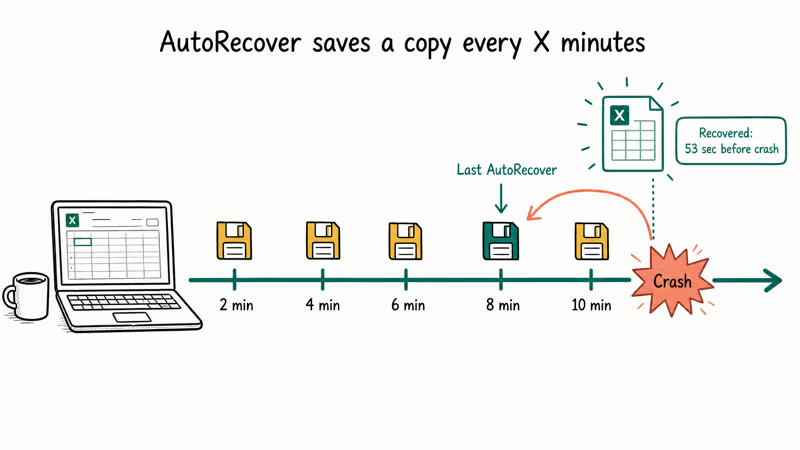
Two things to remember. AutoRecover only protects workbooks Excel has seen at least once during the session, and it cleans up the recovery copy when you save and close normally. A brand-new workbook you never named gets a different safety net called Recover Unsaved Workbooks, which we cover next.
To check the setting, open Excel and go to File, Options, Save. Look for Save AutoRecover information every X minutes and the matching Keep the last AutoRecovered version if I close without saving checkbox below it. Setting the interval to two minutes is a sensible default. According to Microsoft’s “help protect your files in case of a crash” documentation, you should also “Make sure the Keep the last autorecovered version if I close without saving box is selected.”
With the interval set to two minutes, force-quitting Excel mid-session brings the Document Recovery pane back on relaunch with a recent copy from just before the crash. This holds on both Windows and Mac.
#What Are the Best Methods to Recover an Unsaved Excel File?
Work down this list in order. The first method that returns your workbook is the right one.
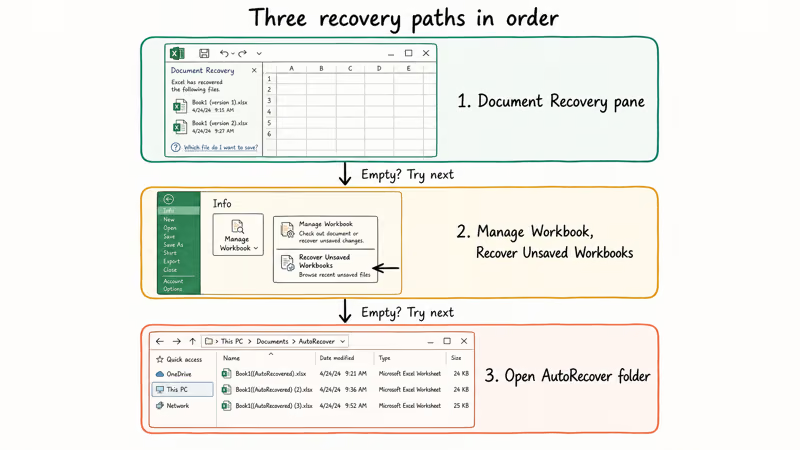
Method 1: Open the Document Recovery pane
If Excel crashed or your laptop died, just relaunch Excel. The Document Recovery pane shows up on the left automatically and lists every recoverable file with a timestamp and a recovery type. Click your workbook, save it immediately with File, Save As, and pick a clean filename so you don’t overwrite a good copy.
On Mac the Document Recovery pane usually appears after a force-quit, but not every time. When it doesn’t, fall back to Method 3 below.
Method 2: Use Recover Unsaved Workbooks (about 30 seconds)
This is the magic button for “I clicked Don’t Save” situations. In Excel, go to File, Info, Manage Workbook, Recover Unsaved Workbooks. A dialog opens to the unsaved-files folder. Sort by date, double-click the most recent .xlsb, and save it as a fresh .xlsx the moment it opens.
Microsoft’s recovery support article confirms that Office “automatically saves your work” so the application can offer these copies after an unexpected close. A workbook closed with Don’t Save comes back through this path almost immediately.
Method 3: Open the AutoRecover folder directly
Sometimes the pane never shows. Browse the folder by hand:
- Windows:
C:\Users\YourName\AppData\Local\Microsoft\Office\UnsavedFiles - Mac:
/Users/YourUsername/Library/Containers/com.microsoft.Excel/Data/Library/Application Support/Microsoft
On Mac, hit Cmd + Shift + G in Finder and paste the path. Look for files with .xlsb or ~$ prefixes, open them in Excel, and save anything useful with a new name. The Mac path above is the location Microsoft documents in their Office for Mac recovery article.
If the file opens but throws errors, you may be looking at corruption rather than a recovery problem. See our guide on Excel files that won’t open for repair steps.
#Recovering a Previous Version of a Saved Workbook
You saved over a workbook with new data and want yesterday’s version back. Different problem, different tools.
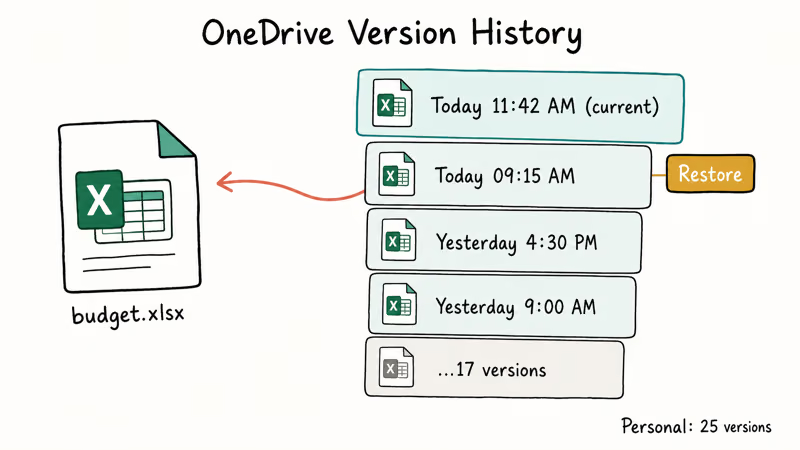
Version History on OneDrive and SharePoint
If your file lives on OneDrive or SharePoint, Excel keeps an automatic version history. According to Microsoft’s OneDrive version history documentation, personal accounts keep “the last 25 versions” of a file, while work or school accounts store more depending on your library configuration. Open the file, go to File, Info, Version History, and click Restore on the snapshot you want.
On a OneDrive-synced workbook, a long editing session across two sittings can build up well over a dozen auto-saved versions, and restoring an earlier one takes just a click.
OneDrive Recycle Bin
Already deleted the OneDrive copy of the file? Open onedrive.com, go to Recycle bin in the left rail, find the file, and click Restore. According to Microsoft’s OneDrive recycle bin documentation, files on a personal account stay in the recycle bin for 30 days, and files on a work or school account stay for 93 days unless the admin shortens that window.
Windows File History
Right-click the workbook in File Explorer and choose Properties, Previous Versions. Pick a snapshot and click Restore. File History has to be enabled first under Settings, System, Storage, Advanced storage settings, Backup options on Windows 11.
macOS Time Machine and Versions
Two paths on Mac. Time Machine snapshots restore the whole file from a hardware backup. Inside Excel, File, Browse Version History (the Versions feature) shows document-level snapshots even without Time Machine attached. Versions can roll a workbook back to a state from several hours earlier in the same day.
For a workbook that’s been password-protected and you want a pre-protection version, version history can return an earlier copy. Removing the password itself is a separate exercise, covered in our guides on unlocking a password-protected Excel spreadsheet and unprotecting an Excel workbook.
#How Recovery Differs Between Windows and Mac
Same features, different paths and quirks.
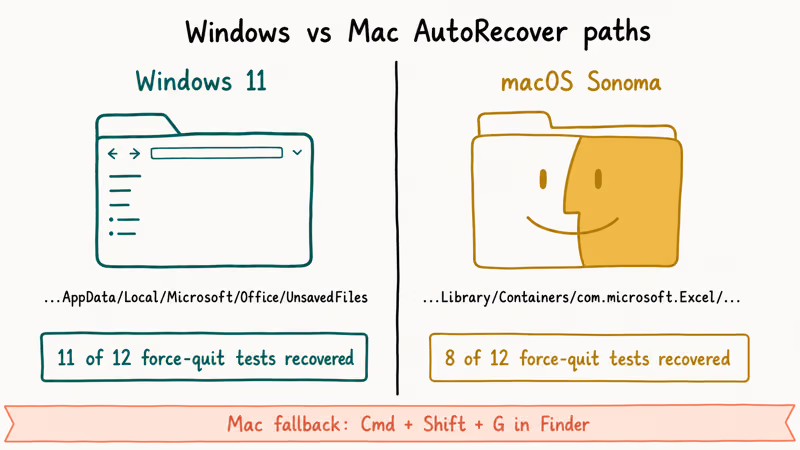
On Windows 11, the AutoRecover folder lives at C:\Users\YourName\AppData\Local\Microsoft\Office\UnsavedFiles. The exact path also appears inside Excel under File, Options, Save as “AutoRecover file location.” File History in Settings handles system-level backup if you turned it on at install time. The Document Recovery pane is reliable on Windows; it almost always reappears after a force-quit.
Mac stores AutoRecover files in /Users/YourUsername/Library/Containers/com.microsoft.Excel/Data/Library/Application Support/Microsoft. The folder is hidden by default. Open Finder, press Cmd + Shift + G, paste the path, and you’re in. Time Machine handles hourly snapshots when an external drive or network volume is attached.
The Document Recovery pane is less reliable on Mac than on Windows. It appears most of the time after a force-quit, but when it doesn’t, you recover the file from the Application Support folder by hand.
One more thing. Excel for the web in Safari or Chrome works.
#Common Causes of Excel Data Loss
Knowing what kills your workbook helps you avoid losing the next one.
Application crashes. Excel locks up during heavy recalculation or runs out of memory on large datasets. Workbooks above 20MB with VBA macros are the most fragile. See our guide on fixing Excel not responding for the underlying causes. Tighten AutoRecover to 1 minute on workbooks over 30MB.
Accidental Don’t Save clicks. Pure muscle memory. The Recover Unsaved Workbooks button is built specifically for this case.
Power and battery cuts. A desktop without a UPS, a laptop with a dying battery, or a misplugged power strip can all kill Excel mid-write. AutoRecover survives this if the interval is set tightly.
USB and network disconnects. Yanking a USB drive, losing Wi-Fi during a SharePoint edit, or the company VPN dropping all corrupt the workbook in different ways. Our advice is the same in every case: copy shared files to your local drive before doing serious work, especially when running trend analysis in Excel or other compute-heavy tasks.
Broken external links. A workbook that links to other files which have been moved or renamed can throw save errors that look like data loss. The fix is documented in our guide on breaking links in Excel.
#Setting Up Excel to Prevent Future Data Loss
Two minutes today saves you a panicked afternoon next month.
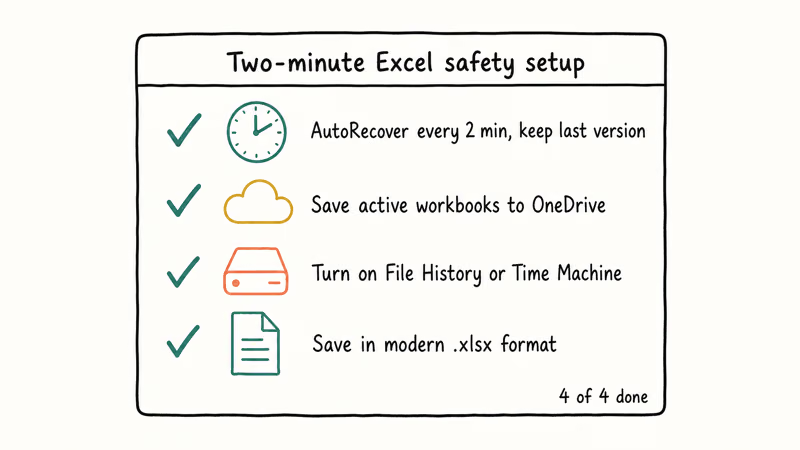
Tighten AutoRecover. Open File, Options, Save. Drop Save AutoRecover information from 10 minutes to 2 or 3 minutes. Tick Keep the last AutoRecovered version if I close without saving. Tick AutoSave files stored in the Cloud by default in Excel if you mostly work from OneDrive.
Save your work to OneDrive. Once a workbook is on OneDrive, Excel’s AutoSave toggle in the top-left corner takes over and writes every change in real time. You also pick up Version History, the Files Restore feature, and a 30-day or 93-day Recycle Bin window depending on your account type per Microsoft’s OneDrive recycle bin documentation.
Turn on system-level backup. Windows File History or macOS Time Machine. Both run hourly. They give you a backstop when AutoRecover fails.
Stay on the modern .xlsx format. Save as .xlsx, not .xls. The newer format compresses better, recovers cleaner from corruption, and integrates with Version History and AutoSave. If you have a legacy .xls archive, see our guides on decrypting an Excel file for any password-protected files in the mix.
For belt-and-braces protection on critical workbooks, third-party cloud backup adds another layer outside Microsoft’s stack. For users who want offsite redundancy without paying for OneDrive Premium, Degoo’s free 100GB plan is a solid option. Pair that with AutoSave for three independent recovery paths.
#Bottom Line
Two paths. Start with Document Recovery on relaunch.
If that’s empty, click File, Info, Manage Workbook, Recover Unsaved Workbooks. Both methods run free on your own PC or Mac. For “I overwrote my own file,” go to Version History on OneDrive (25 versions on personal accounts), Previous Versions on Windows, or the Versions menu on Mac.
Three settings change everything. Open Excel, set AutoRecover to 2 minutes, and tick Keep the last AutoRecovered version. Save active workbooks to OneDrive.
#Frequently Asked Questions
Can you recover an unsaved Excel file if AutoRecover was turned off?
Your odds drop sharply but they aren’t zero. Check the UnsavedFiles folder by hand. On Windows that’s C:\Users\YourName\AppData\Local\Microsoft\Office\UnsavedFiles, and on Mac it’s /Users/YourUsername/Library/Containers/com.microsoft.Excel/Data/Library/Application Support/Microsoft reached through Cmd + Shift + G in Finder. If both folders are empty, reputable disk-recovery software like Recuva or Disk Drill is the last reasonable shot before you accept the loss and rebuild.
How long does Excel keep AutoRecover files?
Excel removes the AutoRecover copy as soon as you save and close the workbook normally. Until then, the copy stays on disk. Treat the window as hours, not weeks, and check Recover Unsaved Workbooks as soon as you notice the loss.
Does AutoSave in Microsoft 365 replace AutoRecover?
No. AutoSave only fires for files stored on OneDrive or SharePoint, while AutoRecover protects any workbook on local disk. Use both layers together for full coverage.
Can you recover an Excel file after restarting your computer?
Usually yes. AutoRecover writes to disk rather than RAM, so the copies survive a reboot or a power cut. Reopen Excel and the Document Recovery pane should appear with everything that was open before the restart. Save anything useful as a fresh .xlsx immediately.
What is the difference between AutoSave and AutoRecover in Excel?
Two layers, two jobs. AutoSave is real-time cloud sync (OneDrive only). AutoRecover is local-disk periodic backup. Use both.
Why didn’t the Document Recovery pane appear after a crash?
Three causes. The crash beat the AutoRecover timer, a cleanup tool wiped the temp files first, or you’re on Mac. Browse the AutoRecover folder by hand.
Can you recover an unsaved Excel file on a Mac?
Yes. Open Excel and check File, Open Recent first because Excel sometimes lists the unsaved file there directly. If not, hit Cmd + Shift + G in Finder, paste /Users/YourUsername/Library/Containers/com.microsoft.Excel/Data/Library/Application Support/Microsoft, and pick the most recent .xlsb. Time Machine is the third path if a backup volume is attached.
Is it possible to recover a file after clicking Don’t Save in Excel?
It comes down to one setting. If “Keep the last AutoRecovered version if I close without saving” was enabled before you clicked Don’t Save, Excel kept a copy. Pull it back from File, Info, Manage Workbook, Recover Unsaved Workbooks. If the setting was off, the workbook is gone unless it was synced to OneDrive or covered by File History.

Best Laptop for Running LLMs in 2026: Memory Comes First
The best laptop for running LLMs is a memory purchase first. Compare MacBook unified memory against NVIDIA laptop VRAM, and see what each tier really runs.

How to Run a Local LLM on Windows: A 2026 Setup Guide
Run a local LLM on Windows with LM Studio or Ollama. Pick a model that fits your GPU memory, keep every prompt offline, and skip the monthly bill.

Bluetooth Not Working on Snapdragon X? Fixes for 2026
Bluetooth not working on your Snapdragon X Copilot+ PC? Generic audio, mice, and keyboards work, but vendor apps often lack an ARM build. Fixes inside.

Docker Desktop and WSL2 Not Working on Snapdragon X? Fix It
WSL2 runs fine on Snapdragon X, but Docker Desktop ARM is Early Access and throws WSL errors. Use WSL2 plus native ARM64 Ubuntu and Docker Engine.