How to Unprotect an Excel Workbook You Own (2026 Guide)
Forgot the password on your own Excel workbook? Here's how to unprotect sheets and the workbook structure on Windows and Mac, plus when each method works.

Quick AnswerTo unprotect your own Excel workbook, open the file in Excel, go to the Review tab, and click Unprotect Sheet or Unprotect Workbook. Enter the password you originally set. If you forgot the password, use the XML method for sheet or structure protection, or a reputable recovery tool for a forgotten file-open password.
Unprotecting an Excel workbook you own usually takes under a minute when you remember the password. The Review tab in Excel has built-in Unprotect Sheet and Unprotect Workbook buttons that handle both sheet locks and workbook-structure locks. The harder case is a workbook where you set a password months ago and now can’t recall it, which is what this guide covers in detail.
Before going further, one ground rule: use these methods only on workbooks stored on your own computer or account, or with explicit permission from the owner. Bypassing protection on a workbook you don’t own, including spreadsheets sold or licensed by another party, can violate Microsoft’s terms and local computer-fraud laws. Stick to your own files.
- Excel has three separate lock types: sheet protection, workbook structure protection, and file-open password. Each one needs a different unlock method.
- Sheet protection and workbook structure protection are not encryption. You can remove them by editing the workbook’s XML inside the .xlsx zip container.
- A file-open password (set under
File>Info>Protect Workbook>Encryptwith Password) is real AES-256 encryption since Excel 2016 and can’t be removed by editing XML. - Excel for Mac and Excel for Windows use the same .xlsx format, so the XML method works the same on both, but you’ll need a third-party archiver like Keka or The Unarchiver on macOS.
- For a forgotten file-open password on your own workbook, a dedicated recovery tool like PassFab for Excel runs dictionary, mask, and brute-force attacks locally without uploading your file.
#What Are the Three Types of Excel Protection?
Excel uses three different protection mechanisms, and people regularly confuse them. Knowing which one you set is half the battle, because each one comes off differently.
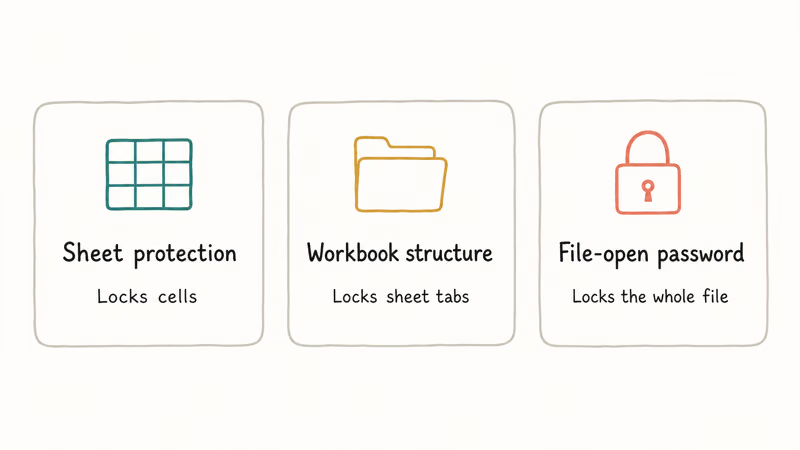
Sheet protection locks individual cells inside one worksheet. You set it through Review > Protect Sheet, and it stops anyone from editing cells, sorting, or running macros on that tab. According to Microsoft’s Excel sheet-protection documentation, this lock is designed to prevent accidental edits, not to secure confidential data. The password is hashed but the file itself is not encrypted.
Workbook structure protection locks layout changes like adding, deleting, renaming, and hiding sheets. Microsoft’s workbook protection page confirms that it changes UI permissions, not file content.
File-open password is the real lockdown. You set it through File > Info > Protect Workbook > Encrypt with Password. Microsoft’s Office encryption page states that Excel 2016 and later encrypt Open XML files with AES-256 by default, which means there’s no XML trick and no skeleton key. Either you have the password or you run a recovery attack against the file.
The XML method removes sheet and structure protection in seconds on a modern Excel 365 file, but it does nothing against a file encrypted with the Encrypt with Password option, which is exactly what Microsoft documents.
#How Do You Unprotect a Sheet When You Remember the Password?
This is the easy case. If you set the password yourself and still remember it, you don’t need any tools beyond Excel.
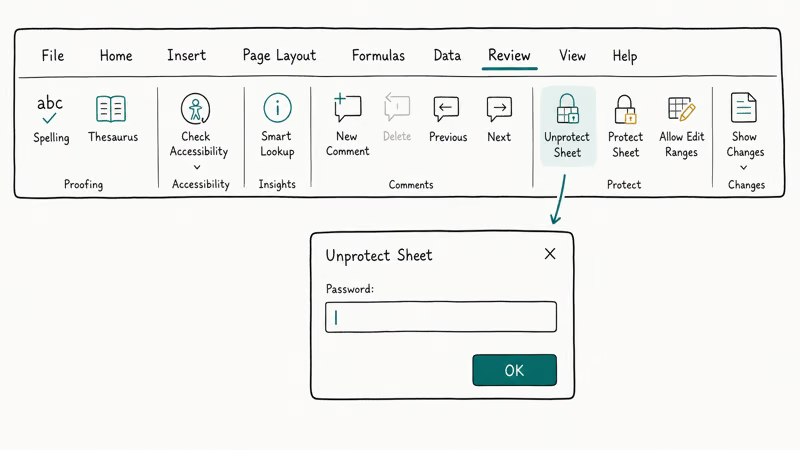
- Open the file in Excel.
- Click the Review tab in the ribbon.
- Click Unprotect Sheet (for a single worksheet) or Unprotect Workbook (for structure locks).
- Type your password and press OK.
That’s it. The lock is removed and you can save the workbook clean.
On Excel for Mac the ribbon layout is identical, and the Review > Unprotect Sheet flow is just as fast as on Windows. If you have multiple protected tabs, you’ll need to unprotect each one separately.
If Excel rejects the password, check Caps Lock and your keyboard layout first. Microsoft Support recommends typing the password into a plain text editor to confirm what you’re actually entering.
#Method 1: Remove Sheet or Structure Protection Using the XML Method
Because sheet protection and workbook structure protection are not encryption, you can strip them out by editing the workbook’s internal XML. An .xlsx file is just a zip archive with XML files inside. This method works on your own files when you’ve forgotten the sheet password but the file itself still opens.
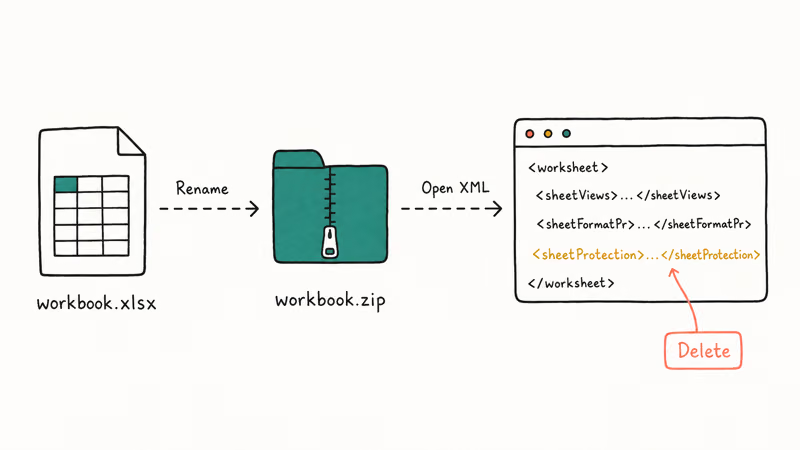
What you need: any archiver that handles zip files. On Windows that’s 7-Zip (free, from 7-zip.org). On macOS, Keka or The Unarchiver both work.
Steps:
- Make a copy of your .xlsx file before doing anything. Call it
workbook-backup.xlsx. If a step goes wrong, you’ll be glad you did. - Rename the copy from
.xlsxto.zip. Windows may warn you about changing the extension. Confirm yes. - Right-click the .zip and choose Open With > 7-Zip (or your archiver of choice). Don’t extract everything. Just browse inside.
- To remove sheet protection, go to the
xl/worksheets/folder. You’ll seesheet1.xml,sheet2.xml, and so on, one per tab. - Open the relevant sheet XML in a text editor (Notepad, BBEdit, VS Code). Search for the tag
<sheetProtection. It looks like<sheetProtection algorithmName="SHA-512" hashValue="..." saltValue="..." spinCount="100000" sheet="1"/>. - Delete the entire
<sheetProtection ... />tag, including the closing slash. - Save the XML file. Your archiver will ask whether to update the file inside the archive. Confirm yes.
- To remove workbook structure protection instead, follow the same procedure but edit
xl/workbook.xmland delete the<workbookProtection .../>tag. - Close the archiver. Rename the file back from
.zipto.xlsx. - Open it in Excel. The lock is gone.
The XML edit takes a couple of minutes end to end, including the rename. The workbook then opens normally with all formulas intact and the Protect Sheet flags removed from every tab.
Warning: deleting anything more than the <sheetProtection/> tag corrupts the worksheet. Cut precisely. The XML method needs .xlsx, not .xlsb or .xls.
#Method 2: Recover a Forgotten File-Open Password With a Recovery Tool
The XML trick covers sheet and structure locks but does nothing against the File > Info > Encrypt with Password lock, because that one actually encrypts the file contents with AES-256. If Excel asks for a password before it even shows you the worksheets, you’re up against full-strength encryption rather than a hashed UI lock, and you need a dedicated recovery tool to run an attack against the file.
PassFab for Excel is the most-used tool in this space for personal use. It runs entirely on your computer, which matters if the workbook contains sensitive data you don’t want to upload to a stranger’s server. The trade-off is time: brute-forcing a long random password can take days or weeks depending on your CPU and GPU.
Some links on this page are affiliate links, which means fone.tips may earn a commission at no extra cost to you.
It has three attack modes worth understanding:
- Dictionary attack: tries words and common phrases from a list. Fastest mode. Works well if your password was based on a real word or a phrase you might recognize.
- Brute-force with mask: lets you specify what you remember about the password (length, starting letter, whether it had numbers). Massively narrows the search space.
- Brute-force: tries every possible combination. Use only when you have no clues, and expect long runtimes.
On a workbook with a 6-character lowercase password, the dictionary attack can find it quickly on a modern machine. With a mask of “starts with capital, 8 characters total, contains 1 digit”, brute force takes noticeably longer. With no clues at all, an 8-character mixed-case password is a multi-day job even on fast hardware.
Two things to know before using any recovery tool:
- Use only on workbooks you own or have permission to unlock. Microsoft’s Acceptable Use policy covers this directly. So does U.S. federal law under the Computer Fraud and Abuse Act.
- Skip “free online” services for sensitive data. They upload your file to a third-party server you don’t control. If the workbook has client lists, financial records, or anything regulated, recover the password offline.
If your situation is broader than just one workbook, our roundup of Excel password breakers compares several offline tools side by side. For a curated list focused on browser-based options, see best Excel password removers online.
#When the File Won’t Open in Excel
Sometimes the issue isn’t protection. Sometimes Excel itself refuses to open the file. That’s a different problem with different fixes.
If the file opens in Excel for Mac but throws an error on Windows (or vice versa), check our guide on what to do when an Excel file is not opening. If you can see the file but Excel says it’s locked by another user even when no one else is in it, the Excel file locked for editing walkthrough covers the owner-lock and shared-workbook causes.
If you opened the file, hit a crash before saving, and now want the prior state back, the recover unsaved Excel file guide covers AutoRecover and the .asd recovery path. Different problem, same Excel.
For a forgotten password specifically, our forgot Excel password post walks through the recovery options ranked by file type and Excel version. And if your needs include encrypted PDFs that won’t open, forgot PDF password covers a parallel workflow for Adobe files.
#Legal Boundaries Before You Unprotect Anything
Short answer: no, not without explicit permission. Long answer: it depends on who owns the file and what’s in it.
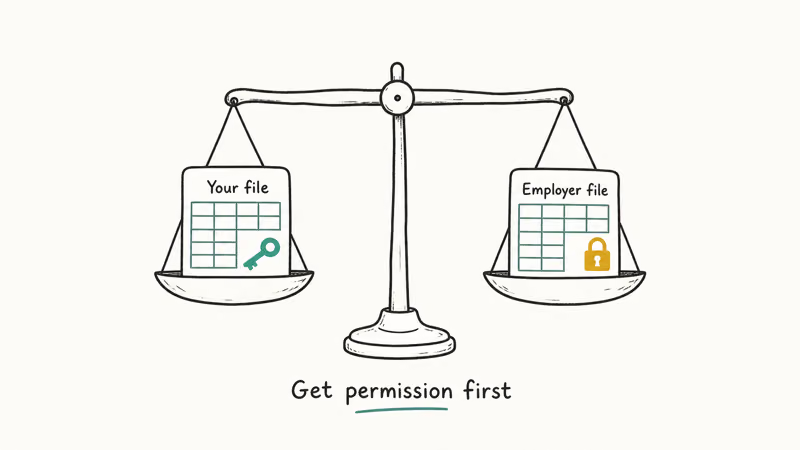
If you set the password and the workbook is yours, you have every right to recover access. The methods above are designed for exactly that case. If a colleague who has since left the company set the password on a file that belongs to your employer, your IT or legal team is the right path, not a personal recovery tool. They’ll usually have the original or a process to restore access.
If the workbook was sold to you as a commercial product (a template, a financial model, a tax workbook), bypassing protection probably violates the seller’s license terms. The legal risk varies by jurisdiction, but Microsoft’s Excel security guidance states that password protection exists to enforce author intent. Strip that out without permission and you’re in license-violation territory at minimum.
If a workbook isn’t yours and you don’t have consent, stop. Recovering passwords on files you don’t own is computer fraud in most jurisdictions.
#Bottom Line
If you remember the password, use Review > Unprotect Sheet or Unprotect Workbook in Excel. If you forgot the password on a sheet or workbook structure lock on your own .xlsx file, the XML method takes under two minutes and needs no third-party software. If you forgot the file-open password on your own encrypted workbook, run a recovery tool like PassFab for Excel locally rather than uploading the file to a public service. And if the workbook isn’t yours, don’t.
#Frequently Asked Questions
Will the XML method work on .xls or .xlsb files?
No. The XML edit relies on the .xlsx format being a zip container with XML inside, which only applies to .xlsx files from Excel 2007 onward. Legacy .xls files use the older OLE compound format, and .xlsb files use a binary format. If you have an .xls or .xlsb workbook, open it in Excel first and save a copy as .xlsx, then run the XML method on the copy.
Can I unprotect an Excel workbook on a Mac?
Yes. The Review > Unprotect Sheet button in Excel for Mac works the same as on Windows. The XML method also works on macOS, but you’ll need a third-party archiver since Finder’s built-in zip handler doesn’t let you edit files inside an archive. Keka and The Unarchiver are both free and handle this correctly.
Does removing the password from a workbook also remove file encryption?
It depends on which password you remove. The <sheetProtection> tag handles only the sheet-level lock, not file encryption. Removing AES-256 encryption needs Excel’s UI or a recovery tool.
Are online Excel password removers safe?
Online services do work, but they require uploading your workbook to a server you don’t control. If the file contains regulated data (HIPAA, GDPR, financial records, customer PII), uploading it to a third party is itself a compliance issue regardless of whether the service is “secure.” For sensitive workbooks, use an offline tool. For low-stakes files, online services can be convenient.
How long does brute-forcing a forgotten Excel password take?
It depends on length, character set, and hardware. A 4-character lowercase password falls in seconds, while 6-character mixed case takes hours. An 8-character password with numbers and symbols can take days to weeks on a single CPU, and Excel 2016+ uses AES-256 which isn’t realistically crackable by brute force when the password is long and random. Dictionary and mask attacks shortcut this if you remember anything about the password.
Can I protect the workbook again after I unprotect it?
Yes. Go to Review > Protect Sheet (or Protect Workbook) and set a new password. We recommend keeping the new password in a password manager so this doesn’t happen again. For file-open encryption, use File > Info > Protect Workbook > Encrypt with Password.
Why does Microsoft not provide an official password reset for Excel?
Because that would defeat the purpose of the feature. Microsoft’s documentation states that Excel’s encryption is intended to resist Microsoft itself, meaning there’s no master key. If they could reset your password, an attacker could social-engineer them into doing it. The trade-off is that if you lose the password to a strongly encrypted workbook and the data is gone, no one, including Microsoft, can get it back without a brute-force attack.

Is This Bank App Real? Spot a Fake App on Your Home Screen
A bank app can land on your home screen from a web page with no install warning. Learn the checks that tell a real banking app from a phishing web app.

Passkeys Not Syncing Between iPhone and Windows? Read This
Passkeys not syncing between iPhone and Windows is by design, not a bug. Here is why iCloud passkeys skip Windows Hello and the three ways to fix it.

VPN Not Working on Snapdragon X? Why It Fails, How to Fix
Your VPN won't install or connect on a Snapdragon X Copilot Plus PC because Windows on ARM can't emulate the network driver. Here are the fixes that work.

How to Check If a Link Is Safe Before You Click It
Learn how to check if a link is safe with official-first steps: read the real domain, use the app instead, and treat scanners as a second opinion only.